
Close Menu
onyxguides.comonyxguides.com

    Subscribe to Updates

    Get the latest creative news from FooBar about art, design and business.

    What's Hot

    Brother MFC-J4320DW Connectivity Automatic Replenishment User Guide
    April 6, 2026

    Brother ADS-4100 Desktop Document Scanner Instruction Guide

    April 6, 2026

    HAPPRUN KC7 Pro Netflix Projector Instruction Guide Manual

    April 6, 2026
    Facebook X (Twitter) Instagram
    onyxguides.comonyxguides.com
    Facebook X (Twitter) Instagram Pinterest
    • Home
    • About us
    • Terms & Conditions
    • Privacy Policy
    • FAQs
    • Contact us
    onyxguides.comonyxguides.com
    Home » Brother MFC-J4320DW Connectivity Automatic Replenishment User Guide
    Other

    Brother MFC-J4320DW Connectivity Automatic Replenishment User Guide

    By Gabriel SmithApril 6, 2026Updated:April 6, 2026No Comments3 Mins Read
    Facebook Twitter Pinterest LinkedIn Tumblr WhatsApp Telegram Email
    Brother-MFC-J4320DW-Connectivity-Automatic-Replenishment-featured
    Share
    Facebook Twitter LinkedIn Pinterest Email

    brother-logo-

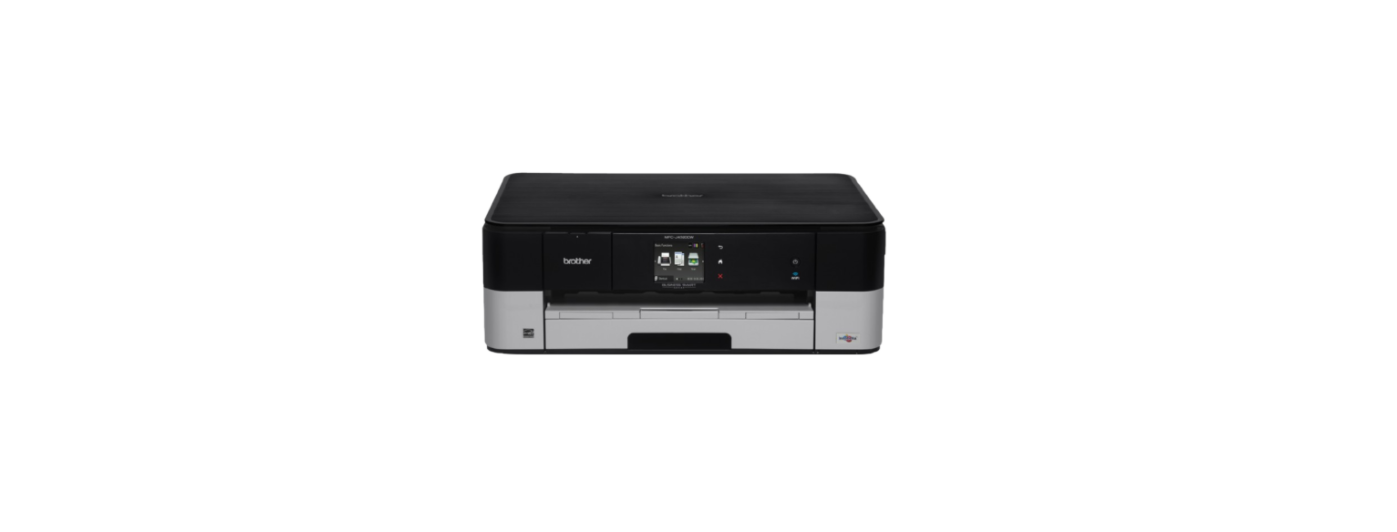
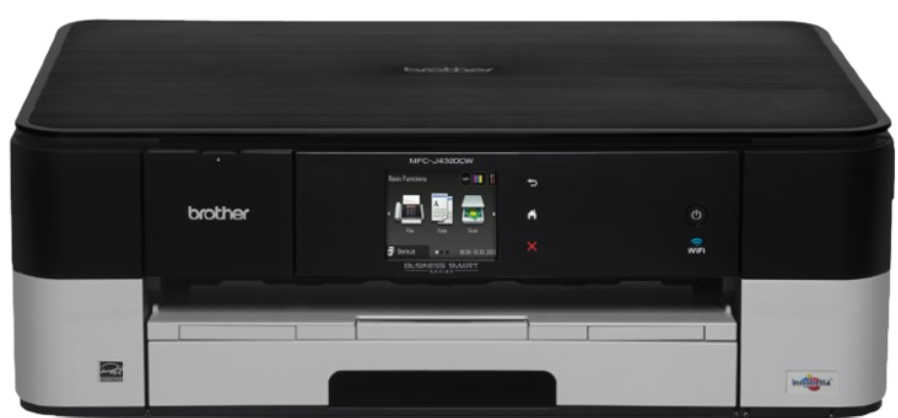
    Brother MFC-J4320DW Connectivity Automatic Replenishment

    Brother-MFC-J4320DW-Connectivity-Automatic-Replenishment-product

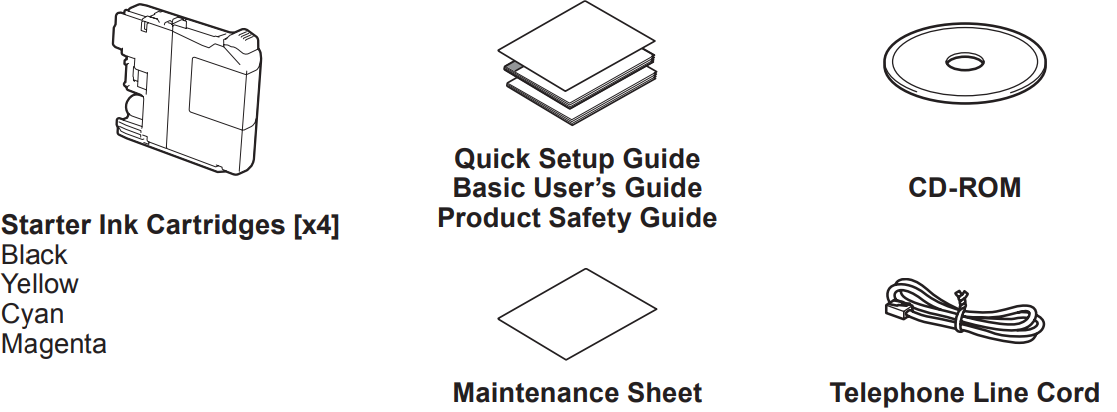
    Unpack the machine and check the components.

    1. Remove the protective tape and film covering the machine, and also from the Touchscreen.
    2. Make sure you have all components. The components included in the box may differ depending on your country.
    Brother-MFC-J4320DW-Connectivity-Automatic-Replenishment-figure-1

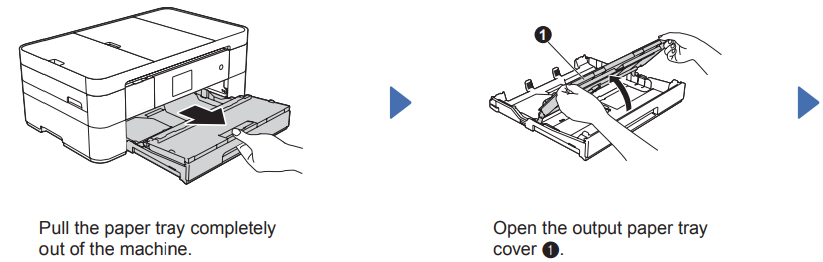
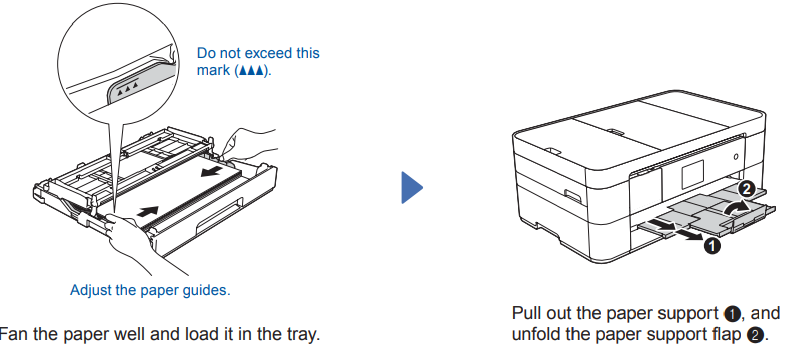
    Load plain Letter/A4 paper.r

    Brother-MFC-J4320DW-Connectivity-Automatic-Replenishment-figure-2

    Brother-MFC-J4320DW-Connectivity-Automatic-Replenishment-figure-3

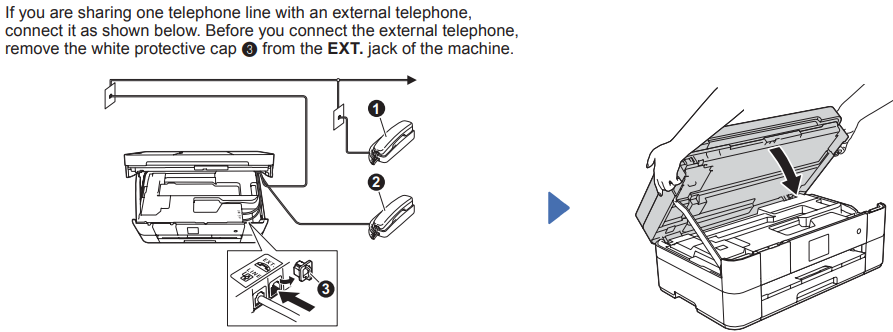
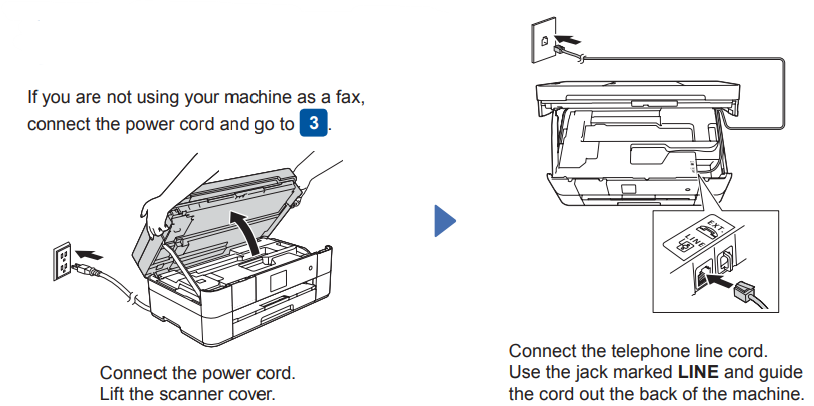
    Connect the power cord and the telephone line cord.
    Brother-MFC-J4320DW-Connectivity-Automatic-Replenishment-figure-4

    Brother-MFC-J4320DW-Connectivity-Automatic-Replenishment-figure-5

    1. Extension telephone
    2. External telephone
    3. Protective cap

    Install starter ink cartridges
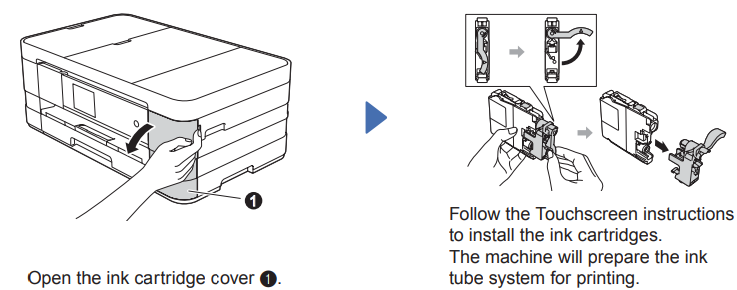
    Brother-MFC-J4320DW-Connectivity-Automatic-Replenishment-figure-6

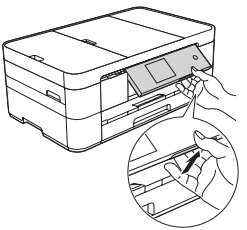
    You can adjust the angle of the control panel by lifting it.Brother-MFC-J4320DW-Connectivity-Automatic-Replenishment-figure-7
    Machine Settings

    When the machine has finished the initial cleaning process, follow the Touchscreen instructions to configure the machine settings.

    • Check print quality
    • Set date and time
    • Print the installation sheet

    Choose your language

    1. Press (Settings).
    2. Press All Settings.
    3. Press A or V to display Initial Setup. Press Initial Setup.
    4. Press 4 or V to display Local Language. Press Local Language.
    5. Press your language.
    6. Press [H].

    Choose the correct Receive Mode.

    The correct Receive Mode is determined by the external devices and telephone subscriber services (Voice Mail, Distinctive Ring, etc.) you will be using on the same line as the Brother machine.

    1. Press lüd (Settings).
    2. Press All Settings.
    3. Press Fax.
    4. Press Setup Receive.
    5. Press Receive Mode.
    6. Press your preferred ReceiveMode.
    7. Press (H).
    Set your Station ID

    Store your name and fax number so the machine prints it on all outgoing fax pages. For more information, see Entering Text in chapter 1 of the Basic User’s Guide.

    1. Press (Settings).
    2. Press All Settings.
    3. Press or YrY to display Initial Setup. Press Initial Setup.
    4. Press Station ID.
    5. Press Fax.
    6. Enter your fax number (up to 20 digits) on the Touchscreen, and then press OK.
    7. Press Name.
    8. Enter your name (up to using the Touchscreen
    9. Press G

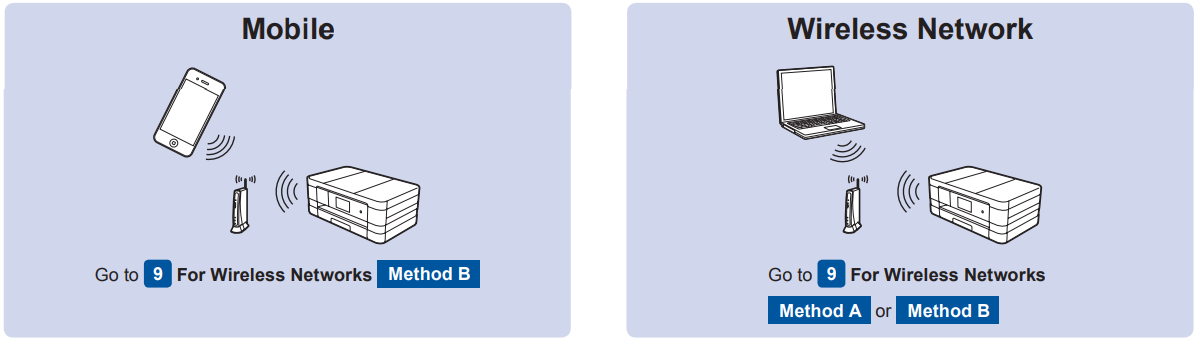
    Choose your method

    Brother-MFC-J4320DW-Connectivity-Automatic-Replenishment-figure-8

    Brother-MFC-J4320DW-Connectivity-Automatic-Replenishment-figure-9

    Connect to your Device and Install the Software

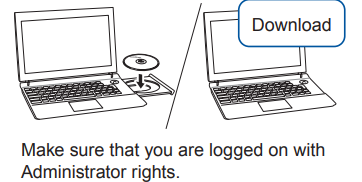
    Make sure that you are logged on with Administrator rights.Brother-MFC-J4320DW-Connectivity-Automatic-Replenishment-figure-10
    • Set up your machine.ine
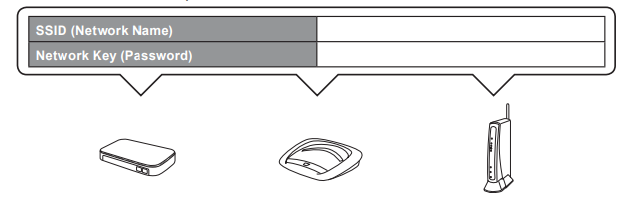
      1. Write your wireless access point/router information in the area below. This information may be hidden at the bottom of the wireless access point/router. If you cannot find it, ask your network administrator or wireless access point/router manufacturer.Brother-MFC-J4320DW-Connectivity-Automatic-Replenishment-figure-11
      2. Press wiFt on your Brother machine’s Touchscreen, and then press Setup Wizard. When Enable WLAN? is displayed, press Yes.
      3. Select the SSID you wrote down in 1. Press OK.
      4. If the machine prompts you to enter a Network Key, enter the key you wrote down in step 1. Press OK.
      5. Press Yes to apply your settings.
    • Install Brother iPrint&Scan
      1. You can print from and scan to mobile devices using our free application “Brother iPrint&Scan.” Download and install the application from solutions.brother.com/ips.
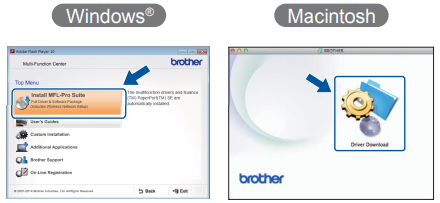
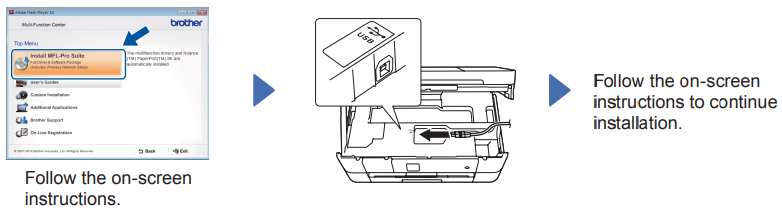
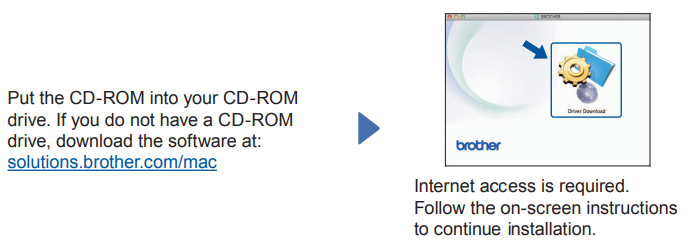
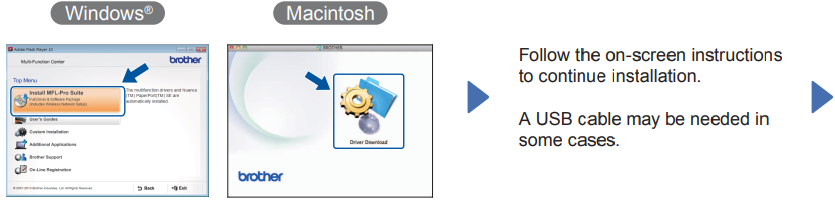
    • Install MFL-Pro Suite
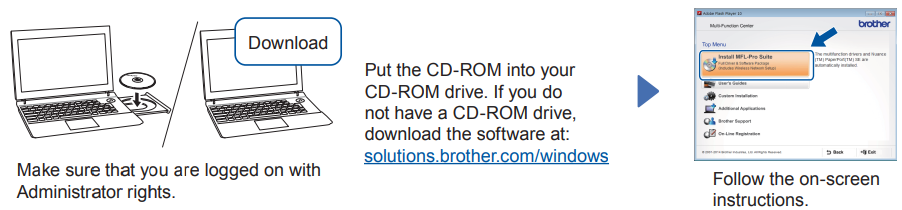
      1. Make sure that you are logged on with Administrator rights.Brother-MFC-J4320DW-Connectivity-Automatic-Replenishment-figure-12
    • Install MFL-Pro SuiteBrother-MFC-J4320DW-Connectivity-Automatic-Replenishment-figure-13
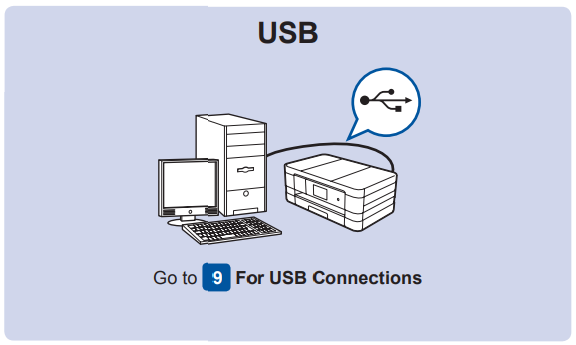
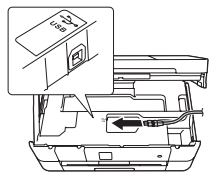
    • Connect the USB cableBrother-MFC-J4320DW-Connectivity-Automatic-Replenishment-figure-14
    • Connect the USB cableBrother-MFC-J4320DW-Connectivity-Automatic-Replenishment-figure-15
    • Install MFL-Pro SuiteBrother-MFC-J4320DW-Connectivity-Automatic-Replenishment-figure-16Brother-MFC-J4320DW-Connectivity-Automatic-Replenishment-figure-17

    Customer Service

    • Website: www.brother.com
    Share. Facebook Twitter Pinterest LinkedIn Tumblr Email
    Gabriel Smith

      Related Posts

      Brother ADS-4100 Desktop Document Scanner Instruction Guide

      April 6, 2026

      HAPPRUN KC7 Pro Netflix Projector Instruction Guide Manual

      April 6, 2026

      Brother ADS-4500W Desktop Document Scanner User Manual

      April 4, 2026

      NEC NC1503L DLP Cinema Projector Instruction Manual

      April 4, 2026

      NEC NP-02HD DLP Cinema Projector Instruction Manual

      April 3, 2026

      Best Wireless Mouse and Keyboard Guide 2026: Features, Fixes & Top Picks

      April 2, 2026
      Add A Comment
      Leave A Reply Cancel Reply

      Don't Miss
      Other

      Brother MFC-J4320DW Connectivity Automatic Replenishment User Guide

      April 6, 2026

      Brother MFC-J4320DW Connectivity Automatic Replenishment Unpack the machine and check the components. Remove the protective…

      Brother ADS-4100 Desktop Document Scanner Instruction Guide

      April 6, 2026

      HAPPRUN KC7 Pro Netflix Projector Instruction Guide Manual

      April 6, 2026

      Brother ADS-4500W Desktop Document Scanner User Manual

      April 4, 2026
      Stay In Touch
      • Facebook
      • Twitter
      • Pinterest
      • Instagram
      • YouTube
      • Vimeo

      Subscribe to Updates

      Subscribe to Updates

      Follow us

      Facebook X-twitter Instagram Pinterest

      © 2025 All rights reserved Onyx Guide.