Close Menu
onyxguides.comonyxguides.com

    Subscribe to Updates

    Get the latest creative news from FooBar about art, design and business.

    What's Hot

    BARCO QDX Rental Laser Projectors Instruction Manual

    March 13, 2026

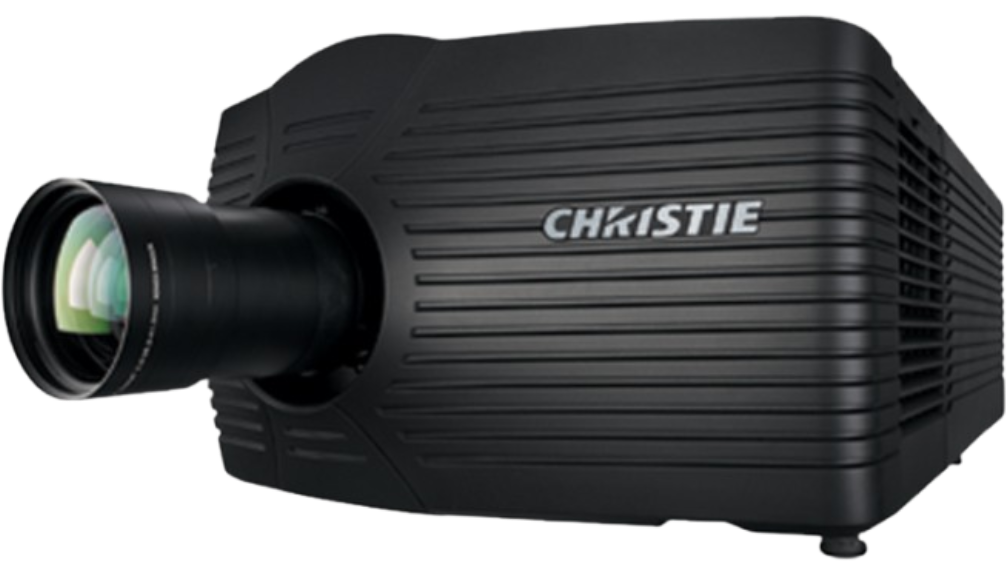
    CHRISTIE D4K2560 High Frame 4K Projector Instruction Guide
    March 13, 2026

    How To Protect Electronic Devices From EMP

    March 12, 2026
    Facebook X (Twitter) Instagram
    onyxguides.comonyxguides.com
    Facebook X (Twitter) Instagram Pinterest
    • Home
    • About us
    • Terms & Conditions
    • Privacy Policy
    • FAQs
    • Contact us
    onyxguides.comonyxguides.com
    Home » CHRISTIE D4K2560 High Frame 4K Projector Instruction Guide
    Other

    CHRISTIE D4K2560 High Frame 4K Projector Instruction Guide

    By Gabriel SmithMarch 13, 2026No Comments48 Mins Read
    Facebook Twitter Pinterest LinkedIn Tumblr WhatsApp Telegram Email
    CHRISTIE-D4K2560-High-Frame-4K-Projector-fEATURED
    Share
    Facebook Twitter LinkedIn Pinterest Email

    christie-logo


    CHRISTIE D4K2560 High Frame 4K ProjectorCHRISTIE-D4K2560-High-Frame-4K-Projector-Product


    Introduction

    This m anual is intended for professionally trained operators of Christie high- brightness proj ection system s. These operators are qualified to replace the lamp and air filters, but should not attempt to
    install or service the pprojectorOnly accredited Christie technicians who are knowledgeable about the hazards associated with high-voltage, ultraviolet exposure, and the high temperaturesgenerated by the projector lampare authorized to assemble, install, and service the projector

    For cocompleteK2560 product documentationand technical support, go to
    www.christiedigital.com.

    Safety and warning guidelines

    This projector mustbe operated in an environmentthat m meetshe operating range specification. Use only the attattachments/ or accessories recommended by Christie. Use of others m ay result in the risk of fire, shock, or personal injury.
    Warning! Failure to complywith the following could result in death or serious injury.

    • Never look directly into the projector lens or at the lalamphe extremely high brightness can cause permanenteye damage. For protection from ultraviolet radiation, keep all projector housings intact during operation. Protective safety gear and safety goggles are rrecommendedwhen servicing.
    • FI RE HAZARD! Keep hands, clothes, and all combustible material away from the concentrated light
      beam of the lamp. Caution! Failure to comply with the following could result in minoror moderate injury.
    • Position all cables where they cannot contact hot surfaces or be pulled or tripped over.
    • The AmericanConference of Governmental Industrial Hygienists (ACGIH) recommends
      occupational UV exposure for an 8-hour day to be less than 0.1 microwattsper square centimeter of effective UV radiation. A workplace evaluation is advised to assure em ployees are not exposed to cumulative radiation levels exceeding the government guidelines for your area. Be aware that
      some medications are known to increase sensitivity to UV radiation. NOTE: During maintenanceand cleaning operations, the instructions define that the unit mustnot be operational, thus the lampsare not active and there are no emissions. Optical adjustments are not considered maintenance. The lampsare turned on during optical adjustmentsand emissions are present.

    Installation safety and warning guidelines

    Danger! Failure to com ply with the following results in death or serious injury.

    • This product must be installed within a restricted access location which is normally inaccessible by
      the general public, including workers, visitors, and residents in the immediate vicinity, by meansof engineering or administrativecontrol measuresbut is accessible to authorized personnel that may not have specific safety training.
    • This product must be located and positioned in a way as to restrict audience members from direct access to enter the light beam path.
    • Do not install the projector overhead.
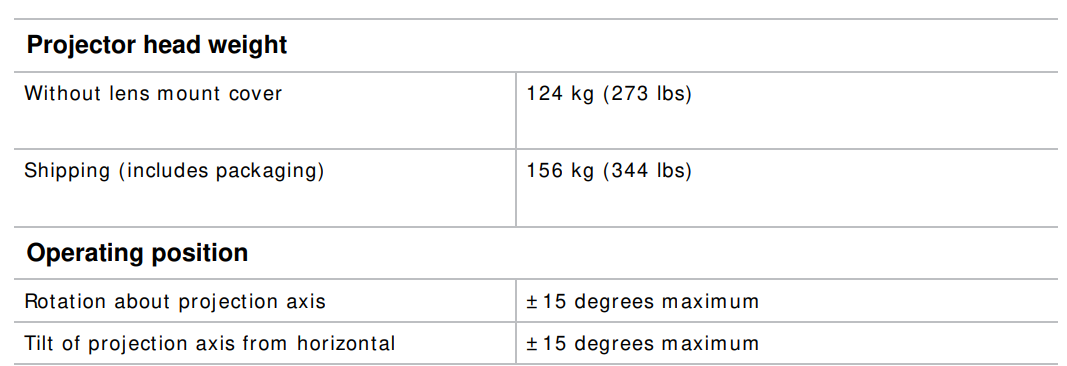
    • When installing the projector in portrait mode, the device holding the projector musthave a weight rating sufficient to hold the weight of the projector. The projector weighs 125kg (275 lbs).
    • The projector uses a high-pressure lampthat m ay explode if im properly handled. Always wear manufacturer-approvedprotective safety clothing (gloves, jacket, face shield) when the lampdoor is open or when handling the lamp. Failure to complyresults in death or serious injury. Warning! Failure to com ply with the following could result in death or serious injury.
    • A qualified technician is required for all installations.
    • SHOCK HAZARD. Never operate the projector without all of its covers in place.
    • Use of the projector’s rear safety strap is mandatory to prevent the projector from tipping. Secure the strap between the projector and the surface it is mountedto.
    • Four or morepeople are required to safely lift and hand-carry one projection head a short distance. Christie recom m ends rem oving the lamp for transporting the projector.
    • Two or morepeople are required to safely lift and hand-carry the lamp power supply (LPS). Notice. Failure to complywith the following mayresult in property damage.
    • Perform an autom atic Lam pLOC adjustm ent when the lampis moved, leveled, or a new lampis installed in the projector.
    • Keep the projector level when lifting or transporting. Avoid tilting the projector to the right. This can introduce an air bubble into the coolant hoses that can result in an air lock and the overheating of the projector.

    AC/power precautions

    To correctly install this projector, a certified electrician must install a permanent three-phase
    connection to the lamp power supply (LPS). The LPS projector outlet is used to supply power to the
    projector head. Operate the projector at the recommended voltage.

    Danger! Failure to comply with the following results in death or serious injury. Disconnect the projector from the AC before opening any enclosure.

    Warning! Failure to comply with the following could result in death or serious injury.

    • Verify that the projector is using a line cord, socket, and power plug that meets the appropriate local rating standards. Use only an AC power cord recommended by Christie. Do not attempt operation if the AC supply and cord are not within the specified voltage and power range.
    • Do not allow anything to rest on the power cord. Locate the projector where the cord cannot be abused by persons walking on it or objects rolling over it. Never operate the projector if the power cable appears damaged in any way.
    • Do not overload power outlets and extension cords, as this can result in fire or shock hazards.

    Product safety labels

    • Indicates the presence of a dangerous condition or situation.
    • Indicates the presence of a pinch hazard. To avoid personal injury, keep your hands clear and loose clothing tied back.
    • Indicates the presence of a hot surface. To avoid personal injury, always allow the projector to cool down for a minimum of 10 minutes belore pertorming maintenance or service procedures.
    • Indicates the presence of a hot surface. To avoid personal injury, always allow the projector to cool down for a minimum of 10 minutes before performing maintenance or service procedures.
    • Indicates the presence of an electrical shock hazard. To avoid personal injury, always disconnect all power sources before performing maintenance or service procedures.
    • Indicates the presence of an electrocution hazard. To avoid personal injury, always disconnect all power sources before performing maintenance or service procedures.
    • Indicates the presence of moving fan blades. To avoid personal injury, keep your hands clear and loose clothing tied back. Always disconnect all power sources before performing maintenance or service procedures.
    • Indicates exposure to bright light. To avoid personal injury, never look directly at the light source.
    • Indicates the presence of an explosion hazard. To avoid personal injury, always disconnect all power
      sources and wear Christie-approved protective clothing. Indicates the presence of a fire hazard. To avoid personal injury and property damage, always adhere to the instructions described in this manual.

    Always disconnect all power sources before perform ing m aintenance or service procedures. See the product user manualfor specific informationand directions. See the product service m manualr specific informationand directions.

    Never look directly into the projector lens. The extremely high brightness can cause permanenteye damage. This label warns of a cross-connection hazard when installing multipleprojectors at once. A fire hazard exists if a lamp supply interlock cable is connected to a different projector than its lamp powercables. For m ore inform ation, see Adjust the projector tilt and level in the Installation and Setup chapterCHRISTIE-D4K2560-High-Frame-4K-Projector-fig-1

    Projector overview

    The D4K2560 is a professional quality, easy-to-use, split-body projector using Digital Light Processing ( DLP™) technology from Texas I nstrum ents. I ntegrating sm oothly into traditional projection environments, the D4K2560 interfaces with local networks throughout the world, for multimedia presentations from a variety of formats to offer stunning, wide-screen, high-resolution 4K imagesat 60 framesper second.

    Contact your dealer

    Ifyou encounter a problem with your Christie projector, contact your dealer. To assist with the servicing of your prprojectornter the informationin the tables below and keep this ininformationth your records.

    CHRISTIE-D4K2560-High-Frame-4K-Projector-fig-2 CHRISTIE-D4K2560-High-Frame-4K-Projector-fig-3

    Key features

    • 3-chip 4K DLP™ light engine
    • 4096 x 2160 native pixel format
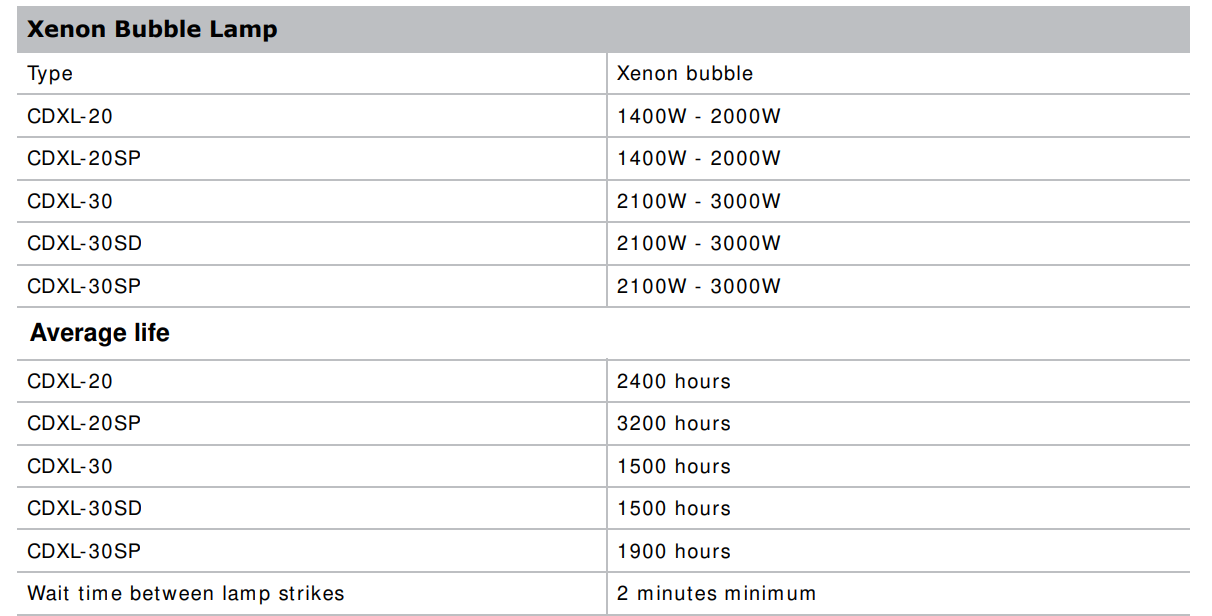
    • 2.0 and 3.0 kW Xenon lampsavailable
    • Warp and blend of projected images
    • Supports screens up to approximately 100 feet in width
    • Touch panel controller (TPC) for the matrix in the projector interface. Verify you have the latest software by
      visiting http://www.christiedigital.com
    • 1x 10/ 100BaseT Ethernet port
    • RS232 ports for communication
    • 4x Option slots accepting a variety of digital video input option cards
    • LiteLOC™ feature for constant imagebrightness
    • Lam pLOC™ feature for motorizedthree-axis lamp alignment
    • Electronically operated “quick” douser
    • Motorized lens mount
    • LED indicators on the rear corners of the projector for easy-to-read status indication
    • Replaceable air filters (no tools required)
    • Optional rack m ount stand
    • Choice of field-interchangeable zoom lenses

    CHRISTIE-D4K2560-High-Frame-4K-Projector-fig-4

    How the projector works

    The D4K2560 accepts a variety of input signals for projection on front or rear projection screens, typical in commercial or other large screen applications. High-brightness light is generated by a short arc Xenon lamp, then modulated by three Digital Micromirror Device (DMD) panels responding to incoming data streams of digitized red, green and blue color information. As these digital streams flow from the source, light from the responding “on” pixels of each panel is reflected, converged and then projected to the screen through one or more projection lenses, where all pixel reflections are superimposed in sharp full-color images.

    List of components

    Verify the following components were received with the projector:

    • Touch panel controller (TPC)
    • Lens plug (required for shipping when the lens is not installed to prevent contamination of critical optical components)
    • Light engine removal tool
    • Convergence tool
    • Nylon safety strap with clip (required to secure projector to tabletop or optional rack mount)
    • Warranty card
    • Shroud
    • Access keys
    • Web registration form

    Installation and Setup

    This section explains how to install, connect, and optim ize the projector display.

    Site requirements

    To safely install and operate the projector theinstallation location must have restricted access for
    authorized personnel only and meet these minimum requirements.

    Physical operating environment

    • Maxim um Am bient Tem perature (operating) 35° C (95° F)
    • Minim um Ambient Temperature (operating) 10° C (50° F)

    External exhaust ducting

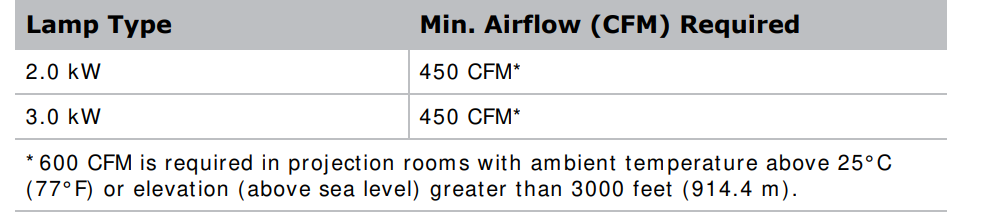
    The installation site mustprovide a minimum of 450 CFM ( ft 3/ m in) external exhaust airflow to ensure adequate cooling of the Xenon arc lampat less than or equal to 25° C ( 77° F) ambientand less than 3,000 ft ( 914.4 m ) elevation. Above 25° C or 3,000 ft, 600 CFM is required. For more details, see Connect external exhaust ducting on page 27.

    Power connection

    The requirements listed below are applicable for permanent wired installation or power cord connection:

    • Term inal block, electrician hard-wired to the projector head.
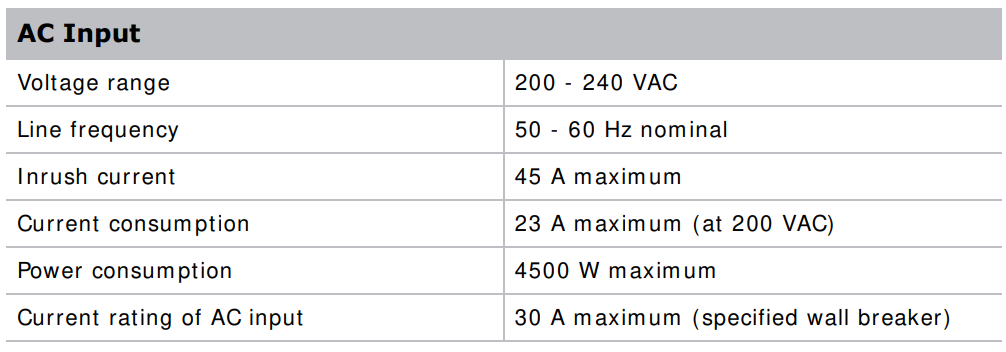
    • Electrical rating: 200 – 240 VAC, 23 A max.
    • This product can be connected to an ITpower distribution system.

    Tools required for installation

    • 12” screwdrivers: Phillips # 2 (magnetic and flat
    • 19mm and 7/ 8” wrenches
    • Assorted Allen keys (metric
    • Christie approved protective safety clothing when working with the lamp
    • Lens cleaning tissue and solution

    Projector components

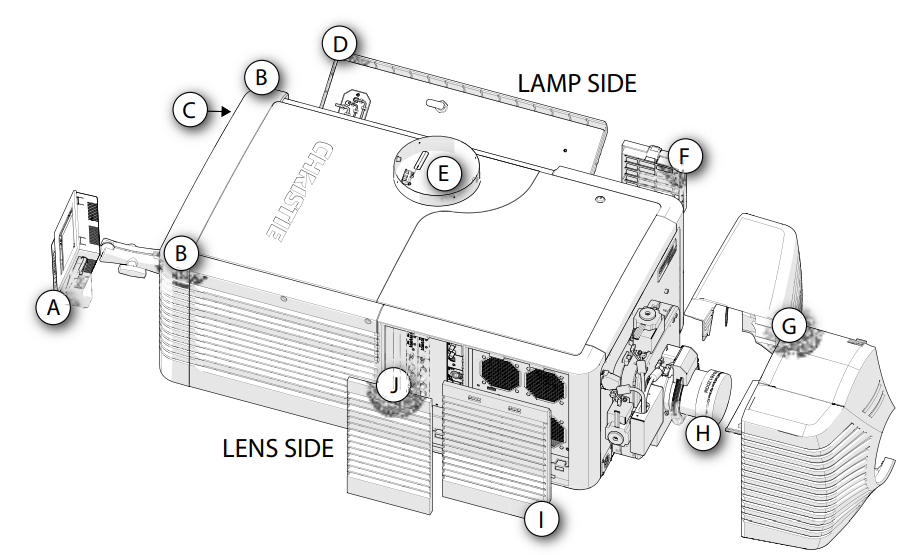
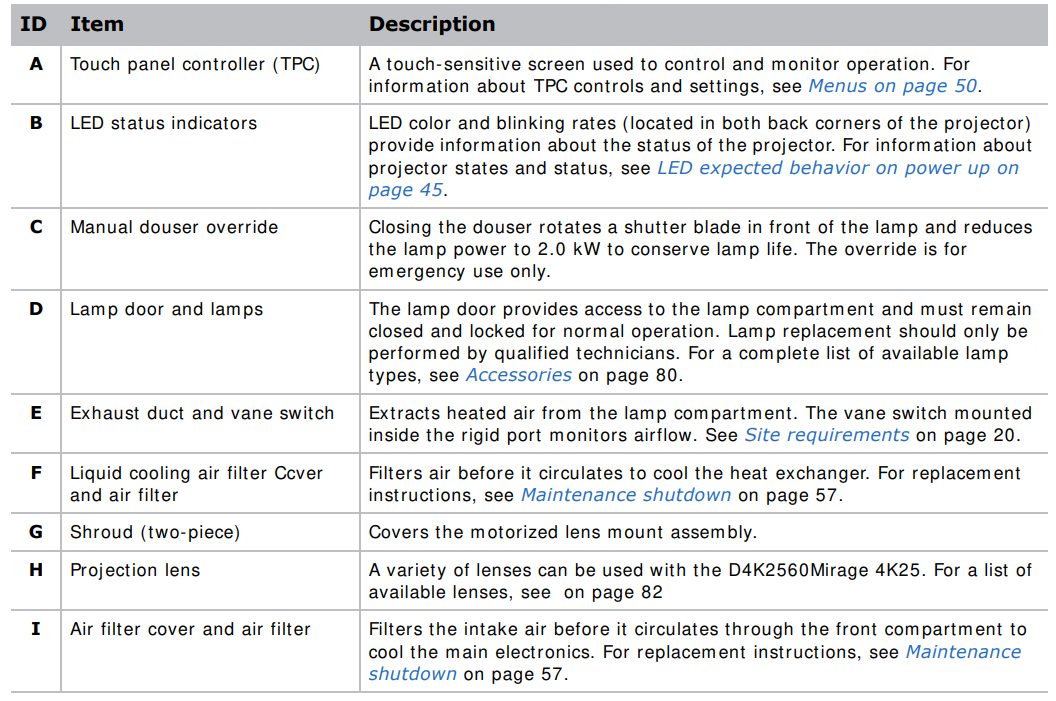
    CHRISTIE-D4K2560-High-Frame-4K-Projector-fig-5


    CHRISTIE-D4K2560-High-Frame-4K-Projector-fig-6

    CHRISTIE-D4K2560-High-Frame-4K-Projector-fig-7

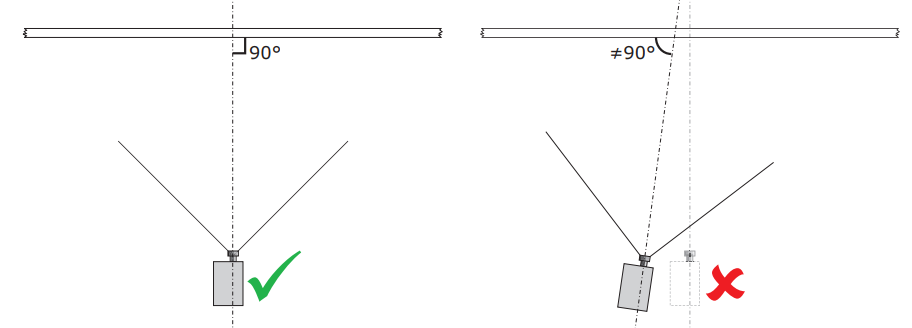
    Position the projector

    Keep the projector lens as perpendicular to the screen as possible, even if significantly above the screen center. When a particularly short throw distance combines with a wide screen, you may have to forfeit some aim and stay more perpendicular to the screen. In such cases, some lens offset can reduce the keystone distortion.

    1. Position the projector at an appropriate throw distance (projector-to-screen distance) and vertical position. Ideally, center the projector with the screen. If space is limited, aim the projector slightly off-center. This increases side keystoning, but reduces the horizontal lens offset required.CHRISTIE-D4K2560-High-Frame-4K-Projector-fig-8
    2.  Ifusing an optional rack stand (P/ N: 108-282101-02), assemble the rack stand using the instructions provided with the rack stand. Use the hohold-downlamp (P/ N: 116-100101-01) when securing the projector to the rack stand.
    Connect to AC power

    Failure to complywith the following could result in death or serious injury.

    • Certified electrician required during installation. Ground (earth) connection is necessary for safety. Never compromise safety by returning the current through the ground. Connect ground FI RST to reduce shock hazard.
    • Use an appropriate strain relief connector on the AC supply cable to prevent the cable from rubbing against the LPS knockout plate and becom ing dam aged. When connecting the projector directly to AC power, follow all electrical codes for your location. Inaddition, follow these recommendations:
    • Use 10AWG or 8AWG wiring. The distance between the wall circuit breaker and the projector must not exceed 20 m eters using 10AWG cables or 30 meters using 8AWG cables.
    • For North Americaninstallations, use at least 10AWG copper wires for the connection of the m main supply to the projector’s ground lug.
    • Copper or aluminum isacceptable as a conductor wiring materialto the term inal block. When connecting the projector to AC power with a pluggable type-B cable, follow all electrical codes for your location. Inaddition, follow these recommendations:
    • There mustbe easy access to the current protection device or breaker in the building.
    • Use m inim um 10AWG wiring, with a maximum length of 4.5 m for the U.S. and Canada. For international installations, the length should be based on the local electrical codes.
    • The socket-outlet is installed near the equipmentand is easily accessible.
    • The plug can be used to disconnect the device, whichis near the unit and easily accessible. The circuit breaker on the projector baseplate (located under the front lens-side corner) can also be used as a meansof disconnect.
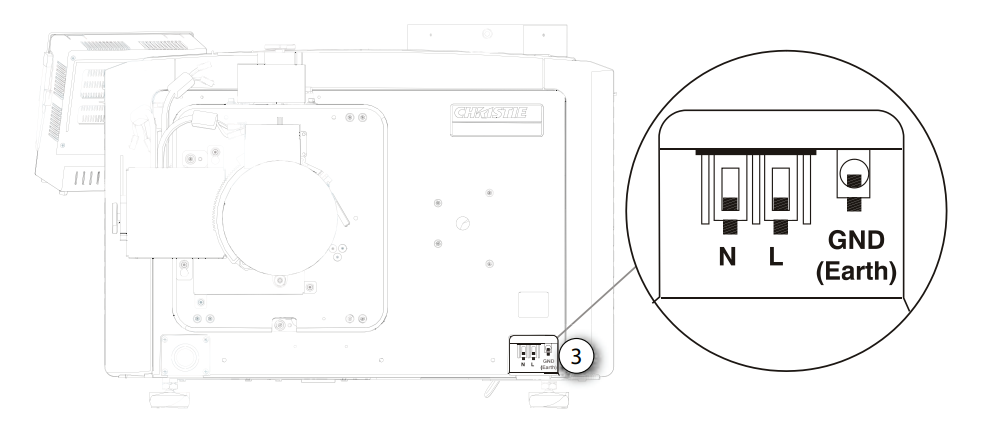
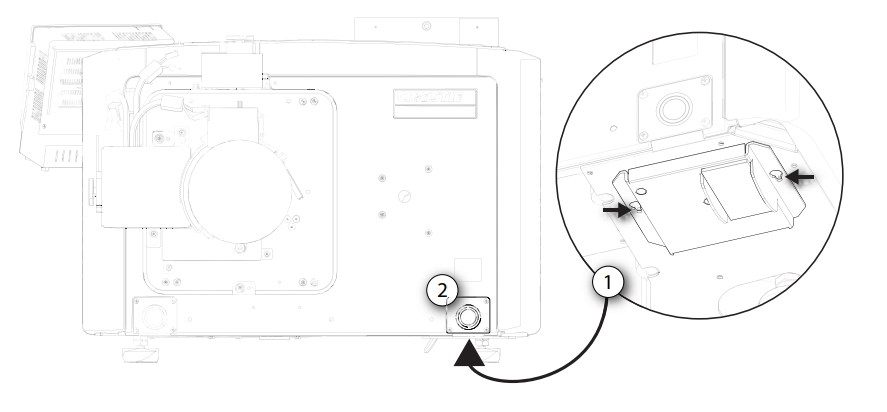
    1. On the bottom of the projector in the front lamp-side corner, loosen the two screws and slide the access panel to expose the term inal block.
    2. Remove four screws securing the knockout plate to the bottom right corner of the front bezel. Remove the knockout plate. The AC supply is routed to the terminalblock through an appropriate strain relief mountedon this knockout plate.CHRISTIE-D4K2560-High-Frame-4K-Projector-fig-9
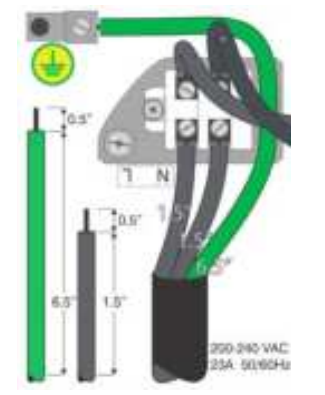
    3. Connect to the term inal block.
      Theterminal block accommodates up to an eight AWG wire. If required, use a 90° strain relief connector to route the power cable in a downward direction. Always connect the ground lead first to reduce the shock hazard.CHRISTIE-D4K2560-High-Frame-4K-Projector-fig-10

      • Ifconnecting to permanentpower, connect the AC power source to the term inal block, beginning with the ground lead.
      • Ifconnecting to a pluggable type-B cable, connect the cable to the terminal block, beginning with the ground lead.
      • Use an appropriately sized strain relief connector with the knockout plate provided to ensure adequate environmental sealing and to prevent the cables from wear and accidentally being torn out.CHRISTIE-D4K2560-High-Frame-4K-Projector-fig-11
    4. Reinstall the knockout plate and secure it with four screws.
    5. Reinstall the bottom access panel over the term inal block and secure it with two screws. Ifusing a pluggable type-B cable, connect to the building’s AC power source.
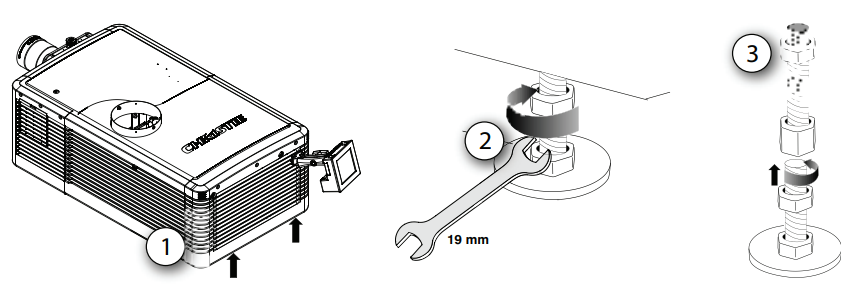
    Adjust the projector tilt and level.

    1. Secure a safety lifting strap rated to handle the projector’s weight at the rear of the projector.
    2. Hoist up the projector.
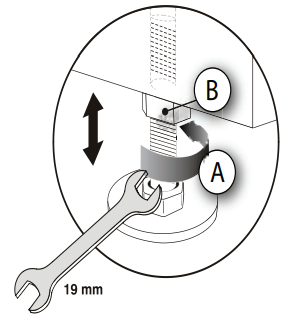
    3. To adjust the vertical or horizontal position of the projector, extend or retract the adjustable feet on the bottom of the projector (A).
    4. Once the required adjustm ent is m ade, tighten the lock nut against the bottom of the projector (B). The projector provides 4 inches of adjustm ent at the front and 11.5 inches of adjustm ent at the rear.
    5. I f the vertical or horizontal position of the projector requires more adjustment than the standard feet allow, two 6-inch extension rods can be installed to increase the am ount of available adjustm entCHRISTIE-D4K2560-High-Frame-4K-Projector-fig-12


    Install the foot extension rods.

    1. Elevate the rear of the projector to access the two rear feet.
    2. Remove the feet by loosening the lock nut and rotating each foot out of the projector.
    3. Add the extension rods to the standard feet.
    4. Thread the extended feet into the projector’s baseplate.
    5. Adjust the feet until the required tilt is achieved.
    6. Lock the feet in place by turning each lock nut until it fits tightly against the projector.
    CHRISTIE-D4K2560-High-Frame-4K-Projector-fig-13

    Install the touch panel controller.

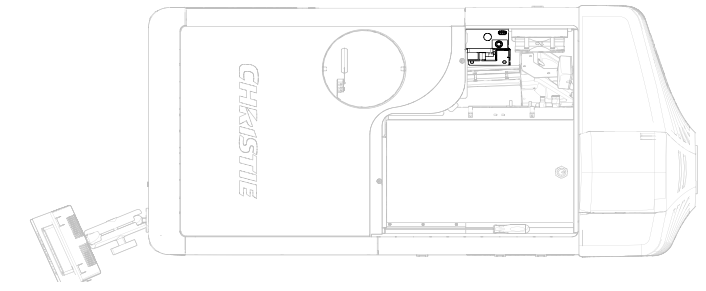
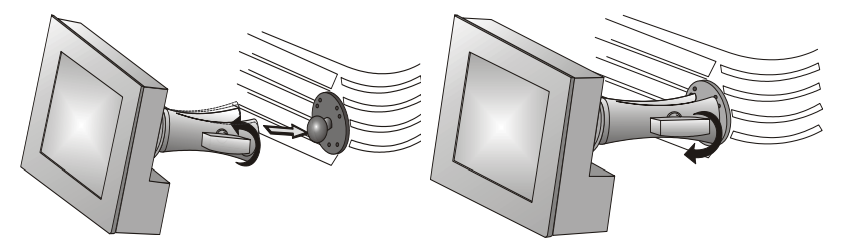
    1. Loosen the m ounting arm just enough for the end to fit over the ball joint located on the rear panel of the projector. The touch panel controller (TPC) becomes loose from the mounting arm when the mounting arm lock is loosened.
    2. Tighten the mountingarm lock until it fits tightly on the joint. The TPC safety strap comes installed on the projector ball point.
    3. Connect the cable from the touch panel controller (TPC) to the connector on the rear panel of the projector.
    4. Adjust the TPC angle for optimal viewing, then tighten the m ounting arm lock securely so that the TPC is held in place at the required location.
    CHRISTIE-D4K2560-High-Frame-4K-Projector-fig-14

    Connect external exhaust ducting

    Con..nect the existing outside-venting duct to the 8-inch diameter exhaust port on the top of the projector. Make sure there are no obstructions or bends in the ducting or air intakes, and the vane switch at the exit duct movesfreely. The pre-installed outside-venting duct should be rigid at the projector and must include a heat extractor and blower that maintains a m inminimum450 CFM* when the projector’s rating is at less than or equal to 25° C ( 77° F) ambient and less than 3,000 feet (914.4 m ), when measuredat the projector exhaust opening.

    To determinethe projector exhaust CFM value, use an airflow m meter measurethe ft/ m in at the rigid end of the open exhaust duct that connects to the projector. Take the m measurementt the end of the duct without the projectorconnected

    CHRISTIE-D4K2560-High-Frame-4K-Projector-fig-15

    Use t his form ula to determinethe CFM value for the projector: CHRISTIE-D4K2560-High-Frame-4K-Projector-fig-16Add an extractor or a booster if there is insufficient airflow. Do not mountthe extractor on the projector as this mayintroduce somevibration into the image.

    Remove the projector shroud.

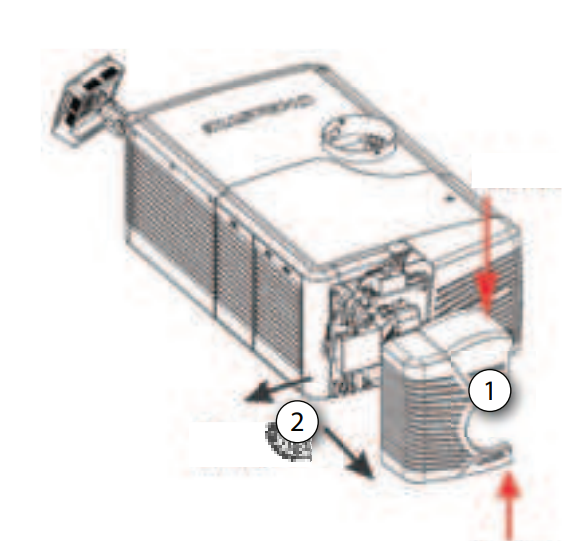
    The lens side shroud mustbe removedto gain access to the lens. The other shroud must
    Removed the connection of the AC power cord to the front face of the projector

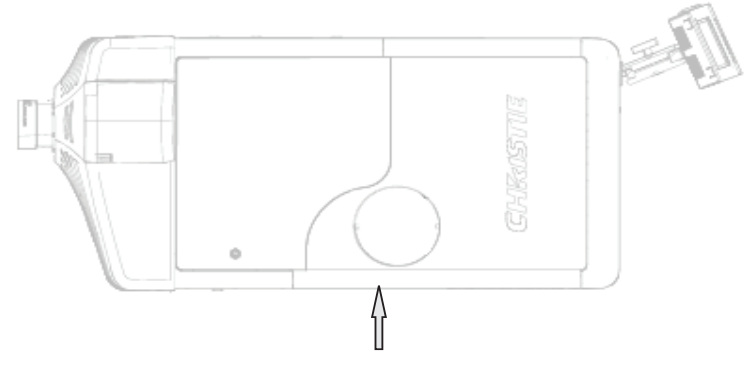
    1. Use finger pressure to push down on the shroud clips located at the top and bottom of the shroud as shown by the arrows.
    2. Carefully slide the shroud sideways and forward away from the lens m mountnd lens.CHRISTIE-D4K2560-High-Frame-4K-Projector-fig-17
    3. Place the shroud covers on a clean surface to prevent scratches
    Set up the lens

    1. Remove the projector shroud.
    2. Make sure the lens locking lever is in the up position.
    3. I fIfached, removethe rear lens cap from the lens.
    4. Slide the lens into the lens mount, aligning all connections.
    5. 5. Secure the lens with the lens locking lever (down position).
    6. Calibrate the lens motors.

    For moredetails, see Work with lenses on page 48, Remove the projector shroud on page 28, and Calibrate the lens motors on page 65.

    Portrait mode

    1. Orient the projector in the frame with the lampdoor facing downward (as shown). The maximum tilt angle is ± 15 degrees.CHRISTIE-D4K2560-High-Frame-4K-Projector-fig-18
    2. Set up the custom er-supplied m ounting frame. The m ounting fram e m ust be designed to accommodate the weight and mounting provisions of the projector.
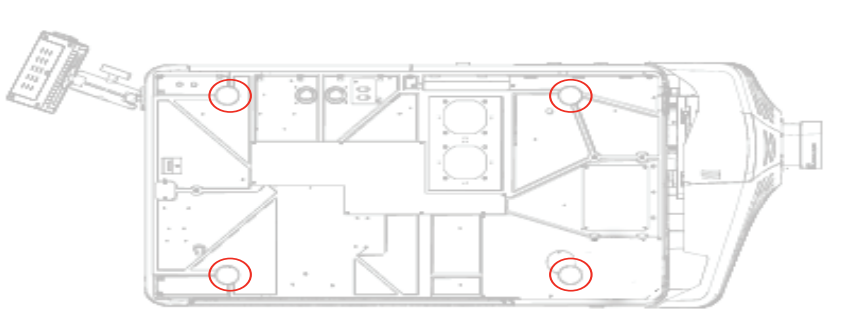
    3. Remove the projector feet.
    4. Attach the projector to the mounting frame using the four M12 holes (normally used for projector feet) on the bottom side of the projector. Mounting bolts must be grade 8.8 or higher and torqued to 60 ft-lbsCHRISTIE-D4K2560-High-Frame-4K-Projector-fig-19
    5. Perform a lamp alignment.

    Connect Devices

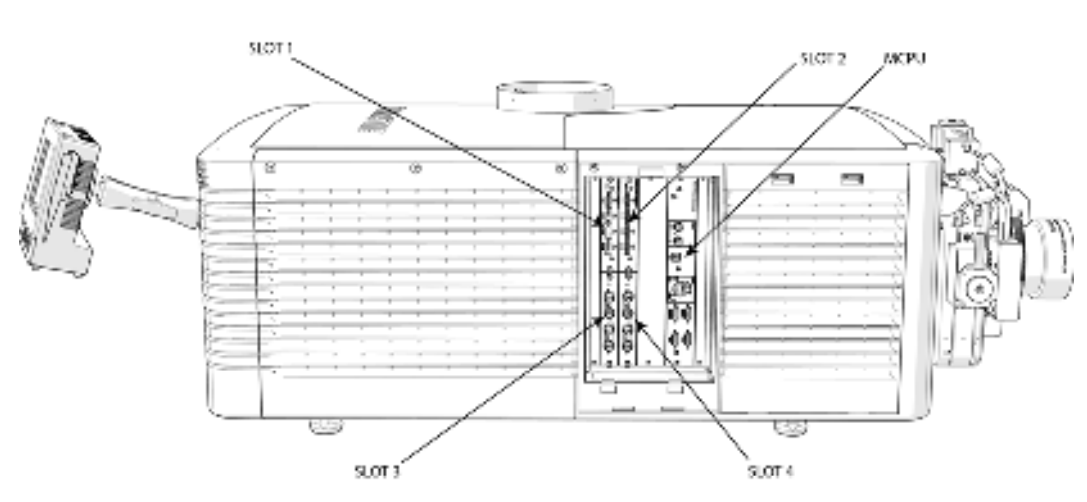
    This section provides informationand procedures for connecting external devices to the projecto..r Communication and input ports are located on the projector’s side input panel, accessed by removingthe input panel cover. When connecting devices, you can route cables through the opening in the frameto the side input panel or directly to the video option cards and MCPU. The imimage belowwhows the video option card slot numbersand the MCPU panel. Inputsignal devices are connected to the video option cards, nd the option card slot numbers are important for some types of input signals. Communication devices are connected to the MCPU panel.
    CHRISTIE-D4K2560-High-Frame-4K-Projector-fig-20

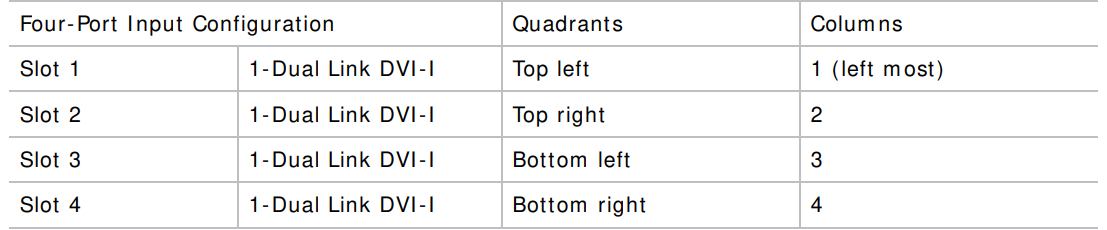
    Input video mapping

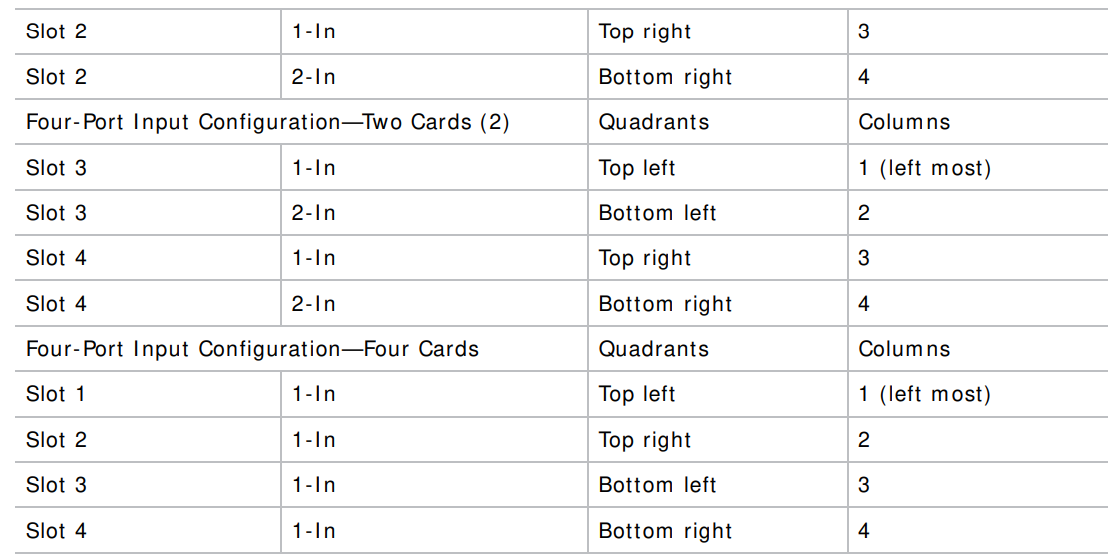
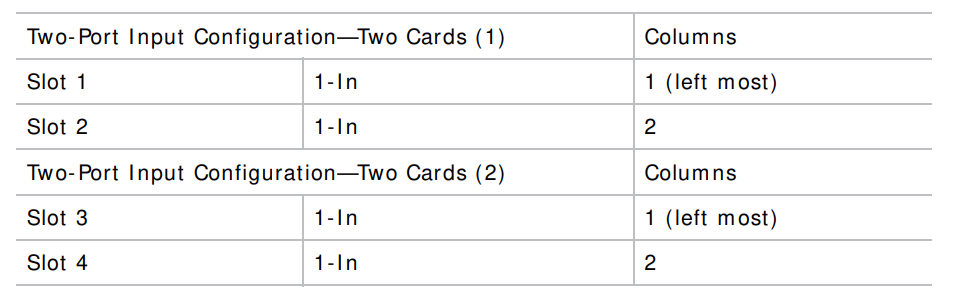
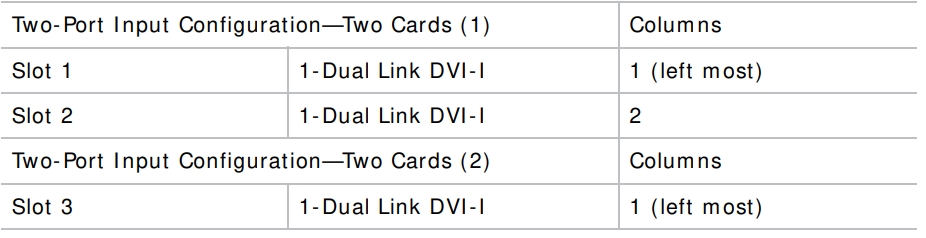
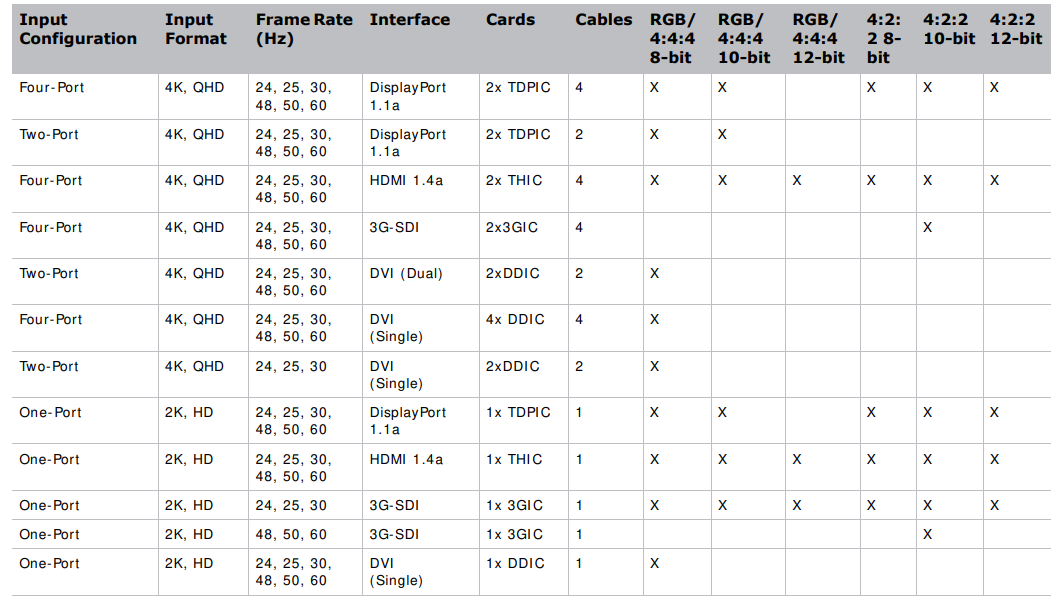
    Video input mapping depends on the type of cards used for the Four- Port or Two-Portinput configurations.CHRISTIE-D4K2560-High-Frame-4K-Projector-fig-22

    Four-Port: 3GIC, TDPIC, THIC cards

    The following table shows the video quadrant mappings for the 3GI C, TDPI C, and THI C Four- Port input configurations:

    Four-Port: DDIC card

    The following table shows the video quadrant mappings for the DDIC Four-Port input configuration:CHRISTIE-D4K2560-High-Frame-4K-Projector-fig-23
     

    Two-Port: TDPIC cardCHRISTIE-D4K2560-High-Frame-4K-Projector-fig-24
    Two-Port: DDIC cardCHRISTIE-D4K2560-High-Frame-4K-Projector-fig-25
    Connect a video source using DisplayPort

    The Twin DisplayPort Inputcard ( TDPI C) accepts digital video data from the DisplayPort sources. The input configurations listed below are supported.
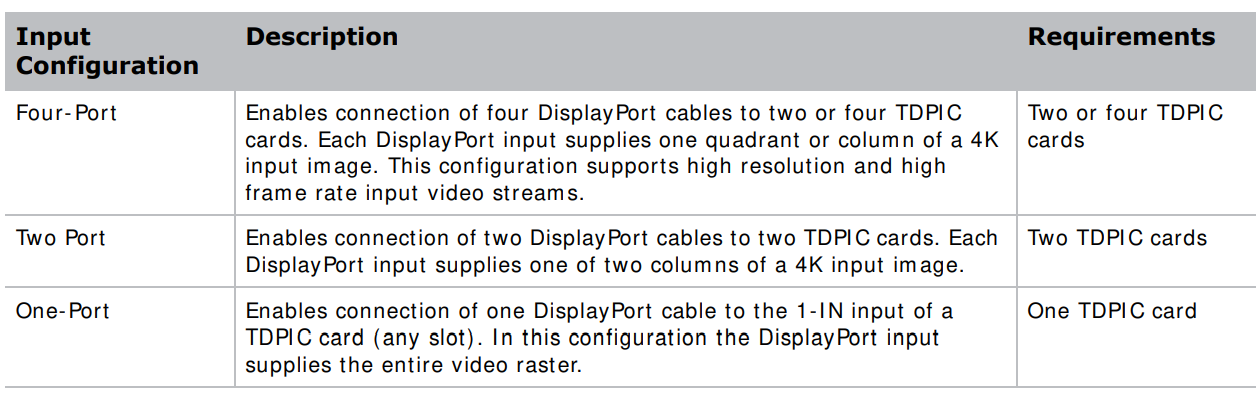
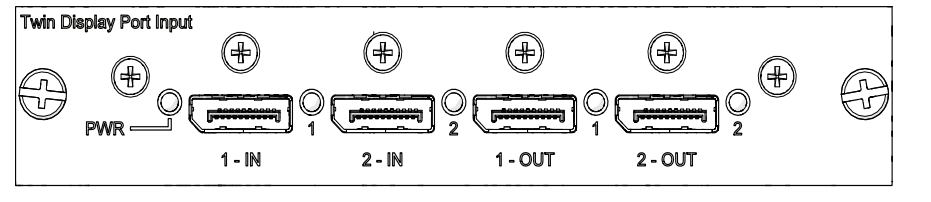
    CHRISTIE-D4K2560-High-Frame-4K-Projector-fig-26

    CHRISTIE-D4K2560-High-Frame-4K-Projector-fig-27

    Connect a video source using the 3G Input card.

    The 3G I nput card3GIC C) accepts digital video data from HD and 3G-SDI (Serial Digital Interface sources. The input configurations listed below are supported.
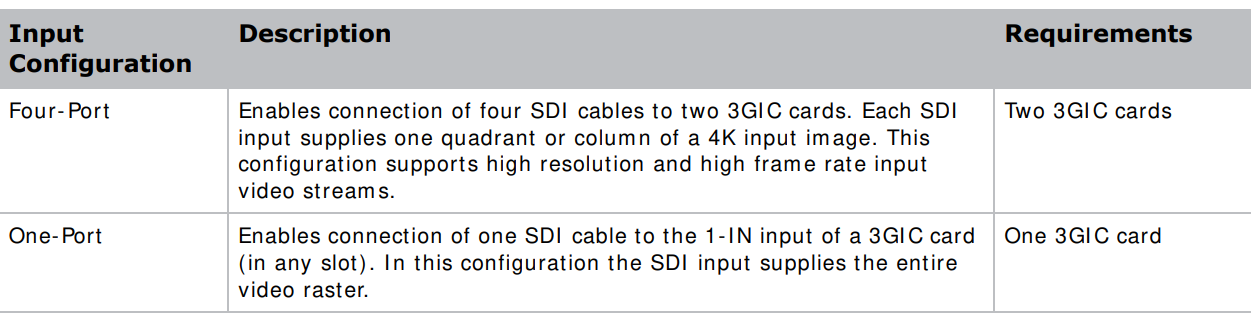

    CHRISTIE-D4K2560-High-Frame-4K-Projector-fig-28 CHRISTIE-D4K2560-High-Frame-4K-Projector-fig-29


    Connect a video source using HDMI.

    The Twin HDMInputcard ( THI C) accepts digital video data from HDMI sources. The input configurations listed below are supportedCHRISTIE-D4K2560-High-Frame-4K-Projector-fig-32
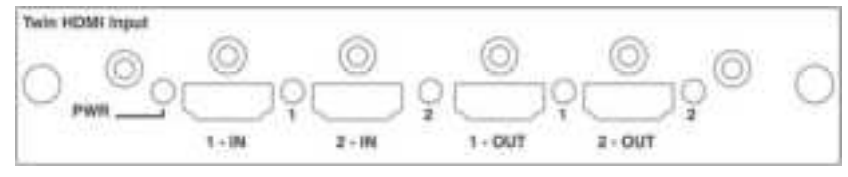
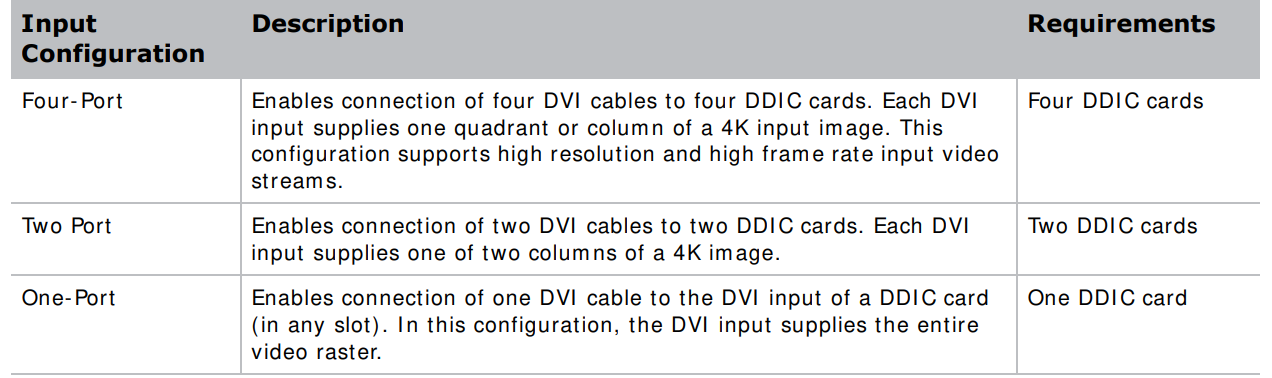
    Connect a video source using DVI.

    The Dual Link DVI I nput card ( DDI C) accepts digital video data from DVI sources. I t does not support incom ing analog signals. The input configurations listed below are supported.
    CHRISTIE-D4K2560-High-Frame-4K-Projector-fig-33 CHRISTIE-D4K2560-High-Frame-4K-Projector-fig-34

    Select a video source.

    After connecting a video source to the projector, you must select it using the touch panel controller ( TPC)

    1. On the TPC, select Input > Channel.
    2. Scroll the list of channels until you find the channel that best matchesyour configuration.
    3. Tap the channel. An image appears on the screen. Ifan image does not appear on the screen, repeat steps 1 to
    4. selecting a different channel.

    Connect a computer or server.

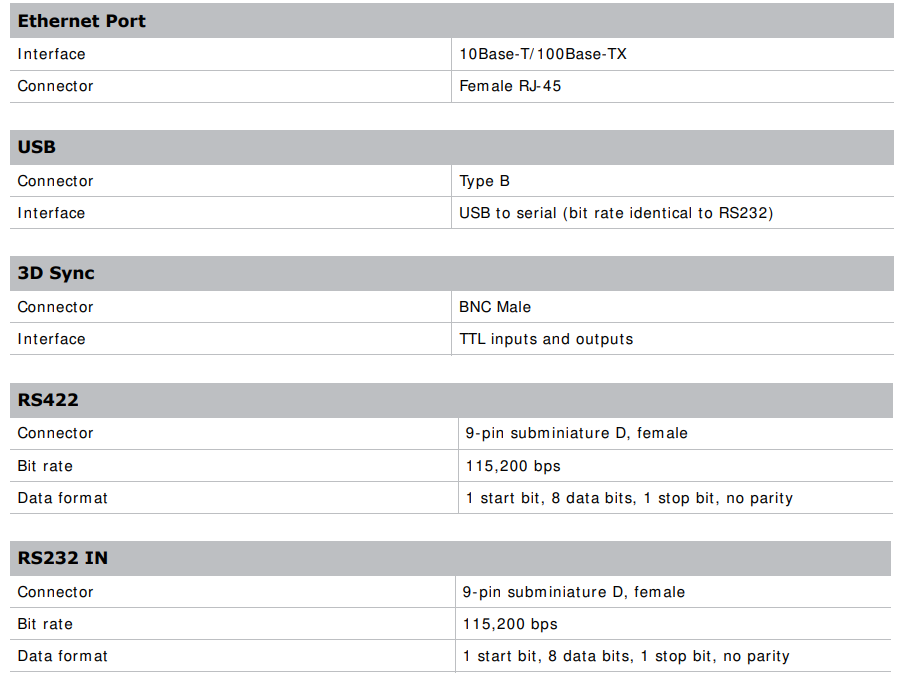
    To com m unicate with a rem ote com puter, server or an existing network, use an RJ- 45 cable to connect the Ethernet hub or switch to the Ethernet port, located on the projector MCPU faceplate. When using the Christie serial protocol over Ethernet, connect to port 3002. For applications or equipment using serial ccommunications use the Christi proprietary serial protocol to communicate with the RS422 port or the RS232 ports on the MCPU faceplate.CHRISTIE-D4K2560-High-Frame-4K-Projector-fig-35

    Set up the Ethernet

    Ethernet is set upto obtain an I P address automaticallyif a DHCP server is on the network. To
    m odify I P settings, or manuallyenter an address.

    1. On the touch panel controller, tap Menu > Configuration > Ethernet Settings > Modify IP Settings.
    2. Set the network information for the projector:
      • To obtain inform ation autom atically from the network, tap Automatic.
      • To manually enter the network information, tap Manual and enter the IP Address, Subnet Mask nd Gateway (optional).
    3. Click Ok.

    Adjust the Image

    This section provides information and procedures for adjusting the projector image.

    Select screen image orientation

    T..he projector supports front projection, rear projection, front projection inverted, and rear projection inverted.

    1.  On the touch panel controller, tap Menu > Configuration > Screen Image Orientation.
    2. Select the required orientation from the list.

    Maximize light output

    To ensure optimal operation, use LampLOC to adjustthe lalampsition whenever a new lam lampinstalled or changes in the projector orientation (for example /, to portrait mode).

    1. On the touch panel controller, tap Menu > Lamp > LampLOC.
    2. Tap Auto LampLOC.

    Align the image

    This procedure ensures that the imagereflected from the digital micromirror device (DMD) is parallel and centered with the lens and screen. Completethis procedure before adjusting boresight.

    1. Verify that the projector is properly located and positioned relative to the screen.
    2. Display a test pattern that can be used to analyze imagefocus and geometry.
    3. Perform a preliminaryfocus and (if available) a zoom adjustment with the primary lens installed. Always focus on the center of the imagefirst.
    4. With the test pattern on screen, re-check the projector leveling so the top edge of the image is parallel to the top edge of the screen. For moredetails, see Position the projector on page 23 and Work with lenses on page 48

    Adjust offset

    Project an imagewith the primary elements. Always adj ust offset before adjusting the borders in sight

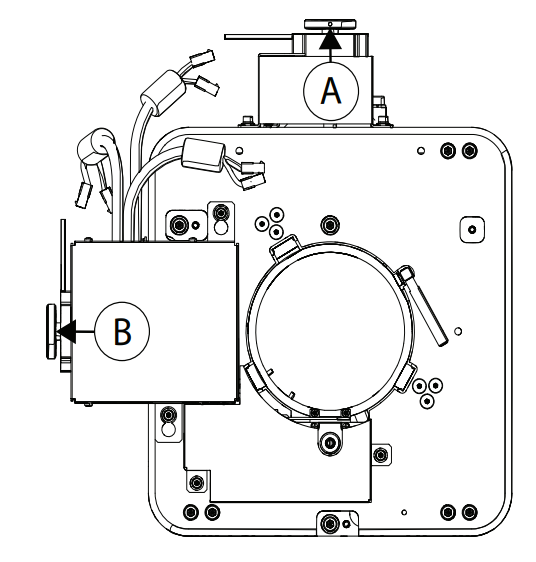
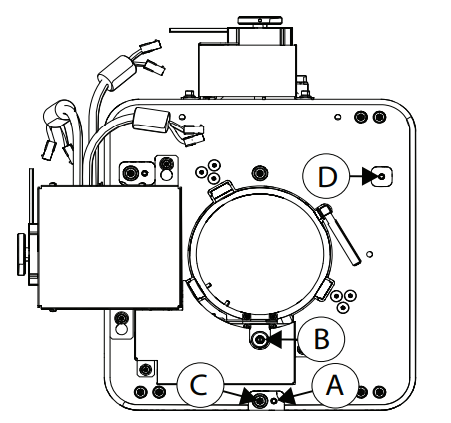
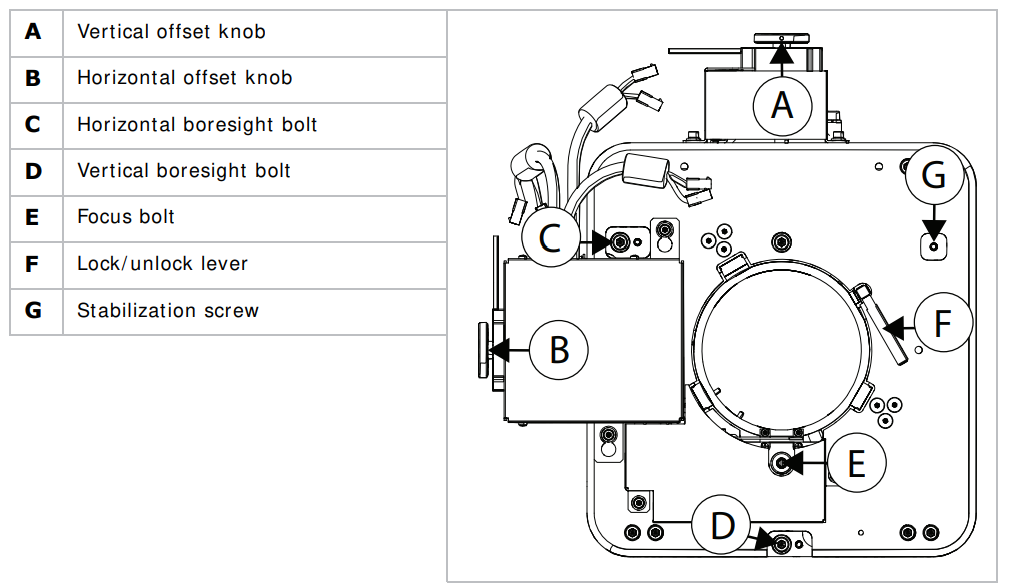
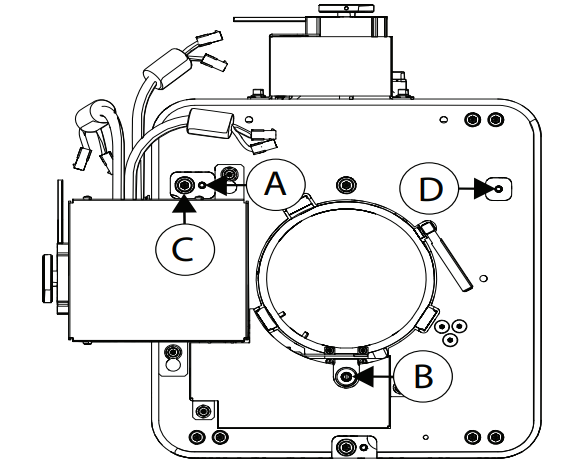
    Select a fram ing test pattern and then adjust the vertical (A) and horizontal (B) offsets to display a square im age on the screen, with m inim al projector aim ing error.CHRISTIE-D4K2560-High-Frame-4K-Projector-fig-36

    1. Loosen the lens mountstabilization screw (D).CHRISTIE-D4K2560-High-Frame-4K-Projector-fig-37
    2. Loosen the horizontal lock screw ( A)
    3. Extend the lens focus ( B) completely.
    4. Adjust the Focus using the focus knob to retract the lens. Watch the image at the left edge of the screen until it comesinto focus. I Ife entire screen is in focus, proceed to step 7.
    5. Continue retracting the lens. a. I f the right side of the im age com es into focus before the lens is com pletely retracted, adjust the horizontal boresight bolt (C) to balance the left and right edges.
    6. I f Ifright side of the imagefails to focus, adjust the horizontal boresight bolt (C).  Wh  en both sides appear equally blurry, adjust the offsets to re-center the image. Repeat steps 1 to 5 until both sides of the imageare focused.
    7. Tighten the lock screw (A) and the lens mount stabilization screw (D) to maintainthe adjustments.
    8.  Check the boresight again.
    9. Unless proceeding to adjust vertical boresight, perform a lens calibration.
     

    Adjust vertical boresight

    1. Focus the image at the top edge of the screen
    2. Loosen the lens mount stabilization screw (D).CHRISTIE-D4K2560-High-Frame-4K-Projector-fig-38
    3. Loosen the vertical lock screw (A).
    4. Extend the lens focus (B) completely.
    5. Adjust the Focus knob to retract the lens. Watch the imageat the top edge of the screen until
      it comesinto focus. Ifthe entire screen is in focus, proceed to step 8.
    6. Continue retracting the lens.
      a. I f the bottom edge of the im age com es into focus before the lens is completely retracted,
      adjust the vertical boresight bolt (C) to direct or aim the lens m ount UP towards the top
      of the screen to balance out the top/ bottom edges.
      b. I f the top edge of the image is not in focus, adjust the vertical boresight bolt (C) to direct
      or aim the lens m ount toward the bottom of the screen.
    7. When both sides appear equally blurry, adjust the horizontal and/ or vertical offset to re-center
      the image on the screen.
    8. Repeat Steps 2 to 5 until the top and bottom of the screen are both well-focused.
    9. Re-focus the center of the im age. The goal is for good focus at the center and on all sides.
    10. Tighten the lock screw (A) and the lens m ount stabilization screw (D) to m aintain the
      adjustments.
    11. Check the boresight again.
    12. Perform a lens calibration. For moredetails, see Calibrate the lens motors on page 65.

    Lock the lens offsets

    T..he lens locking feature reduces image vibration. For most applications, s  locking is not necessary.

    1. Use the touch panel controller (TPC) or manually adjust the lens offsets to the required position.
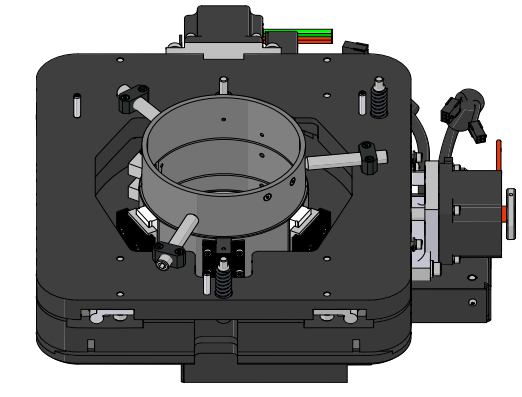
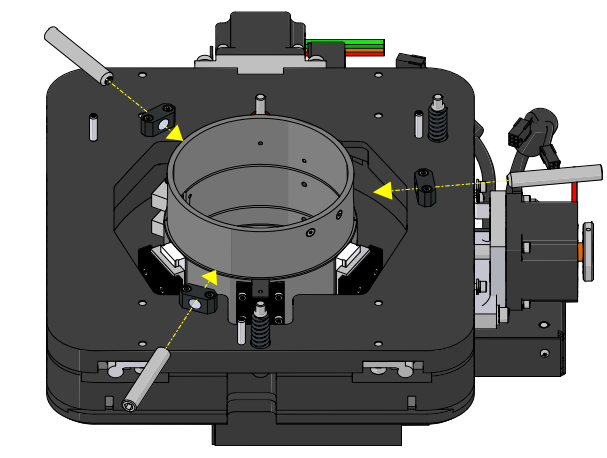
    2. Unpack and install the three lens offset locking screwsCHRISTIE-D4K2560-High-Frame-4K-Projector-fig-39
    3. Tighten each locking screw until each screw contacts the lens offset collar.CHRISTIE-D4K2560-High-Frame-4K-Projector-fig-40
    4. With equal pressure, tighten each locking screw against the lens offset collar.
    5. Disconnect the lens motor communication cable
    Adjust DMD convergence

    A convergence problem occurs when one or more projected colors (red, green, blue) appears m isaligned when exam ined with a convergence test pattern. Norm ally, the three colors should overlap precisely to form pure white lines throughout the im age and one or m ore poorly converged individual colors m ay appear adjacent to som e or all of the lines. Contact your Christie accredited service technician to correct DMD convergence issues.

    Color correction

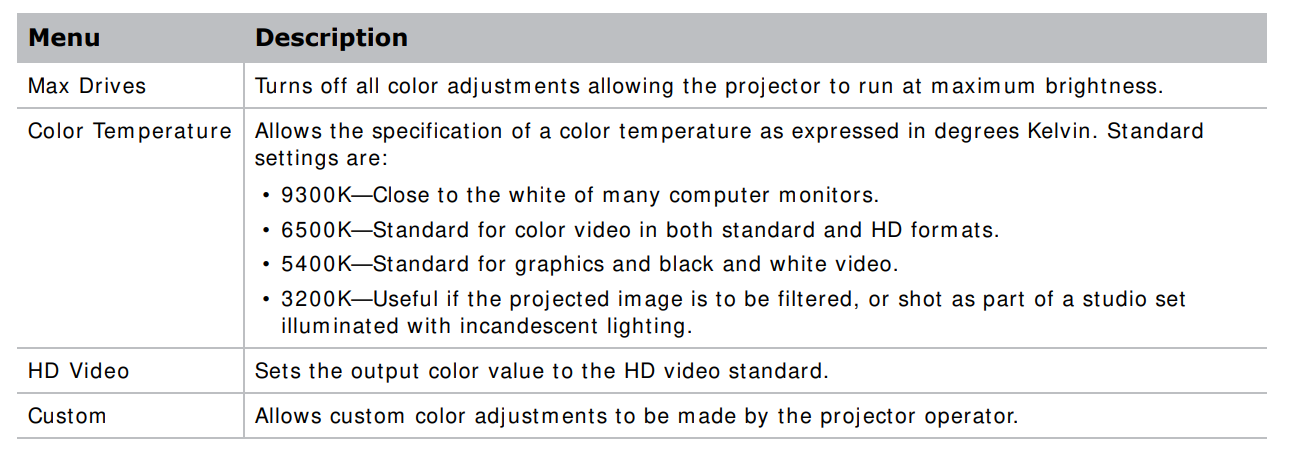
    The D4K2560 provides predefined and custom color adadjustmentssing the Color Correction menu. The available color adjustmentcontrols are listed in the table below:CHRISTIE-D4K2560-High-Frame-4K-Projector-fig-41

    Adjust color by temperature

    C..olor temperature adjusts the overall color gamut and does not allow for precise adjustments to specific primaries.

    1. On the touch panel controller, tap Menu > Configuration > Color Correction > Select Color Adjustment.
    2. From the list, select Color Temperature.
    3. Tap Color Temperature.
    4. Adjust the temperature value and tap OK.

    Adjust color by precise chromaticity values.

    Adjusting the color chromaticityvalues overwrites any settings applied in the Color Saturation m enu.

    1. On the touch panel controller, tap Menu > Configuration > Color Correction > Select Color Adjustment.
    2. From the list, select Custom.
    3. Tap Color Adjustments by X,  Y.
    4. Adjust the precise hues of each primary color component

    Adjust color by saturation.

    Adjusting the color saturation overwrites any settings applied in the ColoAdjustments by X, Ymenu.

    1. On the touch panel controller, tap Menu > Configuration > Color Correction > Select Color Adjustment.
    2. From the list, select Custom.
    3. Tap Color Saturation.
    4. Adjust the hue of each prim ary color by using m ore or less of it in relation to the other prim ary colors.

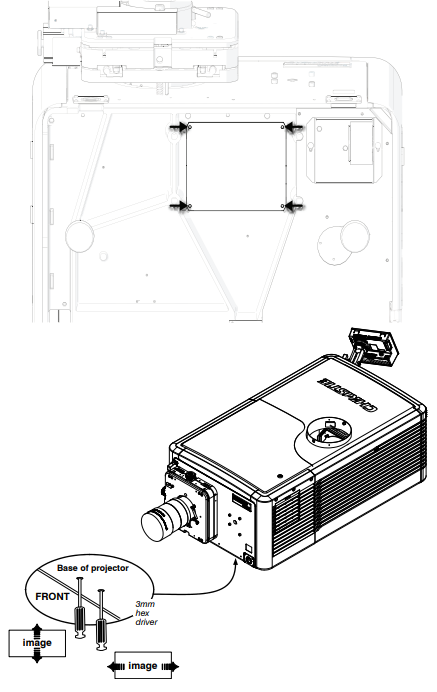
    If the corner or edge of an im imagem issmissingfold m irror m ight be misalignedwith the optical system .o correct this issue:

    1. Rem Removefour screws securing the fold mirror on the underside of the projector.
    2. Adjust the fold mirror: mirror the screw on the lens side to raise or lower the image.
      • Adjust the screw on the lamp side to move the image left or right.
    CHRISTIE-D4K2560-High-Frame-4K-Projector-fig-42


    Operation

    This section providesinformationnprocedures for operating the projector.

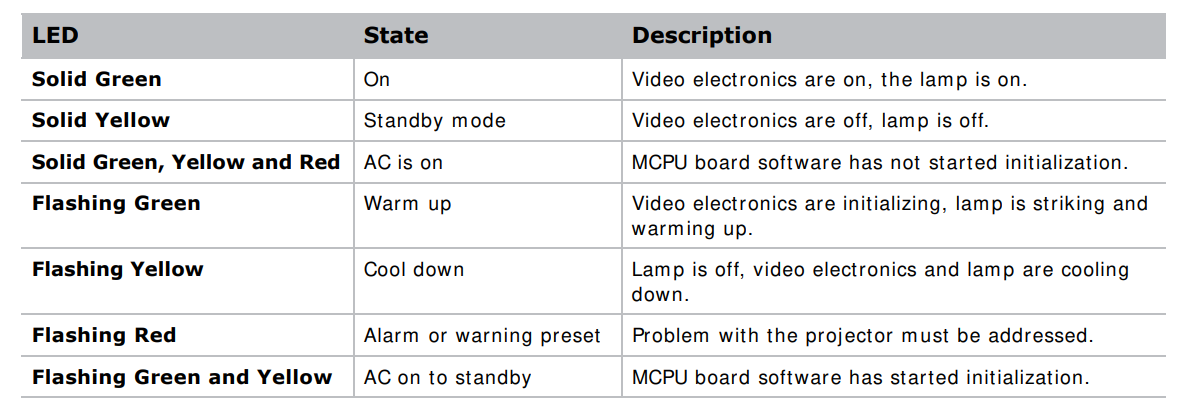
    Projector LED status indicatorsCHRISTIE-D4K2560-High-Frame-4K-Projector-fig-43
    Turn the projector on

    1. Set the breaker switch on the projector baseplate to the on position.
    2. When the projector reaches standby, on the touch panel controller, tap Home > Power. For more details on the specified voltage range, see Power requirements on page 78.

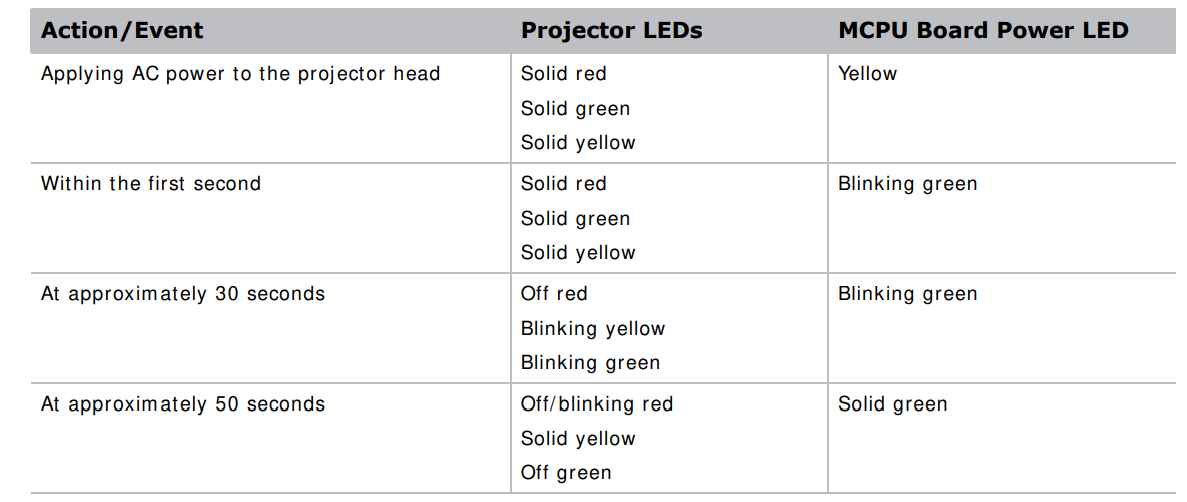
    LED expected behavior on power up

    The following table shows the expected behavior of the projector and the MCPU board power LED on power up.
    CHRISTIE-D4K2560-High-Frame-4K-Projector-fig-44

    At approximatelyone minuteand 15 seconds, the TPC indicates that it is connected and shows the home page.

    Turn the projector off

    1. On the touch panel controller, tap the Home tab.
    2. Tap Power.

    Work with lamps

    This section provides inform ation and procedures for optim izing lam p perform ance to ensure the brightest, m ost uniform im age possible for the life of the lam p.

    Adjust lamp power

    1. On the touch panel controller, tap Menu > Lamp > Lamp Power.
    2. Use the slider or enter a value to adjust the lamp power.
    3. Tap OK.

    Adjust the lamp position with LampLOC

    Use Lam pLOC to configure the lamp position and geometry when installing a new lampin the projector or at any other timewhen the lam p perform ance needs to be optim ized. Before adjusting Lam pLOC, make the following criteria is m et:

    1. Make sure the lamp is on, and the douser (shutter) is open during adjadjustmentristie recommends a 10-minute warm-up.
    2. Perform the LampLOC procedure. For more details, see Calibrate the lamp below.

    Calibrate the lamp

    The lamp slamp be re-calibrecalibrated of the following conditions are m et:

    • Aftemet lamphas been placed.
    • After the projector has been moved and/ or jostled.
    • After the lamp motor I MCB has been replaced.
      1. On the touch panel controller, tap Menu > Lamp > LampLOC.
      2. Tap Auto LampLOC.
      3. Adjust optical com ponents ifcomponequired.

    Manually adjust the lamp position.

    1. On the touch panel controller, tap the Home tab.
    2. Tap Test Pattern and select 17pt White Field Test Point.
    3. Mount a light meter on a tripod and center it with the lens. The distance from the lens does not matter. An attenuator or an internal foil aperture may be required.
    4. T..ap Menu > Lamp > LampLOC.
    5. Tap the directional arrows to adjust the value displayed in the Z fielduntil the brightness reading in front of the lens is maximized.
    6. Tap the directional arrows to adjust the values displayed in the X and Y fields until the brightness values in each field are maximized.
    7. For a finer adjustm ent, repeat steps 5 and 6 but take the readings at the center of the screen instead of at the lens.

    View lamp information

    To view a history of all previously installed lamps, on the touch panel controller, tap Menu > Lamp > Lamp History..

    Track lamp intensity with LiteLoc

    Use the LiteLoc feature to mmaintain constant level of brightness over the liflifetimethe lam plamphe touch panel controller, tap Menu > Lamp > Lamp Power.

    1. To adjust the lamp, use the slider or enter a value until the display is as bright as required.
    2. Tap OK.
    3. Tap Lamp Mode.
    4.  Tap Constant Intensity. Notice the Lam p Power option is greyed out so you cannot adjust it. To readjust the lam p power, select Lamp Mode > Lamp Power. From the Lam p Power option, adjust the power setting as applicable.

    Lamp detailsCHRISTIE-D4K2560-High-Frame-4K-Projector-fig-45
    Record new lamp information

    The lam.. p lampl numberis an alphanumeric field. Christie recommends a distinct and descriptive namefor every individual lamp.

    1. On the touch panel controller, tap Menu > Lamp > Change Lamp.
    2. Enter a Lamp Type, Serial Number and Hours Used.
    3. Tap Apply Lamp Change.
    4. Tap Continue

    Add lamp end-of-life indicator

    Specify the numberof hours reremainingfore issuing an end-of-life indicator for the lam lampthe touch panel controller, tap Menu > Lamp > Lamp life warning at (hours).

    1. To specify the number of hours remaining before issuing an end-of-life indicator, enter a value, use the plus and m inus bminusto increase or decrease the value. A value of zero disables the feature.
    2. Tap OK. When the specified num ber of hours is reached, a Lamp Hours – past expiry warning is issued.

    Work with lenses

    The lens m ount secures the projection lens to the projector and provides setup adjustments to correct boresight, and control focus, zoom , and offsetsCHRISTIE-D4K2560-High-Frame-4K-Projector-fig-46


    To elec..tronically control the focus, zoom, and offset in the touch panel controller, tap the Lens tab.

    Select a channel

    The projector uses pre-configured channels to determ ine how to display images from different sources. Each channel file contains the optim um processing and display settings for the source. Channels can be selected through the Home tab on the touch pad controller ( TPC)

    Enable warping and blending.

    Use edge blending to com bine several projected im ages into one single, seam less im age. Use
    warping to project images on any surface shape.

    1. Create the warp and blend files using the Twist application. For details, see the Twist 2.0 User Manual (P/N: 020-101380-xx).
    2. Upload the warp and blend files to the projector. For details, see the Twist 2.0 User Manual (P/N: 020-101380-xx).
    3. On the touch panel controller, tap Main > Configuration > Geometry.
    4. To select a warp setting, tap Geometry Correction and tap the required warp.
    5. To select a blend setting, tap Edge Blending and tap the required blend.
    6. To select a black level blend setting, tap Black Level Blending and tap the required black level blend.
    7. To turn off warping, blending, or black level blending, tap Off.

    Send error notifications to the specified device. If

    If an error occurs on the projector, notifications can be sent to three different devices.

    1. On the touch panel controller, tap Menu > Communications > SNMP.
    2. Tap Trap IP Address 1.
    3. For the device you want to send error notifications to, enter the I P address.
    4. Tap OK.
    5. To add a second or third device, repeat steps 2 to 4.
    6. Select the options you want to m monitorptions include lamp fault, lam lamp, power, fan stall, and thermal.

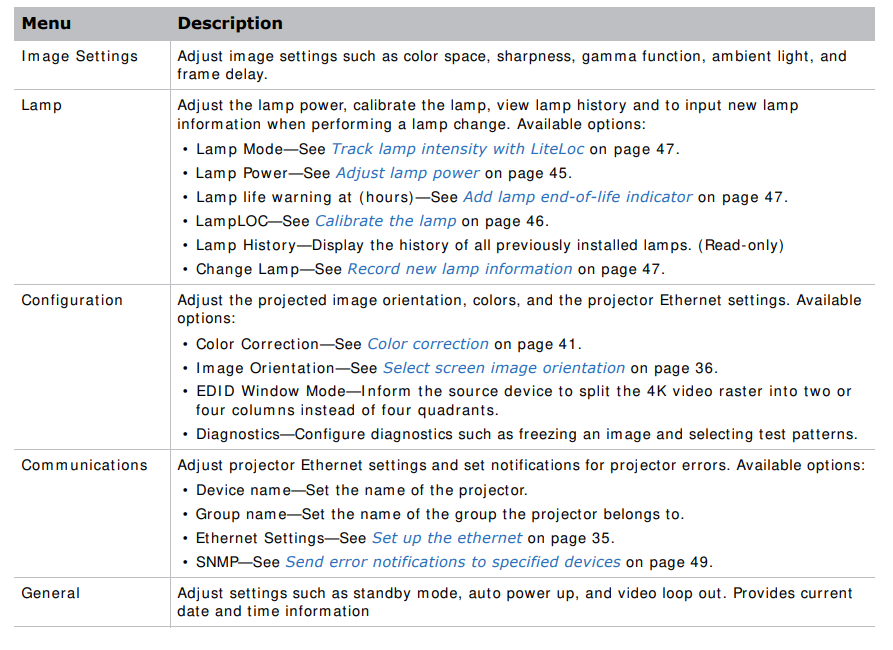
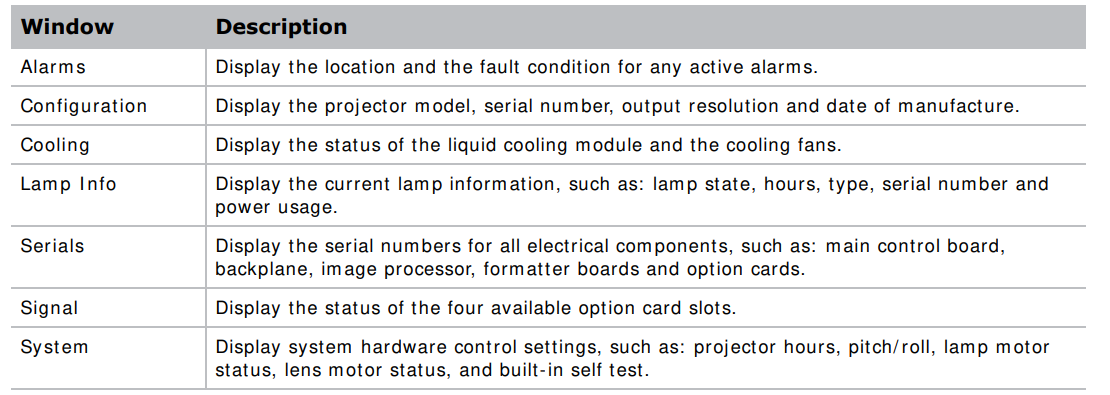
    This section provides inform ainformationedures for using the projector m..enus Use the projector m menus adjust projector settings and view status infoinformationch panel controller.

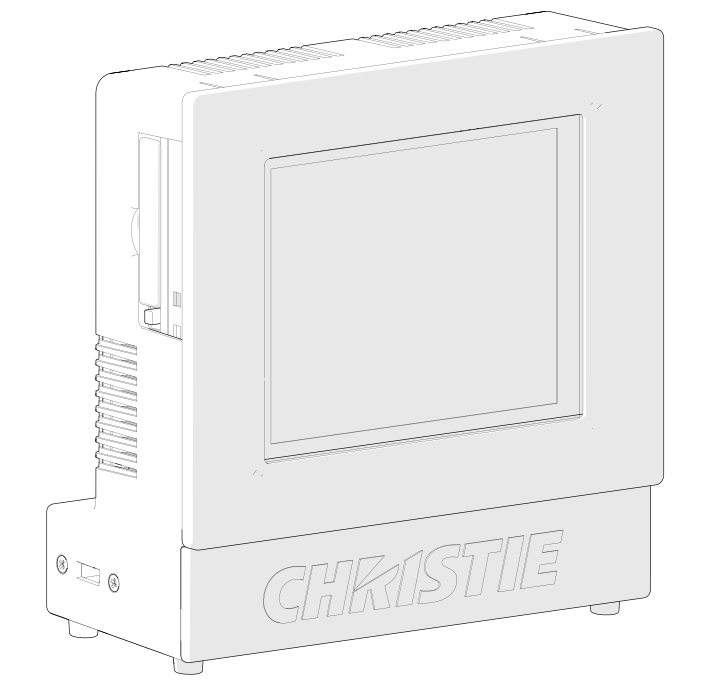
    The touch panel controller ( TPC) is a touch- sensitive screen. Use the TPC to control the projector, manage, adjust the display, and view. Information is mountedon the rear of the projector and can be adjusted to improve the viewing angle. A side USB port can be used to download log files and install software upgrades. For rem ote applications, the TPC can be dism ounted from the projector and used with the optional cable to allow projector control from a m axim um distance of 100 ft (30 m )
    CHRISTIE-D4K2560-High-Frame-4K-Projector-fig-47

    Tab structure

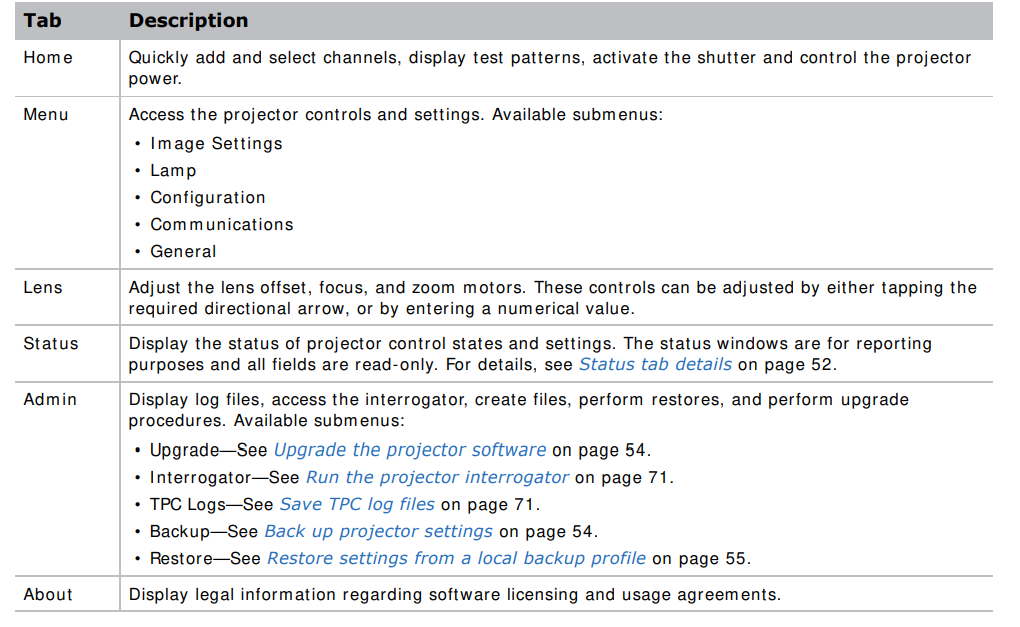
    The touch panel controller ( TPC) windows are structured across a series of six tabs at the top of the display:
    CHRISTIE-D4K2560-High-Frame-4K-Projector-fig-48

    Menu tab detailsCHRISTIE-D4K2560-High-Frame-4K-Projector-fig-49
    Status tab detailsCHRISTIE-D4K2560-High-Frame-4K-Projector-fig-50

    CHRISTIE-D4K2560-High-Frame-4K-Projector-fig-51


    This section provides informationand procedures for backing up, restoring, and upgrading projector files.

    Upgrade the projector software

    1. On the touch panel controller, tap Admin > Upgrade.
    2. Tap Upgrade.
    3. To select the upgrade file, tap Browse.
    4. In the Select Package dialog, navigate to the location where the upgrade file is stored.
    5. Tap the upgrade file and tap Open.
    6. To automatically restart the projector when the upgrade is complete, tap Restart when update complete.
    7. Tap Install.

    Back up projector settings

    1. On the touch panel controller, tap Admin > Backup.
    2. To back up the settings, tap a backup file.
    3. If required, enter or change the name.
    4.  Tap OK. A message indicates the backup was successful.

    Export backup settings to an external device

    1. I f exporting settings from the touch panel controller (TPC), insert a USB flash drive (properly formatted as FAT or NTFS) into the USB port on the side of the TPC or I f exporting settings from the PC application, skip to step 2. I f using the TPC, you cannot save to the TPC’s on-board CF flash memory. You m ust export the settings to a USB flash drive. I f using the PC application, you can export the files to location on the hard drive, a USB flash drive, and so on.
    2.  On the TPC, tap Admin > Backup.
    3. Tap Export.
    4. To save the file, in the Choose backup file location dialog, navigate to the location where you want export the file.
    5. Tap Save.

    Restore settings from a local backup profile

    1. On the touch panel controller, tap Admin > Restore.
    2. From the backup file list, tap the required file name
    3. Tap Restore.
    4. At the prompt, tap OK.

    Restore default settings

    You need Service pepermissionso comcompletes procedure.

    1. On the touch panel controller, tap Admin > Restore.
    2. Tap Defaults.
    3. Tap Restore.

    Import file from an external device to restore settings

    1.  I f im porting settings using the touch panel controller (TPC), insert the USB flash drive containing the file into the USB port on the side of the TPC. or I f im porting settings using the PC application, skip to step 2. I f using the TPC, you m ust import the settings from a USB flash drive. I f using the PC application, you can import the files from a location on the hard drive, a USB flash drive, and so on.
    2. On the TPC, tap Admin > Restore.
    3. Tap Import.
    4. From the Choose file to restore dialog, navigate to the location where the file is stored.
    5. Tap the file to select it.
    6. Tap Open

    Maintenance

    Maintenance shutdown

    This process is mandatory. Always perform these steps before beginning any inspection or main maintenance on the project.

    1.  Ifthe projector is operating, turn it off and allow it to cool for a m minimumf 10 minutes.
    2. Set the projector breaker switch to the off position.
    3. Set the lampwer supply’s three breaker switches to the off positions.
    4. Disconnect the projector from AC power.

    Ventilation and cooling

    Vents and louvers provide ventilation, both for intake and exhaust. Do not install the projector near a radiator, heat register, or within an enclosure. To ensure adequate airflow, keep a minimum clearance of 50 cm (20 inches) around the projector and never block or cover the vents.

    Inspect and clean the airflow interlocks.

    The proj ector uses t wo airflow interlocks. Check and clean these switches to rem ove accum ulated
    dust or dirt that could im pede m ovem ent.

    • Lamp blower vane switch, located within the lamp cooling component.
    • Extractor vane switch, located inside the top duct on the projector lid.

    Inspect and clean the exhaust duct

    Inspectthe exhaust duct regularly and confirm that:

    • There are no obstructions or kinks within the ducting.
    • All air intake areas are unobstructed.
    • I Ifsing 2.0a  or 3.0kW lamp, exhaust airflow must be at least 450 CFM (measured at the rigid end of the duct when not connected to the projector).
    •  Ifusing 4.5 or 6.0kW lamp exhaust airflow bustmustat least 600 CFM (measuredat the rigid end of the duct when not connected to the projector).

    Inspect and clean the lamp blower.

    A clogged blower impeller or m motorn reduce air flow and leads to overheating and lamp impurity.

    1. Shut down the projector.
    2. Remove the three screws securing the rear side cover.
    3. Vacuum loose dirt from the lampblower impeller
    4. If necessary, use a soft brush dam pened with hot water.

    Fold a clean microfiber cloth and dam pen with m ethanol and wipe evenly with the smooth portion of the cloth that has no folds or creases. Do not apply finger pressure. Use the solution in the cloth to collect the dirt.

    For more details, see Maintenance shutdown on page 57.

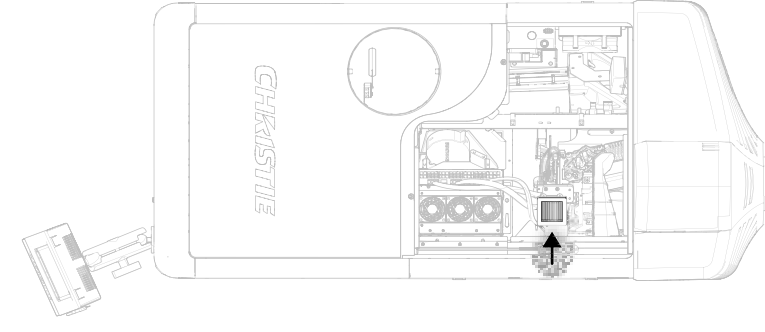
    Inspect and fill the coolant reservoirCHRISTIE-D4K2560-High-Frame-4K-Projector-fig-52

    1. S.. shut down the projector.
    2. Remove the front top cover.
    3. Remove the radiator air filter.
    4. Disconnect the blower onfromhe LCM pump.
    5. Disconnect the communications harness from the coolant reservoir.CHRISTIE-D4K2560-High-Frame-4K-Projector-fig-53
    6. Disconnect the coolant hoses from the coolant reservoir.
    7. Remove the three screws securing the reservoir bracket to the projector base plate.CHRISTIE-D4K2560-High-Frame-4K-Projector-fig-55
    8. Lift and removethe reservoir from the projector.CHRISTIE-D4K2560-High-Frame-4K-Projector-fig-56
    9. Refill the reservoir as needed.
    10. Replace the cap.
    11. To reinstall the liquid cooling reservoir, repeat these steps in reverse order.
    12. Check for leaks, especially for any hoses that were removed around the filler cap.
    13. Check for proper flow from the liquid cooling module. For more details, see Maintenance shutdown on page 57.
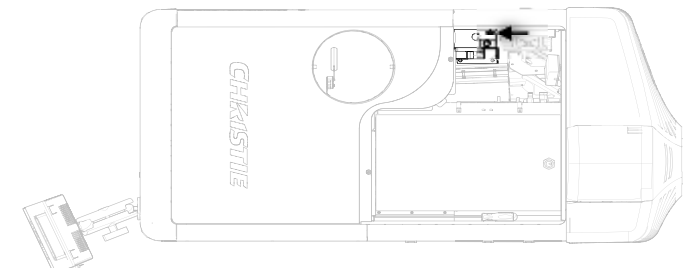
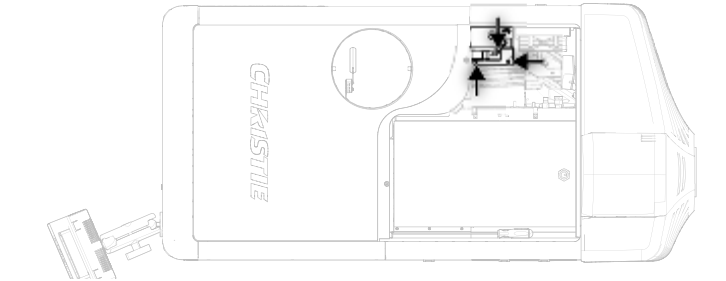
    Filtration

    Replace the light engine air filter

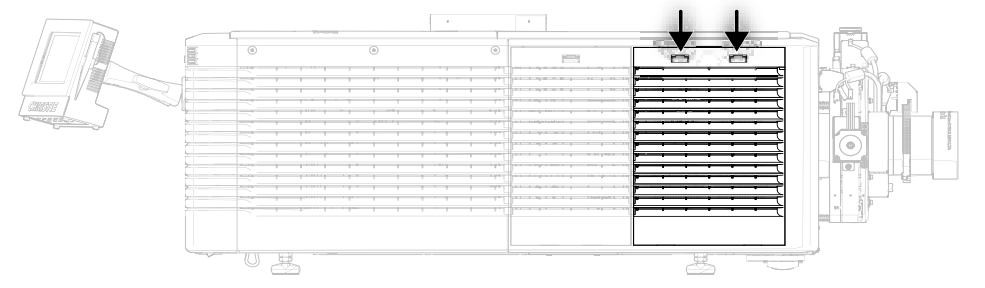
    This filter is located on the lens side of the projector behind the air filter cover. Check the condition of this filter m onthly. Replace the light engine air filter when replacing the lam p, or sooner when operating the projector in a dusty or dirty environm ent.

    1. Release the two tabs on the air filter cover.CHRISTIE-D4K2560-High-Frame-4K-Projector-fig-57
    2. Lift the cover enough for the bottom tabs to clear the frameand reremove
    3. Slide the air filter out from behind the air filter cover and discard it.
    4. I nsert the new air filter with the airflow indicator facing toward the projector. This ensures proper particle filtration.
    5. To complete the installation, align the bottom tabs and repeat these steps in reverse order.

    Replace the liquid cooling air filter.

    This filter is located on front lam p-side of the proj ector, behind a sm all air filter cover. Check the condition of this filter m onthly. Replace the liquid cooling air filter when refilling the liquid cooling m odule, or sooner when operating the projector in a dusty or dirty environm ent.

    1. Release one tab on the air filter cover.
    2. Rotate the top towards you and lift up to remove.
    3. Slide the air filter out and discard it.
    4. I nsert the new air filter with the airflow indicator facing toward the projector.
    5. Installthe air filter cover

    Replace the laminar airflow device filter

    The lam inar airflow device (LAD) filter is attached to the light engine asassemblyndle in the light engine com componentnspect the LAD filter every six months

    1. Shut down the projector.
    2. Unlock and remove the front top cover.
    3. Unlock and reremovehe light engine lid.
    4. Rem ove the two screws securing the lam inar airflow device filter (LAD) assem bly to the bracket.
    5. Pull out and replace the LAD filter.CHRISTIE-D4K2560-High-Frame-4K-Projector-fig-58
    6. To reinstall, repeat these steps in reverse order. For more details, see Maintenance shutdown on page 57.
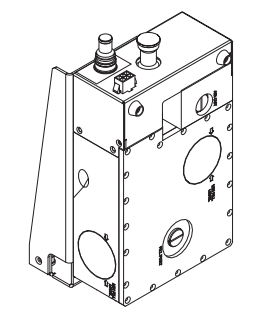
    Lamps

    1. Shut down the projector, disconnect from power, and let it cool.
    2. Put on the protective clothing and face shield.
    3. Use the key to open the lam p door and access the lamp com partm ent. Do not lean, or place heavy objects on the open lam p door. For m ore details, see Maintenance shutdown on page 57.

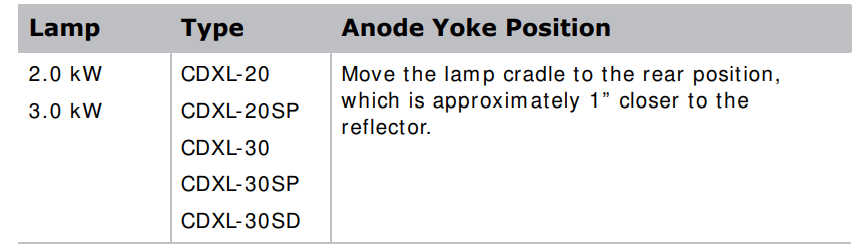
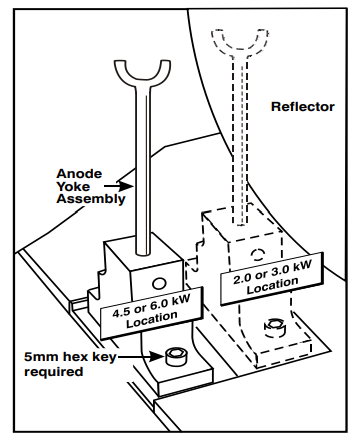
    Adjust the yoke assembly

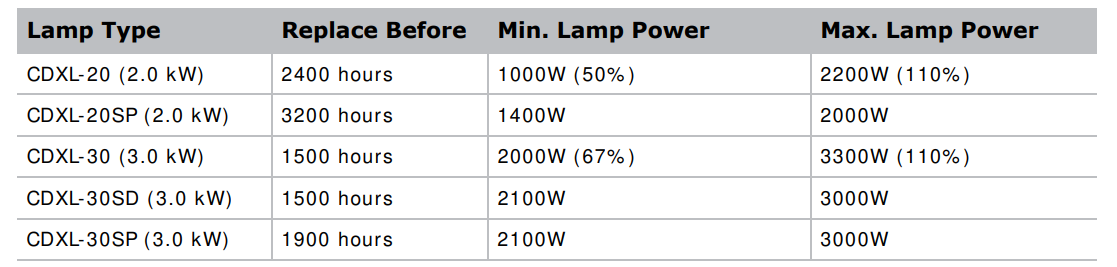
    Aft..er installing the lalampo ensure optimization of the lamp, check that the anode yoke is in the correct position for the lamp typeCHRISTIE-D4K2560-High-Frame-4K-Projector-fig-59 CHRISTIE-D4K2560-High-Frame-4K-Projector-fig-60


    Remove dust from the lamp.

    1. Brush m ost of the dust off with a cam elhair brush or use a dust-free blower.
    2. I f some dust remains, leave it. Some dust is inevitable. Avoid unnecessary cleaning.

    Remove fingerprints, smudges, or oil from the lamp

    1. Brush m ost of the dust off with a cam elhair brush or use a dust-free blower.
    2. Fold a m icrofiber cloth and wipe the rem aining dust particles off the lam p with the sm ooth portion of the cloth that has no folds or creases. Do not apply finger pressure. Instead, use the tension in the folded cloth to rremovethe du..st..

    Remove dust from the projection lens.

    1. Brush most of the dust off with a camel-hair brush or use a dust-free blower.
    2. Fold a m icrofiber cloth and wipe the rem aining dust particles off the lens with the sm ooth  portion of the cloth that has no folds or creases. Do not apply finger pressure. I nstead, use thetension in the folded cloth to rem ove the dust.
    3. Ifsignificant dust remains on the lens surface, damdampenclean m icmicrofiberh with lens cleaning solution and wipe gently until clean.

    Remove fingerprints, smudges, or oil from the projection lens

    1. Brush m ost of the dust off with a cam elhair brush or use a dust-free blower.
    2. Wrap a lens tissue around a swab and soak it in lens cleaning solution. The tissue should be dam p dampot dripping.
    3. Gently wipe the surface using a figure eight motion.
    4. Repeat until the blem ish is rem oved. Clean the lens only if absolutely required.
    5. Close the shutter.
    6. Attach a large lens cap to the front of the lens to avoid damage.
    7. Release the lens locking lever (up position).
    8. Pull the lens straight out and attach a sm all lens cap to the rear of the lens to avoid damage.

    CHRISTIE-D4K2560-High-Frame-4K-Projector-fig-61

    Install the projection lens

    1. Make surethe lens locking lever is in the up position.
    2.  If at all, reremoveemove lens cap from the lens.
    3. Slide the lens into the lens mount, aligning all connections.
    4. Secure the lens with the lens locking lever (down position).
    5. Calibrate the lens motors, as described below

    Calibrate the lens motors

    I f the lens m otors are not calibrated properly, im plications m ay include:

    • I ncorrect reporting of the lens m otor position.
    • I nability to use the full range of the lens m otors.
    • Lens motors traveling outside of the pre-defined keep-out area.
    • Damageto the projector. Calibrate the lens m motorsen any of the following conditions are m etmeter a lens change.
    • After the projector is moved and/ or jostled.
    • After the lens motor I MCB has been replaced. To calibrate t he lens m otors, on the touch panel controller, tap Lens > Calibrate Lens Motors.

    Reset lens to home position

    To reset the lens to the default homeposition, on the touch panel controller, tap Lens > Reset to Home Position.

    Troubleshooting

    This section provides infoinformationprocedures for resolving common contractor issues. Ifa prprojectorssue cannot be resolved, contact a Christie-accredited service technician.

    The projector does not power on.

    • Make sure the projector circuit breaker is set to the on position.
    • Check the status LEDs on the rear corners of the projector for a fault condition. A flashing red LED indicates an alarm or warning preset with the projector and a problem that must be addressed.
    • Use the touch panel controller (TPC) status menu to troubleshoot further.

    The lamp does not ignite

    • Check and correct all interlock failures.
    • Verify that the lam p has been installed and connected properly. Verify the condition of the lam p and that is not blackened or otherwise damaged.
    • Verify the number of hours the lamp has operated. A lamp nearing the end of its operational life should be replaced.

    LThe lampsuddenly turns off

    • Increasethe lalampwer.
    • Review and correct all interlock failures.
    • Ensure the TPC has no tem perature or fan RPM warnings. I f all fans are running norm ally and the air filters are not blocked, the am bient air temperature may exceed the maximum operating specification. I f possible, reduce the ambient temperature.
    • Ensure no heat sources are exhausting into the projectors intake, or m ove the projector to a cooler environm ent.
    • Verify the number of hours the lamp has operated. A lamlampmping the end of its operational life should be replaced.
    • Check for a cross-connected condition

    A cro..ss-connection hazard can occur when installing multiple injectorsat once. A fire hazard exists if a lamp power supply interlock cable is connected to a different projector than its lamp cables.

    Flicker, shadows, or dimness

    • Make sure the shutter is fully open.
    • Verify that a Lam pLOC calibration is not already in progress.
    • Perform a Lam pLOC calibration.
    • I ncrIncreaselamp power. Lamps which thatear the end of the service may not operate reliably at a lower power setting.

    LampLOC not working

    • If the Auto LampLOC option is not working, on the touch panel controller, tap Menu > Lamp > LampLOC and adjust the lampposition m manuallybserve screen brightness by adjusting the X, Y, and Z values,s or use a light meter to check for changes in brightness.
    • Check that the flat part of the anode end of the lamp (if applicable) faces up in the anode yoke.  The touchpanel controller is blank.
    • I f the touch panel controller (TPC) display is blank, m ake sure the TPC com m unication harness is connected securely.

    Blank screen, no display of image

    • Make sure both lens caps have been removed from the projection lens.
    • Make sure the lamp is on.
    • Make sure that all power connections are good.
    • Make sure the shutter is fully open.
    • Make sure that any test pattern (other than a full black test pattern or test pattern = none) displays properly.

    Cannot communicate with the projector

    • Make sure the com puter and the projector are both connected to the network.
    • Make sure that all input devices have the sam e subnet m ask and unique I P addresses.

    Inaccurate display colors

    • Adjust the color, tint, color space, and color temperature settings of the input source.
    • On the touch panel controller, tap Menu > Configuration > Color Correction and verify the
    settings are correct.

    The display is not rectangular.

    • Verify the projector is level,, el and the lens surface and screen are parallel to one another.
    • Adjust the vertical offset of the lens mount.

    The display has suddenly frozen.Ifn

    • I f the source is frozen, restart the source deviIf
    • I f the source is not frozen, restart the projector.

    Display is jittery or unstable.

    • Verify that the input device is connected properIf I f the input device is not connected properly, the projector repeatedly attempts to display imageage.
    • The horizontal or vertical scan frequency of the input signal m ay be out of range for the projector. For m ore details, see Specification on page 72.

    Incoming signal(s) problems

    The Status tab > Signal group contains inform ation about all the signals that the projector receives. A properly configured system shows the frequency at a status of Master or Locked for each input in the selected channel. If one or more of the signals are listed as No signal, verify that the source is properly configured and the cables are secure between the source and the projector.

    • I f one or m ore of the signals are listed as I nactive, either an incorrect channel has been selected or the cables are not plugged into the correct inputs.
    • I f one or m ore of the signals is listed as Unlocked or Out of phase, the source is not properly fram e locked to the m aster signal. This usually occurs when two independent sources are not  locked together. Verify the setup of the sources. I f the sources are locked together, contactChristie Technical Support for help.

    Touch panel controller or projector head problems on startup

    Check the following to determ ine if t he touch panel controller ( TPC) or the proj ector head are experiencing problem s on startup. The proj ector has two sets of LEDs to help distinguish how far into the start-up process it is when a problem occurs. For m ore details, see LED expected behavior on power up on page 45

    The Projector LEDs or the MCPU board power LED are not on

    Solution 1

    IfAC power has been applied to the project head, verify the power source.

    Solution 2

    I f Ifthe AC power source is good, and the AC power is applied to the projector, check the LVPS and all the harnessing going to it inside the projector.

    The MCPU board power LED is not on

    I f .the AC power is applied to the projector head and the projector’s LEDs turn on, the MCPU board or the ABP must be replaced. Replace the MCPU board first and if the problem is not resolved, replace the ABP.

    • I f replacing the MCPU board, indicate that the Power LED is non-functional.
    • I f Iflacing the ABP, indicate that power did not reach the MCPU board.

    MCPU board power LED behavior

    • Solid yellow—The MCPU board must be replaced. I indicate the MCPU board failed to
      initialize.
    • Blinking red—The MCPU board must be replaced. I indicate the MCPU board failed to
      iniInitiate control FPGA.
    • Blinking yellow/ green—The MCPU board is running in recovery mode and needs a software upgrade followed by a AC cycle of the proj ector head.
    • Touch panel controller does not connect I f the proj ector LEDs display solid yellow and the touch panel controller ( TPC) has power but does not connect, t he proj ector head is fine. However, a problem could exist between the TPC and the MCPU board.
    • Disconnect the corded harness from the TPC and reconnect it. You mayneed to replace the corded
      harness.
    • Check for physical ddamage tothe harness between the external TPC port and the ABP. Try changing the internal harness.

    Run the projector interrogator

    The interrogator captures diagnostic inform ation Christie personnel used to help diagnose and correct projector issues. I f a projector issue cannot be resolved, Christie personnel m ay request an interrogator file from the proj ector. Log files are com pressed into a standard zip file.

    1. On the touch panel controller, tap Admin > Interrogator.
    2. Tap Create File.
    3. Click Continue.
    4. I n the Choose destination directory dialog, navigate to the location where you want to store the log file.
    5. Tap Save.

    Save TPC log files

    TPC log files can help you identify and correct issues wit h the touch panel controller. I f a proj ector issue cannot be resolved, Christie personnel m ay request a TPC log file from the proj ector. Log files are com pressed into a standard zip file.

    1. On the touch panel controller, tap Admin > TPC Logs.
    2. Tap Create File.
    3. I n the Choose destination directory dialog, navigate to the location where you want to store the log file.
    4. Tape Save.

    Specification

    This section provides detailed D4K2560 specifications. Due to continuing research, specifications are subject to change without notice.
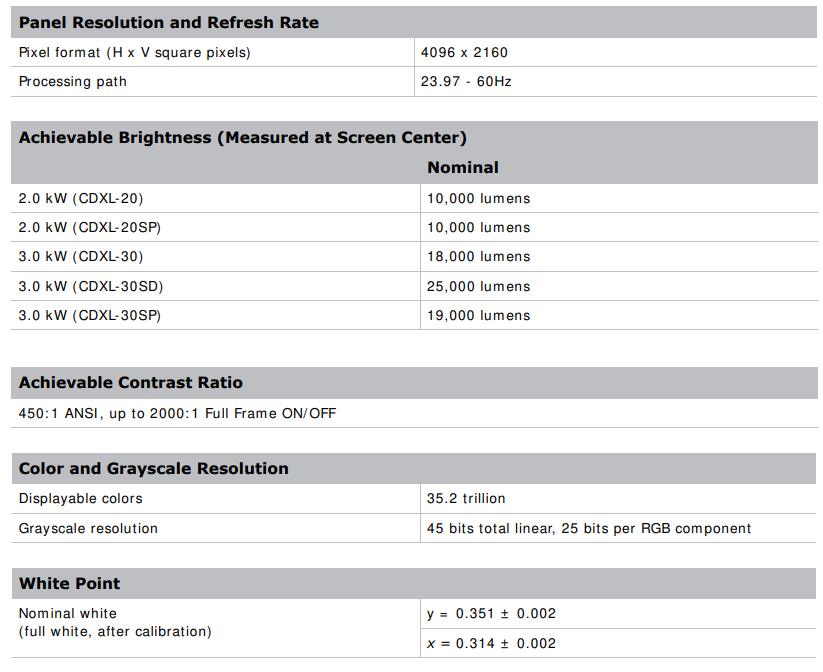
    DisplayCHRISTIE-D4K2560-High-Frame-4K-Projector-fig-62

    CHRISTIE-D4K2560-High-Frame-4K-Projector-fig-63

    Optional Input cardsCHRISTIE-D4K2560-High-Frame-4K-Projector-fig-64
    To determine which SDI signal types are officially supported, see D4K2560 signal connectivity on page 74.

    Control signal compatibilityCHRISTIE-D4K2560-High-Frame-4K-Projector-fig-65

    CHRISTIE-D4K2560-High-Frame-4K-Projector-fig-66

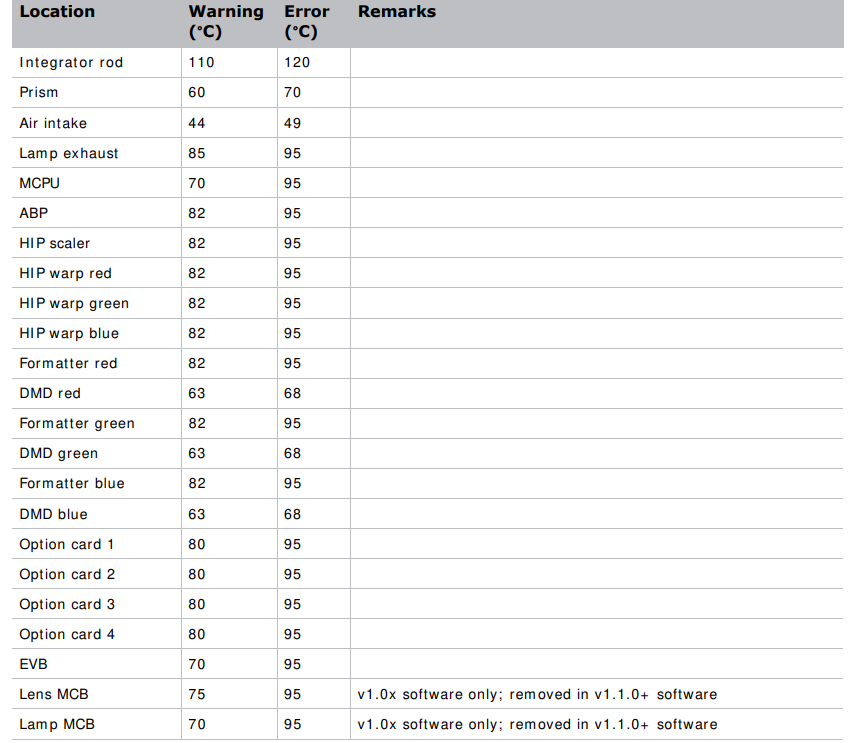
    Temperature sensor thresholds

    The projector shshuts downnithin one minute of an error threshold being reached.
    CHRISTIE-D4K2560-High-Frame-4K-Projector-fig-67

    Warning thresholds for fans

    All fan warnings are set to ~ 75% of their normal operating speeds.

    CHRISTIE-D4K2560-High-Frame-4K-Projector-fig-68

    Warning threshold for the lithe quid cooling moduleCHRISTIE-D4K2560-High-Frame-4K-Projector-fig-69
    Touch panel controllerCHRISTIE-D4K2560-High-Frame-4K-Projector-fig-70Power requirementsCHRISTIE-D4K2560-High-Frame-4K-Projector-fig-71
    LampCHRISTIE-D4K2560-High-Frame-4K-Projector-fig-71

    Physical specificationsCHRISTIE-D4K2560-High-Frame-4K-Projector-fig-73

    CHRISTIE-D4K2560-High-Frame-4K-Projector-fig-74

    Regulatory

    This product conform s to the following regulations related to product safety, environm ental requirem ents and electrom agnetic com patibility ( EMC) .

    Safety

    • CAN/ CSA C22.2 No. 60950-1
    • UL 60950-1
    • I EC 60950-1
    • EN60950-1

    Approvals

    This product shall conform to all relevant directives, standards, safety, health and environm ental rules and regulations required for the product to be sold in: USA/ Canada, EU, Norway, Australia/ New Zealand, Kuwait, China, Korea, Japan, Mexico, Ukraine, Russia, South Africa, and Saudi Arabia international packaging recycling m ark requirem ents:

    • EU Directive (94/ 62/ EC) on packaging and packaging waste;
    • China packaging recycling mark standard (GB18455-2001).

    Electro-magnetic compatibility

    Emissions

    FCC CFR47, Part 15, Subpart B, Class A – Unintentional Radiators CI SPR 22/ EN 55022, Class A – I nform ation Technology Equipm ent I CES/ NMB003 ( A) – I nform ation Technology Equipm ent

    Immunity

    CI SPR 24/ EN55024: EMC Requirem ents—I nform ation Technology Equipm ent

    Environmental

    EU Directive (2011/ 65/ EU) on the restriction of the uses of certain hazardous substances ( RoHS) in electrical and electronic equipm ent and the applicable official am endm ent(s) EU Regulation ( EC) No. 1907/ 2006 on the registration, evaluation, authorization and restriction of chem icals ( REACH) and the applicable official am endm ent(s). EU Directive ( 2012/ 19/ EU) on waste and electrical and electronic equipm ent ( WEEE) and the applicable official am endm ent(s) China Ministry of I nform ation I ndustry Order No.39 (02/ 2006) on the control of pollution caused by electronic inform ation products, hazardous substances concentration lim its ( SJ/ T11363- 2006) , and the applicable product m arking requirem ents ( SJ/ T11364-2006)

    EnvironmentCHRISTIE-D4K2560-High-Frame-4K-Projector-fig-75

    CHRISTIE-D4K2560-High-Frame-4K-Projector-fig-76

    AccessoriesCHRISTIE-D4K2560-High-Frame-4K-Projector-fig-77

    CHRISTIE-D4K2560-High-Frame-4K-Projector-fig-78

    CHRISTIE-D4K2560-High-Frame-4K-Projector-fig-79

    Corporate offices

    USA – Cypress ph: 714-236-8610 Canada – Kitchener ph: 519-744-8005

    Worldwide offices

    • Australia, Eastern Europe, and
    • ph: +61 (0) 7 3624 4888 Russian Federation Brazil
    • ph: +36 (0) 1 47 48 100
    • ph: +55 (11) 2548 4753 France China (Beijing)
    • ph: +33 (0) 1 41 21 44 04
    • ph: +86 10 6561 0240 Germany China (Shanghai)
    • ph: +49 2161 664540
    • ph: +86 21 6278 7708
    Share. Facebook Twitter Pinterest LinkedIn Tumblr Email
    Gabriel Smith

      Related Posts

      BARCO QDX Rental Laser Projectors Instruction Manual

      March 13, 2026

      How To Protect Electronic Devices From EMP

      March 12, 2026

      Hisense PX1 Triple Laser Ultra Throw Projector User Guide

      March 12, 2026

      Yuneec Tornado H920 Plus Drone Instruction Guide

      March 10, 2026

      Digital Projection E-Vision Laser 7500 Projector User Guide

      March 10, 2026

      GEPRC GOPRO Naked Hero 10 Camera Instructions Guide

      March 9, 2026
      Add A Comment
      Leave A Reply Cancel Reply

      Don't Miss
      Other

      BARCO QDX Rental Laser Projectors Instruction Manual

      March 13, 2026

      BARCO QDX Rental Laser Projectors Quick Start Guide Environment conditions Main Power Requirements The projector…

      CHRISTIE D4K2560 High Frame 4K Projector Instruction Guide

      March 13, 2026

      How To Protect Electronic Devices From EMP

      March 12, 2026

      Hisense PX1 Triple Laser Ultra Throw Projector User Guide

      March 12, 2026
      Stay In Touch
      • Facebook
      • Twitter
      • Pinterest
      • Instagram
      • YouTube
      • Vimeo

      Subscribe to Updates

      Subscribe to Updates

      Follow us

      Facebook X-twitter Instagram Pinterest

      © 2025 All rights reserved Onyx Guide.