

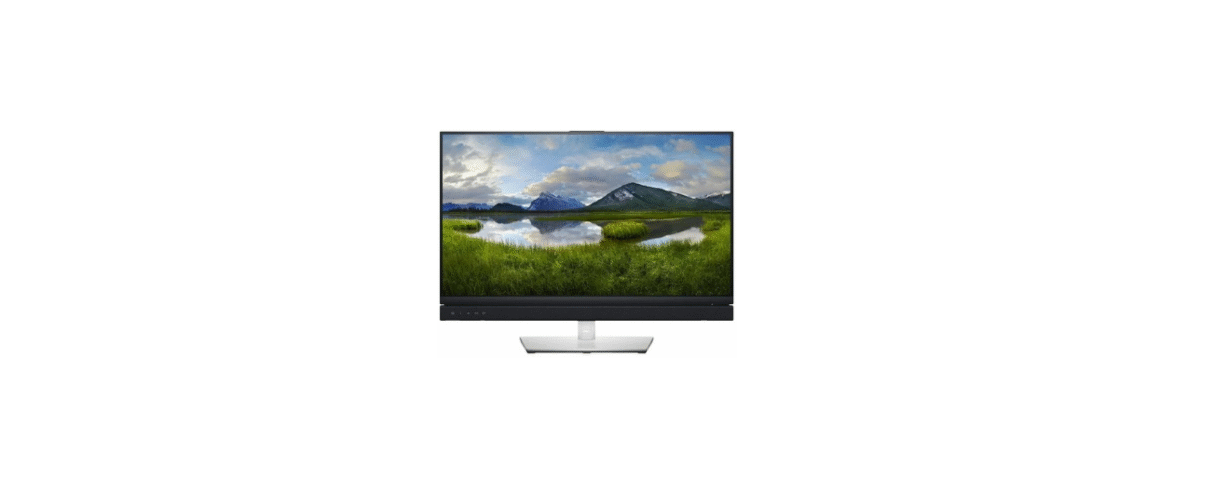

Insignia NS-20EM50A13 Widescreen LED Monitor 
Package contents
- 20″ Widescreen LED monitor
- Power cable
- VGA cable
- Quick Setup Guide
WE ARE GOING GREEN!
A copy of your User Guide is not provided in the box but is available online. Go to www.insigniaproducts.com, click Support & Service, enter your model number in the Product Search field, then click Search.
Features
Front view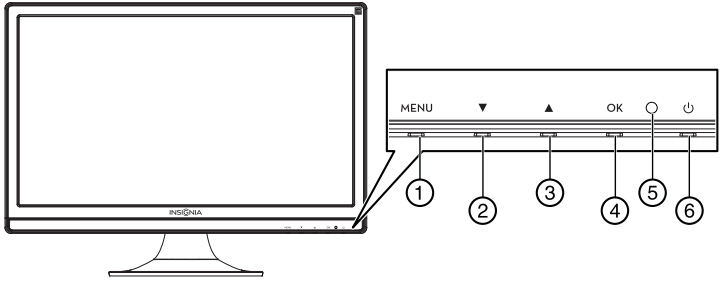
Rear view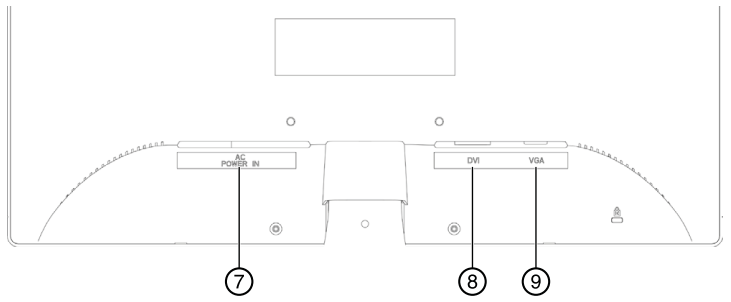
Installing the stand base
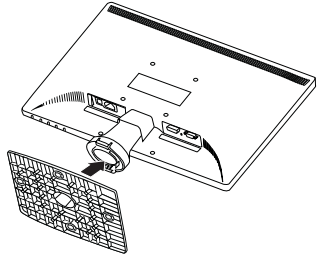
- Remove the monitor from the box and lay it face down on a table, with a soft cloth or towel beneath it to protect the screen.
- Insert the base into the stand column until it clicks into place.
Removing the stand base and column for mounting to a wall
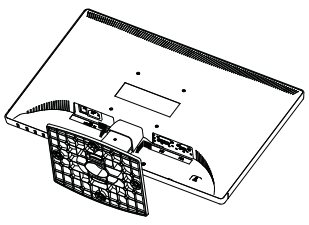
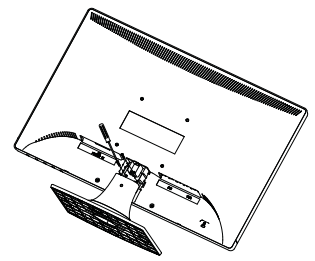
- Lay the monitor face down on a table, with a soft cloth or towel beneath it to protect the screen.
- Squeeze the sides of the column cover and pull to remove it.
- Using a Philips screwdriver, remove the three screws that secure the column to the monitor.
- Wiggle the column loose from the monitor.
Component Description
- MENU Press to open the on-screen display (OSD) menu and enter menu mode. Press again to exit the OSD and return to display mode.
- In menu mode, press to scroll down or decrease settings in the OSD menus. In normal operation, press to access the Contrast/Brightness/Backlight menu.
- In menu mode, press to scroll up or increase settings in the OSD menus. In normal operation, press to access the Color Vision Mode menu.
- OK In menu mode, press to scroll up or increase settings in the OSD menus. In normal operation, press to access the Color Vision Mode menu.
- LED indicator. In menu mode, press to confirm a selection or setting in the OSD menus. In normal operation, press the button for three seconds to auto-adjust the image. Or, press the button to enter the input select menu, and Insignia NS-20EM50A13 Widescreen LED Monitor you can choose the input source from VGA or DVI. Turns blue when the monitor is on. After the monitor is turned off, the LED will turn off.
- Power On/Off: Press to turn the monitor on. Press again to turn the monitor off.
- Power connector: Plug the AC power cord into this connector.
- DVI jack. Plug an optional DVI connector into this jack.
- VGA jack. Plug the VGA connector into this jack.
Making connections
To connect your monitor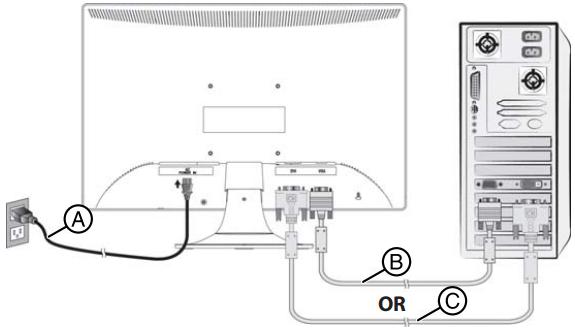
- Connect the power cord (A) to the monitor, then to a properly grounded AC outlet.
- Make sure that both the monitor and the computer are powered OFF. Connect the VGA cable (B) to the computer, then to the monitor. OR Connect a DVI cable (not included)(C) from the DVI output of the computer to the DVI input of the monitor. If your PC has an HDMI output, you can use an HDMI to DVI cable (not included).
- Turn on the computer, then the monitor.
- If you are using Windows, you may need to set the resolution and refresh rate. (example: 1600 × 900 @ 60 Hz).
Windows 7
- Click the Start button and select Control Panel.
- Under Appearance and Personalization, click Adjust screen resolution.
- Click the drop-down list next to Resolution, move the slider to the resolution you want, then click Apply.
- Click Keep to use the new resolution, or click Revert to go back to the previous resolution.
- Click the Start button and select Control Panel.
- Click Appearance and Insignia NS-20EM50A13 Widescreen LED Monitor Personalization, then click Display Settings.
- Under Resolution, move the slider to the resolution you want, then click Apply.
XP
- Right-click on your desktop and select Properties.
- Click the Settings tab at the top of the window.
- Under Resolution, move the slider to the resolution you want, then click Apply. OR If you are using a Mac, you may need to set the resolution.
- Open the Apple menu and select System Preferences.
- Click Displays, then click Display.
- Select the appropriate resolution from the Resolutions list.
Using the on-screen display (OSD)
To use the on-screen display (OSD) menus: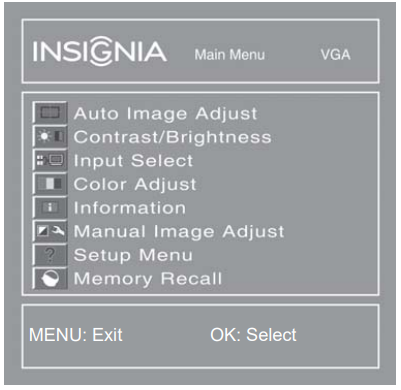
- Press the MENU button to open the menus. The Main Menu opens.
- Press or to select a menu item, then press OK to go to that sub-menu. You can select:
- Auto Image Adjust: to auto adjust Horizontal Position, Vertical Position, Phase (Fine Tune), and Clock (H. Size) of the screen. Available in analog mode only (VGA cable connection).
- Contrast/Brightness
- Contrast
- Brightness
- Backlight
- Input Select
- Color Adjust
- Warm
- Normal
- Cool
- User Color: to manually adjust the color levels. Press OK to select the color to adjust.
- Information: to display information on the current input signal.
- Manual Image Adjust
- Horizontal Size
- H./V. Position
- H. Position
- V. Position
- Fine Tune: to fine-tune the phase and clock.
- Sharpness: to adjust the clarity of the image when running below the native resolution (1600 × 900).
- Video Mode Adjust: select Full Screen, Over Screen, or Aspect Ratio.
- Color Vision Mode: to select a preset display environment. You can select Standard, Game, Cinema, Scenery, Text, or ECO.
- Setup Menu
- Language Select
- OSD Position
- H. Position
- V. Position
- OSD Time Out: to automatically turn off the OSD after a preset period.
- Memory Recall: to reset all settings to factory default. Press OK.
- When the sub-menu opens, press or to go to the item you want to adjust, then press OK to select that item.
- Press or to adjust the item you selected, then press MENU to exit the menu. For more details on menu choices, please refer to the online User Guide.
Troubleshooting
For troubleshooting information, see your online User Guide.
Specifications
For specifications information, see your online User Guide.
Legal notices
FCC Part 15
This device complies with Part 15 of the FCC Rules. Operation of this product is subject to the following two conditions:
- This device may not cause harmful interference, and
- This device must accept any interference received, including interference that may cause undesired operation. This equipment has been tested and found to comply with the limits for a Class B Bigital device, under Part 15 of the FCC Rules.
These limits are designed to provide reasonable protection against harmful interference in a residential installation. This equipment generates, uses, and can radiate radio frequency energy and, if not installed and used according to the instructions, may cause harmful interference to radio communications.
However, there is no guarantee that interference will not occur in a particular installation. If this equipment does cause harmful interference to radio or television reception, which can be determined by turning the equipment off and on, the user is encouraged to try to correct the interference by one or more of the following measures:
- Reorient or relocate the receiving antenna.
- Increase the separation between the equipment and receiver.
- Connect the equipment to an outlet on a circuit different from that to which the receiver is connected.
- Consult the dealer or an experienced technician for help.
FCC warning
Changes or modifications not expressly approved by the party responsible for compliance with the FCC Rules could void the user’s authority to operate this equipment.
One-Year Limited Warranty
Visit www.insigniaproducts.com for details.
Customer Support
- Website: www.insigniaproducts.com
- Ph: 1-877-467-4289 (U.S. and Canada) 01-800-926-3000 (Mexico)
INSIGNIA is a trademark of Best Buy and its affiliated companies. Distributed by Best Buy Purchasing, LLC
©2015 Best Buy. All rights reserved.
FAQs
Q: How do I set up my Insignia NS-20EM50A13 monitor for the first time?
Carefully unpack the monitor, fasten the stand base, then connect the HDMI or VGA video cable and power wire to your computer or other device. Activate the connected device and the monitor. Your input should appear on the screen automatically.
Q: What video connections does this monitor support?
The NS-20EM50A13 is compatible with desktop computers, laptops, and several gaming consoles because it has both HDMI and VGA inputs. For optimal image quality, use HDMI.
Q: How do I change the input source?
Use the on-screen display (OSD) menu or press the Input or Source button on the monitor. Depending on the device you’re connecting to, you can alternate between HDMI and VGA.
Q: Can I adjust brightness, contrast, and color settings?
Indeed. To change brightness, contrast, colour temperature, and sharpness to your liking, press the Menu button on the display to bring up the OSD menu.
Q: Does this monitor have built-in speakers?
No, there are no built-in speakers on the NS-20EM50A13. For audio output, use external speakers or headphones that are linked to your computer or media player.
Q: Can I mount the monitor on a wall?
Indeed, this model (100 × 100 mm) is compatible with VESA. To properly put it on a level surface, take off the stand and use a wall mount kit that is compatible.
Q: How do I clean the screen safely?
Before cleaning, unplug the monitor. Apply a mildly moistened microfiber cloth that is lint-free and silky. Steer clear of harsh chemicals, alcohol, and ammonia since they can harm the screen covering.
Q: How can I adjust the screen position or angle?
You may tilt the screen a little bit forward or backward using the stand that comes with the monitor. To avoid injury, don’t use too much force when adjusting.