

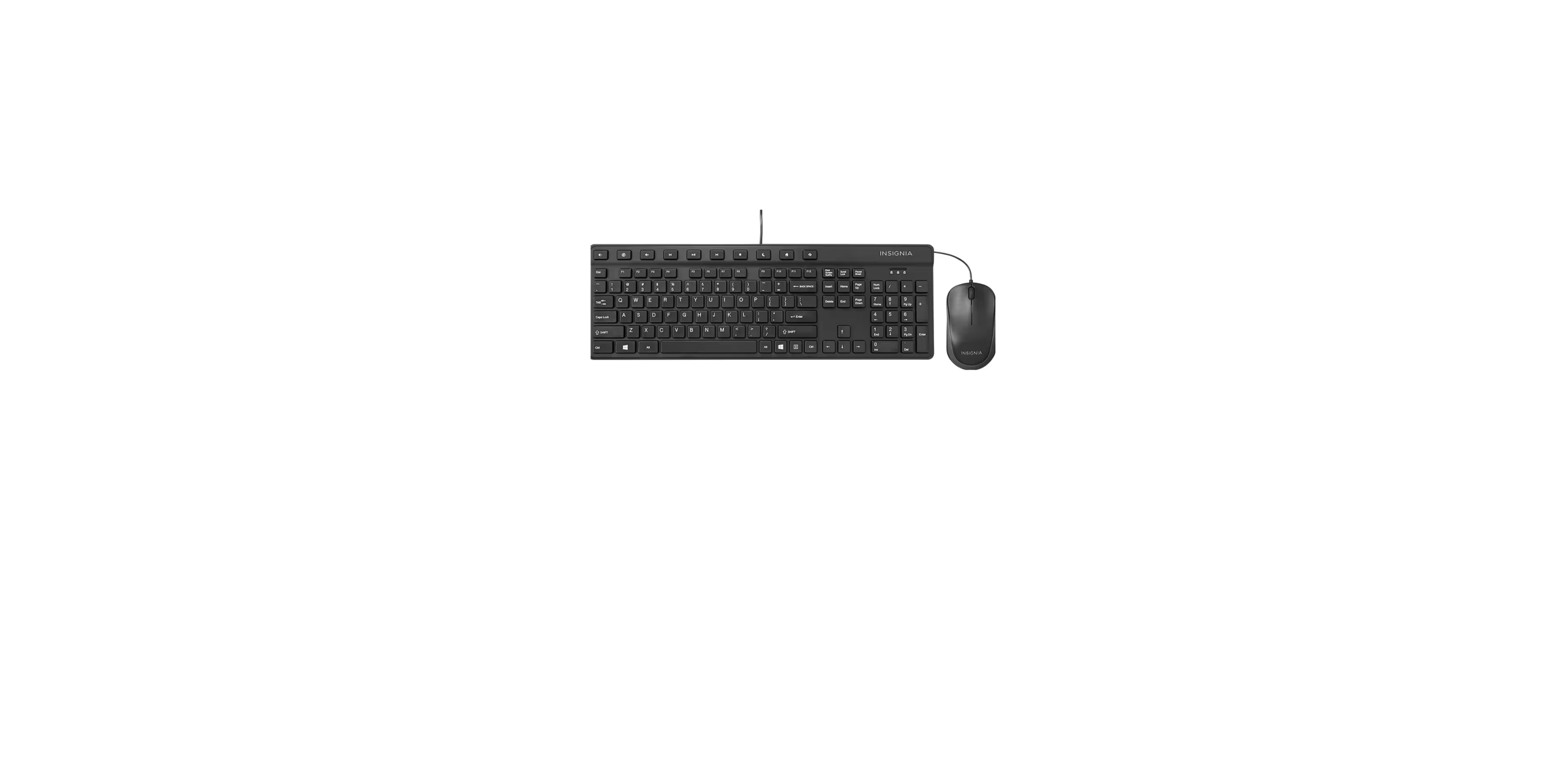

Insignia NS-PNC5001-C USB Keyboard and Mouse
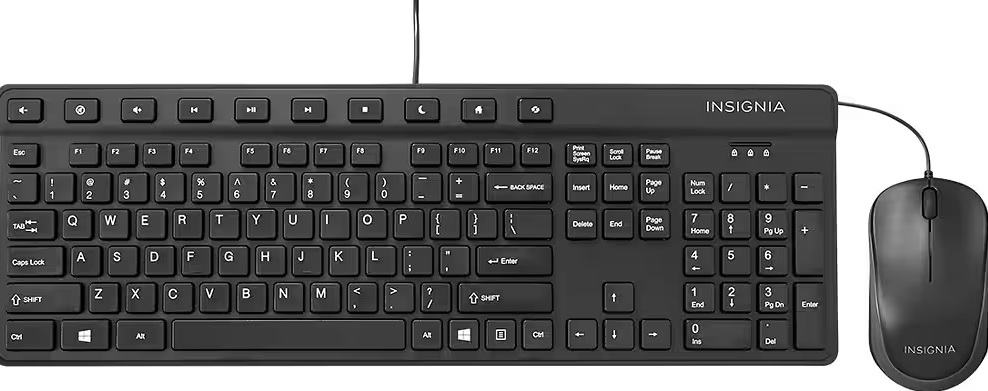
 Package contents
 Package contents
- Wired USB mouse
- Wired USB keyboard
- Quick Setup Guide
System requirements
- Windows® 8.1, Windows® 8, Windows® 7, Windows Vista®, or Mac OS 10.X or higher
- Two available USB ports
Mouse features
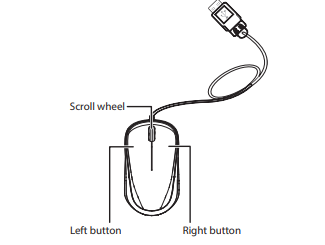
Before using your new product, please read these instructions to prevent any damage.
Keyboard features
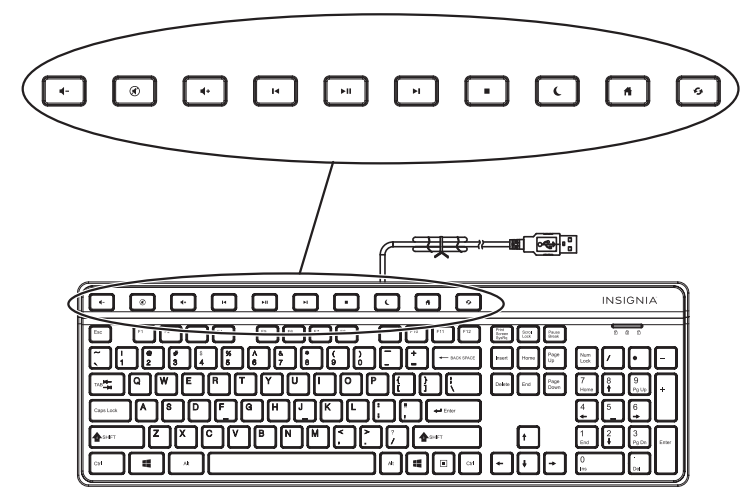
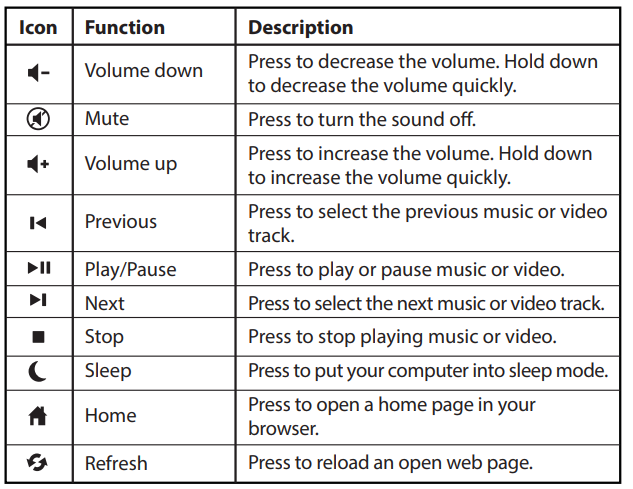
Shortcut keys
Setting up your mouse
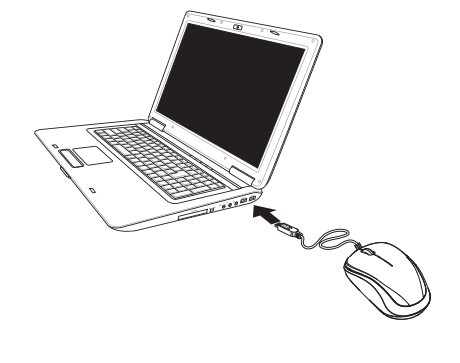
- Plug your mouse into an available USB port on your computer. The computer automatically detects the mouse, and you can immediately begin using it.
Setting up your keyboard
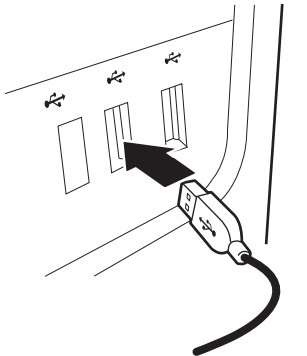
- Plug the keyboard into an available USB port on your computer. You can begin using your keyboard immediately after Windows automatically finds and installs the appropriate driver.
Cleaning your mouse and keyboard
- Wipe the mouse and keyboard with a damp, lint-free cloth.
Troubleshooting
My mouse and/or keyboard is not working.
- Make sure that your computer meets the system requirements.
- Make sure that your mouse and keyboard USB cables are securely attached to the USB ports on your computer.
- Only use the mouse on a clean, flat, non-slippery surface to ensure smooth and accurate cursor action.
- Try connecting your mouse and keyboard to different USB ports on your computer.
Legal notices
FCC Statement
This device complies with Part 15 of the FCC Rules. Operation is subject to the following two
conditions:
- This device may not cause harmful interference, and
- This device must accept any interference received, including interference that may cause undesired operation. This equipment has been tested and found to comply with the limits for a Class B digital device, pursuant to Part 15 of the FCC Rules.
These limits are designed to provide reasonable protection against harmful interference in a residential installation. This equipment generates, Insignia NS-PNC5001-C USB Keyboard and Mouse uses, and can radiate radio frequency energy and, if not installed and used by the instructions, may cause harmful interference to radio communications. However, there is no guarantee that interference will not occur in a particular installation. If this equipment does cause harmful interference to radio or television reception, which can be determined by turning the equipment off and on, the user is encouraged to try to correct the interference by one or more of the following measures:
- Reorient or relocate the receiving antenna.
- Increase the separation between the equipment and receiver.
- Connect the equipment to an outlet on a circuit different from that to which the receiver is connected.
- Consult the dealer or an experienced radio/TV technician for help
Warning: Changes or modifications not expressly approved by the party responsible for
compliance could void the user’s authority to operate the equipment.
IC Statement
CAN ICES-3 (B)/NMB-3 (B)
One-Year Limited Warranty
Visit www.insigniaproducts.com for details.
Customer Support
- Website: www.insigniaproducts.com
- Ph: 1-877-467-4289 (U.S. and Canada) 01-800-926-3000 (Mexico)
INSIGNIA is a trademark of Best Buy and its affiliated companies. Distributed by Best Buy Purchasing, LLC
©2015 Best Buy. All rights reserved.
FAQs
Q: How do I set up my Insignia NS-PNC5001-C keyboard and mouse?
Just insert the keyboard and mouse’s USB connectors into the computer’s available USB ports. Because the devices are plug-and-play, your system ought to detect and install them on its own in a matter of seconds.
Q: Do I need to install drivers for the keyboard and mouse?
No. The majority of operating systems, including Windows, macOS, and ChromeOS, support the NS-PNC5001-C keyboard and mouse without the need for extra software. Once connected, your computer recognises them automatically.
Q: Can I use the keyboard and mouse on a laptop?
Indeed! Laptops can be used with both devices. They will start working as soon as you plug them into any available USB ports.
Q: Is the keyboard layout standard?
Indeed. For easy access to media, email, and browser capabilities, the keyboard’s full-size layout includes a numeric keypad, function keys, and shortcut keys.
Q: How do I use the mouse correctly?
For seamless tracking, position the mouse on a clean, level surface or mouse pad. You may easily move through documents or web pages with the scroll wheel, and both buttons offer normal left- and right-click capabilities.
Q: Can I adjust the mouse sensitivity (DPI)?
There is no DPI button that can be adjusted on this particular model. Nevertheless, you may adjust the pointer speed in Windows or macOS by adjusting the mouse settings on your computer.