



Insignia NS-PNM6103-BK-C Bluetooth Mouse
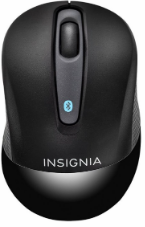
Package Contents
- Bluetooth mouse
- AA battery (1)
- Quick Setup Guide
System Requirements
- Windows 10, Windows 8.1, Windows 8, Windows 7, or Mac OS 10.x or higher
- Built-in Bluetooth function or Bluetooth receiver
Features
Function Description
- LED indicator
- Lights for three seconds when you turn on
Your mouse. - Blinks two times per second when yourThe
mouse is in pairing mode. - Turns off immediately when pairing is
complete. - Blinks every five seconds when the battery
is low, but becomes more rapid when power is
almost gone.
- Lights for three seconds when you turn on
- CONNECT button: Press to put your mouse in pairing mode.
Installation Instructions
- Open the battery compartment and insert one AA battery (included). Make sure that you match the + and – symbols in the battery compartment.
- Press the CONNECT button on the bottom of the mouse. The LED indicator blinks twice to indicate your mouse is in pairing mode.
- Pair your mouse to your computer.
PC:
- Click the Bluetooth icon in your computer’s taskbar.
- Click Add a Bluetooth device. Your computer searches for your mouse.
- Double-click the Bluetooth 3.0 Mouse.
Mac:
- Open System Preferences in the dock.
- Click the Bluetooth icon.
- Click + in the lower-left corner. Your computer searches for your mouse.
- Double-click the Bluetooth 3.0 Mouse.
Note: If your computer has never connected to a Bluetooth device, click Set Up New Device to pair your mouse to your computer.
When pairing is complete, the LED indicator lights for two seconds.
Turning Your Mouse on and Off
- The first time you use your mouse, turn it on by moving the on/off switch on the bottom of the mouse to the on position.
- If you don’t use your mouse for five minutes, it switches to standby mode to conserve the battery. To wake up your mouse, press any button or move it.
Unpairing the Mouse
PC:
- Click the Bluetooth icon on your taskbar.
- Click Show Bluetooth Devices.
- Right-click (Win 7) or click (Win 8) Bluetooth 3.0 Mouse.
- Click Remove Device to unpair the mouse.
Mac:
- Open System Preferences in the dock.
- Click the Bluetooth icon.
- Click the – in the lower left corner.
- When it asks Are you sure you want to remove this device?, click
Remove to unpair the mouse.
Cleaning Your Mouse
- Wipe the mouse with a damp, lint-free cloth.
Specifications
Mouse:
- Dimension (L × W × H): 3.93 × 2.51 × 1.45 in. (10 × 6.4 × 3.7 cm)
- Weight: 2.05 oz. (.058 kg)(without battery)
- Battery: 1 AA alkaline battery
- Battery life: 3 months (based on two hours moving per day)
- Rating: 1.5V DC – 20mA
Troubleshooting
My mouse is not working.
- Move your mouse closer to your computer.
- Make sure that your computer Insignia NS-PNM6103-BK-C Bluetooth Mouse meets the system requirements.
- Make sure that your mouse is paired by pressing the blue CONNECT button on the bottom of your mouse, then pair it with your computer.
- Make sure that the Bluetooth function on your computer or your Bluetooth receiver is working.
- Unpair your mouse from your computer, then re-pair it.
- If the LED indicator on your mouse is blinking every five seconds, replace the battery.
Legal Notices
FCC Statement
This device complies with Part 15 of the FCC Rules. Operation is subject to the following two conditions: (1) this device may not cause harmful interference, and (2) this device must accept any interference received, including interference that may cause undesired operation. This equipment has been tested and found to comply with the limits for a Class B digital device, pursuant to Part 15 of the FCC Rules. These limits are designed to provide reasonable protection against harmful interference in a residential installation.
This equipment generates, uses, and can radiate radio frequency energy and, if not installed and used according to the instructions, may cause harmful interference to radio communications. However, there is no guarantee that interference will not occur in a particular installation. If this equipment does cause harmful interference to radio or television reception, which can be determined by turning the equipment off and on, the user is encouraged to try to correct the interference by one or more of the following measures:
- Reorient or relocate the receiving antenna.
- Increase the separation between the equipment and receiver.
- Connect the equipment to an outlet on a circuit different from that to
which the receiver is connected. - Consult the dealer or an experienced radio/TV technician for help.
One-Year Limited Warranty
Visit www.insigniaproducts.com for details.
Customer Support
- Website: www.insigniaproducts.com
- Ph: 1-877-467-4289 (U.S. and Canada) 01-800-926-3000 (Mexico)
INSIGNIA is a trademark of Best Buy and its affiliated companies. Distributed by Best Buy Purchasing, LLC
©2015 Best Buy. All rights reserved.
FAQs
Q: Do I need a USB receiver to use this mouse?
No. Since this is a Bluetooth-only mouse, no dongle or receiver is needed; it connects straight to your device’s built-in Bluetooth.
Q: What devices are compatible with this mouse?
The majority of Bluetooth-capable laptops, desktops, tablets, and smartphones running Windows, macOS, ChromeOS, iPadOS, and Android are compatible with the NS-PNM6103-BK-C.
Q: How do I enter pairing mode again?
Holding down the Bluetooth button on the mouse’s underside for three to five seconds can cause the LED light to flash quickly. Next, choose it from the Bluetooth menu on your device.
Q: Does this mouse require batteries?
Indeed. It requires one AA battery, which is included. Place it inside the battery compartment with the proper polarity (+/-) marked.
Q: How long does the battery last?
Depending on usage and battery quality, an AA battery can last anywhere from six to twelve months with normal everyday use.
Q: How do I know when the battery is low?
The pointer may lag or move erratically, or the mouse’s indicator light may flash intermittently. When this happens, change the battery.
Q: Can I connect the mouse to more than one device at a time?
No. Only one device at a time can be associated with the mouse. You must unpair it from the existing device and rejoin it to the new one in order to switch devices.