



Insignia NS-PNKNUM19 Wired Numeric Keypad
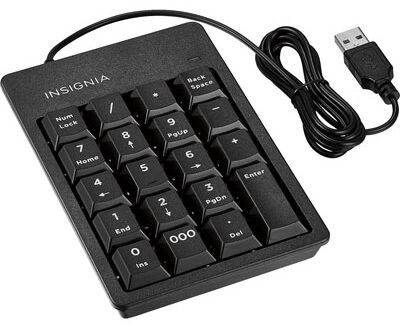
Quick Setup Guide
- Wired Numeric
- Keypad
Package Contents
- Numeric keypad
- Quick Setup Guide
System Requirements
- Windows 10, Windows 8.1, Windows 8, Windows® 7, Mac OS 10.4 or higher
- One available USB port
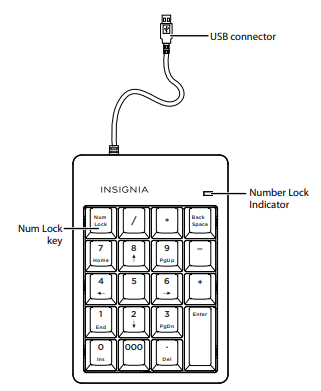
Keypad Features
Setting Up Your Keypad
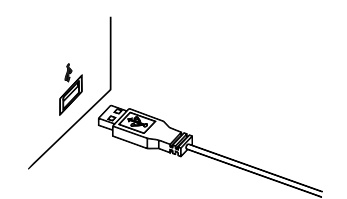
- Plug the USB connector Insignia NS-PNKNUM19 Wired Numeric Keypad into a USB port on your computer. Your computer automatically finds and installs the appropriate driver. When the installation completes, you
Notes
- When you install your keypad on a Mac, you must select the ANSI format when prompted by the operating system. The keypad will not work if you select any other format.
- Number lock is not supported on Macs. When the keypad is installed on a Mac, pressing the number keys always inputs numbers and not the navigation functions.
Cleaning Your Keypad
- Wipe the keypad with a damp, lint-free cloth.
Troubleshooting
My keypad is not working.
- Make sure that your computer meets the system requirements.
- Make sure that the USB connector is securely attached to a USB port on your computer.
- Try connecting your keypad to a different USB port on your computer.
- Make sure that the number lock is on (the Num Lock Indicator should be lit).
Specifications
- Dimensions (L×W×H):1.090 × 5.161 × 3.507 in. (2.77 × 13.11× 8.91 cm)
- Weight: 3.844 oz (109 g)
- Cable length: 47.244 in. (1.2 M)
Values for weight and cable length are approximate.
Legal Notices
FCC Statement
This equipment has been tested and found to comply with the limits for a Class B digital device, under Part 15 of the FCC Rules. These limits are designed to provide reasonable protection against harmful interference in a residential installation. This equipment generates, uses, and can radiate radio frequency energy and, if not installed and used according to the instructions, may cause harmful interference to radio communications. However, there is no guarantee that interference will not occur in a particular installation. If this equipment does cause harmful interference to radio or television reception, which can be determined by turning the equipment off and on, the user is encouraged to try to correct the interference by one of the following measures:
- Reorient or relocate the receiving antenna.
- Increase the separation between the equipment and receiver.
- Connect the equipment to an outlet on a circuit different from that
to which the receiver is connected. - Consult the dealer or an experienced radio/TV technician for help.
FCC Caution
Any changes or modifications not expressly approved by the party responsible for compliance could void the user’s authority to operate this equipment. This device complies with Part 15 of the FCC Rules. Operation is subject to the following two conditions:
- This device may not cause harmful interference, and
- This device must accept any interference received, including interference that may cause undesired operation.
One-Year Limited Warranty
Visit www.insigniaproducts.com for details.
Customer Support
- Website: www.insigniaproducts.com
- Ph: 1-877-467-4289 (U.S. and Canada) 01-800-926-3000 (Mexico)
FAQs
Q: How do I set up my Insignia NS-PNKNUM19 numeric keypad?
All you have to do is insert the USB cable into a USB port on your laptop or PC. No drivers or software are required because the keypad is plug-and-play, meaning it will install itself and be operational in a matter of seconds.
Q: What operating systems is this keypad compatible with?
Windows, macOS, ChromeOS, and Linux operating systems that accept conventional USB input devices can all use the NS-PNKNUM19.
Q: Can I use this keypad with my laptop?
Indeed! It’s perfect for laptops without integrated numeric keypads, enabling you to enter numbers, execute computations, and make better use of spreadsheet shortcuts.
Q: Do I need to install any special software?
Installation is not necessary. Your computer will recognise it as a regular numeric input device as soon as it is attached.
Q: Why isn’t the Num Lock key working?
On certain laptops, the system may be in charge of the Num Lock feature. Check your operating system settings to enable or disable the Num Lock light or button if your laptop keyboard lacks one.
Q: Does the keypad have a Num Lock indicator light?
Indeed, the majority of NS-PNKNUM19 models come with a Num Lock LED indicator that illuminates when the numeric function is engaged.
Q: Can I use this keypad for gaming or custom key bindings?
Yes, but spreadsheets and data entry are its main uses. It’s possible that certain programs and games won’t recognise the keypad’s keys independently from the main keyboard.
Q: Can I use this keypad with a tablet or smartphone?
Yes, if you have a compatible adapter and your device supports USB OTG (On-The-Go). Functionality, however, could differ based on the device or app.