



BLAUPUNKT BP500USG98 QLED 4K Ultra HD Google TV
Safety Instructions
- Using Cabinets or stands recommended by the manufacturer of the television.
- Only use furniture that can safely support the Products.
- Ensure the Product is not overhanging the edge of the supporting furniture.
- Do not place the product on high furniture without securing both the furniture and the product to a stable support.
- Do not place the product on cloth or other conductive materials.
- Warn children of the dangers of climbing on furniture to reach the television or its controls, and to call for
- Do not expose this appliance to rain or moisture, as it may result in fire or an electric shock hazard.
- Do not tamper with or change, or modify the product in any way.
- Only use Accessories outlined and recommended by the manufacturer.
- Please do not expose the product to splashing or water contact
- Please do not place any object on top of the product,t, including objects filled with liquids such as vases.
- Danger of explosion if the battery is incorrectly placed. Replace with the same or equivalent type.
Installation
- Before installing this TV set, make sure your outlet voltage corresponds to the voltage stated on the product rating label.
- Do not use a damaged power cord, plug, or loose outlet. Doing so may cause an electric shock.
- Do not plug several devices into the same outlet. Doing so may cause the outlet to overheat and start a fire. Make sure the outlet is readily accessible during operation of the equipment.
- Do not bend, twist, or kink the power cord excessively.
- Do not allow anything to rest on or roll over the power cord and antenna cable. Doing so may cause a fire or an electric shock.
- Do not run the power cord near heat-producing appliances such as radiators, stoves, or irons. The excessive heat could melt the insulation and expose live wires, resulting in fire or electric shock.
- Unplug this TV during lightning storms or when unused for long periods of time. Not doing so may result in fire or electric shock.
- Do not cover the ventilation openings of the product with items such as newspapers, tablecloths, curtains, e, or insert objects into the slots available on the products. As this could result in the product temperature rising, and could cause a fire.
- If you notice any unusual odors or smoke around the unit, immediately disconnect the unit from the outlet and contact the service center. Failure to do so may result in fire or electric shock.
- When not using the unit for long periods of time or when you are moving the unit, please ensure to disconnect the power cord from the wall socket.
Assembly
Attaching the stand
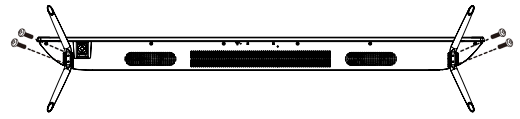
- Step 1: Place a soft cushioned material on top of a flat surface to prevent damaging the screen panel. Then place the TV screen flat on top, with the screen side facing down, as illustrated below.
- Step 2: Align the stand leg to the installation point, as illustrated below.
- Step 3: Tighten the screws (supplied) with a screwdriver to affix the stand to the panel, as illustrated below.
Wall-Mounting Instructions
- Please ensure the TV is not plugged into the wall socket, and furthermore, we recommend not getting another person to assist in the following task.
- We recommend you use a professional installer, as we assume no liability for any eventual damage to the product or injury to yourself if you mount the TV on your own.
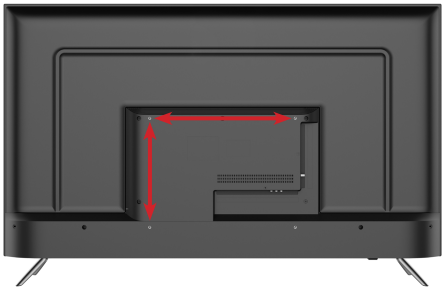
BACK OF TV:
- VESA PATTERN, 400 (w) x 300 (h) mm
Controls&Connections

BOTTOM PORTS 
SIDE PORTS 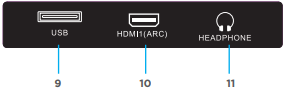
- RJ45 (ETHERNET)
- OPTICAL
- USB
- HDMI 4
- HDMI 3
- HDMI 2
- AV IN
- ANT (ANTENNA IN)
- USB
- HDMI 1 (ARC)
- HEADPHONE
Remote Control
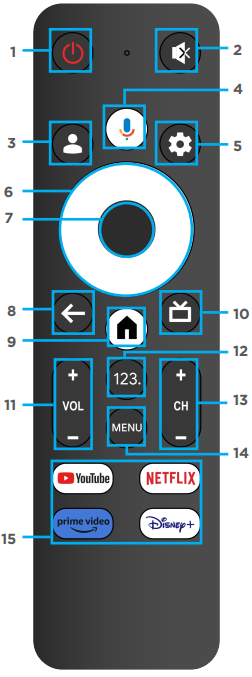
- POWER: Turn the TV on/off.
- MUTE: Turn the sound on or off.
- MEMBER: Choose or add an account.
- AUDIO: Start a voice search or speak to Google Assistant.
- SETTING: Press to open the setting option.
- ARROWS: Navigate on-screen menu.
- OK: OK to confirm selection.
- BACK: Return to previous menu.
- HOME: Open the Android TV home page.
- GUIDE: Select the electronic program guide, in DTV mode, which will display all the information about programs for a week when pressing this button.
- VOLUME: Increase or decrease TV volume.
- Numbers: Press to open the virtual keyboard.
- CHANNEL: Next or previous TV channel.
- INFO: Display channel information.
- MENU: Display Menu
- APPS: Open Netflix, YouTube, PrimeVideo, Disney
Using the Remote Control
- Do not mix old and new batteries in the remote
- Do not use different types of batteries
- If you do not intend to use the unit for a long time, please BLAUPUNKT BP500USG98 QLED 4K Ultra HD Google TV remove batteries from the remote to avoid an accident.
- Keep batteries away from children and pets.
- Never throw batteries into a fire.
- Do not drop or impact the remote control, as it voids the warranty immediately.
- The remote control operates at a range of 5 to 6M effectively
- Do not expose the remote control sensor to a bright light.
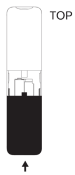
How to open the back of the remote control to replace batteries
Place/Replace the batteries, making sure that the 2x AAA batteries (included) polarities (+/-) match the battery compartment polarities (+/-).
- Open the battery compartment cover on the back side.
- Insert 2 x 1.5V AAA batteries in correct polarity. Do not mix old or used batteries with new ones.
- Close the cover.


Initial Setup
- Press the BACK and HOME buttons on the RC at the same time for 3 seconds to enter pairing mode.
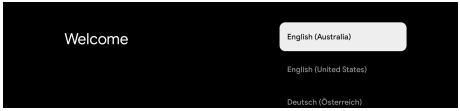
- Use the buttons to select system language, then press OK/SELECT to confirm.
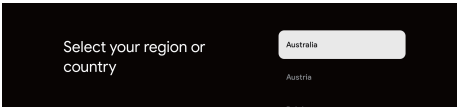
- Select the correct country you are located in; otherwise, Google TV will not work correctly.
- If you select “SET UP GOOGLE TV,” please follow the instructions below.

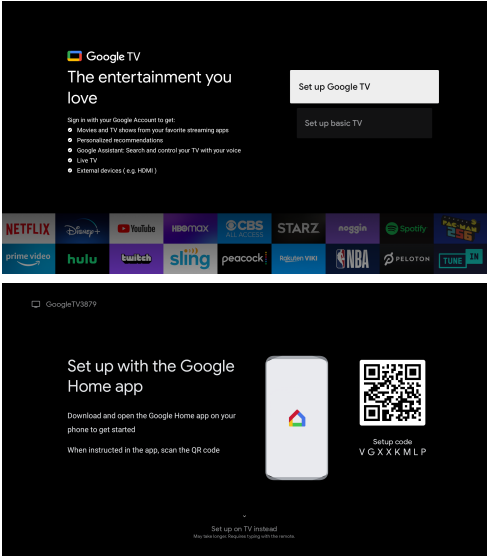
Wifi
- Select your home Wi-Fi network and enter the password to start the connection process. Once successfully connected, you will proceed to the next step.

- To have access and to download applications from Google Play, you must sign in with a Google Account. Once you open Google Play, you will be prompted to sign in or create a new account.
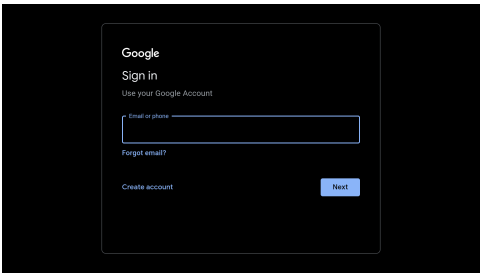
Acceptance
- By accepting the Google Terms of Service to improve the product experience, Select “ACCEPT” to proceed with this condition.

Google Assistant Setup
- Now starts the process of setting up your Google Assistant to work best for you. Please select Continue to start this process.
- For the best experience with Google Assistant, please select “Allow” for Google Assistant to share requests with your installed apps. Without this permission, Google Assistant may not be able to find all the content from your TV’s Apps.
- If you have selected “Allow” in the previous step, content recommendations can now be provided to you.


Date & Time
- Select the country you are using the device in with the directional buttons.
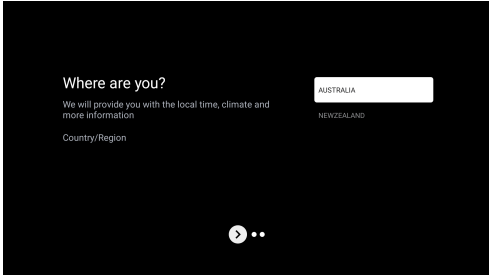
Channel Installation
- Make sure to select “ANTENNA” to scan for channels using the antenna cable.
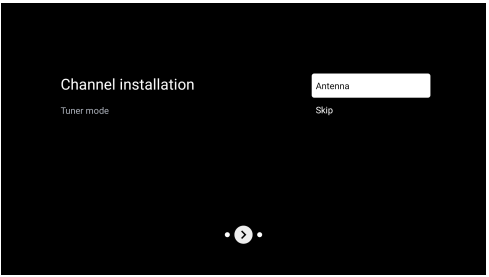
Google Installation
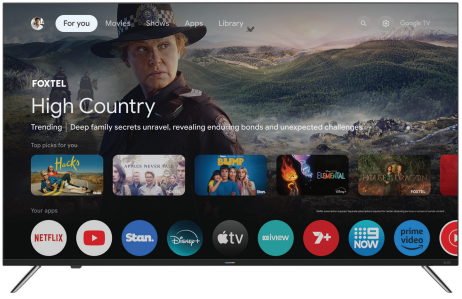
- Once you have completed the initial setup, you will now enter the Google TV home screen.


- PROFILE – Select this option if you want to access: Add or Manage Google Account
- FOR YOU – Main page for advertised TV shows, Live TV,
- Installed Apps, and top picks based on content recommendations tailored for you.
- Each row past this point will display recommended content from the apps you already have installed.
- MOVIES – This menu is all the movies recommended for you to watch.
- SHOWS – This menu is all TV shows recommended for you to watch.
- APPS – to search for and download/install onto your Google TV.
- LIBRARY – All installed apps will appear in this menu, including updates and more.
- SEARCH – Press the Google Assistant button on your remote to do more on your TV with your voice, or select “Search” and type in what you are looking for.
- SETTINGS – To Access Settings, Date & Time, TV Inputs, Picture (TV Display)
Google Assistant
- Do more on your TV with your voice. Press the Google Assistant button on your remote to quickly search 400,000+ movies and shows, get recommendations to match your mood, control smart home devices, and more.
- Ask Google to search for the latest blockbuster, stream shows, or open multiplayer games. Have it dim the lights by connecting smart home devices. Manage tasks and see your calendar. Or ask it questions and see the answers on your TV.


Setting Menu
- Select Profile Icon (#1 on page 23) menu
- Select Settings
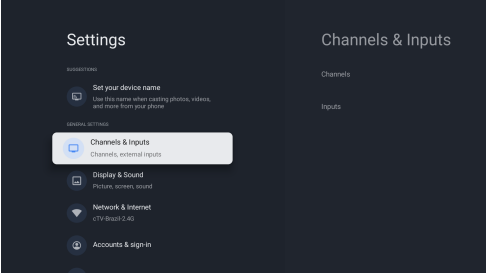
Available Setting
- Set your Device Name – This is to pick a Chromecast name. When searching to cast content from a smartphone to TV, this name will appear on your smart device.
- Channels & Inputs – Live TV and TV inputs menu
- Display & Sound – Picture and Audio settings
- Network & Internet – Wi-Fi or Ethernet connection settings
- Accounts & Sign in – Google Account settings
- Television
- About
- System
Picture Menu
- Select Profile Icon (#1 on page 23) menu
- Select Settings
- Go down and select Display & Sound.
- Then select Picture

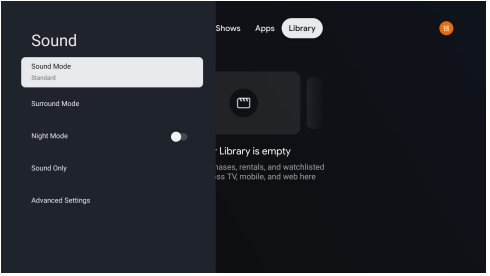
Sound Menu
- Select Profile Icon (#1 on page 23) menu
- Select Settings
- Go down and select Display & Sound.
- Then select Sound
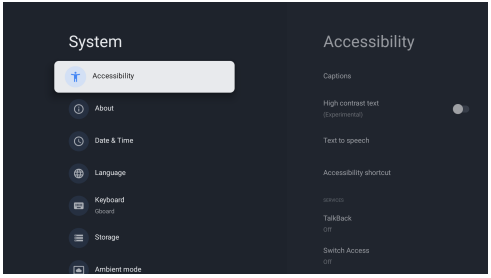
System Menu
- Select Profile Icon (#1 on page 23) menu
- Select Settings
- Go down and select SYSTEM
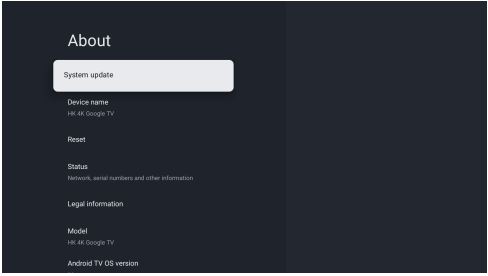
About Menu
- Select Profile Icon (#1 on page 23) menu
- Select Settings
- Go down and select ABOUT
Parental Control
- Select Profile Icon (#1 on page 23) menu
- Select Settings
- Go down and select System
- Go down and select Television
- Go down and select Settings
- Go down and select LOCK

PVR (Personal Video Recorder)
To access the RECORDING menu (PVR)
- While watching Live TV, press “OK” on the remote control.
- Press “Start recording” and then choose the recording time.
SPECIFICATIONS
| Operating System | Google TV™ | |
| HDR (High Dynamic Range) | Yes | |
| Resolution | 3840 x 2160 | |
| Display Colours | 1.07 Billion | |
| Contrast ratio: | 1200:1 | |
| Aspect Ratio | 16: 9 | |
| Refresh Rate | 60Hz | |
| ETHERNET / WiFi | Yes/ 802.11 a/b/g/n/ac | |
| Multimedia Playback Format under USB Mode | Movie: MPEG, TS, TRP, TP, MP4, MOV, 3GP, AVI, MKV, ASF, FLV, WEBM | |
| Music: MPEG1, MPEG2, VORBIS, LPCM, FLAC | ||
| Photo: JPEG, BMP, PNG, GIF | ||
| Power Source | 100-240V 50/60Hz | |
| Power Consumption | 138W | |
| USB | 5V — max. 500mA | |
| Dimensions | With stand: 1116.4 (w) × 265.2 (d) × 707.2 (h) mm | |
| Without stand: 1116.4 (w) × 80.2 (d) × 643.2 (h) mm | ||
| Weight | Net: 9.1 kg | |
| Gross: 12.6 kg | ||
| Accessories | 1 x Instruction Manual | 2 x AAA Batteries |
| 1 x Remote Control | 2 x TV Stand ( Left and Right) | |
| 1 x Warranty Card | Screws (For TV Stand) | |
Environmental information
- We have tried to make the BLAUPUNKT BP500USG98 QLED 4K Ultra HD Google TV packaging easy to separate into three materials: cardboard (box), polystyrene foam(buffer), and polyethylene(bags, protective foam sheet).
- Please observe the local regulations BLAUPUNKT BP500USG98 QLED 4K Ultra HD Google TV regarding the disposal of packaging materials, exhausted batteries, and old equipment.
Conformity
- Hereby, Blaupunkt Competence Center 2N-Everpol Sp. z o.o. Declares that this equipment complies with the essential requirement and other relevant provisions of Directive 2014/53/EU.
Customer Service
- USA/Canada: 1-800-456-4537
- Mexico: 001-800-456-4537
- Hours of Operation: Monday-Friday 8:00 AM -5:00 PM (CT)
- Languages Spoken: English, Spanish, and translation services are available.
- Service parts: kohler.com/serviceparts
- Care and cleaning: kohler.com/clean
- Patents: kohlercompany.com/patents
Customer delight and a gracious product experience are our top priorities, and we want to know how we did. Post a review on the Kohler.com product page for BLAUPUNKT BP500USG98 QLED 4K Ultra HD Google TV your product or on the website where you purchased your product.
FAQs
Q: Is the TV Android or Google TV?
Ans: With a more customised content interface, built-in Google Assistant, and unified search across streaming services, this device runs Google TV, the most recent iteration of Android TV.
Q: What resolution and panel technology does it use?
Ans: The BP500USG98 has a 4K Ultra HD (3840 x 2160) QLED display that supports HDR and has vibrant colours and deep contrast.
Q: Does the TV support voice control?
Ans: Yes, Google Assistant is compatible with the provided remote. Say orders like “Play Stranger Things” or “What’s the weather?” while pressing the microphone button.
Q: Can I install apps from the Google Play Store?
Ans: Of course! To locate and install apps like YouTube, Netflix, Prime Video, Disney+, and others, go to the Apps area or utilise voice search.
Q: Does the TV support 4K HDR content?
Ans: Indeed! Rich contrast and colour depth are provided by the BLAUPUNKT BP500USG98’s support for HDR10 and Dolby Vision in compatible material.
Q: Can I cast content from my phone?
Ans: Indeed. Videos, audio, and even your screen can be cast from Android, iOS, or Chrome devices that support Chromecast.
Q: How many HDMI ports does the TV have?
Ans: At least one HDMI 2.1 port for game consoles (such as the PS5 or Xbox Series X) is one of the four HDMI ports on this model.
Q: Is this TV good for gaming?
Ans: Indeed! This TV offers a responsive gaming experience for PCs and consoles thanks to its HDMI 2.1, low input lag, Auto Low Latency Mode (ALLM), and 4K at 60Hz.