



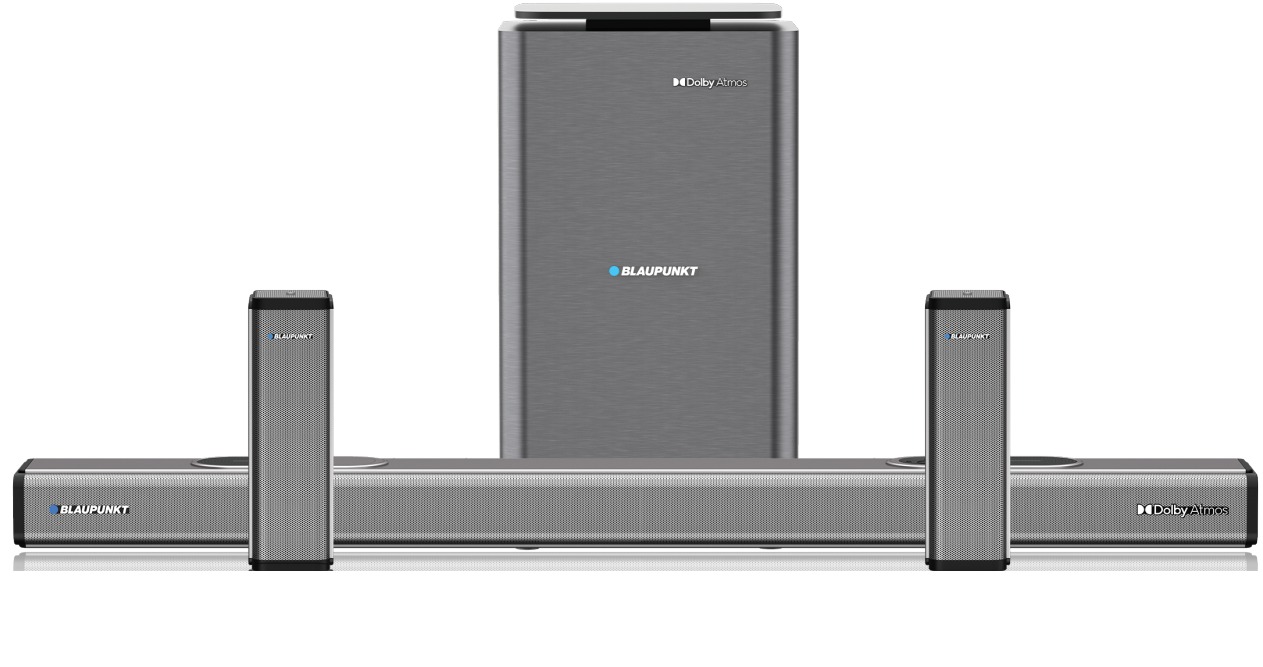
BLAUPUNKT SBW600 XCEED Home Theater System
Safety Instructions
- Don’t put this equipment in high-temperature and wet environments, as it is much worse when it is in the rain or crashes strongly.
- To reduce the risk of electronic shock or fire, do not remove the cabinet cover.
- Please do not attempt to repair the malfunction by yourself.
- Please cut off the power right away when fragments or liquids fall into the equipment, and do not re-use the equipment before professional staff check.
- Don’t install the device in a place that may come in contact with water, moisture, or other liquids.
Components
- Soundbar x1
- Wireless subwoofer x1
- Wireless rear speakers x2
- Remote control x1
- Power cord for the sound bar x1
- Power cord for the subwoofer x1
- AC adapter for rear speakers x2
- AUX cable x1
- User guide x1
Overview
Ports(soundbar)

- Soundbar
- LED display
- HDMI(ARC)
- HDMI in
- USB
- Aux in
- Coaxial in
- Optical in
- Soundbar power On/Off
- Soundbar AC power slot
Control panel

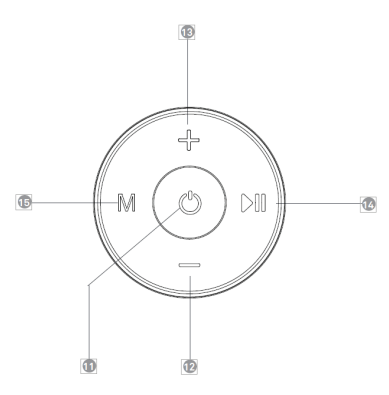
- Power button— Power the soundbar
- Previous/Volume decrease button– Short-press the button to play the previous track; long-press the button to decrease volume.
- Next/Volume increase button— Short-press the button to play the next track; long-press the button to increase volume.
- Play/Pause— Play/pause tracks.
- Mode— Switch between modes.
Rear speaker
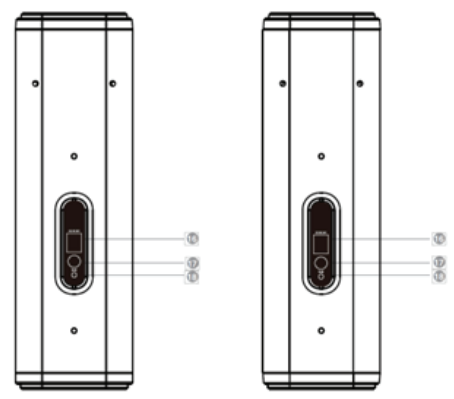
- DC slot: DC 24V 2A
- Pair
- Indicator Light
Back view subwoofer
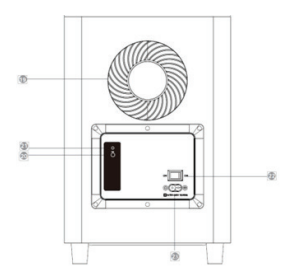
- Subwoofer air tube
- Pair button
- Subwoofer indicator light
- Subwoofer power On/Off
- Subwoofer AC slot
System overview
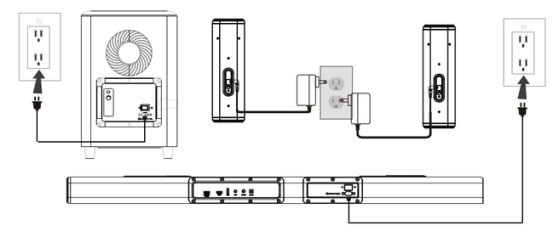
Remote Control

Operation
Powering
- Plug one end of the power cords for the sound bar and subwoofer into the AC IN ports on both devices, then plug the other end into two power sockets. Switch the power sockets on.
- Place the power switch in the ON position on both the subwoofer and soundbar.
- Plug the end of the provided AC adapters into the DC IN port of the rear speakers, then plug the other end into two power sockets. Switch the power sockets on.
- Press the power button on the soundbar or remote control to turn the soundbar on.
- Press the power button again to turn the soundbar off.
Connection modes
- This soundbar features seven connection modes.
- The display on the front of the soundbar will change when switching between modes.
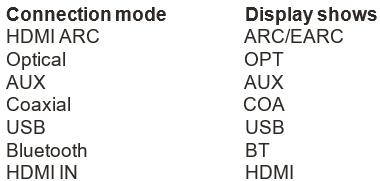
HDMI ARC mode
This soundbar supports HDMI with an audio return channel (ARC). Many standard HDMI ports support ARC, but if unsure, check with the TV’s manufacturer.
- Connect one end of an HDMI cable (not supplied) into the HDMI OUT (ARC) port of the sound bar. Connect the other end of the cable to your TV’s HDMI (ARC) port.
- Press the mode button on the soundbar or remote control and change the soundbar to HDMI ARC mode.
- Ensure ‘HDMI ARC’ is selected as the TV’s audio output, and the sound of media from the TV should emit from the soundbar.
- Use the remote control/soundbar to make audio adjustments.
Optical mode
- Connect one end of an optical cable(not supplied) into the optical port of the soundbar. Connect the other end of
- Press the mode button on the soundbar or remote control and change the soundbar to optical mode. Sound from your device should now emit from your soundbar.
- Use the remote control/soundbar to make audio adjustments.
AUX mode
- Connect one end of an AUX cable to the AUX port of the soundbar. Connect the other end of the cable into the AUX port on your device( for example, TV, gaming console, or DVD player).
- Press the mode button on the soundbar or remote control and change the soundbar to AUX mode. Sound from your device should now emit from your soundbar. 3. Use the remote control/soundbar to make audio adjustments.
Coaxial Mode
- Connect one end of a coaxial cable(not supplied) into the coaxial port of the soundbar. Connect the other end of the cable to your TV’s coaxial port.
- Press the mode button on the soundbar or remote control and change the soundbar to coaxial mode.
- Ensure “coaxial” is selected as the TV’s audio output, and the sound of media from the TV should emit from the soundbar.
- Use the remote control/soundbar to make audio adjustments.
Setting
USB mode
The soundbar supports FAT32-formatted USBs up to 64GB. Ensure the files stored in the USB are in the MP3, WAV, or FLAC formats.
- Insert the USB into the USB port on the soundbar. 2. Press the mode button on the soundbar or remote control and change the soundbar to USB mode.
- Use the remote control/soundbar to make audio adjustments.
Track control button
- This button allows adjustments to the order or repetition of tracks played in USB mode. When the mode is changed, it will be reflected on the sound bar’s display.
Description Display shows
- Repeating the current track ONE
- Playing all tracks in order on repeat ALL
Bluetooth mode
This mode allows users to play files from a Bluetooth-enabled device (for example, a phone or tablet).
- Press the mode button on the soundbar or remote control and change the soundbar to Bluetooth mode.
- Alternatively, press the Bluetooth button on the remote control. “BT” will be flashing on the display indicating it the soundbar is ready to pair.
- Ensure Bluetooth is turned on in your device and search for “BLAUPUNKT ATMOS 9.1.4 “. Once found, tap to connect.
- Once connected, the display will stop flashing, and the devices will be paired. Files can now be played on the device with sound emitting from the soundbar.
HDMI IN mode
- Ensure the TV, soundbar, and external device are switched off.
- Connect one end of an HDMI cable (not supplied) into the TV.
- Connect the other end to the HDMI OUT(ARC) port on the soundbar.
- Connect another HDMI cable (not supplied) into the HDMI OUT port of your external device, then connect the other end into the HDMI IN port on the soundbar.
- Switch on the external device and soundbar, then change the soundbar to HDMI IN mode.
- Switch on the TV and change the audio source to the HDMI port that the devices are connected to.
- The TV will now display from the external device, with the sound emitting from the soundbar.
- Use the remote control/soundbar to make audio adjustments.
3D mode
- Allows for audio optimization for listening to audio designed for a virtual surround sound effect.
Equalizer modes
This soundbar features three equalizer modes (Music, Movie, News). Press the EQ button on the remote control to switch to different modes. This will be reflected on the display in front of the sound bar.
- Music – Adjusts the audio to be best suited when listening to music.
- Movie – Adjusts the audio to be best suited when watching movies.
- News – Adjusts the audio to be best suited when listening to the news. Using Dolby Atmos®
- Ensure the connected device and content support Dolby Atmos®.
- Set the audio format on the connected device (for example, Blu-ray player, TV) to either “Bitstream”, “Auto”, or “Bypass” to skip the encoding process. This allows the soundbar to receive the non-decoded audio signal.
Note: Dolby Atmos® is only available in HDMI IN and HDMI ARC modes.
Technical Specifications and Features
- Bluetooth version: 5.3+EDR
- Bluetooth range: Up to 10m
- Connections: HDMI(ARC), HDMI IN, OPTICAL, USB, AUX, Coaxial, Bluetooth
- Power supply: Soundbar AC 100-240V Subwoofer AC 100-240V Satellite DC IN 24V 2A
- Dimensions: Soundbar 1100X114X72mm
- Subwoofer: 240x240x420mm
- Satellite: 228x114x72mm
TROUBLESHOOTING
Pairing the subwoofer and rear speakers. The subwoofer and rear BLAUPUNKT SBW600 XCEED Home Theater System speakers should come pre-paired to the sound bar. However, if the subwoofer and rear speakers need pairing, follow the steps outlined below:
- Press the mode button until the soundbar displays and is flashing “BT”.
- Plug one end of the power cord for the subwoofer into the BLAUPUNKT SBW600 XCEED Home Theater System AC IN port. Plug the other end into a power socket. Switch the power socket on.
- Plug one end of the provided AC adapters into the BLAUPUNKT SBW600 XCEED Home Theater System DC IN port of each rear speaker, then plug the other end into power sockets.
- Press and hold the Play/pause button on the remote control, and “pair” will appear on the display. Then, press and hold the pair button on the BLAUPUNKT SBW600 XCEED Home Theater System subwoofer and rear speaker until the indicator light starts flashing rapidly.
- The subwoofer and rear speakers will then begin pairing to the sound bar. When paired, the indicator lights on the subwoofer and rear speakers will then illuminate.
One Year Warranty
1 Year Warranty. If you have any issues with your product, please contact our Authorized Customer Care team. Blaupunkt Authorized Service Center: Envent World Wide Pvt Ltd. Khasra. No- 15/15(4-16), Village Samalkha, Tehsil Vasant Vihar, New Delhi- 110037 Email- wecare@blaupunktaudio.in Whatsapp Chat Support: 8860 022 600 Please submit the following information while claiming product warranty:
- Serial Number
- Date of purchase
- A copy of proof of purchase in case of warranty
Disposal
- Do not dispose of your old unit in the household trash.
- Use the return and collection systems available to dispose of the old device.
- This manual may be updated from time to time without notice.
Disclaimer
- Blaupunkt is not liable for any loss or damage caused or resulting from unauthorized disassembly or modification to the product.
- No warranty, whether express or implied, is provided in the U.S. and Canada.
Customer Service
- Tel: 1800 252 878 658
- Visit: http://www.blaupunkt.com
- Scan:

FAQs
Q: Is the subwoofer wireless?
Ans: Indeed. After initial setup, the subwoofer and soundbar pair wirelessly. Make sure both devices are turned on and positioned 8–10 meters apart, free of any significant obstacles.
Q: Does the SBW600 XCEED support Dolby Audio?
Ans: Yes, when using an optical cable or an HDMI ARC connection, this system supports Dolby Digital Audio. Verify that your media source produces Dolby signals as well.
Q: Is there a mobile app for controlling the system?
Ans: As of right now, the SBW600 XCEED does not have a specific mobile application. The physical buttons on the soundbar or the included remote control can be used to operate every function.
Q: Does it support HDMI eARC?
Ans: No. The SBW600 XCEED has HDMI ARC capability, making it compatible with TV audio pass-through and the majority of Dolby Digital sources. HDMI eARC, which is utilised for lossless or Dolby Atmos files, is not supported by it.
Q: Can I use an external subwoofer or speakers with this system?
Ans: Unfortunately, the SBW600 XCEED is a closed system that is meant to be used with a separate subwoofer. Speaker output terminals for extra speakers are absent.
Q: What is the input voltage for this system?
Ans: The system complies with worldwide power regulations because it is made for AC 100–240V, 50/60Hz. Always use the power cable or adapter that comes with the device.