



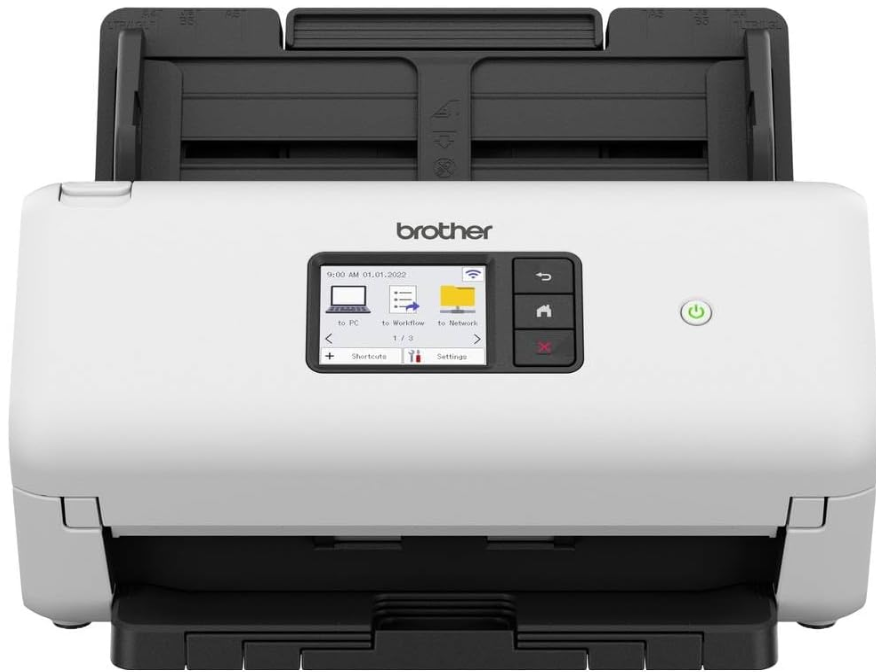
Brother ADS-4500W Desktop Document Scanner
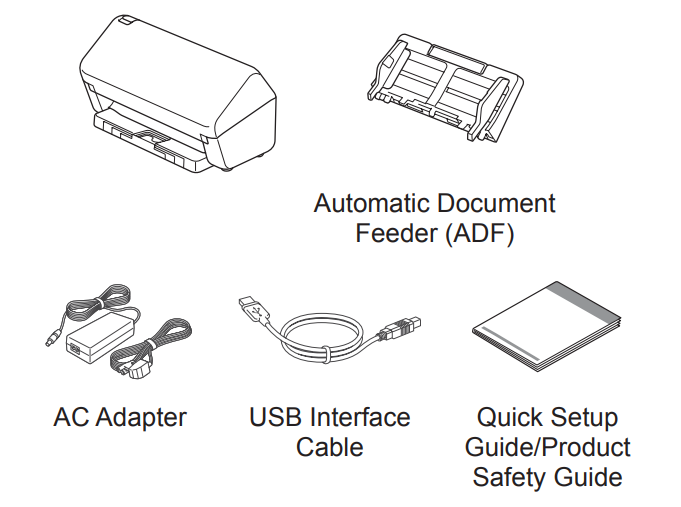
Unpack the machine and check the components.
The components included in the box may differ depending on your country. Remove the protective tape
and film covering the machine. Open the Front Cover and Roller Cover, and then remove the protective
tape.
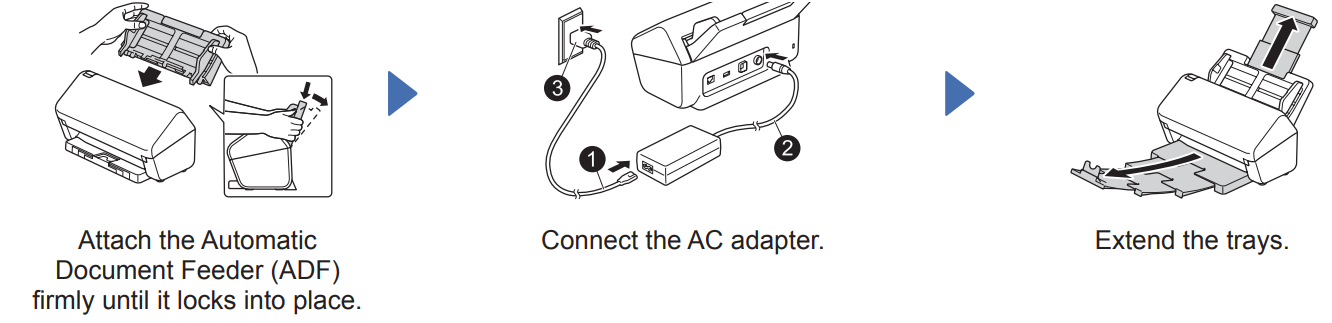
Unless otherwise specified, illustrations in this guide show the ADS-4300N.
Prepare your machine
Select your language (ADS-4500W/ADS-4700W/ADS-4900W only)
Press [Settings] > [Initial Setup] > [Local Language] and select your language. Press
Connect your machine and install the software
Select your preferred scanning method and choose your connection method.
A Using your machine with your computer or mobile device
Visit setup.brother.com to download and install Brother software.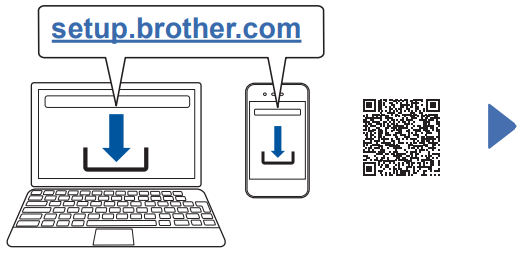
Follow the on-screen
instructions to continue installation.
For Mobile Devices:
- Set up the connection manually.
- You can also connect to your machine if it is connected to your router/ access point using a network cable (purchased separately). For more information, see the Online User’s Guide.
Using your machine as a standalone device (ADS-4300N/ADS-4500W/ADS-4700W/ ADS-4900W only)
B Connect your machine to your network using a network cable (purchased separately) or via Wi-Fi® . You can set up your Wi-Fi connection either using the machine’s control panel or using your computer
Manual Wireless Setup (ADS-4500W/ADS-4700W/ADS-4900W only)
If you do not have a computer connected to the network or if you cannot connect your machine using your computer, try to set up the connection manually.
- Press > [Find Wi-Fi Network] > [Yes].
- Select the SSID (Network Name). Enter the Network key (Password).
When the wireless setup is successful, the LCDs [Connected]
If you cannot find your SSID or Network key, ask your network administrator or wireless access point/router manufacturer.
LED Indications (ADS-4100/ADS-4300N only)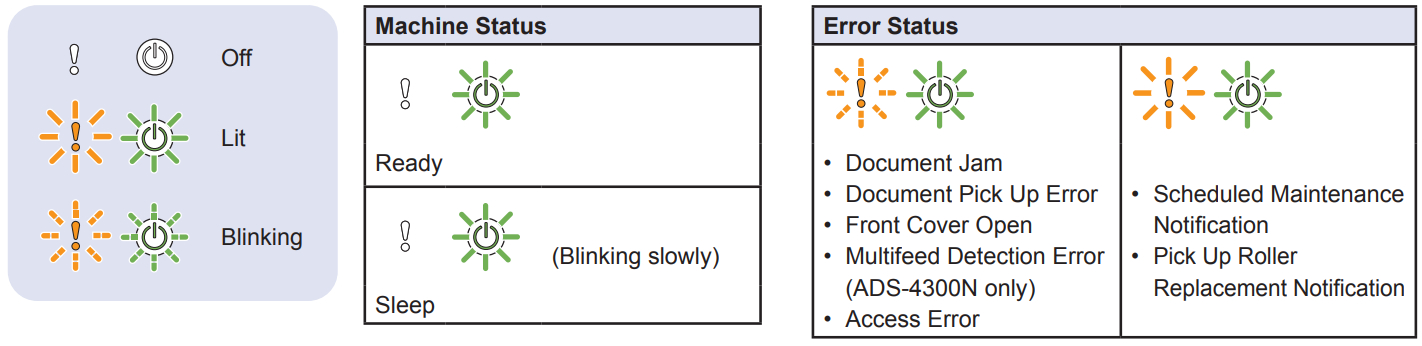
For more information about troubleshooting your machine, see the Online User’s Guide.
Product Safety Guide
Symbols and conventions used in this guide
The following symbols and conventions are used throughout this guide:
IMPORTANT
IMPORTANT indicates a potentially hazardous situation which, if not avoided, may result in damage to property or loss of product functionality
- Prohibition icons indicate actions that must not be performed.
- This icon indicates that flammable sprays may not be used.
- This icon indicates that organic solvents, such as alcohol or other liquids, may not be used.
- Electrical Hazard icons alert you to possible electrical shocks.
- Fire Hazard icons alert you to the possibility of fire.
- Unplug icons indicate that you should unplug the machine.
(ADS-4500W/ADS-4700W/ADS-4900W only) Courier New Text in Courier New font identifies messages on the LCD of the machine. Follow all warnings and instructions marked on the machine and AC adapter (from now on collectively referred to as “the unit”).
Compilation and Publication Notice
This manual has been compiled and published to provide the latest product safety information at the time of publication. The information contained in this manual may be subject to change. For the latest manual, please visit us at support.brother.com/manuals.
Choose a safe location for the unit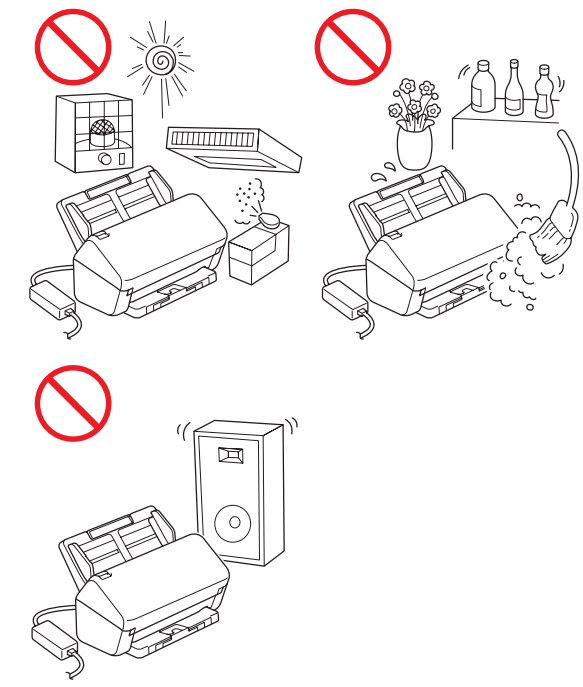
Put the unit on a flat, stable surface that is free from shocks and vibrations, such as a desk. Choose a dry, well-ventilated location where the temperature remains between 5°C and 35°C and the humidity is between 20% to 80% (without condensation).
DO NOT place the unit on an unstable or tilted cart, stand, or table, or on any tilted/slanted surface. The machine may fall, causing injury to you and serious damage to the unit. There is an added risk of injury if the scanner glass should break.
IMPORTANT
- DO NOT put objects on top of the unit.
- DO NOT place the unit next to sources of interference, such as speakers or the base units of non-Brother cordless telephones. Doing so may interfere with the operation of the unit’s electronic components.
General precautions
Connecting the unit safely
DO NOT touch the AC adapter, or handle the plug with wet hands. Doing this might cause an electrical shock.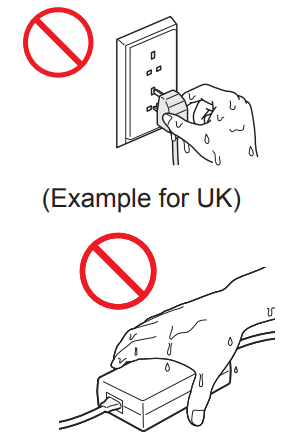
DO NOT connect the unit to a DC power source or inverter. Doing this may cause an electrical shock. If you are not sure what kind of power source you have, contact a qualified electrician. DO NOT use the unit if the power cord is frayed or damaged; doing so may cause an electrical shock or fire. DO NOT pull on the middle of the power cord. DO NOT allow anything to rest on the power cord. DO NOT place the unit where people can walk on the cord. Doing this may cause an electrical shock or fire.
Servicing the unit
DO NOT attempt to service the unit yourself. Opening or removing covers may expose you to dangerous voltages and other risks, and may void your warranty. Contact your Brother dealer or Brother customer service.
IMPORTANT
If the unit does not operate normally when the operating instructions are followed, adjust only those controls that are covered by the operating instructions. Incorrect adjustment of other controls may result in damage and will often require extensive work by a qualified technician to restore the unit to normal operation.
Product Warranty & Liability
Nothing in this guide shall affect any existing product warranty or be construed as granting any additional product warranty. Failure to follow the safety instructions in this guide may invalidate your product’s warranty
Declaration of Conformity (Europe and Turkey only)
We, Brother Industries, Ltd.,15-1 Naeshiro-cho, Mizuho-ku, Nagoya 467-8561 Japan, declare that these productsconformy with the relevant EU harmonization legislation (Europe and Turkey only) and UK legislation (Great Britain only). The Declaration of Conformity (DoC) can be downloaded from our website. Visit support.brother. com/manuals.
UK Declaration of Conformity for Radio Equipment Regulation 2017 (Great Britain only) (Applicable to Models with Radio Interfaces)
We, Brother Industries, Ltd., 15-1 Naeshiro-cho, Mizuho-ku, Nagoya 467-8561 Japan,n declare that these productconformty with the provisions of the Radio Equipment Regulation 2017. A copy of the Declaration of Conformity can be downloaded by following the instructions in the Declaration of Conformity (Europe and Turkey only) section.
EU Declaration of Conformity for RE Directive 2014/53/EU (Europe and Turkey only) (Applicable to Models with Radio Interfaces)
We, Brother Industries, Ltd., 15-1 Naeshiro-cho, Mizuho-ku, Nagoya 467-8561 Japan,n declare that these productconformty with the provisions of the RE Directive 2014/53/EU. A copy of the Declaration of Conformity can be downloaded by following the instructions in the Declaration of Conformity (Europe and Turkey only) section.
Wireless LAN (Models with the wireless LAN function only)
This scanner supports a wireless interface.
- Frequency band(s): 2400 MHz – 2483.5 MHz Maximum radio-frequency power transmitted in the frequency band(s): Less than 20 dBm (e.i.r.p.)
ADS-4900W only)
- (Europe Only) Frequency band(s): 5180 MHz – 5320 MHz Maximum radio-frequency power transmitted in the frequency band(s): Less than 23 dBm (e.i.r.p.) For indoor use only (5.18 GHz – 5.32 GHz)
- (Europe Only) Frequency band(s): 5500 MHz – 5700 MHz Maximum radio-frequency power transmitted in the frequency band(s): Less than 23 dBm (e.i.r.p.) For indoor use only (5.5 GHz – 5.7 GHz)
LAN connection (Models with wired LAN function only)
Information for compliance with Commission Regulation 801/2013
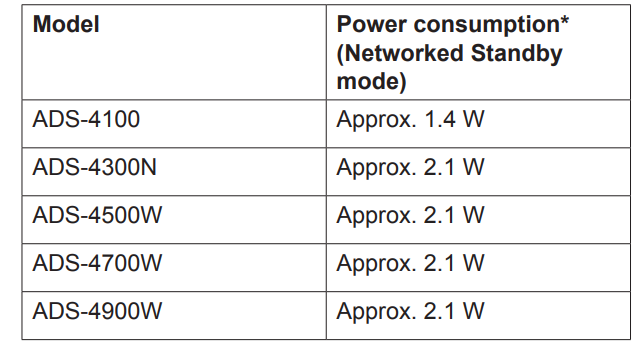
Wireless LAN Enable/ Disable (ADS-4500W/ ADS-4700W/ADS-4900W only)
- Press [Settings] > [Network] > [WLAN(Wi-Fi)] > [WLAN Enable].
- Press [On] (or [Off] ).
- Press .
* All network ports are activated and connected
Wireless LAN Enable/ Disable (ADS-4500W/ ADS-4700W/ADS-4900W only)
- ress [Settings] > [Network] > [WLAN(Wi-Fi)] > [WLAN Enable].
- Press [On] (or [Off] ).
- Press
Recycling information in accordance with the WEEE and Battery Directives
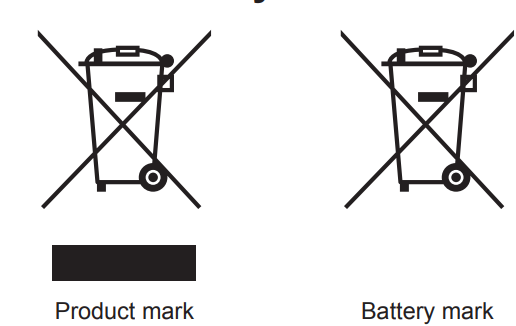
The product/battery is marked with one of the above recycling symbols. It indicates that at the end of the life of the product/battery, you should dispose of it separately at an appropriate collection point and not place it in the normal domestic waste stream.
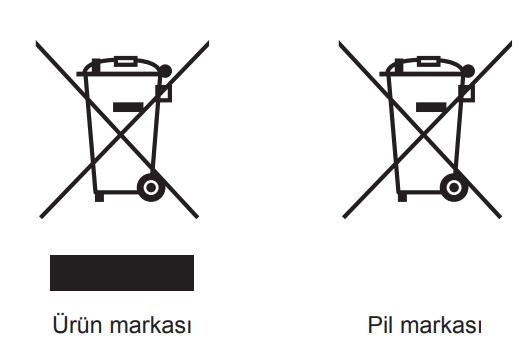
WEEE ve Pil Direktifleriyle uyumlu geri dönüşüm bilgileri
Visit us on the World Wide Web www.brother.com