



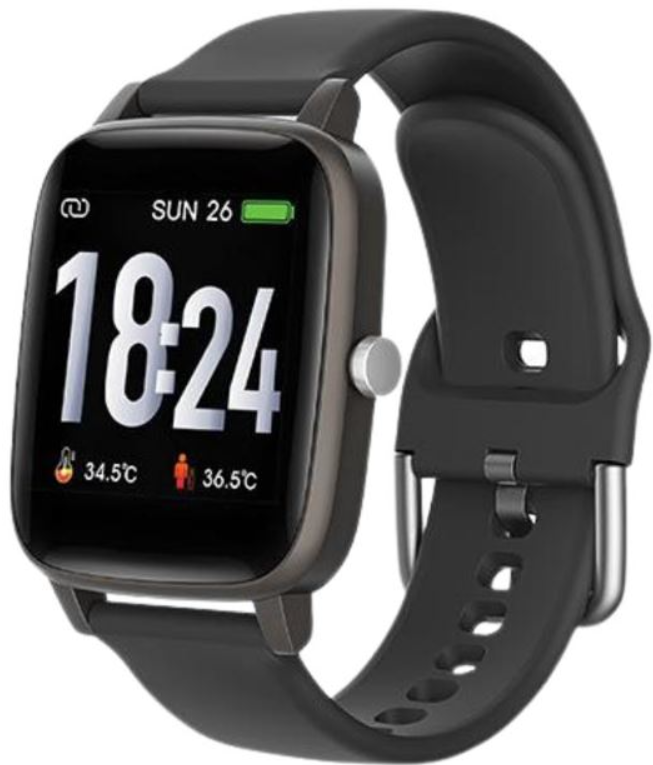
CACTUS ID205L BLAZE 2 Teen Smart Watch
Getting Started
Download Ador Health App
Store or Android App Store, OR Scan the QR code below to download and install AdorHealth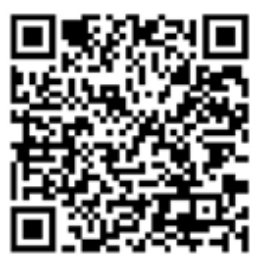
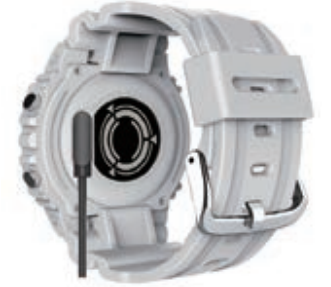
Charging your Device
You are now ready to wear the CACTUS NEXUS – adjust the length of the band and fasten the device around your wrist.
How to Use
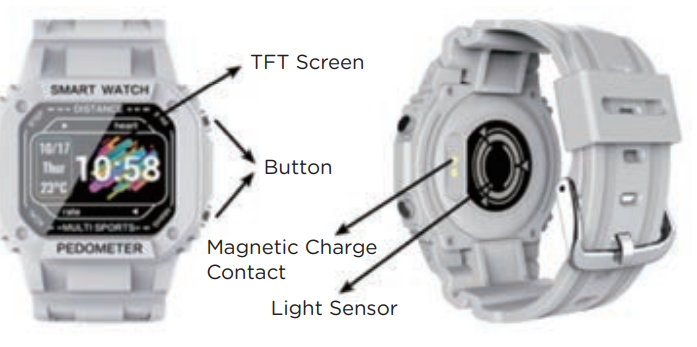
The activity tracker is a multi-touch device. The touch keys (unmarked) are situated at the top and the bottom of the screen on the watch. Alternatively, one can operate the device using the 2 buttons on the side of the watch. Power on: Long-press the touch key to power on. The device will vibrate and display the main interface. Tap to toggle the current page to the next page / move across the options on the current page. Long-press the touch key to enter or confirm an option. Using the 2 buttons on the side of the watch, the top button operates as the tap key, and the bottom button operates as the long-press key.
Pairing your Device
Make sure Bluetooth is ON in your smartphone, and open the AdorHealth app on your smartphone. Give consent / allow Bluetooth on the App. Complete your personal details in the App to calibrate the device – gender, age, weight, height, step goals, and sleep goals. To connect/pair the device with your smartphone, follow the steps below:
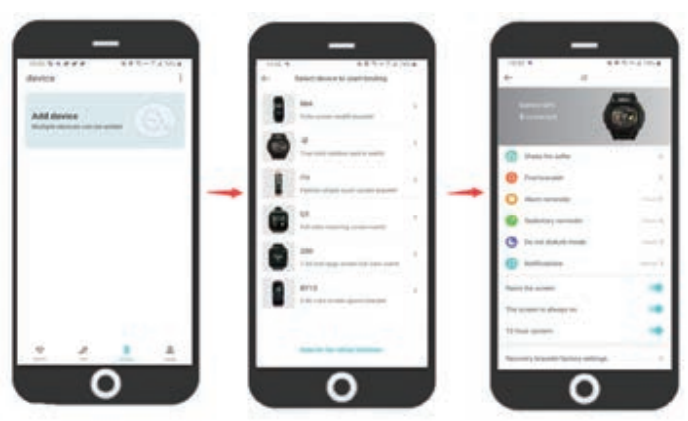
Please ensure that the App is opened daily so that synchronisation of data can occur, and historical data can be viewed in the App. Please do NOT directly search for the device in the Bluetooth list in your phone settings when pairing. You need to enter the App to search for the connection and pair.
Key Features

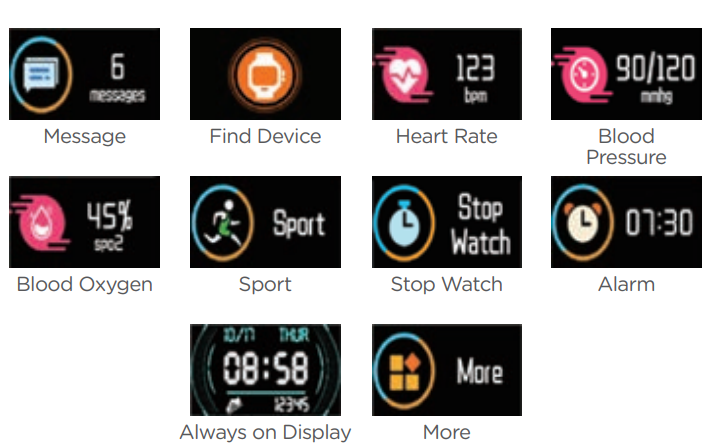
Functions
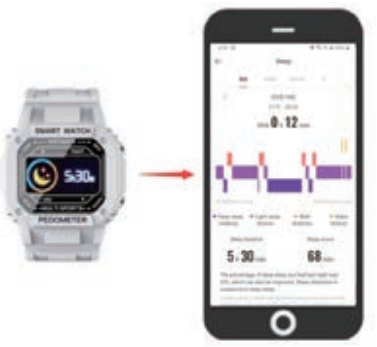
- The device automatically measures sleep time and quality if worn during sleep.
- Press the screen repeatedly until the following screen appears.
Exercise mode
- Note: The distance is calculated by your stride length based on personal configuration and number of steps.
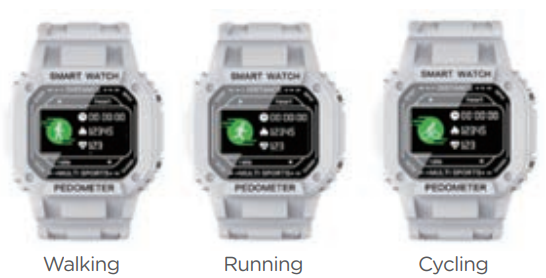 Note: The distance is calculated by your stride length based on personal configuration and number of steps.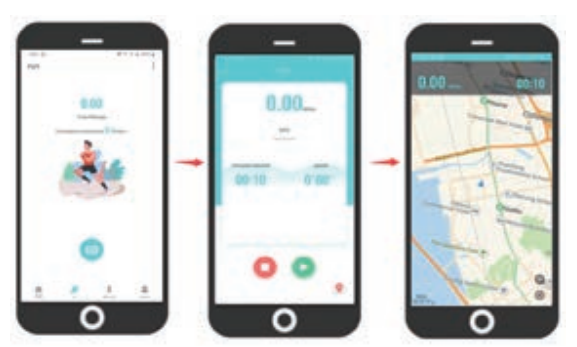
- The daily step count on the device starts from zero every day at 00:00h All sports data is cleared from the device daily at 00.00h (message notifications are not cleared). Once you connect the device via the app to your mobile phone, data will be stored for further monitoring.
- The app also provides a GPS and running function. The GPS function visualises the covered track, the distance covered, time, average speed, and calories consumed.
Health Measurements
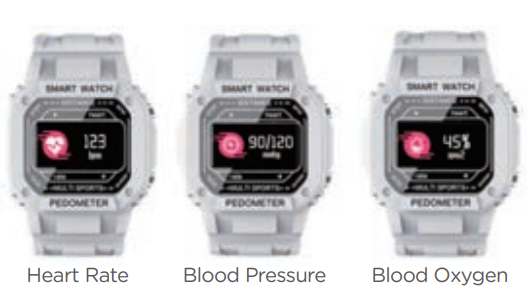
- The device allows you to measure heart rate, blood pressure, and blood oxygen. You can measure only from the device. The data will be automatically synchronised to the APP on the phone. Tap the touch key repeatedly until the desired measurement screen appears. At the rear of the device, a green light beam appears, and measurement begins.
Stopwatch
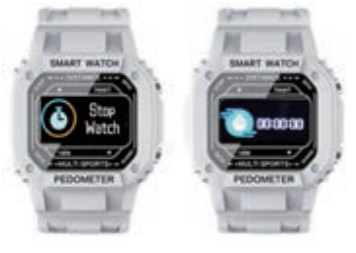
- Press the screen repeatedly until the following screen appears.
- Press and hold the button until the stopwatch appears.
- Press again to start/stop the time.
- Press and hold the central button to turn off the stopwatch.
Remote Camera Activation
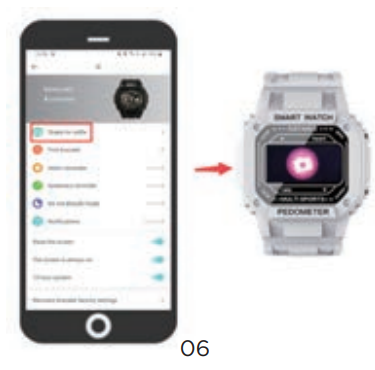
- When selecting the remote camera shoot option in the app, your mobile phone’s camera is activated with a shake of the device.
Alarms
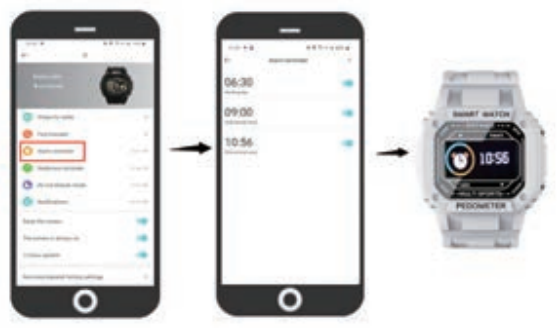
- The device allows you to set multiple alarms (these can be daily reminders or weekly). The activated alarm is a vibration alert on the device.
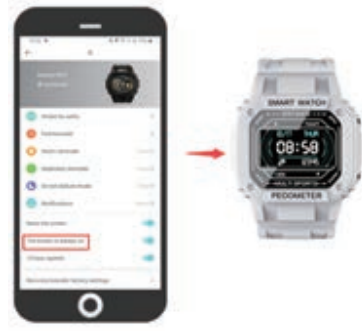
Bright Screen Setting
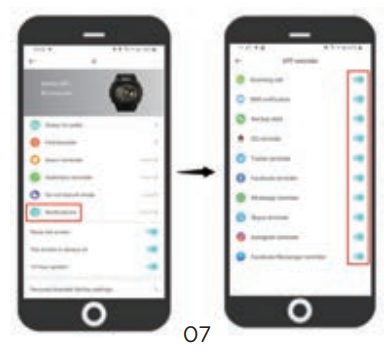
App Functions
- App functions may be affected by future updates to the App.
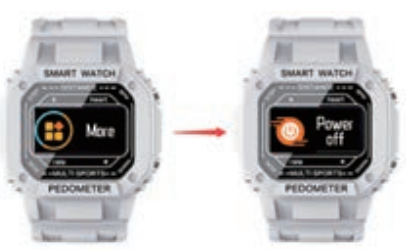
Power off
- Press / tap the screen until you reach the screen interface More, long-press to enter the options, press/tap until you reach Power off, and press and hold for the device to turn off.
Intended Use
This smart device is intended for monitoring fitness-related metrics such as heart rate, blood pressure, blood oxygen, distance walked or run, calorie consumption, and quality of sleep. Data measured should not be used for any medical, ambulatory, or dietary reference. This device is an electronic monitoring product, NOT a medical device, and measurement data is for personal reference only
Troubleshooting
Please ensure that the device is fully charged and powered on. For pairing/connection considerations, please ensure that the device is scanned in the APP to connect; do not directly search for the connection to the device in the phone settings. You need to enter the App to search for the connection.
- Make sure your phone’s operating system is iOS 8.0 & CACTUS ID205L BLAZE 2 Teen Smart Watch above, or Android 4.4 & above
- Turn off the phone’s Bluetooth and then turn it on
- Reboot the mobile phone and ensure that Bluetooth is on
- Do not connect other Bluetooth devices at the same time
- Put the device close to the phone. Make sure that the distance between the device and the phone is less than 50cm
- If you have an Android phone, and you can’t find the device in the App when trying to connect, please check whether the AdorHealth App has been allowed in the App permissions on your Android phone.
Basic Specifications
Model No.: CAC-136 CPU: Telink 8266 0.96 inch TFT display Lithium battery 200mAh Standby time: up to 14 days Operating time: up to 7-10 days Compatible with IOS 8.0 and Android 4.4 or higher Charging cable included Protection class: Water and dust resistant (IP67) Do not swim with the device
- The product contains electrical components that CACTUS ID205L BLAZE 2 Teen Smart Watch could cause injury if not handled properly.
- Do not open the enclosure or disassemble the product.
- Do not expose the product to extremely high or low temperatures.
- Do not use the product in a sauna or steam room.
- Do not leave the product in direct sunlight for an extended period of time.
- Do not dispose of the product in a fire; the built-in battery can explode.
- The product features a built-in battery, which is not user-replaceable.
- Do not check call notifications or other data on the product’s screen while driving or in other situations where distractions could be hazardous.
- The distance travelled may be inaccurate. It is the CACTUS ID205L BLAZE 2 Teen Smart Watch for reference only and should not be used as any navigational reference.
- The product should usually rest a finger’s width below the wrist bone, as you would normally wear a watch.
- Prolonged contact may contribute to skin irritation or allergies in some users. If you notice any skin irritation, please discontinue using the product.
WARRANTY
This product is warranted to be free from defects in materials and workmanship for a period of 1 year from the date of purchase. This warranty covers manufacturing and mechanical defects but excludes band and lens damage.
Customer Support
- Website: www.cactuswatches.com
- Ph: 0301-5542475
FAQs
How long does the battery last on the BLAZE 2?
With moderate use, such as periodic music control, activity monitoring, and alerts, the ID205L BLAZE 2 can run on a single charge for up to seven days.
Which phones can I connect with the BLAZE 2?
Compatible with iOS 10.0+ and Android 6.0+ smartphones. For the best connectivity, confirm that your device is compatible with Bluetooth 5.0.
How do I pair the BLAZE 2 with my phone?
Get the WearFit Pro app from the App Store or Google Play. To enter the device ID or scan the QR code on the watch, turn on Bluetooth and adhere to the in-app directions.
Can I control music playback from the watch?
Indeed! You can play music from your attached smartphone on the BLAZE 2, pause it, skip tracks, and change the volume.
Is the BLAZE 2 waterproof?
The watch is not advised for swimming or diving, but it is appropriate for rain, perspiration, and the odd splash thanks to its IP68 classification.
Can I customize the watch face?
Of course! There are numerous watch faces available with the WearFit Pro app. Additionally, you can customise your BLAZE 2 by uploading unique photos.
Will I get notifications on my watch?
Yes, you can get notifications on your watch for calls, texts, emails, and apps like Facebook, Instagram, and WhatsApp.
What if the watch freezes or becomes unresponsive?
To restart, press and hold the power button for ten seconds. Use the settings menu or app to do a factory reset if the problem persists.