


CAD AUDIO U37 Condenser Recording Microphone

Introduction
Thank you for purchasing the CAD Audio u37 USB microphone. CADusb products bring high-quality audio to your social media, gaming, or home studio project. Creative control and limitless innovation await you, backed and call as the result of CAD’s more than 80 years of professional audio expertise. Explore our CADusb series of products to unlock your creative edge and experience expression through innovation.
Applications
Studio Vocals, Speech, Instruments, Podcasts, Desktop Recording. Please read the manual carefully before using it and keep it for further reference.
Features
- Large condenser microphone element for warm, rich recordings
- Cardioid pick-up pattern minimizes background noise and isolates the main sound source.
- Smooth, extended frequency response is excellent for singing, speech, and instruments.nts
- -10dB overload-protection switch minimizes distortion from loud sound sources
- Bass-reduction switch reduces room noise
- Side-address design used by broadcast, TV, and recording studios
- Ten-foot USB cable for flexibleplacementcemen
- Desktop mic stand included.
Specs: u37
- Operating Principle Condenser Studio Capsule
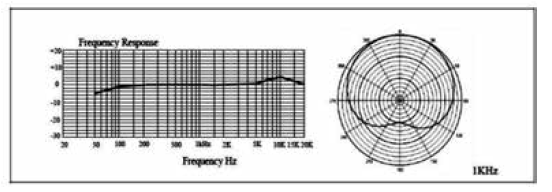
- Frequency Response 20Hz – 20kHz
- Polar Pattern Super Cardioid
- Sensitivity -40dBV @ 1Pa
- EnEnc16-bit16-bitesolution, 48K sampling rate
- PAD -10dB
- Roll Off Reduce Proximity Effect
- Windows and Macintosh compatible
Assembly
- Hold the tripod stand upside down and fold out the legs of the stand until they snap in place.
- Attach the swivel mount to the tripod and then attach the microphone to the swivel mount with the mounting nut. Swivel mount


Installation
- Connect the u37 to your device with the supplied USB cable. The connection is complete when the blue LED is lit.
- Adjust your operating system and software settings for proper recording and playback: Select C-Media as the recording device. Select your CAD AUDIO U37 Condenser Recording Microphone default sound playback device. (Note, the mic is plug-and-play; no additional drivers are needed)
Polar Pattern & Frequency Response
Operation
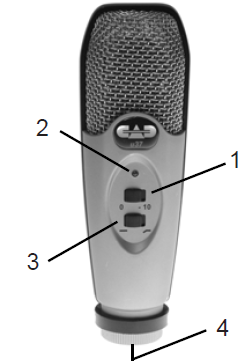
Pad switch 0, -10 dB
- 0 = normal sensitivity
- switch to -10 to decrease sensitivity for loud signals.
Status LED
- LED illuminates blue to indicate power “ON”
- Flashes to indicate in recording mode
Low-cut filter switch:
- Flat response reduces low-frequency response, use
- This is to reduce the pickup of low-frequency noises by the microphone
USB port
- The CAD u37 is compatible with most software. Simply choose a software product that suits your application and enjoy the benefits that the CAD u37 provides.
The CAD u37 is compatible with most software. Simply choose a software product that suits your needs, application, and enjoy the benefits that the CAD u37 provides
Accessories
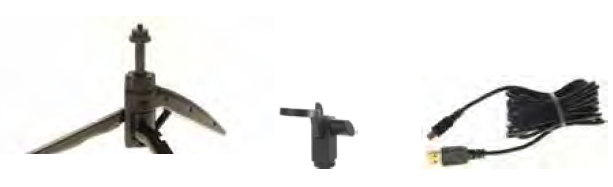
- Tripod Stand
- Swivel mount
- USB cable: Ø3.8×1.2M USB 2.0
- USB A Type to Mini-B-type plug
Customer Service
- Website: https://www.cadaudio.com
- Address: 154 Woodlawn Rd. Berlin, CT 06037.
- Tel: 1- 800-431-2609
FAQs
What type of microphone is the CAD AUDIO U37?
For recording high-quality vocals and instruments in home studios, podcasts, and professional settings, the U37 is a large-diaphragm condenser microphone.
What are the key features of the U37 microphone?
It has a broad frequency response, a high sensitivity appropriate for detailed recordings, and a cardioid polar pattern for concentrated sound capture.
What devices is the U37 compatible with?
Because the U37 connects by USB, it can be used with the majority of Windows and macOS computers as well as some USB-capable tablets. This makes it perfect for plug-and-play recording without the need for an audio interface.
Do I need any special software or drivers?
No. There is no need for additional drivers because the U37 is plug-and-play. It is compatible with the majority of recording programs, including Adobe Audition, GarageBand, and Audacity.
What is the microphone’s pickup pattern?
The cardioid pickup pattern of the U37 reduces noise from the sides and back while primarily catching sound from the front.
Can I use the U37 for recording loud instruments?
Although its maximum SPL (sound pressure level) is appropriate for a variety of sources, utilise a pop filter or modify the gain settings appropriately for instruments with extremely high decibel levels.
Does the U37 have built-in pop filters or shock mounts?
Although the U37 has a shock mount to lessen handling noise and vibrations, it is advised to use an additional pop filter for the finest vocal recordings.
How do I connect the U37 to my computer?
Just insert the USB cord into the USB port on your PC. The microphone will be automatically identified.