

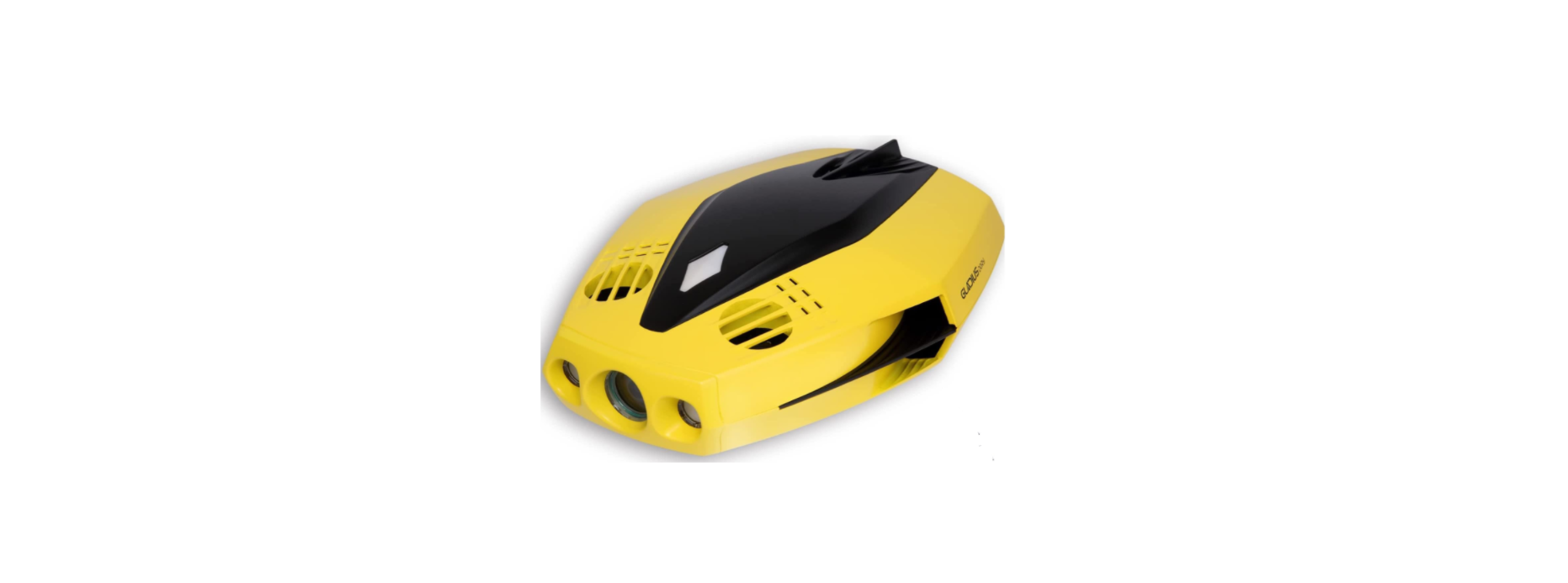

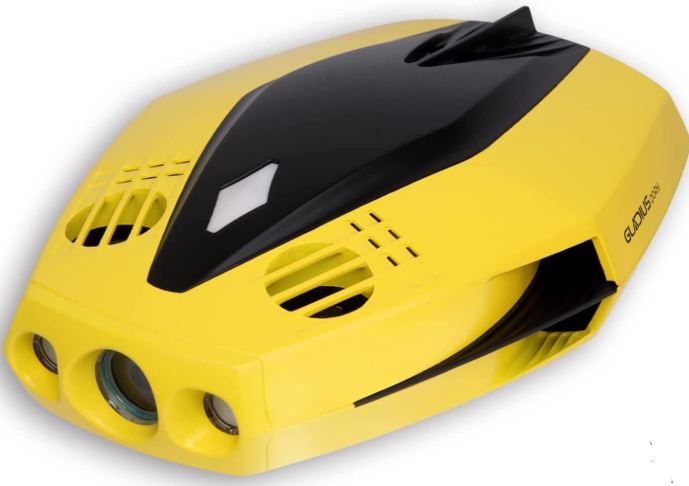
CHASING DORY 1080P Full HD Underwater Drone
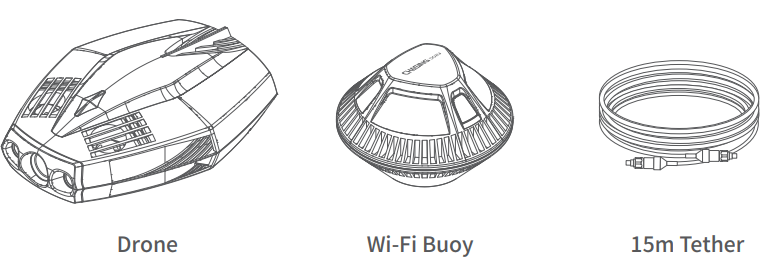
Main Components
Installation & Connection
Downloadthe CHASING DORY APP
Scan the QR code or visit the iOS app store / Google Play to download. (iOS 9.0 / Android 5.0 and above)
Connect the drone and the Wi-Fi Buoy. Insert one end of the tether into the drone and the other end into the Wi-Fi buoy. Securely hand-tighten both couplingbolts.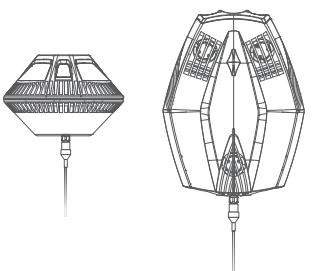
Booting UpOnce the Dory and the Wi-Fi buoy are connected, the LED lights on the drone will flash,,h and you will hear two self-test sounds. A flashing green light will indicate that both the Dory and Wi-Fi buoy are powered on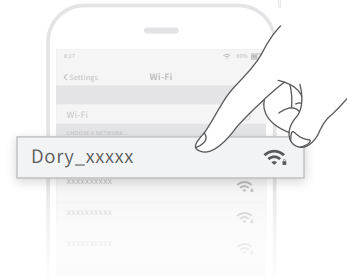
Wi-Fi Connection: On your mobile device, go to Wi-Fi settings. Click“Dory _xxxxx” network and enterthe password 12345678.
Registration & Login
When you open the CHASING DORY App for the first time, please follow the interface prompts to register for an account and log in to the App. A network connection is required during the registration and login process.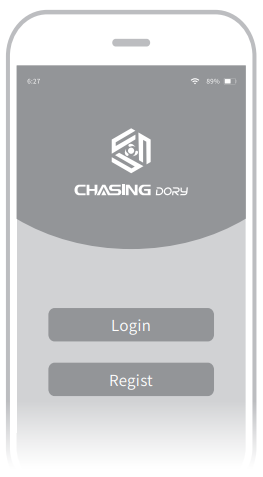
CHASING DORY App Tutorial
Open the App, when you see “connected” in the bottom left corner, click “start” on the right. Now you will see the main App interface (below). Click the power button to unlock the drone and use the virtual joystick on screen to control the drone’s movement.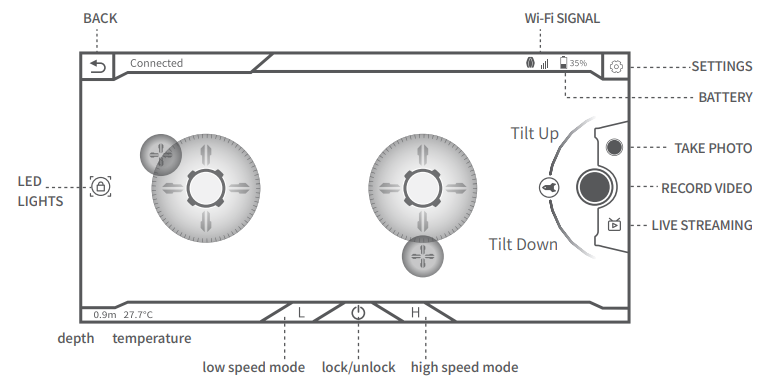
Charging Guidelines
Power adapter indicator light: A solid red light indicates normal charging is in process. A solid green light indicates a complete charge. 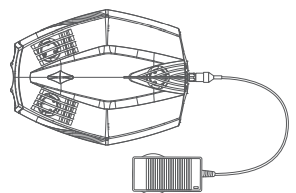
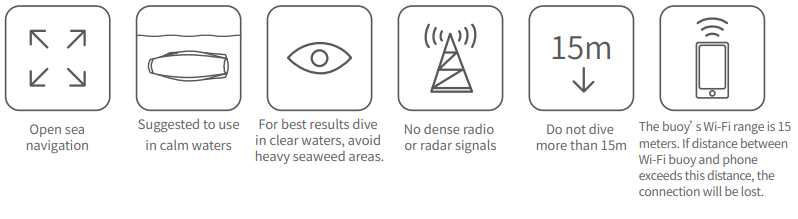
Navigation Safety
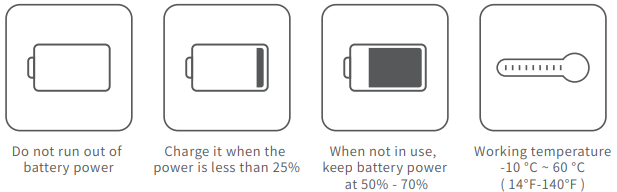
 Battery Protection
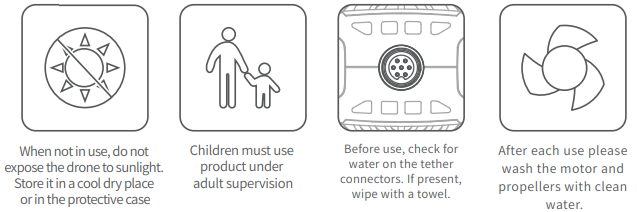
Others
Support
If you have any questions or technical issues, send an email to the after-sales services of Chasing or contact us on the official website.
- Website: https://www.chasing.com
- Address: 506 of Xita in Digital cultural industry base of Shennan 10128 Nanshan, Nantou street, Nanshan District, 518052 Shenzhen.