

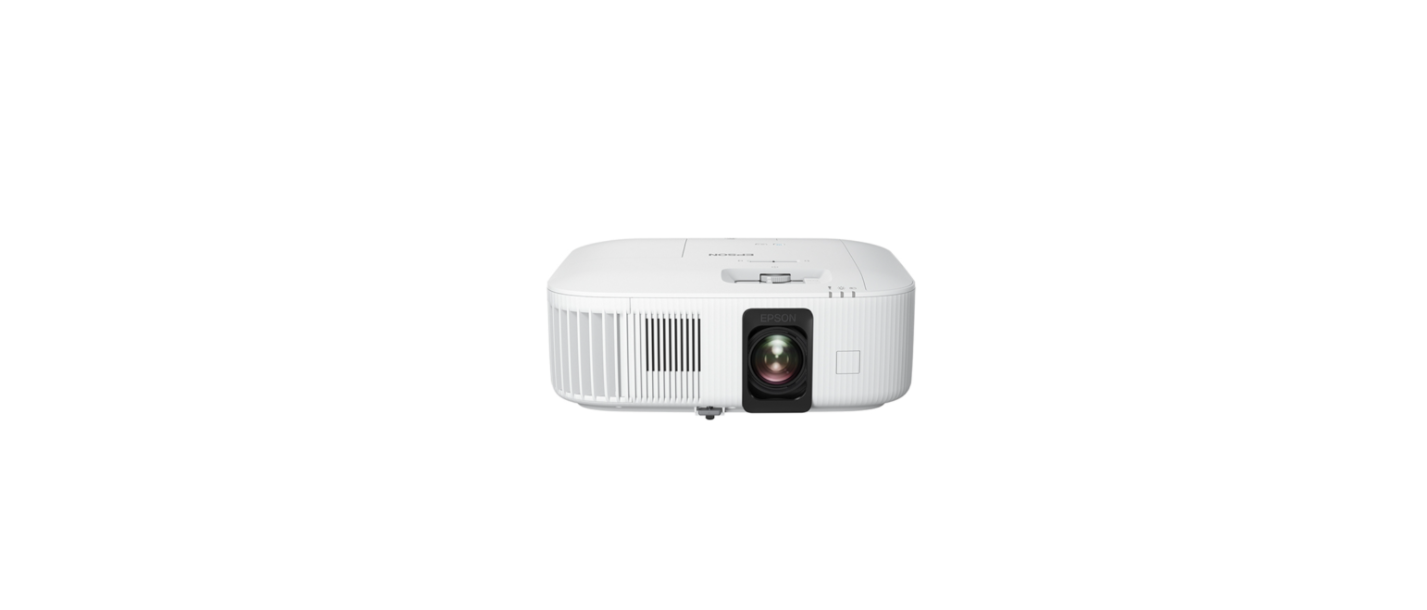

EPSON HC-2300 Lumens Home Theater Projector
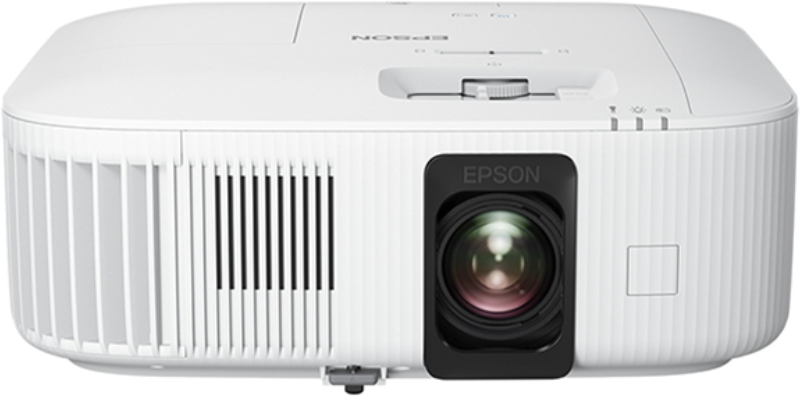
Quick Setup
Before using this product, make sure you read these instructions and the safety instructions in the online User’s Guide.
Contents
Make sure your projector box includes all of these parts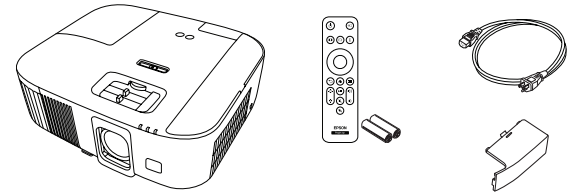
Connect the projector
Video device or computer
You can connect video equipment or a computer. Connect one end of an HDMITM cable (not included) to one of the HDMI ports on the projector and the other end to an HDMI port on your video device or computer. See the online User’s Guide for details.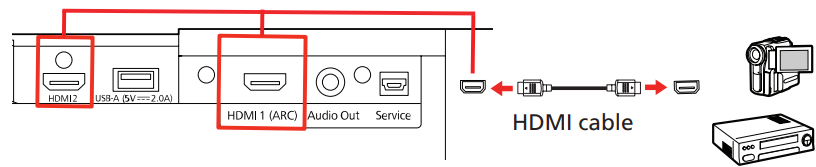
Audio Out port
The projector has a built-in speaker. You can also connect the projector to external self-powered speakers through the Audio Out port. See the online User’s Guide for more information.
Turn on your equipment
- Turn on your computer or video source.
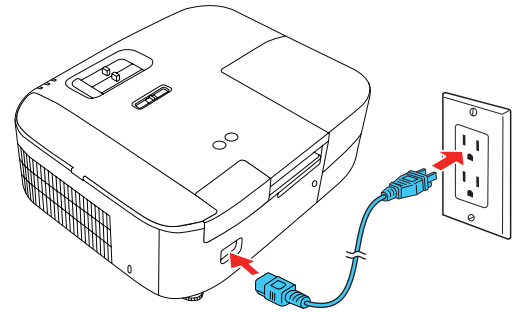
- Plug in the projector. The power light on the projector turns blue.

- Install the batteries into the remote control.
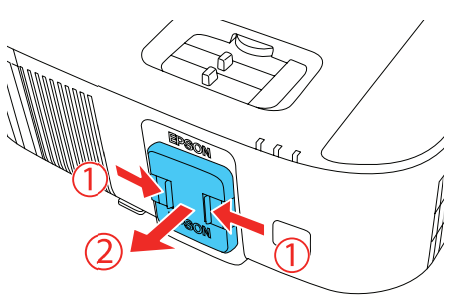
- Remove the lens cover.
- Press the power button on the projector or remote control. The projector beeps, the status light flashes blue, then stays on.
- The default language of the projector menu system is English. To select another language, press the menu button on the projector or remote control. Select Extended and press Enter. Select Language and press Enter. Select your language and press Enter. Press the menu button to exit the menu system. For more information on using the remote control, see the online User’s Guide.

Adjust the image
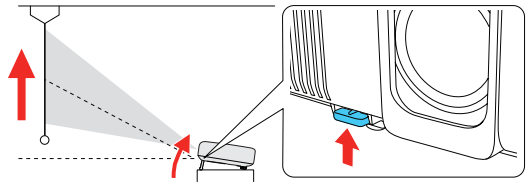
- To raise the image, press the foot release button while you lift the front of the projector. Release the button to lock the foot in position.
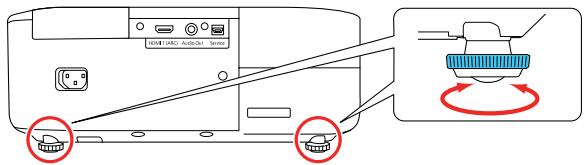
- To adjust a tilted image when the projector is set on a flat surface, adjust the rear feet so both sides are level.
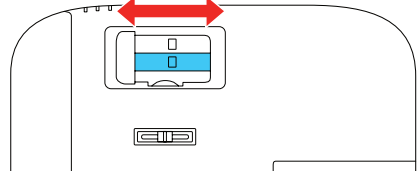
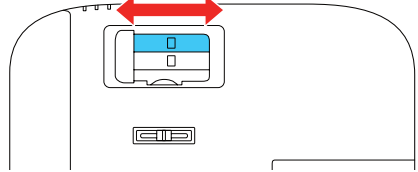
- To reduce or enlarge the image, use the zoom slider.
- To sharpen the image, use the focus slider.
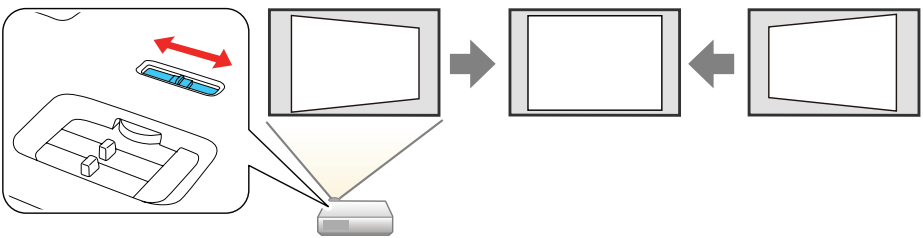
- If your image looks like this, you may have placed the projector off to one side of the screen at an angle. Place the projector directly in front of the center of the screen, facing the screen squarely. If you can’t move the projector, use the horizontal keystone slider on the projector to correct the image shape.
- Your projector automatically adjusts an image that looks like or, but you can press the keystone button on the remote control to correct it, if necessary.
Using the remote control
Install the batteries as shown (two AA batteries).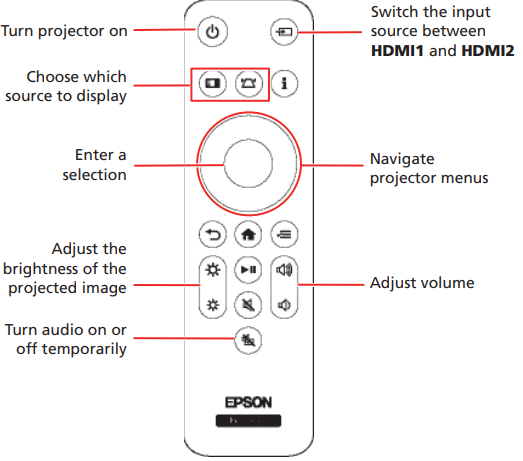
Troubleshooting
- If you see a No signal message after turning on the projector, make sure your computer or video device is properly connected, and press the source search button on the remote control.
- If you see a blank screen, check the following:
- Press the A/V mute button on the remote control to see if the image is turned off.
- Make sure the status light on the projector is blue and not flashing.
- Press the power button on the remote control to wake the projector from standby or sleep mode, if necessary.
- If you see a blank screen when a computer is connected, check the following:
- On Windows®, hold down the Windows key and press P at the same time, then click Duplicate.
- If you are using a Mac laptop with macOS 13 or newer, select System Settings > Displays. Select the projector, then choose the mirror option for your display from the Use as pop-up menu. On macOS 12, select System Preferences > Displays > Display Settings. Select the projector, then choose the mirror option for your display from the drop-down menu. On macOS 11 and older, open System Preferences and select Displays. Click the Arrangement tab and select the Mirror Displays checkbox.
- If the projector does not respond to remote control commands, make sure the batteries in the remote control are installed correctly. Replace the batteries, if necessary.
Registration
Scan the QR code to register for product updates and exclusive offers.
Where to get help
Manual
For more information about using the projector, you can view or download the online manual from the Epson website, as described below.
Internet support
Visit http://latin.epson.com/support/hc2300 to download software, view manuals, and get troubleshooting advice, or contact Epson.
Telephone support services
You can also speak to a service technician by calling one of these numbers.
- Contact your local phone company to call this toll-free number from a mobile phone.
If your country does not appear on the list, contact your nearest Epson sales office. Toll or long-distance charges may apply.
Optional accessories
For a list of optional accessories, see the online User’s Guide. You can purchase other accessories from an Epson authorized reseller. To find the nearest reseller, visit http://latin.epson.com.
Limited Warranty
Limited Warranty for Epson® Products
Epson products are covered by warranty against defects in workmanship and materials when operated under normal use and handling conditions, as indicated in the product documentation, for the period specified in the section “Epson Limited Warranty Coverage.” Coverage begins as of the date of delivery to the purchaser by Epson or by an authorized Epson dealer, in the country of purchase. Epson also guarantees that the consumables (batteries, filters, and lenses) included with the product will perform according to the usage specifications as long as they are used before the expiration of their warranty period.
Scope of Warranty
Should Epson receive notice of a defect during the warranty period, it may, at its discretion, repair or replace the defective product at no cost to the purchaser. In the event of a replacement, the replaced equipment will become the property of Epson. The replaced item may be new or previously repaired to the Epson standard of quality, and will assume the remaining warranty period of the product that was originally purchased. This warranty does not include any compensation or damages whatsoever, resulting fromthe operating failures of the Epson product.
Limitations and Exclusions
The warranty will be invalid in the following cases:
- When the damage resulted from the use of refilled supplies or consumables.
- When damages resulted from inappropriate tests, installation, maintenance, or adjustments.
- When damages resulted from the inappropriate transport of the equipment (packaging, installation, maintenance, transportation).
- When damages were caused by natural or intentional disasters (fire, floods, lightning, earthquakes, etc.), power surges, or interaction with other brand products.
How to Obtain Warranty Service
Furthermore, in order for the unit to operate optimally, always use original Epson supplies and consumables. If there are no Authorized Service Centers in your area, call the Technical Assistance Center for service referral.
Responsibilities of Purchaser
The purchaser is responsible for the safety of all confidential and proprietary information stored on the product, as well as for recovering backup files in case of damage. This also applies if the failure was the result of a defect in the purchaser’s proprietary software or of a computer “virus.”
Other Provisions
- Other Rights You May Have: This Epson limited warranty gives you specific legal rights, and you may also have other rights, which vary from jurisdiction to jurisdiction.
- Governing Law: Except for claims subject to arbitration pursuant to Section 6 “ARBITRATION”, you and Epson agree that the law of the state or country where you reside shall govern.
- Jurisdiction: Except for claims subject to arbitration pursuant to Section 6 “ARBITRATION”, in the event odisputesput, you and Epson both consent to the jurisdiction of the courts in your state of residence or, if you do not reside in a state, then of the courts in Orange County, California.
Epson Limited Warranty Coverage
Technical Support Service and Support
Epson offers technical assistance through electronic and telephone services. Before calling Epson, refer to the documentation included with your product.
Extended Warranty Service and Support
To be eligible for one (1) additional year of limited warranty (for a total of two (2) years), you must register your product at http://latin.epson.com/registro within 30 days of the purchase date, that is, from the date of the original purchase invoice.
Customer Service
- Website: https://epson.com/
- Ph: 800-087-1080