



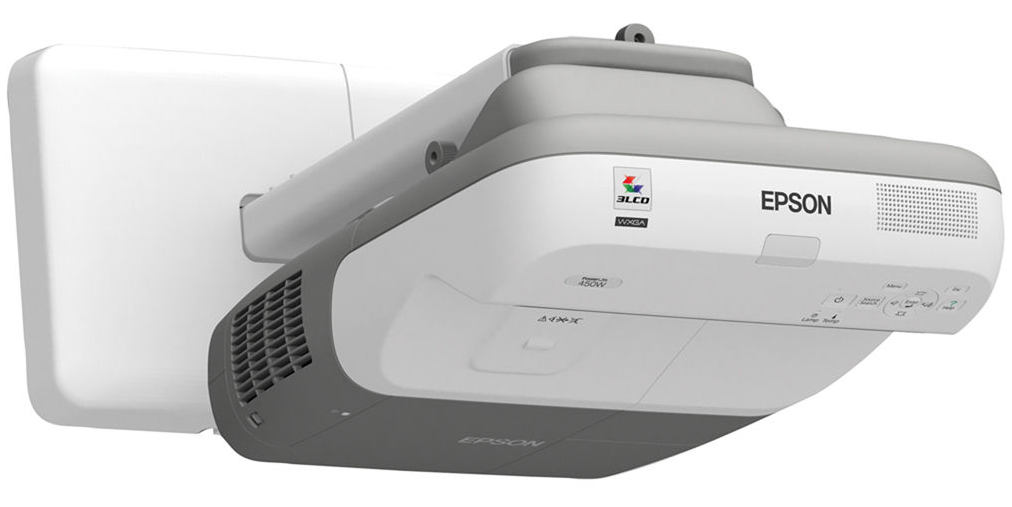
EPSON PowerLite 450W LCD Projector
Content Package
- Projector cables and accessories (All Models)
- Projector connections (Individual Models)
- Basic Operations for classroom use (Individual Models)
- Troubleshooting (Individual Models)
Quick Color Reference
- Epson Projector (Connections)
- Unmounted Projector (Connections)
- Epson Projector Set-Up and Usage
- 450/455
- 485
- 585/685
Models: 450/455/485/585/685
Projectors mentioned in this guide are equipped with the following capabilities.
- Direct projection from the classroom computer.
- Interactive functionality with a pen. (Does not include Power Lite Models)
- 2-3 Source Selection Options.
Locate the Model Number of your Epson Projector
The Projector Model Number is located on the front (Brightlink Models) or top (Powerlite Models) of the projector near the control panel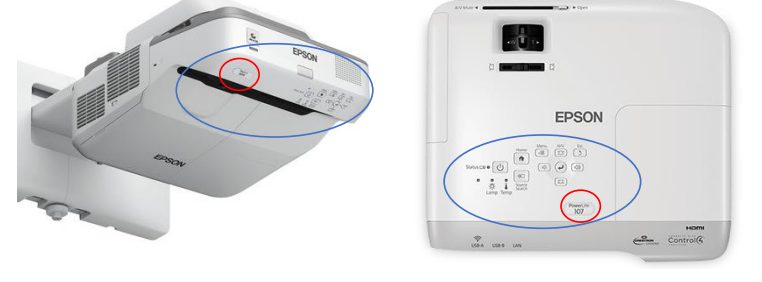
Projector Cables and Accessories
Cables: VGA, HDMI, DisplayPort to HDMI, USB, Laptop Adapters, & VGA Splitters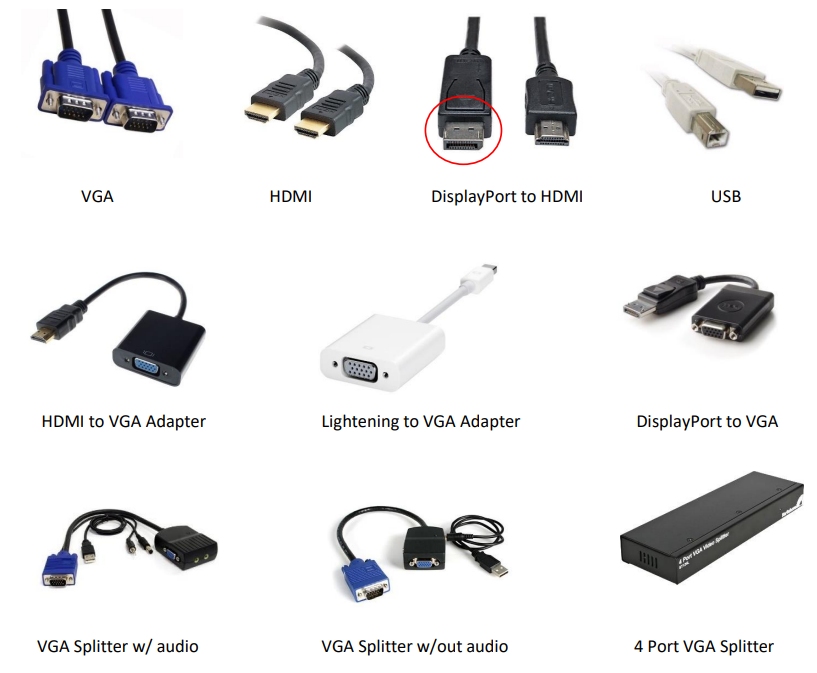
Accessories: Interactive Pens, Remotes, Battery Type)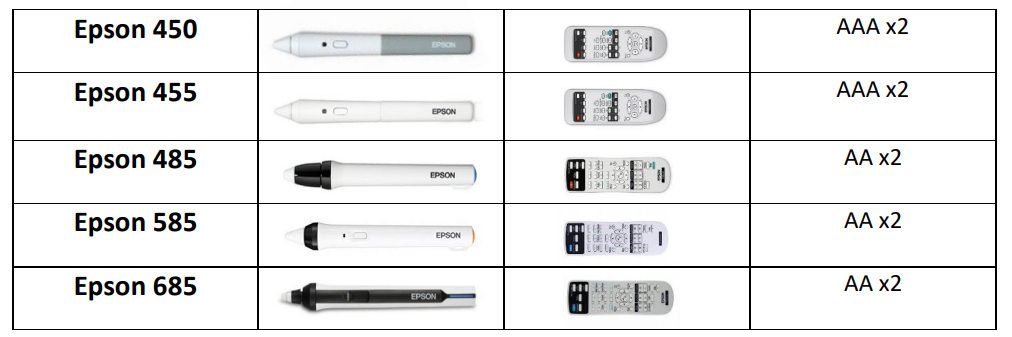
Projector Connections
Epson Projectors
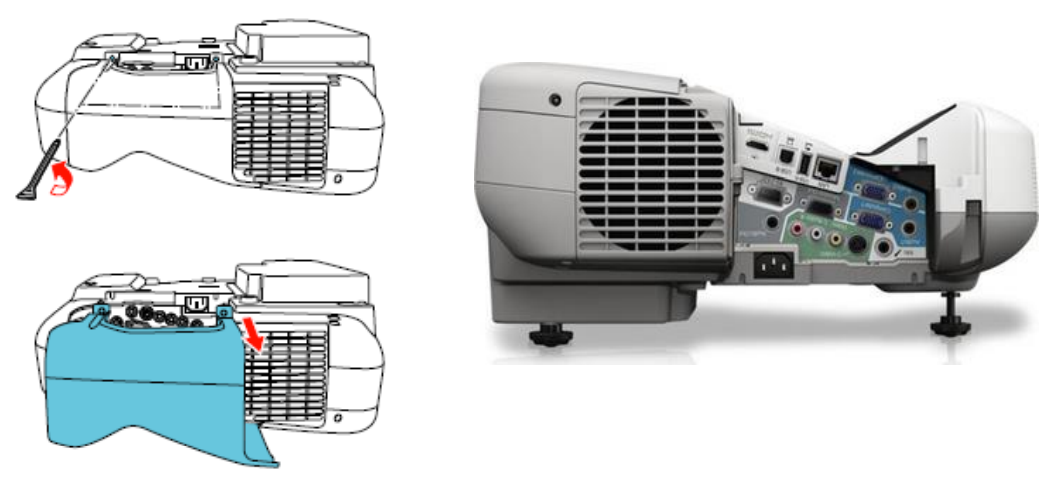
Mounted Epson Projectors are all connected using HDMI or VGA, and USB cables. The following diagram displays how to access the connection terminals on the 5 primary Epson Brightlink Interactive Projectors serviced by GCS. (450, 455, 485, 585, 685) To access the projector connection terminals, remove the housing cover located on the side of the device.
Brightlink Models
- Projector Housing Removal
- Projector Connection Terminals
Power Lite Models
Other Epson mounted projectors include the Power Lite 97, 97H, 107, and 530. The connection \terminals for these projectors are located on the back of the device.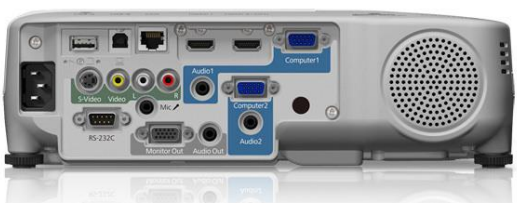
Unmounted Projectors
Connecting to a computer/document camera
Unmounted projectors have an array of connection terminals. However, the “Most Commonly Used” terminals are “HDMI” or “VGA”. Upon identifying the projector terminals, look for a corresponding terminal on the PC. Some PC’s will require an adapter to connect to certain projectors. (See Projector Cables and Adapter Section) Please see the diagram below for details.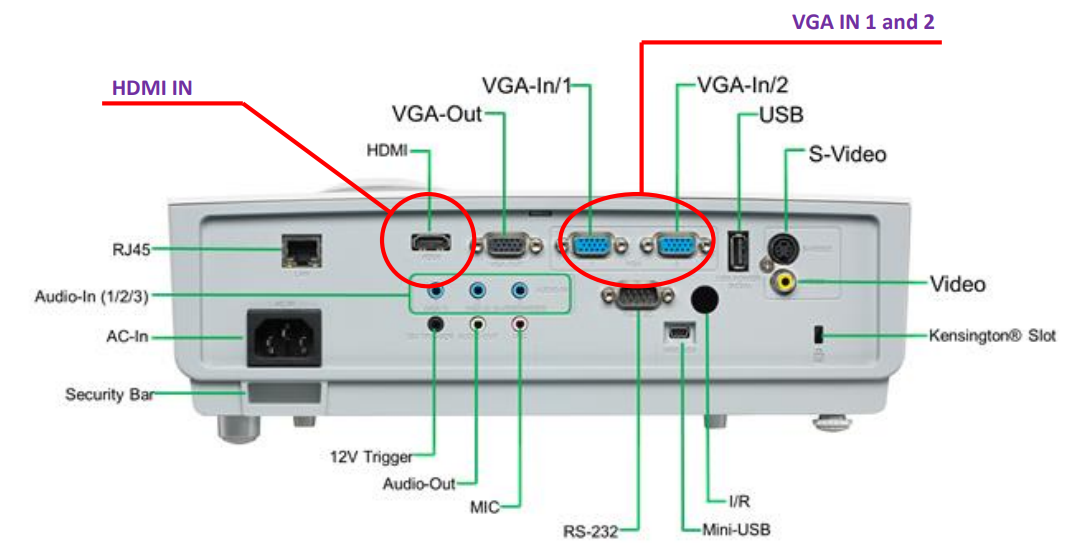
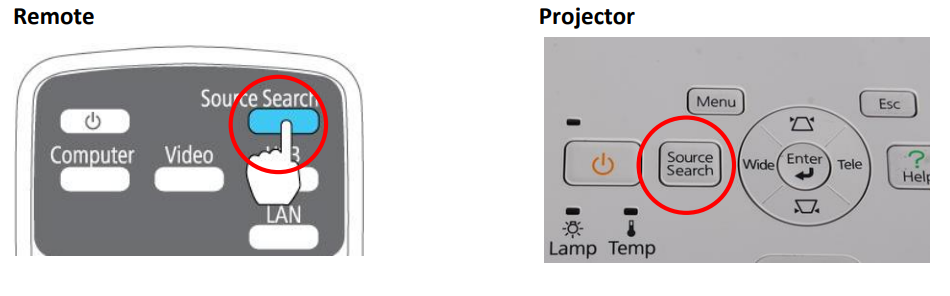
Selecting a Source
Some projectors are set to automatically search for an “Active Source”. However, some projectors require the user to select a source using the “Source Search or Input” key. Note: Source buttons will differ depending on the projector
Epson BrightLink 450/455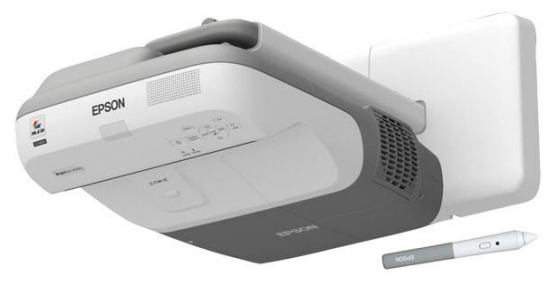
The Epson BrightLink 450/455 models are nearly identical in design and function. The following guide provides instructions for the basic operations as well as troubleshooting measures of these devices.
Connecting to a computer/document camera
- Projectors are connected tothe classroom computer via VGA and USB cables. Projectors have two points of connection: the face plate at the computer and the face plate at the projector.
- VGA cables transfer video only. Wall plate at computer (VGA w/ audio) will likely have an audio connection and will need an audio cable to transfer sound to the projector.
- A USB cable allows the interactive function of pens. USB cable must be connected at wall face plate at the computer and the projector. (The Interactive Tools Driver should/must be downloaded to the user’s computer via the Software Center. Epson 450/455 Drivers)
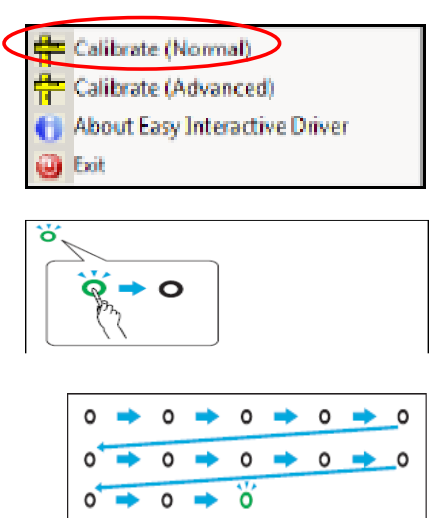
- Interactive Pen Calibration: Epson Interactive Pens will occasionally need to be calibrated. On the 450 and 455 projectors, the user must access the calibration menu from the Epson Interactive Driver installed on the computer.
- Without this driver, the pens will not be able to be calibrated, so make sure the driver is installed.
- Ensure pens have good batteries.
- Locate the Interactive Driver Icon (Lower right corner of the computer screen.
- Select “Calibrate (Normal).
- Tap the pen on each dot.
- Continue until all dots are black
Interactivity and Annotation
Users may control the computer with the interactive pens. The Epson Interactive Pen can be likened to a “wireless mouse” in the sense that whatever a user can do with a mouse, he/she can also do with the interactive pen. This is known as “Interactive Mode”. The other function of the pen is “Annotation Mode”. In this mode, the user can annotate over images and text projected from the computer or document camera.
Using the Pens
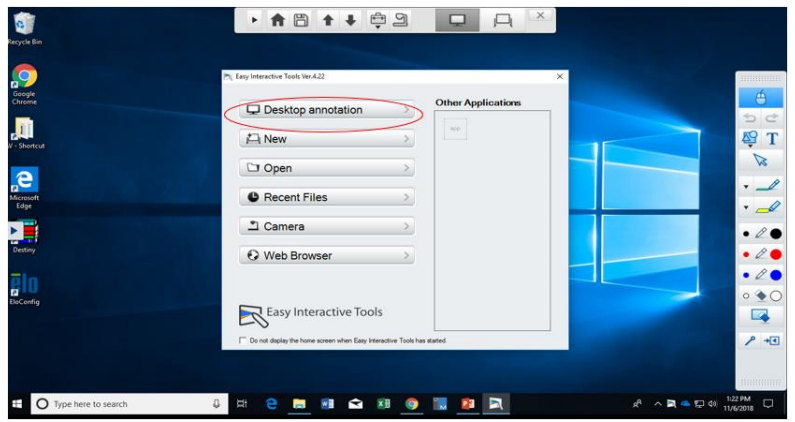
The pens should activate automatically when the projector is powered on. The pen begins in “Interactive Mode”. When placing the pen against the whiteboard, the cursor should be synced to the pen tip and follow the user’s movement. To switch to “Annotation Mode”, follow the instructions below. To access the Interactive Tools, follow the instructions below:
- Go to the Start Menu at the bottom left-hand corner of the screen.
- Search for/Select the Epson Projector Folder.
- Open the Interactive Tools Software.
- When the Interactive Tools Software is open, the user can annotate (Annotation Mode) as well as control the computer (Interactive Mode) with the interactive pen. For detailed instructions on using the Interactive Tools, users should be directed to contact the AV Department of Technology Services.
Connections
Epson Brightlink 485wi, 585wi, and 685wi

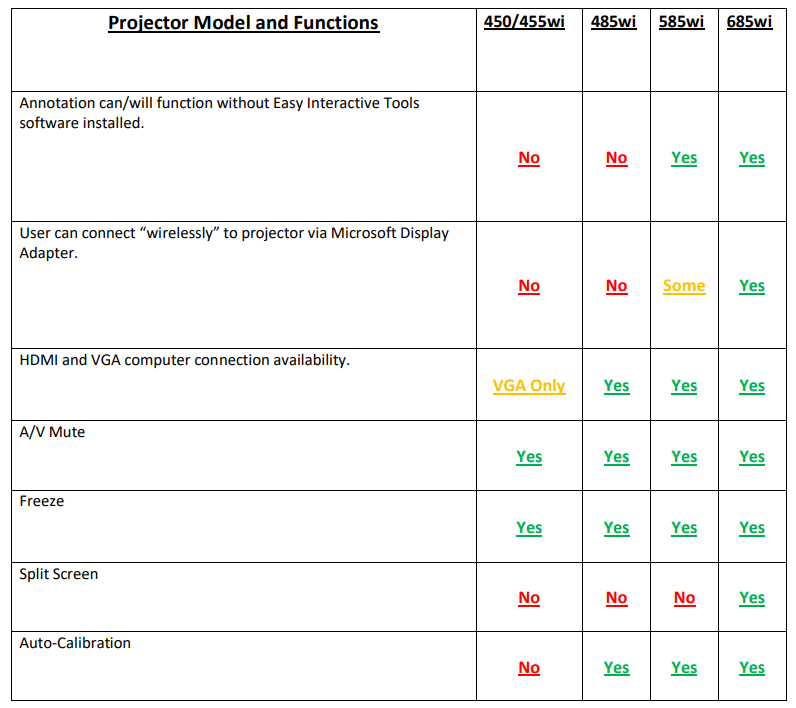
The Epson Brightlink 485wi, 585wi, and 685wi Interactive Projectors are each a step up, respectively,y in functionality from the 450/455wi. The user interface for the interactive tools looks different on each iteration of the projector. Also, the drivers for the three models will automatically install when connecting the projector to the computer via the USB cable.
Connecting to a computer/document camera
- Projectors are connected to the classroom computer via HDMI, VGA, and USB cables. Projectors have two points of connection: the face plate at the computer and the face plate at the projector.
- HDMI cables transfer video and audio. VGA cables transfer video only.
- The wall face plate at the computer will likely have an HDMI connection and a VGA connection.
- It is standard practice to connect the computer via an HDMI cable.
- There may also be a VGA w/ audio connection point.
- This connection is usually used for a classroom document camera.
- A USB cable allows the interactive function of pens. USB cable must be connected at wall face plate at the computer and the projector.
Interactivity and Annotation (485wi)
Users may control the computer with the interactive pens. The Epson Interactive Pen can be likened to a “wireless mouse” in the sense that whatever a user can do with a mouse, he/she can also do with the interactive pen. This is known as “Interactive Mode”. The other function of the pen is “Annotation Mode”. In this mode, the user can annotate over images and text projected from the computer or document camera.
Using the Pens
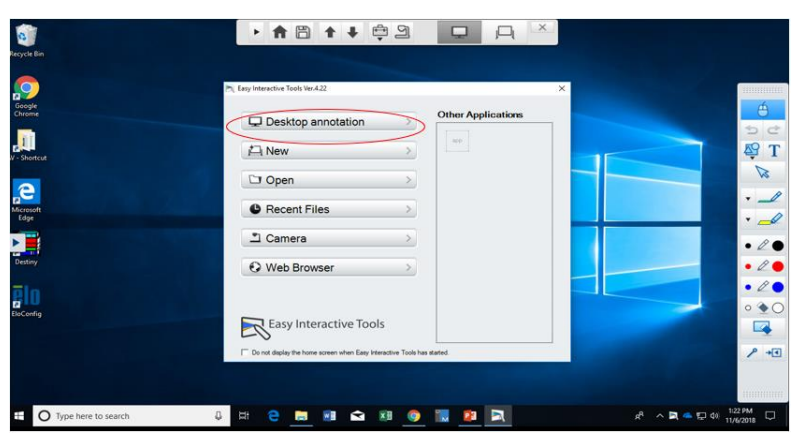
The pens should activate automatically when the projector is powered on. The pen begins in “Interactive Mode”. When placing the pen against the whiteboard, the cursor should be synced to the pen tip and follow the user’s movement. To switch to “Annotation Mode”, follow the instructions below. To access the Interactive Tools, follow the instructions below:
- Go to the Start Menu at the bottom left-hand corner of the screen.
- Search for/Select the Epson Projector Folder.
- Open the Interactive Tools Software.
- When the Interactive Tools Software is open, the user can annotate (Annotation Mode) as well as control the computer (Interactive Mode) with the interactive pen. For detailed instructions on using the Interactive Tools, users should be directed to contact the AV Department of Technology Services.
Built-inn Interactive/Annotation Toolbar
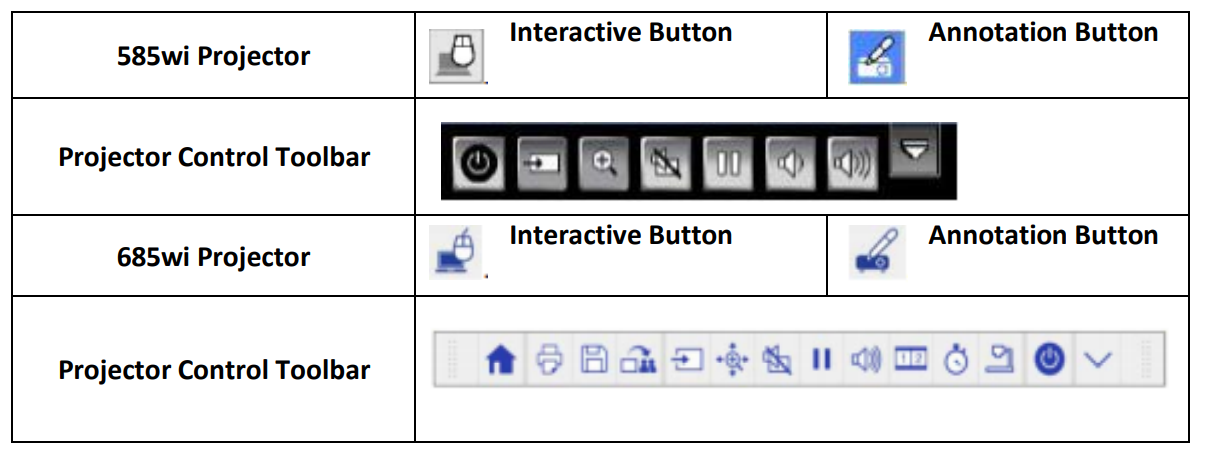
- When the Interactive pen(s) are within the “Active Area” of the projector, the Interactive Toggle Button and the Projector Control Toolbar will automatically appear on the whiteboard.
- A user can transition between Interactive and Annotation modes using the Interactive Toggle Button.
- To maneuver through the optional projector functions, a user may use the interactive pen(s) to select a desired action. The 585wi and 685wi have some similar optional functions available on the respective toolbars. However, the 685wi has more functions available.
Specifications
Troubleshooting
No Image:
- Check to make sure the HDMI/VGA connections at the computer and the wall plate are secure. Check to make sure the DMI/VGA cable is not damaged. (No tears, bent pins, or broken wall plates.
- Check to make sure the computer resolution is compatible with the projector. (1280 x 800, 1024 x 768). Ensure the computer is “Cloned”. If the computer is connected through a classroom document camera, ensure that the document camera is plugged in.
- Special Case: The image may “shake” slightly when connected to a computer. If this occurs, select the “maintain aspect ratio” option in the Graphics Properties. This should eliminate the shake.
No Interactive Function
- Check Interactive Pens: Ensure they are the correct pen for the projector
- If visible, ensure thepen’ss green/blue indicator light illuminates. Examine the physical appearance of the pen to see if any visible defects could affect its functionality.
- Check to make sure the USB connections at the computer and wall plate are secure. Check to make sure the USB cable is not damaged. Check to see if a green indicator light is illuminated on the wall plate.
Limited Warranty
Limited Warranty for Epson® Products
Epson products are covered by warranty against defects in workmanship and materials when operated under normal use and handling conditions, as indicated in the product documentation, for the period specified in the section “Epson Limited Warranty Coverage.” Coverage begins as of the date of delivery to the purchaser by Epson or by an authorized Epson dealer, in the country of purchase. Epson also guarantees that the consumables (batteries, filters, and lenses) included with the product will perform according to the usage specifications as long as they are used before the expiration of their warranty period.
Scope of Warranty
Should Epson receive notice of a defect during the warranty period, it may, at its discretion, repair or replace the defective product at no cost to the purchaser. In the event of a replacement, the replaced equipment will become the property of Epson. This warranty does not include any compensation or damages whatsoever, resulting fromthe operating failures of the Epson product.
Limitations and Exclusions
The warranty will be invalid in the following cases:
- When the damage resulted from the use of refilled supplies or consumables.
- When damages resulted from inappropriate tests, installation, maintenance, or adjustments.
- When damages resulted from the inappropriate transport of the equipment (packaging, installation, maintenance, transportation).
How to Obtain Warranty Service
Furthermore, in order for the unit to operate optimally, always use original Epson supplies and consumables. If there are no Authorized Service Centers in your area, call the Technical Assistance Center for service referral.
Responsibilities of Purchaser
The purchaser is responsible for the safety of all confidential and proprietary information stored on the product, as well as for recovering backup files in case of damage. This also applies if the failure was the result of a defect in the purchaser’s proprietary software or of a computer “virus.”
Other Provisions
- Other Rights You May Have: This Epson limited warranty gives you specific legal rights, and you may also have other rights, which vary from jurisdiction to jurisdiction.
- Governing Law: Except for claims subject to arbitration pursuant to Section 6 “ARBITRATION”, you and Epson agree that the law of the state or country where you reside shall govern.
- Jurisdiction: Except for claims subject to arbitration pursuant to Section 6 “ARBITRATION”, in the event odisputesput, you and Epson both consent to the jurisdiction of the courts in your state of residence or, if you do not reside in a state, then of the courts in Orange County, California.
Epson Limited Warranty Coverage
Technical Support Service and Support
Epson offers technical assistance through electronic and telephone services. Before calling Epson, refer to the documentation included with your product.
Extended Warranty Service and Support
To be eligible for one (1) additional year of limited warranty (for a total of two (2) years), you must register your product at http://latin.epson.com/registro within 30 days of the purchase date, that is, from the date of the original purchase invoice.
Customer Service
- Website: https://epson.com/
- Ph: 800-087-1080