



Hama 00176647 Wireless IP CCTV Smart Camera
Safety Instructions
- Protect the Hama 00176647 Wireless IP CCTV Smart Camera from dirt, moisture, and overheating, and only use it in a dry environment.
- This product is intended for private, non-commercial use only.
- Use the Hama 00176647 Wireless IP CCTV Smart Camera only for its intended purpose.
- Do not use the product in the immediate vicinity of heaters or other heat sources or in direct sunlight.
- Do not use the product in areas where the use of electronic devices is not permitted.
- Do not drop the product and do not expose it to any major shocks.
- Do not modify the product in any way. Doing so voids the warranty.
- Keep the packaging material out of the reach of children due to the risk of suffocation.
- Dispose of packaging material immediately according to locally applicable regulations.
- Do not operate the product outside the power limits given in the specifications.
- Use the item only in moderate climatic conditions.
- Do not mount the product in locations where persons might linger.
- Before mounting, check that the wall you have chosen is suitable for the weight to be mounted.
- Pay attention to the applicable data protection regulations before installing and using the product.
- Respect the personal and property rights of others.
- Do not make recordings of other people with the Camera.
- Observe the right to one’s own image and spoken word when recording.
- Keep this product, as all electrical products, out of the reach of children!
- The product is intended for indoor use only.
- Do not bend or crush the cable.
- Do not use the product in moist environments and avoid splashes.
Introduction
Thank you for choosing the Hama 00176647 Wireless IP CCTV Smart Camera. Take your time and read the following instructions and information completely. Please keep these operating instructions in a safe place for future reference. If you sell the device, please pass these operating instructions on to the new owner.
Packaging Contents
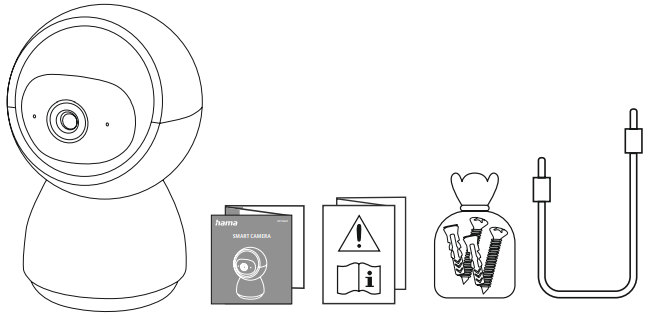
- 1x smart camera
- 1x USB-C cable
- 1x mounting kit
- 1x quick guide
- 1x warning and safety instructions
Installing the Hama Smart Home App
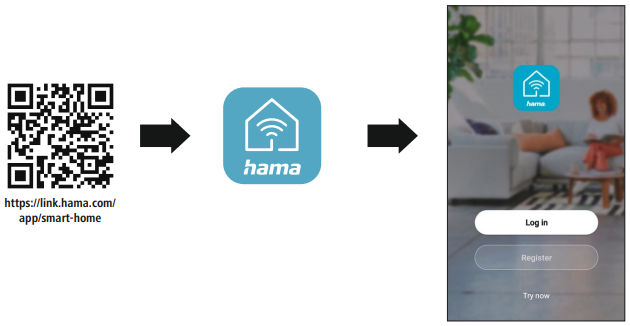
To use all the functions of your Hama 00176647 Wireless IP CCTV Smart Camera, you need a smartphone or tablet and the Hama Smart Home app.
- Download the Hama Smart Home app from the App Store (iOS) or from Google Play (Android) to your
smartphone/tablet. - To install the app, follow the instructions on your smartphone/tablet.
- Open the app on your smartphone/tablet.
- Register to create a new account. Alternatively, log in with the access data of your existing account.
- Follow the instructions for setting up the app until you can add a new device.
- The following operating systems are supported:
- iOS 16.3 or later
- Android 6.0 or later
- While setting up the app, you will be asked whether the app has permission to access the functions of your smartphone/tablet. Say yes to these prompts for the full functionality of the device.
Product Properties
The following steps are required to commission the device.
- Connect the device to a properly installed and easily accessible mains socket.
- Put the device in pairing mode by holding the button for around 5 seconds.
- The LED starts to flash quickly.
Installation
- You can secure the Hama 00176647 Wireless IP CCTV Smart Camera in place using the adhesive pads or the supplied mounting kit.
- Be aware that the intended mounting surface for the Hama 00176647 Wireless IP CCTV Smart Camera must be free from dust and grease.
- Use a suitable cleaner from a specialist retailer for this.
- Be aware that the adhesive pads are intended to be permanent.
- Carefully pull the adhesive pad off the mounting surface to remove it.
- Possible residue on the mounting surface after removal of the adhesive pads cannot be ruled out!
- Do not mount the product above locations where persons might sit or stand.
- Before mounting, check that the wall you have chosen is suitable for the weight to be mounted.
- Also, make sure that there are no electric, water, gas, or other lines running through the wall at the mounting site.
Integrating Devices
- Only operate the product from an approved socket that is connected to the public power supply.
- The socket must be installed close to the product and must be easily accessible.
- Disconnect the product from the power supply using the On/Off switch.
- If this is not available, unplug the power cord from the socket.
- If you will not be using the product for a prolonged period, disconnect it from mains power.
- Connect the camera to a suitable power supply unit and a properly installed socket.
- The LED on the camera starts to flash quickly.
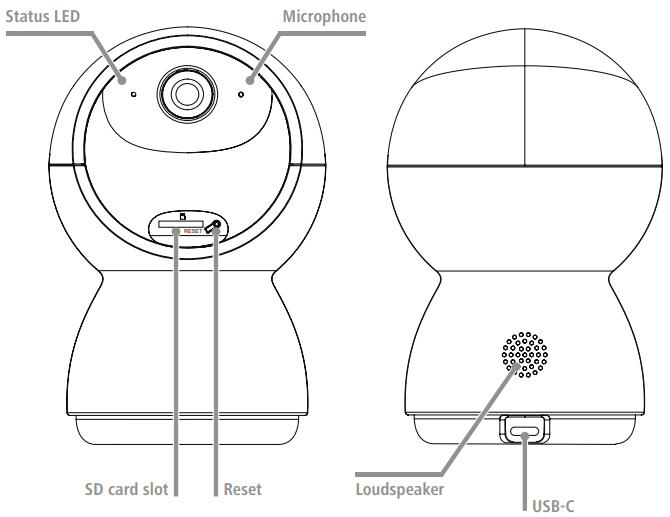
- If it does not, press and hold the Reset button (4) on the camera for around 5 seconds.
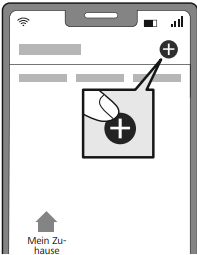
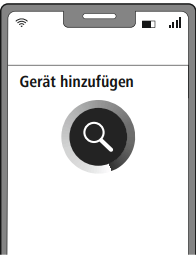
- Open the app and sign in. Press the + in the top right-hand corner to add a new device.
- Choose Cameras from the list.
- Now confirm that the camera’s LED is flashing quickly by ticking “Next step” and clicking on “Next”.
- Ensure that the QR code is at the top right.
- Next, enter your WiFi password and confirm with NEXT.
- Now scan the QR code with the camera from a distance of around 15 – 20 cm.
- As soon as you hear a signal sound, click “Signal sound heard”.
- Your camera is now connected.
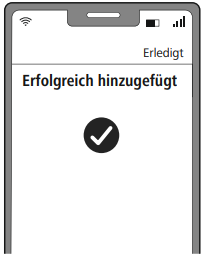
- Once the connection is successful, the LED stops flashing quickly, and the app confirms that your camera is connected.
- You can now assign it a different name if you wish.
- Click Finish to end the process.
- You can now operate and configure the camera.
Setting Options
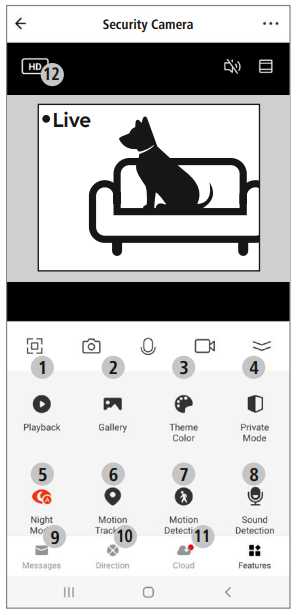
The following settings can be made in the app.
- Play back video recordings from your gallery.
- Open the photo album and view all of the images captured.
- Switch between dark and light mode.
- Switch the camera off.
- When it gets dark, the camera automatically switches to infrared/night vision mode.
- Activate/deactivate movement tracking on the camera.
- Activate/deactivate motion detection.
- Activate/deactivate sound recognition.
- Retrieve this device’s messages and alarms.
- Control or swivel function on the camera.
- Call up the data from your cloud storage here.
- Recording Quality HD (High Definition: 1.280 x 1.080) or SD (Standard Definition: 720 x 576)
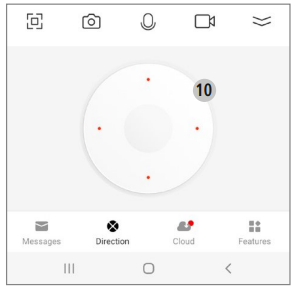
For extended usage options, scenarios can be created in the app. (See Section 9 and App Guide).
Extended Usage Options
Scenarios and automated sequences that can be created in the app allow various combination options and usage options for these products, depending on the SmartHome products in your home. Programming is always via the app (see Section 4 of the App Guide) and will be offered/suggested to you on an individual basis.
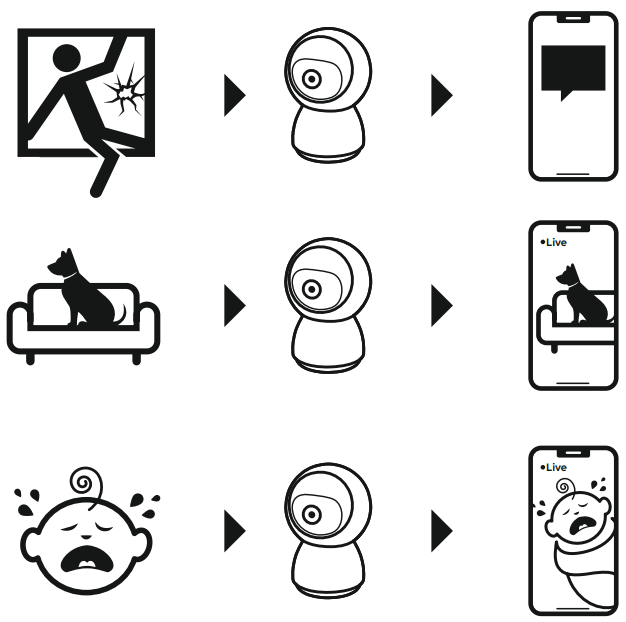
Standard Usage Option
Technical Data
- Maximum radio-frequency power transmitted 5 V 1 A
- Frequency band 2.4 GHz
- Maximum radio-frequency power transmitted < 100 mW
Specifications
- Brand name, commercial register number, address Hama, HRA12159, Dresdner Str. 9, 86653 Monheim, Germany
- Model identifier DCT07W050100EU-C1
- Input voltage 100-240 V
- Input AC frequency 50/60 Hz
- Output voltage/output current/output power 5.0 V DC / 1.0 A / 5.0 W
- Average efficiency during operation: 73.6%
- Efficiency at low load (10%) 66.6%
- Power consumption at zero load: 0.10W
Warranty
Hama GmbH & Co KG assumes no liability and provides no warranty for damage resulting from improper installation or mounting, improper use of the Hama 00176647 Wireless IP CCTV Smart Camera, or from failure to observe the operating instructions and/or safety notes.
Declaration of Conformity
Hama GmbH & Co KG hereby declares that the Hama 00222239 JAMAIKA Weather Station radio equipment type [00222239] complies with Directive 2014/53/EU.
Customer Service
- Website: https://de.hama.com
- Ph: 49 9091 502-0
FAQs
Q: What is the Hama 00176647 Wireless IP CCTV Smart Camera used for?
This camera allows for remote home or office surveillance. It is perfect for security and surveillance since it enables motion detection alerts, live monitoring, and Wi-Fi video recording.
Q: Can multiple users access the camera simultaneously?
Yes, family members or employees can see the live broadcast from various devices thanks to the camera’s multiple user access feature.
Q: Can I view the camera feed remotely?
Yes, you can monitor your camera from any location with an internet connection by utilising the Hama SmartCam app or web access.
Q: Can the camera rotate or pan?
Yes, you can change the view both horizontally and vertically using the camera’s remote pan and tilt controls via the app.
Q: Can the camera record audio?
Indeed, it includes a built-in microphone and might support two-way audio, so you can use the app to speak and listen through the camera. For more detailed microphone guidance, see the Hama 00046006 Vocal Pro Dynamic Microphone User Guide.
Q: Can I integrate this camera with smart home systems?
Third-party smart home connectivity is supported by certain Hama cameras. Verify whether the app or manual is compatible with Google Assistant, IFTTT, or Amazon Alexa.