
Close Menu
onyxguides.comonyxguides.com

    Subscribe to Updates

    Get the latest creative news from FooBar about art, design and business.

    What's Hot

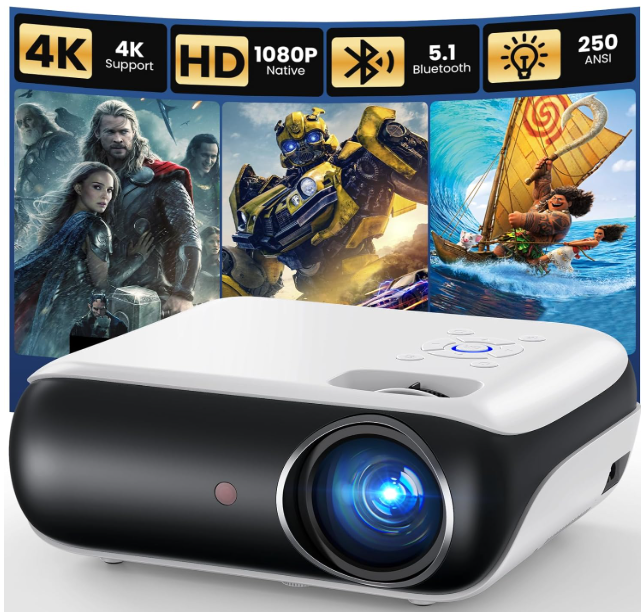
    HAPPRUN Gizmochina H1 200 Inch Theater Projector User Manual
    March 22, 2026

    CHASING CanFish CF1 Underwater Live Fish Finder User Manual

    March 22, 2026

    SwellPro SPCP01005D SplashDrone 4 Drone User Manual

    March 22, 2026
    Facebook X (Twitter) Instagram
    onyxguides.comonyxguides.com
    Facebook X (Twitter) Instagram Pinterest
    • Home
    • About us
    • Terms & Conditions
    • Privacy Policy
    • FAQs
    • Contact us
    onyxguides.comonyxguides.com
    Home » HAPPRUN Gizmochina H1 200 Inch Theater Projector User Manual
    Other

    HAPPRUN Gizmochina H1 200 Inch Theater Projector User Manual

    By Gabriel SmithMarch 22, 2026No Comments3 Mins Read
    Facebook Twitter Pinterest LinkedIn Tumblr WhatsApp Telegram Email
    Share
    Facebook Twitter LinkedIn Pinterest Email

    HAPPRUN-logo

    HAPPRUN Gizmochina H1 200 Inch Theater ProjectorHAPPRUN-Gizmochina-H1-200-Inch-Theater-Projector-PRODUCT


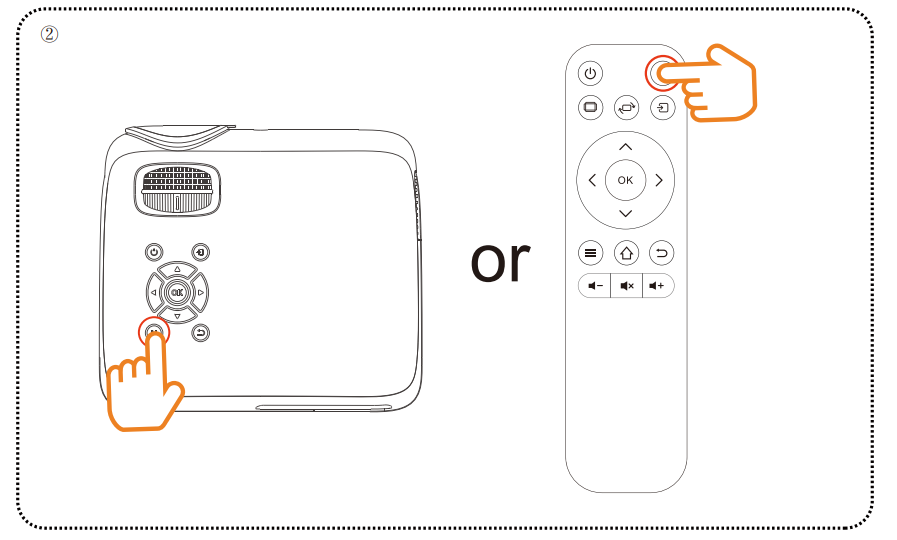
    Power On

    1. Connect the power cord to the projector and press the button
    2. Plug the cable into the outlet
    3. To power on the projector, press the button on the remote control or the button on the projector.
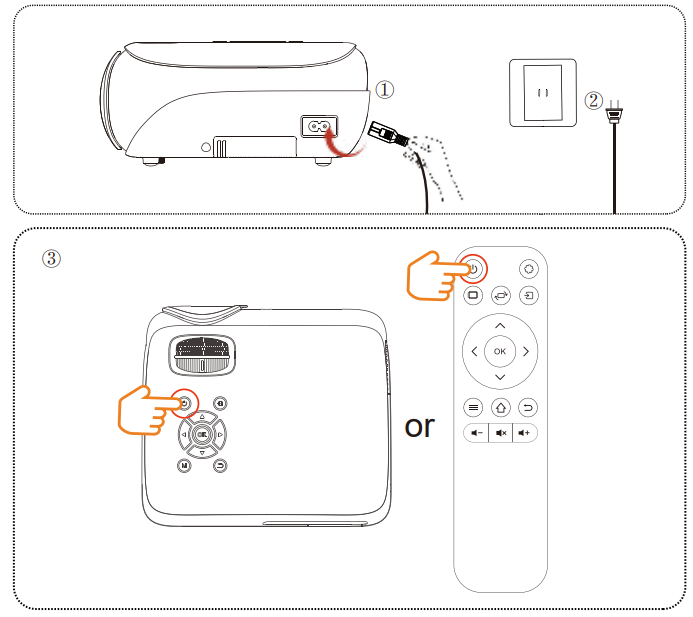
    HAPPRUN-Gizmochina-H1-200-Inch-Theater-Projector-FIG 1

    Adjusting the Picture Clarity

    1. Slowly adjust the two knobs to the left or right to the best picture quality.
    2. To adjust the keystone correction, simply rotate the dial to the left or right until the projected image is
    3. level and vertical.
    4. To achieve optimal image clarity, kindly rotate the focusing dial to the left or right.
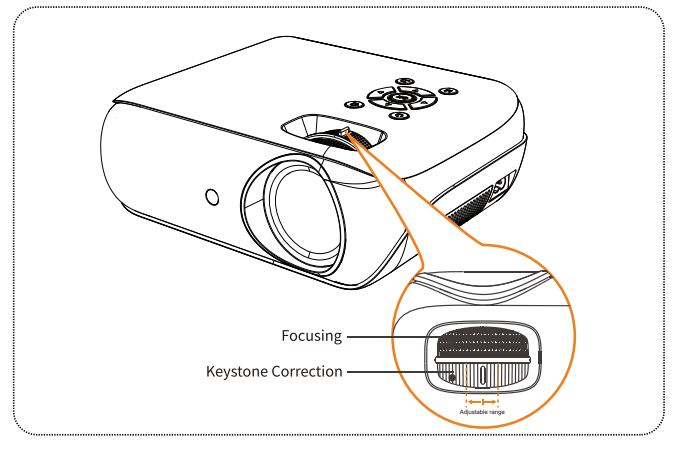
    HAPPRUN-Gizmochina-H1-200-Inch-Theater-Projector-FIG 2

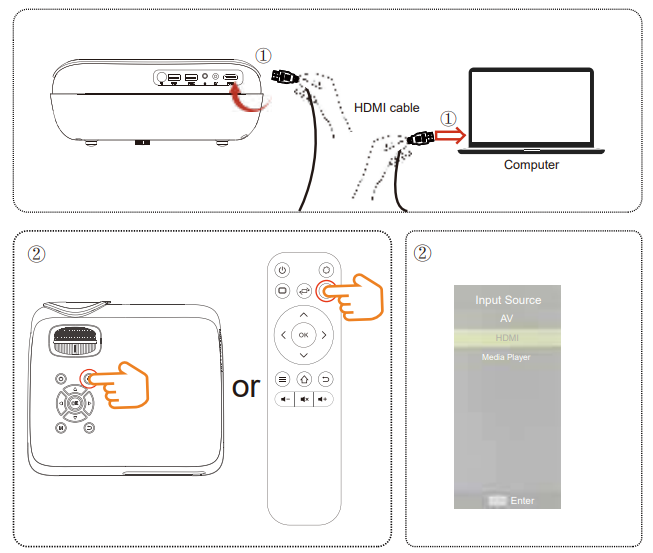
    Connecting to a Laptop/ Computer

    1. Connect your HDMI cable to the projector and the computer.
    2. Press the button and choose ‘HDMI’.

    HAPPRUN-Gizmochina-H1-200-Inch-Theater-Projector-FIG 3

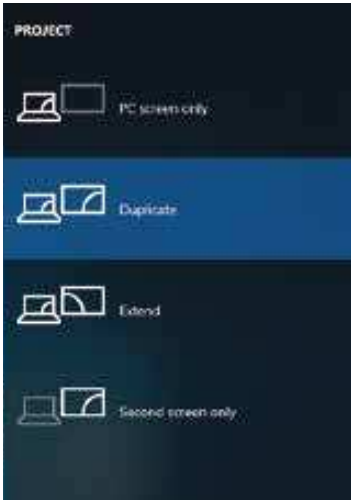
    Connecting to a Laptop/ Computer

    Use the appropriate shortcut key on the computer. As shown in the picture, select “Duplicate.”HAPPRUN-Gizmochina-H1-200-Inch-Theater-Projector-FIG 4 HAPPRUN-Gizmochina-H1-200-Inch-Theater-Projector-FIG 5
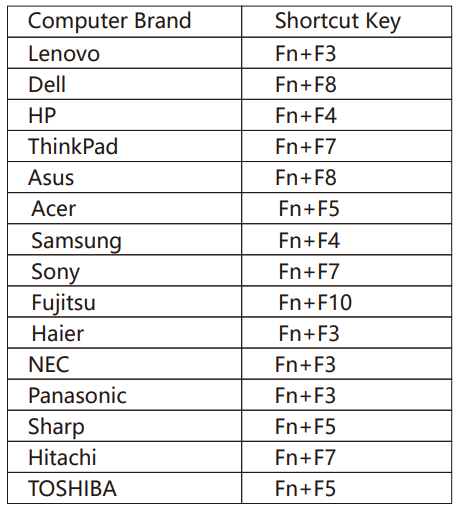
     

    The user of Windows 7 or over Windows 7. Simply press the +P, select “copy” to connect. If the operation above is invalid, please update the computer graphics driver.

    Using a USB Drive

    1. Plug the USB drive into any USB port.
    2. Select ‘Movies’, ‘Music’, and ‘Photos’ to play.
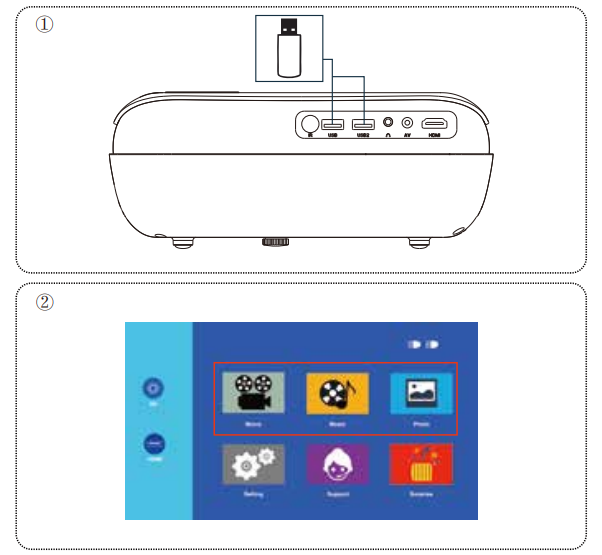
    HAPPRUN-Gizmochina-H1-200-Inch-Theater-Projector-FIG 6

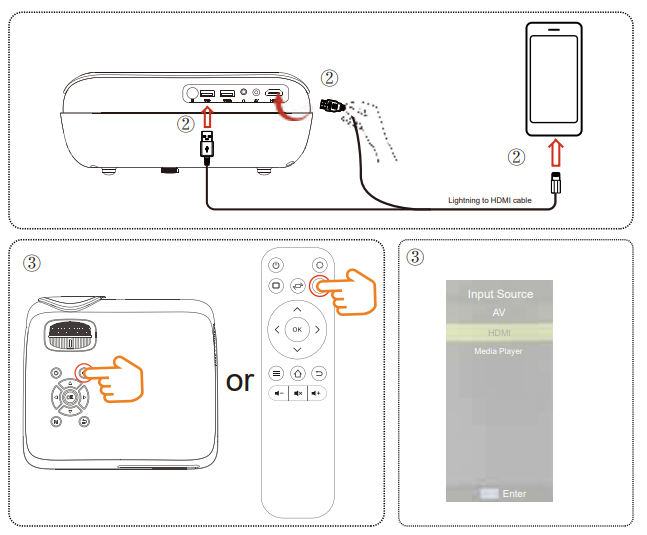
    Screen Mirroring with an iPhone (HDMI ADAPTER NOT INCLUDED)

    1. Use the HDMI Screen Adapter.
    2. Plug the ‘HDMI’ and ‘USB’inton the projector and plug the Lightning connector into the iPhone.
    3. Press the button and choose ‘HDMI’.HAPPRUN-Gizmochina-H1-200-Inch-Theater-Projector-FIG 7
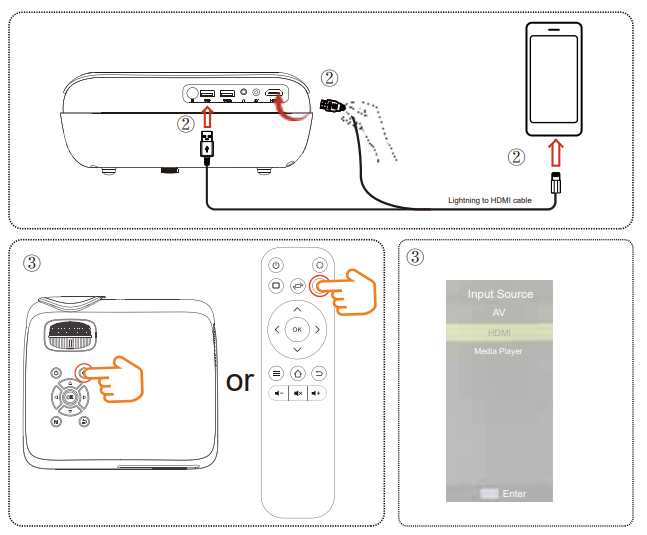
    4. If the alert message is shown on your iPhone, click ‘Trust’ and enter your password.HAPPRUN-Gizmochina-H1-200-Inch-Theater-Projector-FIG 8


    Screen Mirroring with an Android Phone(HDMI ADAPTER NOT INCLUDED

    1. Use the HDMI Screen Adapter.
    2. Plug the ‘HDMI’ and ‘USB’ into the projector and plug the ‘Type-C’ into the iPhone.
    3. Press the button and choose ‘HDMI’.
    4. Scan the QR code and download the APP.
    5. Install the APP and grant all permissions(Notice: ensure all permissions are allowed to avoid errors).
    6. Install the APP on your phone and grant all permissions.
    7. Open the downloaded APP, allow all permissions displayed on the APP

    Screen Mirroring with an Android Phone(HDMI CABLE NOT INCLUDED)
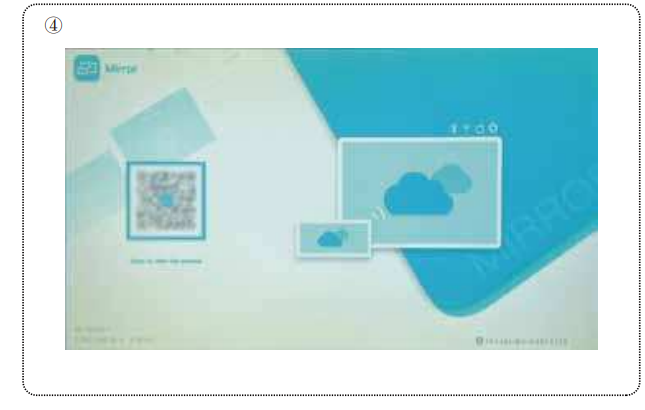
    HAPPRUN-Gizmochina-H1-200-Inch-Theater-Projector-FIG 10


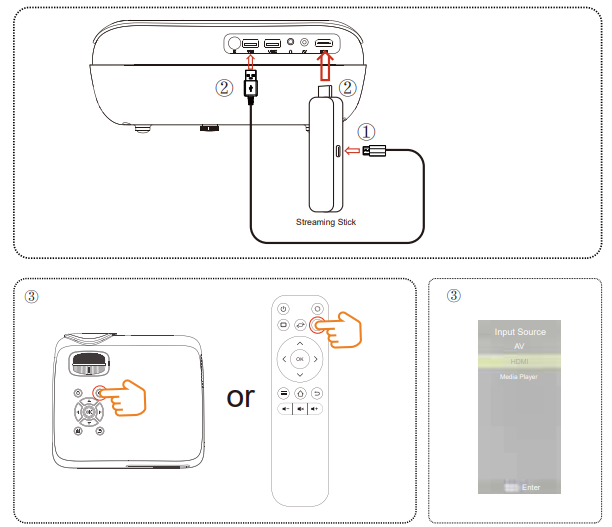
    Connecting to a Streaming Stick

    1. Plug the power cord into the TV stick.
    2. Plug the ‘USB’ and ‘HDMI’ from the TV stick into the projector.
    3. Press the button and choose ‘HDMI’.HAPPRUN-Gizmochina-H1-200-Inch-Theater-Projector-FIG 11

    Bluetooth Settings

    1. Pairing your Bluetooth stereo with this projector
    2.  Press / on your projector or remote.

    HAPPRUN-Gizmochina-H1-200-Inch-Theater-Projector-FIG 12

    Bluetooth Settings

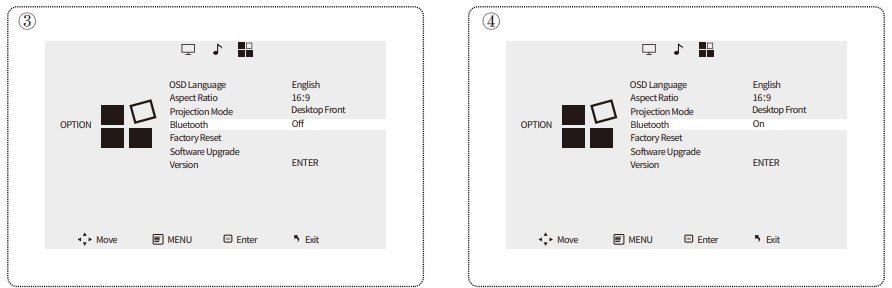
    Use the “ ” or “ ” button on your projector or remote to select “Option”. Use the “ ” or “ ” to select “On”.HAPPRUN-Gizmochina-H1-200-Inch-Theater-Projector-FIG 13
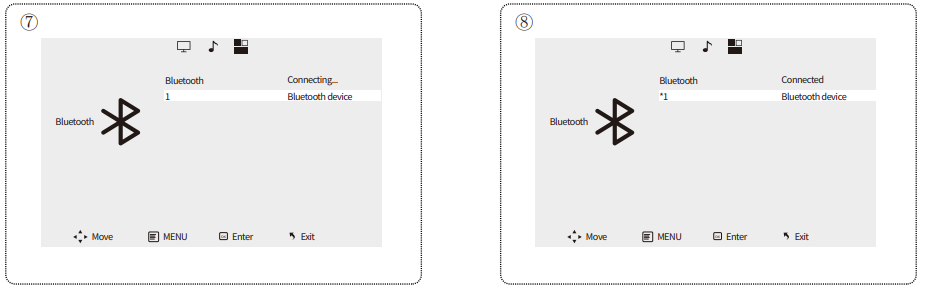
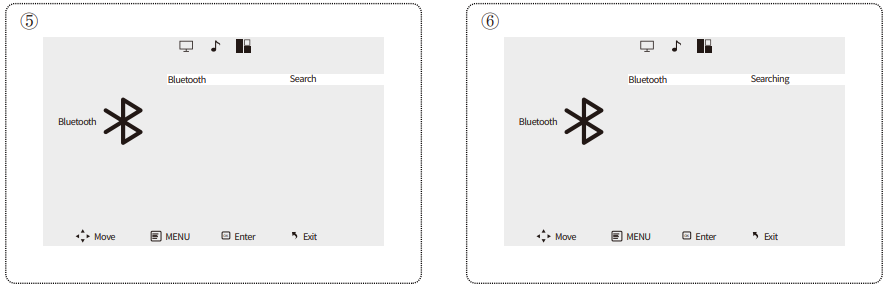
    Select “Bluetooth” and enter. Select “Search”.HAPPRUN-Gizmochina-H1-200-Inch-Theater-Projector-FIG 14Bluetooth Settings
    Choose the name of your device to pair.

    Bluetooth is connected.HAPPRUN-Gizmochina-H1-200-Inch-Theater-Projector-FIG 14 HAPPRUN-Gizmochina-H1-200-Inch-Theater-Projector-FIG 15
    If you need further assistance, please call us or send us emails. We will be pleased to answer any questions you may have. Thank you for choosing HAPPRUN projectors.

    • Call: US: 1-888-986-2646
    • JP: 81-345400908
    • * US: service@happrunlife.com
    Share. Facebook Twitter Pinterest LinkedIn Tumblr Email
    Gabriel Smith

      Related Posts

      CHASING CanFish CF1 Underwater Live Fish Finder User Manual

      March 22, 2026

      SwellPro SPCP01005D SplashDrone 4 Drone User Manual

      March 22, 2026

      KYOCERA ECOSYS PA6000x Mono Laser Printer User Manual

      March 22, 2026

      Sony VPH-1042Q Color Video Projector Instruction Manual

      March 22, 2026

      CHRISTIE DWU1400-GS Series Laser Projector User Manual

      March 19, 2026

      HP Deskjet 2755e Printer User Manual & Setup Guide

      March 18, 2026
      Add A Comment
      Leave A Reply Cancel Reply

      Don't Miss
      Other

      HAPPRUN Gizmochina H1 200 Inch Theater Projector User Manual

      March 22, 2026

      HAPPRUN Gizmochina H1 200 Inch Theater Projector Power On Connect the power cord to…

      CHASING CanFish CF1 Underwater Live Fish Finder User Manual

      March 22, 2026

      SwellPro SPCP01005D SplashDrone 4 Drone User Manual

      March 22, 2026

      KYOCERA ECOSYS PA6000x Mono Laser Printer User Manual

      March 22, 2026
      Stay In Touch
      • Facebook
      • Twitter
      • Pinterest
      • Instagram
      • YouTube
      • Vimeo

      Subscribe to Updates

      Subscribe to Updates

      Follow us

      Facebook X-twitter Instagram Pinterest

      © 2025 All rights reserved Onyx Guide.