
Close Menu
onyxguides.comonyxguides.com

    Subscribe to Updates

    Get the latest creative news from FooBar about art, design and business.

    What's Hot

    Sony HDIH-1200 HD Projection Head Instruction Manual

    May 11, 2026

    Do Ceiling Fans Use a Lot of Electricity

    May 11, 2026

    Which Retro Gaming Console Is Best

    May 8, 2026
    Facebook X (Twitter) Instagram
    onyxguides.comonyxguides.com
    Facebook X (Twitter) Instagram Pinterest
    • Home
    • About us
    • Terms & Conditions
    • Privacy Policy
    • FAQs
    • Contact us
    onyxguides.comonyxguides.com
    Home » HAPPRUN Gizmochina H1 200 Inch Theater Projector User Manual
    Other

    HAPPRUN Gizmochina H1 200 Inch Theater Projector User Manual

    By Gabriel SmithMarch 22, 2026Updated:April 15, 20261 Comment3 Mins Read
    Facebook Twitter Pinterest LinkedIn Tumblr WhatsApp Telegram Email
    Share
    Facebook Twitter LinkedIn Pinterest Email

    HAPPRUN-logo

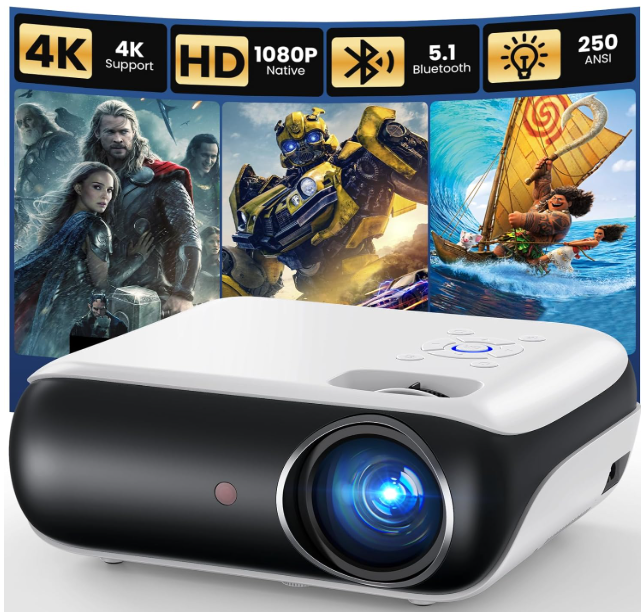
    HAPPRUN Gizmochina H1 200 Inch Theater ProjectorHAPPRUN-Gizmochina-H1-200-Inch-Theater-Projector-PRODUCT


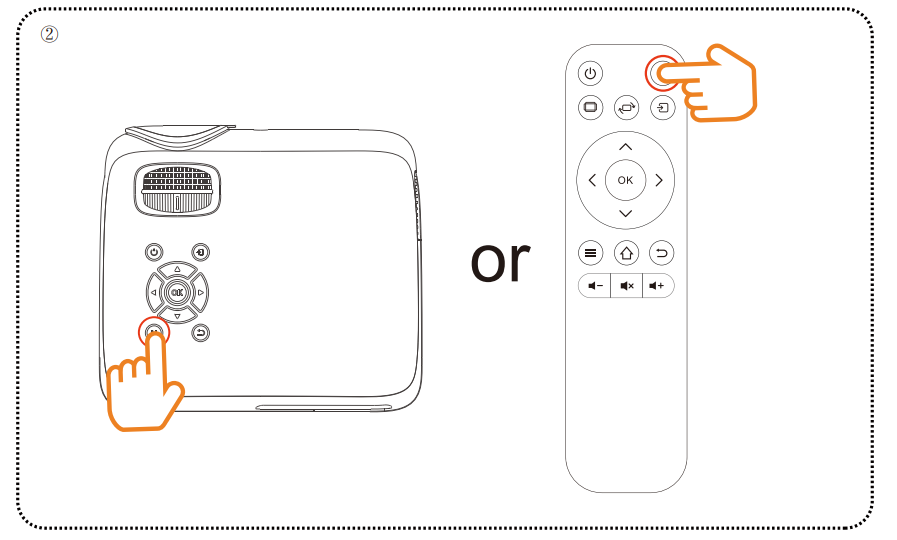
    Power On

    1. Connect the power cord to the projector and press the button
    2. Plug the cable into the outlet
    3. To power on the projector, press the button on the remote control or the button on the projector.
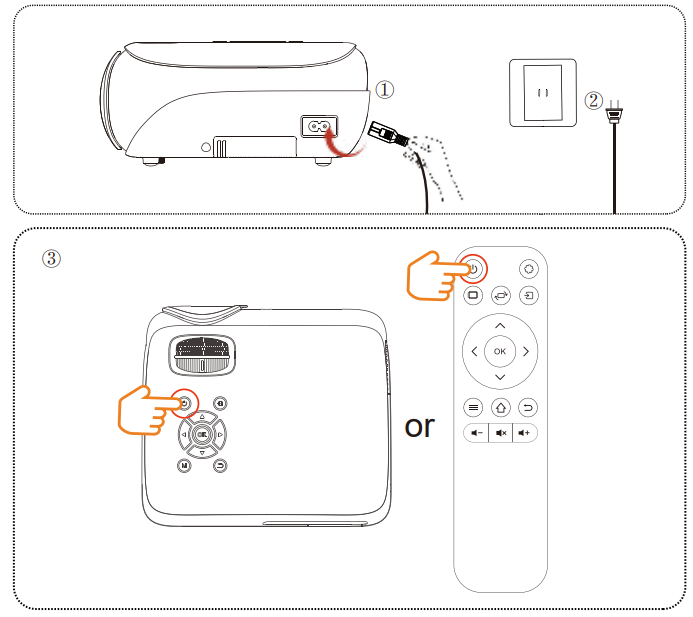
    HAPPRUN-Gizmochina-H1-200-Inch-Theater-Projector-FIG 1

    Adjusting the Picture Clarity

    1. Slowly adjust the two knobs to the left or right to the best picture quality.
    2. To adjust the keystone correction, simply rotate the dial to the left or right until the projected image is
    3. level and vertical.
    4. To achieve optimal image clarity, kindly rotate the focusing dial to the left or right.
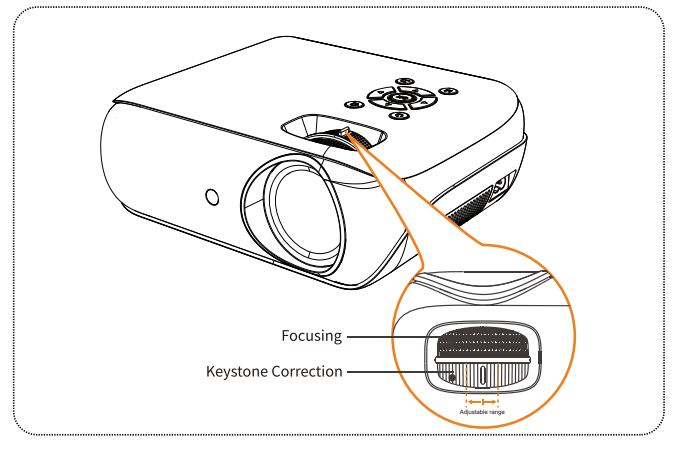
    HAPPRUN-Gizmochina-H1-200-Inch-Theater-Projector-FIG 2

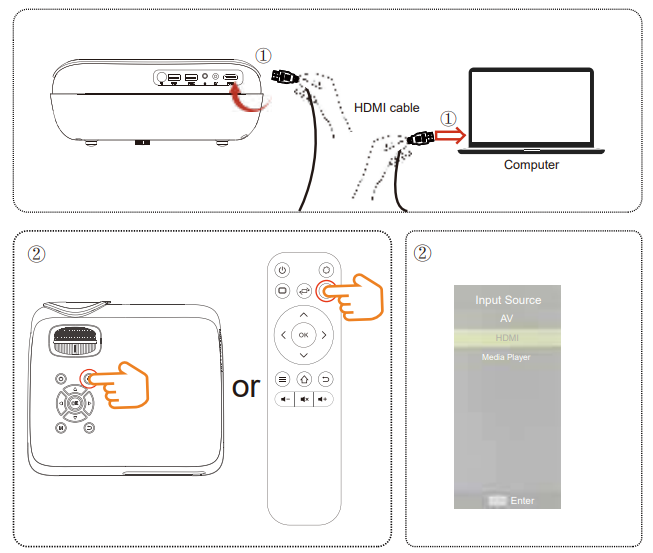
    Connecting to a Laptop/ Computer

    1. Connect your HDMI cable to the projector and the computer.
    2. Press the button and choose ‘HDMI’.

    HAPPRUN-Gizmochina-H1-200-Inch-Theater-Projector-FIG 3

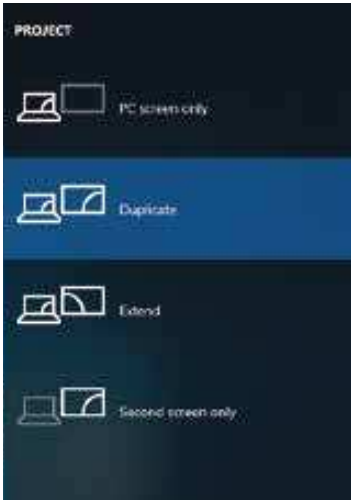
    Connecting to a Laptop/ Computer

    Use the appropriate shortcut key on the computer. As shown in the picture, select “Duplicate.”HAPPRUN-Gizmochina-H1-200-Inch-Theater-Projector-FIG 4 HAPPRUN-Gizmochina-H1-200-Inch-Theater-Projector-FIG 5
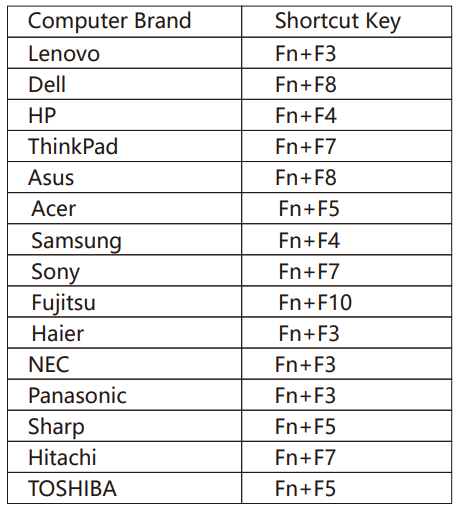
     

    The user of Windows 7 or over Windows 7. Simply press the +P, select “copy” to connect. If the operation above is invalid, please update the computer graphics driver.

    Using a USB Drive

    1. Plug the USB drive into any USB port.
    2. Select ‘Movies’, ‘Music’, and ‘Photos’ to play.
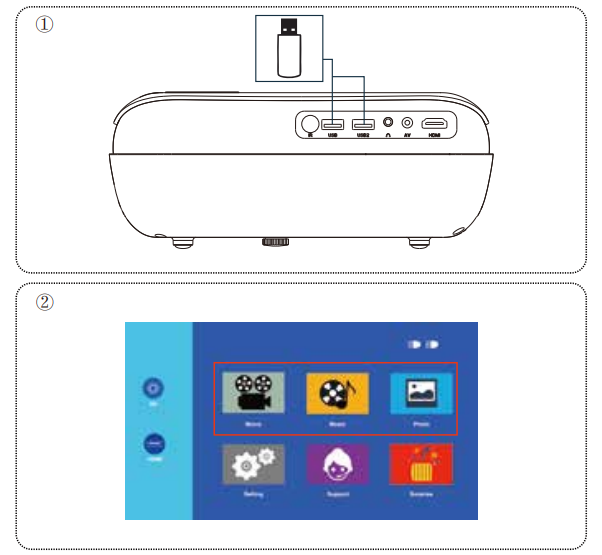
    HAPPRUN-Gizmochina-H1-200-Inch-Theater-Projector-FIG 6

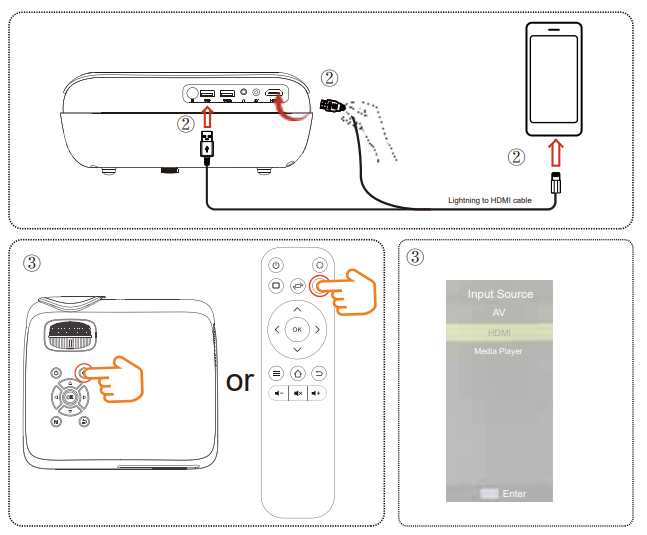
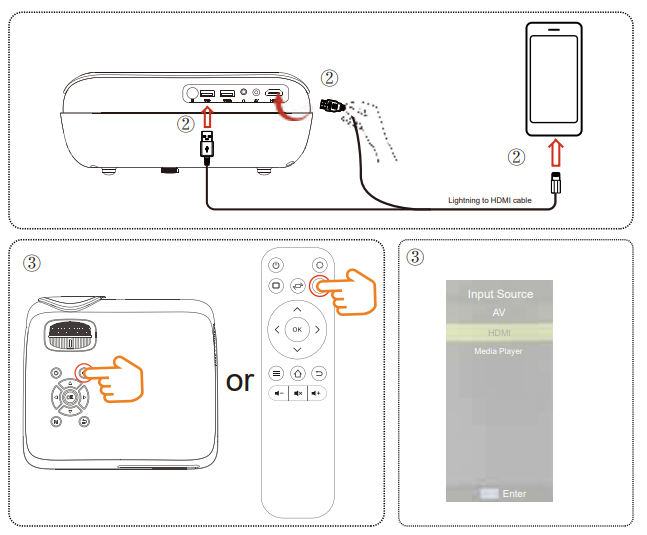
    Screen Mirroring with an iPhone (HDMI ADAPTER NOT INCLUDED)

    1. Use the HDMI Screen Adapter.
    2. Plug the ‘HDMI’ and ‘USB’inton the projector and plug the Lightning connector into the iPhone.
    3. Press the button and choose ‘HDMI’.HAPPRUN-Gizmochina-H1-200-Inch-Theater-Projector-FIG 7
    4. If the alert message is shown on your iPhone, click ‘Trust’ and enter your password.HAPPRUN-Gizmochina-H1-200-Inch-Theater-Projector-FIG 8
    5. Use the HDMI Screen Adapter.
    6. Plug the ‘HDMI’ and ‘USB’ into the projector and plug the ‘Type-C’ into the iPhone.
    7. Press the button and choose ‘HDMI’.
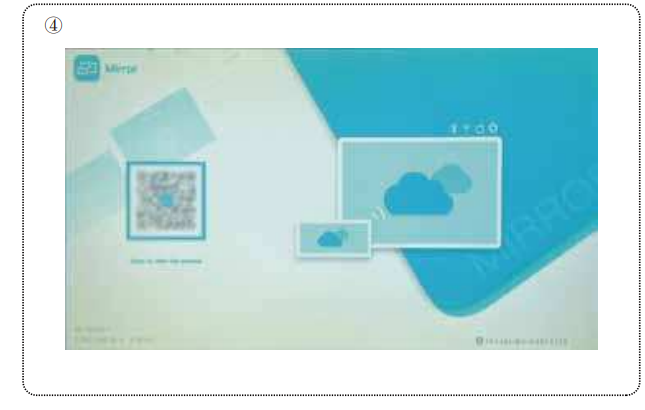
    8. Scan the QR code and download the APP.
    9. Install the APP and grant all permissions(Notice: ensure all permissions are allowed to avoid errors).
    10. Install the APP on your phone and grant all permissions.
    11. Open the downloaded APP, allow all permissions displayed on the APP
    HAPPRUN-Gizmochina-H1-200-Inch-Theater-Projector-FIG 10


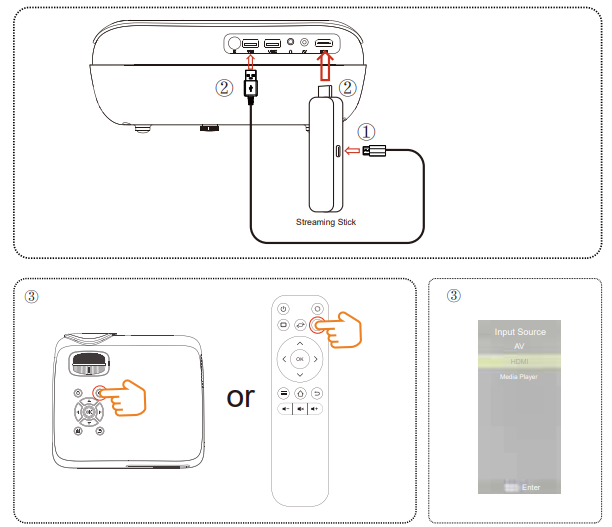
    Connecting to a Streaming Stick

    1. Plug the power cord into the TV stick.
    2. Plug the ‘USB’ and ‘HDMI’ from the TV stick into the projector.
    3. Press the button and choose ‘HDMI’.HAPPRUN-Gizmochina-H1-200-Inch-Theater-Projector-FIG 11

    Bluetooth Settings

    1. Pairing your Bluetooth stereo with this projector
    2.  Press / on your projector or remote.

    HAPPRUN-Gizmochina-H1-200-Inch-Theater-Projector-FIG 12

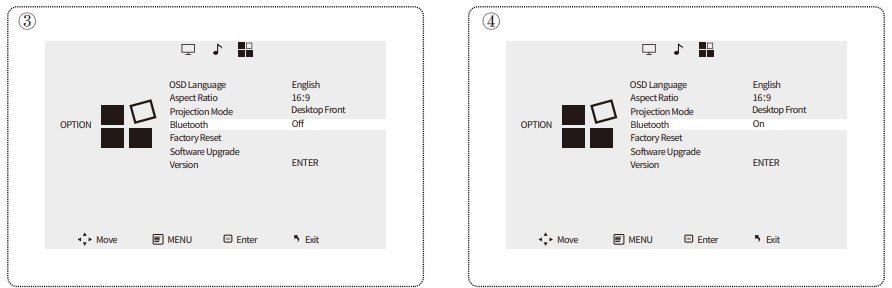
    Bluetooth Settings

    Use the “ ” or “ ” button on your projector or remote to select “Option”. Use the “ ” or “ ” to select “On”.HAPPRUN-Gizmochina-H1-200-Inch-Theater-Projector-FIG 13
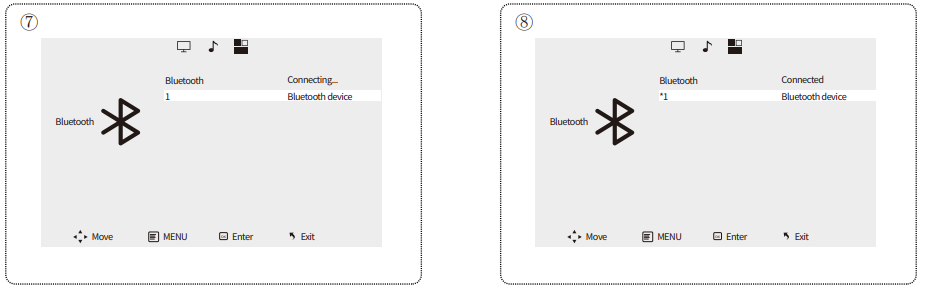
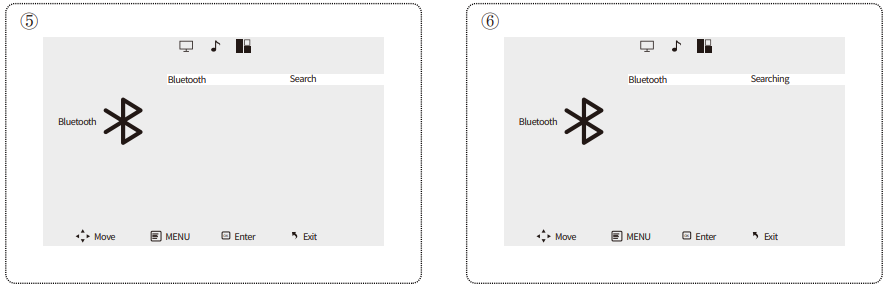
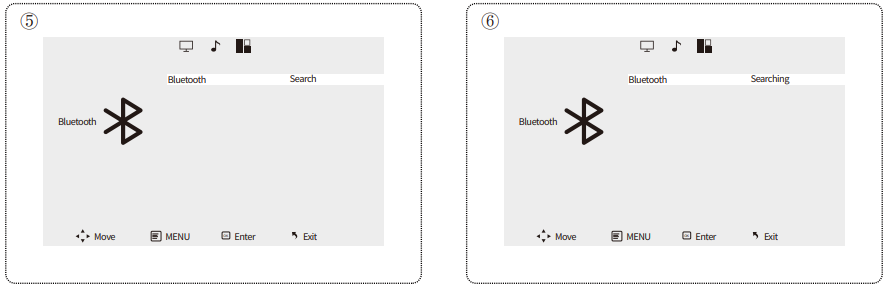
    Select “Bluetooth” and enter. Select “Search”.HAPPRUN-Gizmochina-H1-200-Inch-Theater-Projector-FIG 14Bluetooth Settings
    Choose the name of your device to pair.

    Bluetooth is connected.HAPPRUN-Gizmochina-H1-200-Inch-Theater-Projector-FIG 14 HAPPRUN-Gizmochina-H1-200-Inch-Theater-Projector-FIG 15
    If you need further assistance, please call us or send us emails. We will be pleased to answer any questions you may have. Thank you for choosing HAPPRUN projectors.

    • Call: US: 1-888-986-2646
    • JP: 81-345400908
    • * US: service@happrunlife.com
    Share. Facebook Twitter Pinterest LinkedIn Tumblr Email
    Gabriel Smith

    Related Posts

    Sony HDIH-1200 HD Projection Head Instruction Manual

    May 11, 2026

    Do Ceiling Fans Use a Lot of Electricity

    May 11, 2026

    How to Use Lexar Portable SSD

    May 8, 2026

    Which Retro Gaming Console Is Best

    May 8, 2026

    Case Android Phone User Manual

    May 7, 2026

    How To Use Phone Gaming Controller

    May 7, 2026
    View 1 Comment

    1 Comment

    1. книга бродский в ссылке купить on March 23, 2026 3:23 am

      Normally I do not read article on blogs,
      but I would like to say that this write-up very forced me to take a look at and do so!
      Your writing style has been surprised me. Thank
      you, quite nice article. http://seosecretservice.top

      Reply
    Leave A Reply Cancel Reply

    Don't Miss
    Other

    Sony HDIH-1200 HD Projection Head Instruction Manual

    May 11, 2026

    Sony HDIH-1200 HD Projection Head THIS APPARATUS MUST BE EARTHED IMPORTANT The wires in this…

    Do Ceiling Fans Use a Lot of Electricity

    May 11, 2026

    Which Retro Gaming Console Is Best

    May 8, 2026

    How to Use Lexar Portable SSD

    May 8, 2026
    Stay In Touch
    • Facebook
    • Twitter
    • Pinterest
    • Instagram
    • YouTube
    • Vimeo

    Subscribe to Updates

    Subscribe to Updates

    Follow us

    Facebook X-twitter Instagram Pinterest

    © 2025 All rights reserved Onyx Guide.