

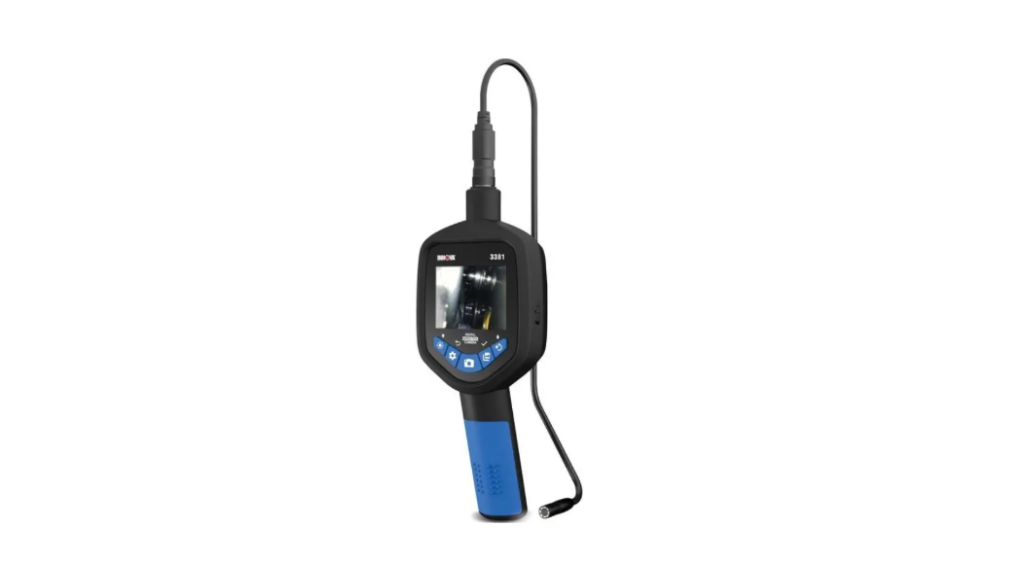

INNOVA 3381 Audio-Enhanced Inspection Camera
SafetyInstructions
Do not use the INNOVA® 3381 Audio-Enhanced Inspection Camera to inspect spaces or enclosures known or suspected to contain live electrical wiring.
- The inspection camera, including the camera end, is NOT insulated. Avoid probing areas where energized conductive elements may be present. Shut the power OFF to nearby work areas before starting work.
- DO NOT probe moving machinery that could catch the inspection camera and/or the camera end, and cause harm to the operator and the camera.
- NEVER completely immerse the camera in water or liquids. DO NOT use the inspection camera for underwater inspections.
- Avoid probing areas where chemicals may be present.
- NOT intended for use on people or animals.
- DO NOT use near sources of heat.
- Always keep a steady footing, following ladder safety procedures when necessary.
Additional Precautions
- DO NOT use the camera if the housing is damaged in any way.
- DO NOT open or attempt to repair. No user-serviceable parts inside.
- The camera body is NOT waterproof.
If working on a vehicle, take the following added safety precautions.
- When an engine is running, it produces carbon monoxide, a toxic and poisonous gas. To prevent serious injury or death from carbon monoxide poisoning, operate the vehicle ONLY in a well-ventilated area.
- To protect your eyes from propelled objects as well as hot or caustic liquids, always wear approved safety eye protection.
- When an engine is running, many parts (such as the coolant fan, pulleys, fan belt etc.) turn at high speed. To avoid serious injury, always be aware of moving parts. Keep a safe distance from these parts as well as other potentially moving objects.
- Engine parts become very hot when the engine is running. To prevent severe burns, avoid contact with hot engine parts.
- Connecting or disconnecting test equipment when the ignition is ON can damage test equipment and the vehicle’s electronic components. Turn the ignition OFF before performing any type of diagnostic routine on a vehicle.
ICONS
As you read this manual, color-coded icons are used throughout to identify safety alerts and warnings. These are provided to help prevent serious injury to you, injury to bystanders, and damage to property or equipment. They are characterized as follows:
- Yellow Icon – Provides a “NOTE:” statement to offer special information or tip on what is being instructed.
- Orange Icon – Potential hazardous situation. Provides a “WARNING:” statement on how to proceed to avoid serious injury to the user, bystanders, and/or equipment.
- Red Icon – Imminent hazardous situation. Provides an immediate “DANGER:” alert on what must be done to prevent serious injury or death to the user or bystanders
Introduction
The INNOVA® 3381 Audio-Enhanced Inspection Camera is essential for automotive, construction, and plumbing. recording feature to annotate inspections in real time, pairing visual discoveries with spoken insights. This dual-mode capture ensures detailed, comprehensive inspection reports that can be saved and shared.
Features
- 2.8” IPS screen with wide viewing angles, brightness adjustment, and rotation adjustment
- microSD Card Slot (4 GB microSD card included)
- Built-in Microphone and Speaker (located on the backside)
- One-press hotkeys:
- Preview image and video with voice playback
- image 180 flip
- Camera LED brightness adjustment
- Exchangeable IP67-rated 39” stainless steel camera cable
- Ergonomic handle with rubber grip
- 8 ultra-bright illustration LEDs
WHAT’S INCLUDED
- INNOVA® 3381 Audio-Enhanced Inspection Camera
- 39” exchangeable semi-rigid camera cable
- Magnet/hook/mirror attachment accessories
- Quick Start Guide

Controls
- Color Display – 2.8” LCD screen.
- Power Switch – powers the unit ON or OFF.
- 8* Brightness / Up Navigation Button – sets the camera’s LED brightness / allows scrolling up on menu selections
- Settings / Back Button – opens the settings menu/returns displayed functions to the main screen.
- Capture Button – allows capturing images and videos.
- EY Album / Confirm Button – allows viewing of stored images or videos and confirms selections.
- Image Flip / Down Navigation Button – allows flipping the image by 180° / allows scrolling down on menu selections.
- Cable & Lens – IP67-rated (water submersible) 39-inch flexible stainless steel cable with lens (featuring 8 ultra-bright LEDs) designed to fit in small spaces.
- Battery Compartment – Battery compartment holds 4 AA Alkaline batteries (batteries are not included).
- SD Card Slot – microSD Card Slot for storing images and videos (a 4 GB card is pre-installed). 1
- Speaker – an audio-enhanced speaker for listening during inspections or playback of video recordings.
- Microphone – an audio-enhanced microphone for verbal annotation during video recording.
Started
- Install Batteries: Before using the camera, please install four (4) AA Alkaline batteries (not included) in the camera’s rear battery compartment.
- Install a microSD card: Camera supports up to 128 GB microSD cards and only microSD cards at level 10 or higher. Cards must be in FAT32 format. Camera comes pre-installed with a 4 GB card.
- Power ON the Camera: Toggle the Power ON/OFF switch.
- Capture an Image: Short-press the a button.
- Record a Video with Audio: Long press (~3 sec.) the l button.
- Stop Recording: Short press the i button.
Setting
- Album – accesses stored images and videos
- Resolution – adjusts the image capture resolution (640×480 / 1280×720 / 1920×1080)
- Language Setting – sets your preferred language (English / French / Spanish) Screen
- Brightness – adjusts the screen’s backlight brightness
- Picture Zoom – magnifies images on the LCD screen
- Volume – turns the volume ON or OFF
- Time Setting – sets the current date and time
- Reset System – resets the unit to its original factory settings
- Version – displays the unit’s current firmware version
To access the settings menu
- Press the button.
- Use the Up or Down buttons to navigate between available functions.
- Press the button to make your selection.
- Follow the on-screen prompts.
- Press the button to return to the Main Screen.
The settings menu displays
Operation
VIEWING IMAGES OR VIDEOS 
- Press the button to access your image and video album.
- Open the album to select and preview the most recent image or video.
- Use the Up or Down buttons to highlight INNOVA 3381 Audio-Enhanced Inspection Camera and select the image or video you wish to view.
- Press the button to playback the video.
- Once done, press the button to return to the Main Screen.
DELETING IMAGES OR VIDEOS

- Press the button to access your INNOVA 3381 Audio-Enhanced Inspection Camera image and video album.
- Use the Up or Down buttons to highlight and select the image you wish to delete.
- Press the button to view the image menu.
- Select Delete to erase a single image, or press the Down button to select Delete All to erase all stored images.
- Press the button to confirm your selection
- A confirmation prompt displays
- Using the Up or Down buttons, select OK to delete it, or Cancel to return to the previous screen.
- Press the button to confirm your selection
- Once done, press the button to return to the Main Screen.
Resoulution
The camera offers 3 optional resolution settings: 640×480 / 1280×720 / 1920×1080.
- From the Main Menu, press the Up or Down buttons to select the Resolution menu.
- Press the button to confirm your selection
- Using the Up or Down buttons, select the desired resolution setting and press the button.
- Once done, press the button to return to the Main Screen.
Language
Set your preferred language: English, French, or Spanish.
- From the Main Menu, press the Up or Down buttons to select the Language menu.
- Press the button to confirm your INNOVA 3381 Audio-Enhanced Inspection Camera selection
- Using the Up or Down buttons, select the desired language setting and press the button.
- Once done, press the button to return to the Main Screen.
Screen Brightness
Follow these steps to set the screen’s backlight brightness.
1. From the Main Menu, press the Up or Down buttons to select the Screen Brightness menu.
2. Press the button to confirm your selection
3. Using the Up or Down buttons to adjust the preferred screen’s backlight brightness level.
4. Press the button to confirm your selection. you will be retured to the main screen
Zoom
Use this procedure to magnify the image on the LCD screen.
- From the Main Menu, press the INNOVA 3381 Audio-Enhanced Inspection Camera Up or Down buttons to select the Picture Zoom menu.
- Press the button to confirm your selection
- Use the Up or Down buttons to magnify images on the LCD screen.
- Press the button to confirm your selection.
Volume
Follow these procedures to set the unit’s volume level.
- From the Main Menu, press the Up or Down buttons to select the Volume menu.
- Press the button to confirm your INNOVA 3381 Audio-Enhanced Inspection Camera selection
- Press the Up or Down buttons to select Volume ON/OFF.
- Press the button to confirm your selection
- Once done, press the button to return to the Main Screen.
Time
Follow these procedures to set the unit’s current date and time.
- From the Main Menu, press the Up or Down buttons to select the Time Setting menu option.
- Using the Up or Down buttons, scroll to set the Year and press the button to switch to the Month column.
- Press the Up or Down buttons to set the Month and press the button to switch to the Day column.
- Press the Up or Down buttons to set the Day and press the button to switch to the Hour column.
- Press the Up or Down buttons to set the Hour and press the button to switch to the Minutes column.
- Press the Up or Down buttons to set the Minutes and press the button to switch to the Seconds column.
- Press the Up or Down buttons to set the Seconds and press the button to switch to the OK button.
- Press the Up or Down buttons to select OK or Cancel
- Once done, press the button to return to the Main Screen.
Reset
Use this procedure to reset the tool to its factory settings.
- From the Main Menu, press the Up or Down buttons to select the Reset System menu.
- Press the button to confirm your selection
- Using the Up or Down buttons to select either OK or Cancel to reset all functions to its factory default
settings. - Once done, press the button to return to the Main Screen.
Version
Use this procedure to view the tool’s version number.
- From the Main Menu, press the Up or Down buttons to select the Version menu.
- Press the button to confirm your selection
- The version number displays.
- Once done, press the button twice to return to the Main Screen.
Low Battery
When the battery level is low, a Low Power prompt will pop up to remind you to change the battery.
Specifications
| Description | Unit | Value |
| Voltage | V | 100-240 |
| Frequency | Hz | 50/60 |
| Input Power | W | 9.7/10.7/11.5 |
| Current | A | 0.14/0.15/0.16 |
| RPM (rated) | – | 1000/1550/1800 |
| RPM (max) | – | 2200 |
| Airflow (L/M/H) in supply/exhaust mode (with F7 filter)* | m3/h | 20/40/50 |
| Airflow (L/M/H) in regeneration mode (with F7 filter)* | m3/h | 10/20/25 |
| Airflow in supply/exhaust mode (with F7 filter)* | CFM | 11.8/23.5/29.4 |
| Airflow in regenerator mode (with F7 filter)* | CFM | 5.9/11.8/15 |
| Max airflow (under fan boost mode) | m3/h | 60 |
| Max airflow (under fan boost mode) | CFM | 35 |
| Sound Pressure Level | dB(A) | 32.7 |
| Heat Recovery Efficiency | % | up to 97 |
| Ingress Protection Rating | – | IPX4 |
| Air Duct Diameter | mm (in.) | 158 (6”-1/4) |
| SEC | – | Class A |
| Mounting Type | – | Wall Mounting |
| Net Weight | kg (lb) | 4.2 (9.25) |
Guarantee
Special importance in the durability of the products have the elements that compose it and that suffer from degradation and loss of capacities due to their use, being understood as normal wear that they lose capacity, especially in the case of rechargeable batteries, depending largely on infinity of external factors (hours of use, charge and discharge cycles, use of inappropriate chargers, temperatures of use, not respecting the recommended charging times, etc…)
For the guarantee of wear and tear parts, it must be taken into account that the loss of autonomy of the battery as a result of its aging does not imply a manufacturing defect, so it is considered considered normal that after 6 months have a loss of 10%, at 15 months 20% – 30% at 24 months 45%, all corresponding to proper use of the battery and the charge and discharge cycles carried out.
If, after 24 months from its purchas,e the battery presents symptoms different from those detailed, it will be understood to be exempt from guarantee for the reasons stated above and will be left out of the inspection process, becoming the customer who, if they so wish, must reliably demonstrate that the battery presented defects other than those detailed in this manual before those 24 months.
Customer service
-
- Working hours: Mon to Thu from 08:00 to 14:00 and from 15:30 to 17:30, and Fri. from 09:00 to 14:00
- Website: sac@innovacelular.com
- Tel: +92 304 4090409
FAQs
Q: What is the INNOVA 3381 Inspection Camera used for?
Ans: A handheld inspection camera with audio enhancement, the INNOVA 3381 is perfect for seeing and diagnosing difficult-to-reach places, including behind appliances, within walls, pipes, and car engines.
Q: What makes this model “audio-enhanced”?
Ans: You can record and listen to audio from the inspection site using the 3381’s integrated microphone and speaker system, which is ideal for detecting noises like leaks, electrical humming, or mechanical movement.
Q: What type of camera and display does it use?
Ans: For real-time viewing, even in dim or small areas, it has a bright LCD and a high-resolution colour camera with movable LED lighting.
Q: What is the diameter and length of the camera probe?
Ans: Although extensions might be available, the conventional probe has a flexible 3-foot (1-meter) wire and is normally 8.5mm in diameter.
Q: Can I record video and audio?
Ans: Indeed. With the INNOVA 3381, recording audio and video to a microSD card—which is often supplied separately—makes it simple to capture results for sharing or review.
Q: How is the device powered?
Ans: Rechargeable lithium-ion batteries power the device, which can function for several hours when fully charged. Usually, an AC converter or USB is used for charging.
Q: Is the camera probe waterproof?
Ans: Although the main body of the camera probe is not waterproof, it is water-resistant (typically IP67 rated), which makes it appropriate for inspections in greasy or wet conditions.
Q: Can I use it for automotive diagnostics?
Ans: Of course. In vehicle repair, the INNOVA 3381 is frequently used to examine undercarriages, behind dashboards, and inside engines, particularly in areas with poor sight.