

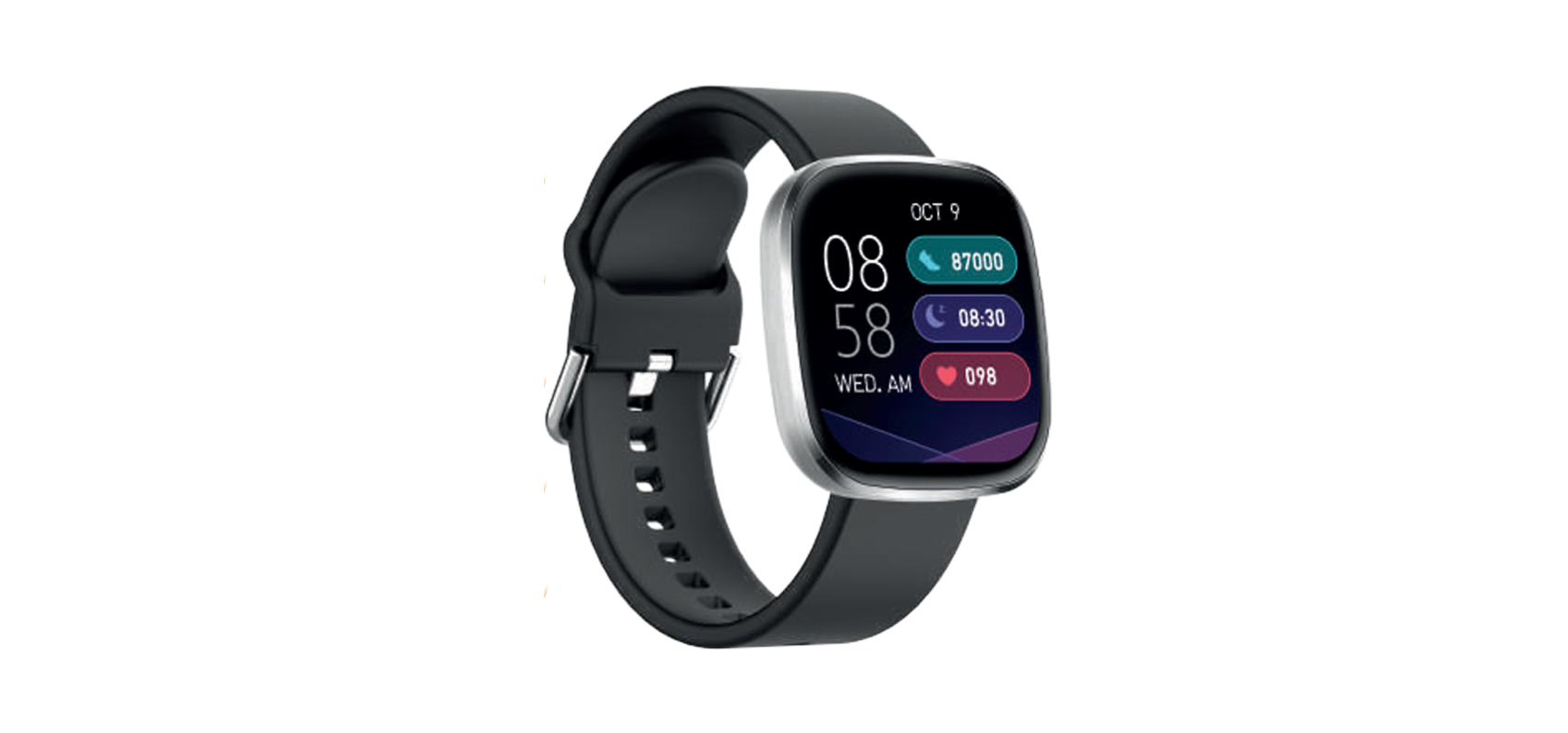

INNOVA SW/22 Fitness Meteor Smart Watch

Safety Instructions
The materials used for our INNOVA Smartwatches and Smartbands are selected following a rigorous control of hypoallergenic measures, as well as guaranteeing that all materials comply with current regulations for materials in contact with the skin.
A small number of people, however, may experience some type of skin reaction. If you suspect, or know, that you are allergic or have an above-average sensitive skin type, you should monitor the use of these devices for any type of reaction due to said allergies, environmental factors, or prolonged exposure to irritants, like soap, sweat, or other causes.
Smartwatches and Smartbands may contain materials such as nickel and acrylate, which, even though they are within the permitted amounts in the manufacturing process, may cause skin to react if you are sensitive to them.
If you use these devices for a prolonged period of time, you may be more susceptible to developing skin sensitivities. To avoid possible skin irritation, we recommend that you do not expose the device to chemicals or use it if your skin has, or has been recently applied with, any of the products listed below:
- Insect repellents
- Moisturizing creams and lotions
- Oils
- Perfumes
- Antiseptic gels
- Soaps
- Sun protection creams
If the strap is too tight, it may cause skin irritation. If the strap is too loose, chafing may occur. The watch strap should be left so that it can move slightly back and forth on the wrist. If you wear the device for prolonged periods of time, remove it to give your skin a rest. To avoid irritation, swap the device to your other wrist. If you notice redness, swelling, itch, irritation, or any other irritation, remove the Smartwatch immediately and consult your physician before using the device again
Pairing device to phone
Please do not pair your device directly to your phone’s Bluetooth. If you have already done this, please remove it from “paired devices” as it will prevent its connection to the application.
- Download the application “Glory Fit” from the Google Play Store / Apple Store or scan the following QR Code and install it.
- Android

- iOS

- APP / APK: Glory Fit

- Android
- On the first screen, you must enter your email and accept the consent conditions.
- Press “Get verification code,” and you will receive the code in your email.
- Enter the code received and click on “Login” to access the next screen.
- On the next screen, you will need to enter the gender, height, weight, age, and daily step goal data.

- Once you have accessed the home page, the application will tell you that to update and synchronize the information, you must slide the screen down. Before you can do any action, you must connect the device. You should select “Connect band” and then select “Select device”.


- Place the watch close to the phone so that it can be detected more easily. Once the device is detected, select your watch model in the application and then press “link”.
Bluetooth connection
- After pairing the device, the app will automatically save the bracelet’s Bluetooth address. When the app opens or runs in the background, it will automatically search and pair with the watch.
Data sync
- Go to the app home page and manually slide the drop-down menu to sync data. The watch can store data offline for 7 days. After syncing, the display will show “sync complete”.
See the upper right icon to know if your watch is connected or not (Red not connected)
- See the upper right icon to know if your watch is connected or not (White connected)

Operation Instruction
- Swipe right from the first screen Menu interface.
- Swipe down from the first screen Shortcut page display.
- Swipe down from the first screen Shortcut page display.
- Swipe left from the first screen, Activity data.
Introduction to Watch Functions
Sports Modes
- show several sports modes. The watch will synchronously display the corresponding data, such as heart rate, heat, and speed allocation omovementnt when the movement is started.
Sports Record 
- The sports ring tracks and records your steps, distance, and calories.
Sleep Statistics
- Enable sleep detection through the APP to automatically record sleep data, including total sleep time, deep sleep, and light sleep time. More detailed information, analysis, and data records can be viewed in the APP.
- Heart rate, blood pressoxygen through the watch. The heart rate, blood pressure, and blood oxygen value can be independently detected, and their data can be synchronized to the APP.
Weather Information
- The weather page displays current weather, air quality information, and minimum and maximum temperatures.
Push message
- The watch can accept notifications displayed on the mobile phone, open the corresponding social applications that need to be pushed through the APP, and the watch information page can store multiple message records.
Play Music
- The watch can control music, switch between the last and next song, play or pause music, and control volume.
Flashlight
- Click to enter, the entire interface will turn white.
Stopwatch
- You can time, start, or reset the stopwatch.
Timer
- The timer can set the time, start timing, or reset.
Look for the mobile phone
- Click on the icon to look for a mobile phone to call INNOVA SW/22 Fitness Meteor Smart Watch a mobile phone.
Settings
- Watch settings can be used to change the dial, adjust the brightness, view watch information, shut down, restart, and restore the factory settings.
Goal accomplished
- The target number of steps can be customized on the APP. If the total number of steps for the day exceeds the target number of steps, the watch will remind you.
Phone reminder
- After the device and the APP are connected, if a phone call, INNOVA SW/22 Fitness Meteor Smart Watch the watch will have a call reminder interface.
Sedentary reminder
- Enable the sedentary reminder through the mobile APP. You can set the reminder period, and the watch will remind you to get up and move on time.
Low battery
- When the watch has a low battery, the watch will show a low battery reminder.
Alarm reminder
- Through the APP, you can add and set the alarm time, synchronize the watch to display the alarm time, and turn the alarm on or off.
Features
- Step
- Distance
- Sleep monitoring
- Heart rate
- Blood pressure
- Blood oxygen
- Calories calculation
- Alerts (calls, sms, WhatsApp…)
- Reject calls Alarms
- Sedentary reminder
- Stopwatch
- Remote camera
- BT 5.0- Full-screen touch
- Battery capacity: 180 mAh
- Battery life: 12-15 days, depending on use- APP “Glory Fit”
- System requirements: iOS 9.0, Android 4.4 and above
- Splash resistant: (NO WATERPROOF)
- Bluetooth frequency band: 2.4 GHz
- Maximum emitted RF: power < 100 mW
Guarantee
The INNOVA SMART WATCH FITNESS ARES (SW/46 (SW/50)) has a 3-year warranty from the date of purchase. Special importance in the durability of the INNOVA Fitness Blizzard Smart Band Watch products have the elements that compose it and that suffer from degradation and loss of capacities due to their use, being understood as normal wear that they lose capacity, especially in the case of rechargeable batteries, depending largely on infinity of external factors (hours of use, charge and discharge cycles, use of inappropriate chargers, temperatures of use, not respecting the recommended charging times, etc…)
For the guarantee of wear and tear parts, it must be taken into account that the loss of autonomy of the battery as a result of its aging does not imply a manufacturing defect, so it is considered considered normal that after 6 months have a loss of 10%, at 15 months 20% – 30% at 24 months 45%, all corresponding to proper use of the battery and the charge and discharge cycles carried out.
Any battery that presents symptoms other than those listed in this manual will be inspected by the technical service and assessed for its effect on to guarantee. If, after 24 months from its purchas,e the battery presents symptoms different from those detailed, it will be understood to be exempt from guarantee for the reasons stated above and will be left out of the inspection process, becoming the customer who, if they so wish, must reliably demonstrate that the battery presented defects other than those detailed in this manual before those 24 months.
Declaration of conformity
Through this INNOVA CELLULAR, it declares that the INNOVA SMART WATCH FITNESS ARES (SW/46 (SW/50)) complies with the essential requirements and any other applicable or enforceable provisions of Directives 2014/53/UE (RED) and RoHS 2011/65/EU annex II amending Directive (EU) 2015/863.
To see the complete declaration of conformity, you can access it through the following link:
- https://www.innovacelular.com/descargas/declaracion/declaracion_sw-46.pdf
Customer service
- Working hours: Mon to Thu from 08:00 to 14:00 and from 15:30 to 17:30, and Fri. from 09:00 to 14:00
- Website: sac@innovacelular.com
- Tel: +92 304 4090409
FAQs
Q: What are the main features of the INNOVA SW/22 Fitness Meteor Smart Watch?
Ans: With features like heart rate monitoring, step counting, sleep tracking, multi-sport modes, notifications, and customisable watch faces, the SW/22 is a multipurpose fitness smartwatch that will keep you connected and active.
Q: Which smartphones are compatible with the SW/22?
Ans: The majority of iOS (iOS 10.0 or later) and Android (Android 6.0 or later) devices that support Bluetooth 4.0+ can be used with the watch.
Q: How accurate is the heart rate monitor?
Ans: The SW/22 is appropriate for monitoring overall fitness levels and continuously tracks heart rate using optical sensors. Movement, skin tone, and fit can all have an impact on accuracy.
Q: How do I charge the smartwatch?
Ans: A magnetic USB charging wire that fastens to the back of the watch is used to charge the SW/22. Depending on usage, a full charge typically takes 1.5 to 2 hours and lasts 5 to 7 days.
Q: How do I track different workouts?
Ans: Choose from alternatives like walking, cycling, running, or other supported activities by navigating to the sports mode menu or by swiping.
Q: Can the SW/22 receive smartphone notifications?
Ans: Yes, call, SMS, email, and app notifications are supported. Through the companion app, you may choose which notifications you want to receive.
Q: How do I reset the watch if it freezes or becomes unresponsive?
Ans: To force a restart, hold down the power button for roughly ten seconds. Use the settings menu or the instructions in the companion app to perform a factory reset.