

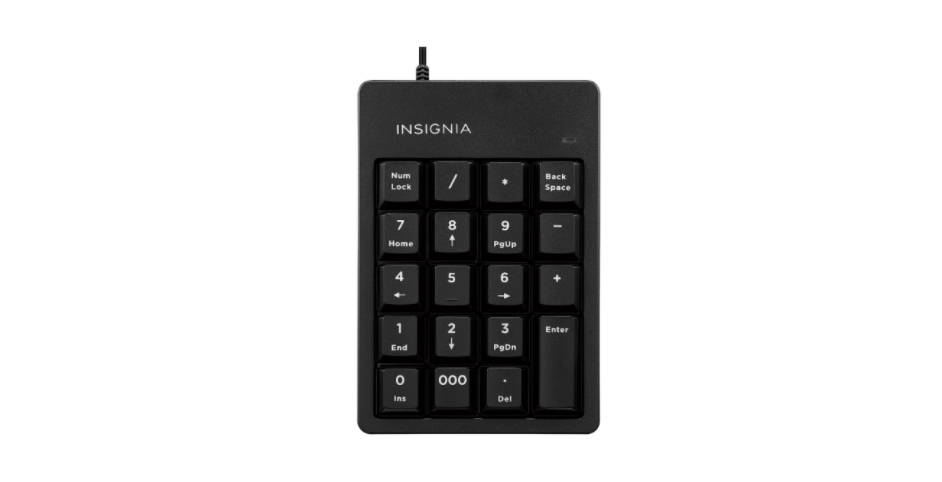

Insignia NS-PNK6A01-C USB Numeric Keypad
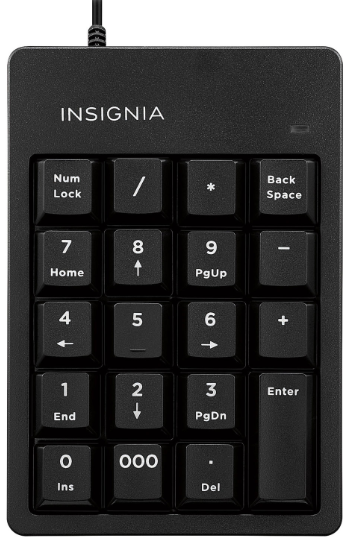
Package Contents
- Ten-Key Numeric Keypad with USB cable
- Quick Setup Guide
System Requirements
- Windows® 8.1, Windows® 8, Windows® 7, Windows Vista®, or Mac OS 10.X or higher
- One available USB port
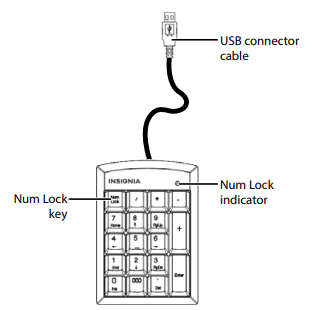
Keypad Features
Setting
 Plug the keypad into an available USB port on your computer. Windows automatically finds and installs the appropriate driver, and you can immediately begin using your keypad.
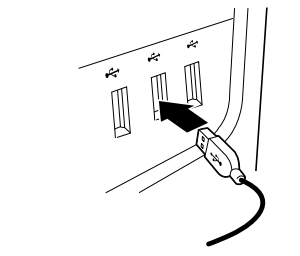 Plug the keypad into an available USB port on your computer. Windows automatically finds and installs the appropriate driver, and you can immediately begin using your keypad.
Notes
- When you install your keypad on a Mac, you must select the ANSI format when prompted by the operating system. The keypad will not work if you select any other format.
- Number lock is not supported on Macs. When the keypad is installed on a Mac, pressing the number keys always inputs numbers and not the navigation functions.
Cleaning
- Wipe the keypad with a damp, lint-free cloth.
Specifications
- Dimension (L×W×H): 5.12 × 3.58 × 0.83 in. (13 × 9.1 × 2.1 cm)
- Weight: 4.05 ± 0.18 oz. (115 ± 5 g)
- Cable length: 39.37 in. (1 m)
Troubleshooting
My keypad is not working.
- Make sure that your computer meets the system requirements.
- Make sure that your USB cable Insignia NS-PNK6A01-C USB Numeric Keypad is securely attached to the USB port on your computer.
- Try connecting your keypad to a different USB port on your computer.
- Make sure that the number lock is on (the Num Lock Indicator should be lit), or pressing the keys activates the navigation functions of the keyboard instead of numbers (except on a Mac).
Legal Notices
FCC Statement: This device complies with Part 15 of the FCC Rules. Operation is subject to the following two conditions:
- This device may not cause harmful interference, and
- This device must accept any interference received, including interference that may cause undesired operation.
This equipment generates, us, and can radiate radio frequency energy and, if not installed and usbyith the instructions, may cause harmful interference to radio communications. However, there is no guarantee that interference will not occur in a particular installation.
- Reorient or relocate the receiving antenna.
- Increase the separation between the equipment and receiver.
- Connect the equipment to an outlet on a circuit different from that to which the receiver is connected.
- Consult a dealer or an experienced radio or TV technician for assistance.
One-Year Warranty
Definitions
The Distributor* of Insignia-branded products warrants to you, the original purchaser of this new Insignia-branded product (“Product”), that the Product shall be free of defects in the original manufacturer of the material or workmanship for one (1) year from the date of your purchase of the Product (“Warranty Period”).
How to obtain warranty service?
If you purchased the Product at a Best Buy retail store location or from a Best Buy online website, please take your original receipt and the Product to any Best Buy store. Make sure that you place the Product in its original packaging or packaging that provides the same amount of protection as the original packaging. To obtain warranty service, in the United States and Canada, call 1-877-467-4289. Call agents may diagnose and correct the issue over the phone.
Where is the warranty valid?
This warranty is valid only in the United States and Canada at Best Buy branded retail stores or websites to the original purchaser of the product in the country where the original purchase was made.
Customer Service
- Tel: 1-877-467-4289
- Visit: http://www.insigniaproducts.com
INSIGNIA is a trademark of Best Buy and its affiliated companies. Registered in some countries. Distributed by Best Buy Purchasing, LLC 7601 Penn Ave South, Richfield, MN 55423 U.S.A.
©2021 Best Buy. All rights reserved.
FAQs
Q: How do I connect the numeric keypad to my computer?
Connect the keypad’s USB connector to a USB port on your computer. Since the keypad is plug-and-play, no extra drivers should be required for it to be recognised.
Q: Is the keypad compatible with both Windows and Mac?
Indeed. Both macOS and Windows 7/8/10/11 are compatible with the NS-PNK6A01-C. It could be necessary for certain Mac users to manually activate the Num Lock feature in system options.
Q: How do I enable or disable Num Lock?
On the keypad, press the Num Lock key. When Num Lock is engaged, a little LED indicator on the keypad will illuminate; when it is not engaged, it will turn off.
Q: Can I use the keypad on a laptop without a numeric keypad?
Indeed. For users who regularly enter numbers or for laptops without a dedicated numeric keypad, this keypad is perfect.
Q: Does the keypad require batteries?
No, no external power source or batteries are required because the NS-PNK6A01-C gets its power straight from the USB connection.
Q: Can I use the keypad with spreadsheet software like Excel?
Of course. The keypad integrates easily with any program that needs numeric input, including accounting software, Google Sheets, Excel, and others.
Q: Can the keypad be used with a USB hub?
Yes, however, to guarantee steady power and data transfer and optimal performance, connect the keypad straight to your computer’s USB connection.
Q: Are all keys compatible with Mac?
While the majority of keys are functional, Mac systems may exhibit slightly different Num Lock behaviour. For complete functioning, you might need to utilise third-party key mapping software or modify keyboard settings.
