



JABLOTRON JA-116E-AN Bus Touchscreen Keypad
Introduction
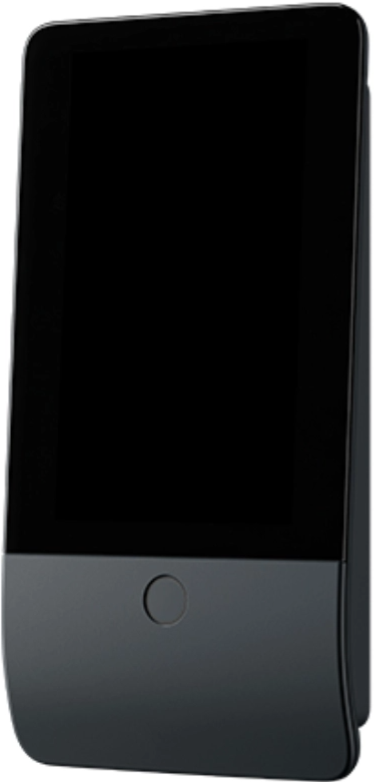
The keypad is a component of the JABLOTRON system and is designed to be operated by touch. The keypad must be installed by a trained technician with a valid Jablotron certificate issued by an authorised distributor. This product is compatible with JA-103K and JA-107K control panels.
Installation
- In the mounting pad, break out the blank of the appropriate slot, pull the BUS cable through, and then screw the mounting pad of the keypad to the designated place, preferably on a solid base (wall).
- Select the installation height of the keypad with respect to the height of the users. The ideal height for good readability and control is at eye level.
- Connect the individual wires of the BUS cable to the BUS terminal (10) as follows:
- Use a flat screwdriver to press the upper side of the terminal.
- Put a stripped wire into the appropriate terminal.
- Release the terminal.
- First, attach the bottom edge of the keypad to the mounting pad (align the bottom sides) and slide it downwards until you hear the click of the tab (9). This will secure the keypad against falling out of the mounting pad.
- Then turn the locking mechanism (8) clockwise 90° to the position where the groove points to the symbol. This locks the keypad in place and engages the tamper contact.
- Power the system on.
- Enroll the keypad on the system according to the type of control panel, use the recommended software or application, and see the installation manual of the control panel.

Keypad disassembly
On the underside of the keypad, turn the locking mechanism (8) counterclockwise 90° until the groove points to the symbol. Insert the flat screwdriver into the tab hole (9) (push the screwdriver towards the wall) while sliding the keypad upwards. The keypad can then be easily removed from the mounting pad.
Authorisation – can be done by entering a valid access code on the virtual keypad or by applying the access card/chip. Authorisation will terminate itself after 15 seconds from the last detected touch on the screen, or immediately by pressing the button (2), or it can be terminated by the logout icon in the upper left corner. The individual keypad screens and menus, and the system control options are based on the user access rights configured in the control panel.
Setting the properties
- The settings are configured by the F-Link software – Devices tab. Use the Internal settings option on the device position. A dialogue window will appear in which all the keypad functions can be configured. See also the F-Link help bubble for details on the settings. Factory parameter settings are marked with
- Assigned sections = Selection of system sections (all are selected from the actory), which are acoustically and optically indicated by the keypad and are always displayed in the keypad menu on the section tab (regardless of the authorised user’s permissions).
- Assigned PGs = Selection of PG outputs from the system (no PG outputs are selected from the factory), which are acoustically signalled by the keypad and are always displayed on the PG tab (regardless of the authorised user’s permissions).
Optical indication
- Automatic backlight regulation – Day: Automatically adjusts the light intensity of the display and the system indicator (2) under the display according to the ambient light in day mode.
- Backlight intensity Day – Allows manual adjustment of system indicator (2) light intensity and display backlight in four steps when day mode is active: minimal, low, medium, *high.
- Automatic backlight regulation – Night: Automatically adjusts the light intensity of the display and the system indicator (2) under the display according to the ambient light in night mode.
- Backlight intensity Night – Allows manual adjustment of system indicator (2) light intensity and display backlight in four steps when night mode is active: *minimal, low, medium, high.
System Indicator
- Keypad disabled (bypass) – system indicator off (keypad disabled in F-Link SW – red dot); lasts for the duration of keypad disablement.
- Full arming/unauthorised user/entry delay – green flashing at 2 Hz for the duration of the full arming if there is no authorised user.
- Loss of communication – permanently lit yellow for the duration of the loss.
- Indicates activation and deactivation of the keypad’s own tamper contact – short red flash; 1x flash during activation and deactivation of tamper contact in Service or Maintenance mode.
- Pending information* – quick yellow flash with a pause, only indicates if there is no authorised user, and for the duration of the pending information.
- Pending information in power saving mode* – fast yellow flashing with long pause – only during power failure.
- Service mode – fast yellow flashing, while Service mode is open.
- Maintenance mode – fast green flashing, while Maintenance mode is open.
- Alarm ongoing / pre-alarm – rapid red flashing; for the duration of the alarm.
- Unsuccessful setting – rapid yellow flashing, for the duration of the unsuccessful setting.
- Entry delay – slow green flashing; for the duration of the entry delay time.
- System fault – permanently lit yellow; out of power saving mode for the duration of the fault.
- Authorised user – permanently lit green; for the duration of the valid authorisation
- Everything is OK without an authorisation request – it does not light up until a status change.
Acoustic Indication
- Day volume = Adjusts the volume of the acoustic indication when the day mode is active. Adjustable in four steps: off, low, medium, *high.
- Night volume = Adjusts the volume of the acoustic indication when the night mode is active. Adjustable in four steps: off, *low, medium, high. Alarm and Unsuccessful setting indication = Adjusts the volume of the acoustic indication of alarm and unsuccessful setting regardless of other acoustic indications exit/entry delay, …).
- Always full = The keypad will indicate an alarm and unsuccessful setting acoustically at full volume, regardless of the keypad volume setting and day/night mode.
- According to the intensity setting = The keypad will acoustically indicate an alarm and unsuccessful setting at the same volume as other acoustic indications.
- Entry delay indication – *Enable/disable acoustic indication during entry delay.
- Section status change – *Enable/disable acoustic indication when section status changes.
- PG status change – *Enable/disable acoustic indication when the PG status changes.
- Pressing indication – *Enable/disable acoustic indication when pressing the touchscreen.
Individual System
- Confirmation of action – short higher tone 1.2 kHz.
- Action denied – short lower tone 400 Hz.
- RFID card/tag detection – 1x short beep 2 kHz.
- Valid authorisation- 1x short higher tone beep 3.2 kHz.
- Invalid authorisation – 1x short lower tone 400 Hz.
- Card ccode/cardcode confirmation request – 2.2 kHz.
- Alarm – long drawn tone 3 kHz during the alarm.
- Entry delay – uninterrupted 1.25 kHz tone during the entry delay.
- Unsuccessful setting – repeated 1.25 kHz short tone until the unsuccessful setting indication is cancelled.
- Exit delay – beeps at 1.25 kHz during the exit delay.
- Change section status – 1x beep with 2 kHz tone.
- PG output status change – 1x short beep with 2 kHz tone.
Thermometer Setting
- Temperature 1 and 2 – The measured temperature from the selected devices will be displayed on the Temperature tab and on the lock screen.
- Temperature 3 to 8 – The measured temperature from the selected devices will be displayed on the Temperature tab.
Special Options
- Lock screen – Sets the period of time that the display will show the lock screen (Includes time, date, temperature) before the display is completely turned off.
- Optional intervals: Off, 1 min, 2 min, *5 min, 15 min, 30 min, 1 hr, Persistent
- Display Temperature – displays the temperature on the keypad lock screen.
- Display clock – displays the hour and date on the keypad lock screen.
- Background wallpaper – select the image displayed on the keypad lock screen in the following modes:
- Disabled – the lock screen background is black.
- 24 h mode – the background wallpaper changes every day at midnight
- Display permanently – permanent display JABLOTRON JA-116E-AN Bus Touchscreen Keypad of one of 7 background wallpapers. If you select this option, the following parameter will appear within the wallpaper selection.
- Card reader – The setting allows you to permanently disable the card reader.
- Service contact – Used to fill in the contact details of the service company.
- Installation company – Allows entry of the name of the installation company, which will be visible to all users in the keypad menu.
- Phone number – Allows entry of the name of the installation company, which will be visible to all users in the keypad menu.
Firmware Update
- Start the F-Link software and open the existing database of the system.
- Enter the service mode and (if updating via USB-C) remove the keypad from the mounting pad.
- If updating via USB-C, then connect the keypad to a PC.
- Select Control Panel → Firmware Update from the toolbar.
- In the device menu table, select the required device; if Automatic Update is disabled, select the FW package file (included in the F-Link software JABLOTRON JA-116E-AN Bus Touchscreen Keypad or can be published for download separately, file type *.fwp).
- Press OK to update the selected device.
- After the update is complete, check the keypad settings with F-Link, Devices / Internal settings. Depending on the changes made during the update, the previous keypad settings may be retained or reset to factory defaults.
Technical specifications
- Type of control device type B
- Power from control panel bus 12 V DC (8–15 V)
- Current power consumption for backup is chosen to be 40 mA
- Nominal current consumption (display OFF) 85 mA
- Maximal current consumption (for cable selection) 250 mA
- RFID frequency 125 kHz
- Maximum RFID magnetic field strength -5.4 dBμA/m (measured at 10 m)
- Dimensions 95 x 183 x 30 mm
- Weight 248 g
- Classification Security grade 2/Environmental class II (According to EN 50131-1)
- Environment indoor general
- Operating temperature range -10 °C to +40 °C
- Average operational humidity 75% RH, w/o condensation
- Certification body Trezor Test s.r.o. (nr. 3025)
- In compliance with ETSI EN 300 330, EN 50130-4, EN 55032, EN IEC 62368-1, EN IEC 63000, EN 50131-1, EN 50131-3
- Can be operated according to ERC REC 70-03
- Recommended screw 4 x ø 3.5 x 40 mm (half-round head
Customer Service
- Tel.: +420 483 559 999
- Fax: +420 483 559 993
- Website: www.jablotron.com
- Address: Pod Skalkou 4567/33 46601 Jablonec nad Nisou, Czech Republic
Hereby, Jablotron Ltd. declares that this TP-98 complies with the essential requirements and other relevant provisions of Directive 1999/5/EC.
FAQs
What is the primary purpose of the JA-116E-AN keypad?
Your Jablotron security system may be easily controlled and configured using the JA-116E-AN, a touchscreen keypad that runs on a bus.
Is this keypad compatible with all Jablotron control panels?
It works with Jablotron systems, usually the JA-100 series and later, that support bus keypads. Before installing, make sure your system is compatible.
Where should I install the JA-116E-AN keypad?
Mount the keypad on a level surface for easy access and place it in a handy spot close to central control areas or entrance points.
Do I need a professional to install this keypad?
It is advised to have a competent expert install and configure the keypad to guarantee correct connection and performance, even if installation can be simple.
How do I operate the touchscreen keypad?
To arm or disarm the system, check status, or modify settings, just tap on the menus and icons that are shown on the screen.
Does the keypad support multiple languages?
Indeed, it supports a number of languages, which the user can choose from during setup.
Is the keypad backlit for use in the dark?
Indeed, the touchscreen has backlighting, which makes it simple to use in dim lighting.