



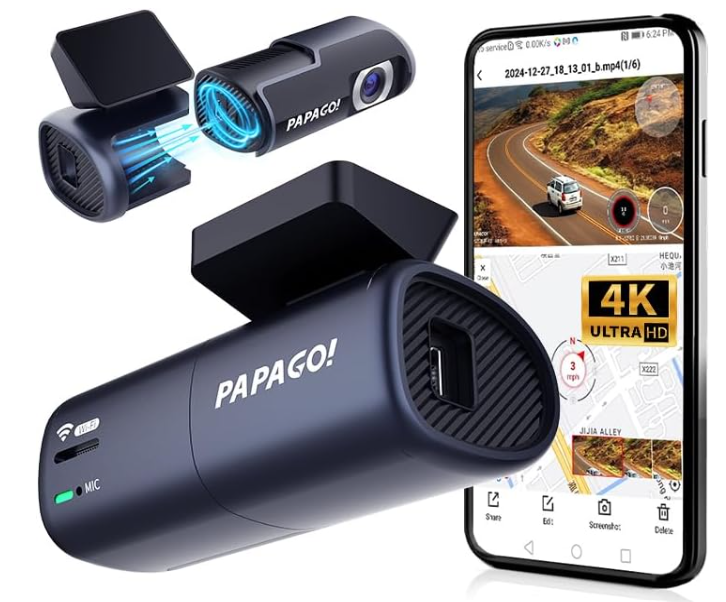
Papago N268 Mini Front 4K Dash Cam
Safety Instructions
Always use the Papago N268 Mini Front 4K Dash Cam carefully and follow these safety rules to keep it working well and avoid any damage.
- Do not debug the dash cam or watch the captured video through your mobile phone while driving.
- Pay attention to driving safety.
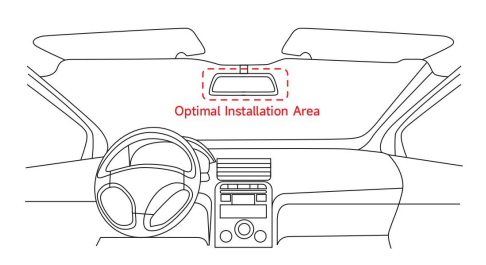
- Do not install the dash cam at a position that may block the driver’s line of sight.
- The dash cam supports a maximum of 128GB TF card. Be sure to select a Class 10 high-speed card.
- Do not plug in or unplug the TF card when the device is in use. Please format it through the APP first before use; otherwise, it cannot be recognized. It is recommended to format the dash cam regularly through the APP to ensure better maintenance of this product.
- There is an explosion hazard if the battery is replaced improperly. Only replace it with the same type or an equivalent type of battery. The battery (button battery or lithium battery) must not be exposed to environments such as sunlight or similar overheating.
- Do not damage, puncture the battery, or throw the battery into the fire; otherwise, the battery may explode or burst and release toxic chemicals.
- Do not open the case of the dash cam or repair it by yourself. If this product malfunctions, please contact the official customer service for relevant consultations.
Pre-Installation Preparation
Before using the Papago N268 Mini Front 4K Dash Cam, make sure you have the “PAPAGO Focus” APP installed on your mobile device for full functionality. The S800 dash cam uploads photos and videos during driving to the “PAPAGO Focus” APP through the built-in Wi-Fi. You can watch, download, and share the images captured during driving through the “PAPAGO Focus” APP, and adjust the relevant configurations of the dash cam. If you are also interested in another Papago model, check out the Papago 2800 Dedicated Front Dash Cam Instruction Guide for detailed setup and features. Scan the QR code below or directly search for the “PAPAGO Focus” APP in the Apple APP Store/Google Play.
Product Structure and Key Instructions
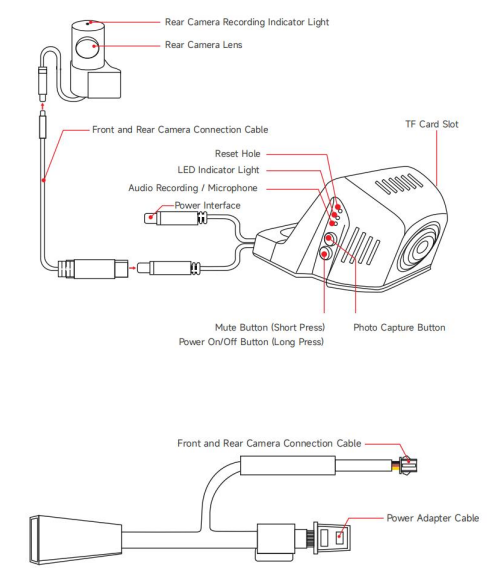
The rear recording lens is only available for purchasing dual-lens dash cams. The above product schematic is for reference only. The outer casings of different
Installation Steps
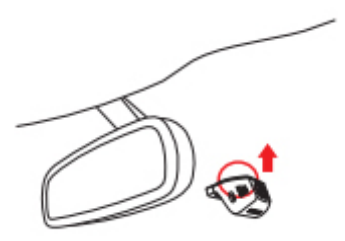
- Stick the bracket on the windshield in front of the rearview mirror with 3M adhesive (pay attention to the direction and position. Once firmly stuck, it is very difficult to remove)

- Take out the Y-shaped cable from the packaging box. Connect the power input interface of the dash cam to the vehicle output interface. (As different vehicle models have different power interface locations, for the location of the vehicle power output interface, please refer to the details page of our Amazon listing. If you have any questions, please contact us
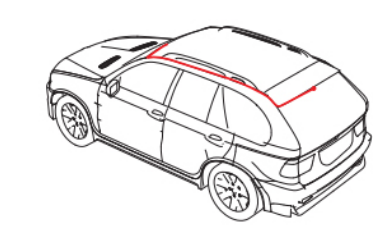
- Use the front and rear dash cam connection cable to connect the front and rear dash cams. The installation position and power cable routing method of the rear dash cam are as shown in the schematic diagram:
- After the car starts, the dash cam automatically turns on and emits a startup prompt tone, indicating that it has entered a normal working state.
Connect the Dash Cam with the APP
Open the downloaded “PAPAGO Focus” APP on your mobile phone. Click the “Add dash cam” button on the home page. For iPhone: In the settings interface, enter “Wireless LAN”. Connect to the dash cam’s Wi-Fi with the following Wi-Fi name and password, and then return to the APP to complete the connection. For Android phone: In the Wi-Fi list, connect to the dash cam’s Wi-Fi with the following Wi-Fi name and password, and then return to the APP to complete the connection. Wi-Fi name: PPG S800<****> Wi-Fi password: 12345678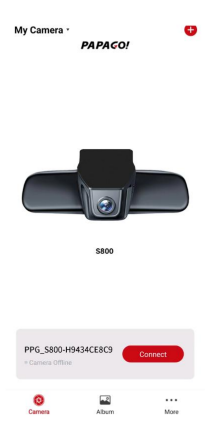
Video Preview, Playback, and Download
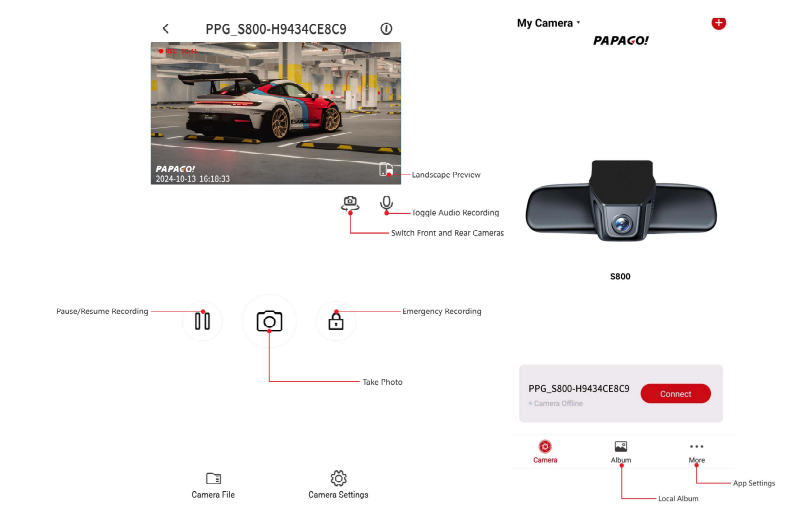
Real-time display preview: After the APP is successfully connected to the dash cam, enter the real-time display preview page. Click the horizontal-screen button or place the phone horizontally, and the real-time display will automatically switch to full-screen preview mode. Click the front and rear recording switching button to switch the real-time displays of front and rear recordings.
Video playback: Click the “Camera File” icon to enter the dash cam video list. You can select videos for playback from the list. There may be a slight lag in online playback. It is recommended to download the videos first for a smoother playback.
Video download: In the dash cam video list, you can click the “Select” button in the upper right corner to select multiple videos for download. You can also download one by one on the video playback screen. After the download is completed, the videos are saved to the local album and can be further shared, edited, or deleted.
Take Photos
The S800 dash cam has three photo-taking modes:
- Click the icon (Take Photo) on the preview interface of the mobile phone APP to take a photo.
- Voice-activated photo-taking. Say “I want to take a photo” to the camera, and you can take a photo during the video recording process.
- Press the photo-taking button on the side of the dash cam body
Voice Control Commands
- Take photo
- Turn on audio
- Turn off audio
- Turn on WiFi(Turn on hotspot)
- Turn off WiFi(Turn off hotspot)
- Lock the video
When using it, just shout commands at the dash cam to achieve it.
Edit Photos and Videos
Enter the (Album) page on the APP. You can edit or crop video, picture, and emergency video files that have been downloaded to your mobile phone.
Browsing Files on PC
Press and remove the memory card from the dash cam. Insert the TF card into the computer using a card reader to browse the photo or video files saved by the dash cam.
Dash Cam Settings(APP)
Open the APP and connect to your Papago N268 Mini Front 4K Dash Cam. Click on ‘Camera Settings’ to adjust settings for the dash cam, like audio recording, video resolution, and collision sensing. Audio Recording: Turn on the microphone recording. Sound can be recorded simultaneously when recording videos. If it is turned off, the video will be muted. Shouting “Turn on audio” or “Turn off audio” to the dash cam can also achieve the same control effect.
Speaker Volume: Control the volume of voice announcements and startup sounds.Video Resolution: Set the resolution of the video. Light Source Frequency: Set the anti-flicker light source frequency. If you feel that the light source is flickering, you can adjust this setting to improve the situation. Video Watermark: Select the watermark format in the lower left corner of the video. “Off” means there is no watermark.
“Time” means only the recording time is displayed. “Time and Logo” means the recording time and the “PAPAGO” brand LOGO are displayed. Rear Mirror: Mirror the real-time picture of the rear recording lens. Only dual-recording dash cams have this setting. Rear Flip: Flip the real-time picture of the rear recording lens up and down. Only dual-recording dash cams have this setting.
Collision Sensing: When the dash cam is in working state, it will automatically lock the video when sensing a collision according to the sensitivity setting. Parking Video Mode: For models that do not support wireless connection, the dash cam needs to use the power cable to draw power from the fuse box to use this function. For details, please refer to the introduction on the Amazon listing page.
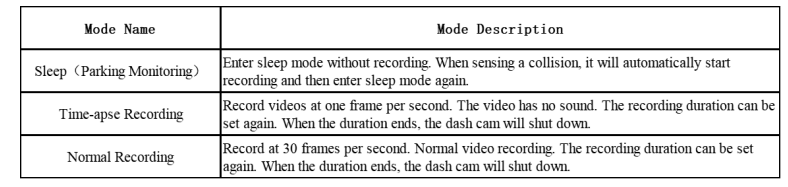
APP Upgrade
Please scan the QR code in the instruction manual to download the official version of the formal APP. Or directly search for “PAPAGO Focus” on the Apple Store/Google Play to download the latest version of the APP. After downloading, you can also directly update to the latest version through the official version upgrade of the APP Store and Google Play.
FCC Statements
This device complies with Part 15 of the FCC Rules. Operation is subject to the following two conditions:(1) This device may not cause harmful interference, and (2) this device must accept any interference received, including interference that may cause undesired operation.
This equipment generates, uses, and can radiate radio frequency energy and, if not installed and used in accordance with the instructions, may cause harmful interference to radio communications. However, there is no guarantee that interference will not occur in a particular installation.
- Reorient or relocate the receiving antenna.
- Increase the separation between the equipment and receiver.
- Consult the dealer or an experienced radio/TV technician for help.
Customer Service
- Email Support: papago.store@hotmail.com
- Phone Support: +02-2659-3008
FAQs
Q: What is the primary purpose of the Papago N268 dash cam?
A small 4K front-facing dash cam, the Papago N268 is made to capture high-definition footage while driving. For safety, insurance claims, or accident evidence, it records events that occur while driving.
Q: What resolution does the dash cam record in?
The N268 produces clear, detailed video by recording in 4K Ultra HD resolution. In order to conserve storage space, it also supports lower resolutions.
Q: How do I power the dash cam?
The accompanying car charger, which is plugged into your car’s 12V socket (cigarette lighter), may power the dash cam. For a cleaner setup, some solutions let you hardwire straight to the car battery.
Q: Does it have loop recording?
Indeed. Loop recording is supported by the N268, which ensures continuous recording without manual deletion by automatically erasing the oldest footage when the memory card is full.
Q: What type of memory card is compatible?
A microSD card (usually up to 128GB, Class 10 or higher suggested) is used with the dash cam. To guarantee compatibility, always format the card in the dash cam before using it for the first time.
Q: Can I use the dash cam at night?
Indeed. Although visibility may still depend on external lighting, the N268 includes built-in low-light enhancement to capture clear footage in low light.
Q: Does the dash cam have GPS functionality?
GPS logging is a feature of some N268 models that allows you to track the location and speed of your car. To be sure, look up the specifications for your model.
2 Comments
Pingback: Papago N291S 2K Driving Recorder Camera | Setup & Features
Pingback: Papago M620 4K GPS-WIFI Dash Camera | User Manual & Setup