



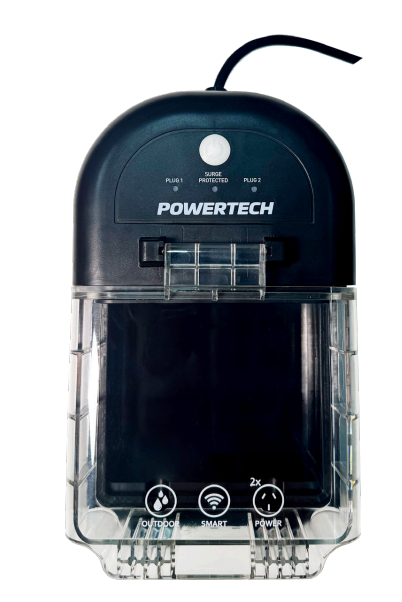
Safety Instructions
The POWERTEC POSP20W Outdoor Smart Outlets must be handled carefully to ensure safe operation. Follow these safety instructions to protect both the device and your connected equipment.
- Read all instructions carefully before use.
- Keep these instructions for future use.
- Do not use an extension cord to connect the Outdoor Plug to the wall socket outlet.
- Only use the Power Cord attached to the unit.
- Do not immerse in liquid or allow liquid to run into the interior of the unit, as this could create an electrical shock hazard.
- Do not use this appliance on a wet surface, or where it can fall or be pushed into water.
- Do not operate with the cord coiled up.
- Do not exceed the total maximum load.
- Do not dispose of in fire or water, incinerate, or cause a short circuit.
- This product has no user-serviceable parts. Do not dismantle.
- Refer all servicing to qualified personnel only.
- The plugs of your connected devices are protected when the lid is closed; the Outdoor Smart Outlet’s own plug must be connected to a weatherproof power outlet or otherwise kept safe from the elements.
Overview
Configuring the Outdoor Plug (Smart Control)
Setting up the POWERTEC POSP20W Outdoor Smart Outlets is simple using the TuyaSmart or SmartLife app. Follow the steps below to connect and control your outdoor devices efficiently:
- Either scan one of the QR codes below with your phone/tablet camera, or search for ‘TuyaSmart’ or ‘SmartLife’ on your smartphone/ tablet’s app store and install one of these two apps.
- The apps are very similar; either will work.
- Open the newly installed app and create a new account (or log in with an existing account).
- On the app page, tap ‘+’ to add a device. Tap ‘Electrical’ and choose ‘Power Strip (Wi-Fi)’.
- Plug in your Smart Outdoor Plug to a mains outlet.
- The Indicator Light on the Power Button will blink fast.
- This means that the device is ready to begin pairing.
- Follow the prompts on the app to pair the Outdoor Plug to your account.
- When prompted, select your Wi-Fi network and enter your password.
- Note that the connection is only possible via a 2.4GHz Wi-Fi connection.
- Once the Smart Outdoor Plug has connected to your home Wi-Fi, setup is complete.
- Once complete, you can control the Sockets via the app whenever you have a data connection.
For added convenience, you can also pair other POWERTEC smart devices like the POWERTEC PT-1241 Wireless Charging Phone Holder to your smart home setup for seamless device management.
Operation
- Plug in your Outdoor Plug to a suitable Mains Socket.
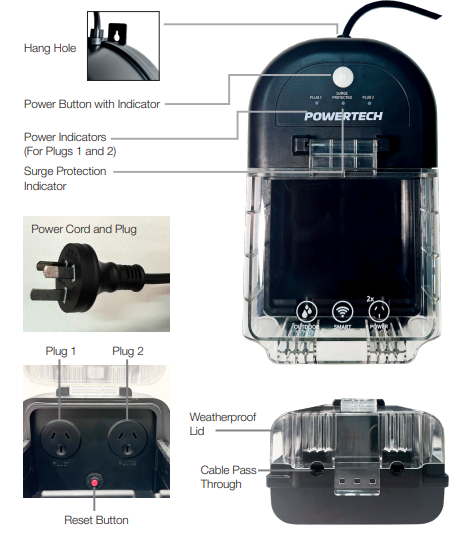
- The red Surge Protection Indicator and the green Power Button Indicator turn on.
- Connect devices as required to Plugs 1 and 2 as required.
- Run the cables through the Cable Pass Through and close the Lid securely.
- Hang the unit on a suitable screw.
- Press the Power Button to turn on Plugs 1 and 2.
- Use the app on your smartphone or tablet to control the Plugs individually.
- After use, press the Power Button to turn off the Plugs.
- Unplug the Outdoor Plug from the Mains Socket to disconnect it from power completely
Technical Specifications
- Input: 240V~ 50Hz
- Mains Outlet: Max 10A, 2400W
- IP Rating: IP54
Troubleshooting
| Problem | Possible Cause/Solution |
| Wi-Fi is not connecting | Only 2.4GHz Wi-Fi is supported. 5GHz Wi-Fi is not supported. Ensure there is an adequate WiFi signal at the intended location |
| I am not getting notifications on my smartphone. | Make sure you have turned on notifications for the installed app in your smartphone settings. |
Warranty
The POWERTEC POSP20W Outdoor Smart Outlets come with a warranty to ensure your unit functions as intended. If your product becomes defective during this period, Electus Distribution will repair, replace, or refund it if the product is faulty or not fit for its intended purpose. This warranty will not cover a modified product, misuse or abuse of the product contrary to user instructions or packaging label, change of mind, or normal wear and tear.
To claim warranty, please contact the place of purchase. You will need to show a receipt or other proof of purchase. The benefits to the customer given by this warranty are in addition to other rights and remedies of the Australian Consumer Law in relation to the goods or services to which this warranty relates.
This warranty is provided by
- Electus Distribution
- Address 46 Eastern Creek Drive, Eastern Creek NSW 2766
- Ph. 1300 738 555
Customer Service
- Distributed by: Electus Distribution Pty Ltd 46 Eastern Creek Dr, Eastern Creek NSW 2766 Australia
- Ph: 1300 738 555
- Website: www.electusdistribution.com.au
FAQs
Q: What is the POWERTEC POSP20W?
With the POSP20W, an outdoor smart outlet with Wi-Fi, you can use a smartphone app to remotely operate outdoor electrical equipment.
Q: Is the POSP20W weatherproof?
Indeed. The gadget is splash-resistant thanks to its IP44 grade.
Q: Can I control multiple outlets from one app?
Indeed. You can add several POSP20W units to the app and manage them separately or in groups.
Q: Can I schedule devices to turn on/off automatically?
Indeed. Timers, timetables, and countdowns for automated operation are supported by the POSP20W. Weekday and weekend schedules can be customised differently.
Q: Can the outlet be controlled via voice assistants?
Indeed. You may use voice commands to operate the POSP20W because it is compatible with Google Assistant and Amazon Alexa.
Q: Can the outlet handle high-power devices?
No, you should only connect devices that are within the designated maximum wattage. Going beyond the limit could cause damage to the outlet or increase the risk of a fire.
1 Comment
Pingback: POWERTEC PT-1241 Wireless Charging Phone Holder User Guide