

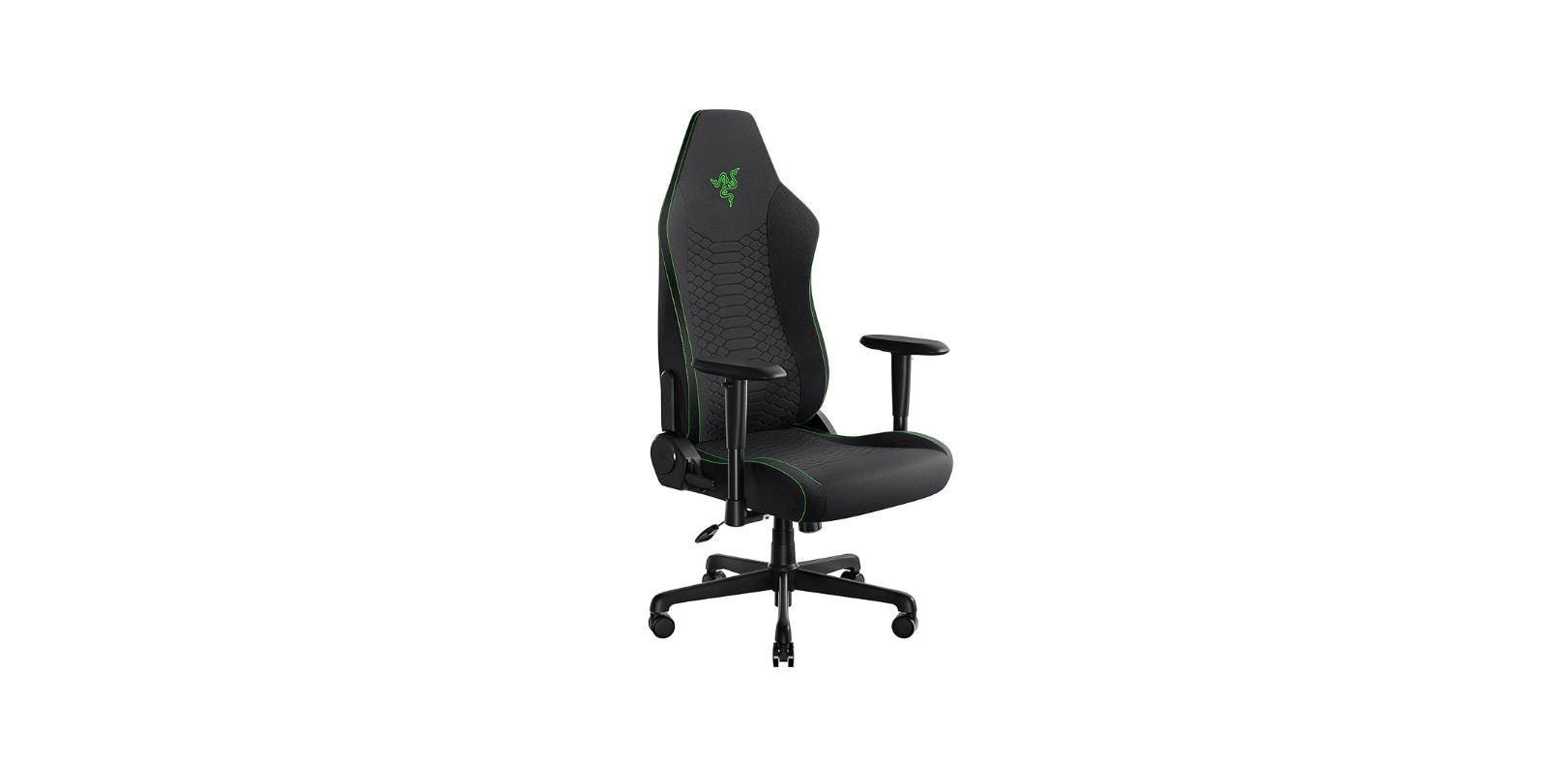

RAZER ISKUR X Ergonomic Gaming Chair
 Safety Instructions
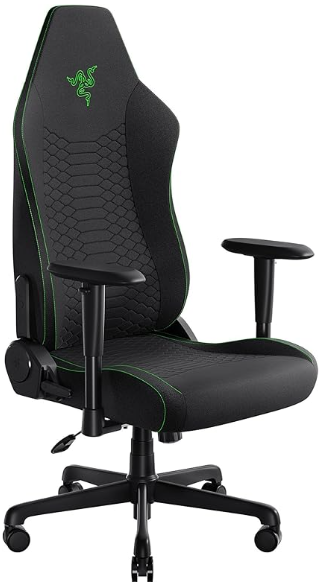
- To avoid damaging your chair or causing injury to yourself or others, maneuver the product carefully.
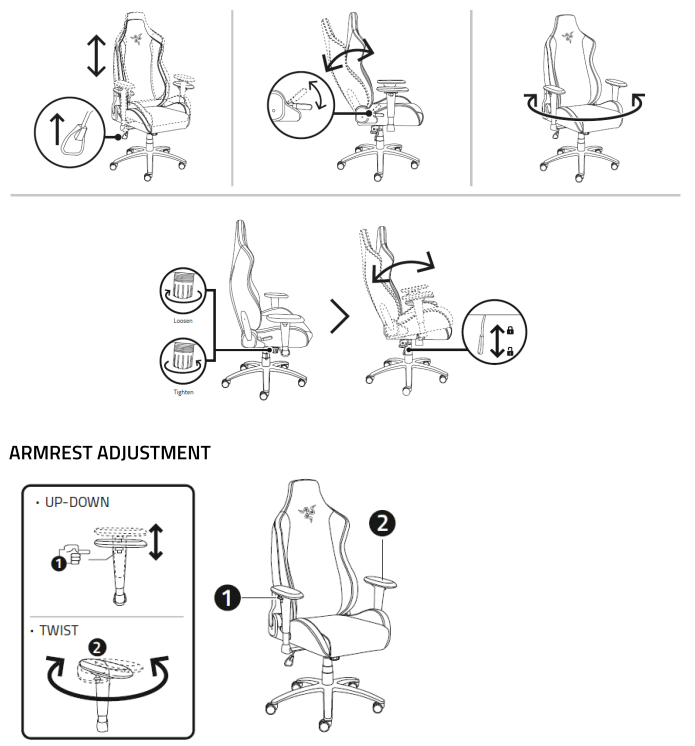
- Be mindful of your hand or finger placement when adjusting the sliders and levers.
- To prevent the chair from tipping over, keep the center of gravity on the seat with your back on the lumbar support.
- Do not sit on the front edge of the chair, stand on it, push down the backrest while the chair is reclined, or place your entire weight on the backrest.
- To prevent color from fading, upholstery from drying, and plastic parts from cracking, avoid exposure to high heat, such as a radiator or a fireplace, and keep out of direct sunlight.
- To avoid breaking your chair, do not place heavy objects on the armrests, and do not exceed the chair’s weight limit of 300 lbs. (136kg) (e.g., having more than one person sit on the chair)
- To prevent damage to the upholstery, keep your chair away from sharp objects or pets with claws and teeth.
- To avoid accidents, do not use this chair unless all bolts, screws, and knobs are firmly secured.
- Check all bolts, screws, and knobs at least every 90 days, and make sure they are properly tightened.
- To prevent damaging your floor, only use the hard-tread casters on carpeted areas.
- Soft tread casters should instead be purchased and installed on your chair if you have hard surface flooring or a chair mat.
Overview
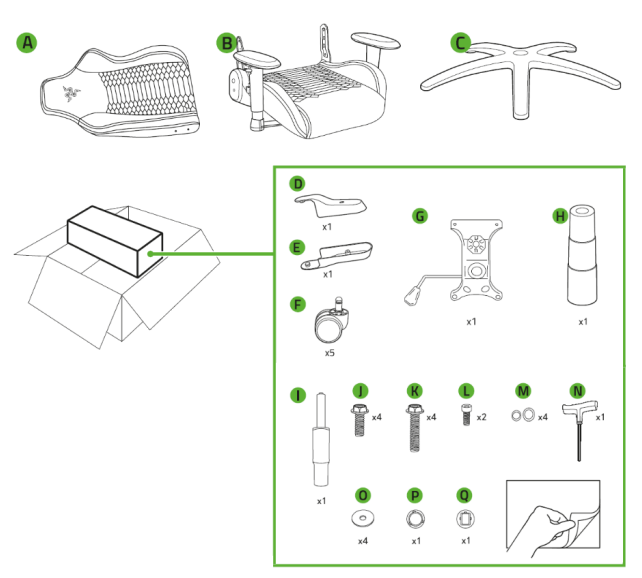
Assembly
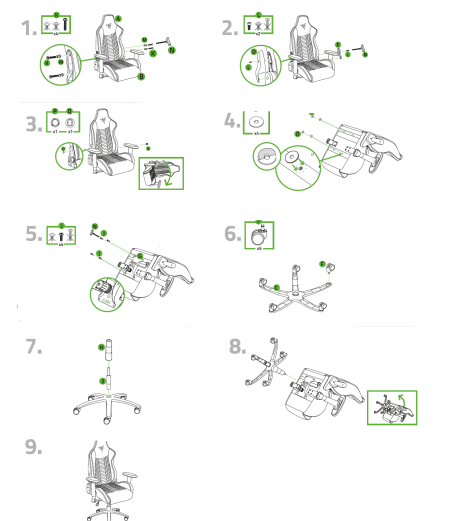
Usage
Maintainance
The Razer Iskur X requires minimal maintenance to keep it in optimum condition. Constant exposure to friction, skin, and bodily fluids can degrade the materials over time. We recommend that you clean the chair once a month using a soft or microfiber cloth with a bit of warm water to prevent perspiration and dirt buildup. Immediately clean up spills to avoid stains and completely air dry before using the chair again. Do not use soap, harsh cleaning agents, or abrasives to avoid damaging the chair.
Warranty
You’ve got a great device in your hands, complete with a 3-year limited warranty coverage.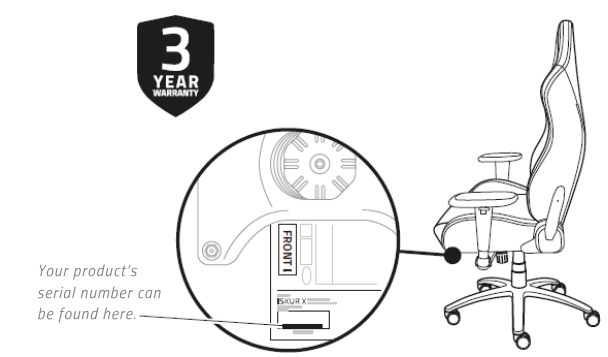
©2019 Razer Inc. All rights reserved. Razer, the triple-headed snake logo, Razer logo, “For Gamers. By Gamers.”, and “Powered by Razer Chroma” logo are trademarks or registered trademarks of Razer Inc. and/or affiliated companies in the United States or other countries.
All other trademarks and trade names are the property of their respective owners, and other company and product names mentioned herein may be trademarks of their respective companies.
Razer Inc. (“Razer”) may have copyright, trademarks, trade secrets, patents, patent applications, or other intellectual property rights (whether registered RAZER ISKUR X Ergonomic Gaming Chair or unregistered) concerning the product in this guide. Furnishing of this guide does not give you a license to any such copyright, trademark, patent, or other intellectual property right.
The Razer Kraken X USB (the “Product”) may differ from pictures, whether on packaging or otherwise. Razer assumes no responsibility for such differences or for any errors that may appear. Information contained herein is subject to change without notice.
Limited Product Warranty
- For the latest and current terms of the Limited Product Warranty, please visit razer.com/warrant.,
Limitation of Liability
Razer shall in no event be liable for any lost profits, loss of information or data, special, incidental, indirect, punitive or consequential or incidental damages, arising in any way out of distribution of, sale of, resale of, use of, or inability to use the Product. In no event shall Razer’s liability exceed the retail purchase price of the Product.
General
These terms shall be governed by and construed under the laws of the jurisdiction in which the Product was purchased. If any term herein is held to be invalid or unenforceable, then such term (in so far as it is invalid or unenforceable) shall be given no effect and deemed to be excluded without invalidating any of the remaining terms. Razer reserves the right to amend any term at any time without notice
Customer Support
- Website: razerid.razer.com
- For Help: support.razer.com
- Ph: 1-855-872-5233
FAQs
Which devices are compatible with the Razer Kraken X wired gaming headset?
PCs, Macs, Xbox One, PlayStation 4 and 5, Xbox Series X/S (with a 3.5mm connection), Nintendo Switch, and mobile devices with a 3.5mm audio socket may all use the Kraken X wired headset.
How do I connect the Kraken X wired headset to my device?
Just insert the 3.5mm audio jack into your computer, mobile device, or game console’s headphone port.
Does the Kraken X wired headset support surround sound?
However, when utilising their audio settings, certain PCs or consoles could offer software-based surround sound.
How do I control volume and mute the microphone on the headset?
The cable has an inbuilt volume wheel that can be used to change the volume. Simply flick the adjustable boom mic up or down to mute or unmute the microphone.
Is the microphone detachable?
No, the microphone is not detachable, but it is flexible and adaptable.
What type of microphone does the Kraken X wired headset have?
It has a cardioid microphone that cuts background noise and concentrates on your voice for crystal-clear communication.
How comfortable is the Kraken X for long gaming sessions?
With cooling gel-infused memory foam ear cushions and a lightweight design (weighing about 250g), the headset offers prolonged comfort during extended gaming sessions.
How do I clean the headset?
Clean the ear cushions and headset with a gentle, dry cloth. Steer clear of strong chemicals and liquids. To keep ear cushions hygienic, clean them on a regular basis.