

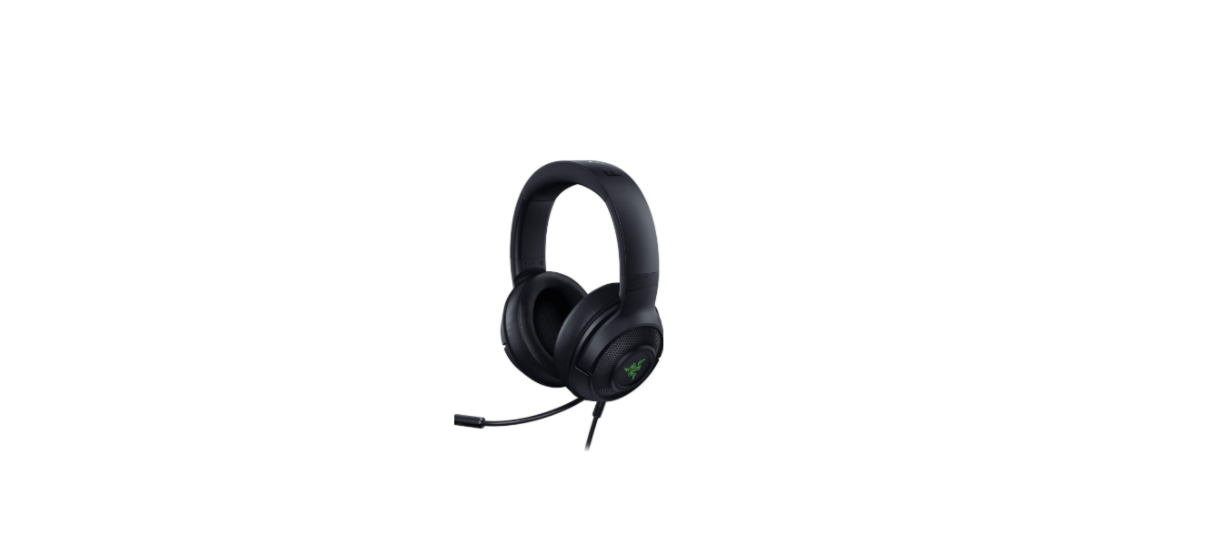

RAZER KRAKEN X USB Gaming Headset
Safety Instructions
- To achieve maximum safety while using your Razer Kraken X USB, we suggest that you adopt the following guidelines:
- Do not take apart the device (doing so will void your warranty), and do not attempt to operate it under abnormal current loads.
- Keep the device away from liquid, humidity, or moisture.
- Operate the device only within the specific temperature range of 0°C (32° F) to 40°C (104 ° F).
- Should the temperature exceed this range, unplug and/or switch off the device in order to let the temperature stabilize to an optimal level.
- The device isolates external ambient sounds even at low volumes, resulting in lowered awareness of your external surroundings.
- Please remove the device when engaging in any activity that requires active awareness of your surroundings.
- Listening to excessively loud music over an extended period of time can damage your hearing.
- Furthermore, legislation of certain countries permits only a maximum sound level of 86dB for 8 hours a day.
- We therefore recommend that you reduce the volume to a comfortable level when listening for prolonged periods of time. Please, take good care of your hearing.
Description
RAZER KRAKEN X USB
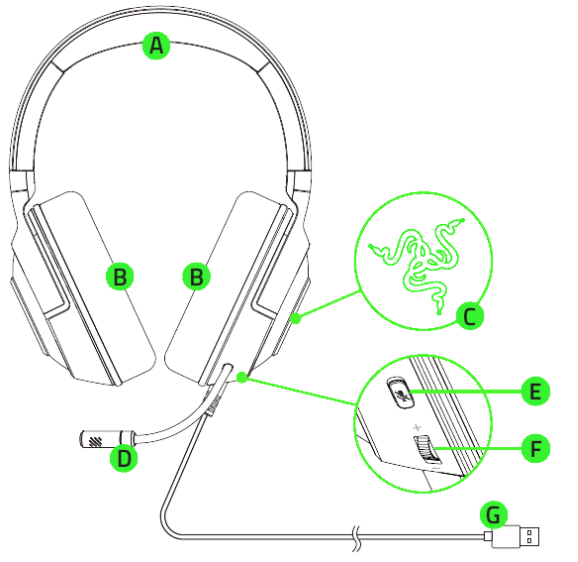
- Adjustable padded headband
- Circumaural earcups
- Backlit Razer logo
- Unidirectional mic
- Mic mute button
- Volume wheel
- USB connector
Requirements
- PC with a free USB port
- Windows®7 64-bit (or higher)
- Internet connection
- 100 MB of free hard disk space
Getting Started
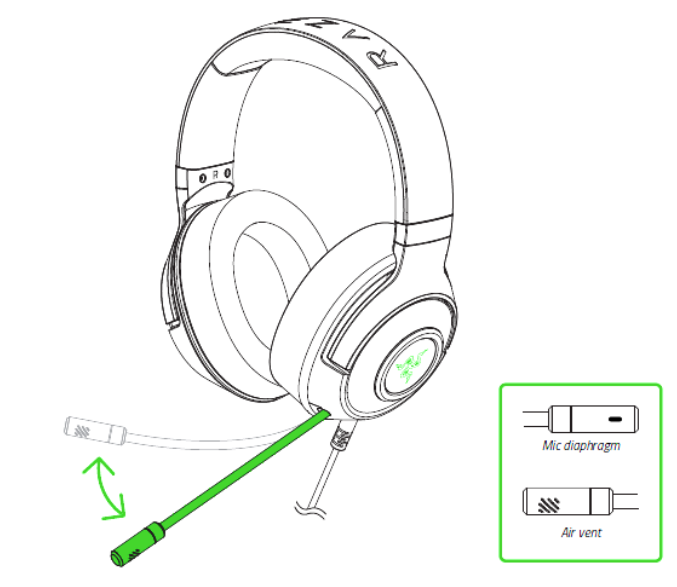
Bend the mic until it is parallel to your mouth. Make sure the mic diaphragm is in front and the air vent is facing away from your mouth.
Use
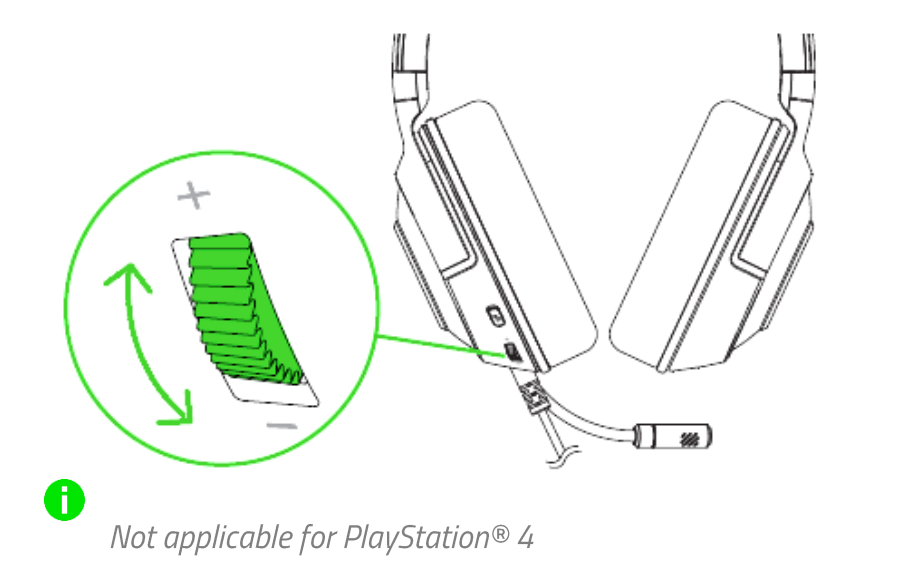
Volume Wheel
- Rotate the volume wheel as shown to increase or decrease the volume.
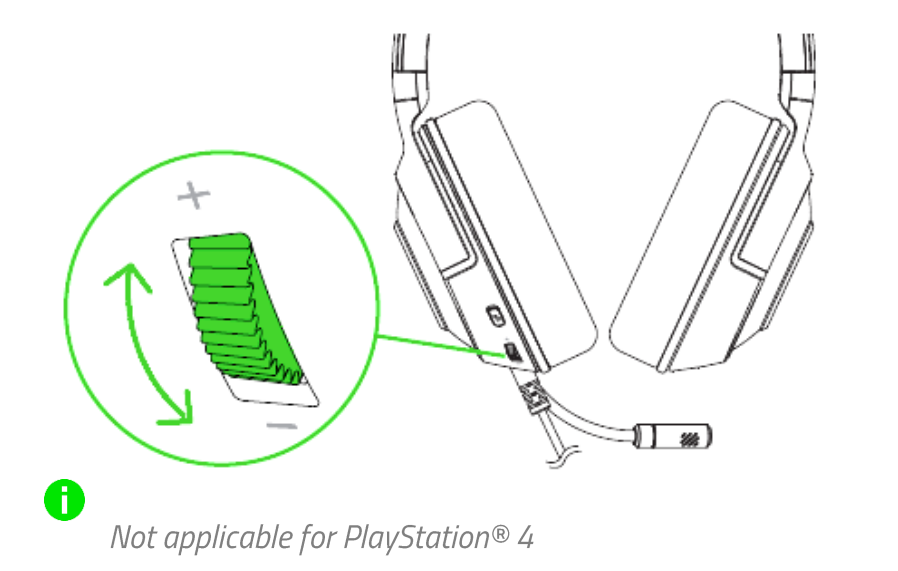
Mic Mute Button
- Press the mic mute button to mute or unmute the microphone.
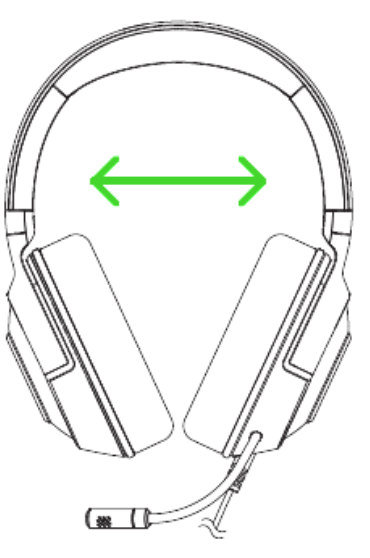
Headset Lifespan
- We recommend stretching the headset gently apart before placing it over your head to minimize headband stress. However, please avoid overstretching the headset beyond its technical limits.
Surround Sound
- Experience accurate positional audio that’s specifically designed for games, movies, and music on
PC. Be sure to use the activation code included in the packaging or visit razer.com/7.1-surround– sound to learn more.
Specifications
- Frequency response: 20 Hz – 20 kHz
- Impedance: 329 @ 1 kHz
- Sensitivity (@1 kHz): 113 dB
- Drivers: 40 mm, with Neodymium magnets
- Inner ear cup diameter: 65 x 44 mm
- Connection type: USB Digital
- Cable length: 1.3 m / 4.27 ft.
- Approx. Weight: 275 g / 0.60 lbs
- Frequency response: 100 Hz – 10 kHz
- Signal-to-noise ratio: > 55 dB
- Sensitivity (@1 kHz): -42 $ 3 dB
- Pick-up pattern: Unidirectional ECM boom
- Volume up and down
- Microphone quick mute toggle
Maintainance
- The Razer Kraken X USB requires minimal maintenance RAZER KRAKEN X USB Gaming Headset to keep it in optimum condition.
- Once a month, we recommend you unplug the device and clean it using a soft cloth or cotton swab to prevent dirt buildup.
- Do not use soap or harsh cleaning agents.
Warranty
You’ve got a great device in your hands, complete RAZER KRAKEN X USB Gaming Headset with a 2-year limited warranty coverage.
©2019 Razer Inc. All rights reserved. Razer, the triple-headed snake logo, Razer logo, “For Gamers. By Gamers.”, and “Powered by Razer Chroma” logo are trademarks or registered trademarks of Razer Inc. and/or affiliated companies in the United States or other countries.
All other trademarks and trade names are the property of their respective owners, and other company and product names mentioned herein may be trademarks of their respective companies.
Razer Inc. (“Razer”) may have copyright, trademarks, trade secrets, patents, patent applications, or other intellectual property rights (whether registered or unregistered) concerning the product in this guide. Furnishing of this guide does not give you a license to any such copyright, trademark, patent, or other intellectual property right.
The Razer Kraken X USB (the “Product”) may differ from pictures, whether on packaging or otherwise. Razer assumes no responsibility for such differences or for any errors that may appear. Information contained herein is subject to change without notice.
Limited Product Warranty
- For the latest and current terms of the Limited Product Warranty, please visit razer.com/warrant.,
Limitation of Liability
Razer shall in no event be liable for any lost profits, loss of information or data, special, incidental, indirect, punitive or consequential or incidental damages, arising in any way out of distribution of, sale of, resale of, use of, or inability to use the Product. In no event shall Razer’s liability exceed the retail purchase price of the Product.
General
These terms shall be governed by and construed under the laws of the jurisdiction in which the Product was purchased. If any term herein is held to be invalid or unenforceable, then such term (in so far as it is invalid or unenforceable) shall be given no effect and deemed to be excluded without invalidating any of the remaining terms. Razer reserves the right to amend any term at any time without notice
Customer Support
- Website: razerid.razer.com
- For Help: support.razer.com
- Ph: 1-855-872-5233
FAQs
Is the Razer Kraken X compatible with all gaming platforms?
PC and Mac users are the main target audience for the Kraken X USB headset. It is incompatible with gaming consoles that do not support USB audio, such as the Xbox or PlayStation, without adapters; however, it is compatible with any device that supports USB audio.
How do I connect the Kraken X headset to my computer?
Just insert the USB connector into a USB port on your Mac or PC, and the headset should be detected immediately. If drivers are needed, they will be installed..
How can I adjust the volume and mute the microphone?
Utilise the headset cable’s in-line controls. The microphone mute button turns the microphone on and off, while the volume wheel modifies the audio output.
Can I use the headset without installing additional software?
Indeed, the Kraken X USB headset has basic microphone and audio features and is a plug-and-play gadget. Installing Razer Synapse software gives you access to sophisticated features like surround sound and EQ customisation.
What should I do if the microphone is not picking up sound?
Make sure the microphone is not muted using Windows’ sound settings or the inline control. Additionally, make sure that Kraken X is selected as the input device in the audio settings on your computer. If required, restart your computer.
How comfortable is the Kraken X for long gaming sessions?
The memory foam ear cushions and lightweight materials used in the headset’s construction allow for prolonged use without wearing out the ears.