



Seeed Studio MT7688 BG96 Module
Overview
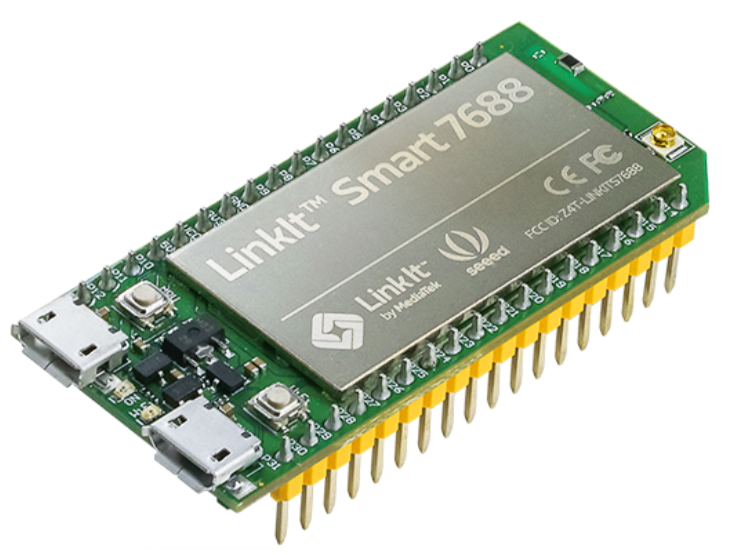
The Seeed Studio MT7688 BG96 Module provides Wi-Fi, cellular, and GPS functionality, making it ideal for IoT applications. The detailed image is shown in Figure 1.
Hardware connection
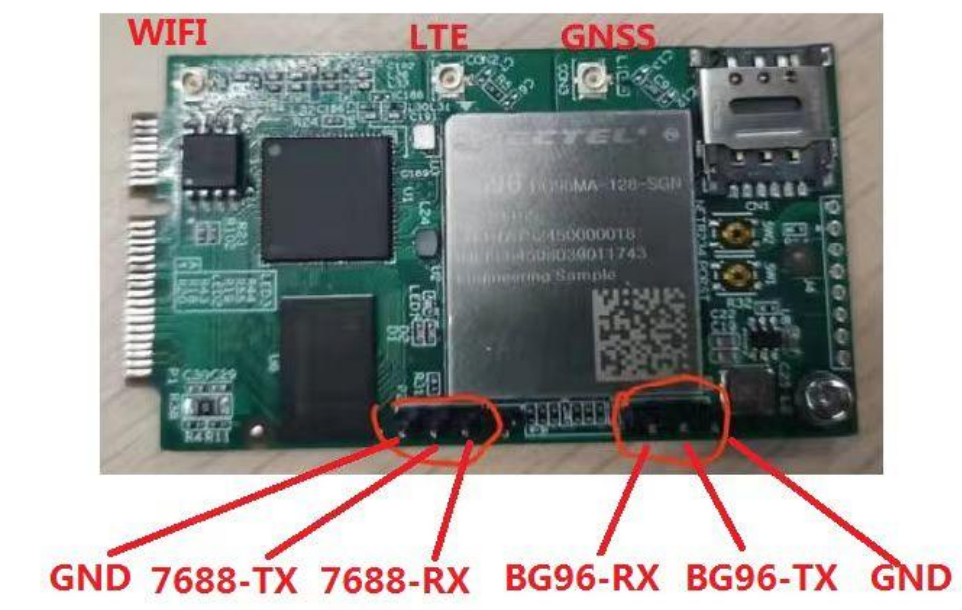
The use of the BG96 module depends on the Main board and the DVI board. Assemble as shown in Figure 2.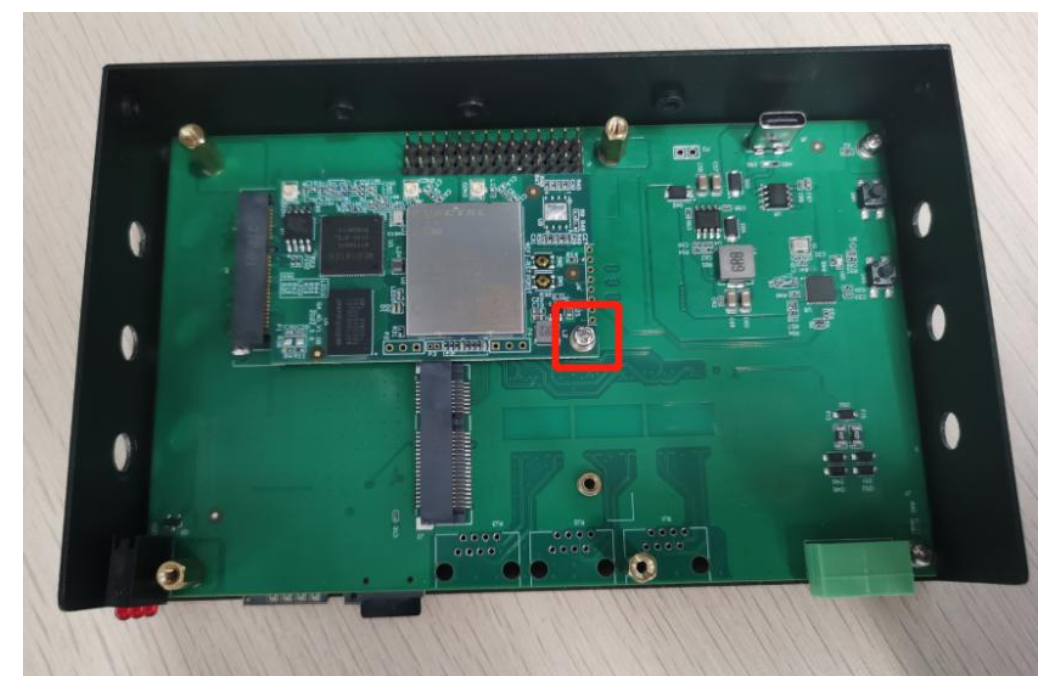
Binding pairing
Using the bind MT7688 with the mainboard.
Instructions for 7688
Linking PC with 7688 first. Open network assistant NetAssist_v4.3.25. Protocol type: TCP Client Host address:192.168.12.10 Port:4444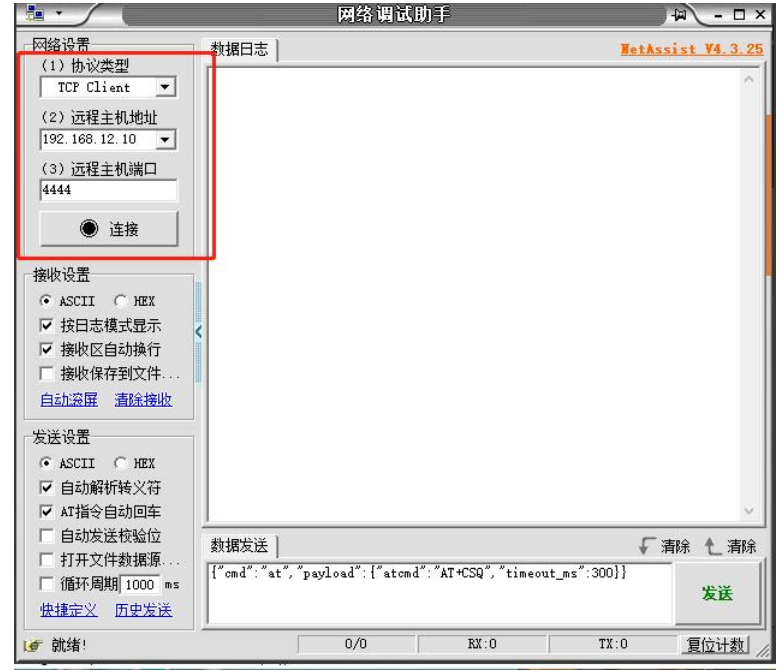
AT test command
{“cmd “: “at”, “payload”:{“aatcmd: “ATAT+CSQ,”timeout_ms”:300}} #Read SIM{ “cmd “: “at” ,”payload” { “atcmd”: “AT+CSQ “,”timeout_ms”:300}} #Acquired signal quali ty { “cmd”:” a t”,”payload”:{“atcmd”: “AT+CREG?”,”timeout_ms”:300}} #Obtainregistration statustration stat us {“cmd”: “at”,” pa yload”:{ “at cmd : “AT+QGPS=1”, “timeout_ms”:300}} #Op en GPS {“cmd” :” , “payload”:{“atcmd” :”AT+QGPS?”,”timeout_open or0}} #Query GPS openor not {“cmd”: “at “,”payload” {“atcm d”:”AT+QGPSLOC ?”,”timeout_ms”:300}} # Acquired GPS data “md” : “a t”,”payload”:{“at cmd”:”AT+QGP SEND”,”timeout_ms”:300}} #Close GPS
F/W Update
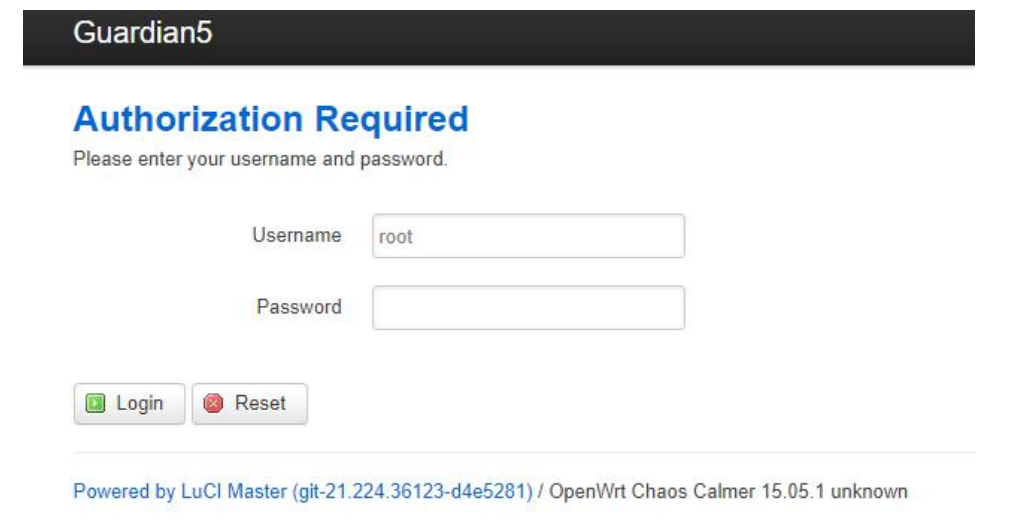
- Use your PC to connect to the Guardian-xxxx Wi-Fi (password CMIIC@123) and open the link
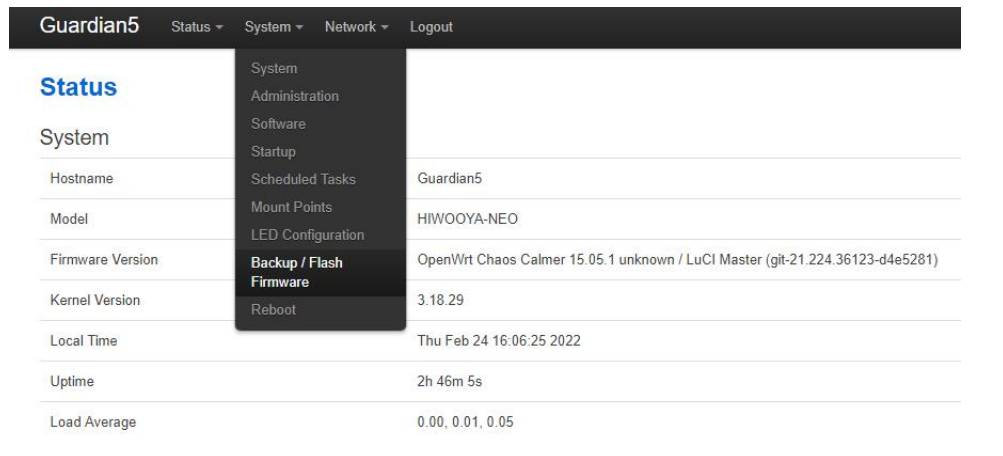
- Select System–>Backup/Flash Firmware:
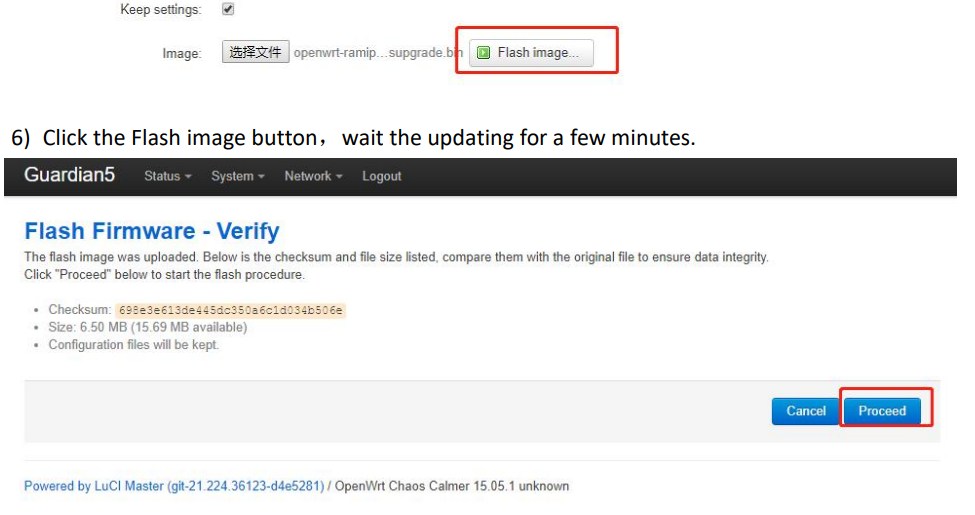
- Check the Keep secheckbox, clickboclick the e-file button as below:
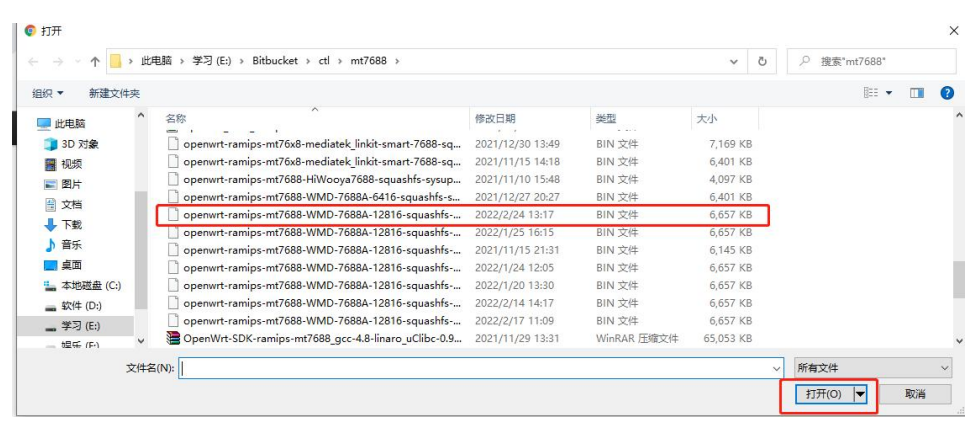
- Select the mt7688 firmware and click the open button as blew
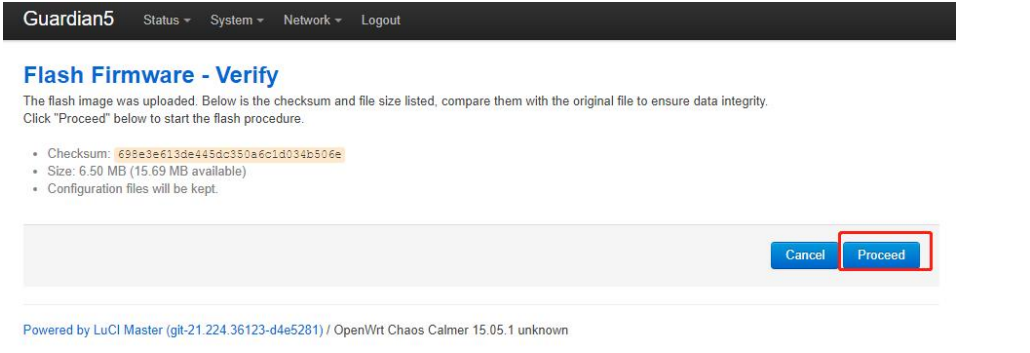
- Click the Flash image button。
- Click the Flash image button, wait for the update
- Please don’t power down or close the browser during the update.
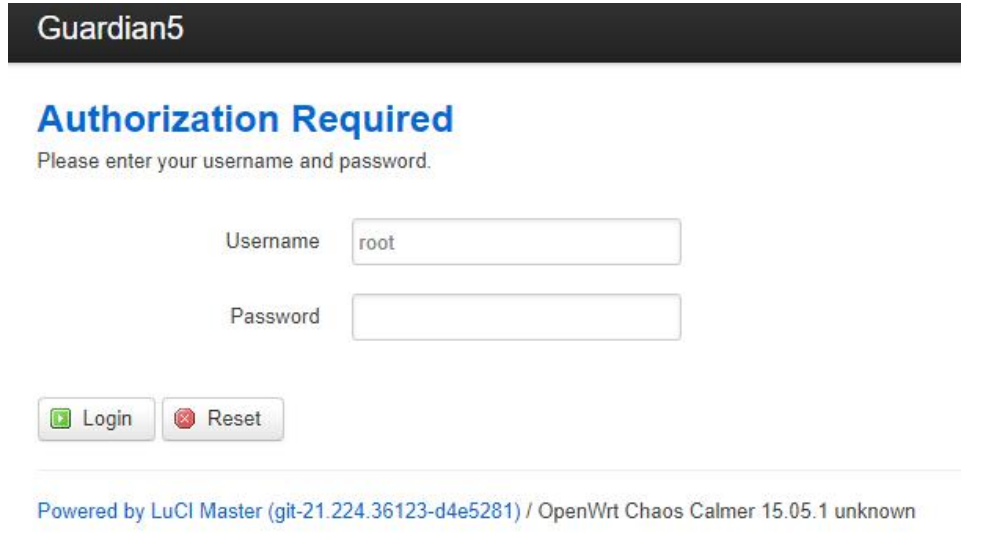
- You will see PC Wi-Fi is disconnected after updating and rebooting. A few minutes later, you can reconnect to Guardian-xxxx Wi-Fi. If you can see the login page in the browser, the upgrade has been successful.

FCC Statement
The Seeed Studio MT7688 BG96 Module complies with part 15 of the FCC Rules. Operation is subject to the following two conditions:
- This device may not cause harmful interference, and (2) this device must accept any interference
Received, including interference that may cause undesired operation. Any Changes or modifications not expressly approved by the party responsible for compliance could void the user’s authority to operate the equipment.
Customer Support
- Website: www.seeedstudio.com
- Ph: +86-0755-86095676
2008-2025 Seeed Technology Co., Ltd. All rights reserved.
FAQs
Q: What operating system does the MT7688 run?
OpenWrt Linux, a thin and adaptable operating system for networking devices, powers the MT7688 core. For complete system control, users can use the serial console or SSH to access the Linux environment.
Q: What is the BG96 modem used for?
For worldwide coverage, the Quectel BG96 offers GSM (2G), NB-IoT, and LTE Cat M1 connectivity. It is perfect for transmitting IoT data over cellular networks because it supports TCP/UDP, MQTT, and HTTP/HTTPS protocols.
Q: Can I use the module as an industrial IoT edge gateway?
Of course. The module is a potent edge gateway that can aggregate sensor data, carry out local computation, and upload processed results to the cloud thanks to its dual connectivity, Linux operating system, and serial interfaces.
Q: Is the module compatible with SenseCAP or other Seeed IoT platforms?
SenseCAP Cloud and SenseCAP Portal are seamlessly integrated with the MT7688 BG96 Module. It requires little setup to display metrics on the dashboard and send sensor data via MQTT/HTTPS.
Q: Can I enable dual-SIM operation?
No. Only one SIM can be used with the BG96. Nevertheless, you can use several BG96 modules on various SIMs connected by USB or UART hubs to create software-based redundancy.
Q: Can I use the module as an MQTT gateway for local sensors?
Indeed. Local sensor data can be aggregated by the MT7688 (through I²C, UART, etc.) and sent to a cloud MQTT broker via the BG96 or Wi-Fi connection. For specific sensor applications like fall detection, you can also check the Seeed Studio MR60FDA1 Fall Detection Pro Module for seamless IoT integration.