


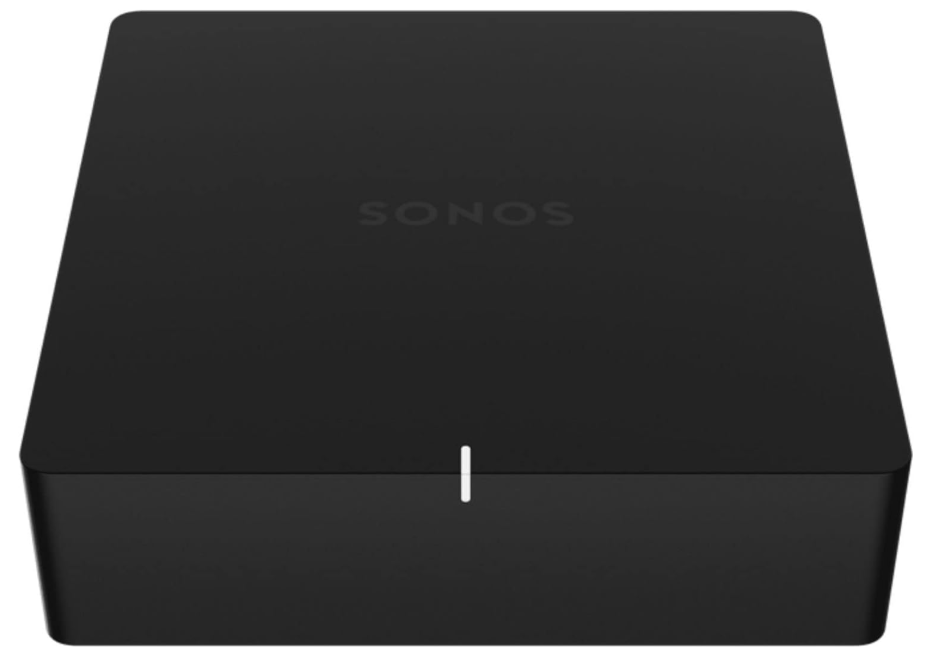
 Sonos Port Network Streamer with Built-in DAC

Safety Instructions
- Do not block any ventilation openings. Install in accordance with the manufacturer’s instructions.
- Do not install near any heat sources such as radiators, heat registers, stoves, or other apparatus (including amplifiers) that produce heat.
- Only use attachments/accessories specified by the manufacturer.
- Keep the product away from fire and heat sources.
- Do not place naked flame sources, such as lighted candles, on or near the product.
- Do not make unauthorised alterations to this product.
- The FreeSpace FS4SE wall-mounting bracket is only for use with the model FS4SE.
- Clean speakers using only a dry cloth. Do not expose the loudspeaker to soap, detergent, mineral oil, alcohol, or other cleaning agents or chemicals.
- Do not mount on surfaces that are not sturdy or that have hazards concealed behind them, such as electrical wiring or plumbing.
- Unsafe mounting or overhead suspension of any heavy load can result in serious injury or death, and property damage.
Product Overview
The versatile streaming component for your stereo or receiver—
- Plug in the audio equipment you already own and listen\ out loud.
- Stream everything you love using the Sonos app and
- Apple AirPlay 2.
- Use line-in to connect your turntable, or play music straight from a friend’s phone on your stereo.
- 12V trigger automatically turns your amplifier on and off.
- Works with either the Sonos S2 or Sonos S1 app (for
- Android and iOS).
- See Setup when you’re ready to add a Port to your Sonos system
Controls and Buttons
- Join button: Press to connect during setup.
- Ethernet port: Use an Ethernet cable to connect to a router, computer, or additional network device like an Ethernet-attached storage (NAS) device (optional).
- LED indicators: Flashing Green (network activity, ty), Yellow (link connection
- 12V tr: Use a stereo cable or a 3.5mm to 3.5mm cable to wake your third-party amplifier whenever Sono rts is playing audio.
- Analog audio out: Use a standard RCA audio cable (included) to connect the Port’s analog audio outputs to the audio inputs on your amplified audio component.
- Digital audio output: Use a digital coaxial cable to connect the Port’s coaxial digital audio output to the audio inputs on your amplified audio component.
Select a Location
You can place the Port just about anywhere—in an electronics rack, on a shelf, or on a credenza with your audio/video receiver (AVR).
Rack Mounted
Port fits perfectly in any electronics rack using a third-party shelf. You can fit 3 units across a standard rack and take up only 1 rack unit of vertical space.
Placed on a Credenza
Place horizontally on a stable and level surface. If you put it on a shelf, for best performance, place it at the front and leave at least 2″ space all around.
Connect the Cables
- Connect the power cord and plug in your Port.
- Connect the Port to your audio equipment.
Powered speakers
- You may need a Y-adapter audio cable (one 1/8″ stereo miniplug to dual RCA male connectors) to connect powered speakers to the audio outputs on the Sono product.
- If your speakers have a male 1/8″ stereo plug, you’ll need to attach a female-to-female coupler between the speaker plug and the Yadapter audio cable.
For an audio/video receiver (AVR) or amplifier
- If you have digital inputs on your AVR or amplifier, you can use a digital coaxial cable to connect the Port’s digital output to the digital input on the receiver.
- If you have analog inputs on your AVR or amplifier, use a standard RCA audio cable to connect the Port’s analog audio output to the audio inputs on the receiver. Select the proper input channel on the receiver.
Computer
You’ll need a stereo mini to RCA Y-adapter audio cable (one 1/8″ stereo miniplug to dual RCA male connectors) to connect from the Port’s analog audio output to your computer’s audio input. Download the app from the App Store on your mobile device if you don’t already have it. You’ll use it to set up and control your Sonos system.
Line in/out
Connect an audio device, like a projector, CD player, or turntable (with a built-in phono preamp), to any Sonos product that has a line-in port (Era 300, Era 100, Amp, Port, or Five). Then go to > Line-In to select the source and start playback.
Control volume from your AVR or amplifier (Fixed line-out level) Set the Port’s line-out level to Fixed if you want to control the volume exclusively from your AVR or amplifier. You won’t be able to use the Sonos app to adjust the volume or equalisation settings.
- o to > System, choose Port, and choose Fixed for the Line-Out Level
Control the volume from Sonos (Variable line-out level). When the Port’s line-out level is set to Variable, you can use the Sonos app to adjust the volume.
- Adjust your AVR or amplifier’s volume to your typical listening volume.
- Make sure the line-out level is set to Variable. If it’s not, you’ll need to change it. (Go to System, choose Port, and choose Variable for the Line-Out Level.)
- Use the Sonos app to adjust the volume so you can hear music on your Sonos system. It may need to be turned up fairly high.
- Readjust the volume on your AVR or amplifier so it falls within your typical listening range.
Use Sonos to control the volume on your home theatre or amplifier When Port’s line-out level is set to Pass-Through, Port stays at a fixed volume and sends volume commands to your amplifier. You can control volume using the Sonos app, a universal remote, or your voice if you have a voice assistant enabled.
- Go to > System, choose Port, and choose Pass-Through for the Line-Out Level.
Change the stereo to mono
Port plays audio in stereo by default. You can change the sound settings for the room associated with the Port so it plays in two mono channels when playing music.
- Go to > System, and select Port.
- Select Advanced Audio > Stereo/Mono, then choose an option
Specifications
| Sound quality | THD+N<0.009%, 20 Hz-20 kHz |
| Line in | Analog (RCA), auto-detecting |
| Line out NETWORKING | Analog (RCA), digital (coaxial) |
| Wireless connectivity | Using Sonos S2: Connects to a WiFi network with any 802.11a/b/g/n 2.4 or 5 GHz broadcast-capable router. Using Sonos S1: Connects to a WiFi network with any 802.11b/g 2.4 GHz broadcast-capable router. 802.11n-only network configurations are not supported —you can either change the router settings to 802.11b/g/n or connect a Sonos product to your router. |
| Ethernet port | Two 10/100Mbps Ethernet ports. You can plug a Sonos product directly into |
Auto-switching 100 – 240V ~ 50-60 Hz 1A AC universal input. Output: 12.0 VDC, 1.0 A, 12.0 W Average active efficiency: 84.2% Efficiency at low load (10%): 78.7% No-load power consumption: 0.06 W
- Dimensions (H x W x D) 1.6 x 5.4 x 5.4 in. (41 x 138 x 138 mm)
- Weight 1 lb (.47 kg)
- Operating temperature 32 to104°FF (0 to 40 °C)
- Storage temperature -4 to158°FF (-20 to 70 °C)
- Product finish Black
- Package content: Sonos Port, power cord, RCA cable, and Quickstart Guide
- Specifications subject to change without notice.
FAQs
Q: What does the Sonos Port do in my audio system?
Your current AV receiver, powered speakers, or stereo may be transformed into a smart streaming system with the Sonos Port. It integrates Wi-Fi streaming, app control, and multi-room playback to classic audio equipment.
Q: Does the Sonos Port include a built-in DAC?
Yes. The Port includes a high-quality DAC (Digital-to-Analog Converter), allowing you to output clean analog audio through its RCA connectors to amplifiers or powered speakers.
Q: What audio outputs does the Port offer?
The Port provides analog stereo RCA outputs, a digital coaxial output, and a 12V trigger output for powering compatible amplifiers on and off automatically.
Q: Can I use the Port as an AirPlay 2 receiver?
Indeed. When connected to your home Wi-Fi network, the Port supports Apple AirPlay 2, enabling you to stream audio directly from iOS devices or Macs.
Q: Is Bluetooth supported?
No. The Sonos Port does not include Bluetooth streaming. It is designed primarily for high-fidelity Wi-Fi streaming and advanced integration with the Sonos ecosystem.
Q: Can I connect a turntable to the Sonos Port?
Yes—if your turntable has a built-in preamp, or you use an external phono preamp. Connect the turntable to the Port’s line-in to stream vinyl throughout your Sonos system.
Q: What is the 12V trigger used for?
The 12V trigger allows the Port to automatically power compatible external amplifiers on or off when audio playback starts or stops, ensuring seamless operation.
Q: Does the Port support multi-room audio?
When used with other Sonos speakers, the Port enables synchronised playback across multiple rooms or independent control of each room via the Sonos app.