



Sonos SUB 4 Black Wireless Subwoofer
Overview
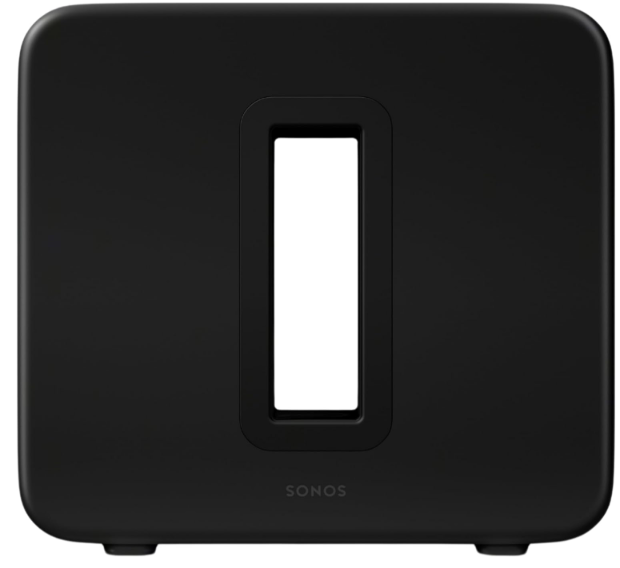
Sub 4 unlocks the full power of Sonos sound, delivering powerful bass to immerse you even deeper in every scene and song.
- Pulse-pounding bass. Dual Sonos-engineered drivers generate deep, dynamic low frequencies.
- The ported enclosure enhances the bass response so you feel every beat, roar, and rumble in your chest.iTransform your home theater experience.
- Pair Sub 4 with Sonos Arc, or Beam, for dramatically deeper sound and clearer highs that draw you deeper into movies, shows, and games.
- Bring your music to life. Hear the nuance in every note and enjoy a greater sense of spaciousness when you pair Sub 4 with Sonos Five, Era 300, or Era 100.
- Iconic design. With its elegant sculptural shape and updated matte finish, Sub 4 is designed to look great in your home and to match your Sonos speakers.
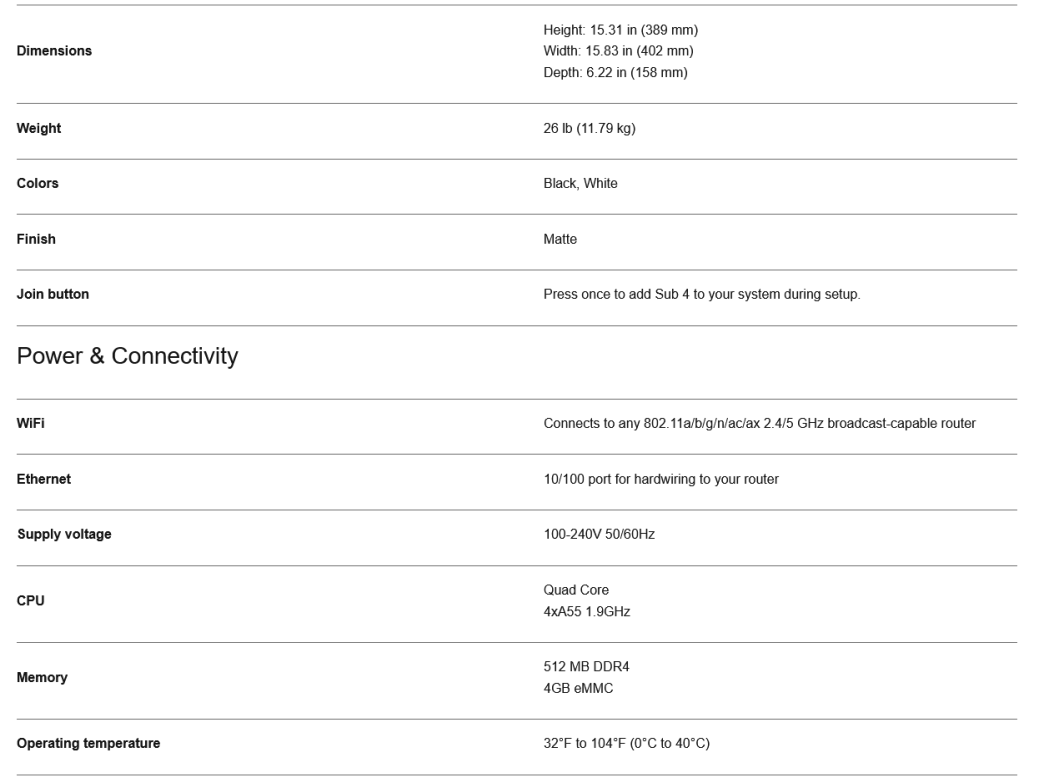
- Place it where and how you want. Sub 4 reliably connects to your Sonos soundbar or speaker over WiFi so you can place it anywhere in the room, even on its side and under your sofa.
Important safety information
- Read these instructions. Keep these instructions. Heed all warnings. Follow all instructions.
- Do not use this apparatus near water.
- Do not block any ventilation openings. Install in accordance with the manufacturer’s instructions.
- Only use attachments/accessories specified by the manufacturer.
- Unplug this apparatus during lightning storms or when unused for long periods of time.
- This product does not have any user-serviceable parts.
- Do not open or disassemble, or attempt to repair it or replace any components.
- Refer all servicing to Sonos qualified service personnel.
- The Mains plug should be readily available to disconnect the equipment.
- Do not expose the apparatus to dripping or splashing, and do not place objects filled with liquids, such as vases, on the apparatus.
Controls and buttons
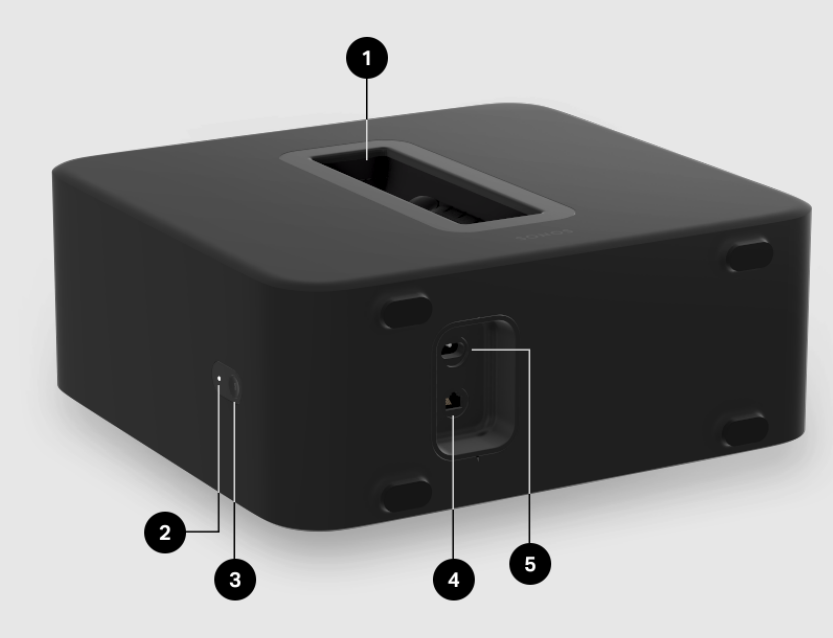
- Acoustic slot. You can use the acoustic slot as a handle to lift Sub 4.
- The status light displays the product’s connection to WiFi, indicates when the volume is muted, and signals errors. Learn more.
- If the light is distracting, you can turn it off in your room’s settings.
- Join butto n Press to connect during setup.
- Ethernet port: Use an Ethernet cable if you want to connect to a router (optional).
- AC power (mains) input. Use only the supplied power cord to connect to a power outlet.
- Be sure to use the proper power adapter for your country.
- Push the power cord firmly into Sub 4 until it is flush with the surface.
Select a Location
Choose a location-Sub 4 is designed to provide optimal sound wherever you place it.
- Use the acoustic slot as a handle to lift Sub 4 out of the box.
- You should always bend your knees when
lifting heavy objects to avoid undue stress on your back. - Make sure at least one side of the slot is free from obstruction.
- If you place it vertically against a wall, don’t block the front opening.
- If you place Sub 4 horizontally on the floor, don’t put anything on top of it.
- Leave at least 1″ clearance along the top of Sub 4 if placing under furniture.
- Sub 4 is designed to sit on the floor.
- Position Sub 4 either vertically or horizontally.
- If you’re going to use it horizontally, you can attach permanent felt feet.
Connect the Cables
- Attach the power cord and plug in Sub 4. Be sure to push the power cord firmly into Sub 4 until it is flush with the surface
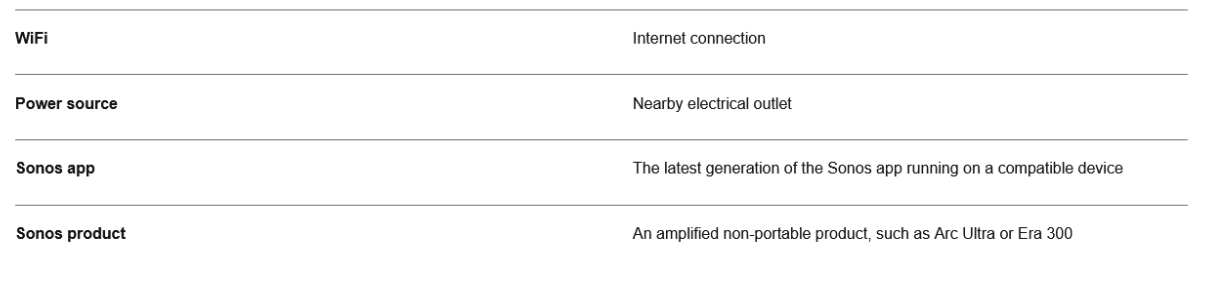
- Download the Sonos app from the app store if you don’t already have it. You’ll use it to set up and control your Sonos system.
Sub Audio
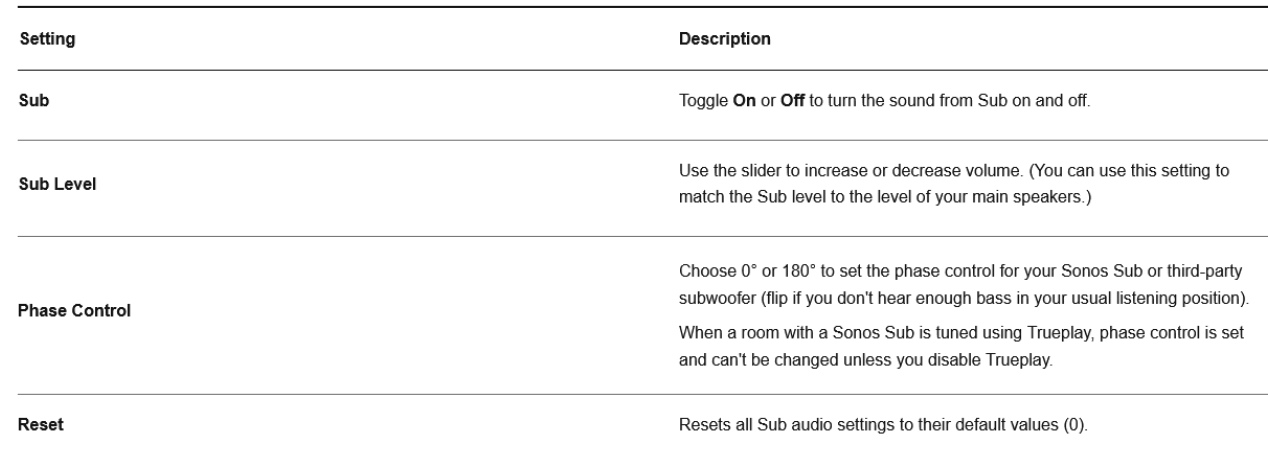
Use the Sonos app to adjust Sub Audio settings:
- Go to System Settings and select a room where you’ve added a Sub.
- Navigate down to Sound and select Sub Audio.
Change Speaker Pairing
You can easily change the Sonos speaker your Sub 4 is paired with.
- Go to System Settings and select a room where you’ve added a Sub.
- Navigate to Products and select Remove Sub to get started.
- You can pair the Sub 4 with a different Sonos product or choose not to use it right now.
- It will appear as “unused” in your list of products until you pair it with another Sonos speaker.
Connect a Second Sub
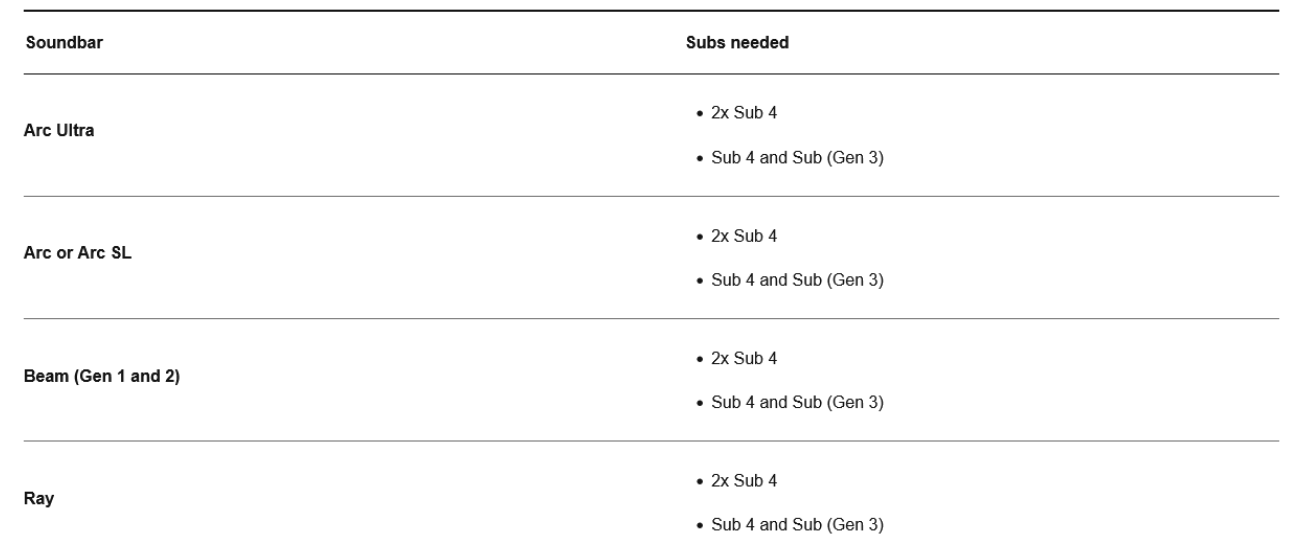
Connect a second Sonos subwoofer to your home theater setup for even deeper, room-filling bass.
In the Sonos app:
- Go to System Settings C and select a room where you’ve added a Sub.
- Navigate to Products and select Connect Second Sub to get started.
- Before you start, make sure your subwoofers are compatible with a dual-subwoofer home theater setup.
Specifications
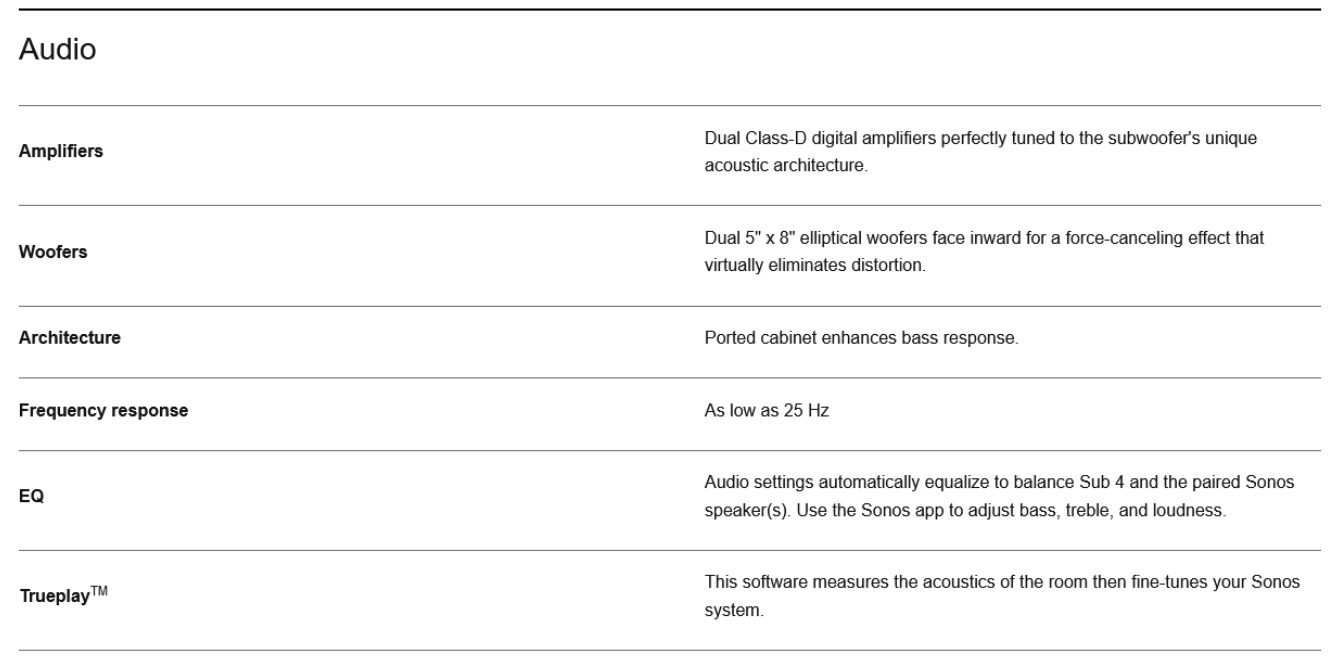
Details & Dimensions
Requirements
Customer Service
- Website: https://support.sonos.com/
- Ph: (800) 680-2345
FAQs
What’s new in the Sonos Roam 2 compared to the original Roam?
The Roam 2 maintains its durable construction and portable size while offering enhanced Bluetooth connection, better battery optimisation, and simpler controls. Additionally, it provides more seamless Bluetooth and Wi-Fi playback transitions.
Is the Sonos Roam 2 really waterproof?
Yes. The Roam 2 is designed with a high level of water resistance (check the specific rating for your model), meaning it can handle splashes, poolside use, and brief submersion—just make sure the port cover is fully closed.
Does the speaker float if dropped in water?
No. The Roam 2 does not float, so avoid deep water areas. If submerged, remove it, rinse off dirt or saltwater, and allow it to dry before charging.
Can I set up the Roam 2 without Wi-Fi?
Yes, you can use it directly over Bluetooth. However, Wi-Fi is required for multi-room audio, stereo pairing, voice services, and software updates.
How do I pair the Roam 2 with my phone via Bluetooth?
Holding down the Bluetooth button will cause the LED to flash. Select “Roam 2” from the Bluetooth settings on your phone, then watch for a connection confirmation. Future connections are made automatically.
Can I play music on Wi-Fi and Bluetooth at the same time?
Not simultaneously on the same unit. However, Bluetooth audio sent to the Roam 2 can be grouped with your other Sonos speakers via the Sonos app once the Roam 2 is connected to Wi-Fi.
How long does the battery last?
Battery life depends on volume level and wireless mode. Bluetooth generally uses less power than Wi-Fi. With moderate usage, the Roam 2 provides hours of continuous playback before needing a recharge.
Can I charge the Roam 2 wirelessly?
Indeed. It is compatible with Sonos charging bases and offers Qi wireless charging. USB-C charging is another option.
3 Comments
Can you be more specific about the content of your article? After reading it, I still have some doubts. Hope you can help me. https://accounts.binance.com/pt-PT/register-person?ref=KDN7HDOR
Can you be more specific about the content of your article? After reading it, I still have some doubts. Hope you can help me.
Thank you for your sharing. I am worried that I lack creative ideas. It is your article that makes me full of hope. Thank you. But, I have a question, can you help me?