



Zebronics Zeb-Pixaplay 73 Smart LED Projector
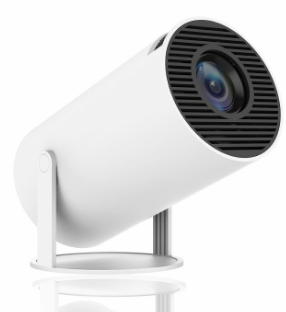
Features
- Home Theater Projectors for Movies, 1V & Gaming, etc..
- Built-in Speaker
- Wide Compatibility
- 200° Tilt Mechanism
- Auto Keystone Adaptation
- Remote Control
- Miracast
- 105 Screen mirroring
- Dual band Connectivity (2.4GHz & 5GHz)
- Supports 4K
- APP Support
Package Contents
- Projector: 1 U
- Remote Control: 1 U
- Power cord: 1 U
- HDMI Cable: 1 U
- Cotton Swab Pack: 1 U
- QR Code Guide: 1 U
Description
Remote Control
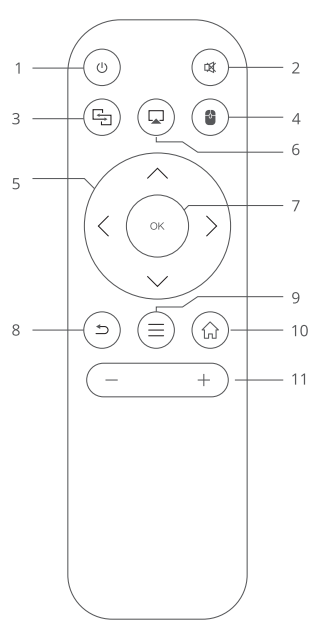
- ON/OFF
- MUTE
- MIRACAST
- SWITCH TOMOUSE CONTROL
- DIRECTIONS
- AIRPIN
- 0K
- RETURN
- MENU
- HOME
- VOL+/-
Setting Up the Projector
- Plug the Power cord into the projector’s AC power input. Insert the other end of the power cord into a standard wall power socket. Ensure the wall socket is turned on to supply power.
- Please place the projector on a flat surface to ensure proper projection. Now turn the projector on by pressing the power button either on the panel or the remote.
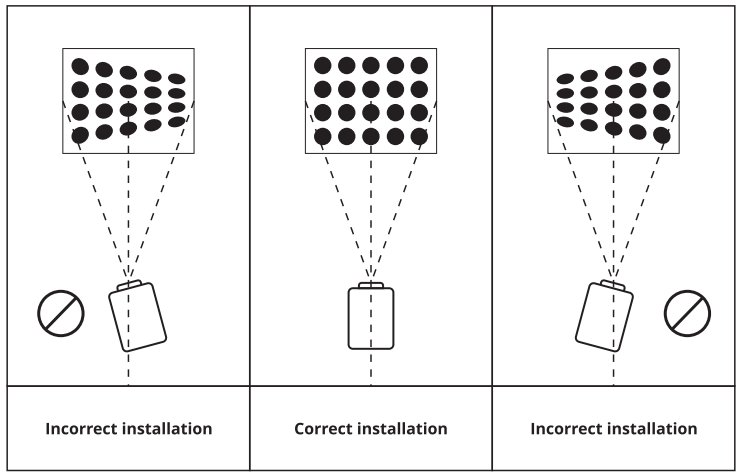
- The projector should be aligned straight to the screen I the place of projection.
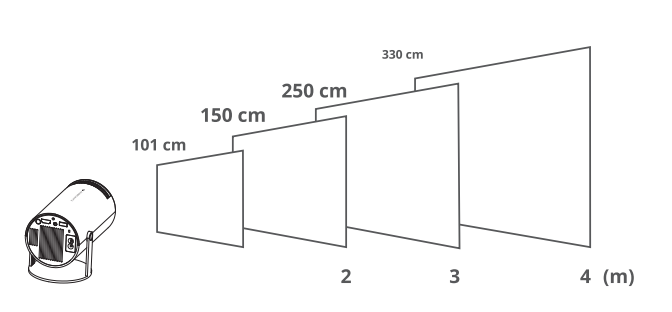
Projection Distance and Size
The recommended projector screen size is 101 – 330 cm. For an improved viewing experience, it is recommended to use the projector in a room that provides as much darkness as possible.
Focus Adjustment
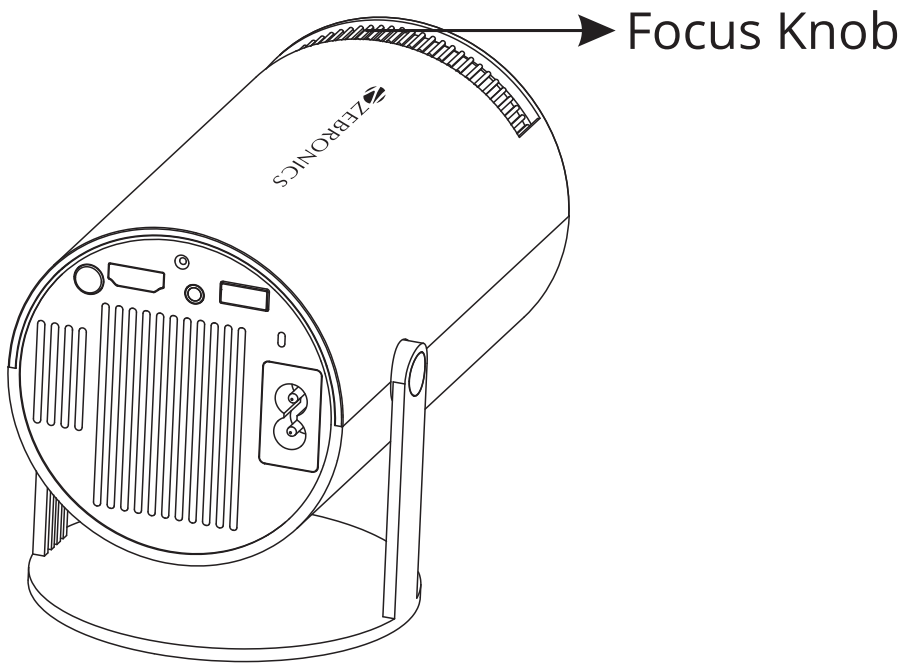
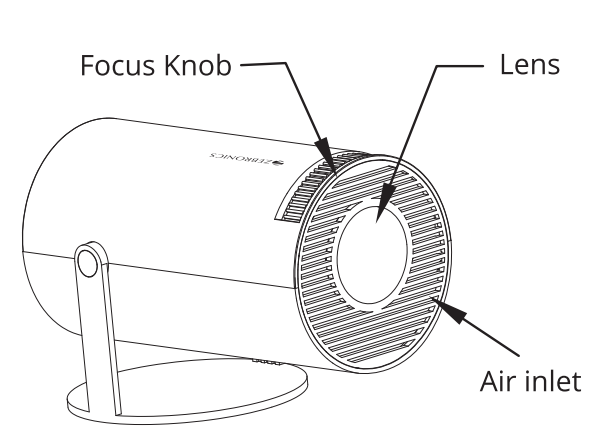
Use the focus knob to adjust the focus of the projector.
Keystone Adjustment
The 4-point keystone can be adjusted in the Projection settings.
Android Home
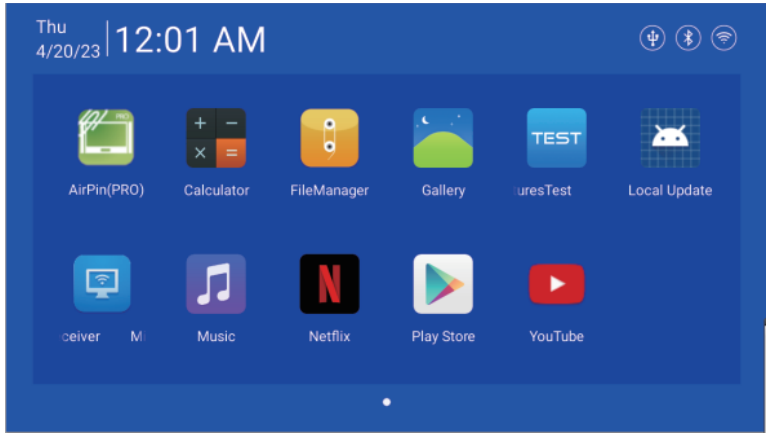
- Once the projector is turned on, the projector will lead you to the home screen.
- The home screen displays apps, Settings Menu, Network, Projector, General, My Device, and Input.
Settings
Switch to the homepage, open the settings main menu. This menu contains submenus like Network, Projector, Display, Sound, Upgrade, Bluetooth, General, and Info.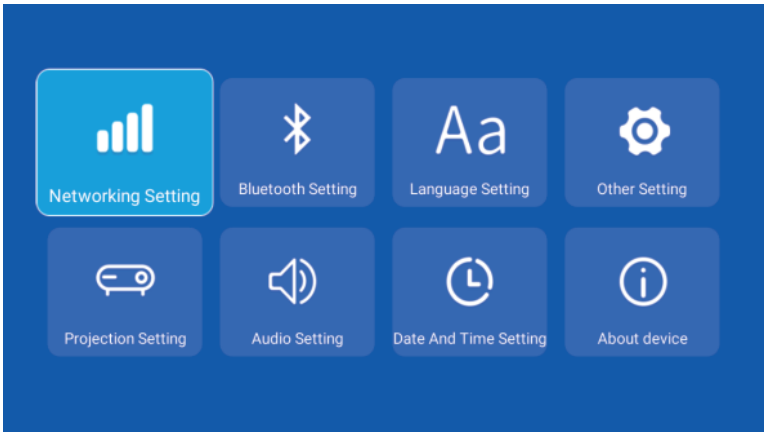
USB Connection
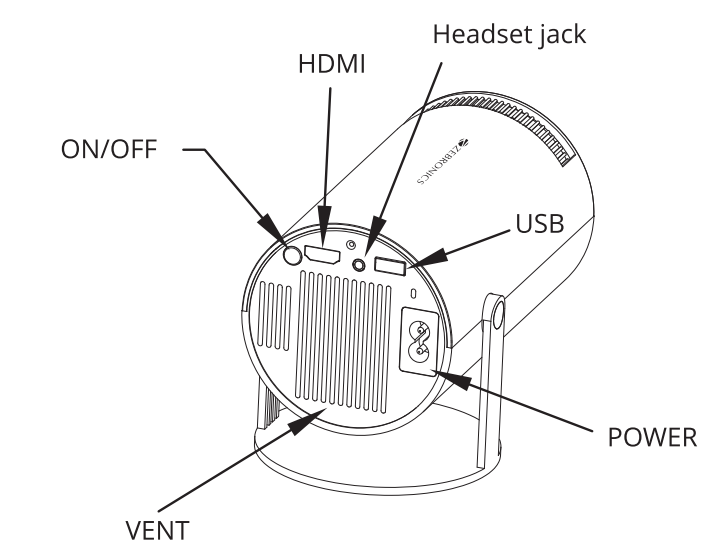
Plug the USB into the port present at the rear of the projector. Now navigate to the USB tab present on the homepage.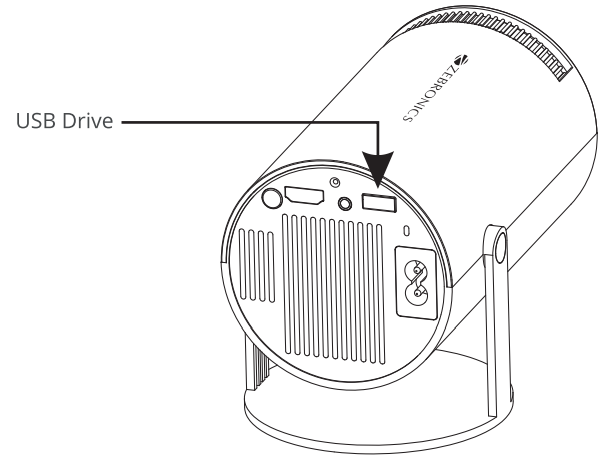
HDMI Connection
Once the HDMI is connected to the projector, you will need to select the specific signal source as input. After connecting, the content played on the source will be streamed on the projector.
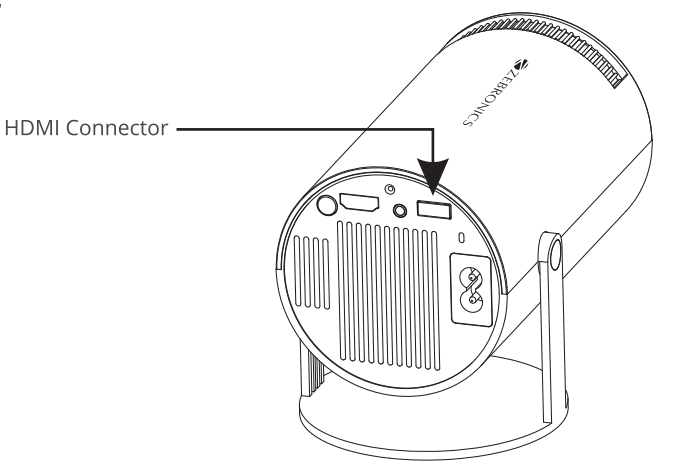
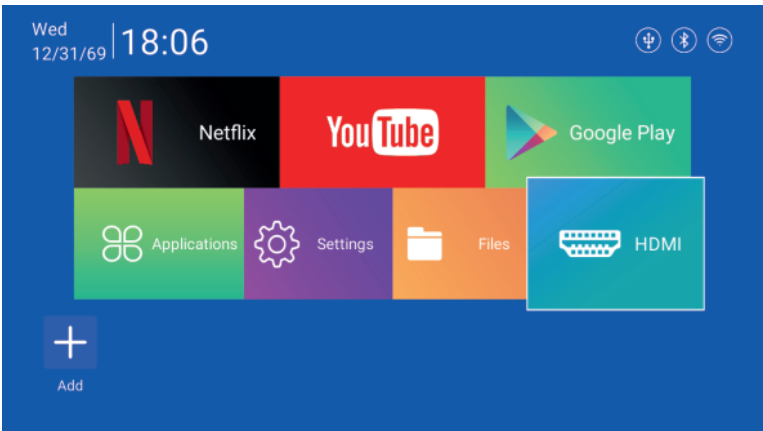
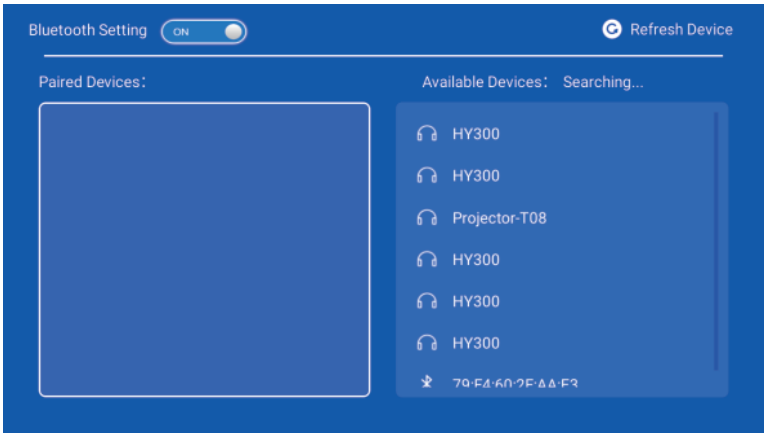
Bluetooth Settings
- Go to settings> Bluetooth settings.
- Turn the Bluetooth Connection On and search for nearby Bluetooth devices.
- Choose the desired Bluetooth device to pair and connect.
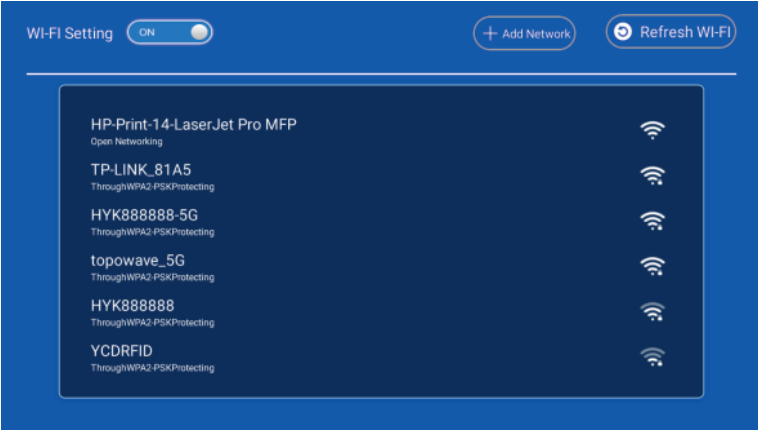
Network Settings
- Go to Settings> Network settings.
- WIFI setting, WIFI “ON”,
- Select the desired network, and input the password to connect to the network

Specification
- Model: ZEB-QLP 5
- Screen size: 101.6-330cm
- Native Resolution: 1280 × 720p HD
- Max. Supported Resolution: 4K
- Android Version:11.0
- RAM: 1 GB
- Core Processor: Quad Core Processor
- Storage: 8 GB
- WI-Fi Connectivity: Dual-band Connectivity (2.4GHz &5GHz)
- Bluetooth Version:v5.4
- Lamp Lifespan: 30,000h
- Brightness: 3300 Lumens
- Contrast ratio: 1500:1
- Projection Distance: 1-4m
- Port Interface: USBx1,HDMIINx1,
- AUX OUT
- Video file format: HEVC, VP9, AVS, AVC, MPEG1, MPEG2. AV1
- Input Voltage: AC 220-240V 50HZ
- Product Dimension(WxDxH): 10 x 15.5 x11.5 cm
- Net. weight: 465Kg
Customer Support
- Website: www.zebronics.com
- Tel: 044 40000004
FAQs
Q: What is the Zeb-Pixaplay 73 Smart LED Projector designed for?
Ans: The Zebronics Zeb-Pixaplay 73 is a smart LED projector with built-in smart features, HD quality, and numerous connectivity choices that is ideal for home entertainment, informal presentations, and wireless screen mirroring.
Q: What is the maximum screen size supported?
Ans: Although the best quality is attained at about 100 inches in low light, the projector can produce a diagonal screen size of up to 150 inches.
Q: Can I connect a Fire TV Stick or Chromecast to this projector?
Ans: Yes, just turn on HDMI mode from the projector menu after plugging your streaming device into the HDMI port.
Q: Does the projector have built-in speakers?
Ans: Yes, it features integrated stereo speakers appropriate for casual use. Use additional speakers over Bluetooth (if supported) or the 3.5mm audio output for a better sound.
Q: Can I use the projector during the day?
Ans: Despite the LED light’s brightness, the projector works best in dim or dark settings.
Q: Can I mount the projector on the ceiling?
Ans: In the settings, select “Ceiling Front” or “Ceiling Rear” as the projection mode.