

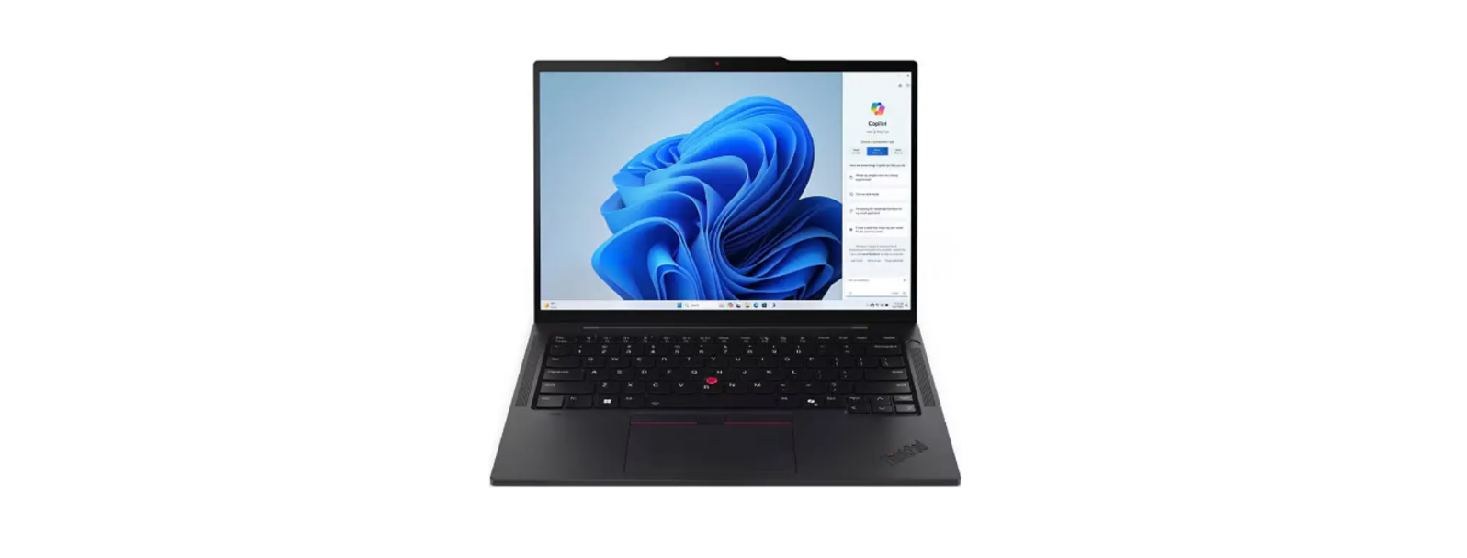

Lenovo 21R3004JMX ThinkPad T14s 2-in-1 Gen 1
 Performance
- Processor
Intel® Core™ Ultra 5 225U, 12C (2P + 8E + 2LPE) / 14T, Max Turbo up to 4.8GHz, 12MB - AI PC Category[1]
AI PC - NPU
Integrated Intel® AI Boost, up to 12 TOPS - Graphics
Integrated Intel® Graphics - Chipset
Intel® SoC Platform - Memory[2]
16GB Soldered LPDDR5x-7467 - Memory Slots
Memory soldered to the system board, no slots, dual-channel - Max Memory
16GB soldered memory, not upgradable - Storage
512GB SSD M.2 2280 PCIe® 4.0×4 NVMe® Opal 2.0 - Storage Support
One drive, up to 2TB M.2 2280 SSD - Storage Slot
Models with U series processor: one M.2 2280 PCIe® 4.0 x4
slot - Card Reader
None - Audio Chip
High Definition (HD) Audio, Realtek® ALC3287 codec - Speakers
Stereo speakers, 2W x2, Dolby Audio™ - Camera
5.0MP + IR Discrete with Privacy Shutter, Computer Vision on ISP - Microphone
2x, 360° - Battery
58Wh - Power Adapter
65W USB-C® Slim GaN (3-pin)
Design
- Display[3]
14″ WUXGA (1920×1200) IPS 500nits Anti-reflection / Antismudge, 100% sRGB, Low Power, Touch - Touchscreen
OGS, 10-point Multi-touch - Keyboard
Backlit, Nordic (DK/FI/NO/SV) - Case Color
Black - Case Material
Magnesium (Top), Aluminium + PC (Bottom) - Pen
Lenovo® Yoga® Pen - Dimensions (WxDxH)[4]
313.6 x 222.8 x 12.86/19.21 (front/rear), 21.6 (maximum) mm;
12.35 x 8.77 x 0.51/0.76 (front/rear), 0.85 (maximum) inches - Weight[5]
Starting at 1.40 kg (3.08 lbs)
Software
- Operating System
Windows® 11 Pro, Nordic (DK/FI/SV/NO/EN) - Bundled Software
None
Connectivity
- WLAN + Bluetooth®[6]
Intel® Wi-Fi® 6E AX211, 802.11ax 2×2 + BT5.3 - WWAN
WWAN Upgradable to 5G - SIM Card
None - Ethernet[7]
No Onboard Ethernet - NFC
None - Standard Ports
- 1x USB-A (USB 5Gbps / USB 3.2 Gen 1)
- 1x USB-A (USB 5Gbps / USB 3.2 Gen 1), Always On
- 2x USB-C® (Thunderbolt™ 4 / USB4® 40Gbps), with USB PD 3.0 and DisplayPort™ 2.1
- 1x HDMI® 2.1, up to 4K/60Hz
- 1x HHeadphone/microphone combo jack (3.5mm)
- Optional Ports (configured)
- 1x Smart Card Reader
- 1x Nano-SIM Card Slot
- Docking
Various docking solutions are supported via Thunderbolt™ / USBC®.
For more compatible docking solutions, please visit Docking
for ThinkPad® T14s 2-in-1 Gen 1.
Security & Privacy
- Smart Card Reader
Smart Card Reader - Security Chip
Discrete TPM 2.0 Enabled - Fingerprint Reader
Touch Style, Match-on-Chip, Integrated in Power Button - Physical Locks
Kensington® Nano Security Slot™, 2.5 x 6 mm - Other Security
- Camera privacy shutter
- Computer Vision-based User Presence Sensing on Image Signal Processor (ISP)
- IR camera for Windows® Hello (facial recognition)
Manageability
- System Management
Non-vPro®
Service
- Base Warranty
3-year, Courier or Carry-in - Included Upgrade
3Y Premier Support HB (CPN), CO2 Offset 0.5 ton (2nd Generation Carbon Offset Projects)
Accessories
- Bundled Accessories[8]
None
Certifactions
- Green Certifications[9]
- ENERGY STAR® 9.0
- EPEAT™ Gold Registered
- ErP Lot 6/26
- RoHS compliant
- TCO Certified 10.0
- Other Certifications
Eyesafe® Certified 2.0 - Mil-Spec Test
MIL-STD-810H military test passed.
Model
- TopSeller: Yes, Announce
- Date: 2025-05-28
- EAN / UPC / JAN: 0199271080078
- End of Support: 2031-12-27
Premier Support
A direct 24/7/365 line to our most elite technicians
- Advanced technical support, 24x7x365, in more than 100 markets
- Technical Account Managers for proactive relationship and escalation management
- Comprehensive hardware & OEM software support
- Priority on service delivery and repair parts
- Single point of contact for simplified end-to-end case management
- Lenovo Service Connect Portal for customized reporting and product support
Accidental Damage Protection
Experience shows that a significant portion of devices may be damaged (and not covered under warranty)
in the first three years. Lenovo’s Accidental Damage Protection service covers accidents beyond the system
warranty, such as drops, spills, bumps, and even electrical surges. Make sure your new device has maximum protection, avoid unplanned costs, and get peace of mind.
Base Warranty
Included with the systems you purchase, a default 1- or 3-year coverage window.
Warranty Extensions & Upgrades
Service and protection that’s right for your circumstances.
- Pick Up & Return Courier
- Onsite Support
- Technician Installed Customer
- Replaceable Unit Service
- International Warranty Upgrade
Lenovo may not offer the products, services, or features discussed in this document in all regions. Lenovo may withdraw an offering at any time. Information is subject to change without notice. Consult your local representative for information on offerings available in your area.
FCC Compliance Statement
This device complies with Part 15 of the FCC Rules. Operation is subject to the following two conditions:
- This device may not cause harmful interference, and
- This device contains licence-exempt transmitter(s)/receiver(s) that comply with Innovation,
- Science and Economic Development Canada’s licence-exempt RSS(s).
- Operation is subject to the following two conditions:
- This device may not cause interference.
Customer Service
- Website: https://www.lenovo.com/
- Ph: 1-855-253-6686