

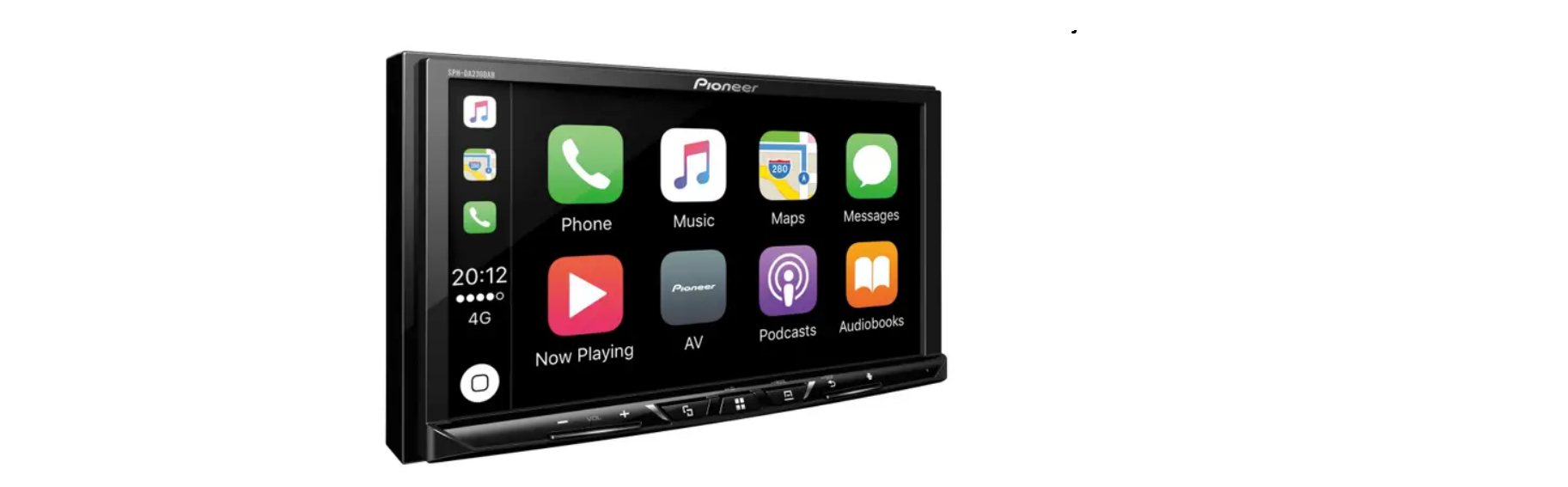

Pioneer SPH-EVO93DAB System Firmware Update

Safet Instructions
- Once upgraded to this version, it is not possible to downgrade to a lower version.
- You must complete all steps correctly and in the order described below.
- Never turn your unit off or disconnect the USB storage device while the firmware is being updated.
- You can only update the firmware when the vehicle is stopped and the parking brake is engaged.
Display
- Touch the following key.

- The “System” screen appears, scroll down the list.

- Touch [System Information], next touch [Firmware Information].

- After the “Firmware Information” screen appears, check the firmware version; when the Version is lower than 3.07, it is necessary to update the firmware

Downloading the Firmware Update Files
- Download the correct firmware file to a folder on your computer. → SPH-EVO93DAB_FW_Ver307.Double-click the ZIP file to open it.
- Extract and save the file “SPH-EVO93DAB.avh to a folder on your computer
Updating the firmware on your Unit
- Please DO NOT perform this firmware update if the model number of your Pioneer unit is anything other than SPH-EVO93DAB.
- Ensure that the correct update file is located within the root (top) folder of your USB storage device. There should be no other files on the USB storage device.
- While your unit is being updated, DO NOT turn off the system’s power and DO NOT touch the unit’s touch panel screen, as this may result in severe damage to your unit.
- Do NOT remove the USB storage device during the firmware update.
- Performing the firmware update will restore all settings to their default values.
- Before you start the update procedure, make sure to disconnect any mobile devices that are currently connected to your unit.
PROCEDURE
- Connect a blank (FAT32 formatted) USB storage device with a minimum capacity of 2GB to your computer, next locate the correct update file and copy it onto the Root (top) folder of the USB storage device.
- Connect the USB storage device to the USB port
- On your unit, set the audio source to OFF.
- Touch the following keys in the following order

- The “System” screen appears, scroll down the list.

- Touch [System Information], next touch [Firmware Update].

- The “Firmware Update” screen appears. Touch [USB], next touch [Continue] to display the data transfer mode

- It will take a while to load, so please wait

- Read the “WARNING,” then touch the [Start] button to start the update process. If it shows “ERROR” on the display, try another USB device.

- The progress is displayed during the update.

- DO NOT turn your unit off or eject the USB storage device while the firmware is being updated.
- The display will show “It succeeded…” when the update is complete. Please disconnect the USB storage device.

- The product will reboot after the update is finished. Do not touch anything, even when the screen is blacked out. After it has finished rebooting, the screen will return to the menu screen.

- The firmware update is now complete. Your Pioneer AV Receiver is now ready for use.

Check the firmware version as described in “Displaying the firmware version” to confirm that
the update was successful.
Customer Support
- Website: http://www.pioneer.eu
- Tel: +1-888-290-3990
FAQs
- What is a firmware update for the Pioneer SPH-EVO93DAB system?
A firmware update guarantees compatibility with the newest software and devices, enhances performance, provides new features, and fixes errors. - How do I know if my Pioneer SPH-EVO93DAB needs a firmware update?
Verify the firmware version that is currently installed in your system’s settings and contrast it with the most recent version that is accessible on the Pioneer website. Update notifications can also show up on your device. - What are the prerequisites before updating the firmware?
Download the most recent firmware file from the official Pioneer support website, make sure your device is connected to a reliable power source (vehicle ignition on or battery fully charged), and have a USB stick formatted to FAT32 with enough free space. - How do I download the firmware update file?
Find the SPH-EVO93DAB product page on the Pioneer official support website, then download the most recent firmware update file to your PC. The file will then be moved to a USB drive. - What type and format of USB drive should I use for the update?
Make use of a USB flash drive with at least 1GB of free space and a FAT32 format. To prevent conflicts, make sure there are no other files on the drive. - How do I start the firmware update process on my Pioneer SPH-EVO93DAB?
Place the USB drive with the update file into the USB port on the computer. To start the update, go to the system settings menu, choose “Firmware Update,” and then adhere to the on-screen instructions. - How long does the firmware update take?
Depending on the file size and system circumstances, the update procedure typically takes five to fifteen minutes. During the update, avoid turning off the device and removing the USB.