

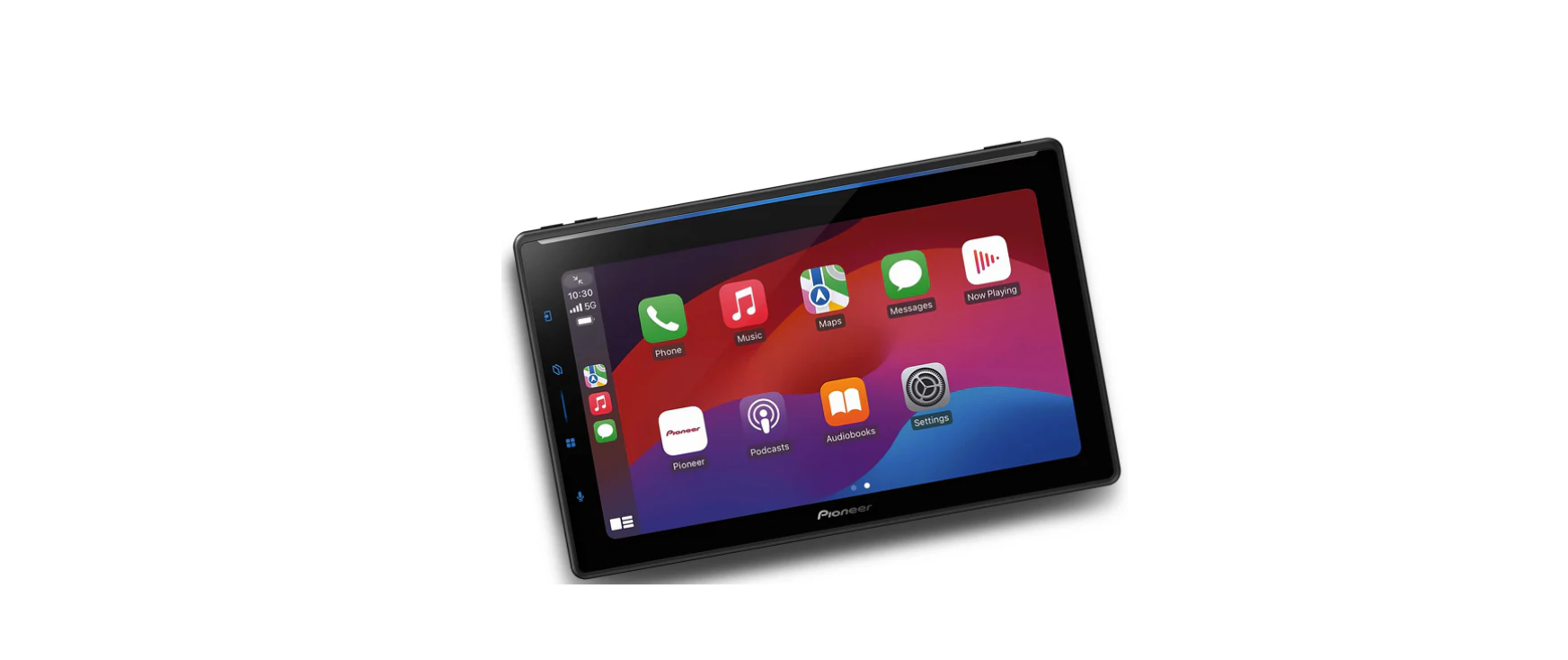

Pioneer SPH-EVO107DAB In-Dash AV Receivers

System Firmware Update Instructions
Please download and print these firmware update instructions before downloading and installing the firmware update. You must complete all steps correctly and in the order described below.
- Pioneer In-Dash AV receiver listed above.
- A USB storage device meeting the following requirements:
- 512 MB or larger in capacity, formatted to FAT32 or NTFS
- Blank (should not contain any files)
Checking the firmware version
Check whether the firmware of your unit needs to be updated by checking the version number of the firmware.
- Select the “Settings” icon on the source list page.

- Touch “System” icon.

- Scroll down the list and touch [System Information].

- Touch [Firmware information].

- After the “Firmware Information” screen appears, check the firmware version number and model name.

Downloading website
- Download the firmware update files by clicking on the following link and finding your product:
- Extract the download file.
- The downloaded zip file will produce the following file when decompressed:

Updating the firmware on your unit
- DO NOT perform this firmware update if the model number of your Pioneer product is anything other than one of the above models.
- Ensure that the update file is located within the root (top) folder of your USB storage device. There should be no other files within the USB storage device.
- While your unit is being updated, DO NOT turn off the system’s power and DO NOT touch the unit’s touchscreen, as this may result in severe damage to your unit.
- DO NOT remove the USB storage device during the firmware update process.
- Performing the firmware update will restore all settings to their default values.
- Disconnect any external mobile devices that are currently connected to your unit.
Procedure
- Connect a blank (formatted) USB storage device to your computer, and then locate the correct update file and copy it onto the USB storage device. (Ensure that the update file is located within the “Update” folder.)
- Connect the USB storage device to the USB port.
- Set the audio source to “OFF” on your unit.
- Select the “Settings” icon on the source list page.

- Touch [Firmware Update]. The “Firmware Update” screen appears.

- Touch [Yes].

- The progress is displayed during the update. DO NOT turn your unit off or eject the USB storage device while the firmware is being updated.

- The display will show “The Update is…” when the update is complete. Please disconnect the USB storage device.

- The product will reboot after the update is Pioneer SPH-EVO107DAB In-Dash AV Receivers finished. Do not touch anything, even when the screen is blacked out. After it has finished rebooting, the screen will return to the menu screen.
The firmware update is now complete.
Procedure
- Select the “Settings” icon on the source list page.

- Touch “System” icon.

- Scroll down the list and touch [System Information].

- Touch [Firmware information].

- After the “Firmware Information” screen appears, check the firmware version number and model name.

Customer Support
- Address: Parker Davis HVAC International 7290 NW 77th Court, Doral, FL 33166 – USA
- Tel: (305) 513-4488
- Fax: (305) 513-4499
- E-mail: info@pdhvac.com
- Website: www.pdhvac.com
- Pioneer Customer Support Center: http://www.pioneer.eu
FAQs
Q: What are the standout features of the Pioneer SPH-EVO107DAB?
Ans: A huge 10.1-inch touchscreen, DAB+ digital radio, Bluetooth connectivity, wireless Apple CarPlay and Android Auto, and sophisticated audio customisation choices are all features of this model.
Q: How do I connect my smartphone to the receiver?
Ans: Without the need for wires, you may connect wirelessly via Bluetooth or wireless Apple CarPlay/Android Auto, enabling smooth access to media and apps.
Q: Does the SPH-EVO107DAB support DAB+ radio?
Ans: Indeed, a built-in DAB+ tuner allows for clear, digital radio reception and a large selection of stations.
Q: Can I use the receiver’s touchscreen while driving?
Ans: Although the 10.1-inch capacitive touchscreen is easy to use, many features might not be available when driving in order to comply with safety regulations.
Q: How do I update the firmware on this receiver?
Ans: The most recent firmware can be downloaded from Pioneer’s website, copied to a USB drive, plugged into the receiver’s USB port, and updated by following the on-screen directions.
Q: Is it possible to customize the sound settings?
Ans: Of course! To customise the audio experience, you can change the equaliser, crossover, bass boost, time alignment, and other DSP settings.
Q: Can I retain my vehicle’s steering wheel controls after installation?
Ans: Yes, you can easily keep using your factory controls if you use the appropriate steering wheel control adapter.
Q: How do I install the SPH-EVO107DAB in my vehicle?
Ans: Removing the old head unit, attaching wiring harnesses and antenna adapters, firmly mounting the receiver, and adjusting settings in accordance with the installation manual are all part of the installation process.