

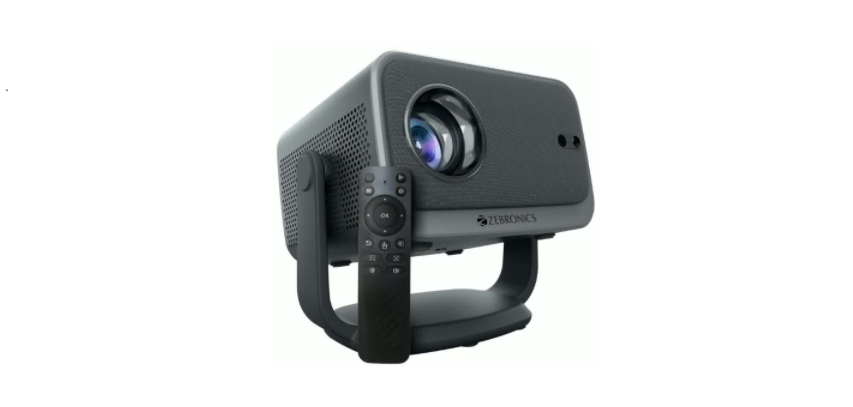

Zebronics Zeb-Pixaplay 67 Smart LED Projector
Features
- Home Theater Projectors for Movies, TV & Gaming, etc.
- Built-inn Speaker
- Wide Compatibility
- Auto Focus Technology
- Auto Keystone Adaptation*
- Remote Control (BT + IR)|
- Miracast
- IOS Screen Mirroring
- Dual band Connectivity (2.4GHz & 5GHz)
- FHD 1080p (Native)
- APP Support
- Cradler Stand for 200° Tilt adjustment
- 4K support
Description
- AV: Connect the 3.5mm AV in.
- AUX: Connect the 3.5mm audio device for audio output
- HDMI IN: Display the picture of the laptop and the TV box through HDMI-IN.
- USB: Open and access files from the connected USB device in the file manager and media center.
- Rj45: 100M Ethernet.
Remote Control
Setting up the Projector
- Plug the power cord into the projector’s AC power input. Insert the other end of the power cord into a standard wall power socket. Ensure the wall socket is turned on to supply power.
- Please place the projector on a flat surface to ensure projection. Now turn the projector on by pressing the power button either on the panel or on the remote.
- The projector should be aligned straight with the screen/the place of projection.

Projection Distance & Size
The recommended projector screen size is 101 – 381 cm. For an improved viewing experience, it is recommended to use the projector in a room that provides as much darkness as possible.
Keystone Adjustment
- Select “Settings” and go to “Keystone Correction.”
- To make a manual adjustment, turn off the “Auto” option.
- Once the “Auto” option is off, you can adjust the keystone correction manually.
- To enable automatic keystone correction, turn on the “Auto” option.
Auto Keystone
Manual keystone
Select and enter Quadrangular trapezoid, use the “OK” key of the remote control to switch the points to be adjusted, and then use the “direction key” to adjust different points. The “menu” key can reset the display effect, and the “return” key can return to the upper screen and save the adjustment effect. Projection Mode
Select and enter “Projection Mode”; there are four options: “Rotate Front”, “Rotate Ceiling”, “Rotate Rear”, and “Rotate Rear Ceiling”.
Android Home
- Once the Projector is turned on, the projector will lead you to the home screen.
- The Home Screen displays apps, settings, menu, Network, source, and file browser.

Settings
Switch to the home page, open the settings main menu. This menu contains submenus like…
USB Interface
Plug the USB into the port present at the rear of the projector. Now navigate to the USB tab present on the home page.
HDMI Interface
Once the HDMI is connected to the projector, you will need to select the specific signal source as input. After connecting, the content played on the source will be streamed on the projector.
Bluetooth Settings
- Go to Settings > Bluetooth Settings.
- Turn the Bluetooth connection on and search for nearby Bluetooth devices.
- Choose the desired Bluetooth device to pair and connect.
File Manager
You can view external storage devices such Zebronics Zeb-Pixaplay 67 Smart LED Projector as USB drives in the file manager.
Network Settings
- Select the target Wi-Fi network from the available network list. If the network is encrypted, you’ll need to enter the password.
- Pull down the page, select “Add new network”, and follow the on-screen prompts to enter the network name and access password to complete the Wi-Fi connection.

Specification
- Screen size:101cm -381 cm|
- Native Resolution 1920 x 1080 FHD
- Max. Supported Resolution: 4K|
- Android version: 13
- RAMI: 2GB
- Core Processor: Quad Core Processor
- Storage (ROM) 16 GB|
- Wi-Fi Connectivity: Dual-band (2.4GHz & 5GHz)|
- Bluetooth Version:v5.2
- Lifespan 50,000h
- Brightness:000 lumens
- Contrast ratio 200:11
- Projection Distance :1.m – 4.5m
- Port Interface : HDI x 1, USB x 1,| AUX OUT x1, AV x 1,| RJ45 x1
- Video file format: FLV, MP4, MKV, MOV, MPG, VOB
- Input Voltage: A C 10- 240V, 50/60Hz
- Product Dimension: 24 x 18.5 x 20.7 cm Net.
- Net. weight: 2.0kg
Customer Support
- Website: www.zebronics.com
- Tel: 044 40000004
FAQs
Q: What type of projector is the Zeb-Pixaplay 67?
Ans: Indeed, the PR166RKZ has a top-mounted freezer section that is perfect for storing frozen foods for a short to medium period of time.
Q: What is the native resolution of the projector?
Ans: With a native resolution of 1280x720p (HD), it can handle input up to 1080p Full HD, providing crisp images for presentations, movies, and videos.
Q: Does it have built-in smart features?
Ans: Indeed! Wi-Fi, wireless screen mirroring (for iOS and Android), and pre-installed apps like YouTube (depending on the model) are all features of the Zeb-Pixaplay 67.
Q: What is the maximum screen size I can project?
Ans: A diagonal projection of up to 381 cm (150 inches) is possible. Nonetheless, in a dimly lit space, a screen between 100 and 120 inches is optimal for brightness and clarity.
Q: Does it have built-in speakers?
Ans: Yes, it has built-in stereo speakers, but if you want a more theatrical experience, you can attach additional speakers using Bluetooth or the 3.5mm audio socket.
Q: Is Bluetooth supported for audio output?
Ans: The model version determines this. Certain devices have Bluetooth audio output that allows them to be connected to headphones or soundbars. To be sure, check the product box or manual.
Q: Can I mount the projector on the ceiling?
Ans: Indeed. The Zeb-Pixaplay 67 can be mounted on the ceiling. In the options menu, select “Ceiling” as the projection mode and use the corresponding bracket (not provided).
Q: Can I play content directly from a USB drive?
Ans: Of course. Simply put in a USB stick with files in the following formats: MP4, AVI, MKV, MP3, JPEG, or others. To play files directly, go to “Media” mode.