

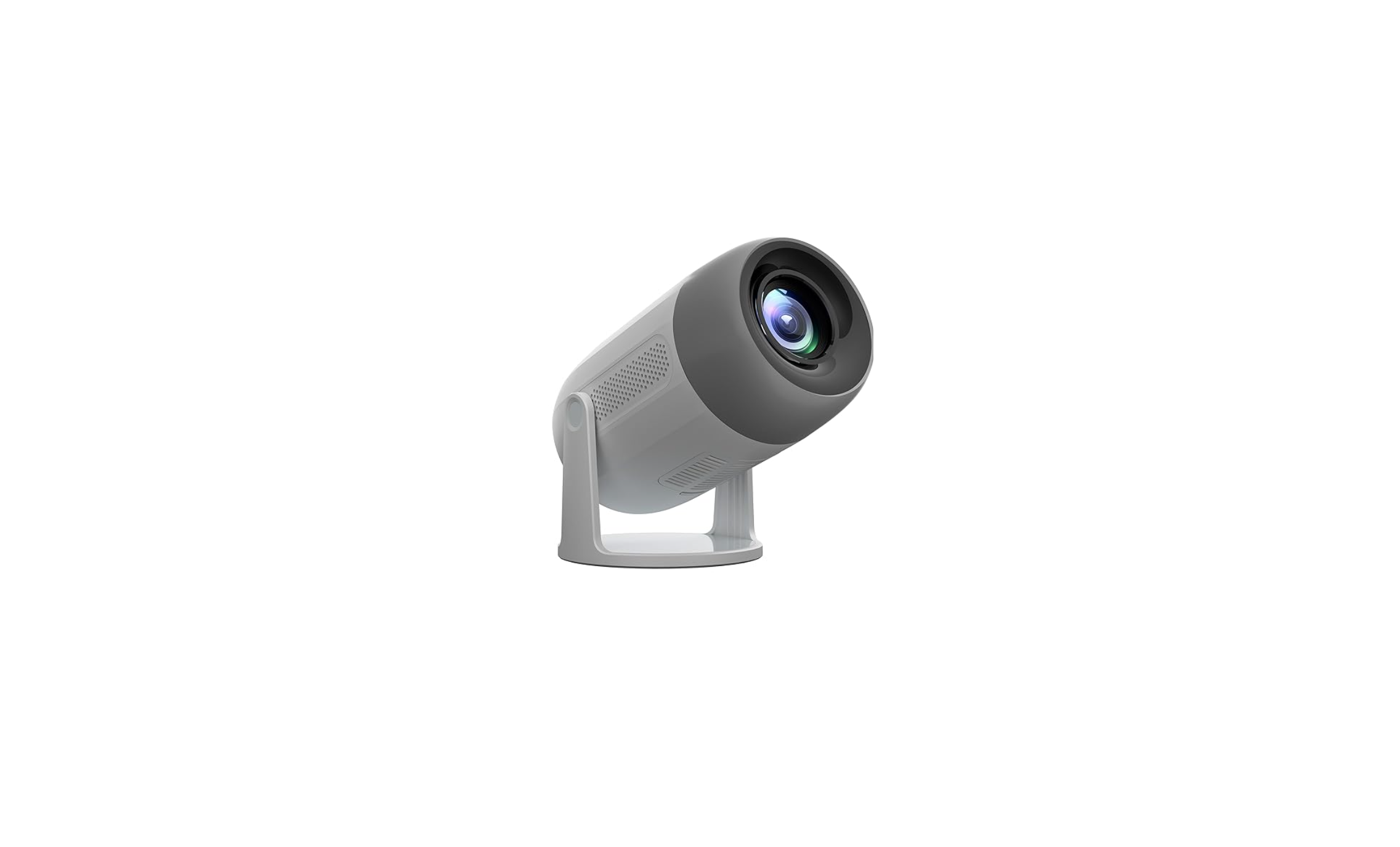

ZEBRONICS ZEB-PIXAPLAY 63 Smart LED Projector

Features
- Home Theater Projectors for Movies, TV & Gaming, etc.
- Built-in Speaker
- Wide Compatibility
- 200° Tilt Mechanism
- Auto Keystone Adaptation*
- Remote Control
- Miracast
- IOS Screen Mirroring
- Dual Band Connectivity (2.4GHz & 5GHz)
- FHD 1080p (Native)
- APP Support
Package Contents
- Projector: 1 U
- Remote Control: 1 U
- Power Cord: 1 U
- HDMI Cable 1 U
- Cleaning Cloth: 1 U
- LED Diffuse:r :1 U
- QR Code Guide : 1 U
Product Description

Remote Control

Setting Up the Projector
- Connect the power Adapter to the socket of the projector and turn it ON.

- Before turning ON, make sure to place ionin a flat surface for a proper projection, then press the power button / turn it on using the remote.
The recommended projection screen is around 100-120 inches with a distance of around 1-4m. To improve the clarity of your projected images, it is recommended to create ambient darkness and use a high-quality projection screen. These factors work together to provide a visually stunning and immersive viewing experience.

Projection Mode

Projection Settings:
Manual Focus:
Press the – button and the + button to adjust the picture clarity.

4 Point Keystone Adjustment
- Go to Set up > Projection Settings
- Choose Four Points correction, Press Direction Buttons to adjust the position, Press “OK” button to jump to the next corner adjustment, and when the circle in the center is perfect, the screen ratio conforms to the system settings.

Digital Zoom:
- Go to Set up > Projection Settings
- Choose Digital Zoom
- Press the Down button V to Zoom out (100% – 70%) and Up button A to Zoom in (70% – 100%).

Connection Settings
USB Connection:
Plug the USB into the port present at the rear side of the projector. Now ZEBRONICS ZEB-PIXAPLAY 63 Smart LED Projector navigate to the USB tab present on the homepage.
HDMI Connection:
Once the HDMI is connected to the projector, you will need to select the specific signal source as input. After connecting, the content played on the source will be streamed on the projector.
Bluetooth Connection:
- Go to Settings> Bluetooth settings.
- Turn the Bluetooth Connection On and search for nearby bluetooth devices.
- Choose the desired Bluetooth device to pair and connect.

Wifi Connection :
- Go to Homepage > Setup > WiFi Settings.
- Turn the WiFi ON and search the WiFi list by “Add WiFi”
- Select your WIFI, then enter the password to connect.

Wired Connection:
- Go to Homepage > Setup > Network > Wired Setting > Ethernet Setting > Auto IP (On).
- Insert the wired cable into the LAN interface of the projector to use the wired network.
Specification
- Screen Size:101.6- 381cm
- Native Resolution: 1920 x 1080p FHD
- Max. Supported Resolution: 1920 × 1080p (Мax.)
- Android Version:12.0
- RAM: 1 GB Core
- Processor: Quad Core Processor
- Storage:8 GB
- WI-Fi Connectivity: Dual Band Connectivity (2.4GHz & 5GHz)
- BT Version:v5.4
- Lamp Lifespan 30,000h
- Brightness: 5000 Lumens
- Contrast Ratio: 1000:1
- Projection Distance:1.06 – 3.98 m
- Port Interface :USBx1, HDMIINx1, AUX OUT
- Video File Format : H264, MPEG2, MPEG4, VC1, V-VP8, WMVP9, MJPEG, AVC, FLV1, M-JPEG, Xvid
- Input Voltage Product Dimension: A C 100-240V 50Hz
- (WxDxH):3×19.5 x 14.5cm
- Net. Weight: 850Kg
Customer Support
- Website: www.zebronics.com
- Tel: 044 40000004
FAQs
Q: What is the ZEB-PIXAPLAY 63 projector?
Ans: With smart connectivity, support for HD displays, and many input options like HDMI, USB, and Wi-Fi, the ZEB-PIXAPLAY 63 is a small Smart LED projector made for home entertainment.
Q: What is the native resolution and brightness of the projector?
Ans: The projector is appropriate for gloomy or poorly lit spaces because it has a brightness rating of about 1500 lumens and offers 720p HD native quality.
Q: Does the projector support Android apps?
Ans: Yes, the ZEB-PIXAPLAY 63 has a smart operating system (usually based on Android) that lets you install and utilise well-known streaming apps like YouTube, Netflix, and others right on the projector.
Q: Can I connect Bluetooth speakers or headphones to the projector?
Ans: Yes, Bluetooth audio output is supported by the projector, allowing wireless speakers or headphones to be connected for a better sound experience.
Q: Can I use the projector in bright rooms?
Ans: Use the projector in a room that is dark or poorly lit for the greatest viewing experience. Because of the low lumen output, images may appear less clear in bright situations.
Q: How do I reset the projector to factory settings?
Ans: Choose Factory Reset under Settings > System > Reset. All user data will be deleted, and the default settings will be restored.
Q: Can the projector play videos directly from a USB drive?
Ans: Certainly, choose USB as the input device to play media after inserting a USB flash drive containing suitable video formats (MP4, AVI, and MKV) into the USB port.
Q: What is the warranty period?
Ans: A one-year limited warranty covering manufacturing faults is provided by ZEBRONICS. Misuse or physical harm is not covered.