



Bowers & Wilkins PI5 Wireless Headphones
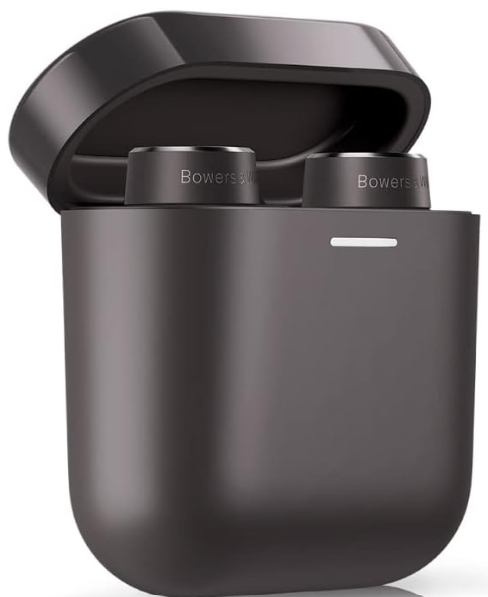
Features
- PI5 is a high-performance in-ear headphone designed to deliver the highest quality mobile personal audio experience combined with the convenience of wireless operation and the serenity of noise-cancellation.
- This manual will tell you everything you need to know to get the most from your PI5 headphones.
- Your PI5 can play music streamed wirelessly from your mobile phone, tablet, or computer via Bluetooth.
- Its only goal is to deliver an uncompromised listening experience.
- Ambient Pass-Through enables external sounds, such as conversation or safety announcements, to be heard clearly without any need to remove the headphones.
- The Wear Sensing feature enables PI5 to respond naturally, pausing and resuming the music simply by lifting either earpiece or from your ear.
- These features can be enabled and further customized via the Bowers & Wilkins.
- Headphone App available for free on iOS and Android devices. For those looking for a more premium experience with additional sound tuning options, check out the Bowers & Wilkins PI7 True Wireless Earbuds.
- PI5 incorporates a rechargeable battery case.
- When fully charged, depending on the degree of Bluetooth, Adaptive Noise Cancellation, and Ambient PassThrough use, the battery case can provide up to 20 hours of continuous wireless media streaming with noise cancellation enabled at average playback volume levels.
Contents
- PI5 Headphones with Ear Tips (M)
- Charging Case
- USB-C Charging Cable
- Ear Tips (S/L)
- Literature Pack
Know Your Product
Switching On/Off
- PI5 does not have a power control;ol, instead, the power management is automatic.
- Your PI5 earbuds will automatically charge when placed into the charging case, and will be ready to use when they are removed from the case.
- To exit power saving mode, start using the earbuds again by connecting your paired device, streaming audio, or placing the earbuds into your ears.
Media Playback
| Play or pause | Press the Multi-function button once. |
| Play to next track | Press the Multi-function button twice in quick succession. |
| Plathe y previous track | Press the Multi-function button three times in quick succession. |
Phone Call Functionality
| Answer call | Press the Multi-function button once with an incoming call. |
| End call | When an incoming call occurs, press the Multi-function button twice in quick succession. |
| Decline an incoming call. | Press the Multi-function button twice in quick succession with an incoming call. |
Adaptive Noise Cancellation
- Noise cancellation is a series of advanced technologies that aid in removing undesired noise from the surrounding environment.
- PI5 features our latest innovations in adaptive noise cancellation, which include intelligent sensing that adapts noise cancellation and tuning best suited to your surrounding environment.
- As your surroundings change, noise cancellation will auto-adapt to complement your new environment.
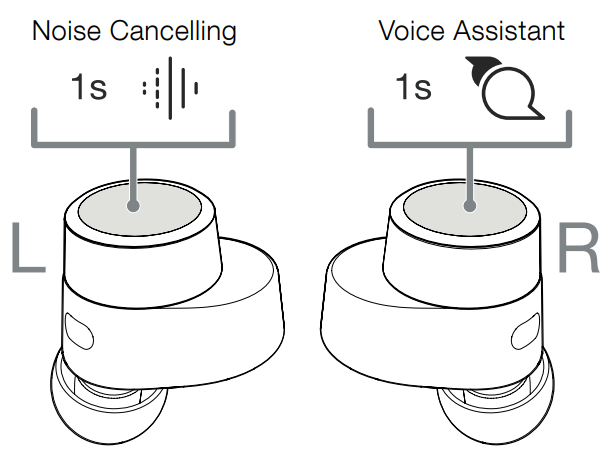
- The noise cancellation features are activated by pressing the left (L) earbud Multi-function button for 1 second, and additional 1-second presses cycle through the modes: On, Auto, or Off.
- See Diagram 2 for button location.
| On | Removes undesired noise from the surrounding environment. |
| Auto | Intelligently adapts noise cancellation to best suit your current environment. |
| Off | Turns off the noise cancellation feature. |
Voice Assistance
Voice Assistance is activated by pressing the right (R) earbud Multi-function button for 1 second. See Diagram 2 for button location.
Ambient Pass-Through
- PI5 features ambient pass-through, which lets some external noise from the surrounding environment, such as safety announcements or conversations, be heard without taking the headphones off.
- Ambient pass-through can be enabled or disabled through the Bowers & Wilkins headphone App. The level of ambient pass-through, High/Low/Off, can be adjusted to suit your needs through the App.
Wear Sensors
- PI5 incorporates our latest enhanced wear detection sensors in both earbuds.
- The sensors enable intelligent battery conservation by entering power-saving mode when removed from the ears. When worn again, PI5 automatically wakes and connects to the last connected Bluetooth device.
- The sensors will also pause audio when the earbuds are removed from your ears. Playback will auto-resume when the earbud is placed back in the ear.
- Auto resume has been further optimized, so it is ready only when you are. The Wearr sensor can be turned off from the Bowers & Wilkins Headphone App.
Stowing the Earbuds
When not in use, the PI5 earbuds should be stored inside the charging case, where they will be recharged and ready for future use.
Battery Charging
PI5 ships with the case and earbud batteries partially charged and may be used immediately. For best practice,ce we recommend fully charging the earbuds before first use. Please allow up to 3 hours for full charge.
To charge the PI5 earbuds
- Place the PI5 earbuds in the charging case.
- Close the charging case lid.
PI5 charging case
- Use the supplied USB charging cable and connect the USB plug to a USB wall charger or a powered computer USB socket.
- Then connect the USB-C end to the charging case USB-C socket.
Wireless charging station
- Place the charging case onto a wireless charging station.
- Ensure that the rear of the charging case is on the charging station (with the case indicator facing up).
Status Indicator
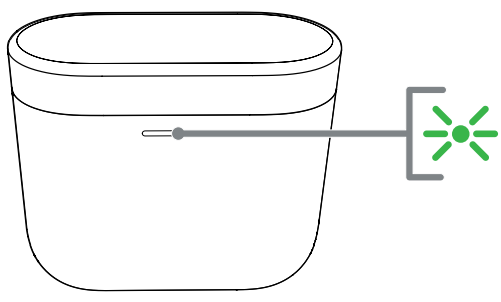
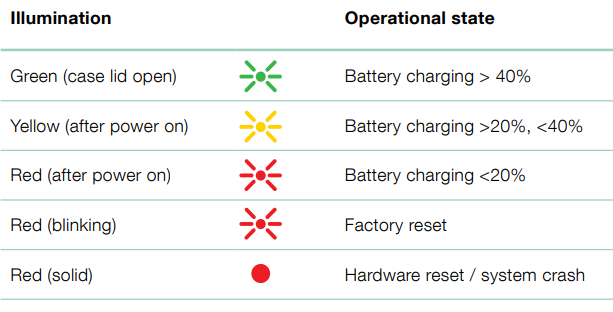
The status indicator is located on the front of the case. When the earbuds are placed in the case, the LED provides information about the earbuds. When the earbuds are removed from the case, the LED provides information on the charging case. See Diagram 3 for LED states.
With the earbuds in the charging case 
With the earbuds removed from the charging case
Bluetooth Connectivity
Pairing
Your PI5 earphones are designed to stream music wirelessly from Bluetooth audio devices, such as smartphones, tablets, or computers. To do so, the earphones and device must first be paired. When you receive your PI5 earp, they will be ready to pair with any Bluetooth audio device.
iOS System
- Download the Bowers & Wilkins Headphone App.
- Open the case and lid, the case indicator will flash blue.
- Go to the Bluetooth pairing menu of your device and select the “Bowers & Wilkins PI5” from the device list.
- The case indicator will change to solid blue to indicate pairing is successful.
- Open the Bowers & Wilkins app and add the headphones.
Bluetooth pairing – subsequent device
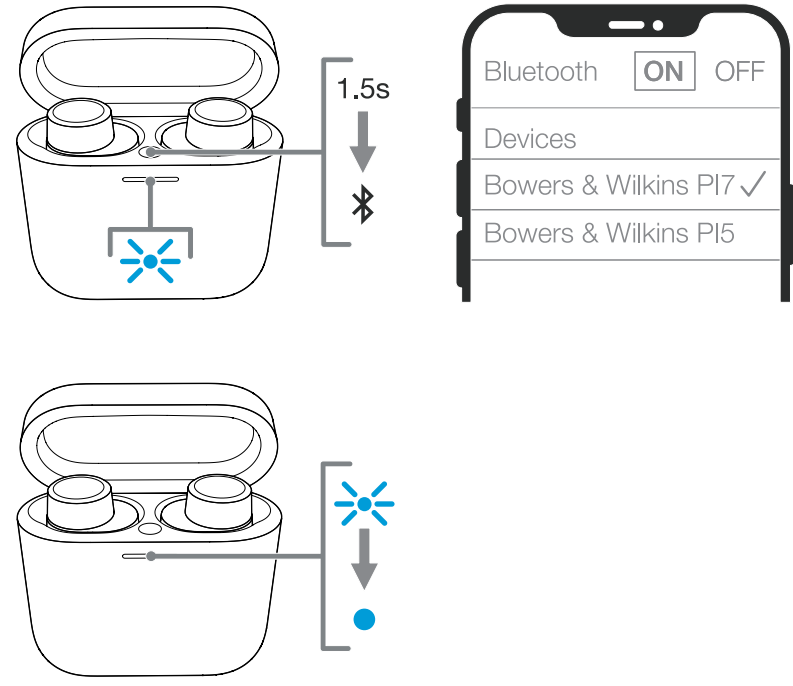
- Open the case lid with the earbuds placed inside the case.
- Press and hold the button inside the case for between 1 and 5 seconds; the case indicator will flash blue.
- Go to the Bluetooth pairing menu of your new device and select the “Bowers & Wilkins PI5” from the device list.
- The case indicator will change to solid blue to indicate pairing is successful.
PI5 can remember up to 4 paired Bluetooth Devices. Repeat the above steps to pair more devices.
Integrated with GFP Feature
To add your headphones
- Place the case no further than 10cm (4 inches) away from the Android device (BT enabled) and open the PI5 case lid.
- A GFP (Google FastPair) notification window will pop up showing “Bowers & Wilkins PI5 detected” and request to start the pairing process.
- Press the “Notification” button on the window to enable the pairing; a successful connection will be shown in the GFP window.
Once paired
- The GFP window will direct you to the Google Play Store to download and install the Bowers & Wilkins App.
- L/R Earbud and case Battery Level can be seen on the GFP window
Disconnect from a Device
You can quickly disconnect PI5 from a device by putting the earbuds back in the case. Alternatively, you can manage connections in further detail using the Bowers & Wilkins Headphones app under Connections.
App features
- The Bowers & Wilkins Headphones app provides extended setup and adjustments to features such as Adaptive Noise Cancellation, Ambient PassThrough, and Wear Sensors.
- The app also provides further customizations such as voice prompt, level of ambient pass-through, connection management, and headphone software updates.
- The app is available as a free download on iOS and Android devices.
To add your headphones
- From your mobile device, download and install the Bowers & Wilkins Headphones app.
- Launch the app, then read and follow the instructions pertaining to app notification and permissions.
- After reaching the main screen, simply tap + and follow the in-app instructions.
Headphone Software Update
- Bowers & Wilkins will occasionally make available software updates that refine and optimize the performance of your headphones or add new features.
- The Bowers & Wilkins Headphones app will notify you when a software update is available. Tap on the notification and follow the in-app instructions.
Wearing Your Headphones
- Wearing your headphones correctly will help ensure you get the best possible experience, see Diagram 5.
- Like many in-ear earphones, PI5 earbuds are designed to seal the ear canal in order to perform optimally. Ear tips come in three sizes (small, medium, and large).
- Finding the proper size for your ear is critical to obtaining a good seal and ensuring PI5 and the advanced features, such as Adaptive Noise Cancellation, perform optimally.
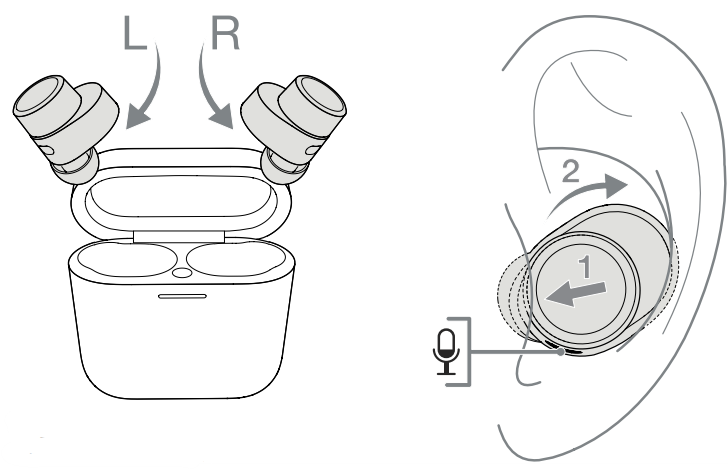
- Identify the left and right earbuds by finding the L and R identification located on the inner side of each earbud.
- Place the earbuds in your ear and twist them backwards slightly so that the tips engage comfortably with the opening of the ear canal.
- If the earbud tip feels too large or too small, try another size ear tip to ensure the best possible fit.
Troubleshooting
Factory Reset
- You can clear the paired device history and restore all settings to their defaults.
- To factory reset the earbuds, open the charging case with the earbuds placed inside. Press and hold the button on the inside of the case for 5 seconds and release.
- The indicator on the case will turn red to indicate the reset.
Hard Reset
- To hard reset the earbuds, open the case with the earbuds placed inside.
- Press and hold the button inside the case for 15 seconds until the LED indicator goes off and illuminates green to indicate completion of the hard reset process.
Caring For Your Earphones
- Your earbuds can be cleaned with a damp cloth and gently dabbed until clean.
- Do not use cleaning detergents, rubbing alcohol, or chemical cleaners/ polish; doing so may damage your earbuds.
Environmental Information
- This product automatically manages its power state without the need for any interaction.
- This product complies with international directives, including but not limited to the Restriction of Hazardous Substances (RoHS) in electrical and electronic equipment, the Registration, Evaluation, Authorization and restriction of Chemicals (REACH), and the disposal of Waste Electrical and Electronic Equipment (WEEE).
- Consult your local waste disposal authority for guidance on how to properly recycle or dispose of this product.
Customer Service
- Ph: 800 370 3740
- Website: https://www.bowerswilkins.com/
6 Comments
Pingback: Bowers And Wilkins PI7 True Wireless Earbuds | User Manual
Your point of view caught my eye and was very interesting. Thanks. I have a question for you.
Your article helped me a lot, is there any more related content? Thanks!
Can you be more specific about the content of your article? After reading it, I still have some doubts. Hope you can help me. https://www.binance.info/es-AR/register?ref=UT2YTZSU
Can you be more specific about the content of your article? After reading it, I still have some doubts. Hope you can help me.
Thanks for sharing. I read many of your blog posts, cool, your blog is very good.