



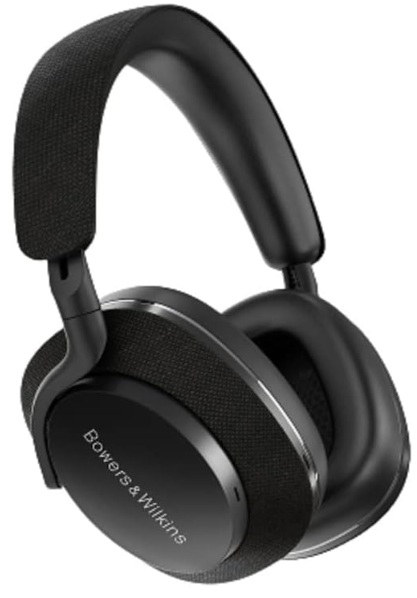
Bowers And Wilkins PX7 S2 Over-Ear Headphones
Introduction
Thank you for choosing Bowers & Wilkins. When John Bowers first established our company, he did so in the belief that imaginative design, innovative engineering, and advanced technology were keys that could unlock the enjoyment of audio in the home. His belief is one that we continue to share, and it inspires every product we design.
These reference-quality headphones deliver an unparalleled experience of your favourite music and feature the finest Italian Saffiano leather by Scabrenta. This manual will tell you everything you need to know to get the most from your P9 Signature Headphones.
Contents
- P9 Signature Headphones
- Universal cable
- 5 metre cable
- 1/4in audio jack adapter plug
- Carry case
- Literature pack
Using the Device
- Using your headphones correctly will help ensure that their performance reaches its full potential.
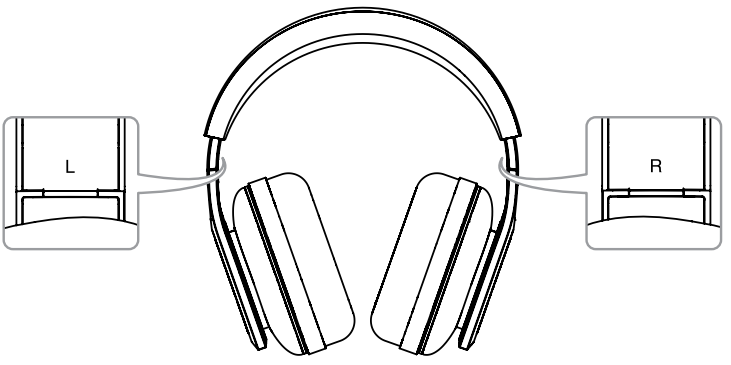
- First, identify the left and right ear pieces.
- Identification legends are engraved on the metal hinge below the headband.
Identifying left and right
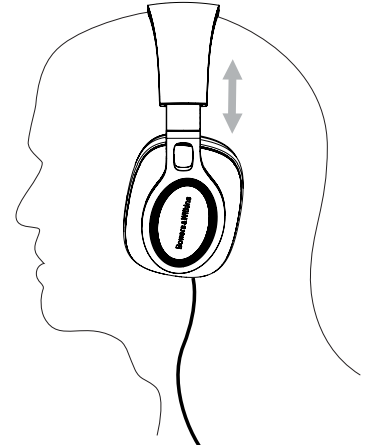
Now unfold the headphones and slide them onto your head with the headband adjusted so that each earpiece sits comfortably over the ear.
Adjusting the Earpiece
It is recommended that you fold and return your headphones to their case when not in use.
How to Connect
- Your P9 Signature Headphones can be connected to any audio device with a 3.5mm jack headphone output.
- The remote and mic cable fitted to P9 Signature Headphones incorporates an iPhone, iPod®, and iPad® compatible microphone and audio control. Its use is described in the following section of this manual.
- If using your P9 Signature Headphones with anything other than an Apple® device, the remote and mic cable functionality may vary. If performance is affected, the applied universal cable or 5 metre cable can be substituted.
Changing the Cable
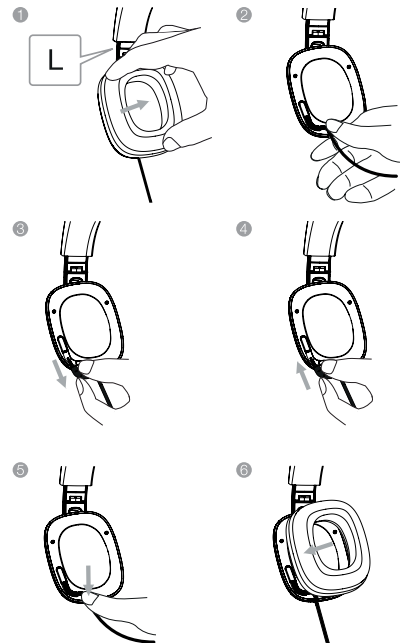
- Unfold the headphones and remove the left earpad by gently pulling it away from the body of the earpiece.
- Removing the left earpad reveals the cable connection plug and socket.
- Gently grasp the cable just below the earpiece and lift upwards. The connection plug and socket wire.
- Now gently grasp the connection plug and pull it out of the socket.
- With the remote and mic cable now disconnected, take the alternate cable and identify the 2.5mm connection plug.
- Insert the 2.5mm (angled) connection plug into the left earpiece socket and press the connection plug moulding into its routing channel.
- Replace the left earpad. Make sure that the earpad location pins and sockets engage accurately.
Headphones with iPhone, iPad, and iPod
Your P9 Signature Headphones incorporate a combined microphone and audio control, integrated within the remote and mic cable, that enables you to make or answer calls while wearing the headphones. The control also enables you to play, pause, a nd skip songs. The microphone and controls are illustrated in diagram 4.
Microphone and Audio controls
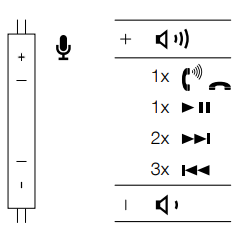
The control incorporates three click switches, one in the middle and one at either end, and operates as follows:
- Click the end switch engraved “+” to increase phone or song volume.
- Click the end switch engraved “–” to decrease phone or song volume.
- Click the middle switch once to answer a call.
- Click the middle switch once to end a call.
- Click the middle switch once to play or pause a song
- Click the middle switch twice to skip to the next song.
- Click the middle switch three times to skip to the previous song.
Cleaning
Clean your P9 Signature Headphones by soaking a soft cloth in warm water and dabbing the leather until clean. Do not rub the cloth on the leather. Do not use cleaning detergents or leather polish, as doing so may cause damage to the product.
Technical Specifications
- Model: P9 Signature
- Description: Circum aural headphone
- Features: Nylon-damped cone with acoustic coating
- Large surround diaphragm
- CCAW coil with an external large pole magnet
- Dual cavity ear cushions
- Controlled acoustic air leak cushions
- Changeable ear cushions
- Detachable cable
- Folding (hinged) design
- Drive units: 2x ø40mm (1.6in) full range
- Impedance: 22 ohms
- Frequency range: 2Hz to 30kHz
- Distortion: (THD) <0.2% (1KHz/10mW)
- Max. input power: 50mW
- Sensitivity: 111dB/V at 1kHz
- Inputs: 3.5mm stereo jack (TRRS 4-pole CTIA spec.)
- 3.5mm stereo jack (TRS 3-pole unbalanced stereo spec.)
- Cable length: 1.2m and 5m
- Net weight: 415g
- Finish: Real leather and metal
- Apple compatibility: Made for iPhone 6s Plus, iPhone 6s, iPhone 6 Plus, iPhone 6,
- iPhone 5s, iPhone 5c, iPhone 5, iPhone 4s,
- iPad Pro, iPad mini 4, iPad Air 2, iPad mini 3, iPad Air, iPad mini 2, iPad mini,
Troubleshooting
- Try an alternative audio source.
- Check the iPod, iPhone, and iPad compatibility.
- Disconnect and reconnect the headphones to ensure the connection is secure.
- Test on another compatible product if available.
- Disable any audio enhancement features on the audio source.
- Try an alternative audio source.
- Check the cable connection within the left earpiece.
- Disconnect and reconnect the headphones to ensure the connection is secure.
- Try another audio source.
- Check the cable connection within the left earpiece.
Environmental Information
- This product automatically manages its power state without the need for any interaction.
- This product complies with international directives, including but not limited to the Restriction of Hazardous Substances (RoHS) in electrical and electronic equipment, the Registration, Evaluation, Authorisation and restriction of Chemicals (REACH), and the disposal of Waste Electrical and Electronic Equipment (WEEE).
- Consult your local waste disposal authority for guidance on how to properly recycle or dispose of this product.
Customer Service
- Ph: 800 370 3740
- Website: https://www.bowerswilkins.com/
3 Comments
I don’t think the title of your article matches the content lol. Just kidding, mainly because I had some doubts after reading the article.
Can you be more specific about the content of your article? After reading it, I still have some doubts. Hope you can help me.
Can you be more specific about the content of your article? After reading it, I still have some doubts. Hope you can help me.