



Bowers And Wilkins PX8 Over-Ear Headphones
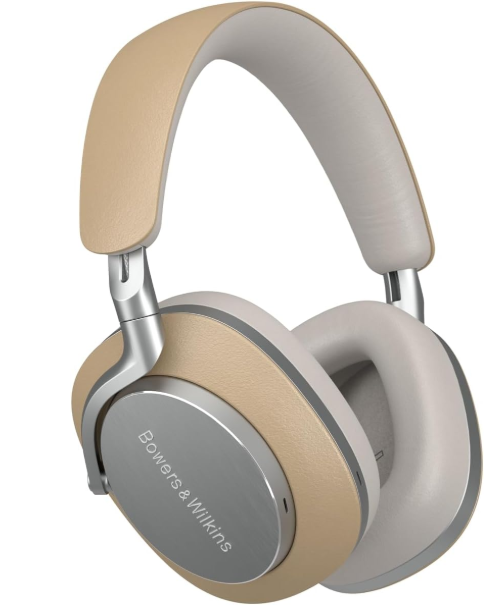
Introduction
When John Bowers first established our company, he did so in the belief that imaginative design, innovative engineering, and advanced technology were keys that could unlock the enjoyment of audio in the home. His belief is one that we continue to share and inspires every product we design, tailored for new audio experiences outside of the home.
Px8 Real World Listening features include our latest innovations in Active Noise Cancellation, Ambient Pass-Thro, ugh, and enhanced Wear Sensing technologies. Our latest generation noise cancellation feature delivers an uncompromised listening experience. The Wear Sensing feature enables Px8 to respond naturally, pausing and resuming the music simply by lifting either earpiece off your ear.
Px8 incorporates a rechargeable battery. When fully charged, depending on the degree of Bluetooth, Active Noise Cancellation, and Ambient Pass-Through use, the battery pack can provide up to 30 hours of continuous wireless media streaming with noise cancellation enabled at average playback volume levels.
Carton Contents
- Px8 over-ear wireless headphone storage,
- USB-C to USB-C charging cable,
- USB-C to 3.5 mm audiocable, and e Document pack.
Know your Product
We recommend installing the Bowers & Wilkins Music app on your iOS or Android device. This allows you to configure your headphones in detail and provides helpful hints and tips to make the most of your new headphones.
Switching On
The power switch is located on the right earpiece. Slide the power switch up to the middle position. An audible cue will be played, and the LED indicator will light up.
Switching Off
Slide the power switch to the bottom position. An audible cue will be played, and the headphones will power down when the LED indicator is no longer lit.
Bluetooth Pairing
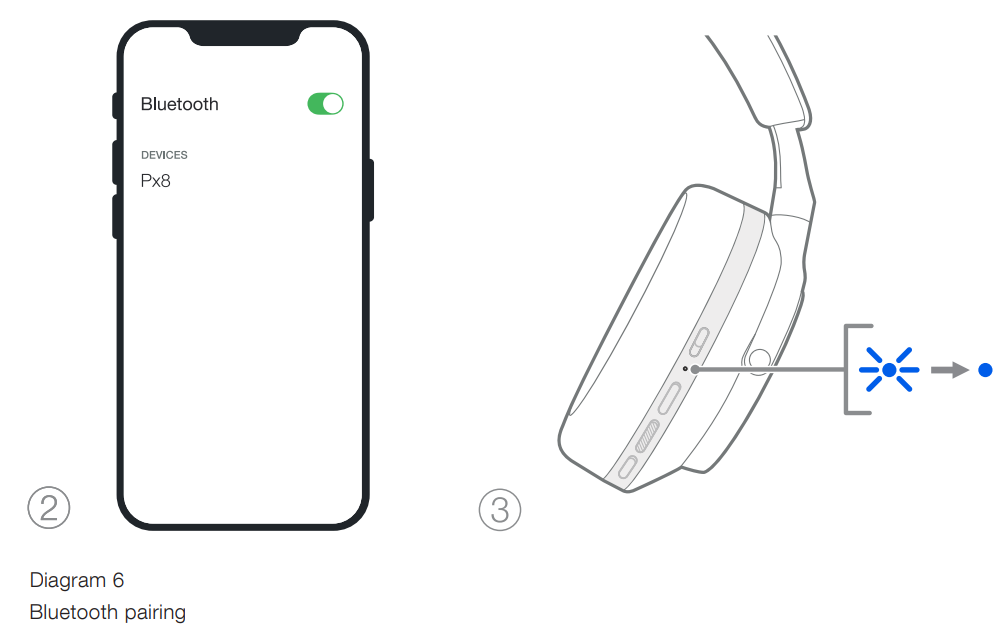
Slide the power switch to the upper position and hold for 5 seconds to enter Bluetooth pairing mode. Refer to section 6 for further information on pairingConne your headphones to a Bluetooth source.
Headphone Controls
Diagram 2 illustrates the headphone controls. The buttons on the right earpiece are used for media playback and telephony.
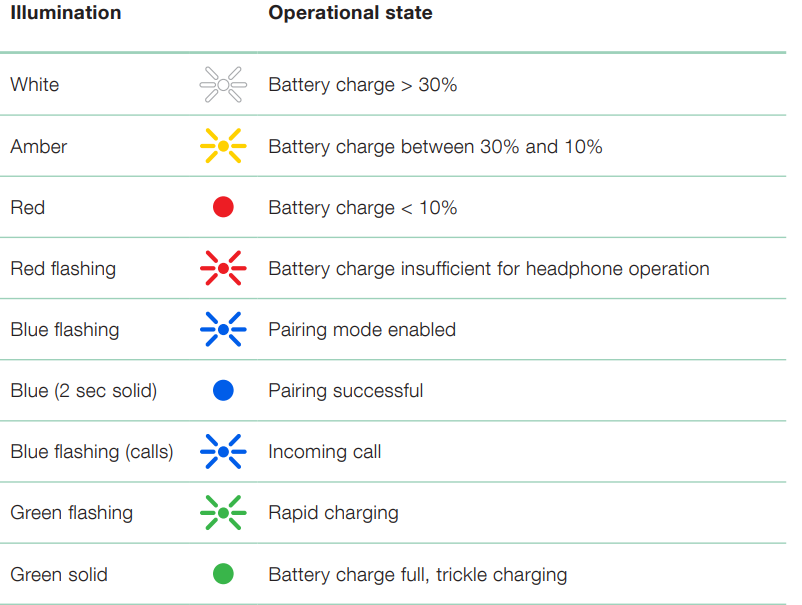
Status Indicator
The status LED indicator is located on the right earpiece. The table below explains the illumination states:
Intelligent Features
Px8 also features an ambient “Pass-Through” mode, which allows some external sound from the surrounding environment, allowing safety announcements or conversations to be heard without taking the headphones off. By default, the Quick Action button on the left earpiece will cycle through the following modes, but the button can be customised from the Bowers & Wilkins Music app. See Diagram 2 for button location.
- Noise Cancelling On
- Pass-Through On
- Noise Cancelling and Pass-Through Off
Voice Assistance
Your connected device’s voice assistant can be assigned to the Quick Action button on the left earpiece from the Bowers & Wilkins Music app. See Diagram 2 for button locations and section 8.2 on using the Bowers & Wilkins Music app.
Power Saving
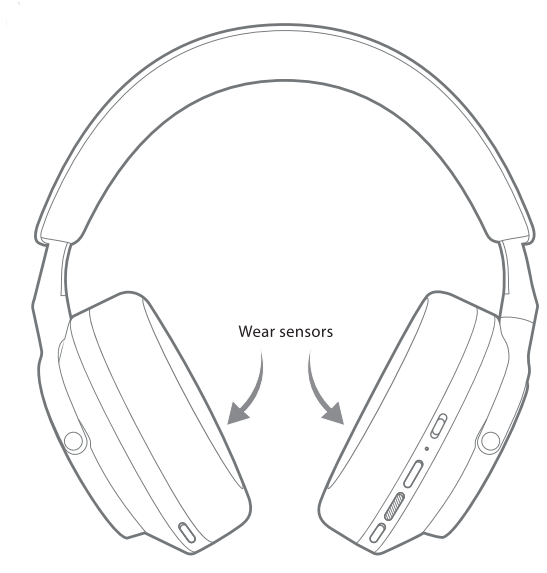
Px8 incorporates our latest enhanced wear detection sensors in both earpieces (see Diagram 3), enabling intelligent battery conservation by pausing media playback and entering low power standby mode when removed from the head. When worn again, Px8 automatically wakes and connects to the last connected Bluetooth device.
Playback Control
During media playback, Px8 will automatically pause when either earpiece is lifted from the ear. If playback has been paused, placing the earpiece back on the ear will resume playback. The standby timer and wear sensor features can be adjusted from the Bowers & Wilkins Music app.
Battery Charging and Power Saving
Your Px8 comes with the battery partially charged and may be used immediately. For best practice, we recommend you fully charge the headphones before first use. Please allow up to 2 hours to fully charge. The headphones can be used while charging. To charge.
- Use the supplied USB-C cable and connect one end to a wall charger or powered computer port.
- Connect the other end of the cable to the USB-C socket on the headphone’s right earpiece.
Wearing
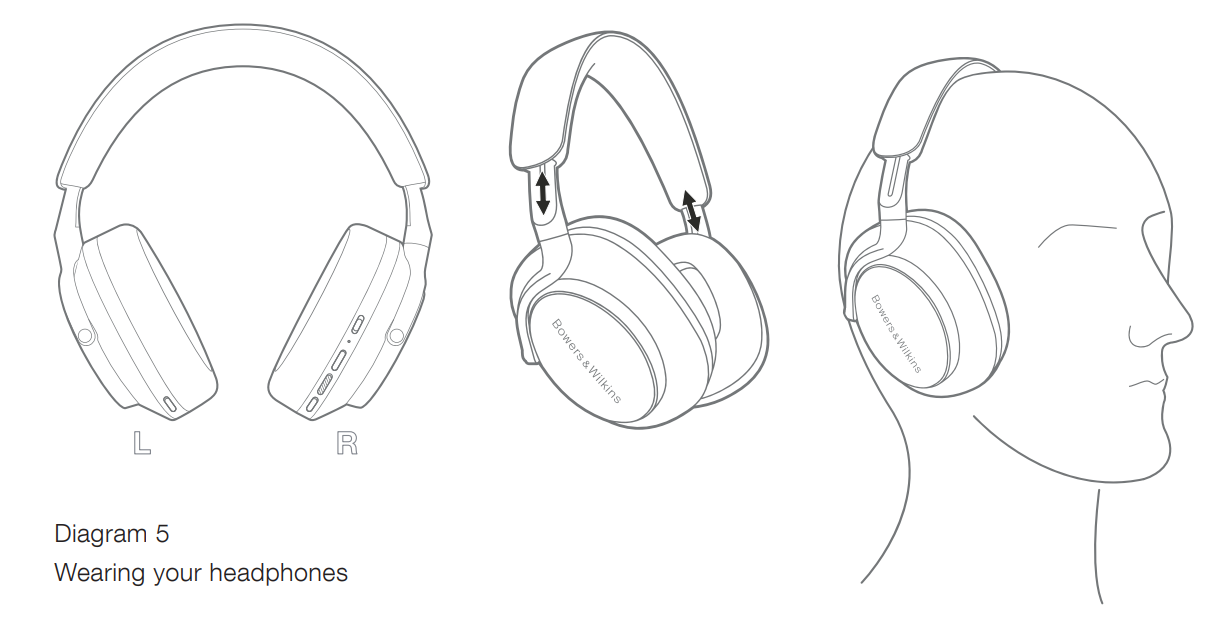
Wearing your headphones correctly will help ensure the best possible experience. See Diagram 5.
- Identify the left and right earpieces by finding the identification legends located on the interior of each earpiece.
- Wear the headphones according to the headband, adjusted so that they rest comfortably on your head.
Bluetooth Connection
Pairing
Your Px8 headphones are designed to stream media wirelessly from Bluetooth audio devices, such as smartphones, tablets, or personal computers. To do so, the headphones and source audio device must first be paired. ed
The iOS System with the Bowers & Wilkins Music App Installed
We recommend adding your headphones to the Bowers & Wilkins Music app. This allows you to configure your headphones in detail and provides helpful hints and tips to make the most of your new headphones.
Please refer to section 8 for details on installing and using your headphones with the Bowers & Wilkins Music app. During the initial connection process, you will also be prompted to pair your headphones as an audio accessory. Tap on the confirmation pop-up to complete the pairing process.
Android Devices Supporting Google Fast Pair Service (GFPS)
To add your headphones.
- Switch on your headphones and place them no further than 10 cm (4 inches) away from your Android device (with Bluetooth enabled).
- The first time you switch on your headphones, Bluetooth pairing mode will be enabled, and the indicator will flash blue.
- If pairing mode is not enabled, please slide and hold the power switch to the upper (Bluetooth icon) position for 5 seconds, let go when the indicator blinks blue and an audible cue is heard.
- A GFPS (Google Fast Pair Service) notification will pop up showing that your device has been detected and requesting to start the pairing process.
- Press the Connect button to enable pairing; a successful connection will be shown in a pop-up.
- Once paired, the pop-up will direct you to the Google Play Store to install the Bowers & Wilkins Music App.
Pairing All Other Devices
- The first time you switch on your headphones, Bluetooth pairing mode will be enabled, and the indicator will flash blue. If pairing mode is not enabled, please slide and hold the power switch to the upper (Bluetooth icon) position for 5 seconds, let go when the indicator blinks blue and an audible cue is heard.
- Ensure the Bluetooth feature is enabled on the audio device.
- Px8 will appear in the discovery list; select it to pair.
- The indicator will flash blue while pairing is in progress.
- This will change to solid blue, and an audible cue will play when pairing is successful.
- Your headphones will remember up to eight paired Bluetooth devices.
- Repeat the above steps to pair more devices.
Multiple Bluetooth Connections
To switch between two devices.
- Pause audio on the first device, or use the Px8 Multi-function button.
- Play audio from the second device, and the headphones will automatically switch over.
You can manage connections in further detail using the Bowers & Wilkins Music app.
Auxiliary Connection
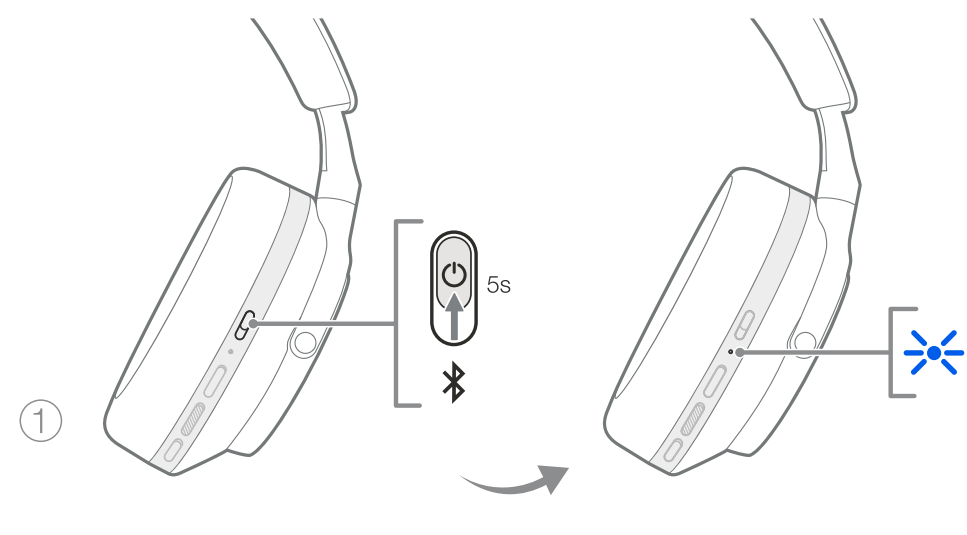
In addition to Bluetooth, your Px8 can also connect to audio sources using the supplied 3.5 mm audio or USB cables.
Connecting with the 3.5 mm Audio Cable
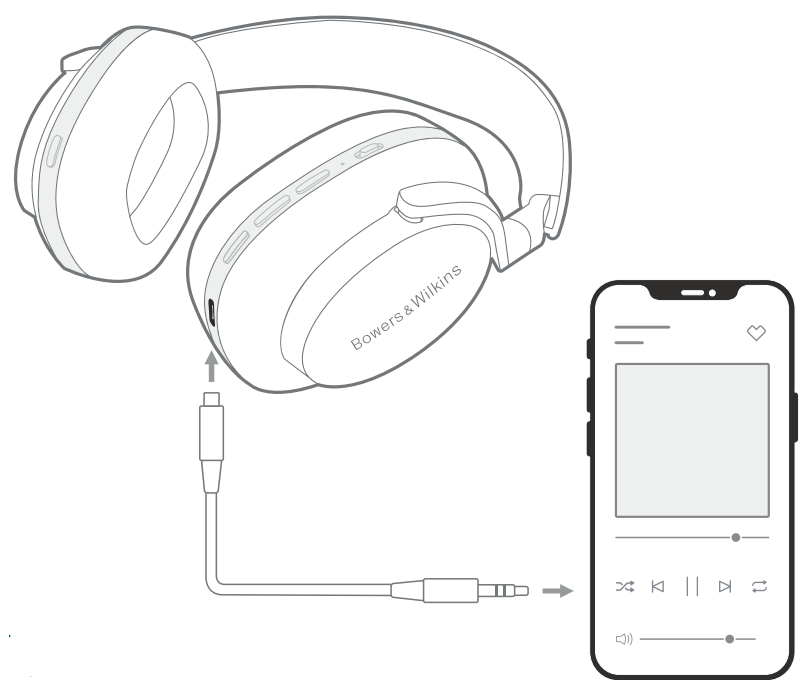
- Insert the supplied USB-C to 3.5 mm audio cable into the headphone’s USB-C socket on the right earpiece.
- Insert the other end into the appropriate socket on your device.
- Your Px8 will automatically disconnect from any Bluetooth devices.
Connecting with the USB Cable
The USB connection enables your Px8 to function as a USB sound output device when connected to a capable computer.
- Insert one end of the supplied USB-C to USB-C cable into the Px8 USB-C socket on the right earpiece.
- Insert the other end into the appropriate socket on your computer.
- Px8 will automatically disconnect from any Bluetooth devices.
- Find and select your headphones from the computer’s audio output control panel.
Bowers & Wilkins Music App
The Bowers & Wilkins Music app is available for free on iOS and Android devices and provides extended setup and adjustments to features such as Active Noise Cancellation, Ambient Pass-Thru ugh and EQ settings. The app also provides further functions such as device naming, connection management, and headphone software updates.
Connecting Your Headphones to the App
To set up your headphones in the app:
- From your Android or iOS device, download and install the Bowers & Wilkins Music app.
- Launch the app, then read and follow the instructions pertaining to app notification and permissions.
- The app should detect your headphones automatically and invite you to set up your headphones; follow the in-app instructions to complete the setup process.
Controlling Your Headphones
Commonly used features of your headphones are accessible directly on the app homepage:
- Battery status
- Environmental controls (Noise Cancellation, Pass-Through)
- Device connections (refer to the Connections section below for further details)
Headphone Settings Page
Other settings can be adjusted from the Settings page. Tap the icon at the bottom of the screen to enter the Settings page, then select your Headphones from the list.
Environmental Controls
Set the desired environmental control from the following options:
- Noise Cancelling On
- Pass-Through On
- Noise Cancelling and Pass-Through Off
Connections
The two most recently connected Bluetooth devices are shown in the Connections shortcut buttons. The buttons will appear grey if not currently connected. Tap the buttons to attempt reconnection. If only one device is shown, tap ADD DEVICE to place the headphones into Bluetooth pairing mode to pair them with a new device.
Tap the CONNECTIONS heading to view more detailed connection settings, including previously connected devices (Px8 will remember up to eight devices).
Once in the Connections page, swipe a device left to delete a device from the list. Swipe a device right to make it the preferred device to connect to when the headphones are switched on. Toggle Auto-connect to last device to prompt the headphones to connect to the previously connected device when they are switched on. Tap PAIR A NEW DEVICE to place the headphones into Bluetooth pairing mode and pair them with a new device.
Quick Action Button
The left earpiece of your headphones features a button that provides quick access to commonly used functions. Customise the function of this button from the app.
- Environmental Controls – each press of the Quick Action Button cycles through:
- Noise Cancelling On
- Pass-Through On
- Noise Cancelling and Pass-Through Off
- Voice Assistant – press the Quick Action Button to activate your device’s voice assistant.
Device Management
ToggStandby on to place the headphones into a power-saving state after 15 minutes of inactivity. Toggle the Wear sensor on to enable intelligent playback control; lift an earpiece or remove your headphones to pause playback. Place them back on your ears to resume playback.
Rename product
Tap Rename product to choose a new Bluetooth name for your headphones. Note that devices already paired with the headphones may still reference the previous name.
Headphone Software Updates
Bowers & Wilkins will occasionally make available software updates that refine and optimise the performance of your headphones or add new features. The Bowers & Wilkins Music app will notify you when a software update is available. Tap on the notification and then follow the in-app instructions.
Power Cycle and Reset
The reboot/reset process may generate noise in the headphones – do not wear them during this process.
Power Cycle
To reboot your Px8, remove the headphones from your head and remove any cables from the headphones. Simultaneously hold the Volume + and Volume – buttons for 10 seconds until the indicator LED extinguishes. Release the buttons when the indicator lights up again. Rebooting your earphones will not reset their internal settings or clear the paired device history.
Factory Reset
You can clear the paired device history and restore all settings to their factory defaults. Remove the headphones from your head and remove any cables from the headphones. With Px8 powered on, simultaneously hold the Volume +, Volume -, nd left earpiece Quick Action button for 10 seconds until the indicator LED extinguishes. Release the buttons when the indicator lights up again; the headphones will be ready to pair to a device. Alternatively, you can perform a factory reset from the headphone’s settings page of the Bowers & Wilkins Music app.
Care & Maintenance
Storing Your Headphones
Taking care of your Px8 will ensure it continues to deliver the best performance and experience. When you are not using your headphones, stow them in the included storage pouch.
- Retract the headband on each side so they are in the smallest position.
- With the buttons facing you, rotate the earpieces inwards so they lie flat.
- Place the headphones into the storage case.
Cleaning
If dirt, stain, or fibre residue accumulates on the fabric surface, please clean as instructed above.
- Do NOT aggressively rub or use an abrasive tool to clean, especially the fabric or leather.
- Do NOT use paper towels, napkins, or tissues as they will leave residue.
- Do NOT use cleaning detergents, soapy water, pol, ish, or chemical cleaners.
- Ensure that no moisture gets inside the earpieces, buttons, and interface ports.
Specifications
- Wearing Style Bluetooth Wireless Over-Ear Headphones
- Technical Features: Active Noise Cancellation, Ambient Pass-Thru,gh Wear-Detection Sensor, Bluetooth® audio – Bluetooth 5.2 with aptX™ Adaptive USB-C charging & audio interface
- Bluetooth Codecs aptX™ Adaptive aptX™ HD aptX™ AAC SBC
- Bluetooth Profiles, A2DP, AVRCP, HF, P HSP
- BLE GATT (Generic Attribute Profile) Drive Units 2 x ø 40 mm dynamic full range custom carbon driver
- Microphones 4 x mics for ANC 2 x mics for telephony Input Impedance 33 Ω
- Distortion (THD) <0.1% (1 kHz/10 mW)
- Battery Type Rechargeable Lithium Ion
- Carrying case
- Weight 320 grams without case
Customer Service
- Ph: 800 370 3740
- Website: https://www.bowerswilkins.com/
7 Comments
Pingback: Bowers & Wilkins P9 Signature Headphones Guide & Specs
I don’t think the title of your article matches the content lol. Just kidding, mainly because I had some doubts after reading the article.
Your point of view caught my eye and was very interesting. Thanks. I have a question for you. https://accounts.binance.com/de-CH/register?ref=W0BCQMF1
Thank you for your sharing. I am worried that I lack creative ideas. It is your article that makes me full of hope. Thank you. But, I have a question, can you help me? https://www.binance.info/register?ref=QCGZMHR6
Can you be more specific about the content of your article? After reading it, I still have some doubts. Hope you can help me. https://accounts.binance.info/register-person?ref=JW3W4Y3A
I don’t think the title of your article matches the content lol. Just kidding, mainly because I had some doubts after reading the article. https://www.binance.info/register?ref=QCGZMHR6
Can you be more specific about the content of your article? After reading it, I still have some doubts. Hope you can help me.