



Sonos Roam 2 Waterproof Bluetooth Speaker
Overview
Lightweight, durable, and powerful, Sonos Roam 2 makes it easy to enjoy Sonos sound everywhere life takes you.
- Size-defying sound. Precision-engineered drivers produce astonishing clarity and bass that packs a punch. Your eyes won’t believe your ears.
- Tough and ready for adventure. Durably constructed, impressively lightweight, and IP67 waterproof and dust proof, Sonos Roam 2 is built to perform outdoors.
- A portable Bluetooth speaker and smart speaker all in one.
- Connect to your home WiFi with the Sonos app to unlock all the features and power of Sonos Roam 2, including Apple AirPlay 2 and free music streaming with Sonos Radio.
- Voice control, everywhere. Enjoy hands-free ease and unmatched privacy with Sonos Voice Control, even when you’re on the go.
- Just ask to skip a song, turn up the volume, and check the battery level. At home, use Alexa to set your routines, control your smart home, and more. A battery that goes the distance.
- Get up to 10 hours of non-stop playback and enhanced power management with the included USB-C to USB-C charging cable.
Important Safety
- Read these instructions. Keep these instructions. Heed all warnings. Follow all instructions.
- Clean only with a dry soft cloth. Household cleaners or solvents can damage the finish on your Sonos
products. - Sonos products with rubber rings on the bottom, such as Move, One, and One SL, may leave a faint ring on some surfaces treated with polyurethane.
- This ring can be easily removed by wiping with a damp cloth.
- Do not block any ventilation openings. Install in accordance with the manufacturer’s instructions.
- Protect the power cable from being walked on or pinched, particularly at plugs, convenience receptacles, and the point where they exit from the apparatus
- Only use attachments/accessories specified by the manufacturer.
- Unplug this apparatus during lightning storms or when unused for long periods of time.
- The Mains plug should be readily available to disconnect the equipment.
- Sonos Roam and Sonos Roam SL meet IP67 water resistance levels.
Controls and Lights
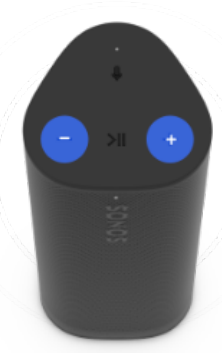
Volume control
- Volume up (+)
- Volume down (-)
Playback
Play/Pause: Press once to pause or
- resume streaming content.
- Next: Double-press
- Previous: Triple press
Group
When another Sonos speaker is streaming audio, press and hold the Play/Pause button (about 1 second) to group it with Sonos Roam 2. You’ll hear the “grouping” tone, and your speakers will begin playing the same content.
Sound Swap
When another Sonos speaker is streaming audio, press and hold the Play/Pause button (about 2 seconds) to take the current stream and play it on Sonos Roam 2. You’ll hear the “sound swap” tone, and the content will stop streaming from the other speaker.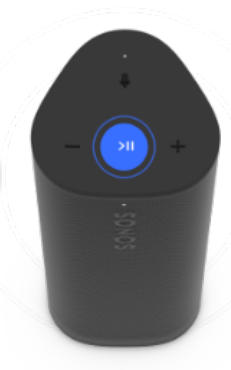
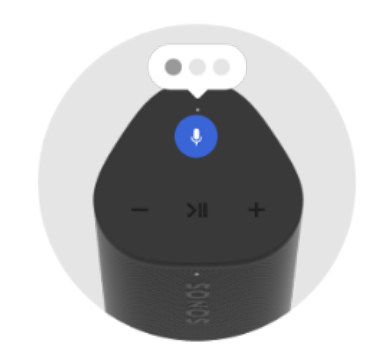
Microphone on/off
- Press to turn the microphone on or off. When the microphone light is on, voice control microphone-related features are available.
- Press to turn the microphone on or off. When the microphone light is on, voice control microphone-related features are available.
Status Light
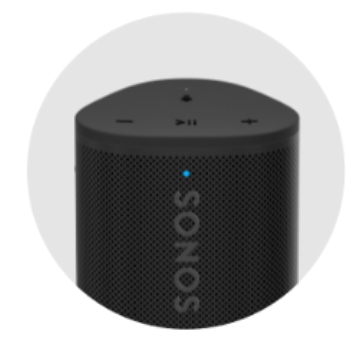
Displays the product’s connection to WiFi or Bluetooth, indicates when the volume is muted, and signals errors:
- Solid white On, ready to use.
- Blinking blue Bluetooth pairing mode.
- Solid blue-Connected to a device via Bluetooth.
- Flashing orange—If the product gets too hot, the status light flashes orange and the product chirps 3 times. Learn more
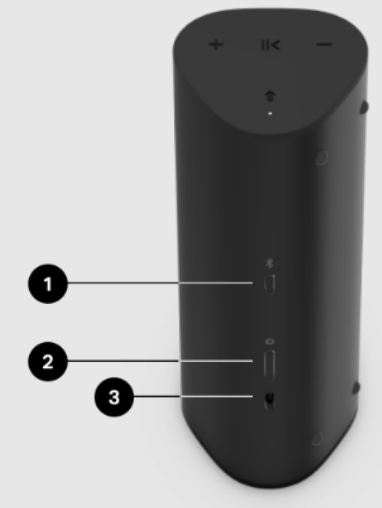
Connector Panel
- Bluetooth button
- To pair with a device: Press and hold until you hear the Bluetooth tone and the status light blinks blue. Go to the device’s Bluetooth settings and select Sonos Roam.
- Power button Power on/sleep/wake: Press once (less than 1 second). When you put the Sonos Roam 2 to sleep, you’ll hear a tone, and the status light will turn off.
- Press again to wake. If you put the Sonos Roam 2 to sleep, it will stay asleep for 10 minutes before powering off.
- Power off: Press and hold (about 5 seconds). Press and hold until you hear the power down tone, and the status light turns off.
- USB-C port Use the included cable to connect a USB-IF certified or USB-compliant USB-C power supply, 7.5 W minimum (15 W recommended).

Select a Location
You can use your Sonos Roam 2 just about anywhere. Here are a few things to keep in mind:
- You can place the speaker next to a wall or on a shelf-for best performance, leave at least 1 inch (2.5 cm) space around the back of the speaker.
- The speaker’s durable design includes silicone end caps to protect it from drops or bumps.
- Avoid placing the speaker in direct sunlight.
- You can place it horizontally or vertically. When vertical, the speaker takes up barely any room. Position it horizontally for added stability on uneven surfaces.
- When the microphone is on, the speaker tunes itself with automatic Trueplay™ for amazing sound no matter where you are and what you’re listening to.
Bluetooth pairing
Sonos Roam 2 can stream content from a Bluetooth device when WiFi is unavailable. Make sure your Sono.s
Roam 2 and Bluetooth device stay within 30 ft (about 9 m) of each other during Bluetooth playback. Make sure Bluetooth is enabled. Before you start, make sure your Sonos Roam 2 is powered on, and Bluetooth is enabled on the device you want to pair your product with.
To pair the Sonos Roam 2 with a Bluetooth device
- Press and hold the Bluetooth button on the back of Sonos Roam 2 until you hear the Bluetooth pairing tone and the status light blinks blue.
- Go to the device’s Bluetooth settings and select your Sonos Roam 2 from the list of found devices.
- The most recent device will automatically connect to your Sonos Roam 2 next time you press the Bluetooth button (if it’s available).
Charging
You can check Sonos Roam 2’s battery life in the Sonos app.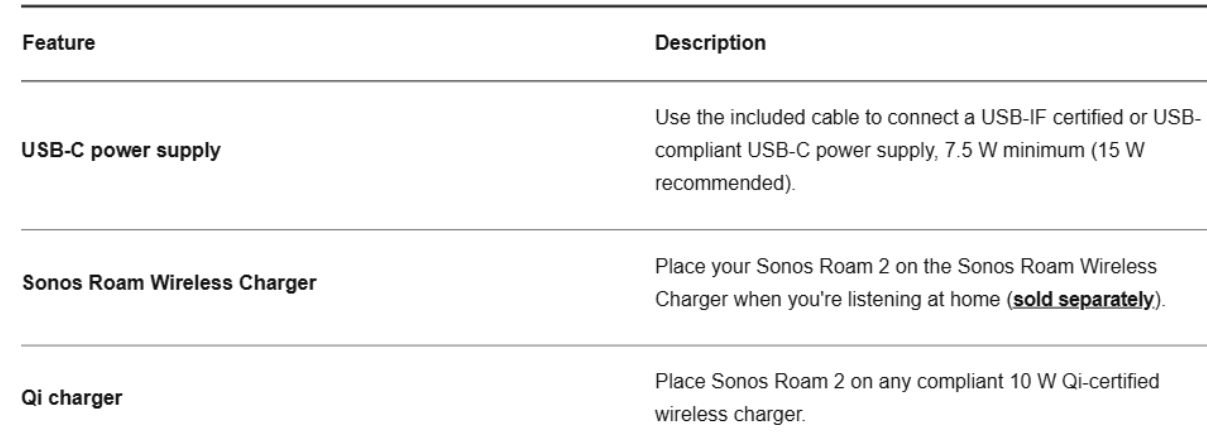
Battery Saver
You can enable Battery Saver in the Sonos app to best preserve battery life when your Sonos Roam 2 is
inactive. When enabled, your Sonos Roam 2 will power off automatically after 10 minutes in sleep mode.
In the Sonos app,
- Go to System Settings D.
- Select your Sonos Roam 2 from the list of products.
- Navigate to Battery and toggle on or off Battery Saver.
Microphone
The microphone is used for voice control and for microphone-dependent features like Trueplay tuning.
Press the microphone button & to turn the microphone on, or the microphone light will let you know when
your voice assistant is listening.
When the microphone light is on
- If you set up a voice service, voice control is on and ready to respond.
- Microphone-dependent features like Trueplay are available.
When the microphone light is off
- If you set up a voice service, voice control is off.
- Microphone-dependent features like Trueplay are unavailable.
Voice Services
Use your voice to control your Sonos system with any voice-enabled Sonos product-play and control content,
turn the volume up or down, and more. In the Sonos app,
- Go to System Settings 0.
- Select your Sonos Roam 2 from the list of products.
- Navigate to Voice and select + Add a Voice Assistant to get started.
- Sonos Voice Control: Control your whole Sonos system with hands-free ease and unmatched privacy.
- Sonos Voice Control comes ready to use— it only takes a few seconds to add when you set up your speakers.
- Amazon Alexa: You’ll need the Sonos app and the Alexa app with the Sonos skill enabled. You’ll make some changes in both apps during setup.
Trueplay T™
Every room is different. Trueplay tuning measures how sound reflects off walls, furnishings, and other surfaces in a room, then fine-tunes the onos speaker to make sure it sounds great no matter where you’ve placed it. In the Sonos app,
- Go to System Settings.
- Select your Sonos Roam 2 from the list of products.
- Navigate to Sound and select Trueplay to get started.
Auto Trueplay
Sonos Roam 2 and other Sonos portable speakers can tune themselves automatically. Auto Trueplay uses your beaker’s microphone to detect the environment and make periodic tuning adjustments so you get great sound wherever your speaker is and whatever you’re listening to.
Product Settings
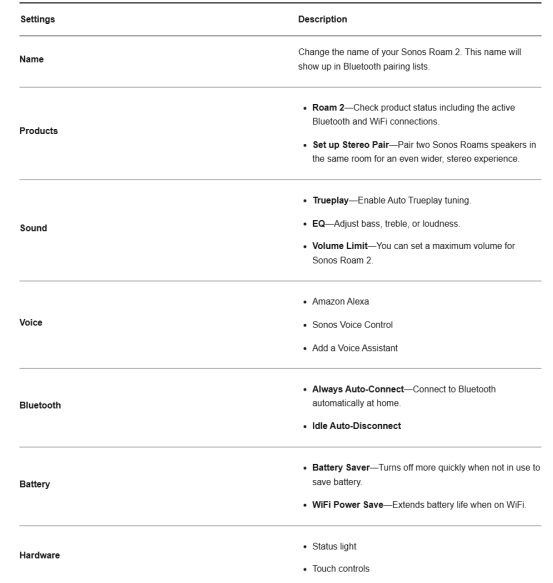
Use the Sonos app to adjust product settings for Sonos Roam 2:
- Go to System Settings
- Select your Sonos Roam 2.
Drying your Sonos Roam 2
Sonos Roam 2 has an IP67 rating-dustproof and water resistant, and can be submerged in water up to 3 ft (1
meter) for several minutes.
- If your speaker is submerged in any liquid other than tap or rain water (e.g., pool, ocean, beer), flush the speaker with tap water, then give it a quick shake.
- Position the speaker vertically until it drains, then place it face down (logo side down) on a dry towel for a few minutes.
- Start some music to help drive moisture out of the acoustic drivers.
- Let the speaker air-dry to remove any excess water.
- Make sure the Sonos Roam 2 is fully dried off in between uses.
- Don’t use a hair dryer or other forced hot air to dry your product.
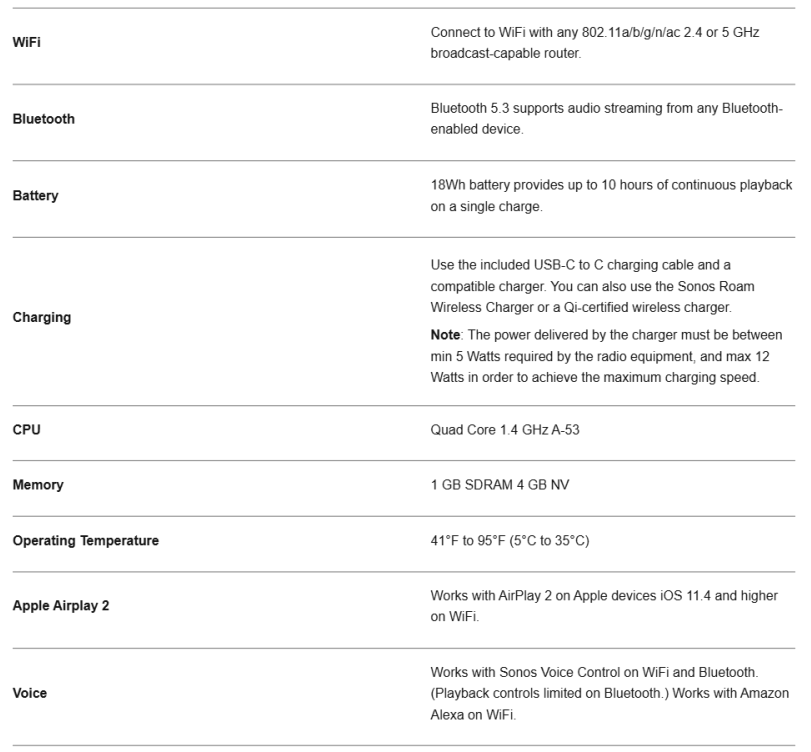
Specifications

Details & Dimensions
Power & Connectivity
What’s in the box
Customer Service
- Website: https://support.sonos.com/
- Ph: (800) 680-2345
FAQs
Q: What’s new in the Sonos Roam 2 compared to the original Roam?
The Roam 2 maintains its durable construction and portable size while offering enhanced Bluetooth connection, better battery optimisation, and simpler controls. Additionally, it provides more seamless Bluetooth and Wi-Fi playback transitions.
Q: Does the speaker float if dropped in water?
No. The Roam 2 does not float, so avoid deep water areas. If submerged, remove it, rinse off dirt or saltwater, and allow it to dry before charging.
Q: Can I set up the Roam 2 without Wi-Fi?
Yes, you can use it directly over Bluetooth. However, Wi-Fi is required for multi-room audio, stereo pairing, voice services, and software updates.
Q: How do I pair the Roam 2 with my phone via Bluetooth?
Holding down the Bluetooth button will cause the LED to flash. Select “Roam 2” from the Bluetooth settings on your phone, then watch for a connection confirmation.
Q: How long does the battery last?
Battery life depends on volume level and wireless mode. Bluetooth generally uses less power than Wi-Fi. With moderate usage, the Roam 2 provides hours of continuous playback before needing a recharge.
Q: Can I charge the Roam 2 wirelessly?
Indeed. It is compatible with Sonos charging bases and offers Qi wireless charging. USB-C charging is another option.
10 Comments
I don’t think the title of your enticle matches the content lol. Just kidding, mainly because I had some doubts after reading the enticle. https://accounts.binance.info/da-DK/register-person?ref=V3MG69RO
Thank you for your sharing. I am worried that I lack creative ideas. It is your article that makes me full of hope. Thank you. But, I have a question, can you help me? https://www.binance.info/register?ref=IHJUI7TF
Can you be more specific about the content of your article? After reading it, I still have some doubts. Hope you can help me. https://www.binance.info/register?ref=IXBIAFVY
I don’t think the title of your article matches the content lol. Just kidding, mainly because I had some doubts after reading the article. https://accounts.binance.info/da-DK/register?ref=V3MG69RO
Can you be more specific about the content of your article? After reading it, I still have some doubts. Hope you can help me. https://www.binance.info/pt-PT/register?ref=KDN7HDOR
Your point of view caught my eye and was very interesting. Thanks. I have a question for you.
Thanks for sharing. I read many of your blog posts, cool, your blog is very good.
Your article helped me a lot, is there any more related content? Thanks!
Your point of view caught my eye and was very interesting. Thanks. I have a question for you. https://www.binance.bh/register?ref=QCGZMHR6
Can you be more specific about the content of your article? After reading it, I still have some doubts. Hope you can help me. https://accounts.binance.bh/register/person?ref=IXBIAFVY