


 WiiM ASR013 CI MOD S Hi-Res Audio Streamer
Introduction
Our goal at WiiM is to provide you with the simplest, most affordable, Hi-Fi, lossless audio systems. With our patented audio streaming solution built into all our high-quality products and mobile app, you will have the ease of playing music throughout your home.
All our products are developed with the finest product design and intuitive user interface. Meet WiiM CI MOD S, one of the most versatile network music streamers in the market. It delivers Google Chromecast with the bit-perfect output, AirPlay 2, Spotify Connect, TIDAL Connect, DLNA, MQA (Beta), Amazon Music Cast, gapless playback of Hi-Res 192k/24-bit lossless audio, and more to your stereo system. It streams music directly from the cloud of all major music services or your own library.
Just plug WiiM CI MOD S into your stereo receiver, DAC, or amplifier and control it directly from the free WiiM Home App, your favourite music apps such as Spotify, TIDAL, Amazon Music, or any Chromecast-enabled apps. Or, control it with your voice using iPhone, HomePod, compatible Echo devices, Google Home devices, and the Alexa App, Google Home, or Apple Home App.
WiiM CI MOD S can be grouped with HomePod, Echo, Google Home, AirPlay 2-enabled devices, other Alexa-compatible devices, or another WiiM Mini or Pro to stream music throughout your home. Or, play different songs in different rooms. With its digital and analog inputs and outputs, WiiM CI MOD S works with your existing stereo system. Turn your audio gear smart and hear your music in high fidelity and gaplessly with WiiM CI MOD S from WiiM!
Safety instructions
- Read these instructions. Keep these instructions. Heed all warnings. Follow all instructions.
- Do not use this apparatus near water. Clean only with a dry cloth.
- Do not block any ventilation openings. Install in accordance with the manufacturer’s instructions.
- Only use attachments/accessories specified by the manufacturer.
- Unplug this apparatus during lightning storms or when unused for long periods of time.
- To reduce the risk of fire or electrical shock, do NOT expose this product to rain, liquid, or moisture.
- Keep the product away from fire and heat sources.
- Do NOT place naked flame\ sources, such as lighted candles, on or near the product.
- Do NOT make unauthorised alterations to this product.
- Do NOT use in vehicles or boats. Use this product only with the power supply provided.
- Contains small parts which may be a choking hazard. Not suitable for children under age 3.
- This product contains magnetic material.
- Consult your physician on whether this might affect your implantable medical device.
- Do not place or install the bracket or product near any heat sources, such as fireplaces, radiators, heat registers, or other apparatus (including amplifiers) that produce heat.
What’s In The Box
- WiiM CI MOD S
- Quick start guide
- Power cable
- RCA audio cable
- Optical audio cable
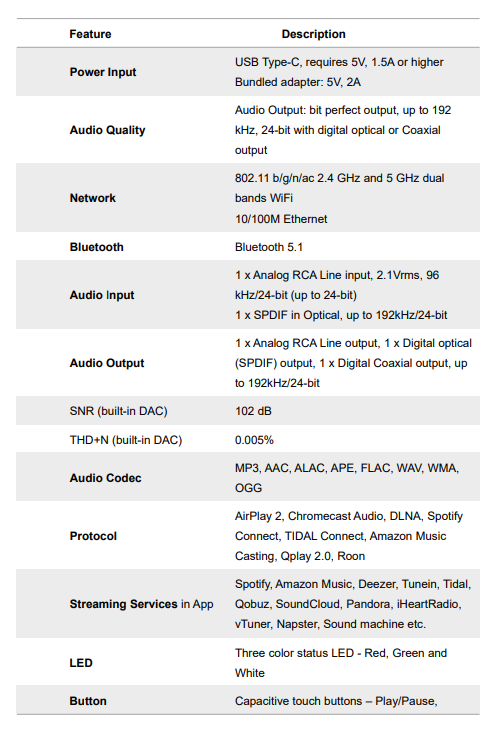
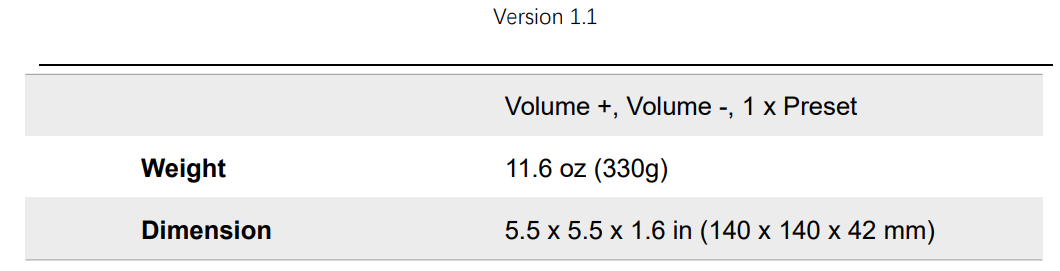
Specifications
Controls & Lights
Buttons
 Set Up
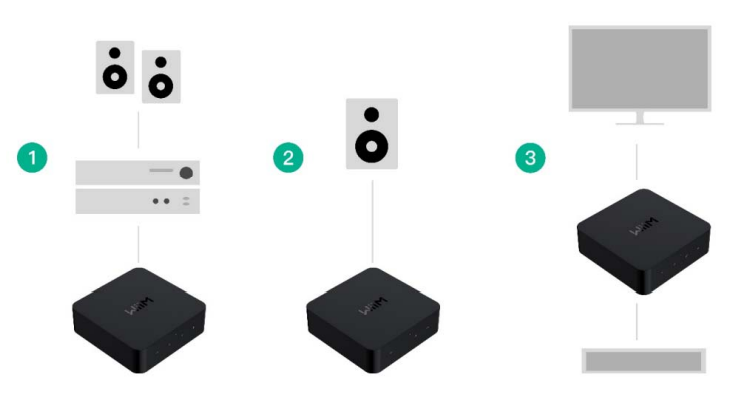
- If you’re connecting to an audio/video receiver (AVR), DAC, or amplifier, or
- If you’re connecting to powered speakers or a soundbar directly or
- If you’re connecting to a TV, vinyl, or MP3 player via an audio input port, then to a speaker via digital or analog audio output
Attach the power cord and plug in your WiiM CI MOD S.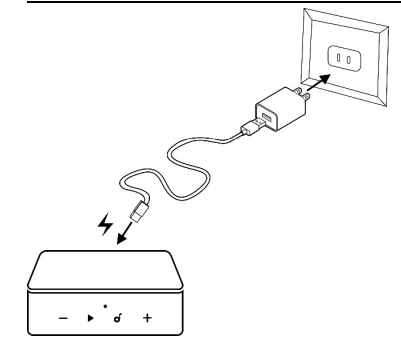
System
- Wi-Fi SETUP Download the WiiM Home App
- Power on the speaker, audio/video receiver (AVR) or amplifier, or DAC.
- Open the WiiM Home App.
- Click on the device you want to configure.
- Select the network and enter the correct network password.
- Select the maximal bit depth and sample rate for your downstream audio device if you use digital audio output of WiiM CI MOD S. Please note that some legacy DAC, amplifier, or speaker can’t support up to 24-bit/192KHz audio via its digital audio interface.
If you are using an iOS system, you can also use Apple Wireless Accessory Configuration (WAC) protocol or Home App to set up the device.
- SETUP with Apple WAC
- Power on the speaker, audio/video receiver (AVR) or amplifier, or computer.
- Open iPhone settings and tap your selected device’s name in the WAC setup section.
- SETUP with Apple Home App
- Tap the Home app located on the home screen of the iOS device.
- Tap the “+” button located at the top-right corner of the screen.
- Tap “Add Accessory.”
- Tap “Don’t Have a Code or Can’t Scan?”
- Tap your selected device, which MUST be listed under “Nearby Accessories.”
Voice Control
With voice control, you can navigate and interact with your device using your voice to search, play, stop, or skip music and more. When voice control is configured, you can speak commands just like you would act by touch.
Working with Alexa
Download the Amazon Alexa App and turn on Amazon devices or 3rd party Alexa built-in devices. Set up your Amazon account for your WiiM device. Your WiiM device is not logged into your Amazon account in the WiiM Home App.
- Open WiiM Home App, click “Browse -> Amazon Alexa -> Sign in to Amazon.”
- .g in to your Amazon account
- Open the Amazon Alexa app
- Tap the “Devices” at the bottom of the page.
- Tap the “+” in the top right corner.
- Tap “Combine speakers” then select “Multi-room music.”
- Select the configured Echo or other Amazon devices and the configured WiiM CI MOD S device.
- Click “Next” and choose the group name (i.e., Bedroom).
- Amazon’s Alexa app prompts that the group has been created.
- Try “Alexa, play some music in the Bedroom” for the multi-room audio with the Echo. Or
- Choose the WiiM device as the preferred speaker. Thus, you don’t need to say your device name of WiiM, when using Alexa.
Siri

- Configure one to more devices.
- Open a music app (like Apple Music) and select a track to play
- Tap.
- Select your speaker/speakers or Home Pod.
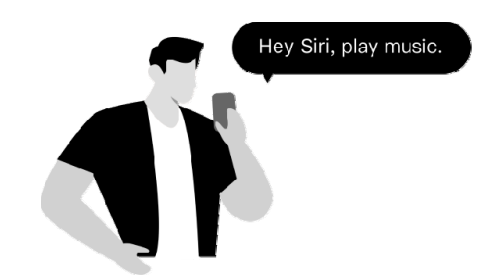
- Say “Hey Siri, stop music/Play music” on your phone or HomePod
Google Voice Assistant
Let’s assume you’ve already set up your Google Home and WiiM CI MOD S separately. Now, you must link them together in the Google Home app for Android or iOS:
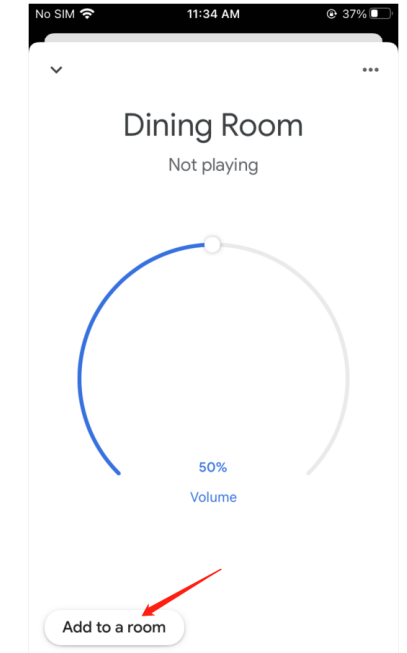
- Open the Google Home app, and you will find the WiiM CI MOD S that you have enabled as a Chromecast audio device under “Local devices.”
- Tap the name of the WiiM CI MOD S and enter the device control UI
- Tap the “Add to a room” button under the volume circle to add WiiM CI MOD S to one room
- You can use voice to control the WiiM CI MOD S with your Google Home or Android devices
Favourite App
SPOTIFY CONNECT
Use your phone, tablet, or computer as a remote control for Spotify. Go to spotify.com/connect to learn how. The Spotify Software is subject to third-party licenses found here: https://www.spotify.com/connect/third-party-licenses
AIRPLAY 2
WiiM CI MOD S turns your stereo into an AirPlay 2-enabled speaker to stream the music that you love from iOS, Mac, and PC devices or stream TV audio from Apple TV. It’s an easy and affordable way to connect your Apple devices to your favourite audio equipment and upgrade to an AirPlay 2 receiver. AirPlay 2 lets you stream music from your iOS, MAC, PC, and Apple TV device to more than one product to create a multiroom audio experience over WiFi.
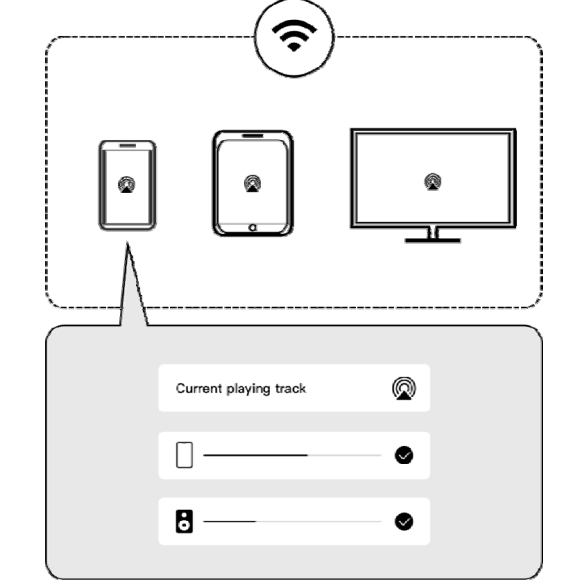
The WiiM CI MOD S can play AirPlay 2 audio, which allows you to quickly stream audio from your Apple device to the external speaker or multiple speakers.
Network.
- For more information about AirPlay 2, visit: https://www.apple.com/airplay
Stream Audio from the Control Centre & App
- On your Apple device, open the Control Centre.
- Tap and hold the audio card in the top-right corner of the screen, then tap the AirPlay icon.
- Select your WiiM CI MOD S device.
- Open a music app (like Apple Music) and select a track to play.
- Tap. Select your WiiM CI MOD S device.
Tidal Connect
TIDAL is a global music streaming platform bringing fans closer to artists through unique experiences and the highest sound quality. Stream your favourite music seamlessly from the TIDAL App straight to your devices in the highest possible quality.
Amazon Music Cast
Cast your up to 192 kHz/24-bit, Ultra HD music directly from the native Amazon Music to WiiM CI MOD S in the highest possible quality. To use this, please log in to your Amazon account for Amazon Alexa on WiiM Home App.
All Music In One App
With the free WiiM Home App, you can control your content and devices from one place. We support many popular music streaming services in the app, such as Spotify, iHeartRadio, Tidal, Amazon Prime Music and Unlimited, SoundCloud, Qobuz, Pandora, Deezer, TuneIn & more to come. You can also play music stored in your mobile device, local network media servers, or even a personal cloud server. The App supports the unified search across multiple music services and your local network for artist, track, station, playlist, etc. It’s a powerful tool to discover your favourite content from your online and local library.
The WiiM Home App supports equalisation (EQ) with two options: 26 EQ presets or a 10-band graphical EQ. These EQ settings can be assigned to different sources, such as AUX in, online music, or Bluetooth streaming. The App has twelve music presets that allow you to save your favourite station, playlist, album, etc., and access them with the preset button on the Pro or remote, or by using the App.
Multiroom & Stereo Pairing
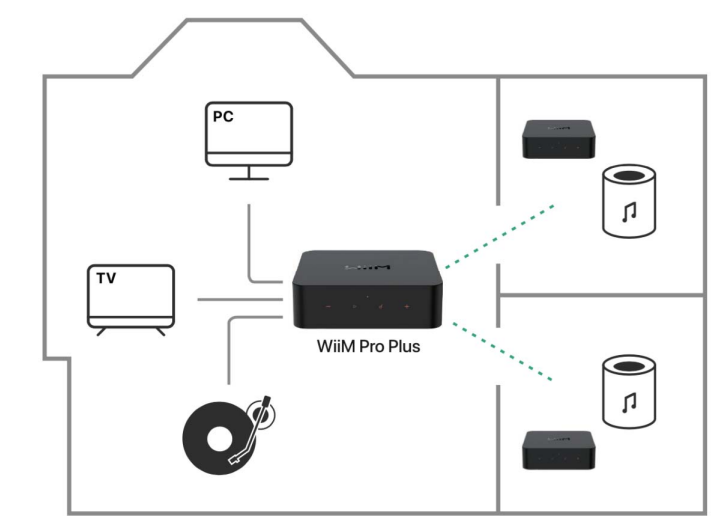
With the WiiM CI MOD S, it’s easy to build your wireless multiroom sound system with other AirPlay 2 speakers, Amazon Echo (or Alexa built-in devices), or Google Home. You can create an ven more flexible multiroom sound system with multiple WiiM CI MMOD, WiiM Minis, and your existing audio devices. All types of audio input, including WiFi, Bluetooth, analog line-in, or digital SPDIF in, can be used as the audio source for the multiroom system.
In addition, you can group two speakers connected with WiiM CI MOD S as a stereo pair for a wider, more immersive sound stage. It supports all four input options, too. Thus, it can work with almost every music listening option.
Linkplay
- Configure two or more devices.
- Open WiiM Home App.
- Select the device and click the plus sign in the upper right corner.”
- Select the other WiiM CI MOD S, click “Done.”
- Click the LR ico” and set the device to “L/R/LR.”
- Select the Browse tab, choose your music to play
Alexa Multiroom
TIP: Download the Amazon Alexa App and get ready with an Echo or other Amazon devices. For detailed steps, please refer to 6.1.
Chromecast Audio Devices
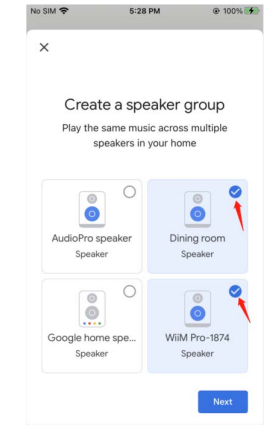
You can group WiiM CI MOD S with other Google Home or Chromecasaudio-enabled devices to play the same music on all devices via the Google Home App.
- Either r the Google Home App, tap the “+” in the top left corner
- Tap “Create speaker group” to create a speaker group
- Select the devices that are in the same network
- Give a group name
- Stream music to the group
Audio Input
WiiM CI MOD S can be used as the preamplifier and network audio transmitter via WiFi or Ethernet. You can stream the analog audio input from a CD player, vinyl recorder, TV, or computer to another (or multiple) WiiM CI MOD S connected device.
To set up the WiiM CI MOD S with the line-in input:
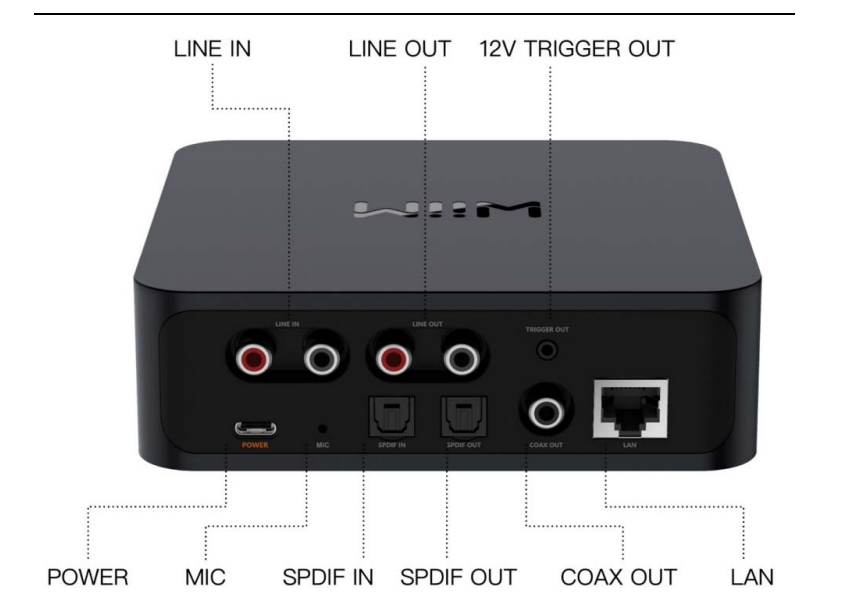
- Plug the line-in cable into the LINE IN port on the back of the WiiM CI MOD S.
- Plug the other end of the cable into the record player.
- In the WiiM Home appgoGo to Browse > Select source on device > LINE IN, select the LINE IN for the source of the audio distribution.
- Create a multi-room music group with your WiiM CI MOD. Other than the WiiM Home app, go to Devices, select the WiiM CI MOD connected with your LINE-IN device. Tap the group button (with “link” sign in a box) at the top right corner of the device box. Select the WiiM CI MOD S you wish to transmit the audio to.
Once completed, the music playing from the device plugged into the WiiM CI MOD S will play to your multiroom music group. You can do the same for the SPDIF input port of WiiM CI MOD S if your source device has the digital audio output via SPDIF. When used as a preamplifier, WiiM CI MOD S has the built-in EQ so you can process the audio input based on your taste and control the audio volume in the app remotely.
Audio Output Via Line /SPDIF/coax/BT Out
There are three ways to connect the audio output of WiiM CI MOD S to your DAC, Amplifier, or powered speaker:r, the analog LINE out and the digital optical (TOSLINK) or Coaxial port. If you want to have the bit-perfect audio output, please use the digital audio output
and enable the fixed line-out level. You can do so from the device settings on the WiiM Home App. Thus, there are two ways to control the volume of your system.
- Control volume from your AVR or amplifier (Fixed volume output)
- Control the volume from the WiiM Home App
- Depending on the output you prefer to use, plug the SPDIF/RCA/COAX end of the cable into the corresponding output port on the WiiM CI MOD S.
- Open the WiiM Home App on your iOS or Android device.
- Start playing on the output devices.
- Open the WiiM Home App on your iOS or Android device.
- Select the Device Tab, tap the device setting gear icon.
- Tap the Audio Output setting and select Bluetooth to connect to an external Bluetooth device (such as an amplifier or speaker)
- Start playing music.
Bluetooth
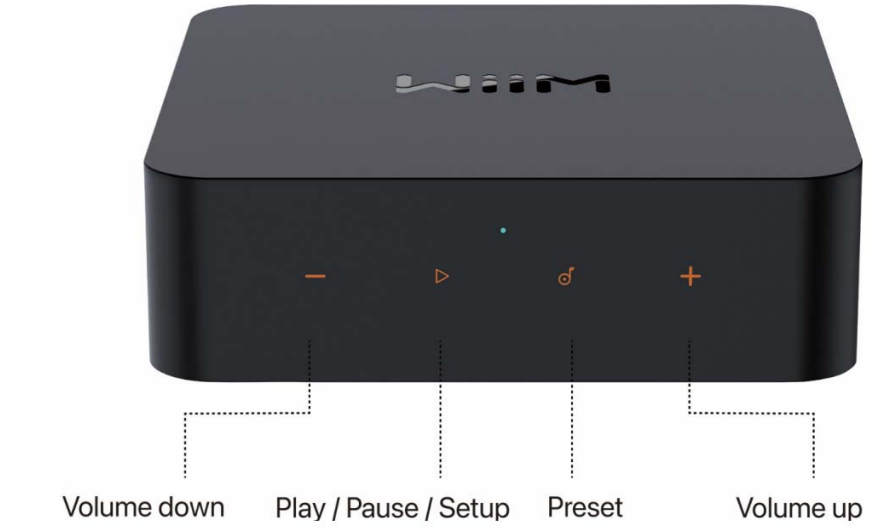
Bluetooth wireless technology lets you stream music from mobile devices such as smartphones, tablets, TVs,s, and laptop computers. Before you can stream music from a device, you must first pair your mobile device to the WiiM CI MOD S. You can put the WiiM CI MOD S into the pairing mode by pressing and holding the volume ‘+’ and ‘-‘ buttons together for 2 seconds.
The Bluetooth supports A2DP and AVRCP profiles, and both SBC and AAC codecs are supported.
Features
FIRMWARE UPDATES
- WiiM CI MOD S updates automatically when connected to your Wi-Fi network.
- Upgrades happen from 2:00-5:00 a.m. in your time zone. During the silent upgrade, there will be no sound and no indication. Upon opening the app, you will see the latest updates made to WiiM CI MOD S.
Disable/Enable Wi-Fi
You can disable Wi-Fi if you want to connect your device to your network via Ethernet only. You can do so in the device settings and the WiFi status page.
FCC/IC Statement
This device complies with part 15 of the FCC rules. Operation is subject to the following two conditions: (1) this device may not cause harmful interference, and (2) this device must accept any interference received, including interference that may cause undesired operation.
The manufacturer is not responsible for any radio or TV interference caused by unauthorised modifications or changes to this equipment. Such modifications or changes could void the user’s authority to operate the equipment. Any changes or modifications not expressly approved by the party responsible for compliance, the user’s authority to operate the equipment.
This device complies with Industry Canada license-exempt RSS standard(s). Operation is subject to the following two conditions:
- This device may not cause interference, and
- This device must accept any interference, including interference that may cause undesired operation of the device.
CE Statement
Do not use the device in environments at too hot or too cold, never expose the device to strong sunshine or too cold environments. The suitable temperature for the product and accessories is 0°C to 40°C. This product can be used across EU member states. EU Regulatory Conformance Hereby, Linkplay Technology Inc. declares that this device complies with the essential requirements and other relevant provisions of the EMC Directive 2014/30/EU and the LVD Directive 2014/35/EU.
Customer Support
If you are unable to resolve your issue, please follow one of the methods below to reach out to us for assistance.
- Email: support@wiimhome.com
- Website: https://www.wiimhome.com/support/wiimvibelink
- Ph: 510-585-3943
7 Comments
Thanks for sharing. I read many of your blog posts, cool, your blog is very good. https://www.binance.com/pt-PT/register?ref=KDN7HDOR
Thanks for sharing. I read many of your blog posts, cool, your blog is very good.
Thanks for sharing. I read many of your blog posts, cool, your blog is very good.
Thanks for sharing. I read many of your blog posts, cool, your blog is very good.
Your article helped me a lot, is there any more related content? Thanks! https://accounts.binance.com/el/register-person?ref=DB40ITMB
Your article helped me a lot, is there any more related content? Thanks!
Thanks for sharing. I read many of your blog posts, cool, your blog is very good.