

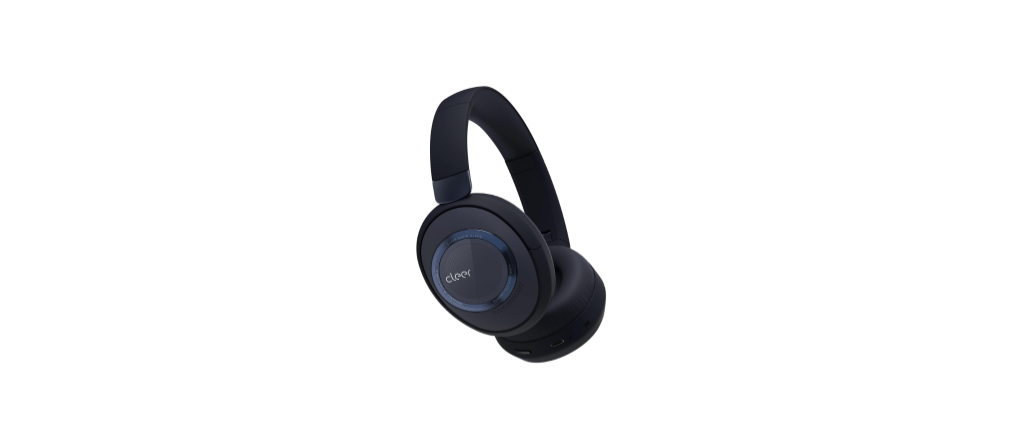
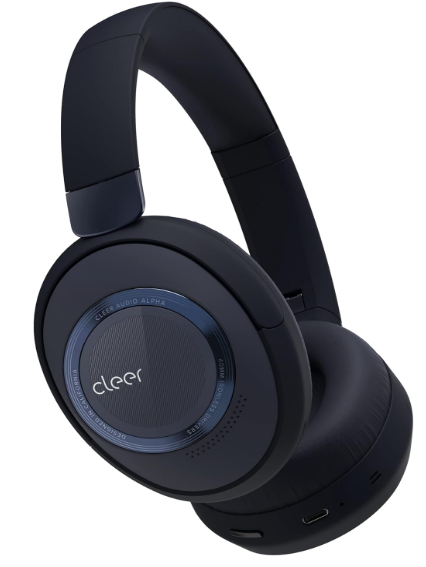
 Cleer ALPHA Wireless Bluetooth Headphones
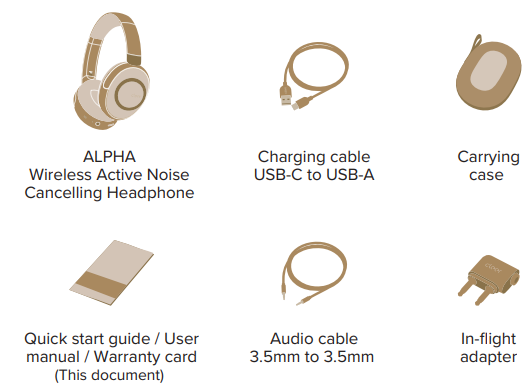
Box Contents
Overview
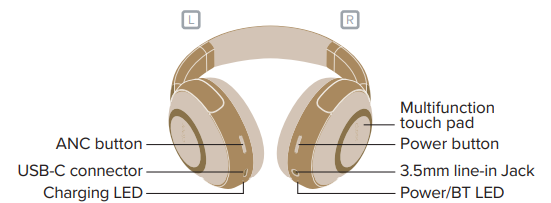
Fitting
Slide to adjust the headband to fit your head. 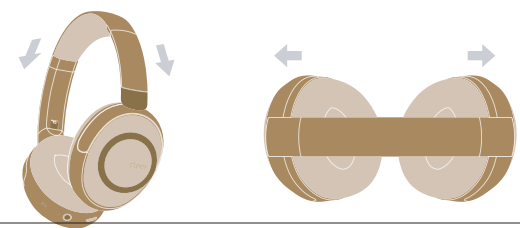
Correct wearing position 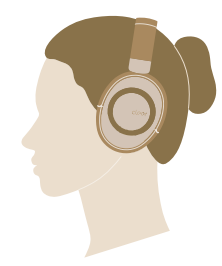
Quick Start Guide
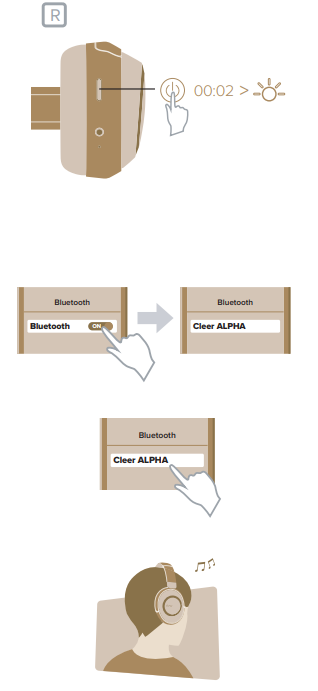
- Press the power button for 2 seconds to turn on your ALPHA. * ALPHA will go into pairing mode automatically when powered ON for the first time (if you need to manually go into pairing mode, please follow the steps in the Bluetooth pairing section). ALPHA will automatically connect to the last connected device if it is in range and available for pairing.g
- Find “Cleer ALPHA” on the Bluetooth device list
- Enjoy your ALPHA
- Choose “Cleer ALPHA connect

Cleer+ App
The Cleer+ app gives you more customized control over your ALPHA. Download the Cleer+ app from the App Store (for iOS devices) or Google Play (for Android devices).
With the Cleer+ app, you can
- Turn on the Ambient Noise Control.
- Real-time tuning of the Ambient Noise Control level and turn ON/OFF adaptive ANC.
- Customize the equalizer setting of your ALPHA.
- Change the auto-power-on time period to your preference.
- Change the Bluetooth name of your ALPHA.
- Receive software updates when new features and improvements are available.
- Check the playback time and battery level of your ALPHA.
- Sound settings are saved to your ALPHA, so you can enjoy it with any\ playback device connected to your A.LP.
Bluetooth Pairing
Pairing Mode
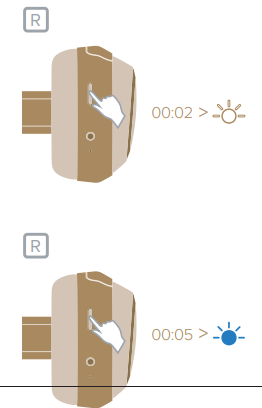
- ALPHA OFF.OFF, Press the power button for 2 seconds to turn on y
- ALPHA is ON Press and hold the power button until the LED blinks blue.

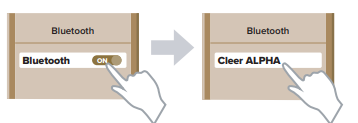
- Select “Cleer ALPHA” on the Bluetooth device list
- ALPHA is now paired

Bluetooth Music Control  Call control
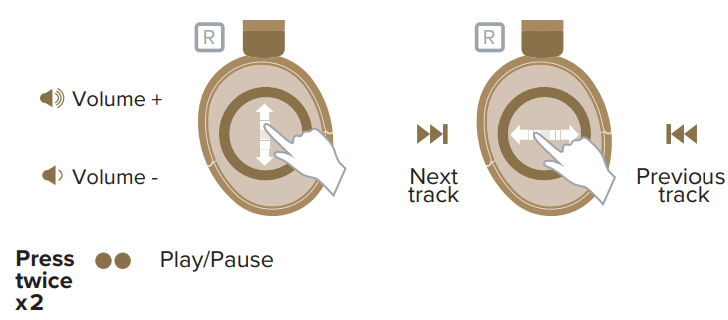
Press twice x2. Cancel the call (outgoing call). Answer the call (incoming call). Hang up the call (call is active.) On-hold for 1st call and answer 2nd call (2nd incoming call ringing)
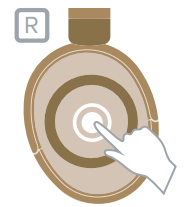
Press and Hold
Reject the call. Reject the 2nd incoming call (for the 2nd incoming call ringing). Touch controls are only active when ALPHA is powered ON **Calls can be answered by pressing the right ear, up as shown, when powered ON. If wired for passive listening and powered OFF, calls have to be answered on the phone, but communication can be done via ALPHA.
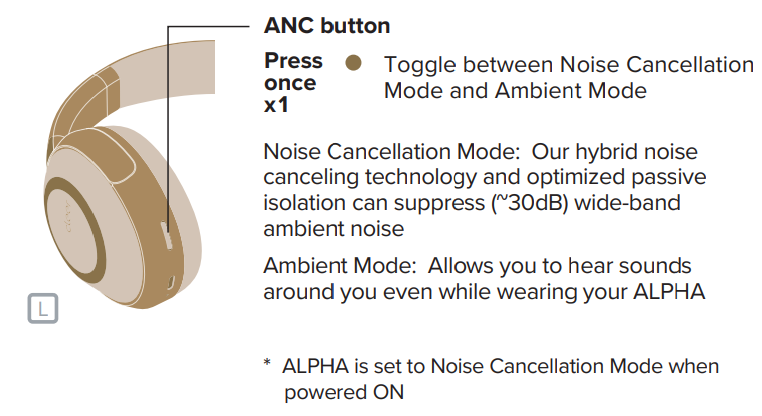
Noise Cancellation Mode and Ambient Mode
Conversation Mode 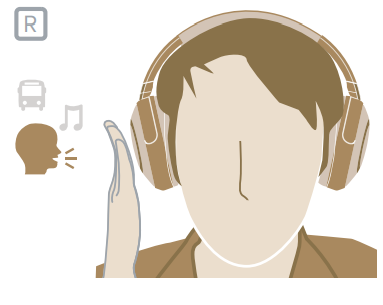 ALPHA will lower the volume and go into Ambient Mode while you place your hand on the right ear cup – for quick conversations with flight attendants or people around you.
Line-in connection 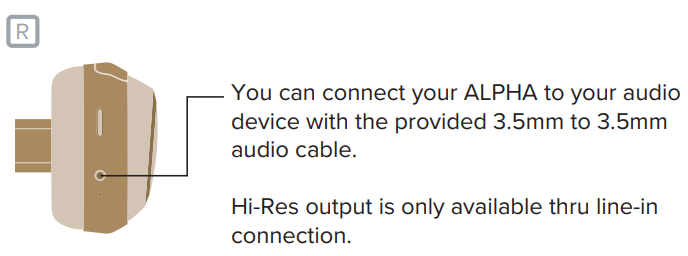
Charging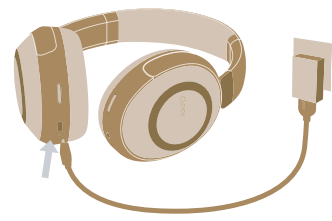 Connect ALPHA to a power source with the provided USB-A to USB-C cable. A 10-minute charge will give 4.5 hours of playtime. ALPHA can be fully charged in 2 hours.
LED Behavior  Specifications
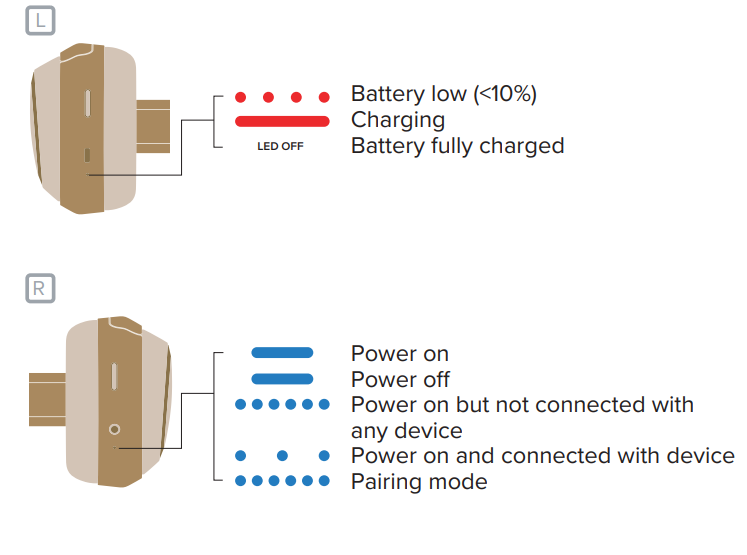
- Driver: 40mm Ironless™ Driver
- Supported audio CODEC: SBC, aptX, aptX HD
- Frequency response range: 20-40KHz (Line in) /20- 20KHz (Bluetooth)
- Connections: USB-C to USB-A for charging; 3.5mm to 3.5mm for audio
- Supported Bluetooth profiles: BT 5.1, SPP v1.0, HFP v1.6, A2DP v1.3.1, AVRCP v1.6
- Charging: A 10-minute charge will give 4.5 hours of playtime. ALPHA can be fully charged in 2 hours
- Bluetooth transmission 2.402-2.480GHz
- frequency range:
- Battery: cell (3.7V)
- Playback time (BT+ANC): 40 hours
- Weight: 330g
Warranty
Labor: For a period of (1) year from the original date of purchase of the product (“Labor Warranty”), Cleer Limited will, at its option, repair or replace with a new or refurbished product, the product determined to be defective. If Cleer Limited elects to replace the product after this Labor Warranty has expired but while the parts warranty is still in effect, it will do so for the applicable labor charge.
Parts: For a period of (1) year from the original date of purchase of the product (“Parts Warranty”), Cleer Limited will supply new or refurbished replacement parts in exchange for parts determined to be defective.
Repair / Replacement Warranty: This Limited Warranty shall apply to any repair, replacement, part, or replacement product for the remainder of the original Limited Warranty period or for (90) days, whichever is longer. Any product replaced under this.
Customer Service
- Website: www.cleeraudio.com
- Ph: 1 888 672 5337 (67 CLEER)
11 Comments
I don’t think the title of your article matches the content lol. Just kidding, mainly because I had some doubts after reading the article.
Your article helped me a lot, is there any more related content? Thanks! https://accounts.binance.info/ru/register?ref=O9XES6KU
Thank you for your sharing. I am worried that I lack creative ideas. It is your article that makes me full of hope. Thank you. But, I have a question, can you help me? https://www.binance.info/register?ref=IHJUI7TF
Your point of view caught my eye and was very interesting. Thanks. I have a question for you. https://accounts.binance.com/ur/register-person?ref=SZSSS70P
Thanks for sharing. I read many of your blog posts, cool, your blog is very good. https://www.binance.com/uk-UA/register?ref=XZNNWTW7
Your point of view caught my eye and was very interesting. Thanks. I have a question for you. https://www.binance.info/register?ref=IHJUI7TF
Thank you for your sharing. I am worried that I lack creative ideas. It is your article that makes me full of hope. Thank you. But, I have a question, can you help me?
I don’t think the title of your article matches the content lol. Just kidding, mainly because I had some doubts after reading the article.
Can you be more specific about the content of your article? After reading it, I still have some doubts. Hope you can help me.
Your enticle helped me a lot, is there any more related content? Thanks!
Your article helped me a lot, is there any more related content? Thanks! https://accounts.binance.com/register/person?ref=QCGZMHR6