



EarFun HP201 Wave Life ANC Wireless Headphones

EarFun Audio App
Download the EarFun Audio app for an enhanced experience.
- No Forced Registration. Easy to Use.
- Multi-Band EQ, Multipoint Devices Management.
- Game Mode, Firmware Update, and More.
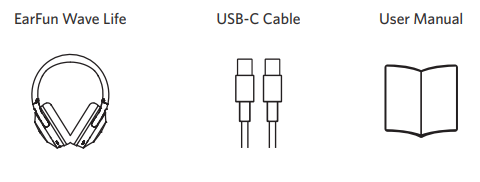
What’s in the Box
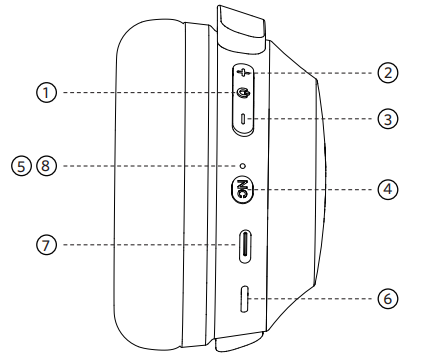
Product Diagram
- MFB Button
- Volume + Button
- Volume – Button
- ANC Control Button
- Headphone Status LED Indicator
- Microphone
- USB-C Charging Contactor
- Charging LED Indicator
Pairing Your Headphones
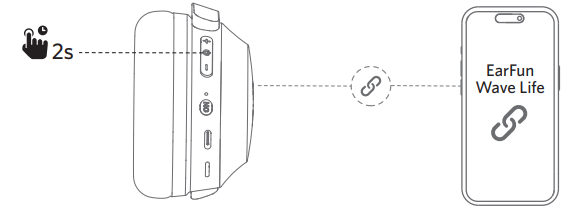
First-time Pairing with Device
Step 1: Press and hold the MFB button for
2 seconds to power on the headphones. It will automatically enter pairing mode. Step 2: Search on your smartphone device for other pairing devices.
Step 3: Select “EarFun Wave Life” from the list of Bluetooth devices shown. (If a password is needed, type ‘0000’).
Notes
The headphones will automatically connect with the previously paired device when powered on again.
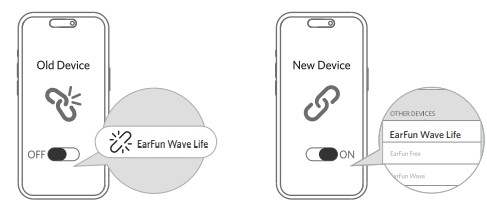
Connect to a New Device
Option A
Step 1: Unpair the headphones from the smartphone device that’s connected. The headphones will
Disconnect from the current device and go into pairing mode to be paired again.
Step 2: Search for the new device and connect.
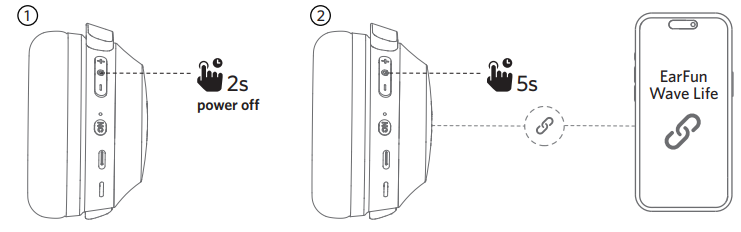
Option B
Step 1. Press and hold the MFB button for 2 seconds to power off the headphones.
Step 2: Then press and hold the MFB button for 5 seconds, and the headphones will power on and go into pairing mode.
Step 3. Search on the new device and connect.
Pairing and connecting two wireless devices simultaneously
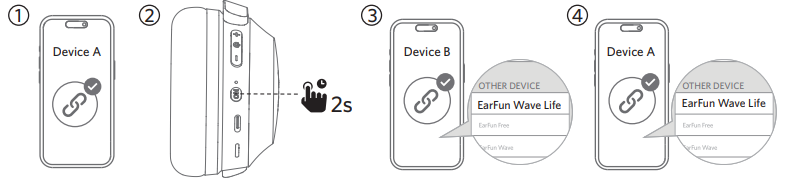
Step 1: Pair with the first device and stay connected.
Step 2: Press and hold the ANC control button for 2 seconds. The headphones will enter the Dual Device.
Connection mode for connecting the second device.
Step 3: Search on the second device to connect the headphones.
Functions
Noise-cancelling control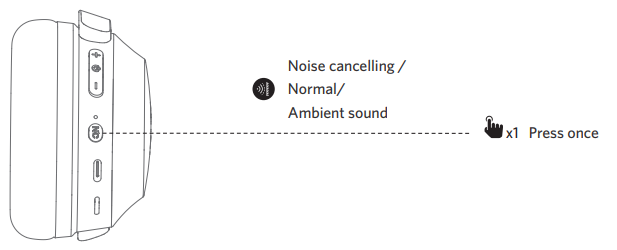
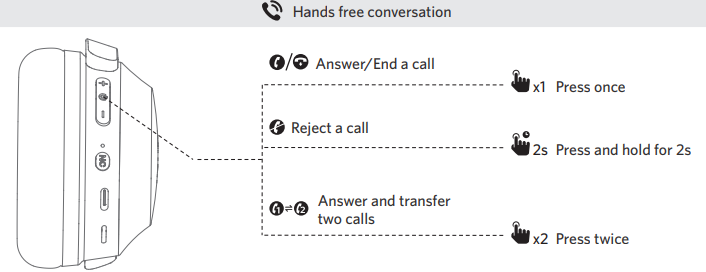
Activate the voice assistant.t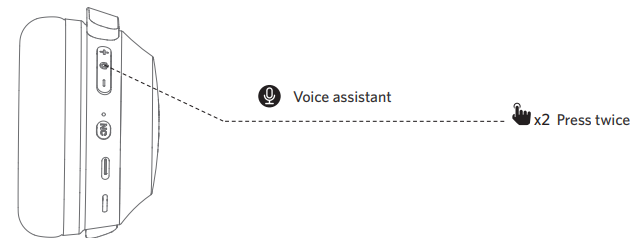
Game Mode: Please enable the EarFun Audio app
Headphones Status LED Indicator
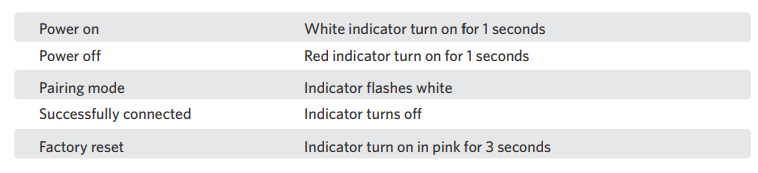
Reset and Reconnecting
If you fail to establish a connection between the headphones and your smartphone devices, please try the
Following steps:
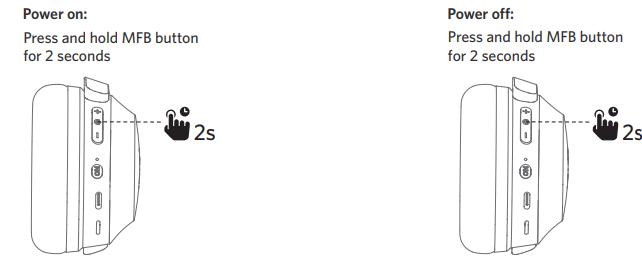
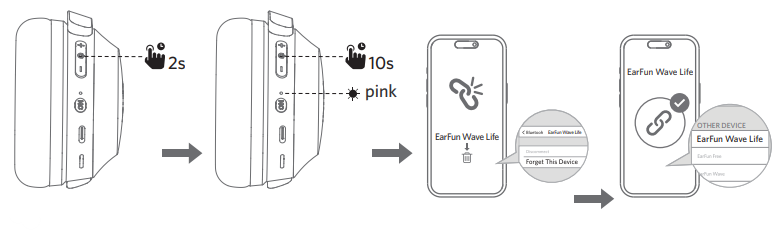
- Press and hold the MFB button for 2 seconds to power off the headphones.
- Press and hold the MFB button for at least 10 seconds until the headphones’ status LED indicates pink, and then release the button. The Headphones have been reset successfully.
- Power on the headphones again and then delete the previous connection from the smartphone device and reconnect “EarFun Wave L

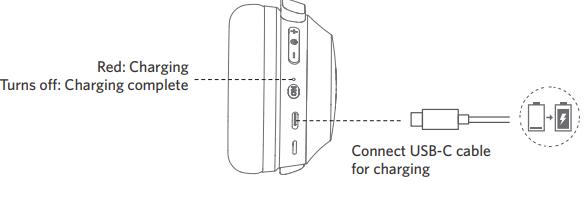
Charging
- Please clean the USB-C charging port before charging.
- Fully charge the headphones before first use.
- You can check the headphones’ battery level from the smartphone device or the EarFun Audio app.
- The headphones will power off automatically after connecting to the charger.
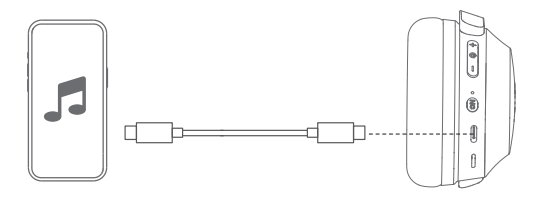
USB Audio Input
- Connect the headphone to the PC/Tablet/Smartphone with a USB-C cable for playing USB audio.
- The headphones will disconnect the wireless connection when the USB audio is connected.
- The ANC control is active in USB audio input mode.

Specifications
Troubleshooting
- The headphones are turning on, but they don’t connect to my device.
- To connect the headphones to your device, please ensure the headphones are powered on, then check if Bluetooth is enabled. If the headphones still don’t connect to your device, please perform a reset or contact our customer support.
- Why is the connection not stable and cuts out intermittently?
- Please make sure there are no objects between the headphones and your smartphone device, and make sure there is no radio or WIFI interference nearby.
- What is the range of the wireless headphones?
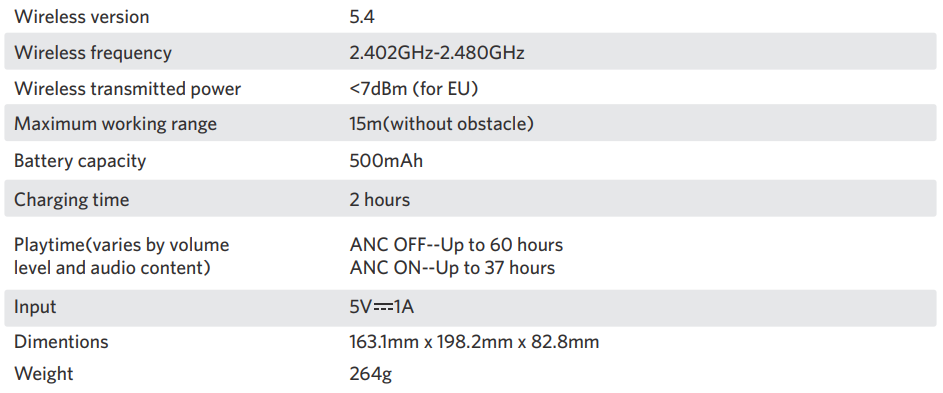
- The wireless headphones have a maximum range of 49 feet (15m, no obstacles). However, the actual range will depend on usage and environment.
- My headphones will not switch on.
- Please recharge them and make sure they have enough battery power. If they are fully charged and still nothing happens, or if you are not able to charge them, please contact our customer support.
- Will the headphones shut off automatically?
- The headphones will stay on as long as they are connected to a device. If no audio is playing, they will enter power-saving mode and wake up once audio playback resumes. If the headphones are not connected to any device, they will automatically power off after 30
Customer Service
For FAQS and more information: Please send an email to: service@myearfun.com www.myearfun.com
FCC Statement
This device complies with Part 15 of the FCC Rules. Operation is subject to the following two conditions. This device may not cause harmful interference. This device must accept any interference received, including interference that may cause undesired operation.
Changes or modifications not expressly approved by the party responsible for compliance could void the user’s authority to operate the equipment. This equipment generates uses and can radiate radio frequency energy and, if not installed and used in accordance with the instructions, may cause harmful interference to radio communications. However, there’s no guarantee that interference will not occur in a particular installation.
- Consult the dealer or an experienced radio/TV technician for help.
- Increase the separation between the equipment and the receiver
- Reorient or relocate the receiving antenna.
Radiation Exposure Statement
This equipment complies with FCC radiation exposure requirements. The device can be used in portable exposure conditions without RF restriction. This device complies with Industry Canada licence-exempt RSS standard(s). Operation is subject to the following two conditions
- This device may not cause interference, and
- This device must accept any interference, including interference that may cause undesired operation of the device.”
EU Declaration of Conformity
Earfun Technology (HK) Limited hereby declares that this equipment complies with the essential requirements and other relevant provisions of Directive 2014/53/EU and RoHS 2011/65/EU Directive.
UK Declaration of Conformity
Hereby, [Earfun Technology (HK) Limited] declares that the radio equipment type [K2] complies with UK Radio Equipment Regulations (SI 2017/1206).
ISED Compliance Statements
This device contains licence-exempt transmitters/receivers (s) that comply with Innovation, Science and Economic Development Canada’s licence-exempt RSS(s). Operation is subject to the following two conditions:
- This device may not cause interference.
- This device must accept any interference, including interference that may cause undesired operation of the device.
This equipment complies with IC RSS-102 radiation exposure limits set forth for an uncontrolled environment.
Customer Service
- Website: www.myearfun.com
- Email: service@myearfun.com
- Ph: +91-99997-92449