


 EarFun Air 2 NC Wireless Earbuds

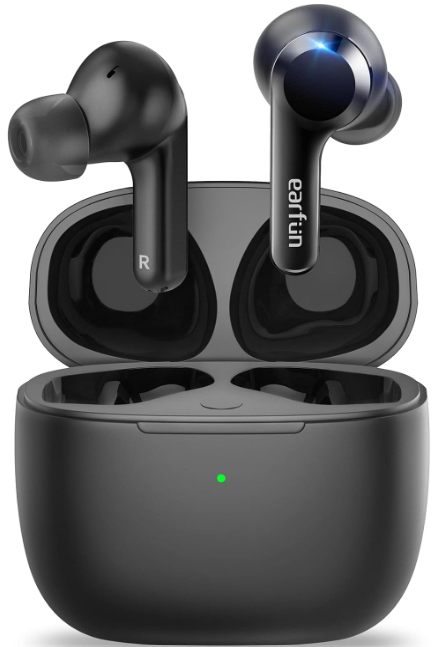
What’s in the Box

How to Fit
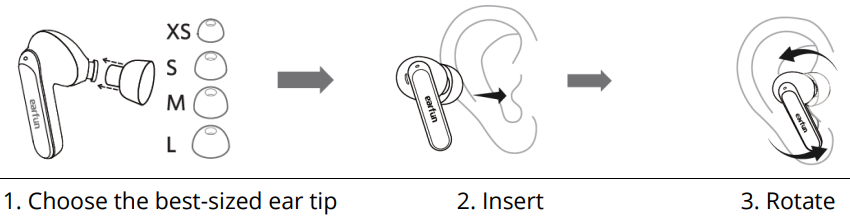
- Please choose the suitable ear tip for the best sound and secure fit.
- Select the left or right earbud and insert it into the corresponding ear.
- Rotate the earbud back and forth for the ear tip to create a comfortable seal.
Description
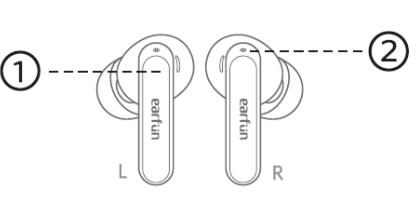
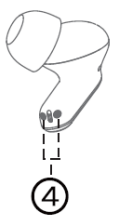
- Touch control zone
- Earbuds LED indicator

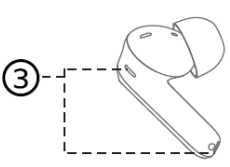
- Microphone

- Charging contactors

- USB-C charging port
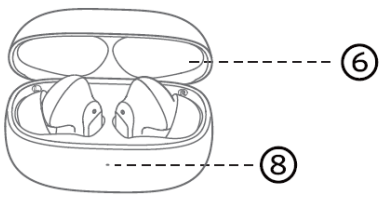
- Charging Case
- Charging case button

- Battery level indicator

Pairing
- Remove the insulating film from both earbuds.

- Put both earbuds back into the charging case and close the charging case.
- Open the charging case, and the earbuds will automatically power on and enter pairing mode.
- Activate Bluetooth on your Bluetooth-enabled device and search for other Bluetooth devices.
- Select “EarFun Air 2 NC” from the list of Bluetooth devices shown. (If a password is needed, type ‘0000’.)

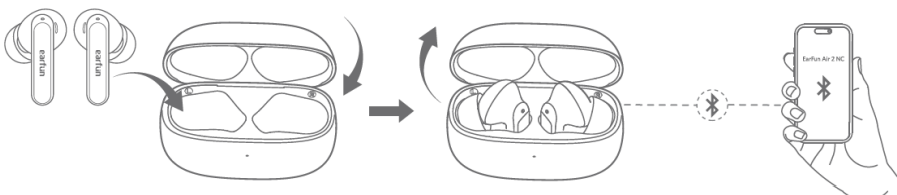
- The earbuds will automatically connect with the previously paired device when the case is open.
- Each earbud could be used independently.
Connect to a New Device

- Unpair the earbuds from the Bluetooth-enabled device that’s connected.
- The earbuds will disconnect from the current device and go into pairing mode to be paired again.
- Search on the new device and connect.

- Put both earbuds back into the charging case and make sure they are being charged.
- Keep the cover open and then press and hold the charging case button for 3 seconds until the LED indicators on the earbuds start flashing blue rapidly.
- Search on the new device and connect.
Pairing and Connecting Two Bluetooth Devices

- Pair with the first device and stay connected.
- Keep the earbuds in the charging case, then press and hold the charging case button for 3 seconds until the LED indicator on the earbuds flashes blue rapidly. The earbuds will enter pairing mode and will be disconnected from the first device.
- Search on the second device to connect the earbuds.
- Manually reconnect the earbuds to the first device.
- Easily set up in the Dual Device Connection of the EarFun Audio App.
- The earbuds will automatically connect to both devices after finishing setting up the multipoint connection.
Specifications
Parameter/Value
| Bluetooth version | V5.3 |
| Bluetooth frequency | 2.402 GHz–2.480 GHz |
| Bluetooth profile | A2DP, AVRCP, HFP, HSP |
| Bluetooth transmitted power | <7 dBm (for EU) |
| Maximum working range | 15 m (without obstacle) |
| Battery capacity | 40 mAh x 2 (earbuds); 40 0mAh (charging case) |
| Charging time | 1.5 hours (for earbuds); 2 hours (for charging case via USB-C); 3.5 hours (for charging case via wireless charger) |
| Playtime (varies by volume level and audio content) | ANC OFF: Up to 9 hours, Totally 40 hours with the charging case; ANC ON: Up to 6 hours, Totally 27 hours with the charging case |
| Input | 5 V — 1 A |
| Dimensions/Weight | 62.1 mm x 47.5 mm x 25 mm / 48 g |
Functions

If the earbuds are not connected to any device, they will automatically power off after 10 minutes to save battery life. To reactivate, please press and hold the touch control zones of both earbuds for 3 seconds until the LED indicators flash.
Playing Music
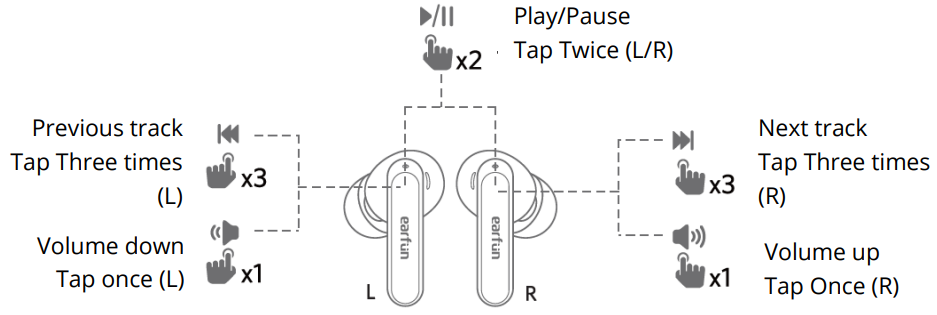
Noise Cancelling Control

Hands-free Conversation
Answer/ End call
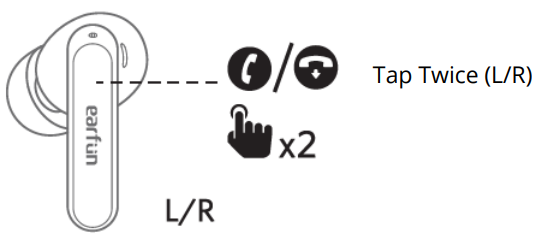
Reject a call

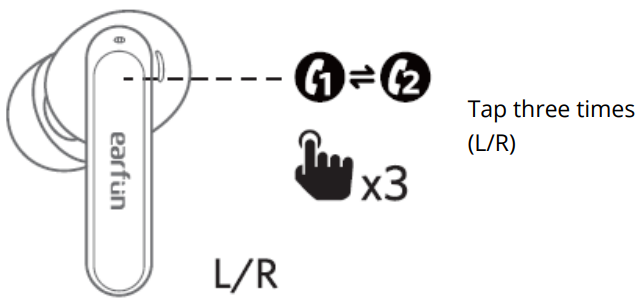
Answer and transfer two calls.

Activate the Voice Assistant
Game Mode
Please enable it in the EarFun Audio app.
Earbuds LED Indicator
- Power on: Blue indicator flashes for 1 s
- Power off: Red indicator flashes for 1 s
- Pairing mode: Indicator flashes blue
- Successfully connected: Indicator turns off
- Factory reset: Indicator flashed in purple
Reset and Reconnecting

If you fail to establish a connection between two earbuds or between the earbuds and Bluetooth devices, please try the following steps.
- Put both earbuds into the charging case.
- Keep the charging case open, then press and hold the button on the case for at least 8 s until both earbuds flash purple. The earbuds have been reset successfully.
- Delete the previous connection from the Bluetooth device and reactivate Bluetooth to reconnect to “EarFun Air 2 NC”.
Charging
- Dry the earbuds, charging contactors and USB port completely before charging.
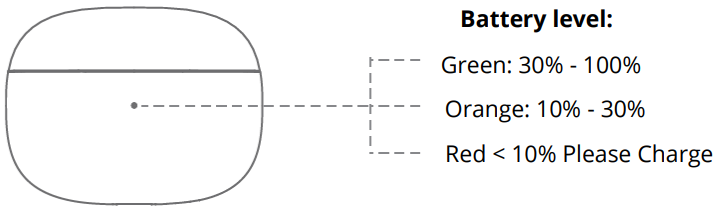
- Open or close the charging case to activate the case battery level LED indicator.
- Put the earbuds back into the charging case, and the earbuds will start charging.
- Fully charge both the earbuds and the charging case before first use.
- Wireless charging supported (wireless charging pad not included.d

LDAC
How to Activate and Deactivate
- Ensure your Android Bluetooth device supports LDAC. (iOS devices do not support LDAC.)
- Install the EarFun Audio app and ensure the earbuds are connected to the app.
- Go to the “Bluetooth Audio Quality” in app settings, turn the LDAC on or off and click “Sure” in the pop-up. And the earbuds will reboot with LDAC activated or deactivated.
Notes
- LDAC is exclusively supported on Android device OS 8.0 or above and is NOT compatible with iOS devices. For a Samsung mobile phone, you may need to manually activate the LDAC switch in the Bluetooth settings interface.
- Enable LDAC in a low-interference environment to ensure a stable Bluetooth connection. LDAC may sometimes cause playback interruption due to heavy data transfer. Please keep the distance between the earbuds and Bluetooth device within 2M/6.6FT or disable LDAC.
- Using LDAC with Multipoint Connection may cause playback interruption. Disabling the Multipoint Connection is advised in that case.
Warranty Conditions
A new product purchased in the Alza.cz sales network is guaranteed for 2 years. If you need repair or other services during the warranty period, contact the product seller directly. You must provide the original proof of purchase with the date of purchase. The following are considered to be a conflict with the warranty conditions, for which the claim may not be recognised:
- Using the product for any purpose other than that for which the product is intended or failing to follow the instructions for maintenance, operation, and service of the product.
- Damage to the product by a natural disaster, the intervention of an unauthorised person or mechanical damage through the fault of the buyer (e.g., during transport, cleaning by inappropriate means, etc.).
- Natural wearageing of consumables or components during use (such as batteries, etc.).
- Exposure to adverse external influences, such as sunlight and other radiation or electromagnetic fields, fluid intrusion, object intrusion, mains overvoltage, electrostatic discharge voltage (including lightning), faulty supply or input voltage and inappropriate polarity of this voltage, chemical processes such as used power supplies, etc.
- If anyone has made modifications, alterations to the design or adaptations to change or extend the functions of the product compared to the purchased design or use of non-original components.
WEEE
This product must not be disposed of as normal household waste in accordance with the EU Directive on Waste Electrical and Electronic Equipment (WEEE – 2012/19/EU). Instead, it shall be returned to the place of purchase or handed over to a public collection point for the recyclable waste.
By ensuring this product is disposed of correctly, you will help prevent potential negative consequences for the environment and human health, which could otherwise be caused by inappropriate waste handling of this product. Contact your local authority or the nearest collection point for further details. Improper disposal of this type of waste may result in fines in accordance with national regulations.
FCC Statement
This device complies with Part 15 of the FCC Rules. Operation is subject to the following two conditions. This device may not cause harmful interference. This device must accept any interference received, including interference that may cause undesired operation.
Changes or modifications not expressly approved by the party responsible for compliance could void the user’s authority to operate the equipment. This equipment generates uses and can radiate radio frequency energy and, if not installed and used in accordance with the instructions, may cause harmful interference to radio communications. However, there’s no guarantee that interference will not occur in a particular installation.
- Consult the dealer or an experienced radio/TV technician for help.
- Increase the separation between the equipment and the receiver
- Reorient or relocate the receiving antenna.
Radiation Exposure Statement
This equipment complies with FCC radiation exposure requirements. The device can be used in portable exposure conditions without RF restriction. This device complies with Industry Canada licence-exempt RSS standard(s). Operation is subject to the following two conditions
- This device may not cause interference, and
- This device must accept any interference, including interference that may cause undesired operation of the device.”
EU Declaration of Conformity
Earfun Technology (HK) Limited hereby declares that this equipment complies with the essential requirements and other relevant provisions of Directive 2014/53/EU and RoHS 2011/65/EU Directive.
UK Declaration of Conformity
Hereby, [Earfun Technology (HK) Limited] declares that the radio equipment type [K2] complies with UK Radio Equipment Regulations (SI 2017/1206).
ISED Compliance Statements
This device contains licence-exempt transmitters/receivers (s) that comply with Innovation, Science and Economic Development Canada’s licence-exempt RSS(s). Operation is subject to the following two conditions:
- This device may not cause interference.
- This device must accept any interference, including interference that may cause undesired operation of the device.
This equipment complies with IC RSS-102 radiation exposure limits set forth for an uncontrolled environment.
Customer Service
- Website: www.myearfun.com
- Email: service@myearfun.com
- Ph: +91-99997-92449