
Close Menu
onyxguides.comonyxguides.com

    Subscribe to Updates

    Get the latest creative news from FooBar about art, design and business.

    What's Hot

    Harman Kardan OMNI BAR Plus Bluetooth Soundbar User Manual

    January 14, 2026

    Aurzen D1R Roku TV Bluetooth Smart Projector User Manual

    January 13, 2026

    Aurzen EAZZE D1 MAX 1000 ANSI Lumens Projector User Manual

    January 12, 2026
    Facebook X (Twitter) Instagram
    onyxguides.comonyxguides.com
    Facebook X (Twitter) Instagram Pinterest
    • Home
    • About us
    • Terms & Conditions
    • Privacy Policy
    • FAQs
    • Contact us
    onyxguides.comonyxguides.com
    Home » HAPPRUN KC7 Pro 2500 ANSI Lumens Projector User Manual
    Other

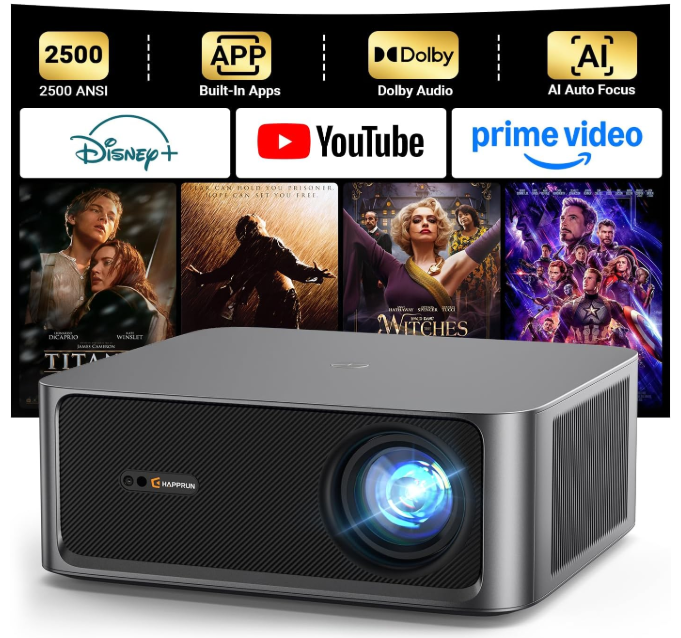
    HAPPRUN KC7 Pro 2500 ANSI Lumens Projector User Manual

    By Gabriel SmithJanuary 11, 2026No Comments5 Mins Read
    Facebook Twitter Pinterest LinkedIn Tumblr WhatsApp Telegram Email
    HAPPRUN-KC7-Pro-2500-ANSI-Lumens-Projector-featured
    Share
    Facebook Twitter LinkedIn Pinterest Email

    HAPPRUN-logo

    HAPPRUN KC7 Pro 2500 ANSI Lumens ProjectorHAPPRUN-KC7-Pro-2500-ANSI-Lumens-Projector-product

     Safety Instructions

    1. Do not look directly into the lens while the projector is running, as strong light may damage your eyes.
    2. Keep the projector and accessories out of the reach of children.
    3. Please ensure that the projector’s working environment is dry and well-ventilated.
    4. To prevent electric shock, please keep the projector out of the rain and away from moisture.
    5. It is recommended to switch off the projector after it has run for 6 hours non-stop.
    6. Do not press hard on the projector, as it may damage the product.
    7. Do not throw, hit, or shake the projector to avoid damaging the circuit board.
    8. Any questions after receiving the projector, please contact us.
    9. We will quickly and correctly solve your problem within 24 hours and give you a satisfactory answer.

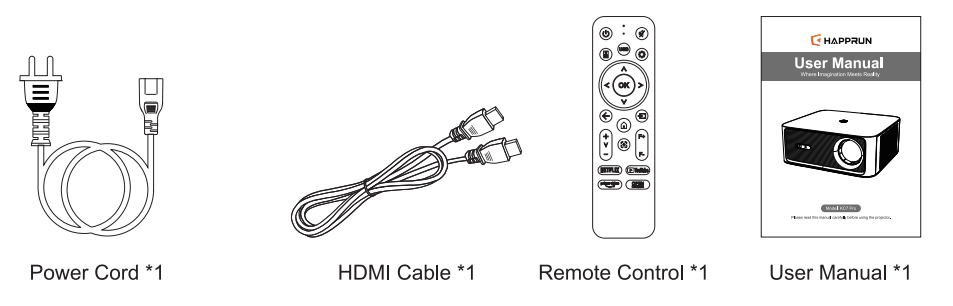
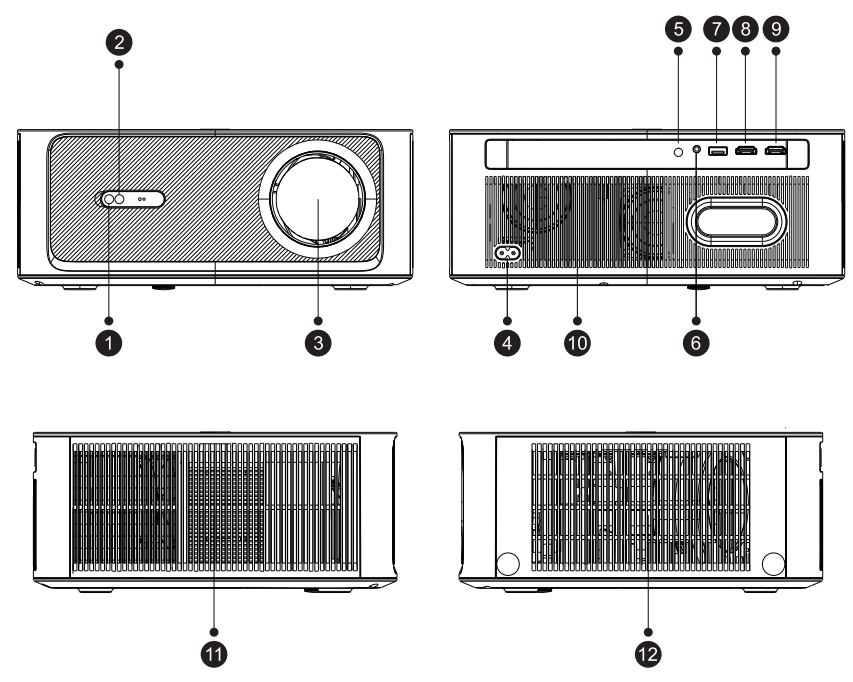
    Package ContentsHAPPRUN-KC7-Pro-2500-ANSI-Lumens-Projector-fig 1

    1. Camera
    2. IR Receiver
    3. Lens
    4. Power Jack
    5. IR Receiver
    6. Headphone Jack
    7. USB Port
    8. HDMI Port
    9. HDMI Port
    10. Speaker*2
    11. Air Outlet
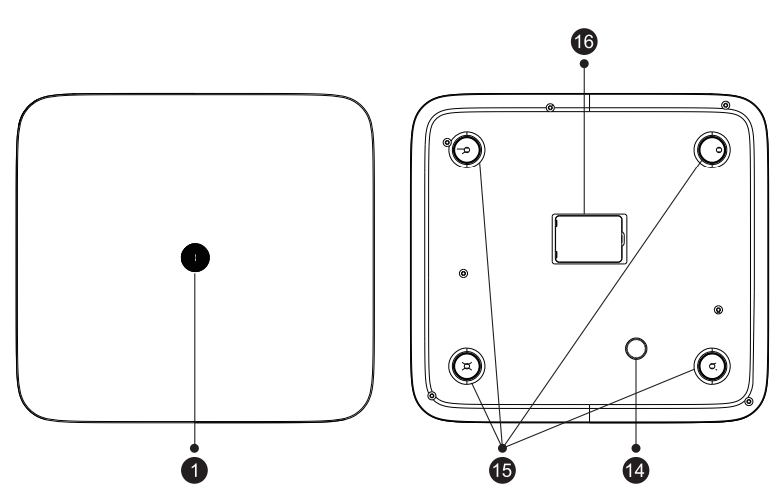
    12. Air InletHAPPRUN-KC7-Pro-2500-ANSI-Lumens-Projector-fig 2
    13. Power Key
    14. Angle Adjustment Knob
    15. Hole for Stand (M5)
    16. Bottom Label & Dust CoverHAPPRUN-KC7-Pro-2500-ANSI-Lumens-Projector-fig 3

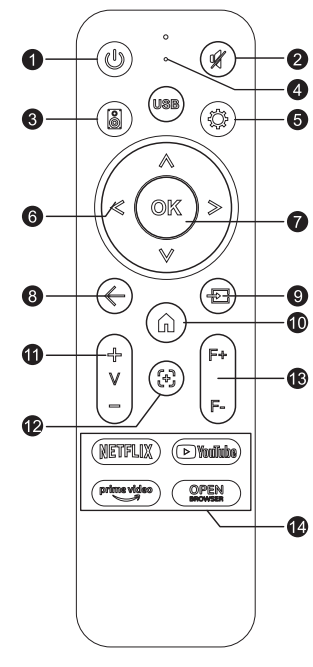
    Remote Control Button FunctionHAPPRUN-KC7-Pro-2500-ANSI-Lumens-Projector-fig 4

    1. Power
    2. Mute
    3. BT Speaker Shortcut Key
    4. USB Shortcut Key
    5. Settings
    6. Arrow Keys
    7. 0K
    8. Back
    9. Source
    10. Home
    11. Volume+/-
    12. Auto Focus
    13. Focus+/-
    14. App Shortcut

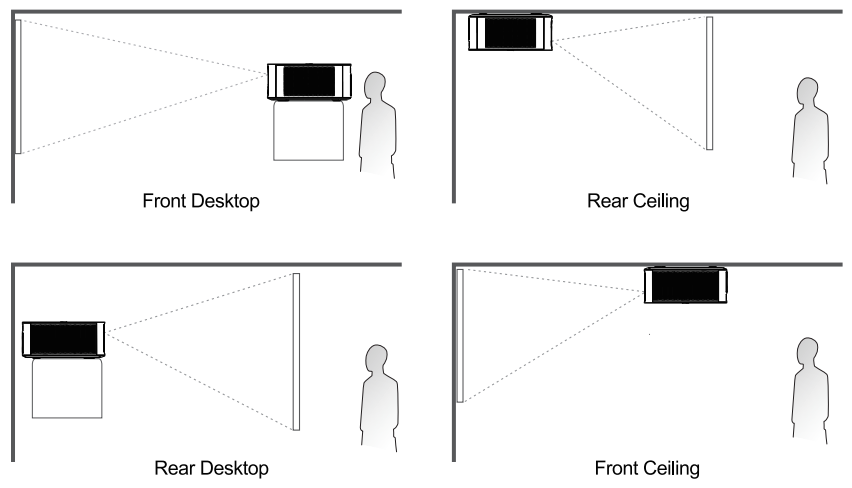
    Projector InstallationHAPPRUN-KC7-Pro-2500-ANSI-Lumens-Projector-fig 5

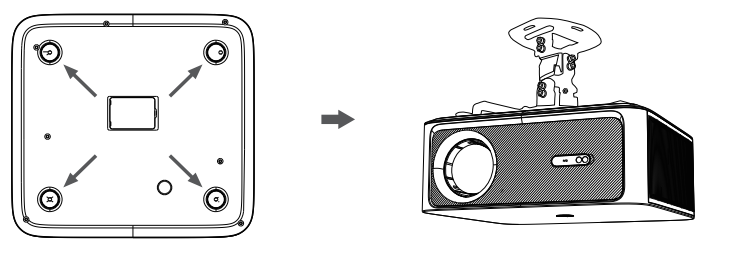
    Ceiling mountHAPPRUN-KC7-Pro-2500-ANSI-Lumens-Projector-fig 6

    When ceiling mounting the projector, please purchase a compatible 4-hole mount (M5 screws) separately.

    Quick Start

    Power On/Off

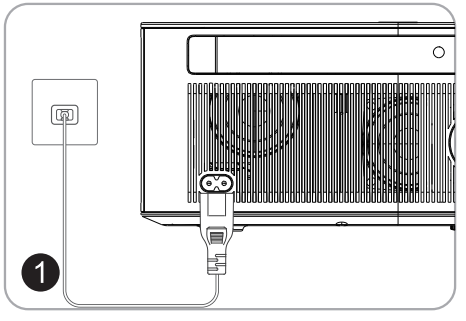
    • Connect the power adapter to an outlet.HAPPRUN-KC7-Pro-2500-ANSI-Lumens-Projector-fig 7
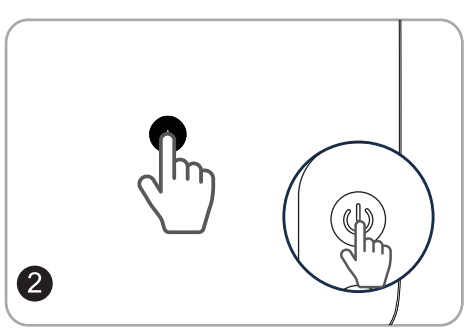
    • Press the power button on the device or the remote control to turn it on.HAPPRUN-KC7-Pro-2500-ANSI-Lumens-Projector-fig 8

    Screen size adjustment

    Go to Home > Settings> Picture > Image Zoom to reduce or enlarge the image size.

    HAPPRUN-KC7-Pro-2500-ANSI-Lumens-Projector-fig 9

    Focus

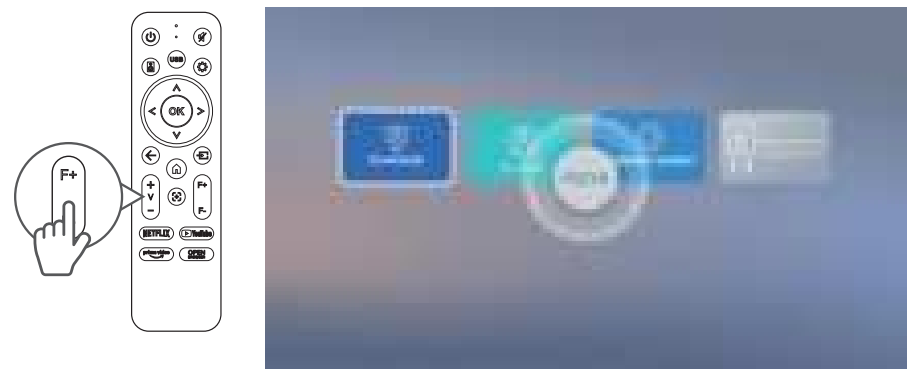
    1. Auto Focus: When the projector detects shaking/rapid movement, it will automatically adjust the image quality.HAPPRUN-KC7-Pro-2500-ANSI-Lumens-Projector-fig 10
    2. Electric Focus You can also press the Focus button on the remote or go to Home > Setting ® > Picture > Manual Focusing > Focus > Manual Focus to sharpen the image focus until the blurry image becomes clear.HAPPRUN-KC7-Pro-2500-ANSI-Lumens-Projector-fig 11

    Keystone Correction

    1. Auto Keystone Correction:n When the projector detects shaking/rapid movement, it will automatically correct the keystone distortion. The optimal angle for automatic keystone correction is to keep it within 15°.HAPPRUN-KC7-Pro-2500-ANSI-Lumens-Projector-fig 12
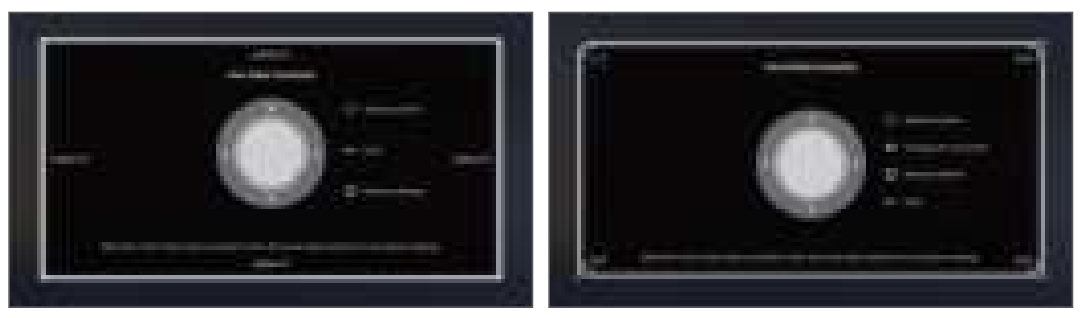
    2. Manual Keystone Correction: Onn Go to HomeSettings ® > Picture > Four Sides Correction or Four Points Correction to manually correct the image shape by four points.HAPPRUN-KC7-Pro-2500-ANSI-Lumens-Projector-fig 13


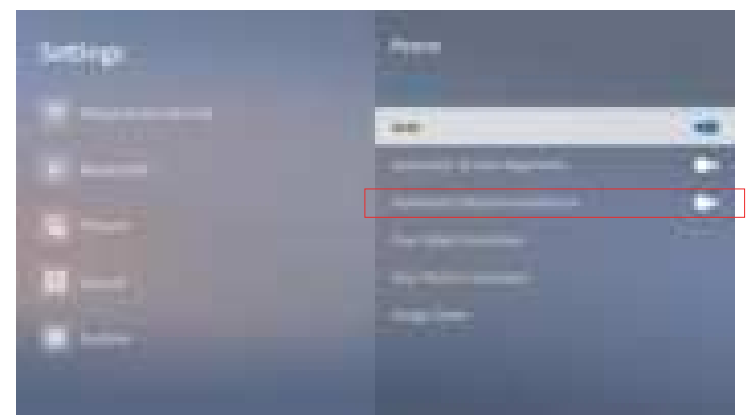
    Automatic Obstacle Avoidance

    Go to Home > Settings> Picture > Automatic Obstacle Avoidance select “On” and when the device encounters an obstacle, the projectionautomatically avoids it.HAPPRUN-KC7-Pro-2500-ANSI-Lumens-Projector-fig 14
     

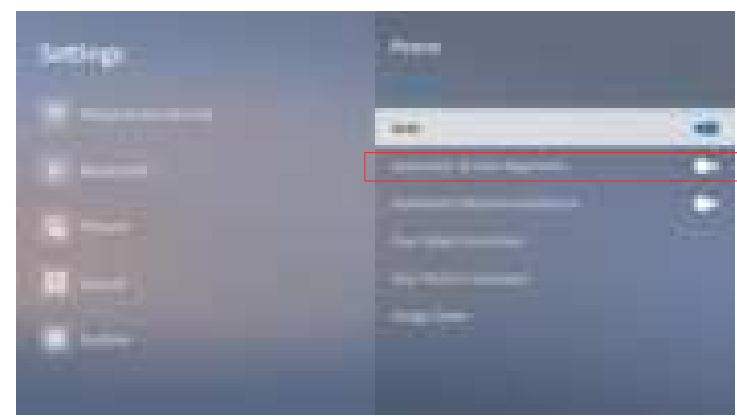
    Automatic Screen Alignment

    Go to Home > Settings> Picture > Automatic Screen Alignment, select “On,” and when the device projects onto a screen with black borders, the projection automatically adapts to fit accurately within the screen’s interior.
    HAPPRUN-KC7-Pro-2500-ANSI-Lumens-Projector-fig 15

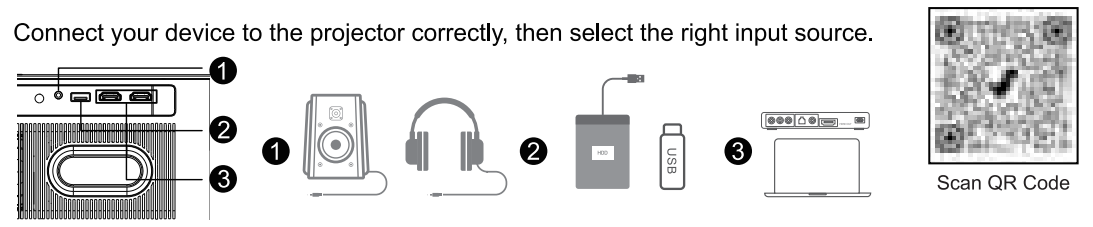
    ConnectionHAPPRUN-KC7-Pro-2500-ANSI-Lumens-Projector-fig 16

    1. Audio Connection: Simply connect the audio device to the projector for normal use
    2. USB Connection: Insert the disk. Then press the USB Shortcut Key to locate or press the “Source” button and choose “USB”.HAPPRUN-KC7-Pro-2500-ANSI-Lumens-Projector-fig 17
    3. DMI Connection:
      • Connect your HDMI cable to the projector and the computer or other device.
      • Press the “Source” button and choose “HDMI”.HAPPRUN-KC7-Pro-2500-ANSI-Lumens-Projector-fig 18

    Wi-Fi Connection

    You can connect your projector to your router’s WiFi by going to Home > Setting ® > Network & Internet > Wi-Fi.

    HAPPRUN-KC7-Pro-2500-ANSI-Lumens-Projector-fig 19

    Bluetooth External ConnectionHAPPRUN-KC7-Pro-2500-ANSI-Lumens-Projector-fig 20

    1. Turn on your external Bluetooth devices.
    2. Go to Home ›Settings® > Bluetooth > On > Scan and choose your external Bluetooth devices.

    Bluetooth Speaker ModeHAPPRUN-KC7-Pro-2500-ANSI-Lumens-Projector-fig 21

    1. Press the Bluetooth Speaker shortcut key on the remote control, orgoo to Home >My App > Bluetooth Speaker.
    2. Open your phone’s Bluetooth settings, find the projector’s Bluetooth name, connect, and start playing.

    Screen Casting & Mirroring

    Screen Casting

    1. Connect your device and the projector to the same wireless network.
    2. Go to Home >My App > homeshare.
    3. Open the Netflix or YouTube app on your mobile device, tap the cast icon, and select your projectorHAPPRUN-KC7-Pro-2500-ANSI-Lumens-Projector-fig 21

    Android Screen Mirroring

    1. Connect your device and the projector to the same wireless network.
    2. Go to Home >My App > Screencast.
    3. Click the screen casting button on your phone, select the projector’s device name, and start mirroring.

    HAPPRUN-KC7-Pro-2500-ANSI-Lumens-Projector-fig 22

    IOS Screen Mirroring

    1. Connect your device and the projector to the same wireless network.
    2. Go to Home >My App > iPhone Wireless on the same screen.
    3. Click the screen casting button on your phone, select the projector’s device name, and start mirroring.

    HAPPRUN-KC7-Pro-2500-ANSI-Lumens-Projector-fig 23

    SpecificationsHAPPRUN-KC7-Pro-2500-ANSI-Lumens-Projector-fig 24

    Customer Support

    • Website: @happrunlife.com.
    • Tel: 1-888-986-2646.

    FAQs

    Q: In practical terms, what does 2500 ANSI lumens mean?

    True, standardised brightness is indicated by 2500 ANSI lumens. This means that the HAPPRUN KC7 Pro is appropriate for home theatres, gaming, presentations, and outdoor movie nights after dusk because it produces clear and vivid images in dim to moderately lit spaces.

    Q: Can I watch the HAPPRUN KC7 Pro in daylight?

    The projector can create visible images in rooms with some ambient light, but it works best in dark or controlled lighting conditions. Reduced lighting or curtains are advised for best results during daytime use.

    Q: Is wireless screen mirroring supported by the projector?

    For compatible Android, iOS, and Windows devices, the HAPPRUN KC7 Pro does indeed enable wireless screen mirroring, which lets you share presentations, videos, and images wirelessly (certain apps may limit mirroring due to copyright protection).

    Q: What is the suggested distance and projection size?

    A huge screen that is between 40 and more than 200 inches in size can be displayed by the projector. It can be used in both small and big spaces because the best image quality is typically obtained at a mid-range distance.

    Q: Does the projector work well for gaming?

    Indeed. The KC7 Pro’s vivid image, steady performance, and huge screen projection make it ideal for recreational and console gaming. For the lowest latency in competitive gaming, an HDMI connection is advised.

    Share. Facebook Twitter Pinterest LinkedIn Tumblr Email
    Gabriel Smith

      Related Posts

      Aurzen D1R Roku TV Bluetooth Smart Projector User Manual

      January 13, 2026

      Kogan HSD01 8GB, 128GB Full HD Wi-Fi Speakers User Manual

      January 10, 2026

      Aurzen EAZZE D1R Cube Roku TV Smart Projector User Guide

      January 9, 2026

      Devialet Dione White Dolby Atmos Soundbar User Manual

      January 7, 2026

      Tribit BTH80 CallElite 81 Wireless Headset User Guide

      January 4, 2026

      Tribit IC-BTS30 Wireless Speaker Stormbox User Manual

      January 4, 2026
      Add A Comment
      Leave A Reply Cancel Reply

      Don't Miss
      Harman Kardon

      Harman Kardan OMNI BAR Plus Bluetooth Soundbar User Manual

      January 14, 2026

      Harman Kardon OMNI BAR Plus Bluetooth Soundbar Introduction We’ve created a system that harnesses the…

      Aurzen D1R Roku TV Bluetooth Smart Projector User Manual

      January 13, 2026

      Aurzen EAZZE D1 MAX 1000 ANSI Lumens Projector User Manual

      January 12, 2026

      HAPPRUN KC7 Pro 2500 ANSI Lumens Projector User Manual

      January 11, 2026
      Stay In Touch
      • Facebook
      • Twitter
      • Pinterest
      • Instagram
      • YouTube
      • Vimeo

      Subscribe to Updates

      Subscribe to Updates

      Follow us

      Facebook X-twitter Instagram Pinterest

      © 2025 All rights reserved Onyx Guide.