



Mixx Audio S1 Zinc Touch Colour Screen Watch

Let’s Start
What’s in the box?
A MIXX S1 SmartWatch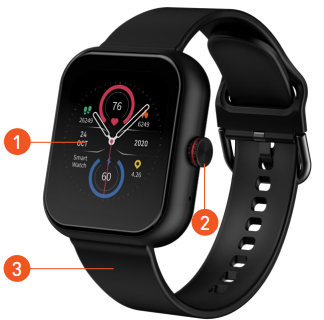
- Multi-touch Screen
- Home Screen Button / Rotate to scroll
- Watch Strap
- SmartWatch Sensors
- Pin Straps x 2
- Charging connectors
- Magnetic USB Charging Cradle

Let’s Install the App
Please follow the instructions as numbered:
- Scan the QR Code to download the free SMART-TIME PRO App onto your smartphone.
- Tap to install the SMART-TIME PRO App and then tap to open.
- Follow the on-screen instructions to register and set up an account.
- Log in to the App and follow the on-screen instructions.
You should see the Status screenshot (shown on the right) with 3 tabs at the bottom of your screen. Status – the orange icon shows that this screen is active. The Status screenshot is your dashboard screen. Device – the grey icon, this screen is not active until you click on the icon. Me – the grey icon, this screen is not active until you click on the icon.
Note
The SMART-TIME PRO APP supports iOS 11.0 or later, Android 5.0 or later, and Bluetooth 5.0
Let’s Pair the App
Please install the App and follow the instructions as numbered:
- Tap to activate the device screen. The ‘Device’ icon should turn orange.
- Tap ‘Add device’ at the top of your screen.
- Accept the App instructions for location permission.
- Select ‘F6’ on your phone, then you should see a ‘Please confirm on the device’ message on your screen.
- From your S1 Zinc SmartWatch screen, you should see the same circle-shaped ‘Pair’ screen. Tap the button on your watch to confirm.
- You should now be successfully paired with your S1 Zinc SmartWatch.
Check the top of the “device” page on the app. You should see F6 in the device box to confirm pairing success.
You require Android 5.0 or iOS 11.0 and later to pair with this App. Only one smartphone can be paired with the S1 Zinc SmartWatch. To pair other mobile phones, please unbind the current phone before pairing. To UNBIND, tap the icon and scroll to the bottom until you see the UNBIND icon. Select and confirm.
Note
Please DO NOT try to pair your MIXX S1 Zinc SmartWatch using the Bluetooth settings on your phone. Unpair with your phone’s Bluetooth settings and start from the ‘IMPORTANT!’ message above


Let’s Stay Charged
Turn the watch over to align and attach the charging pins to the Magnetic USB Charging Dock. You will see the charging icon on the watch screen display for 5 seconds. It will take up to 2 hours to fully charge this watch, and then a battery icon will show. Regular wiping of the charge contact points will ensure there are no problems charging your watch.
LET’S CHANGE THE WATCH STRAP
You can replace the watch strap with most regular 20mm straps and attach it to the watch body. Just slide the pins to remove the straps and replace them with the new ones
LET’S PLAY
Adjust the watch strap so that it is a snug fit on your wrist (not too tight or loose) and there is no green light coming through from the LED light under the body of the watch.
Press the Home Screen Button to activate the S1 Zinc home screen. Anytime you need to return to your S1 Zinc SmartWatch home screen, push the Home Screen Button.
SPORTS
In the app list, scroll to and tap the icon. The S1 Zinc can track the following 10 sporting activities.
SPORTS RECORDS
In the app list, scroll to and tap the icon to open and view the recorded times captured during your workouts. This records the last 10 workouts performed using the watch.
HEART RATE

In the app list, scroll to and tap the icon. Press the and the S1 Zinc will start to take your heart reading, and the result will show on your watch. You can see the progress of your heart rate results by viewing the Status screen on the App.
BLOOD PRESSURE In the app list, scroll to and tap the icon. Tap the t1 Zinc will start to take your blood pressure, and the results will show on your watch screen. You can view the results on the App’s Status screen.
BLOOD OXYGEN MONITORING In the app list, scroll to and tap the icon. Press the and the S1 Zinc will start to take your blood oxygen reading, and the result will show on your watch. You can see the progress of your blood oxygen results by viewing the Status screen on the App.
ALARM CLOCK
Set up your alarm clock times on the device screen or in the Free Smart Time Pro App. Tap in your APP, then add an alarm.
Scroll to select the time.
- Choose either ‘Repeat’ or ‘Once’ to set the day(s), depending on how frequently you wish to set the alarm.
- Tap ‘Confirm’ to accept the new alarm time(s).
- At the top right-hand corner of your App screen, tap and your alarm is set.
In the app list, scroll to and tap the icon to view your alarms.
You can now turn your alarms on or off from your SmartWatch. You have a maximum of 5 alarms that can be set.
MUSIC CONTROL
 For this feature to sync with your watch, make sure all permissions are allowed on your phone and the S1 Zinc. Open your preferred music app on your Smartphone. Your music will need to be playing for the S1 Zinc to sync correctly within the app. In the app list, scroll to and tap the icon. You can now use your S1 Zinc SmartWatch to play/pause, skip tracks, and adjust the volume of your music playing on your phone or connected Bluetooth device.
DIAL – PHONE CALLS
When you pair the watch through the app, you will be asked to also ppair with luetooth 3.00 in your Bluetooth menu. Ensure that this entry is connected for “calls” and “audio.” Now, when you receive a call, you will see this screen, allowing you to answer or reject the call.
The S1 Zinc SmartWatch also allows you to make phone ca. In the app list, scroll to and tap the icon. A short Bluetooth load screen will be seen. When this is finished, you can make a phone call by selecting from your contacts, recent calls, or by dialling.
TIMER
 In the app list, scroll to and tap the icon to view the timer screen. Use the + / – icons to set the hour, minutes, and seconds numbers, and then press to start the timer.
You can stop and pause your time by tapping the icons on the S1 Zinc screen. At the end of the timer, your S1 Zinc SmartWatch will vibrate.
STOPWATCH In the app list, scroll to and tap the icon to view the stopwatch screen. When you’re ready to start your exercise, tap the start button to start the stopwatch timer. You can add a split time or pause the stopwatch times achieved by pressing the icons, respectively. You can view multiple split times on your S1 Zinc SmartWatch.
REMOTE CAMERA

Set up your remote camera controls using the free App. Tap and scroll down to your APP and tap. Your watch will automatically change to the screen. Tap on your S1 Zinc to take your photo. To view your photos from your album, go to your App. Tap and scroll down to open, then click on. Your album from the App will open to view your pictures.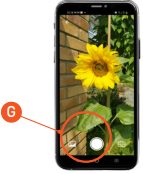
VOICE ASSISTANT
 In the app list, scroll to and tap the icon. You will see a short loading screen while the watch connects to your phone. Tap, you will hear the familiar beep of your voicemail assistant. You can now ask a question or give a command.
FIND PHONE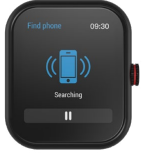 In the app list, scroll to and tap the icon. Your phone will sound an alarm so that you can locate it. Tap to pause the alarm once you have found Mixx Audio S1 Zinc your phone. This feature is only available on Android phones.
SETTINGS
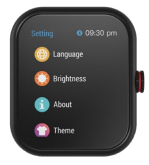
In the app list, scroll to and tap the icon to view the watch’s brightness, language, power off, and factory reset. You can also view an About screen that will give you the name of your watch, the Mac address, and the software version. Press the Home Screen Button until you return to the S1 Zinc home screen.
OTHER FUNCTIONS
CHANGE THE WATCH FACE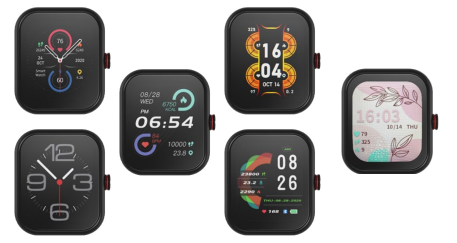
Press and hold the Multi-touch Screen or Home Screen Button to view a variety of home screens available. Swipe to the right or left to choose your home screen display, and then tap on the screen to confirm. Alternatively, tap on the App to choose Mixx Audio S1 Zinc from other available home screens. There are 5 preset faces loaded on the watch. You can add 1 face from the “watch face icon” menu on the app.
STEP COUNTER
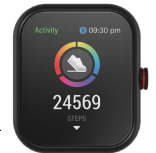
In the app list, scroll to and tap the icon. This screen will show your total steps. Swipe up on this screen to see a breakdown of steps, distance, and calories.
SLEEP MONITOR
 REMEMBER! To wear your S1 Zinc SmartWatch to bed to capture your sleep patterns. Open your App to sync with your S1 Zinc in the morning, and while on the Status screen, scroll down to the ‘Sleep’ window and tap to view how well you slept. Alternatively, from the app list, scroll to and tap the icon. You can see your total sleep time and a breakdown of light and deep sleep.
WEATHER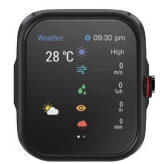 Gear up for the daily weather forecast before you start your workout. From the S1 Zinc home screen, swipe right for the latest report. You can then swipe up for a 3-day forecast.
QUICK SETTINGS MENU
From the S1 Zinc SmartWatch home page, swipe down on the Multi-touch Screen to view the Quick Settings Menu. You can turn on or adjust the watches: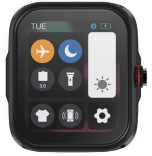
- Flashlight 5. Settings
- Do Not Disturb 6. Brightness
- Bluetooth 3.0 for 7. Theme calls and audio
- Find my phone
This changes how the other apps are arranged. Mixx Audio S1 Zinc This guide assumes the theme is set to type 1, where all apps are in a list.)
MORE FEATURES
Use the App to switch on the features outlined below to receive these reminders from your watch.
- Message Push – messages from your email are pushed to your watch to view.
- Sedentary alert – sets a reminder for you to move aaboutis handy if you sit in a chair all day.
- Incoming call – turn this feature on and follow the on-screen instructions so that you can obtain notifications on your watch.
LET’S VIEW TECHNICAL SPECS
- Watch strap length: 240 mm
- Watch strap width: 20 mm
- Weight: 32g (including strap)
- Battery: 210mAh Poly-Li
- Waterproof rating: IP67
CONTACT MIXX
Feedback is welcome, simply email us at support@mixx-io.com or visit mixxwatch.com for more information.
NEED EXTRA HELP? Q&A
Q. My heart-rate signal seems to be missing?
A. If your S1 Zinc SmartWatch is not showing a heart rate, then the data will appear as a dotted line.
Please confirm if you are wearing the watch correctly and that the strap is not too loose or too tight. The watch strap should ideally sit back one Mixx Audio S1 Zinc finger width from your wrist. Not too high and not too low on your wrist or arm. After adjusting the watch, please do the following:
- From the Multi-touch Home Screen, swipe left to the heart rate screen on the S1 Zinc to obtain a manual reading.
- Check that the heart rate monitor feature is turned on in the Smart-Time Pro App. You should see a reading of your heart rate.
Q. I’m having trouble pairing my S1 Zinc SmartWatch with my smartphone.
A. Try the following solutions:
- Check that the S1 Zinc Watch is not paired with another mobile device. Please unbind it from the App to unpair the watch.
- Go to the LET’S INSTALL THE APP section (See page 3) and follow the steps.
- IOS device users should go to their Bluetooth settings, ‘unpair’ or ‘forget’ this device, and pair it again.
EXEMPTION CLAUSE
- The Heart rate and Blood pressure data output or results by the S1 Zinc SmartWatch or App are not intended to be used on a medical or diagnostic basis.
- Self-diagnosis and self-treatment are dangerous. Only qualified doctors are allowed to diagnose and treat high blood pressure or any other heart disease. Please contact your doctor for professional diagnostic opinions and help.
- The data and information of heart rate and blood pressure provided by S1 Zinc SmartWatch may not be completely accurate and may exceed the tolerance as per the specification stated in the manual due to many factors, such as interference of the signal from external sources, incorrect wearing position and changes in weather conditions or user’s body condition.
- DO NOT adjust any of your medication or therapeutic schedule based on the results output by S1 Zinc SmartWatch.
Please follow the doctor’s instructions before taking any treatment or medication. The manufacturer disclaims all liability arising from such Mixx Audio S1 Zinc inaccuracy and assumes no responsibility for the consequences of use of such data and information.
WARRANTY CLAUSE
We offer a 2-year warranty period for the S1 Zinc SmartWatch. If there is any damage or malfunction during normal use, the warranty service will be Mixx Audio S1 Zinc provided to the customer for free after confirmation by our technician. The following conditions are not covered by the warranty:
- Accident or human damage
- Testing, repairing, or disassembling without authorization
- Contamination due to human reasons
- Damage caused by connection with equipment that is not compatible
- Natural aging
- Damage caused by force majeure.
FAQs
Q: How do I charge the watch?
Ans: Connect it to a USB power source using the magnetic charging wire that comes with it. Make sure the charger is in line with the watch’s back contacts. A full charge usually requires two hours of charging.
Q: Can I receive notifications on the watch?
Ans: Yes, the watch may show notifications for calls, SMS, emails, and apps like Facebook and WhatsApp once it is associated with your smartphone.
Q: How do I change the watch face?
Ans: For two seconds, press and hold the current watch face. To choose, swipe among the faces that are offered and tap the one you like most.
Q: Is the watch waterproof?
Ans: The Mixx Audio S1 is not appropriate for swimming or diving, but it is IP67 rated, which means it can withstand splashes and brief submersion in water.
Q: How do I reset the watch to factory settings?
Ans: To make sure, select Settings > System > Reset. By doing this, all data will be deleted and the watch will revert to its original settings.
Q: Can I track my sleep with the S1 watch?
Ans: Yes, while worn overnight, the watch automatically records the amount and quality of sleep. Use the accompanying app to view comprehensive sleep reports.
Q: How accurate is the heart rate monitor?
Ans: Although it is not designed for medical diagnosis, the heart rate monitor offers real-time data that is appropriate for tracking fitness and overall wellness.
Q: What should I do if the watch screen freezes?
Ans: To force a restart, try holding down the side button for ten seconds. Use the settings to reset the watch if the problems continue.