

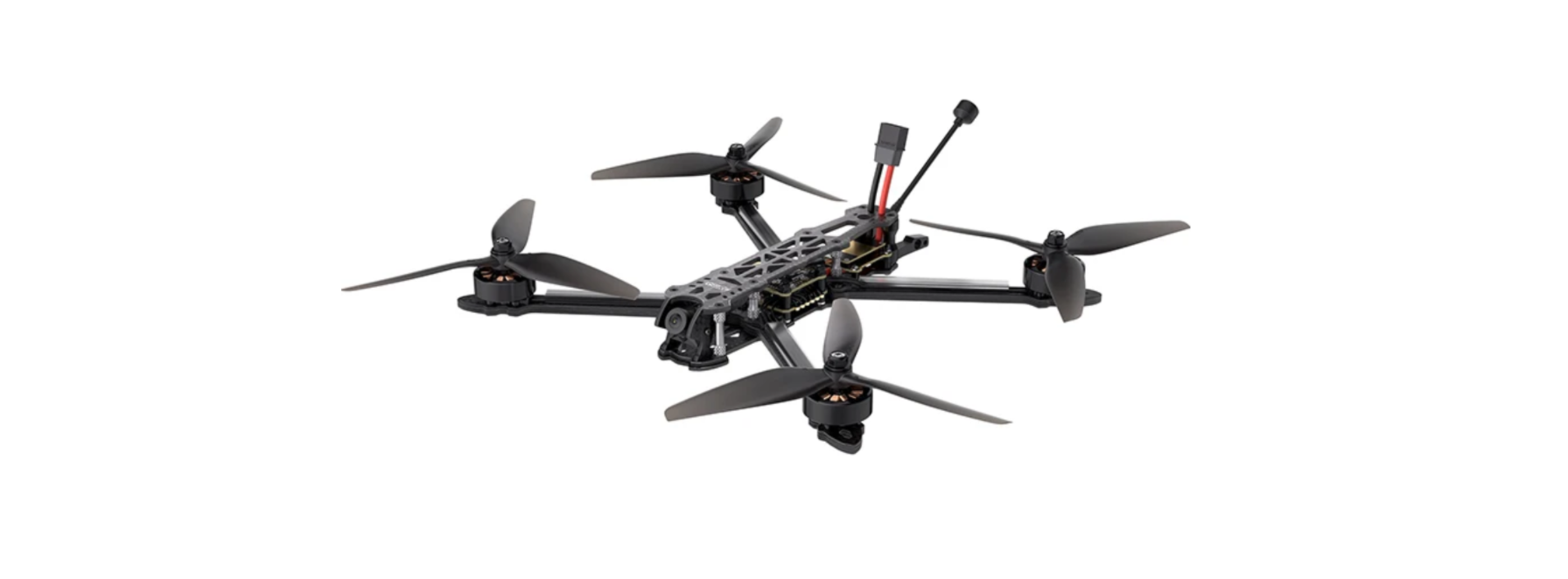

GEPRC RAD VTX 5.8G 4-7 Inch FPV Freestyle Drone
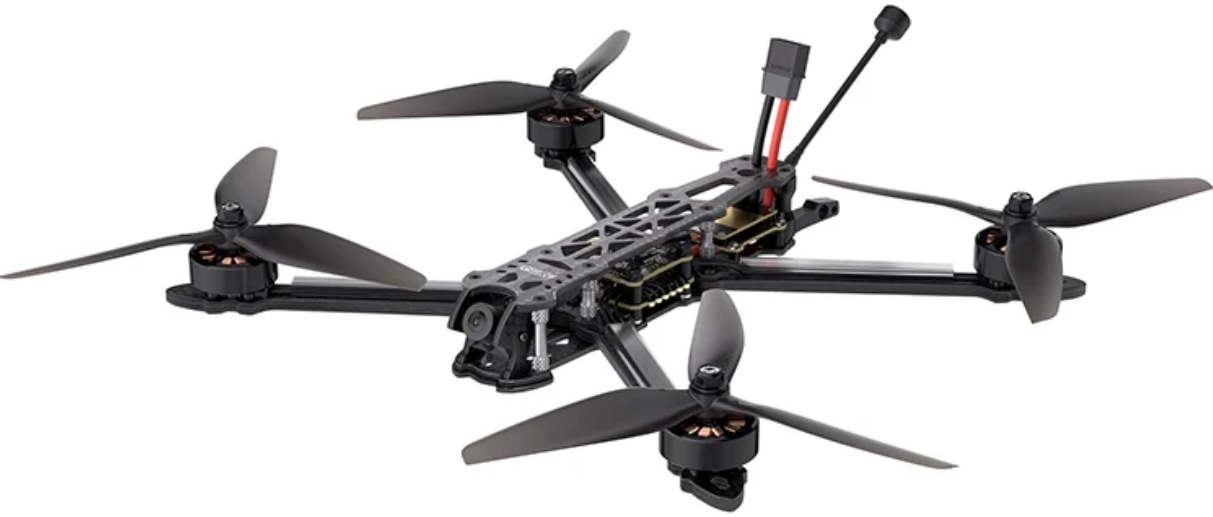
Unlock Switch
After successful linking, connect to the Betaflight ground station. Enter the mode option and try to toggle each function switch on the remote control. When the yellow cursor moves to the set range, the corresponding function will be turned on.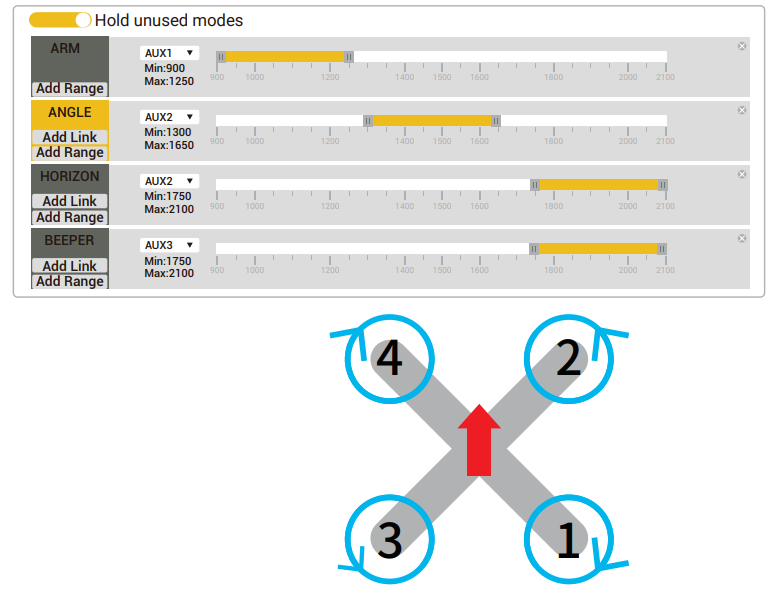
TBS Nano RX Receiver
- While powering on the receiver, press and hold its Bind button until the green light rapidly flashes, then release the Bind button.
- Press and hold the receiver’s Bind button again for 8 seconds, then release it.
- Wait for the green indicator light on the receiver to turn off and the red light to flash slowly.
- You will see! Update micro RX?’ on the remote control screen-select ‘ENTER!
- Wait for the update to complete and the automatic binding process. Once successfully bound, the remote control will display Binding Ok’ and the TBS Nano RX receiver indicator.

ELRS Receiver
We recommend checking whether the tuner and receiver firmware are consistent before binding. If they are inconsistent, please upgrade the firmware.
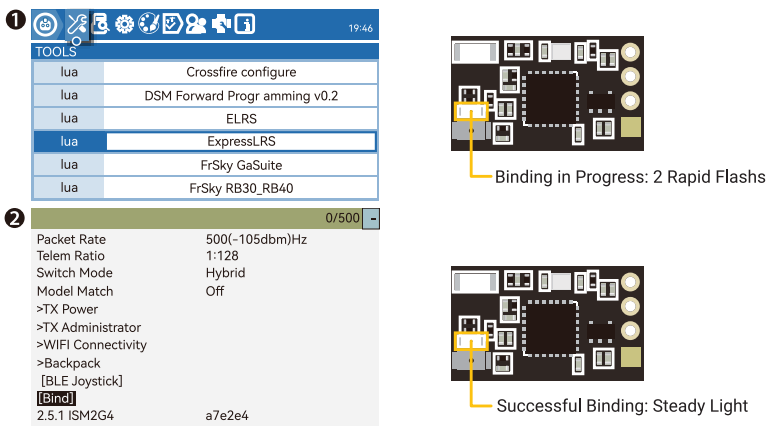
- To activate bindina mode, power cycle the receiver three times.
- When successful, the receiver’s LED will rapidly flash twice, indicating it’s in binding mode.
- Then, navigate to ‘ExpressLRS’ and enter this option.
- Inside the ‘ExpressLRS’ menu, locate the ‘Bind’ button on the ExpressLRS Lua script and select it.
- This action will send out a binding pulse, and a pop-up will briefly appear and then disappear.
- If the receiver’s LED indicator turns into a solid light, it’s a clear indication that the binding process has been completed.
RAD VTX 5.8G 1.6w /5.8G 2.5W Setting
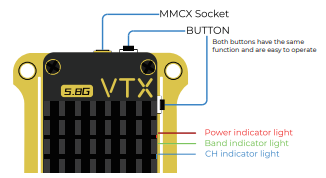
VTX Frequency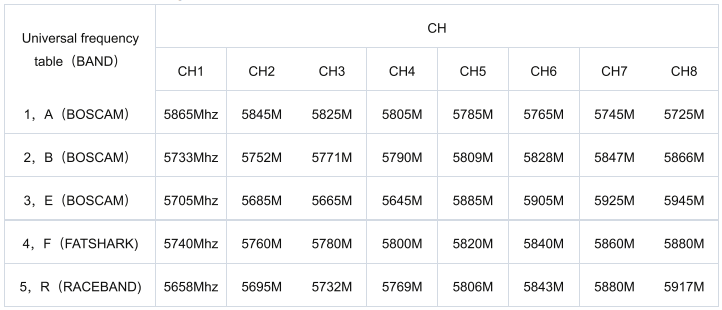
Manual Setting
- Press and hold for 3 seconds, the blue light will flash 3 times, indicating entering the frequency selection menu.
- Press and hold for 3 seconds, and the green light will flash 3 times, indicating entering the frequency band selection menu.
- Press and hold for 3 seconds, and the red light will flash 3 times, indicating entering the power selection menu.
Propeller Steering and Installation
Install the arms, screws, and MR30 plug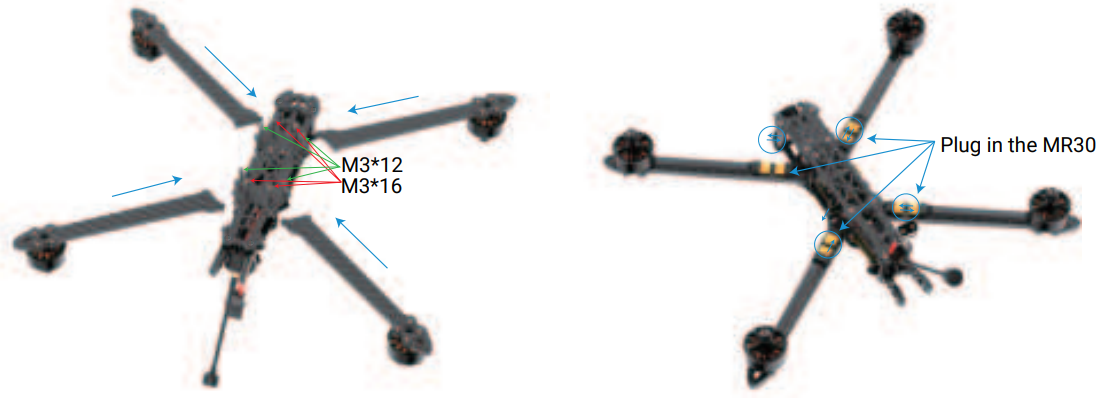
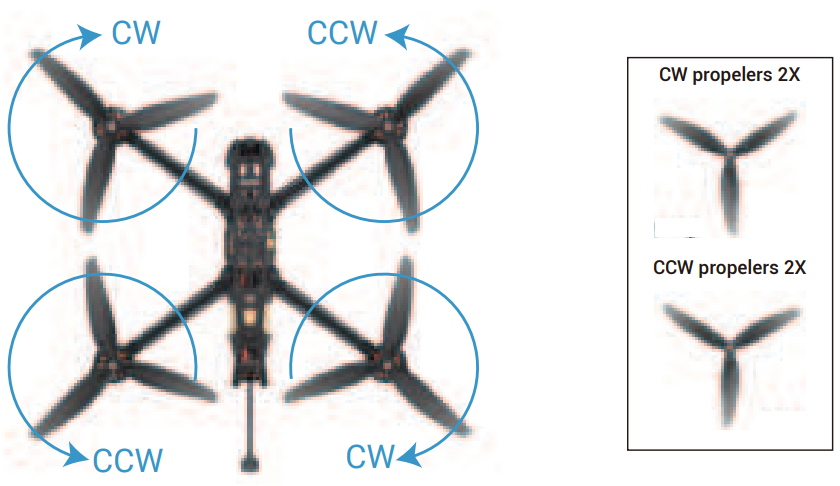
Pre-Flight
- Please install the antenna before powering on.
- Verify that the propellers are oriented correctly and ensure the propeller nuts are securely tightened.
- Ensure the battery is securely strapped to the quadcopter.
- Check that the battery’s balance connector is neatly arranged and secured to prevent it.
- Please check the battery voltage.
- When fully charged, the 4S voltage is 16.8v and the 6S voltage is 25.2v.
- Activate your FPV goggles or screen and scan for any frequency interference.
- Pleaseflyt iPlease flyrea where no one is approaching.

Specification
- Model: Crocodile5 Baby LR Quadcopter
- FC: GEP-F722-35A AIO
- ESC: BLheli_S 35A
- VTX: DJI Air Unit Module/VISTA/ GEP-STABLE-VTX58600N
- Camera: DJI Camera/ Caddx Polar/Caddx Ratel2
- Antenna: DJI Antenna/Momoda UFL LHCP/MMCX RHCP Antenna
- Motor: GR2004 2550KV
- Propeller: GemFan5130
- Frame: GEP-CB5
- Motor to Motor: 227mm
- Weight: 252.2g(DJI)/232.7g(Polar)/213.8g(Analog)
- Receiver: PNP, Frsky RXSR, T BS Nano RX
Contact Support
- Website: https://geprc.com/