


Acer X1525C Portable Projector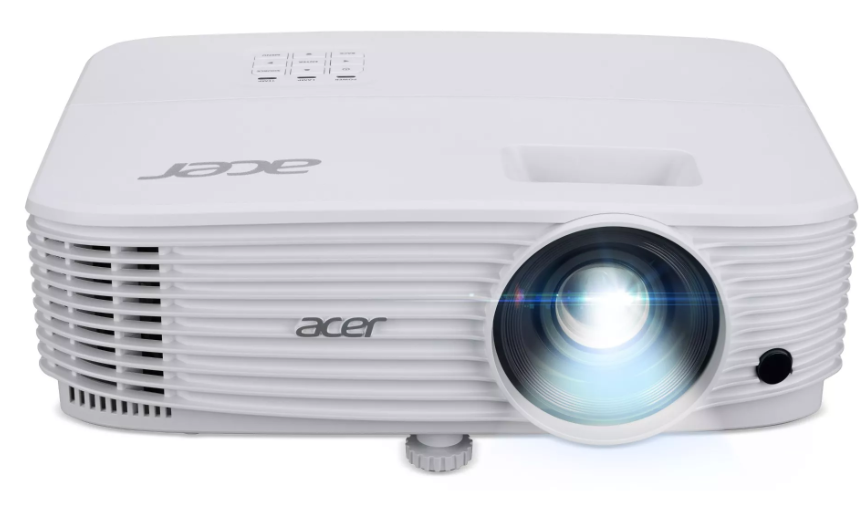
Introduction
Product Features
This product is a single-chip DLP® projector. Outstanding features include
- DLP® technology
- Auto/4:3/16 9/16:10 aspect ratio supported
- Enables projecting 3D content via DLP Link Technology
- Acer Color8oost technology delivers nature’s true colors for vivid, life-like images
- High brightness and contrast ratio
- Acer LumiSense technology can intelligently optimize the brightness and color saturation of the projected image based on actual ambient light
- Acer BluelightShield™ reduces the exposure ratio of blue light, which can potentially cause long-term eye damage, by adjusting color hue and brightness
- Versatile display modes (8right, Presentation, Standard, Video, User, 3D)enable optimum performance in any situation
- HDTV (480i/р, 576t/р, 720р, 1080i/р) supported
- Lower power consumption and economy (ECO) mode extends lamp life
- Acer EcoProjection Technology delivers an intelligent power management approach and physical efficiency improvement
- Equipped with HDMIT™ connection supporting HDCP
- Advanced digital keystone correction optimizes presentations
- Smart detection delivers quick, intelligent source detection
- Multi-language onscreen display (OSD) menus
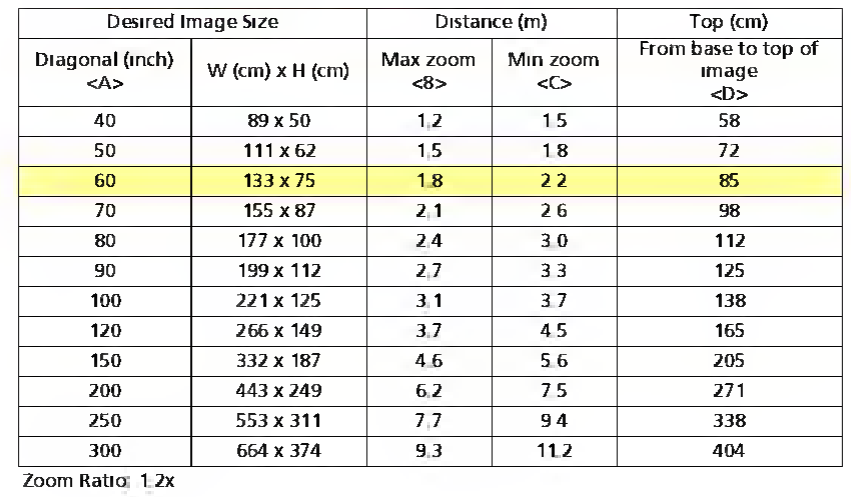
- Manual focus projection lens zooms up to 12x
- 18X digital zoom
- Microsoft® Windows® XP, Windows 7, Windows 80, Windows 8 1, Windows 10, Macintosh® OS compliant
Package Overview
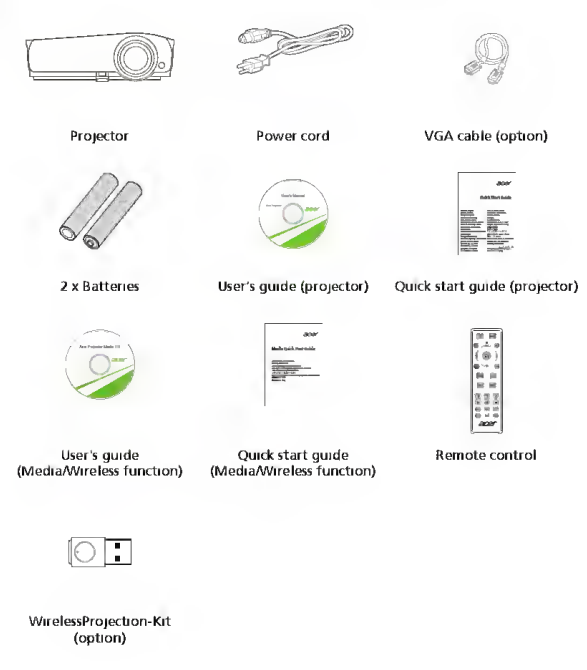
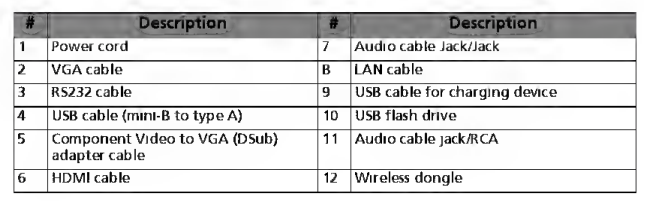
This projector comes with all the items shown below. Check to make sure your unit is complete. Contact your dealer immediately if anything is missing.
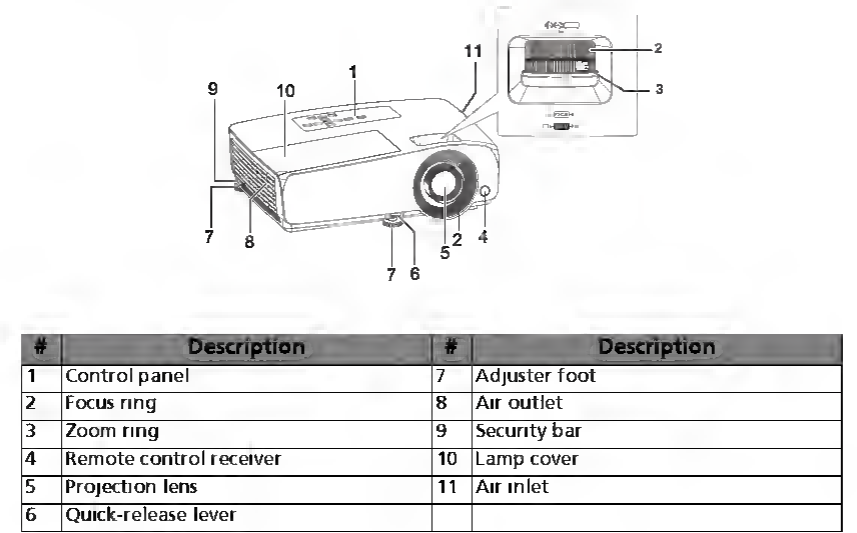
Projector Overview
Projector Outlook
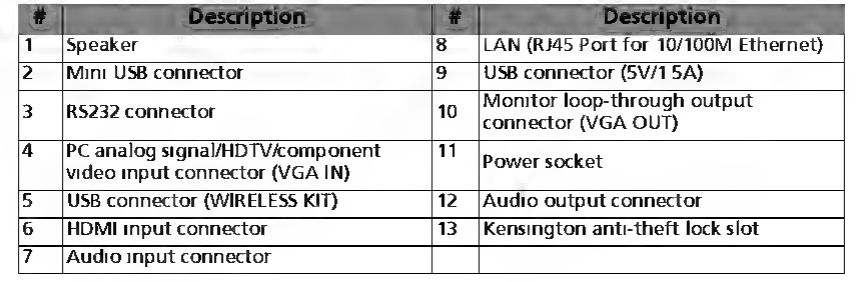
Rear / Left side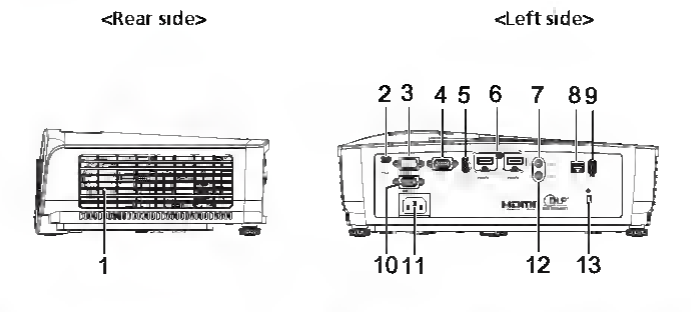
Control Panel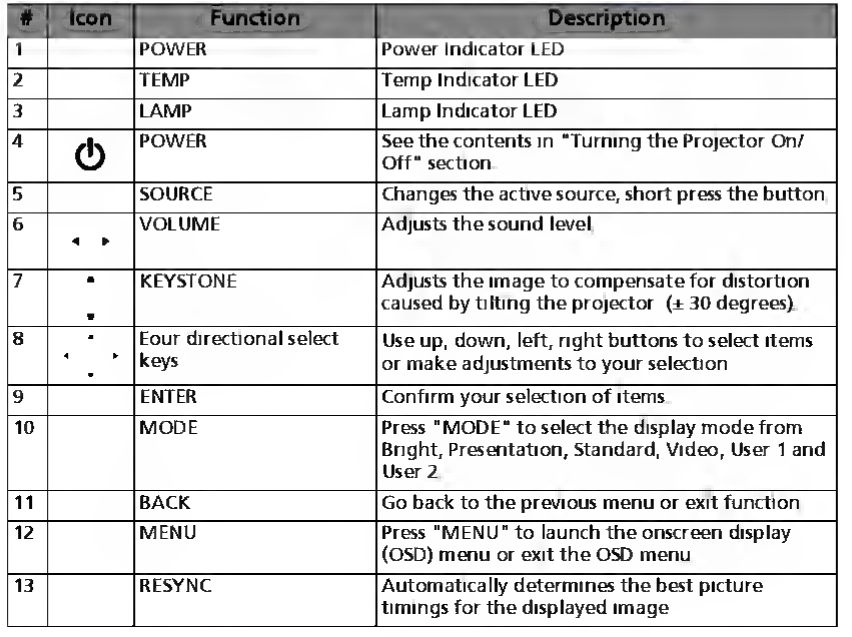
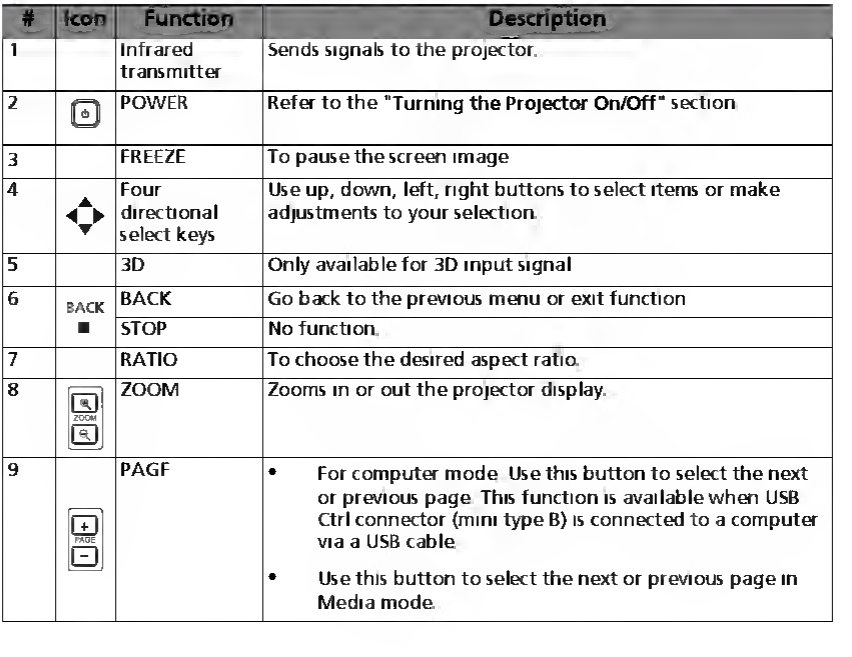
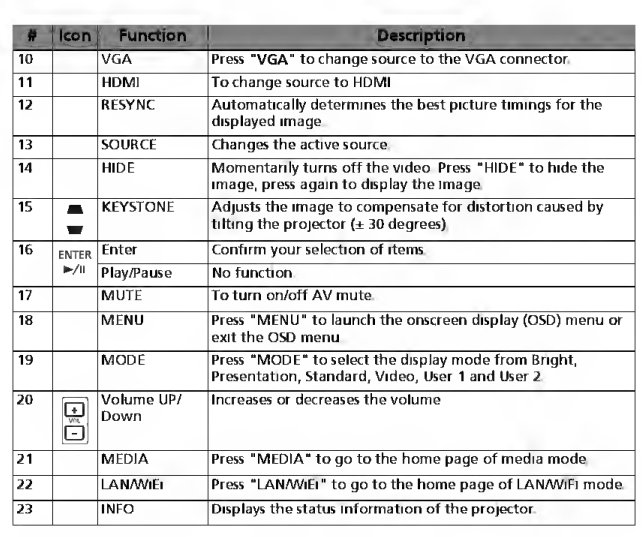
Remote Control Layout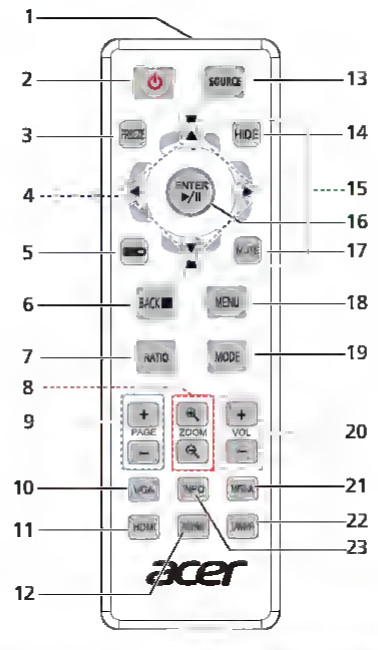
Getting Started
Connecting the Projector
Turning the Projector On/Off
- Ensure that the power cord and signal cable are securely connected. The Power indicator LED will turn orange.e
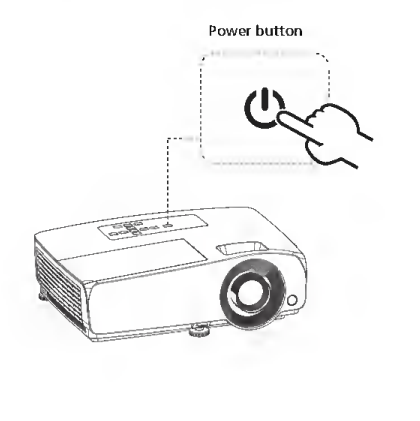
- Turn on the projector by pressing the “Power button on the control panel or remote control, and the Power indicator LED will flash gre.en
- Turn on your source (computer, notebook, video player, etc ). The projector will detect your source automatically.lly
- If the screen displays “No Signal”, please make sure the signal cables are securely connected.cted
- If you connect to multiple sources at the same time, use the “Source” button on the remote control or the direct source key on the remote control to switch between i.nputs
- appear there again, press and hold the power button. This message again to Standby mode:” Press the power button again
- The LED power indicator will flash orange after the projector is turned off, and the fan(s) will continue to operate to ensure that the system cools properly.
- Once the system has finished cooling, the LED power indicator will stop blinking and turn solid orange to indicate standby mode
- It is now safe to unplug the power cord
Adjusting the Projected Image
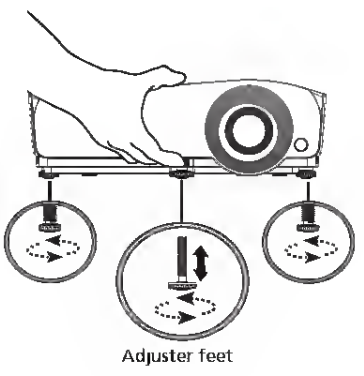
The projector is equipped with elevator feet for adjusting the height of the image.
- Pull the quick-release lever and lift the front of the projector. Once the image is positioned where you want it, release the quick-release lever to lock the foot in position. You may also screw the front adjuster foot to change the image height.ht
- Screw the rear adjuster feet to fine-tune the horizontal angle
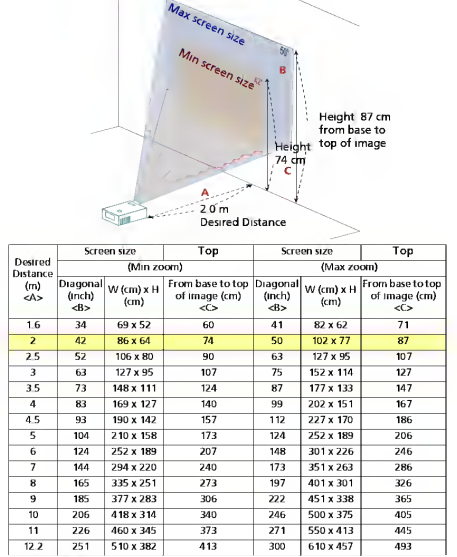
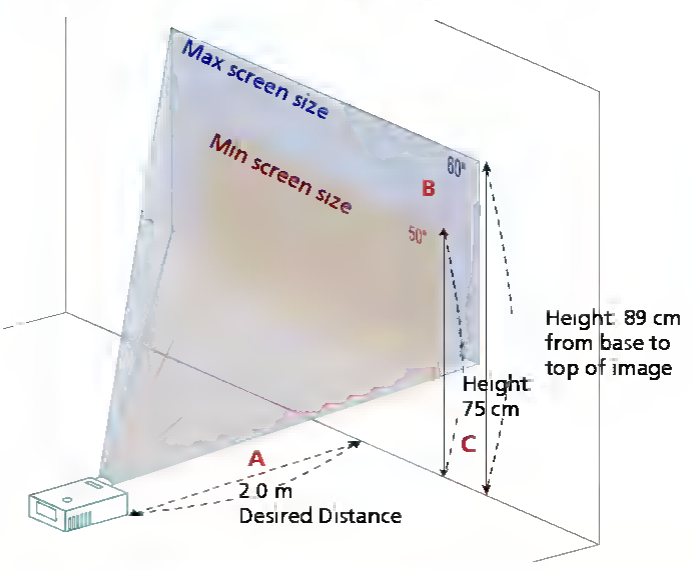
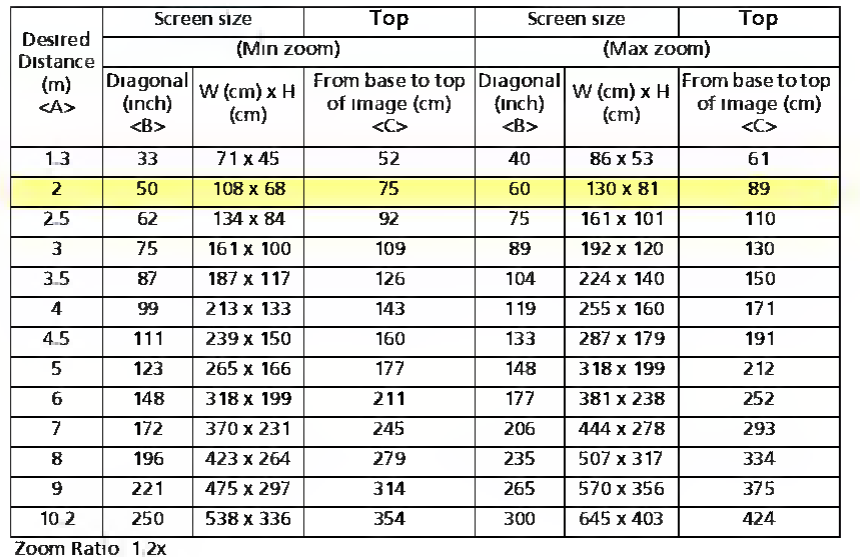
1080p series
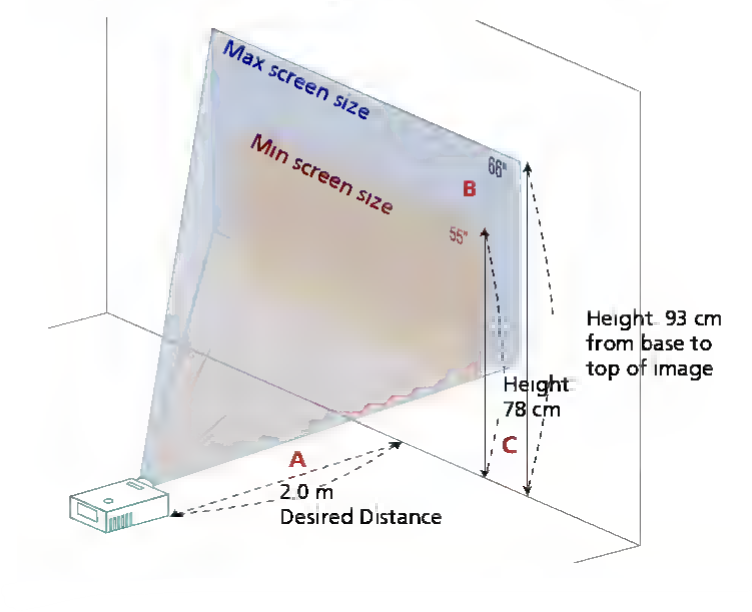
 SVGA series
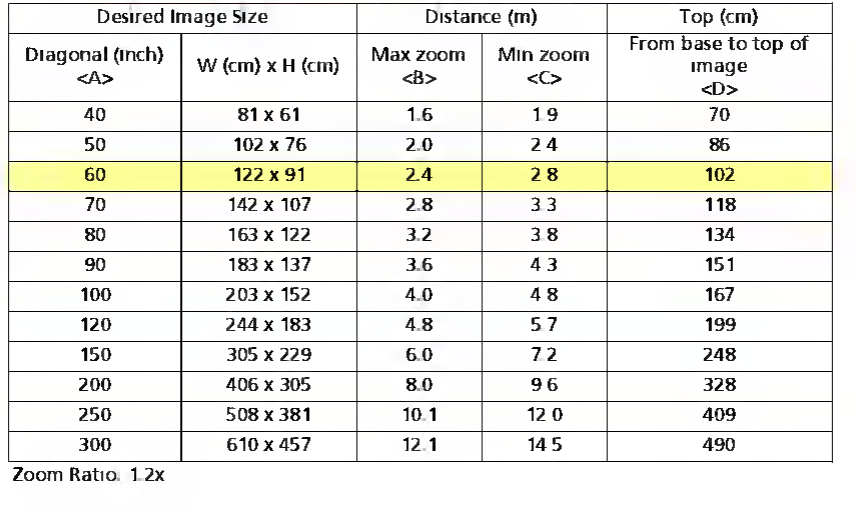
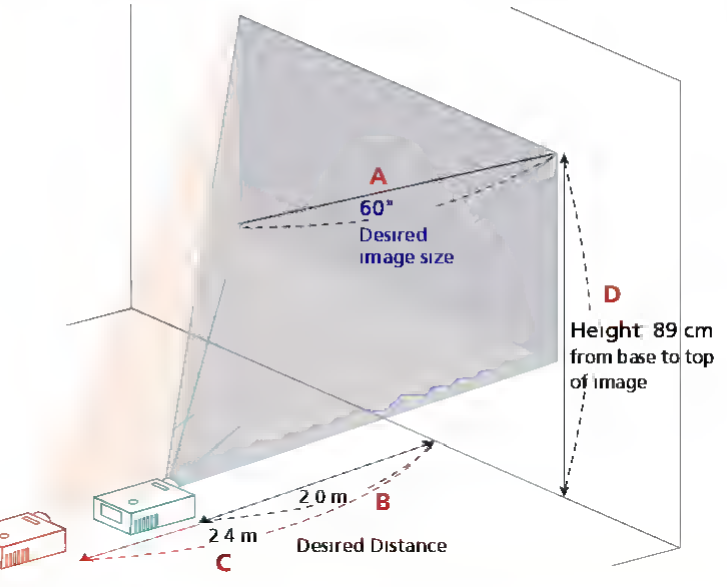
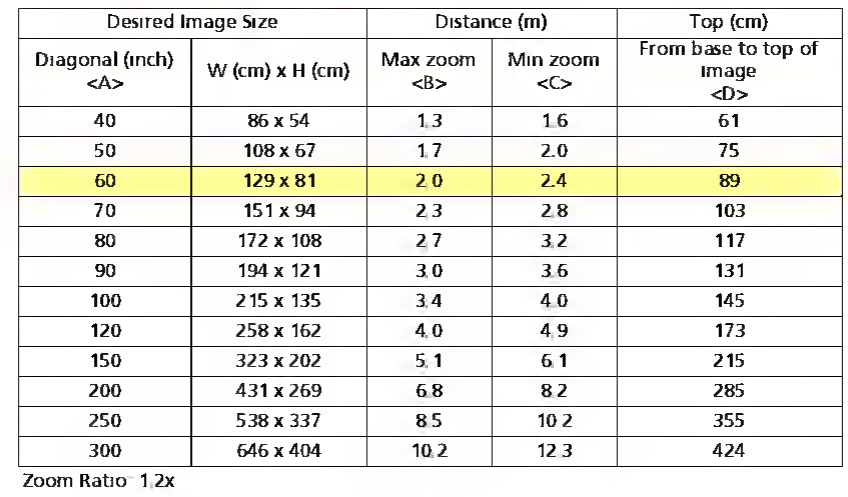
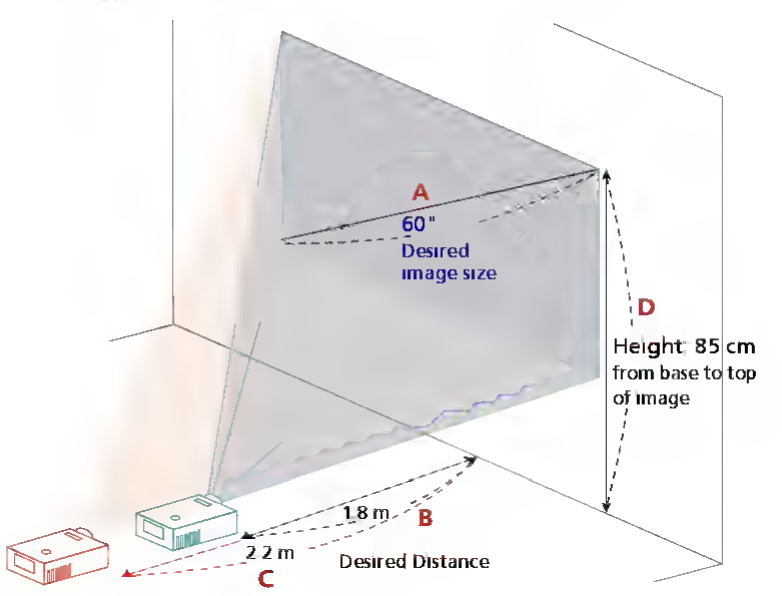
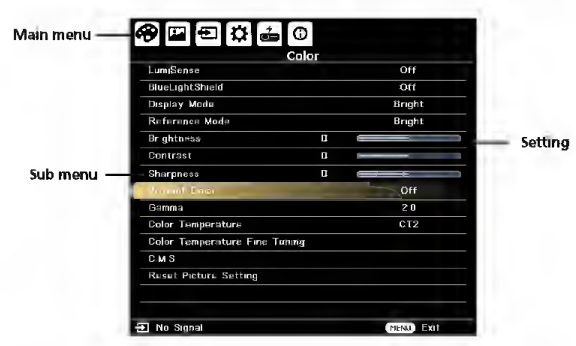
User Controls
- To open the OSD menu, press “MENU” on the remote control.
- When the OSD is displayed, use the keys to select any item in the main menu. After selecting the desired main menu item, press to enter the submenu for featursettingsti.ng
- Use the L keys to select the desired item and adjust the settings by using the k.eys
- Select the next item to be adjusted in the submenu and adjust as described a.bove
- Press “BACK” on the remote control, the screen will go back to the previous menu or exit the OSD
- Press “MENU” on the remote control to exit the OSD directly. The OSD menu will close, and the projector will automatically save the new set.tings
Color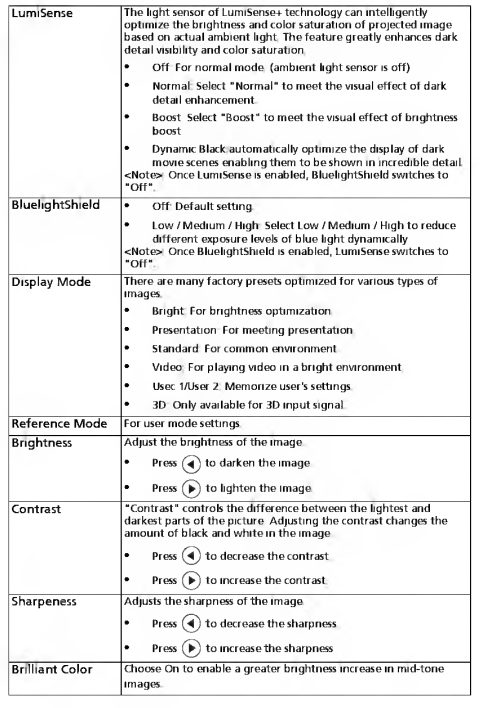

imag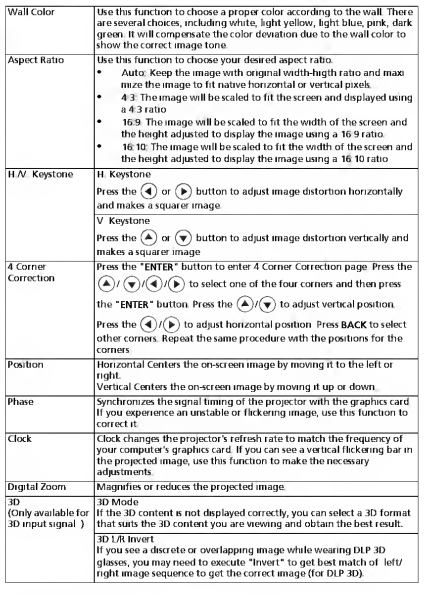
Source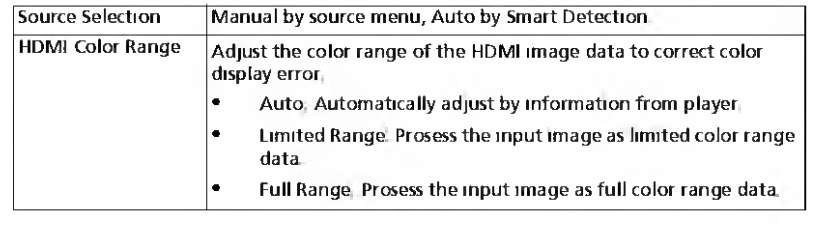
Setting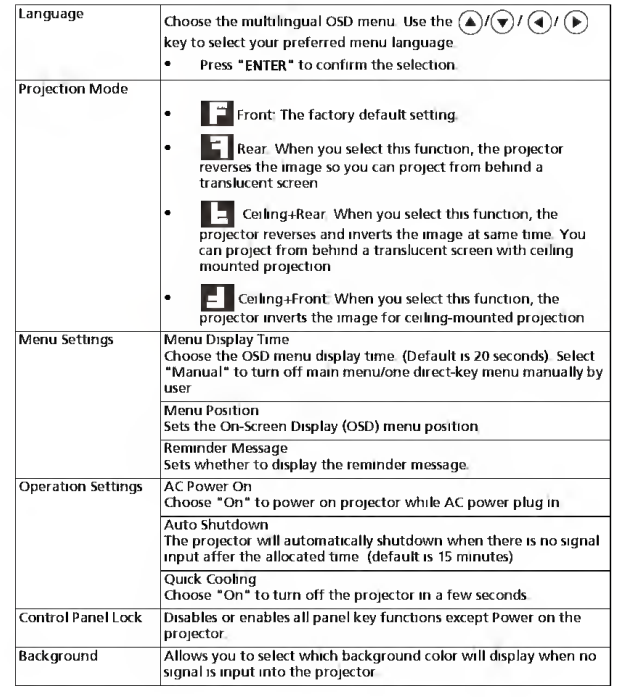
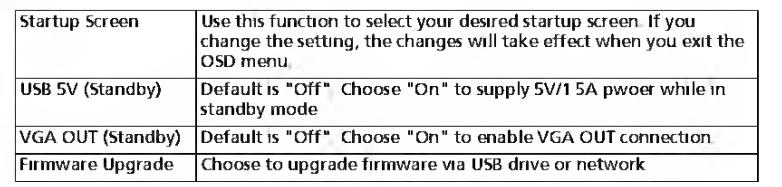
Management

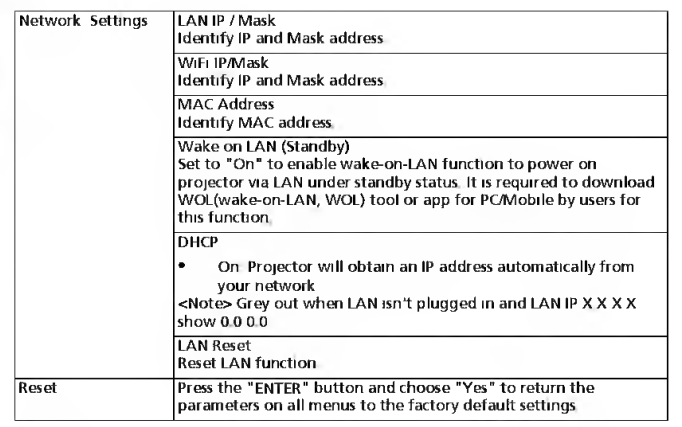
Information
How to log in
Make sure your projector connects to your device through a LAN cable and set DHCP to off in Network. Open browser and enter the Server IP address by 192 168 100 10 to find the Acer LAN webpage management homepage. A password is needed to log in. The default password for the user is “0000.”
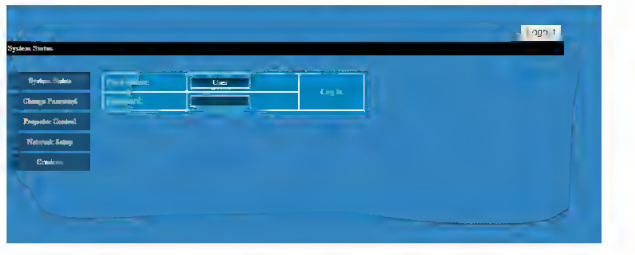
System Status
After login, the main function pages will appear: System Status, Change Password, Projector Control, Network Setting, and the Crestron System Status page is automatically selected after login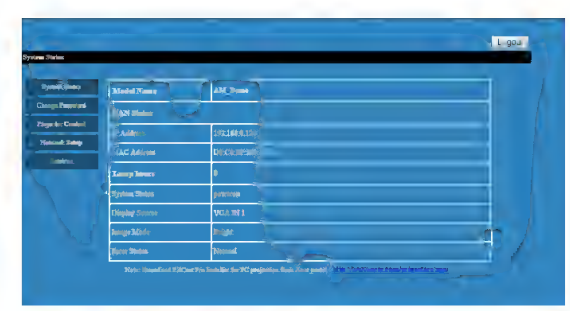
Change Password
The end user can change the login password as they wish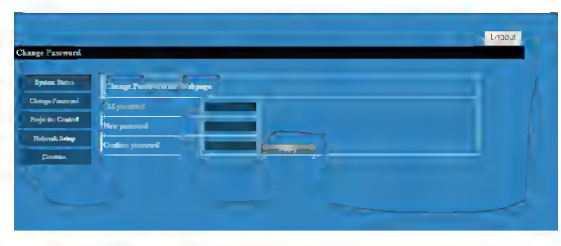
Projector Control Panel
Endusor can control and adjust the prolactin sottino valuo via this nago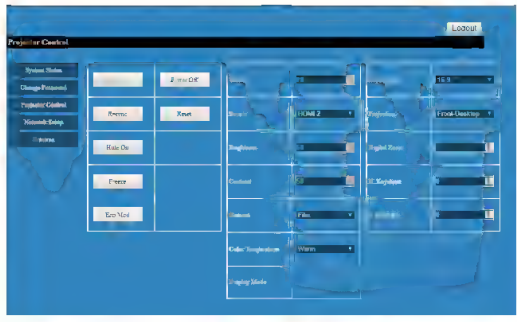
Network Setting
The user can set the IP address as they wish. After changing the network configurations, the Network Settings webpage and the projector will refresh automatically after pressing “Apply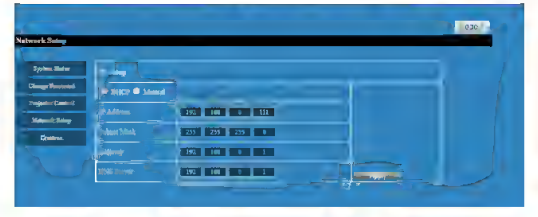
Crestron Setting (optional)
The end-user can change the settings for the Crestron control system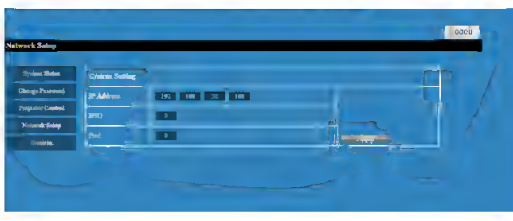
Troubleshooting
Tryou esheen ude be pro em perst, please crotta to your foll restleror service center.
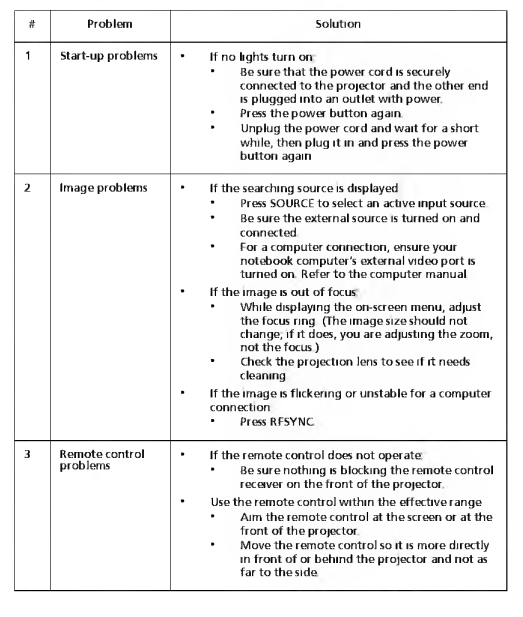
LED & Alarm Definition Listing
LED Messages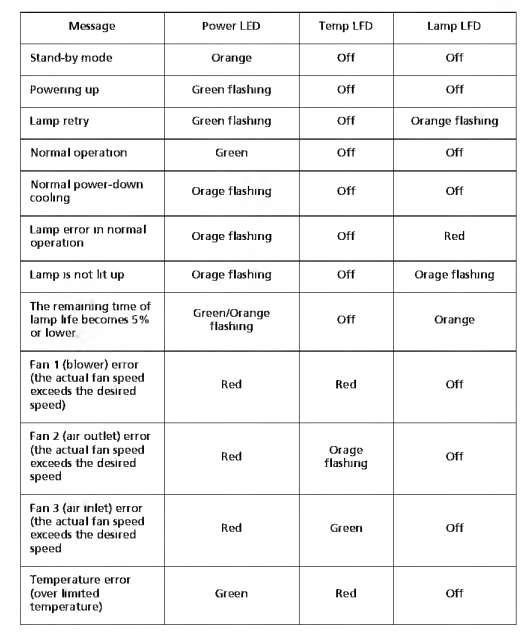
Replacing the Lamp
Use a screwdriver to remove the screws) from the cover, and then pull out the lamp. Make sure the projector has been cooling down for at least 45 minutes before changing the lamp.
To Change the Lamp
Turn off the projector by pressing the Power button. Allow the projector at least 45 minutes to cool down. Disconnect the power cord.d
- Remove the screw (a) and slide the lamp cover (b) for removal
- Disconnect the lamp connector (c). Remove the screw (s) that secure the lamp module
- Pull out the lamp module (e) by the handle (f)
To replace the lamp module, use a new lamp and reverse the above steps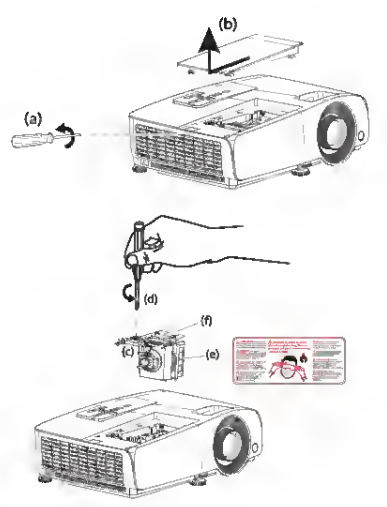
Ceiling Mount Installation
If you wish to install the projector using a ceiling mount, please refer to the stepsbeloww
- Drill four holes into a solid, structurally sound part of the ceiling, and secure the mount b.ase
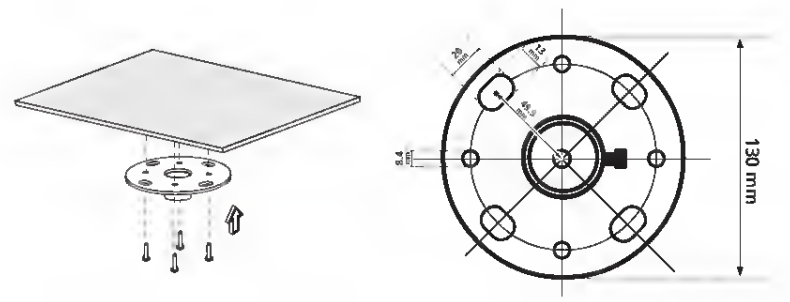
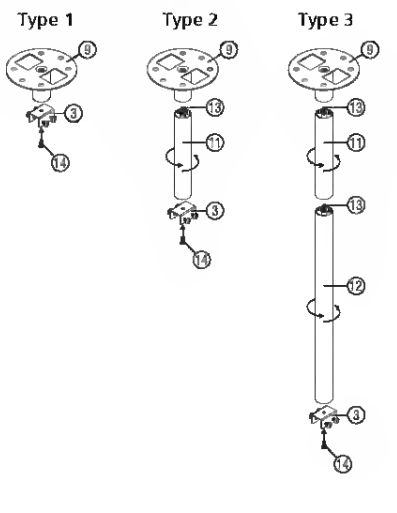
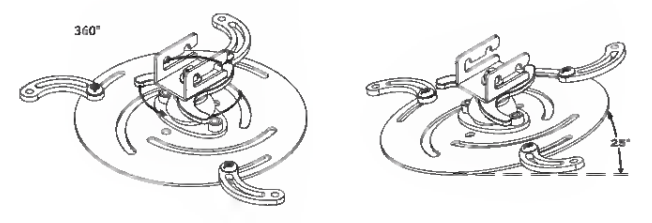
- Choose the length combination basedthe on actual environment (CM-015 doesn’t include Type 2 and Type 3)
- Type 1: For the standard size, use three bracket screws to mount the projector to the ceiling mount bracket. Type 2 and Type 3. Alternatively, for the larger size, use the sliding extensions for more support
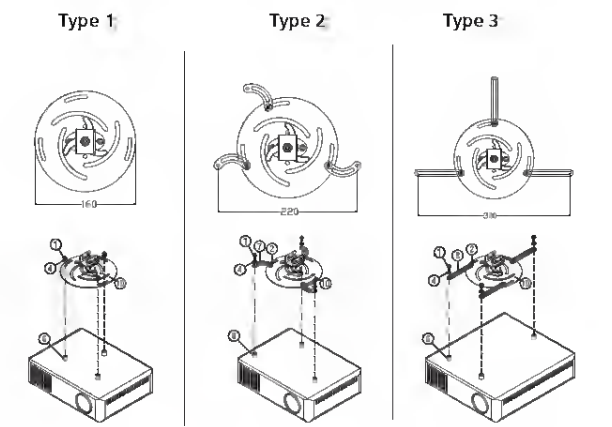
- Connect the main body connector to the projector bracket (illustration 1), and then screw in four screws (illustration 2)
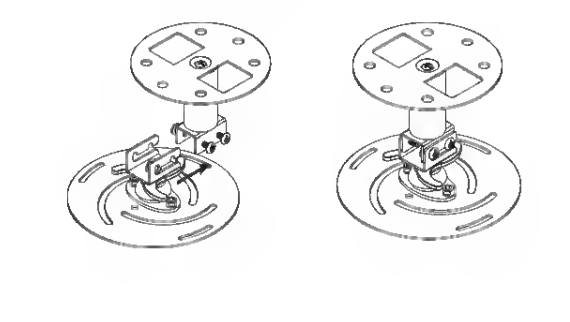
- Adjust the angle and positioning as necessary
Specifications
The specifications listed below are subject to change without notice. For final specs, please refer to Acer’s published marketing specifications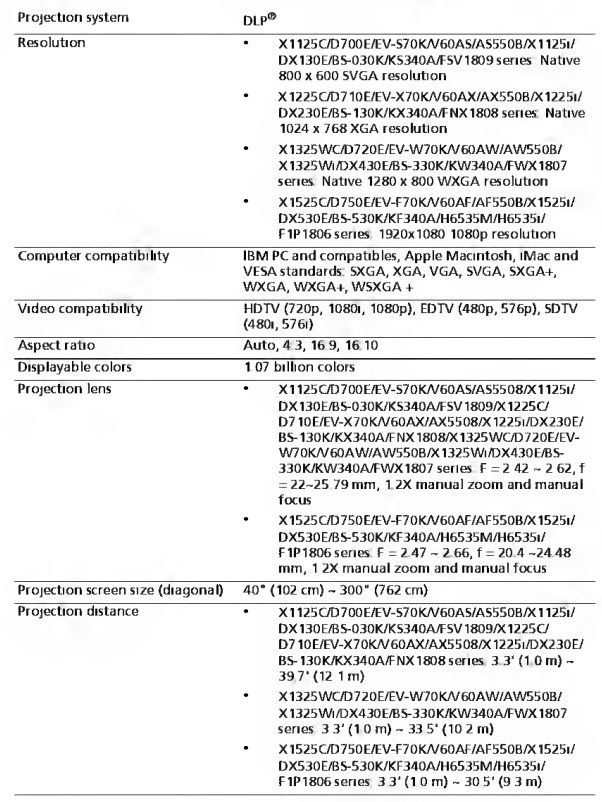
Compatibility modes
A. Computer
Multiple signal support Horizontal Frequency 15-90 kHz, Vertical Frequency 24, 50-85 HZ ,Pixel Clock 12-162 MHz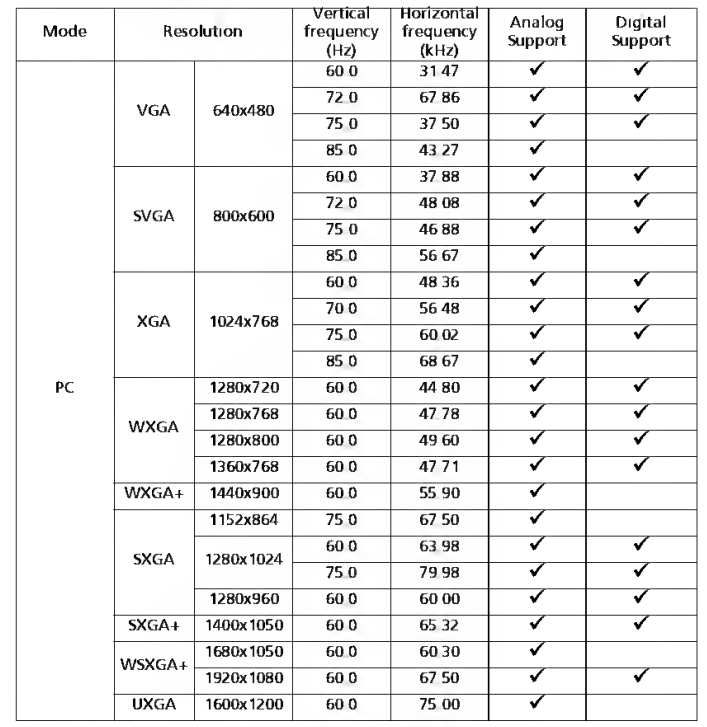
FCC
This device has been tested and found to comply with the limits for a Class B digital device pursuant to Part 15 of the FCC rules These limits are designed to provide reasonable protection against harmful interference in a residential installation This device generates, uses, and can radiate radio frequency energy and, if not installed and used in accordance with the instructions, may cause harmful interference to radio communications However, there is no guarantee that interference will not occur in a particular installation If this device does cause harmful interference to radio or television reception, which can be determined by turning the device off and on, the user is encouraged to try to correct the interference by one or more of the following measur.es
- Reorient or relocate the receiving antenna. Increase the separation between the device and receiver.
- Connect the device into an outlet on a circuit different from that to which the receiver is connected. Consult the dealer or an experienced radio/television technician for h.elp
List of applicable countries
This device must be used in strict accordance with the regulations and constraints in the country of use. For further information, please contact the local office in the country of use.
Federal Communications Commission
Declaration of Conformity
: This equipment complies with Part 15 of the FCC Rules. Operation is subject to the following two conditions:
- This equipment may not cause harmful interference, and
- This equipment must accept any interference received, including interference that may cause undesired operation. The following Iosal Mannfachurer / Tmnorter is responsible for this declaration:
Customer Support
- Product: DLP Projector
- Model Number: F1P1806/FWX1807/FNXI8DS/FSV1809
- Name of Responsible Party: Acer America Corporation
- Address of Responsible Party: 333 West San Carlos St., Suite 1500, San Jose, CA 95110 U. S. A.
- Contact Person: Acer Representative
- Phone No.: 254-298 4000
- Fax No.: 254-298-4147