

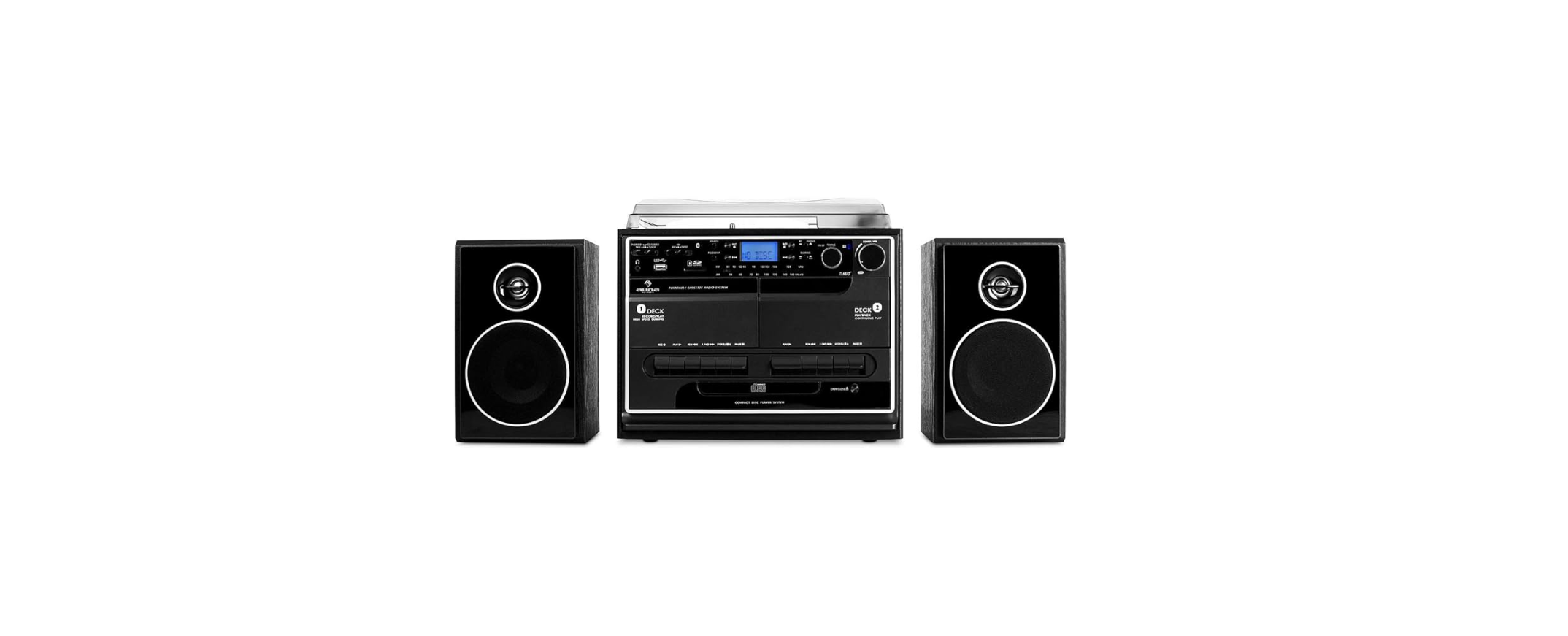

AUNA 10006791 388-BT HiFi Stereo System

SAFETY INSTRUCTIONS
- Read this Instruction Manual before you attempt to connect or operate the appliance.
- Keep these instructions in good condition. Heed all warnings. Follow all instructions.
- Save this Instruction Manual for future reference.
- Do not plug/unplug the power plug into/from an electrical outlet with wet hands.
- If the power plug does not fit into your outlet, do not force the plug into an electrical socket if it does not fit.
- Use replacement parts, which are specified by the manufacturer.
- Install the unit in accordance with the manufacturer’s instructions.
- Press the buttons of the unit gently. Pressing them too hard can damage the unit.
- Dispose of used batteries in an environmentally responsible manner.
- Always ensure that the product is unplugged from the electrical outlet before moving or cleaning. Clean it with a dry cloth only.
- Unplug the product during lightning, storms, or when it will not be used for long periods of time.
- NEVER let anyone, especially children, push anything into holes, slots, or any other openings in the unit’s casing, as this could result in a fatal electric shock.
- Don’t mount this product on a wall or ceiling.
- Do not place the unit near TVs, speakers, and other objects that generate strong magnetic fields.
- Do not leave the unit unattended when it is in use.
- To disconnect the system completely if it is not to be used for a long time, remove the AC power plug from the wall outlet.
Overview

- Dust protection
- LCD
- Record button
- Source button
- BT display
- Function selection switch
- 3.5 mm headphone connection
- USB connection
- Cassette deck door 1
- Band / FM stereo selection
- Open/close CD compartment 24 Skip forward button
- MP3 folder up
- Skip return button
- Cassette deck 1 buttons
- CD compartment
- Play/pause/stop
- BT/vinyl button
- Remote control receiver
- On / off / volume control +/-
- Frequency controller
- Frequency controller
- Cassette deck door 2
- Quick sync button
- Skip forward button
- LED FM frequency band display
- Cassette deck 2 buttons
- Spindle adapter
- Speed controller
- Tone arm holder

- Auto stop on/off
- FM antenna
- Line output
- Speaker connection
- Speaker connection

Technical Data
| Article number | 10006791, 10038372 |
| Connections | 1 x USB port (front side)
1 x BT interface 1 x RCA line output 1 x RCA speaker output 1 x 3.5 mm headphone output |
| Compatible data formats | MP3 |
| Disc formats | CD, MP3-CD, vinyl |
| Encoding bit rate | 128 kbps, 44.1 kHz |
| Power supply | 230 V ~ 50 Hz |
| Power consumption | 20 W |
| Dimensions device | 31.8 x 28.5 x 28.5 cm (B x H x T) |
| Dimensions speaker | 14.7 x 22.5 x 14.2 cm |
| Weight | ca 5.7 kg |
| Package contents | Device, 2 x speakers, remote control, operating instructions |
| FM frequency | 88-108 MHz |
Remote Control
The remote control requires 2 AAA batteries for operation. Batteries are not included in the scope of delivery.

- Open/close
Press the button to open or close the CD compartment. - INFO
Choose the encoding bit rate - REC
Record/copy - PLAY MODE
Repeat/intro/shuffle playback - PROG.
Programmed playback - Play/pause
Playback/pause - Rewind or seek
Skip or advance Fast forward or search Skip or rewind - Stop
Stop/end programmed playback - FOLDER
Folder upwards - SOURCE
CD/USB mode - TS (Track Separation)
Title separation during recording
Getting Started
Installation
- Unpack the device and all parts, and remove the protective packaging and film.
- Do not connect the device to the power source until all other necessary connections have been made.
- Do not cover the air vents. Please make sure that there are a few centimetres of clearance on all sides of the device.
Attach cover
- Push the metal clips to the back.
- Connect the cover to the metal clip.
- Connect the cover hinge to the main unit.
Power connection
- Connect the power cord (35) to a power outlet and connect the speakers to the speaker connector (33).
- Turn on the device by turning the knob (19) until it clicks.
- Set the function selector switch (6) to “Tuner” and the display (2) will turn on. The device is now ready for operation and can play music.
Radio
Manual channel search
- Set the function selection button (6) to “Tuner” and select the desired band with the band selector switch (10).
- Turn the frequency control (18) to get the desired station.
- Adjust the volume with the volume control (19).
FM stereo reception
- Set the tape selector switch (10) to FM, and the radio stations will be received in mono. In some cases, this improves the reception of weak transmitters.
- Set the tape selector switch (10) to FM-St and the radio stations will be received in stereo. The FM-St LED now lights up.
For the best possible reception
- AM
The rod antenna can be moved and repositioned to improve reception quality. - FM
The throwing antenna (31) should be fully unwound and stretched out.
CD / USB / MP3 PLAYBACK
- Press “Play/pause/stop” (16) to start playback of the first track.
- To pause playback, press “Play/pause/stop” (16). The playing time continues. Press “Playpausee/stop(16) again to continue playback.
- If you press and hold “Play/pause/stop(16) for more than 2 seconds, the playback will be stopped.
- If you press “skip up” (24) during playback, the device skips to the next track. Press “skip down” (13) during playback to skip to the beginning of the current track. To fast forward / rewind, press and hold the respective arrow button.
For MP3-CD
- Press “Folder up” (12) and the folder number will increase.
- Press “skip up / down” (24,13) to change the track number.
- After selecting the track, press “Play/pause/stop” (16) to start playback.
ID3 (track/album) function (via remote control)
- Press “Info” during MP3 playback, and the track information is displayed.
- Press “Info” again to deactivate.
Title/folder name search function (via remote control)
- Press “Find” once and then “skip up” (or “skip down”) (24,13). Now you can browse the titles in alphabetical order and play them by pressing “Play/pause/stop” (16).
- Press “Find” again and then “skip up” (or “skip down”) (24,13). Now you can browse the folders in alphabetical order and play all tracks in this folder by pressing “Play/pause/stop(16).
Repeat / intro / random playback.
- Press the “repeat/intro / random” button before or during playback to play a track, a folder, or all tracks in different modes.
- For CD: (1) Repeat 1 -> (2) Repeat all tracks -> (3) Intro -> (4) Shuffle -> (5) Off
- For MP3-CD: (1) Repeat 1 -> (2) Repeat folder -> (3) Repeat all tracks -> (4) Intro -> (5) Shuffle -> (6) Off
Programmed CD playback (via remote control)
You can play up to 32 CD/MP3 tracks in any order. The device must be in stop mode for this:
- Switch to CD / USB mode and stop playback.
- Press “Program” and “PROG” is displayed. The programme number and the track number are also displayed.
- Select the desired title with (24, 13).
- Press “Program” to add the title to the programming.
- Repeat steps 3 and 4 for all the remaining titles.
- When you have added all tracks to the playlist, press (16) to start playback.
- To stop playback, press “stop” until “PROG” on the display (2) turns off.
PLAYBACK FROM USB
The system is able to play back MP3 files stored on USB storage media.
- Set the function selection button (6) to “USB” and select “USB” with the source button (4).
- Connect a USB memory device.
- Inserting a USB medium in the wrong direction can damage the device and/or the memory.
- After inserting the medium, the device automatically reads it in and displays the number of titles available.
- Playback is operated in the same way as fora CD/MP3-CD.
VINYL
- Set the function selection button (6) to “Phono” and the “BT / Phono” switch to “PHONO”.
- Use the speed controller to set the speed.
- Place the record on the turntable (use the spindle adapter if necessary).
- Raise the tone arm and move it slowly to the edge of the record. The turntable will start to spin.
- Place the tone arm in the desired position of the record.
- Adjust the volume.
- Once the record is finished, the turntable stops automatically. Now lift the tone arm and place it on the holder.
- To stop the turntable manually, lift the tone arm and place it on the holder.
LINE OUTPUT
You can connect the device to an existing HiFi system using an RCA cable. Use the line output (32) for this purpose.
CASSETTE PLAYBACK
General operation
| Stop/eject | All functions stop. Press again to open the door. |
| Quick fast forward & rewind | Press for quick fast forward / rewind. Press stop to exit. |
| Playback | Press to play. |
| Pause | Press to pause. Press again to continue. |
| Recording (deck 1 only) | Press together with play to start recording. |
Playback
- Select the “Tape” function (6).
- Insert a cassette.
- Press “Play” for playback.
- Adjust the volume (19).
- Press “Pause” if you want to pause playback.
- Press “Stop/eject” if you want to stop playback.
Recording from cassette (deck 2 to deck 1)
You can duplicate cassettes with this device. This is always done from deck 1 (playback) to deck 2 (recording). Sync at normal speed: Select the “Tape” function (6).
- Insert a recorded cassette into deck 2 and a blank cassette into deck 1.
- First press “Pause” and then “Record” & “Play” on deck 1.
- Now press “Play” on deck 2 and press “Pause” on deck 1 to start recording.
- At the end, press “Pause” on deck 1 and “Stop” on deck 2.
Sync at a higher speed.
You can copy onto tapes at high speed. This way, you can save 2/3 of the time for normal recording.
- Set “Dubbing” (23) to “Hi” and copy as described above.
- When copying at high speed, the sound may be disturbed. To prevent this, turn the volume down to a minimum.m
- Do not adjust “Dubbing” (23) during recording, as this can damage the cassettes.
Recording from the radio
- Select the “Tuner” function (6).
- Select the desired station and insert a blank cassette into deck 1.
- Press “Record” & “Play” to start recording.
- To exit, press “Pause” and then “Stop/eject”.
Recording a vinyl record
- Select the “Phono” function (6).
- Insert a blank cassette into deck 1.
- First press “Pause” and then “Record” & “Play”. The recording is now on standby.
- Now start playing the record and press “Pause” to start recording.
- To stop, first press “Pause” and then “Stop/eject” on the cassette deck, and then put the tone arm back on the holder.
CREATING MP3 FILES FROM CD / LP / CASSETTE
The device can create MP3 files from CDs, vinyl records, and cassettes and save them on a USB.
Encode CD
- Record title
- Play the CD as usual
- Press “Record” (3) while the desired track is playing
- Press & and the indicator flashes during encoding
- After encoding, playback stops.
- Record thed entire CD
- Insert a CD as usual and close the CD compartment
- Press “Record” (3). Note: Not “Play” & “Record”, otherwise only one title will be recorded
- Press & and the indicator flashes during encoding.
- After encoding, playback stops.
Programmed encoding
-
- Insert a CD as usual and close the CD compartment..
- Program the playlist (see programmed CD play (via remote control)), then press “play/pause/stop” (16)
- During playback, press and hold “play/pause/stop” (16) for 2 seconds to stop.
- Press “Record” (3), & will flash on the display while encoding. After encoding, playback stops.
- Copy MP3 file
- If an MP3 CD is inserted instead of an audio CD, the device copies these files to the USB when you press “Record” (3). The operation is as explained above. As soon as MP3 files are recognised, they will be copied.
Record encoding
- Connect a USB memory device with sufficient free space.
- Select the function “Phono” (6) and then immediately press “Record” (3).
- The LCD (2) displays a flashing “USB” and then during encoding &.
- Start playback of the desired record titles.
- Press “Record” (3) to finish, the display stops flashing and shows “Phono”.
Encode cassette
- Connect a USB memory device with sufficient free space.
- Select the function “Tape” (6) and then immediately press “Record” (3).
- The LLCD(2) displays a flashing “USB” and then during encoding &.
- Start playback of the desired cassette titles.
- Press “Record” (3) to finish, the display stops flashing and shows “Tape”.
Encoding bit rate (via remote control)
You can set the bit rate according to your quality and storage needs. The range is 32/64/96/128/192/256 kbps.
- Select “Phono” (6) and remain in stop mode.
- Press “Info” and the LLCD(2) will show the standard bit rate (128 kbps).
- Use (13,24) to set the bit rate.
- Press “Info” again to confirm, and the display will show “Phono” again.
Title separation (via remote control)
You can divide the music recorded from vinyl to USB into AUNA 10006791 388-BT HiFi Stereo System tracks. Each time you press “TB”, a new file/title is created. The text “PHONO” or “TAPE” flashes briefly on the display (2) as confirmation.
DELETE FILES FROM USB
- Select the USB mode.
- Press and hold “Info” for 3 seconds, and the display (2) will show (del —001).
- Now use (13,24) to select the file to be deleted.
- Press “REC” and then use (13/24) to select “yes/no”.
- Press “REC” to confirm the entry.
- Select the USB mode.
- Press and hold “Info” for 3 seconds, and the display (2) will show (del —001).
- Press and hold “Info” again,n nd you will see a flashing “format y/n”. Now use (13/24) to select y (yes) or n (no).
- Press “REC” to confirm the entry
EJECT FROM USB
To remove a storage medium, the device must first be switched off or switched to another mode, e.,g. CD, cassette, and record. Pull a USB memory device straight out of the card slot.
BT CONNECTION AND PLAYBACK
Use the function selection button (6) to select “PHONO/BT”. Then set the “BT/Phono” controller to “BT”.
- The BT LED (5) flashes. This means there is no connection / a connection is being sought.
- Select the BT mode in your BT device (e.g., mobile phone) and select AUNA 388-BT for connection.
- As soon as the connection can be established, the BT LED lights up continuously.
- You can now start playback.
Disposal
By disposing of it according to the rules, you are protecting the environment and the health of your fellow human beings from negative consequences. For information AUNA 10006791 388-BT HiFi Stereo System about the recycling and disposal of this product, please contact your local authority or your household waste disposal service.
This product contains batteries. Find out about local regulations for disposing of batteries. By disposing of them according to the rules, you are protecting the environment and the health of your fellow human beings from negative consequences.
Deceleration of Confirmty
- Manufacturer: Chal-Tec GmbH, Wallstrasse 16, 10179 Berlin, Germany.
- Importer for Great Britain: Berlin Brands Group UK AUNA 10006791 388-BT HiFi Stereo System Limited PO Box 42 272 Kensington High Street London, W8 6ND United Kingdom
- Website: use.berlin/10034620
- Tel: (01) 320-0700
Dear Customer,
Congratulations on purchasing this device. Please AUNA 10006791 388-BT HiFi Stereo System read the following instructions carefully and follow them to prevent possible damage. We assume no liability for damage caused by disregard of the instructions and improper use. Scan the QR code to get access to the latest user manual and more product information.