

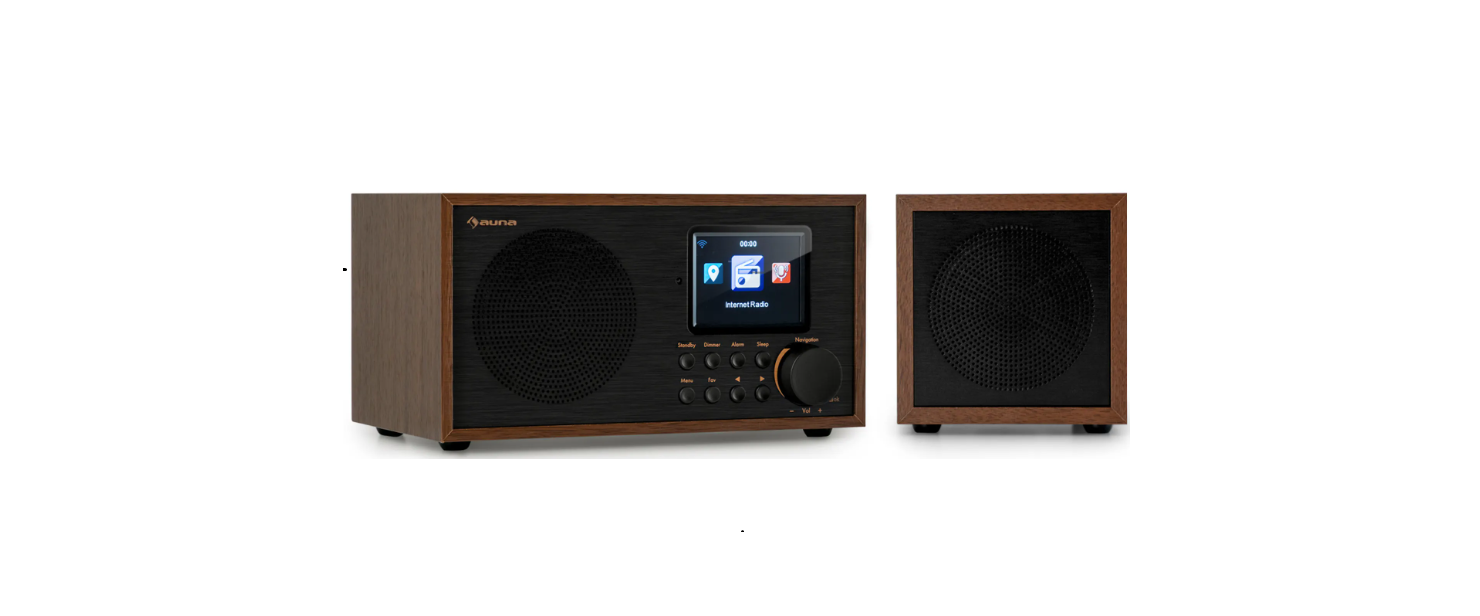

AUNA 10038347 Black Star Mini Two Internet Radio

Safety Instructions
- This will avoid damage to the product that may be caused by lightning or overvoltage.
- Overload – Do not overload power outlets, extension cords, or built-in power outlets, as this may result in a fire or electric shock.
- Foreign objects and liquid – Never push objects of any kind through openings in the device, as they may touch dangerous voltage points or short out parts, which could result in a fire or electric shock. Never spill liquids of any kind on the device.
- Repairs and maintenance – Do not attempt to service this product yourself, as opening or removing covers will expose you to dangerous voltages or other hazards. Leave all maintenance to qualified service personnel.
- Unauthorized replacement may result in fire, electric shock, or other hazards.
- Heat – Do not place the unit near heat sources such as radiators, heaters, stoves, or other products (including amplifiers).
Description
Front
-
- Display
- Standby button
- Menu button
- Dimmer button
- Fav button
- Alarm button
- Previous button
- Sleep button
- Next button
- Vol+/Vol-/ok knob
Rear
-
- ON/OFF switch button
- DC IN socket
- Headphone socket(3.5mm)
- AUX IN socket(3.5mm)
- USB port
Bottom
-
- Bass reflect ex tube

- TWS Power Button
- USB charging jack
- Bass reflect ex tube
Remote Control
- Standby button
- Mute button
- EQ set tone
- Dimmer button
- Sleep button
- Alarm button
- Previous button
- Next button
- Stop button
- Play/ Pause button
- Mode selection button
- Home button
- Up cursor button
- Left cursor button
- Right cursor button
- Down cursor button
- OK button
- Vol- button
- Vol+ button
- Input letters and numbers button
- Calling up stations
- Save stations
Initial Use
- Before the operation, please make sure that the VOLTAGE mentioned on the power supply is the same as the voltage of your local area.
- Use the supplied mains adaptor to connect the device to a household mains socket.
- Switch the device on with the power switch on the rear.
- When it is the first time running the device, the system will ask you to set the Language and Network Configurations. You may set up the network connection immediately or set it later. Use Navigate to select the desired option. Press Navigate/OK to confirm.
- Press the Standby button when the unit is powered on, and the unit will go to standby mode. Press again will make it on again.

Network Configuration
- Select “Yes” for the normal Wireless Network Configuration.
- Then select the required AP by turning on” Navigate” and confirm it by pressing” Navigate/OK”.

- Enter the WEP or WPA code to connect to the WiFi network by selecting the correct character, and pressing the “Navigate/OK” button.

- Press the button to select the next character. In this condition, press the button you turn left and delete the left characters at the same time: when the password is complete, please press the” Navigate/OK” button to confirm.

WPS PBC network configuration
- Select “Yes WPS” when you would like to be set up with the Wireless Network (WPS PBC) feature: If you are using a router with a WPS button, you may set up the network connection simply via the WPS function. Enter it and press the WPS button on your router within 120 seconds. The connection between the router and the Radio will then be configured automatically.
No network configuration
- Pls select “NO” when you do not like to configure the network connection at the moment.

The radio will start connecting to the network. After the router is connected successfully, it will show “Network OK” and display the menu screen:
Internet Radio
After the connection of any station is successful, station information will be shown, and information content can be changed with the < or > button.
My Favorites
List of my favorite preset stations. It supports 250 favorite entries, including stations and folders. During the station playing screen, press and hold Fav on the device or” Fav add “on the remote control to save the station as my favorite. You may replace the previously saved station with the new one. If the Selected station has been saved, you cannot save it again.
The saved stations are shown under this menu. You may also press Fav to enter the saved station list. You may enter the number key on the remote control to recall the saved station. Under the preset station list, move to your station; press OK from the unit or OK from the remote control to listen. Enter its submenu with the> button, Delete, Shift Up/Down along the list, Rename, Play, or Use as Alarm (if you chose internet as alarm sound in alarm configuration).
Radio Station/Music
Local Radio
- Stations are categorized by the country/location where the unit is operated.
Sleep Radio
- You can choose Birds, Piano, Rain, Spa, Space, and Wave as a sleep radio.
History
- List of the ten recently listened to stations.
Service
- Search radio station-Enter your keyword to search radio station from the list. Add a new radio by adding an IP address, and the added stations will be stored in My Favorites. Note that the maximum number of station names is 250.
Podcasts
- The radio can play thousands of podcasts from around the world through a broadband internet connection. When you select Podcast mode, the radio contacts the solution provider portal to get a list of available podcasts. Once you select a podcast, Radio connects directly to that podcast source. To enter Podcast mode, either press the mode button and rotate the knob to cycle through the listening modes until Podcasts is displayed, or select Mode > Podcasts. The common local controls for sound volume, mute, play/ pause, and Presets are available.
The podcast menu is provided from the Podcast portal, so it is only accessible when the radio is connected to the Internet. Podcast lists and submenus will change from time to time.
- My Favorite
- Country/Location
- Genre
- History
- Search
MEDIA CENTER
Select the USB/UPnP mode or playlist mode with Navigate/OK or with the Mode button.
UPnP
- If you have set up shared media, you should see the shared media from UPnP.
- If you have more than one computer sharing media, the alternatives are listed.
- Select the shared media you want to play.
- Use Play/Pause (10), Next/Prev (8, 7), and Stop (9). Press the Right cursor button (15) to view the display information of the playing track.
USB
From this point on, menus are generated from the folders on the USB device. Browse folders with the NAV wheel or direction keys (16/10/9/8) on the remote control. The display shows folder and file names (not necessarily track names). Once you have found a track you want to play, press the navigate wheel on the device or press OK on the remote control.
My Playlist
You can create a playlist of your favorite music from UPnP. When you’re playing the music, press and hold OK from the unit or remote control to save it to My Playlist
Clear My Playlist
Please select this option to clear the playlist. Please confirm the questions.
My media U
- Display and playback your own mediaU station list on the mediaU server. Set up your account first. To activate your own station list, follow the steps below:
- Access http://www.mediayou.net/. Join my mediaU membership. Log in to the website.;
- Enter the wireless MAC address of the Radio on the mediaU website. This information can be obtained in the Information Center>System Information>Wireless Info. When successfully configured, you can save and view your own mediaU station playlist(s). Username and password are not required to enter the Radio.
- If there are different accounts stored in Radio, you can choose the one you currently use under the Configuration menu. On the website, you may save stations to Favorite Station, set Favorite Location/Genre and My Local City, or add stations manually. The stations can be viewed from My Media mode on the Radio.
Info Center
- Weather Information
There is weather information and forecasts for 2000 cities. Select the country and then the city for the weather details. Press </> to see the weather forecasts. The device can display the weather information in the standby mode. On the weather information page, press OK to set the city to display in the standby mode. Then turn on the weather display. - Financial Information
View the stock index - System Information
View details of units and of connect network. The information includes the MAC address, which you are required to fill in when registering for “my mediaU” membership.
Configuration
| Time Display | Analog/digital |
| MyMediaU | When it is enabled, my mediaU will exist on the main menu. If various media accounts exist in the Radio, select the default login account here. |
| Netzwerk | Wireless Network Configuration: Enable/disable the WiFi network. When you enable the WiFi network, the system will automatically select the required AP. Enter WEP or
WPA code to connect to the WiFi |
| Wireless Network (WPS PBC): If you are using a router with a WPS/QSS button, you may set up the network connection simply via the WPS function. Enter it and press the WPS/QSS button on your router within 120 seconds. The connection between the router and device will then be configured automatically. | |
| Manual Configuration: You can choose DHPC (which IP assigned automatically) or manually input an IP address for the wireless network connection. When you select manual settings for a wired connection, the following have to be entered: SSID (name of access point), IP Address, subnet mask, default gateway, preferred DNS server, and alternate DNS server. | |
| Check Network When Power On: Enable/disable the WiFi network. When you enable the WiFi network, the system will automatically search for the available APs. Select the required AP. | |
| Date & Time | Set up the date and time
Set the time format display as 12 Hour or 24-hour. Set date format (YYYY/MM/DD; DD/ MM/YYYY; MM/ DD/YYYY) (Y=Jahr, M= Monat, D= Tag) Daylight Saving Time : “ON:, the time will be one hour More than the actual time. OFF: The time will be the same as the actual time. If it were on the model of the “Daylight Saving Time(DST) and you choose” OFF”, the time will be deducted one hour, that’s to say, the time will be the same as the actual time.
|
DNLA / UPNP
You may change the default DLNA name as you like. The information below is the introduction on how to set up media streaming from a PC or other media server. Study the instructions of the software or apps you use to enjoy music streaming if necessary. Make sure the music files are in the format of MP3, WMAHA, WA, V, or for music streaming to the radio.
UPnP
Connect the PC to the network.
Ensure the Radio is powered on and connected to the same network. Open the UPnP platform in Windows Media Player (11 or later). Alternatively, other platforms or servers such as Windows Media Connection may be used.
Allow us to share your media on the Radio.
Add the audio files and folders you want to share with the radio to the media library. You may also enjoy the streaming music from other music servers, such as Smart Speaker (Android platform).
DLNA
The PC system requirements for DLNA are Windows 7 and Windows Media Player 12. Set up as below: First, share the media on your PC to the Radio. Control Panel > Network and Internet >Network and Sharing Center > Change Advanced Sharing>Media streaming options. Open Windows Media Player to enable Allow remote control of my Player. Right-click any music in the library and choose Play to Radio. There will be a window for controlling music playback on the Radio. You may search and install any free or commercial DLNA apps from Google Play or Apple Store if you are using an Android mobile, tablet, or iPhone / iPad. It is suggested to use Bubble UPnP, Twonky.
Beam on Android mobile, tablet, or Twonky Beam on iPhone /iPad. Some apps may not support streaming music from an iPhone /iPod, but an iPhone/iPod could still be used to control streaming music from other servers. Procedures for playing shared music on the app are as follows:
- Select Radio as the player. Some apps may allow playing music to multiple players at the same time.
- Select the music server and choose the music. Some apps can create a playlist if you choose several songs.
Control via Air Music Control
You can operate the internet radio via your smartphone or tablet. Download “Air Music Control“ from the “Google Play Store“ or “Apple App Store“. The devices must AUNA 10038347 Black Star Mini Two Internet Radio be connected to the same network.
AUX (LINE INPUT)
AUX IN mode plays audio from an external source such as an MP3 player.
To play audio with the AUX IN mode
Turn the volume low on both the Radio and, if adjustable, the audio source device. Connect the external audio source to the AUX IN 3.5mm stereo socket. Either press MODE until the display shows AUX INselectects AUX in under the Main menu. Adjust the volume of the Radio (and, if necessary, the audio source device) as required.
BT
Either press MODE until the display shows BT or select BTT under Mathin theehe
menu. It will have a reminder sound “pairing”, search the pairing name “Mini
Two Main” In your phone and click it to pair. It will have a reminder sound
“connected” after being paired successfully. You can AUNA 10038347 Black Star Mini Two Internet Radio now play music via BT; you
can adjust volume from the radio or your phone.
Independent BT playback mode
Long-press the button to turn on the accessory, and the blue indicator light flashes quickly to enter the pairing mode. Choose the Mini Two Speaker to connect. After connecting, you can play the songs on the connected device.
TWS play mode
After the first boot, you need to double-click the button to enter TWS pairing. The main device must also be in Bluetooth mode. After connecting, there will be TWS in AUNA 10038347 Black Star Mini Two Internet Radio the upper right corner of the screen. After connecting, the main device will play any other mode, and the slave will synchronize with the playback of the host.
FM OPERATION
Select ‘FM mode’ on the main display screen with the navigation knob or with the navigation buttons on the remote. Once selected, the FM mode will start on 87.5MHz. To save all stations with a strong signal, press the navigation knob. It will show “auto scan?” Choose YES. Then it will start auto scan. Once the autoscan is complete, stations will be saved in your favorites. You will then be able to browse through these saved stations by holding down the ‘<’ or ‘>’ buttons to skip between AUNA 10038347 Black Star Mini Two Internet Radio saved stations. To manually scroll through FM frequency, simply press the ‘<’ or ‘>’ buttons to go backwards or forwards through the frequency wave.
Pre-setting your favourite FM stations
To save presets manually, select and listen to the station frequency AUNA 10038347 Black Star Mini Two Internet Radio number for the station you wish to save. Followed by holding down the ‘Fav’ button for 1-2 secs, and the number ‘01’ will display on the screen. Use the navigation knob to browse through preset numbers(up to 99) and select the chosen preset number you wish to save by pressing the navigation knob.
Recalling preset FM stations
View your favourite FM stations when you are on FM mode by simply selecting the ‘Fav’ button and begin scrolling through saved stations.
DAB+ OPERATION
Select ‘DAB/DAB+’ on the main display screen by turning the knob and pressing the navigation knob or with the remote navigation buttons. On first use of the DAB on your radio, your radio will begin scanning for DAB stations and will show’ Scanning’ on the display screen. It will display how many stations have been found as the search continues. Once all of the available stations have been found, the screen will display the choice of available stations. Scroll through using the navigation knob or navigation buttons to select the station you wish to listen to. When you have selected a station, the screen will display the station, and you press the navigation knob to play.
Pre-setting your favourite DAB/DAB+ stations
When you have found your desired station, hold down ‘Fav’ for a few seconds to go to the ‘Add to my Favorites’ screen. Turn the select dial to choose the preset number(1 to 6) and select your option. Alternatively, when you are on the list screen of DAB stations, you can highlight the chosen station and hold down ‘Fav’ to go to the ‘Add to my Favorites’ screen.
Recalling preset DAB/DAB+ stations
View your favourite DAB/DAB+ stations when you are on DAB mode by simply selecting the ‘Fav’ button and begin scrolling through saved stations.
TECHNICAL DATA
- Item number: 10038347 10038348 10038349
- Power adaptor Input: 100-240 V ~ 50/60 Hz, 0.6 A
- Output: 12 V / 1 A
- Power supply: Lithium battery
- TWS speaker: Charging current 5 V, 1.5 A
- Connections USB, AUX IN (3.5 mm), headphone jack (3.5 mm)
FM radio
- Frequency range: 87.5 MHz – 108 MHz
DAB
- Frequency range: 174-240 MHz
- WLAN: 802.11b/g/n
- Encryption: WEP, WPA,WPA2 2(PSK), WPS
- Streaming: UPnP, DLNA
- Supported file formats: WMA, MP3
BT
- BT frequency: 2402-2480 MHz
- BT radio-frequency power (max.): 17 dBm
Troubleshooting
| Problem | Cause / Solution |
| If you have trouble connecting the radio to your wireless network, these steps may help to resolve the problem: | Confirm that a Wi-Fi or Ethernet wired-connected PC can access the internet (i.e., can browse the web) using the same network.
Check that a DHCP server is available, or that you have configured a static IP address on the radio. Check that your firewall is not blocking any outgoing ports. Some access points may be set so that only equipment with registered MAC addresses can connect to them. This is one possible cause of the Internet Radio being unable to connect to the Wi-Fi network, and the Internet Radio display will show Bad ESSID or key. To overcome this problem, you will need to add the Internet Radio’s MAC address to the list of allowed equipment in your access point. The Internet Radio’s MAC address can be found using the menu <Information Center ->System Information -> Wireless Info > MAC address>. You will need to refer to the guide for your Access Point to enter the Internet Radio as an allowed piece of equipment. If you have an encrypted network, check that you have entered the correct key or passphrase into the radio. Remember that text-format keys are case sensitive. If your wireless network name (ESSID) is ‘Hidden’(a setting on the wireless access point), then you can either turn on the name, or you can manually enter the name into the internet radio and media player, ENTER <Configure -> Network -> Manual Configuration-> Wireless -> Enter ESSID>. Confirm if the network is encrypted, e.g., requires a WEP or WPA key, then enter the network name. |
Disposal
For information on AUNA 10006791 388-BT HiFi Stereo System about the recycling and disposal of this product, please contact your local authority or your household waste disposal service.
This product contains batteries. Find out about local regulations for disposing of batteries.
Deceleration of Confirmty
- Manufacturer: Chal-Tec GmbH, Wallstrasse 16, 10179 Berlin, Germany.
- Importer for Great Britain: Berlin Brands Group UK AUNA 10006791 388-BT HiFi Stereo System Limited PO Box 42 272 Kensington High Street London, W8 6ND United Kingdom
- Website: use.berlin/10034620
- Tel: (01) 320-0700