



Brother PT-P750W Electronic Labeling System
Safety Precautions
- Depending on the location, material, and environmental conditions, the label may unpeel or become irremovable, and the color of the label may change or be transferred to other objects. Before applying the label, check the environmental conditions and the material.
- Do not use the P-touch labeler in any way or for any purpose not described in this guide. Doing so may result in accidents or damage to the P-touch labeler.
- Use only Brother TZe tapes with the P-touch labeler. Do not use tapes that do not have the mark.
- Only use a soft, dry cloth to clean the P-touch labeler; never use alcohol or other organic solvents.
- Use a soft wipe to clean the print head; never touch the print head with your fingers.
- Do not put any foreign objects into the tape exit slot, the AC adapter connector, or the battery compartment, etc.
- Do not place the P-touch labeler/batteries/AC adapter in direct sunlight or rain, near heaters or other hot appliances, in any location exposed to extremely high or low temperatures (e.g., on the dashboard or in the back of your car), high humidity, or in dusty locations.
- Do not try to print if the cassette is empty; it will damage the print head.
- Do not pull the tape while printing or feeding; it will damage the tape and the P-touch labeler.
- Any data stored in memory will be lost due to failure or repair of the P-touch labeler or if the batteries expire.
- The P-touch labeler is not equipped with a charging feature for rechargeable batteries.
- The length of the printed label may differ from the displayed label length on the computer.
- A protective clear plastic sticker is placed over the top panel during manufacturing and shipping. This sticker should be removed before use.
- When printing multiple copies of a label or using the printing function, the P-touch labeler will not detect the end of the tape cassette and will continue operating.
- When using Heat Shrink Tube, the printing area will be smaller than when using normal tape.
- If you connect a mobile device to the P-touch labeler using the NFC function without installing a specialized application, the Apps section of Google Play may be displayed on your mobile device automatically. You may be charged a communication fee for this service.
The available scientific evidence does not show that any health problems are associated with using low-power wireless devices. There is no proof, however, that these low-power wireless devices are absolutely safe. Low power Wireless devices emit low levels of radio frequency energy (RF) in the microwave range while being used.
Whereas high levels of RF can produce health effects (by heating tissue), exposure to low-level RF that does not produce heating effects causes no known adverse health effects. Many studies of low-level RF exposures have not found any biological effects. Some studies have suggested that some biological effects might occur, but such findings have not been confirmed by additional research. PT-P750W has been tested and found to comply with FCC radiation exposure limits set forth for an uncontrolled environment and meets the FCC radio frequency (RF) Exposure Guidelines.
Trademarks and Copyrights
BROTHER is either a trademark or a registered trademark of Brother Industries, Ltd. P-TOUCH is a trademark or registered trademark of Brother Industries, Ltd. © 2014 Brother Industries, Ltd. All rights reserved. Microsoft, Windows Vista, Windows Server, and Windows are either registered trademarks or trademarks of Microsoft Corp. in the United States and/or other countries.
Apple, Macintosh, Mac OS, iPhone, iPad, and iPod are trademarks of Apple Inc., registered in the United States and other countries. The names of other software or products used in this document are trademarks or registered trademarks of the respective companies that developed them. Wi-Fi and Wi-Fi Alliance are registered trademarks of the Wi-Fi Alliance.
Each company whose software title is mentioned in this manual has a Software License Agreement specific to its proprietary programs. Any trade names and product names of companies appearing on Brother products, related documents, and any other materials are all trademarks or registered trademarks of those respective companies.
International ENERGY STAR® Compliance Statement
The purpose of the International ENERGY STAR® Program is to promote the development and popularization of energy-efficient office equipment. As an ENERGY STAR® Partner, Brother Industries, Ltd. has determined that this product meets the ENERGY STAR® guidelines for energy efficiency
Rechargeable Li-ion Battery (Li-ion battery optional with the PT-P750W)
Indicates an imminently hazardous situation which, if the product is handled without following the warnings and instructions, will result in death or serious injuries.
Carefully observe the following precautions for the rechargeable Li-ion battery (hereafter referred to as “rechargeable battery”). If these precautions are not followed, overheating, leaking, or cracks in the battery may result in an electrical short, explosion, smoke, fire, electric shock, injury to yourself or others, or damage to the product or other property.
- Use the rechargeable battery only for its intended purpose. The P-touch labeler and rechargeable battery are designed to function exclusively with each other. Do not insert a different rechargeable battery into the P-touch labeler or insert the rechargeable battery into a different P-touch labeler; fire or damage may result.
- To charge the rechargeable battery, insert the rechargeable battery into the P-touch labeler, and then use the AC adapter designed specifically for this P-touch labeler.
- DO NOT charge the rechargeable battery near a fire or in direct sunlight. This could activate the protection circuitry, which is designed to prevent danger from high heat. Activation of the protection circuitry could cause charging to stop, charging to occur with excessive current or voltage if the protection circuitry fails, or an abnormal chemical reaction within the battery.
- When charging the rechargeable battery, use only a battery charger designed specifically for the rechargeable battery.
- DO NOT allow wires or other metal objects to come into contact with the terminals of the rechargeable battery. Do not carry or store the rechargeable battery with metal objects such as necklaces or hairpins. This could cause an electrical short and cause metal objects to overheat.
- DO NOT use or leave the rechargeable battery near fire, heaters, or other high-temperature (above 176°F/80°C) locations.
- DO NOT allow the rechargeable battery to come into contact with or to be immersed in water.
- DO NOT use the rechargeable battery in corrosive environments, such as areas where salty air, salt water, acids, alkalis, corrosive gases, chemicals, or any corrosive liquid are present.
- DO NOT use the rechargeable battery if it is damaged or leaking.
- DO NOT directly solder any connections to the rechargeable battery. This could cause internal insulation to melt, gas to be emitted, or safety mechanisms to fail.
- DO NOT use the rechargeable battery with the polarity (+) (-) reversed. Check the orientation of the rechargeable battery before inserting it, and do not try to force the rechargeable battery into the P-touch labeler. Charging the rechargeable battery with the polarity reversed could cause an abnormal chemical reaction within the rechargeable battery or abnormal current flow during discharge.
- DO NOT directly connect the rechargeable battery to a household electrical supply.
- Liquid (electrolyte) leaking from the P-touch labeler or rechargeable battery may indicate that the rechargeable battery is damaged. If the rechargeable battery leaks, immediately stop using the P-touch labeler, unplug the AC adapter, and isolate the P-touch labeler by putting it in a bag.
- Do not touch the electrolyte. If electrolyte gets in the eyes, do not rub the eyes. Immediately rinse liberally with tap water or other clean water and seek the advice of a medical professional. If left alone, the electrolyte could cause eye damage. If electrolyte contacts your skin or clothing, immediately rinse them with water.
- DO NOT put the rechargeable battery or a P-touch labeler with the rechargeable battery installed into a microwave oven or a high-pressure container.
- DO NOT leave the rechargeable battery without power in the main unit for a long period of time. This could shorten the life of the rechargeable battery or lead to an electrical short.
- If the P-touch labeler can only be used for a short period of time, even though the rechargeable battery is fully charged, the rechargeable battery may have reached the end of its service life. Replace the rechargeable battery with a new one. When removing and replacing the rechargeable battery, cover the terminals of the old rechargeable battery with tape to avoid creating a short in the battery.
- DO NOT disassemble, modify, or attempt to repair the rechargeable battery.
- DO NOT dispose of the rechargeable battery in fire or cause it to overheat. This could cause the internal insulation to melt, gas to be emitted, or safety mechanisms to fail. Additionally, the electrolyte solution could catch fire.
- DO NOT puncture the rechargeable battery with any objects, subject it to severe shocks, or throw it. Damage to the rechargeable battery’s protection circuit could cause the rechargeable battery to be recharged at an abnormal current/voltage or cause an abnormal chemical reaction within the rechargeable battery.
- DO NOT incinerate the rechargeable battery or dispose of it with household waste.
Tips on Using the Rechargeable Li-ion Battery
- Charge the rechargeable Li-ion battery before use. Do not use it before it is charged.
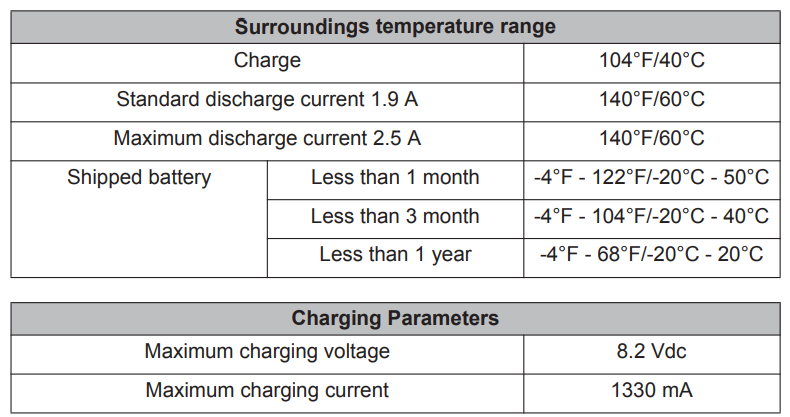
- The rechargeable Li-ion battery charging can take place in 41°F-95°F (5°C-35°C) environments. Charge the rechargeable Li-ion battery in an environment in this temperature range. If the surrounding temperature is out of this range, the rechargeable Li-ion battery will not be charged, and the battery indicator will remain lit.
- If the P-touch labeler is used when both the rechargeable Li-ion battery is installed, and the AC adapter is connected, the battery indicator may turn off and charging may stop even if the rechargeable Li-ion battery has not been fully charged.
Rechargeable Li-ion Battery Characteristics
Understanding the properties of the rechargeable Li-ion battery will allow you to optimize its usage.
- Using or storing the rechargeable Li-ion battery in a location exposed to high or low temperatures may accelerate its deterioration. In particular, using a rechargeable Li-ion battery with a high charge (charged 90% or more) in a location exposed to high temperatures will considerably accelerate battery deterioration.
- Using the P-touch labeler while the rechargeable Li-ion battery is installed and charging may accelerate the battery’s deterioration. If using the P-touch labeler when the rechargeable Li-ion battery is installed, disconnect the AC adapter.
- If the P-touch labeler will not be used for longer than one month, remove the rechargeable Li-ion battery from the P-touch labeler, and then store the battery in a cool place away from direct sunlight.
- If the rechargeable Li-ion battery is not used for a long period of time, we recommend charging it every 6 months.
- If you touch a part of the device while a Li-ion battery is charging, the device may feel warm. This is normal, and the device may be used safely. If the P-touch labeler becomes extremely hot, discontinue use.
Rechargeable Li-ion Battery Specifications
- Charging time: Approximately 6 hours when charged by an AC adapter (AD-E001).
- Nominal Voltage: DC 7.2 V
- Nominal Capacity: 1850 mAh Rechargeable Li-ion Battery
Installing the Rechargeable Li-ion Battery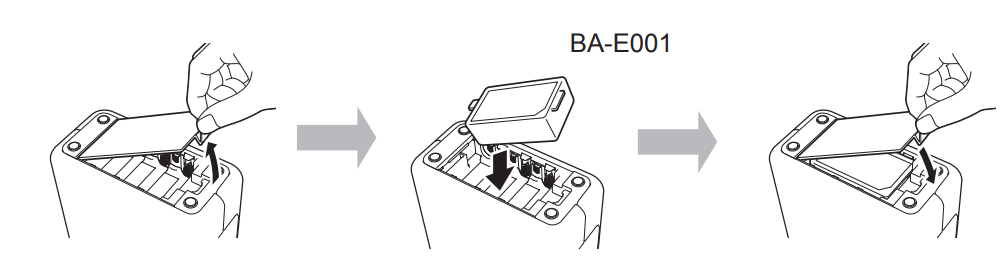
To remove the rechargeable Li-ion battery, reverse the installation procedure.
Charging the Rechargeable Li-ion Battery
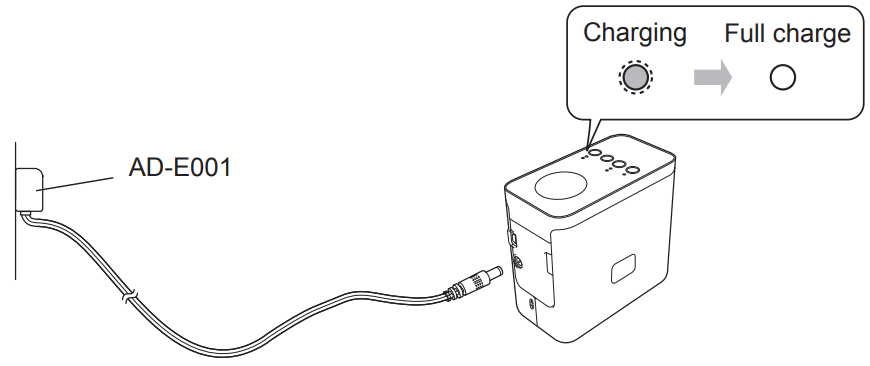
The rechargeable Li-ion battery can be charged while it is installed in the P-touch labeler. Perform the following procedure to charge the rechargeable Li-ion battery.
Stopping the Rechargeable Li-ion Battery Charging
To stop the rechargeable Li-ion battery from charging, disconnect the AC adapter cord.
Unpacking
Parts Description
Check that the package contains the following before using the P-touch labeler. If any item is missing or damaged, contact your Brother reseller.
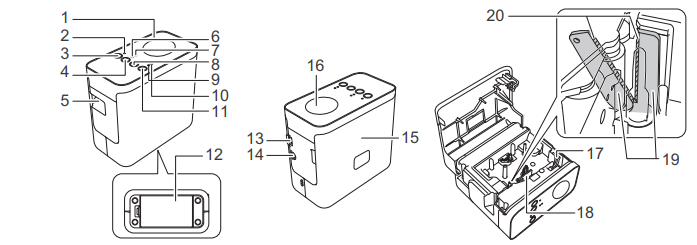
- Top panel
- Editor Lite lamp
- Editor Lite button
- Wireless mode button
- Tape exit slot
- Wi-Fi lamp
- NFC lamp
- Feed & Cut button
- Status lamp
- Battery lamp
- Power button
- Battery cover
- Mini-USB port
- AC adapter connector
- Cassette cover
- NFC tag
- Release lever
- Print head
- Tape cutter
- Cutter blade
Setting the Tape Cassette
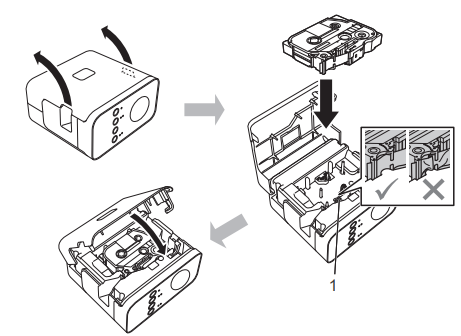
Connecting the Power Supply
Using the AC adapter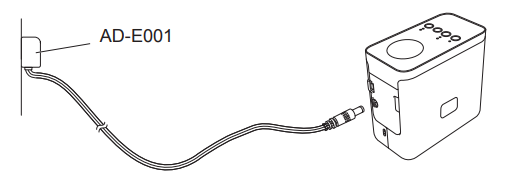
Using the batteries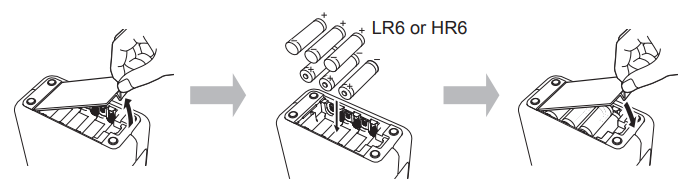
To remove the batteries, reverse the installation procedure.
Turning the On or Off
On: Press the Power button. Off: Press and hold the Power button until the Status lamp is lit in orange
Creating a Label using P-touch Editor Lite
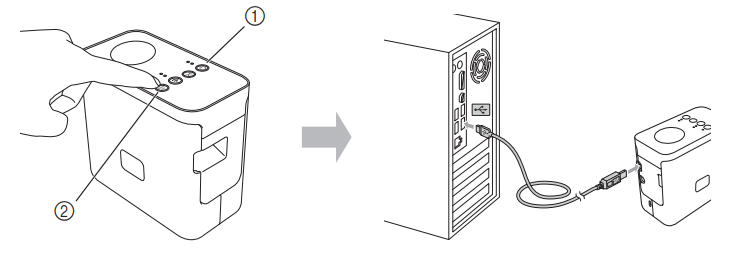
- Turn on the P-touch labeler (1), then press and hold down the Editor Lite button until the green Editor Lite lamp lights up (2). Connect the USB cable to the computer and the PT-P750W
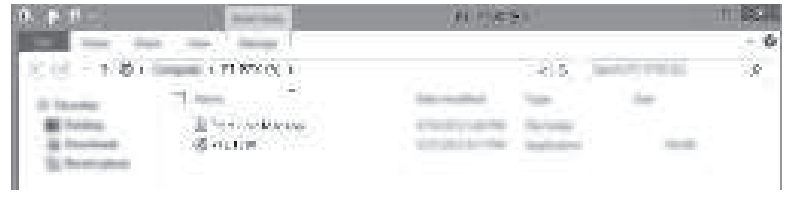
- After the USB cable is connected, a dialog box appears on the computer display. (The following screens may differ depending on the operating system on your computer.
For Windows® 7
Click [Open folder to view files], and then double-click [PTLITE10].

For Windows® 8/ Windows® 8.1
On the [Start] screen, click [PT-P750W], [Open folder to view files], and then double-click [PTLITE10].
For Mac OS X v10.7.5/10.8.x./10.9.x
Double-click [PT-P750W] on the desktop and the [P-touch Editor Lite] application icon.

How to Disconnect the P-touch Labeler
For Windows®
- Exit P-touch Editor Lite by clicking on the icon in the top right corner of the window if using P-touch Editor Lite.
- To disconnect the P-touch labeler, click the icon in the computer’s task bar (,, or ).
- Click [Safely remove USB Mass Storage Device].
- When the message indicating that the device can be safely removed is displayed, turn off the P-touch labeler and disconnect the USB cable.
For Macintosh
- Exit P-touch Editor Lite by clicking on the red button in the top left corner of the window, if using the P-touch Editor Lite.
- Select [PT-P750W] on the desktop, and then perform one of the following:
- Select [Eject] from the Context menu.
- Drag and drop it in the Trash.
- When a message indicating that the device can be safely removed is displayed, turn off the P-touch labeler and disconnect the USB cable.
Brother iPrint&Label
Brother iPrint&Label allows you to use features of your Brother machine directly from your mobile device, without using a computer. Simply search for “Brother iPrint&Label” in the App Store or Google Play.
Accessories
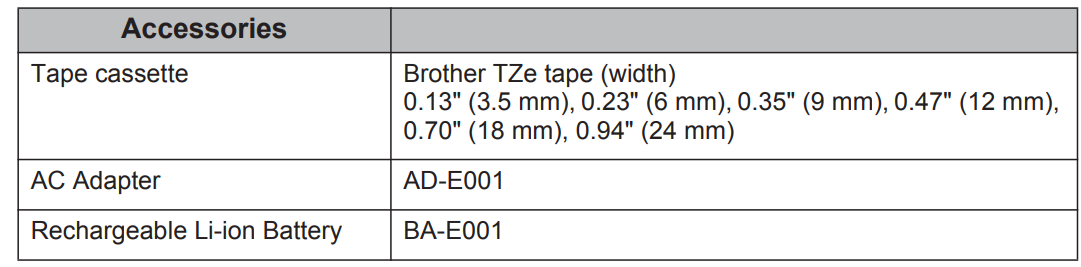
Please see the Brother Solutions Center (support.brother.com/) for the latest OS compatibility information.
Wireless Setup
Definition of the LED Lamp
| Lamp | Condition | |
| Wi-Fi | The green lamp is lit | Connected wirelessly. |
| The green lamp is flashing | Not connected wirelessly. | |
| NFC | Not lit | The Wireless Direct mode is disabled (connections cannot be made). |
| The green lamp is lit | The Wireless Direct mode is enabled (connections can be made). | |
| Green lamp is litĺGoes off briefly.y | An NFC-compatible device was placed near the P-touch labeler (NFC tag data was sent). | |
| The green lamp is flashing. | The Wireless Direct settings are being configured (the user is connecting a device). | |
| STATUS | The green lamp is lit | Power is ON. |
| The green lamp is flashing | Receiving data from the computer. Transferring data. | |
| The orange lamp is lit | The cassette cover is open. Close the cassette cover correctly. Starting the reset procedure, or the Feed & Cut button was pressed during the reset procedure. For details on resetting the P-touch labeler, see “How to Reset the P-touch Labeler”. | |
| The orange lamp is flashing | Cooling (Wait for the temperature to cool down) Reset in progress. For details on resetting the P-touch labeler, see “How to Reset the P-touch Labeler”. | |
| The red lamp is lit | The P-touch labeler is booting. | |
| The red lamp is flashing | Indicates one of the following errors. Red lamp flashes for 0.9-second intervals: No tape cassette An incorrect tape cassette was installed An incompatible tape cassette was installed The cassette cover was opened during printing Transmission error Overheating error, Cutter error Red lamp flashes for 0.3-second intervals: System error | |
| Battery | Not lit | Charging is complete. The battery is fully charged. |
| The orange lamp is lit | Charging. | |
| The orange lamp is flashing. | Orange lamp flashes slowly: The remaining battery level is half or low (the lamp flashes faster as the remaining battery level decreases). Orange lamp flashes for 0.5-second intervals: Charge the battery. | |
How to Reset the P-touch Labeler
With the P-touch labeler off, press and hold the Feed & Cut button while holding down the Power button. When the Editor Lite lamp starts flashing and the Status lamp lights orange, press the Feed & Cut button six times while continuing to hold down the Power button. The P-touch labeler will be reset to the factory settings.
Important Information
Should you have questions or need information about your Brother product, we have a variety of support options for you to choose from:
Customer Service
- Telephone: 1-877-BROTHER (1-877-276-8437)
- Fax: 1-901-379-1210
- Website: www.brother-usa.com Supplies/Accessories:
- www.brothermall.com or 1-877-552-6255