

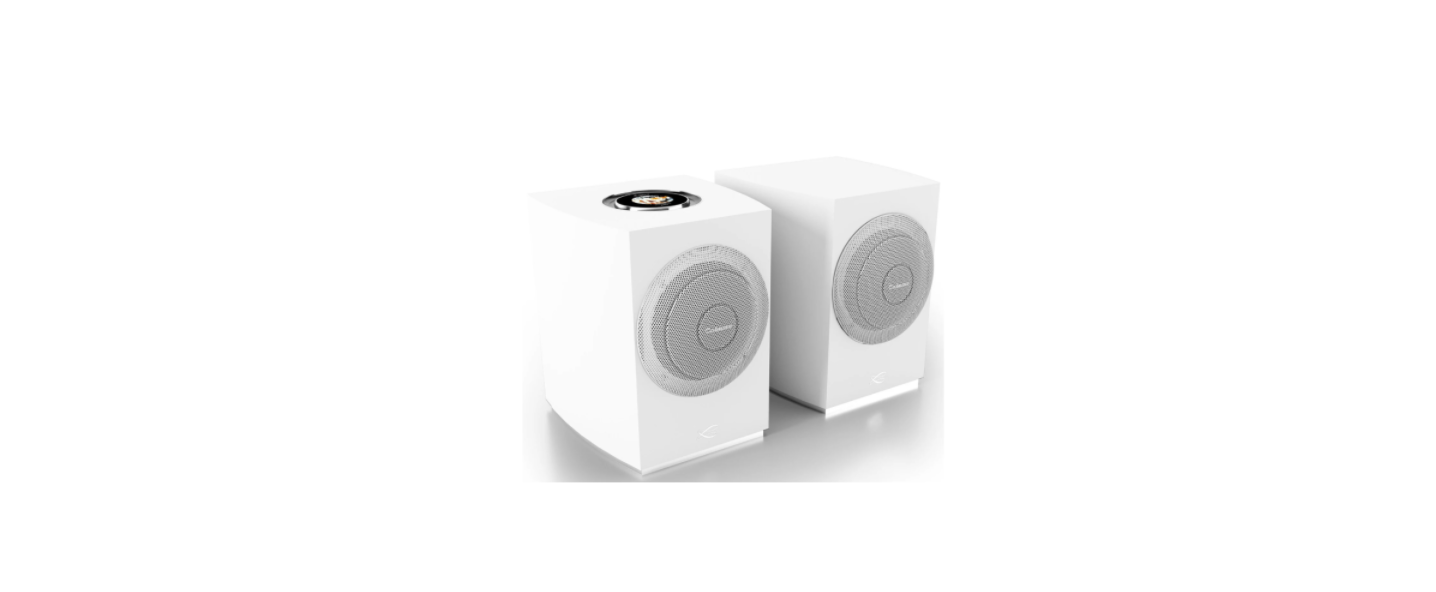

Cabasse RIALTO Wireless Bookshelf HiFi System
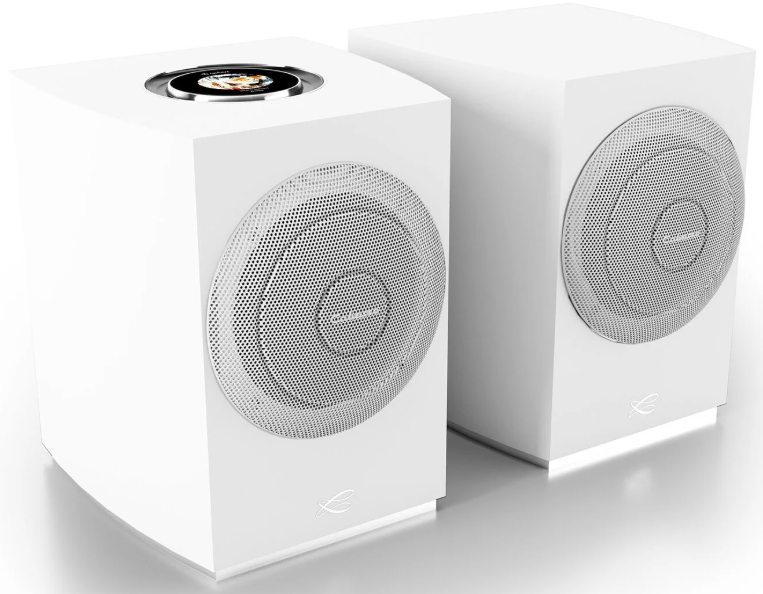
Safety Instructions
- Instructions – Carefully read through all the safety and operating instructions before switching on any device for the first time.
- Cleaning – Always take off the power cord before cleaning the device. Do not use cleaning solvent, whether liquid or air spray. Using a soft, damp cloth is recommended.
- Accessories – To avoid incidents, only use accessories expressly recommended by Cabasse.
- Installation on a piece of furniture and stands – Do not place this device on an unsteady surface, i.e., a stand, tripod, table, shelf, etc. It may fall and cause serious injury to a nearby child or adult.
- Power cords – The power cords must be laid out in such a way that they cannot be walked on, pinched, or bent under other devices. Also, pay special attention to the matching of the plugs and the connection of the cord to the device.
- Lightning – For better protection against lightning or if the device must remain unused for long stretches of time, unplug the power cord and antenna jack. This minimizes potential damage due to lightning or line surges.
- Overloads – Avoid overloading the power plugs, extension cords, or power relays. This could result in fire or electric shocks.
- Checks – After any servicing of the device, ask the technician to perform appropriate testing to make sure that the device works safely.
- Exposure to high temperatures – The device should be kept away from heating sources, such as radiators, heaters, amplifiers, or any other similar item likely to make the operating temperature rise excessively.
- Plastic bags – Keep them away from children to prevent any risk of suffocation.
Functions
| Bluetooth connection | WLAN/LAN via internet routeur / box | |
| Lossless audio broadcast | YES | |
| Access to all audio media from the WIFI network (computer …) | YES | |
| Multi-room | YES | |
| Broadcast smartphone/tablet audio content | YES | YES |
| Broadcast audio application (YouTube…) from smartphone/tablet | YES | |
| Broadcasting from USB media | YES | |
| Internet radio and music services | Qobuz, Deezer, Napster, Spotify, Tidal, Vtuner |
Display
Display of sources
Control menu
Primary speaker back panel connection Secondary speaker back panel connection
Before First Use
Connect your speaker to the mains with the proper power cord. Your speaker is operational as soon as the LED on the left of the rear panel opposite is lit in solid blue. A voice announcement, if the volume of your speaker is not at a minimum, indicates the status of the network connection: in progress, success, or failure.
LED Status
- CYAN DLNA input: wifi, Ethernet, domestic streaming internet streaming, AirPlay
- GREEN Spotify Connect
- WHITE Aux In Input
- YELLOW Optical input
- BLUE Bluetooth input
- RED (flashing) Connexion to network failed
- PURPLE Automatic calibration running + Update in progress
Wired and Non-Wired Outputs
Analog Input
This input can be connected to an audio source (CD player, MP3 player, smartphone, TV) equipped with an analog RCA output. Use RCA / RCA cord / RCA cord (not included)
USB Input
This input is only useful for use in Wi-Fi / Ethernet mode (paragraphs 4,5,6 below). Connect a USB stick or hard drive containing audio files to this input to automatically network them.
All files in formats recognized by the DLNA server are then listed in the Stream Audio Control application and can be read by all Cabasse Stream players connected to the same network.
The USB socket has a 5V-1AA DC power supply for use with a portable hard drive without an external power supply.
Wired and Non-Wired Inputs
Analog Input
This input can be connected to an audio source (CD player, MP3 player, smartphone, TV) equipped with an analog output RCA or mini-jack type. Use the included RCA / mini-jack adapter for RCA-RCA cord or minijack / RCA cord (not included), or a mini-jack/mini-jack cord if the source output is mini-jack type.
USB Input
This input is only useful for use in Wi-Fi / Ethernet mode (paragraphs 4,5,6 below). Connect a USB stick or hard drive containing audio files to this input to automatically network them. Use the supplied USB adapter if needed. All files in formats recognized by the DLNA server included in the speaker are then listed in the Stream Audio Control application and can be read by all Cabasse Stream players connected to the same network. The speaker micro-USB socket has a 5V – 1A DC power supply for use with a portable hard drive without an external power supply.
Bluetooth Connection

- Once the speaker is on, press the “Pairing” button on the back
- The “Pairing” LED on the back should flash
- Activate Bluetooth on your mobile
- Select “RIALTO” from the list of available devices
- Once the connection is successful, the LED “Pairing” on the back stops flashing.
Wire Connection (LAN) to the Ethernet Network
The wired Ethernet connection guarantees an optimum and constant transfer rate in any environment. Use this if Wi-Fi mode operation shows untimely cuts or stops of music, signs of a saturated Wi-Fi network, or too much router-to-stream distance. Connect an RJ45 cable between the speaker and your router (or Box Internet). The connection is established when the STATUS diode changes to solid blue. The WIFI connection is then automatically disabled.
Wireless Dlna Connection (Wlan) to Wifi Network with the Cabasse Stream Control Application

- Install the Cabasse Stream CONTROL App on your tablet/smartphone from “Play Store” for an Android device, or “App Store” for an Apple product.
- Open the application and follow the tutorial.
- Follow the instructions and, upon request, select the wi-fi network to be used and enter the network password.
- Start listening to your favorite music from your smartphone, key, or hard drive connected to THE device’s USB input, or using sources connected to its analog input or optical input.
The sources connected to the analog and optical inputs of the device can be played by all the other Stream devices belonging to the same zone.
Use / Synchronize with a TV Set
TV MODE
- Please connect the primary speaker to the TV with the TV cable. Please connect the primary
speaker to the secondary speaker with the optical cable. - If you find latency between the picture and sound of your speakers, please try the time delay or
audio synchronization feature of your TV set, if available. - If the TV icon does not appear on the primary speaker display, the TV connection is not found.
Check your connections or replace the TV cable. - With this connection, you can control the volume of your system via your TV remote control.
Adjusting the Latency of Your Speakers
Choose the coaxial SPDIF solution. 3 modes will allow you to adapt the latency of your audio system to your needs:
HIFI
- This mode is the default setting of your speaker; the audio stream is redistributed by the primary speaker to the secondary speakers. The latency is then more than 1 second to ensure the time necessary for the flow to pass through the network and be redistributed to the other speakers with perfect stereo synchronization.
TV/DIRECT
- This mode does not use the network. The sound is broadcast directly from the audio input to each speaker. Therefore, the sound must be distributed to each device in the zone, and all must have the same configuration. An additional optical switch is required for an optical connection, and this mode must be configured in the settings of each speaker.
Low latency
- This mode is based on the streaming of one master speaker to the others. The latency is less than 1 second; the stability of this setting will depend on the quality of the network and the bandwidth. If one of your speakers cuts out, it is generally due to a lack of buffering data. A wired Ethernet connection is preferable to a wireless connection. If this setting remains unstable, we advise you to configure the direct TV mode so as not to depend on your network.
Deactivation of the Speakers of the Television
Turn on the TV, open the TV menu, and look for a tab such as Audio, Sound, or Speakers. Use the menu function to switch off the TV speakers. This menu item may, for example, be labeled «Speaker On / Off» for speakers on / off. If this function does not exist, bring the TV sound volume with the TV remote control to the minimum level.
Activation of the Optical Output of the Television
If there is no sound with an optical connection, set the chosen optical output in the TV menu if necessary.
Playback with TV Input
The RIALTOs are compatible with the HDMI eARC (enhanced Audio Return Channel) output of your TV for integrated control via an HDMI version 2.1 cable. The speakers must always be connected to your local network first before the HDMI connection. The speakers also support ARC and HDMI CEC. HDMI CEC allows you to use the TV remote control to adjust the volume of the speakers.
Connecting the HDMI Cable
Connect the HDMI output port on your TV to the TV port on the back panel of the primary speaker using an HDMI cable. In your TV settings, enable eARC, AR, C, or CEC in the HDMI settings. Refer to your TV’s user manual for details, as HDMI connections may have different names by manufacturer (e.g., Anynet+ for Samsung, Simplink for LG). Also, make sure that the TV’s digital audio output setting is PCM or stereo (not Dolby, Bitstream, Auto, etc.).
Playback with Optical Input
You can connect your devices with optical output (e.g., TVs and game consoles) to the speakers using an optical cable. The speakers must always be Cabasse RIALTO Wireless Bookshelf HiFi System connected to your local network first before the optical connection.
Connecting the Optical Cable
Connect the optical output of your device and the optical input on the rear panel of the primary speaker via an optical cable. Make sure your TV is set to PCM or stereo digital audio output. Refer to your TV’s user manual for details.
Port Link
The link port allows for a reduced latency between your two speakers. If you notice a latency between the picture and the sound, it is possible to go into the settings of your TV. If that is not enough, you can connect your two speakers via the link port.
RIALTO
| Digital inputs | 1 DLNA input: wired with RJ45 plugor Wi-Fi dual band 2×2 802.11a / b / g / n / ac 1 Bluetooth 4.2 input 1 S / PDIF optical input 1 USB 2.0 input 5V 1A – 1 TV input |
|||
| Analog input | RCA stereo | |||
| Power supply | 100-240 V ~60/50 Hz, 6A | |||
| Consumption | 2,100 W | |||
| Consumption in Eco mode | 2.9 W @ 100-240VAC~50/60Hz | |||
| Controller | Color LED touch screen with rotary volume control and proximity sensor | |||
| Operating temperature | +5°C à +35°C | |||
| Storage temperature | -5°C à +40°C | |||
| Moisture rate in use | 40% to 70% | |||
| Network | 10/100Mb Ethernet MAC & PHY Wireless LAN 802.11b/g/n WPS 2.0 Security Digital audio player (DMR with DLNA 1.5) |
|||
| Streaming audio formats, Wifi/RJ45 | MP3, AAC, WMA, WAV, AIFF, FLAC, ALAC up to 24 bits/ 192 kHz | |||
| Voice control | ||||
| Music services | Qobuz, Deezer, Napster, Spotify Connect, Tidal Connect, vTuner, AirPlay | |||
| Speakers Active 3-way amplification, Distortion rate plus noise (THD + N on the tape 20-20 000 Hz for a power of 100 mW and more) |
1 coaxial medium-high BCI 1 x woofer 17 HELD tweeter: 300 W medium 300 W woofer 450 W |
|||
| Dimensions by speaker (h x l x p) |
260 x 206 x 239 mm | |||
| Weight | 15.2 kg | |||
DEEE Marking
Treatment of electrical and electronic devices at the end of their life (applicable in the countries of the European Union). Recycling materials will help conserve natural Cabasse RIALTO Wireless Bookshelf HiFi System resources. For more information about recycling this product, you may contact your municipality, your dump, or the store where you purchased the product.
Replacing the Battery in the Remote Control
Turn the remote control over, facing towards the floor. Remove the old battery and replace it with another type CR-2450 coin cell. Dispose of the used battery according to the information below.
Information about batteries and accumulators in the equipment (Applicable in the countries of the European Union).
By ensuring that this product is disposed of properly, you will help prevent potential negative consequences for the environment and human health. Recycling materials will help conserve natural resources. For more information about recycling this product, you may contact your municipality, your dump, or the store where you purchased the product.
Automatic Update
- The software updates are automatic.
- The update time is variable and can last up to fifteen Cabasse RIALTO Wireless Bookshelf HiFi System minutes during the first connection to the Internet.
- The speaker is not functional during this phase.
Cleaning
RIALTO can be cleaned with a soft cloth; do not use detergent or liquid that can run inside the appliance. Do not use any solvents, chemicals, or cleaning solutions containing alcohol, ammonia, or abrasives.
FCC Statement
This equipment generates and uses can radiate radio frequency energy and, if not installed and used in accordance with the instructions, may cause harmful Cabasse RIALTO Wireless Bookshelf HiFi System interference to radio communications. However, there is no guarantee that interference will not occur in a particular installation.
- Reorient or relocate the receiving antenna.
- Increase the separation between the equipment and receiver.
- Consult the dealer or an experienced radio/TV technician for help.
This device complies with part 15 of the FCC Rules. Operation is subject to the following two conditions : (1) This device may not cause harmful interference, and (2) this device must accept any interference received, including interference that may cause undesired operation.
Changes or modifications not expressly approved by the party responsible for compliance could void the user’s authority to operate the equipment. This equipment complies with FCC radiation exposure limits set forth for an uncontrolled environment.
Customer Support
- Website: https://www.cabasse.com/
- Ph: +6567380138